How to fix
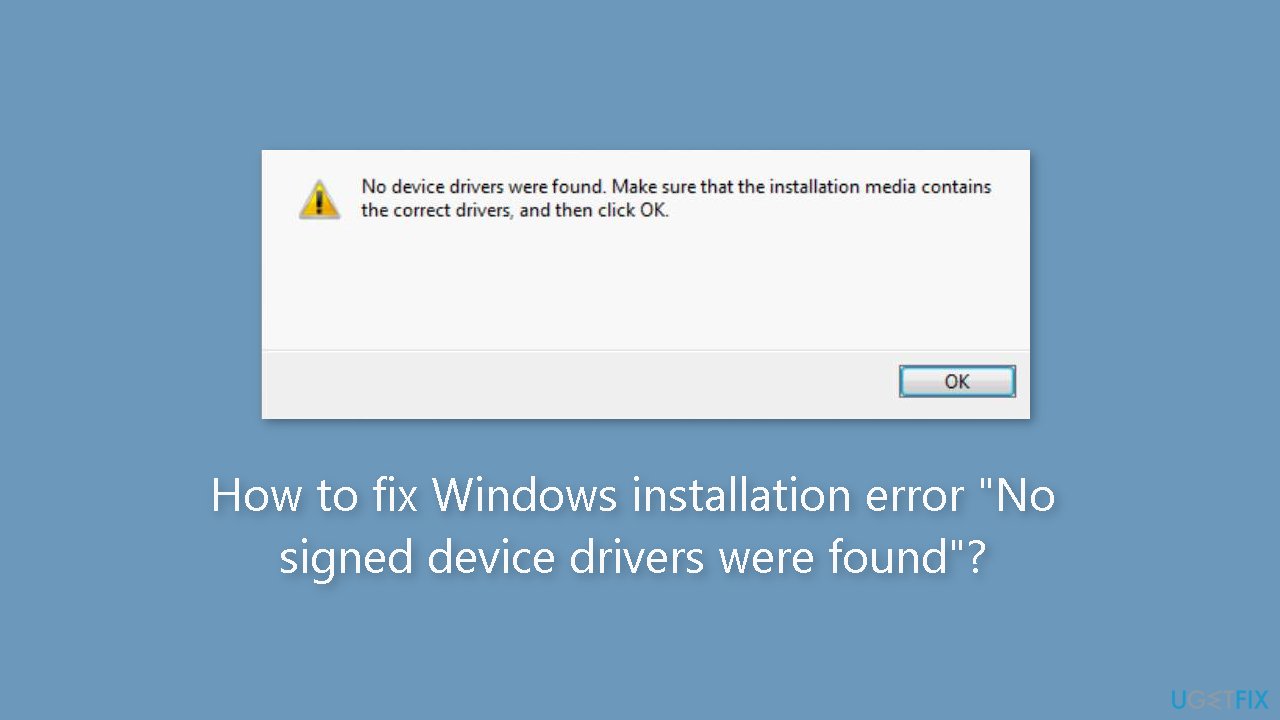
Windows installation error “No signed device drivers were found”
on Windows
Resolve the "No signed device drivers were found" error on Windows 10 and 11 easily. Get expert-tested solutions and fix it in minutes!


What causes How to fix Windows installation error “No signed device drivers were found”?
- Windows installer cannot find required device drivers
- Drivers are missing
- Drivers are corrupt
- Incorrect BIOS settings
- Installation media does not contain correct drivers
Repairs Windows system files, removes malware, and restores a clean OS state — without reinstalling.
Hello. I keep trying to install Windows on my PC but I get the "No signed device drivers were found" error. How do I fix this? Any tips would be appreciated.
Users may be frustrated by the "no signed device drivers were found" error during Windows installation because it prevents them from installing the operating system on their computer. When the Windows installer cannot find the required device drivers[ref en-1] on the installation media, or the drivers are missing or corrupt, this error occurs.
Users may be impacted because they are unable to continue with the installation until the error is resolved, which may result in delays and downtime. One possible solution to this problem is to ensure that the installation media contains the correct and up-to-date device drivers for the computer's hardware components. Before proceeding with the installation, users can also try updating the device drivers for the hardware components.
Additionally, users can try changing the BIOS settings to enable or disable certain features such as Secure Boot or Legacy Support. It is important to note that fixing this error can be a technical process, and it is recommended that users seek professional help if they are not comfortable with troubleshooting hardware issues or changing BIOS settings.
In this guide, you will find 5 steps that should help you fix Windows installation error "No signed device drivers were found". If you experience any other operating system issues, you can use a maintenance tool like [d1] that can fix most system errors, BSODs,[ref en-2] corrupted files, and registry[ref en-3] issues. Otherwise, follow the step-by-step instructions below.
Method 1. Change the USB Port
- When you are installing Windows and it asks for a driver, click Cancel.
- Navigate to the welcome screen.
- Insert the USB drive to a different USB port.
- Click Install.
Method 2. Set Partition as Active
- Boot the computer you want to install the operating system.
- Select the language, time, and keyboard input.
- Choose Repair your computer.
- Choose Troubleshoot > Advanced Options > Command Prompt.
- Type the following commands and hit Enter after each command:
diskpart
list volume
select volume X
active
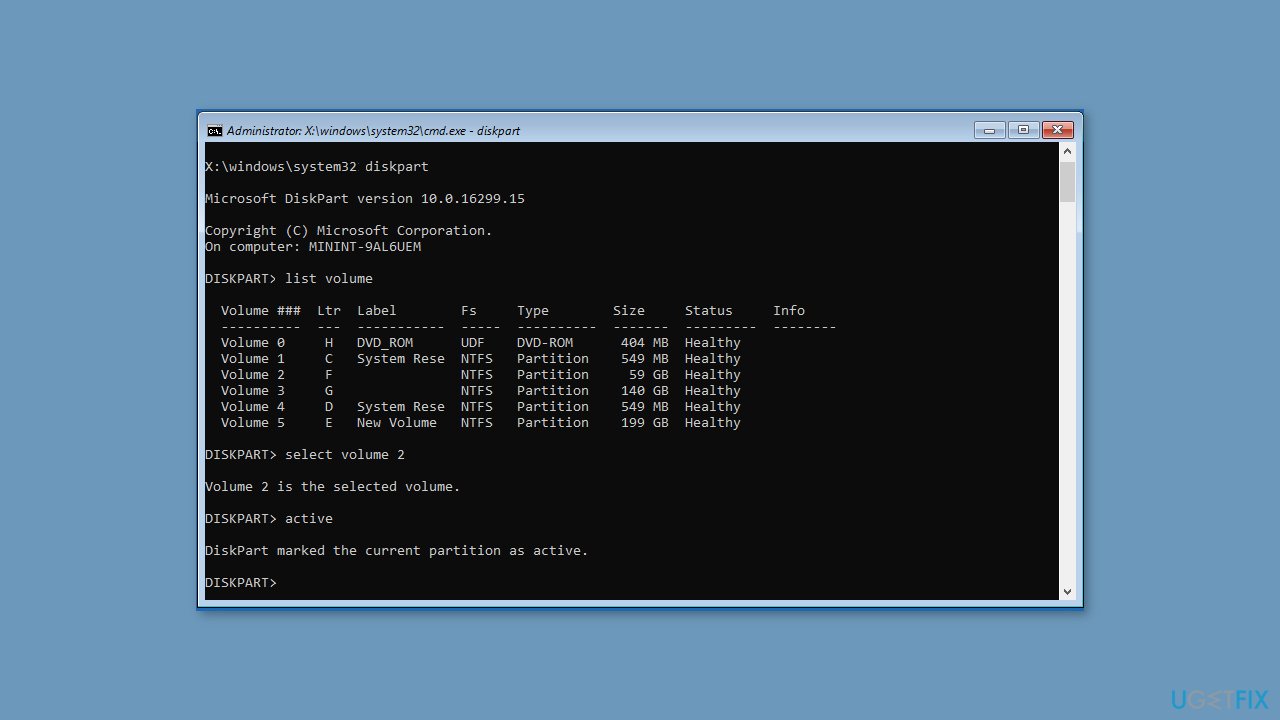
Note: X stands for the partition drive letter where you want to install OS
- After that, reboot your computer.
Method 3. Create a New Disc
- Download Windows Media Creation Tool from the official Microsoft website.
- Run the downloaded tool on your computer.
- Follow the on-screen instructions and choose Create installation media for another PC.
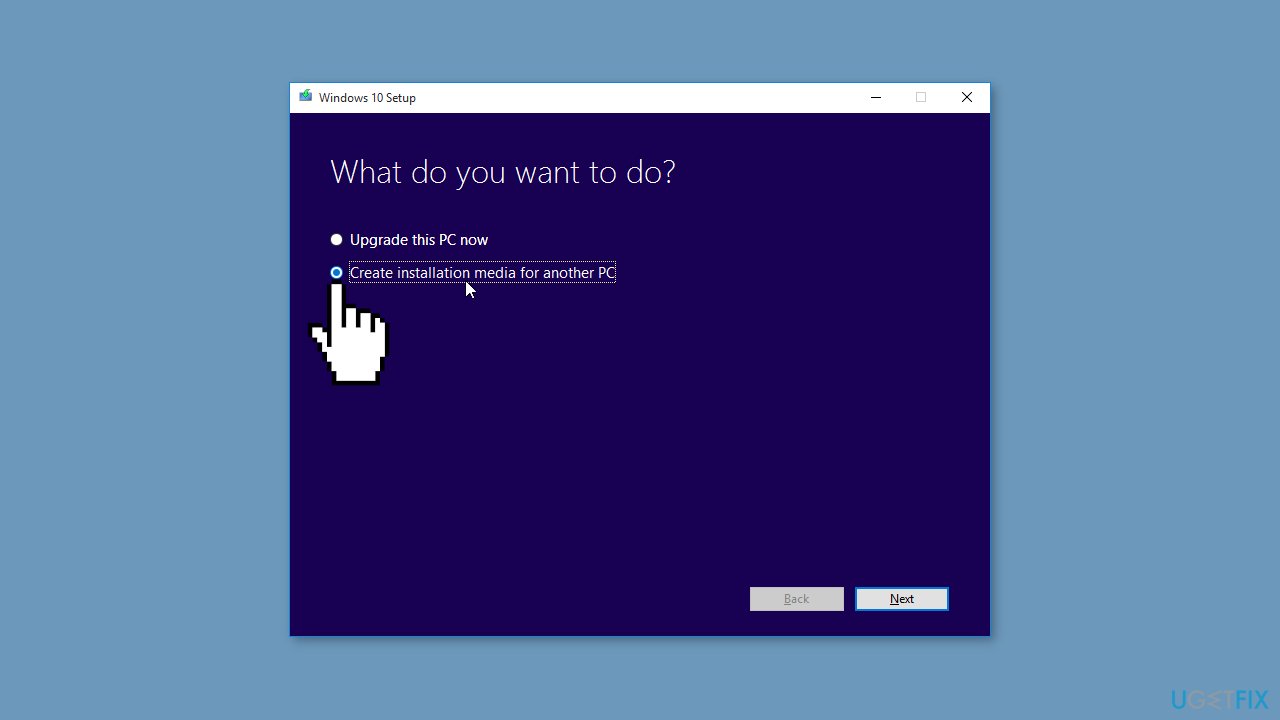
- Choose language, architecture, and edition to continue.
- Choose to create a USB installation drive or an ISO file. If you choose an ISO file, you can also mount it to the USB, CD, or DVD.
- Connect the installation media to the computer to install the operating system.
Method 4. Enable xHCI Hand-Off Options in BIOS
- Boot your computer to enter BIOS.
- Go to the Advanced settings.
- Look for settings called BIOS xHCI Hand-Off or BIOS EHCI Hand-Off.
- Enable the setting.
- Save the changes.
- Exit the BIOS settings.
Method 5. Change Everything to Legacy and Change Boot Order
- Boot your computer into BIOS.
- Navigate to the Security tab.
- Expand the Security tab and choose Secure Boot Configuration and hit Enter.
- Press F10 to save the changes.
- Use the down arrow to select Secure Boot and use the right arrow key to modify the settings to Disable.
- Locate the Legacy Support and set it to Enable.
- Change the boot order and set the USB drive or CD/DVD as the first boot.
Bottom line
To fix the 'No signed device drivers were found' error, ensure the installation media has the correct drivers, update hardware drivers, and adjust BIOS settings such as Secure Boot or Legacy Support. If these methods do not resolve the issue, consider seeking professional help.
Frequently asked questions
Make sure to use the latest drivers for your hardware, as outdated or missing drivers can cause this error. You can also try switching USB ports or using a different installation media if the problem persists.
Check your BIOS settings to ensure that USB support is enabled, and consider using a USB 2.0 port instead of USB 3.0, as compatibility issues may arise. If the issue continues, downloading the latest drivers from the manufacturer's website may help.
You can try loading the drivers manually by clicking on 'Load driver' during the installation process, which allows you to select the appropriate drivers from a connected USB drive. Additionally, ensure that your installation media is created correctly using the Media Creation Tool.




Report an issue
What's wrong with this guide? We review every report and update or remove content.
Report received — thank you. We'll review and fix it.
You need a free account to submit a report.
Be the first to comment