How to fix
Windows Installer Error Code 2755
on Windows
Resolve Windows Installer Error Code 2755 with our expert-tested solutions for Windows 10 and 11. Fix it in minutes and enjoy hassle-free installations!

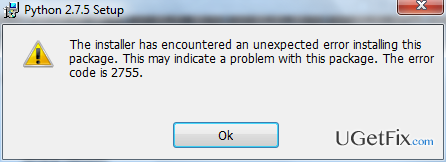
What causes How to Fix Windows Installer Error Code 2755?
- Virus or malware
- Corrupted or missing registries
- Missing Installer folder
- Changes to registry keys by malware
Repairs Windows system files, removes malware, and restores a clean OS state — without reinstalling.
Since this is my first post on IT forum/blog EVER, it means that I really need your help. The problem is that whenever I try installing a Windows service or any app from the store, I receive a pop-up window, which says: The Installer has encountered an unexpected error installing the package. This may indicate a problem with this package. The error code is 2755." This happens again and again and it seems that there’s no avail for me to get through this without doing nothing. Please provide fixes if there are any!
If you receive a pop-up message that indicates an Error Code 2755, it means that there are some Windows Installer inconsistencies. This problem typically emerges on Windows 7 and Windows 10 OS when people attempt to install files, apps, drivers or other stuff. There are many speculations why this Windows Installer Error 2755 emerges, but specialists claim that usually it is triggered by virus/malware, corrupted/missing registries, missing Installer folder, and similar. Luckily, this error is fairly easy to fix so you should take some actions unless you don’t need software, apps, and system files so badly. If you are determined to fix Error Code 2755 on Windows right now, here are the fixes:
Fix 1. Run a full system scan with a professional malware removal tool
This is the simplest thing that you can do to remove Error Code 2755 pop-up. As noted above, this Windows Installer bug may be triggered by virus or malware that may have corrupted files and registries that are crucial for smooth Windows Installer performance. Therefore, enable your anti-virus or install one if you don’t have one and set it to check the system completely. If it detects any unwanted programs, select to remove each of them.
Fix 2. Run a PC optimization tool
In case antivirus scan did not remove Error Code 2755, it might be that malware has changed or removed registry keys, which is why your Windows system is, mildly saying, messed up. To fix that, you can use [d1] or an alternative system optimization tool.
Fix 3. Decrypt setup file
In some of the cases, Error Code 2755 emerges due to the encrypted setup file. Although this sound a bit complicated, in reality it’s fairly easy to deal with. You just have to:
- Find the setup file, right-click on it, and select Properties.
- Then select Advanced under Attributes.
- After that, find Compress or Encrypt attributes.
- If you see the tick placed alongside Encrypt contents to secure data notification, uncheck it and click OK to save the changes.
Fix 4. Create new user in the setup file
- Find setup file, right-click on it, and select Properties.
- Locate Security and click Edit.
- Find the list of Group or User names and press Add under it.
- Enter SYSTEM and click OK to create a new user.
- Set the permission to Allow for the SYSTEM user and click OK.
Hopefully, these methods helped you to get rid of irritating Error Code 2755 and now you’re able to install data that you prefer.
Bottom line
To fix Windows Installer Error Code 2755, you can run a full system scan with a professional malware removal tool and use a PC optimization tool to address any registry issues. If these solutions do not resolve the problem, further investigation may be necessary.
Frequently asked questions
Error code 2755 usually indicates a problem with the installation package, often due to missing files or permissions issues during the installation process.
To fix error code 2755, try running the installer as an administrator, or check the file path length and ensure it does not exceed the Windows limit.
Yes, you can open Command Prompt as an administrator and run 'msiexec /unregister' followed by 'msiexec /regserver' to re-register the Windows Installer service.




Report an issue
What's wrong with this guide? We review every report and update or remove content.
Report received — thank you. We'll review and fix it.
You need a free account to submit a report.
Be the first to comment