
How to fix Windows Installer Service could not be accessed error?

Prefer to fix it yourself? The manual steps follow.
- 8methods
- 5 to 40 minutes
- Medium
Applies to Windows 11 and Windows 10: setup programs that use Windows Installer (.msi packages and many .exe installers)
8 methods in this guide
"The Windows Installer Service could not be accessed" appears when a setup program asks Windows Installer to install, update or remove software and the service does not answer. Most often the service is disabled, Windows is in Safe Mode, or the service registration is broken. Check the Windows Installer service in Services first.
The setup program could not reach the Windows Installer service (msiserver), so nothing was installed. Open Services, find Windows Installer, make sure its startup type is Manual and not Disabled, and select Start (Fix 1). If Windows is in Safe Mode, restart normally (Fix 2). If the service starts but the error stays, re-register msiexec.exe (Fix 3), then check its registry key (Fix 4).
| Error | "The Windows Installer Service could not be accessed", in Microsoft's list of installer messages error 1719. |
|---|---|
| Where it appears | In a Windows Installer window right after you start a setup, an update or an uninstall of a program that uses an .msi package. |
| Main cause | The Windows Installer service is disabled or will not start, or Windows is running in Safe Mode. |
| Fastest fix | Set Windows Installer to Manual in Services and start it (Fix 1). |
| Also written as | Windows Installer Service cannot be accessed, Windows Installer could not be accessed, Windows install service could not be accessed, Error 1719. |
| Service behind it | Display name Windows Installer, service name msiserver, program C:\Windows\System32\msiexec.exe. |
| Affects | Windows 11 and Windows 10, and every program whose setup hands the work to Windows Installer. |
| Microsoft's status | Not a known bug of one update. Microsoft's own message text asks you to check that the service is properly registered and enabled. |
| Time to fix | 5 minutes for Fix 1 or Fix 2, up to 40 minutes when system files need a repair. |
Facts checked on 16 October 2026. Steps written for Windows 11 (25H2 and 26H2) and Windows 10 22H2.
What "The Windows Installer Service could not be accessed" means
Windows Installer is the part of Windows that installs, repairs and removes programs packed as .msi files. When a setup runs, the service copies files to their folders, writes the program's registry entries and keeps track of shared components, so that a later update or uninstall knows what belongs to the program. Many .exe installers start Windows Installer too, which is why the error also appears with setups that are not .msi files.
The error means the setup program asked the service to start the job and got no connection to it. The install stops before anything is changed. Microsoft lists the message in its table of Windows Installer messages as 1719: "Windows Installer service could not be accessed. Contact your support personnel to verify that it is properly registered and enabled." Registered and enabled are the two things the fixes below check.
| What you see | When | What it points to |
|---|---|---|
| The Windows Installer Service could not be accessed. This can occur if the Windows Installer is not correctly installed. Contact your support personnel for assistance. | Right after you start a setup, an update or an uninstall | The service is disabled, stopped or not registered. Start with Fix 1. |
| The same text with "This can occur if you are running Windows in safe mode" | The same moment, on a PC started in Safe Mode or with Safe boot ticked | Restart Windows normally, Fix 2. |
| Error 1719. Windows Installer service could not be accessed | In a setup window of a larger program, or in its setup log | The same error with its number from Microsoft's list. The same fixes apply. |
Windows has a second, unrelated meaning for the number 1719 in its general system error list (RPC_S_NO_PROTSEQS, "There are no protocol sequences"). When 1719 comes from a setup window or an installer log, it means the Windows Installer message above, not the system one.
Why the Windows Installer service cannot be accessed
Five of the eight causes below are about the service itself. From the most likely to the least likely:
| Cause | How likely | How to tell | Fix |
|---|---|---|---|
| The Windows Installer service is set to Disabled or is stopped and will not start. | Most likely | Services shows Disabled in the Startup Type column for Windows Installer. | Fix 1 |
| Windows runs in Safe Mode, or Safe boot is still ticked in System Configuration. | Often | The desktop corners read Safe Mode, or the PC always starts that way. | Fix 2 |
The service registration of msiexec.exe is broken. | Sometimes | The service starts, but the error stays. | Fix 3 |
The msiserver registry key has wrong permissions or a wrong startup value. | Sometimes | Services cannot change the startup type, or the change does not stick. | Fix 4 |
Damaged Windows Installer files such as msiexec.exe or msi.dll. | Rarely | Other system tools fail too, or Fix 3 shows an error. | Fix 5 |
| A security or system tool from another maker blocks installs. | Rarely | The error started after you installed such a tool. | Fix 6 |
| Malware that stops services so that security programs cannot be installed. | Rarely | The service turns itself off again after Fix 1. | Fix 7 |
| Old Windows Installer files, or an update that waits for a restart. | Rarely | Windows Update shows Restart required or updates you have not installed. | Fix 8 |
Windows Installer does not run all the time. It is set to Manual and starts when a setup needs it, then stops again. An empty Status column is normal. Only Disabled is wrong, because a disabled service cannot be started by a setup.
How to fix the Windows Installer Service could not be accessed error
Fix 1 and Fix 2 solve the error on most PCs, because they make sure the service can start. Fix 3 and Fix 4 repair the service's registration and its registry key. Fix 5 to Fix 8 cover damaged files, other software, malware and missing updates.
| What you see or have | Start with |
|---|---|
| Windows Installer shows Disabled in Services, or you do not know yet. | Fix 1 |
| The screen corners say Safe Mode, or the message mentions safe mode. | Fix 2 |
| The service starts, but every setup still shows the error. | Fix 3, then Fix 4 |
| Services refuses to change the startup type of Windows Installer. | Fix 4 |
| The error began after you installed a security or tuning tool. | Fix 6 |
| The service switches itself off again after a restart. | Fix 7 |
Fix 1. Set the Windows Installer service to Manual and start it
3 minutesLow riskEveryone, first. Especially when the service is Disabled or a tuning tool changed your services.
A setup can only start Windows Installer when the service is allowed to run. A disabled service, often switched off by a tool that "turns off unneeded services", gives exactly this message. The service also needs Remote Procedure Call (RPC), which must be running.
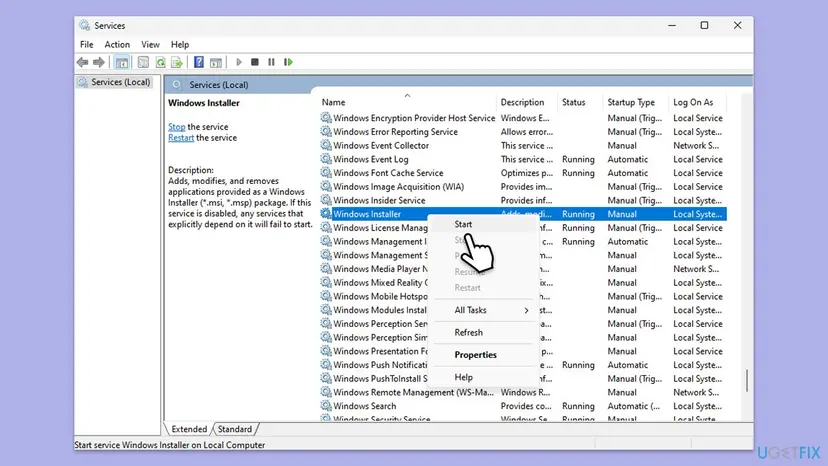
- Press Win + R, type
services.mscand press Enter. - Click any row and press W to jump down the list. Find Windows Installer; the old guides call it Windows Installer Service.
- Double-click Windows Installer. The General tab shows the service name
msiserver. - If Startup type reads Disabled, choose Manual and select Apply.
- Select Start. If the service is already running, close the window, right-click Windows Installer and select Restart.
- Find Remote Procedure Call (RPC) in the same list and check that it reads Running and Automatic.
- Close Services and run the setup again.
The same in a Command Prompt opened as administrator: the first command sets the startup type to Manual (demand), the second starts the service. If it is already running, Windows answers The requested service has already been started.
sc config msiserver start= demand
net start msiserver
Startup types and the PowerShell way are explained in Check and restart Windows services.
It worked if: Windows Installer shows Manual and the setup runs past the point where the error appeared.
If not: If Start fails with an error, or the setup still shows the message, go to Fix 2 if you are in Safe Mode, otherwise Fix 3. If Remote Procedure Call is stopped, see our guide How to fix Error 1068: The dependency service or group failed to start.
Fix 2. Restart Windows normally and turn off Safe boot
3 minutesLow riskThe screen corners say Safe Mode, the message mentions safe mode, or the PC starts in Safe Mode every time.
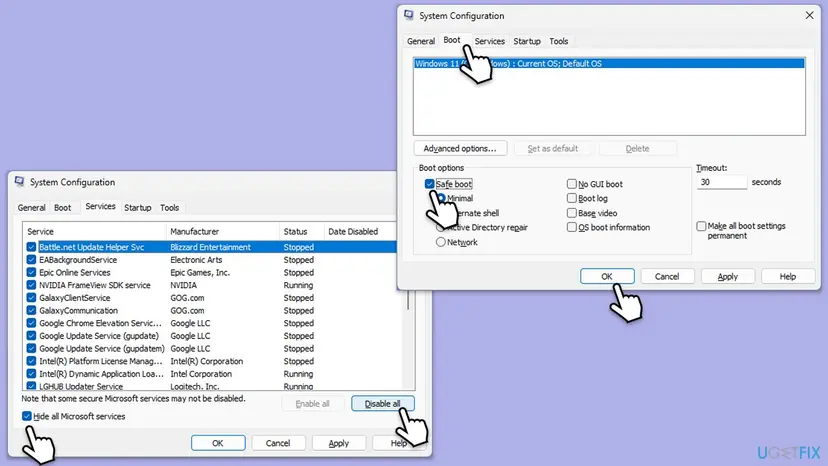
Safe Mode starts Windows with a minimal set of services, and the installer's own message names Safe Mode as a cause. When Safe boot stays ticked in System Configuration, for example after an old clean boot guide, every restart lands in Safe Mode again and every setup fails.
- Press Win + R, type
msconfigand press Enter. - Open the Boot tab and clear the Safe boot check box.
- Open the General tab. If you are not in the middle of a clean boot test, select Normal startup.
- Select Apply, then OK, and choose Restart.
- After the restart, check that the screen corners no longer say Safe Mode, then run the setup again.
It worked if: Windows starts normally and the setup no longer stops with the message.
If not: If you were not in Safe Mode, or the error stays after a normal start, re-register Windows Installer, Fix 3.
Fix 3. Re-register Windows Installer with msiexec /unregister and /regserver
5 minutesLow riskThe service starts, but setups still cannot reach it.
Microsoft's message asks to check that the service is properly registered. These commands remove the registration of msiexec.exe as the Windows Installer service and write it again, so that setups can find the service. A 64-bit Windows has a second copy for 32-bit setups in SysWOW64.
- Type cmd in the search box on the taskbar.
- Right-click Command Prompt and select Run as administrator.
- When User Account Control asks, select Yes.
- Type the four commands below one by one and press Enter after each. On a 32-bit Windows 10, run only the first two.
- Restart the PC and run the setup again.
%windir%\System32\msiexec.exe /unregister
%windir%\System32\msiexec.exe /regserver
%windir%\SysWOW64\msiexec.exe /unregister
%windir%\SysWOW64\msiexec.exe /regserver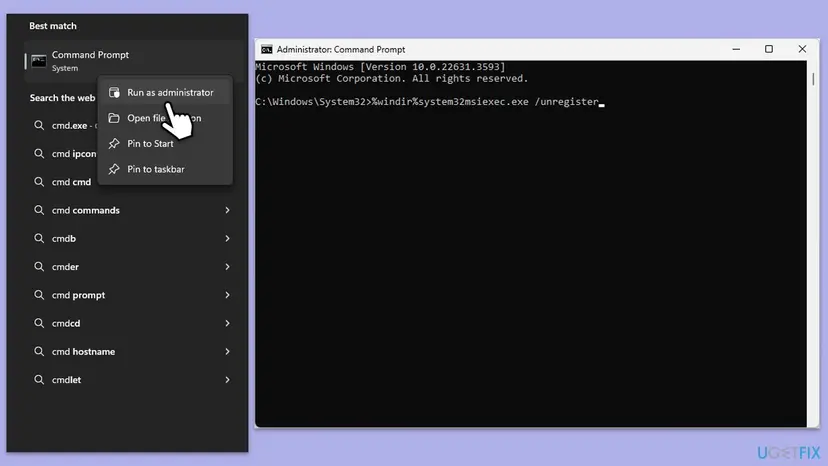
Microsoft's current list of msiexec options does not include /unregister and /regserver, so we could not check them against a Microsoft page today. A successful command shows no message at all. If a window opens with the list of msiexec options or an error, the switch was not accepted: go to Fix 4.
It worked if: The commands return to the prompt without a message, and after the restart the setup runs.
If not: If the error stays, check the service's registry key, Fix 4.
Fix 4. Check the msiserver registry key: startup value and SYSTEM permissions
10 minutesRead the warningServices cannot change the startup type of Windows Installer, the change does not stick, or Fix 3 did not help.
Services stores the startup type and the program path of Windows Installer in one registry key. If the SYSTEM account has lost its rights on that key, or the values were changed by a tool, the service cannot be set up or started, and the setup cannot reach it.
A wrong change under Services can stop Windows Installer or other services from starting. Export the msiserver key before you change anything, so you can put it back with a double-click: Back up the registry before editing it
- Press Win + R, type
regeditand press Enter. Select Yes in User Account Control. - Paste the path below into the address bar of Registry Editor and press Enter.
- Check the value Start:
3means Manual and4means Disabled. If it reads4, double-click it, type3and select OK. - Check that ImagePath reads
%systemroot%\system32\msiexec.exe /V. If it points somewhere else, do not edit it: run Fix 5 and Fix 7. - Right-click the msiserver key and select Permissions.
- Select SYSTEM in the list and check that Full Control is ticked under Allow. If not, tick it, select Apply and OK.
- Close Registry Editor, restart the PC and repeat Fix 1.
HKEY_LOCAL_MACHINE\SYSTEM\CurrentControlSet\Services\msiserver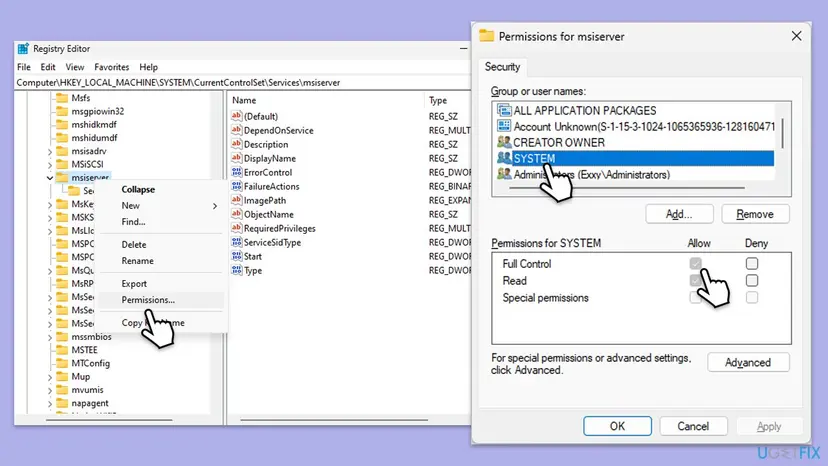
It worked if: Start reads 3, SYSTEM has Full Control, and after the restart Windows Installer starts in Services.
If not: If Windows refuses the change with an access message, do not take ownership of the key. Repair the system files, Fix 5.
Fix 5. Repair Windows Installer files with DISM and SFC
20 to 30 minutesLow riskFix 1 to Fix 4 did not help, or other Windows tools fail too.
msiexec.exe and msi.dll, the files that make up Windows Installer, are protected Windows system files. DISM repairs the store Windows takes good copies from, and SFC then replaces damaged copies, including those two.
- Open an elevated command window. Right-click Start and select Terminal (Admin), or type cmd in the search box, right-click Command Prompt and select Run as administrator. Select Yes when Windows asks for permission.
- Run DISM first. Type the command below and press Enter. DISM downloads clean copies of damaged components from Windows Update, so it can take several minutes. Wait until it says The operation completed successfully.
DISM.exe /Online /Cleanup-Image /RestoreHealth - Run System File Checker. In the same window, type the command below and press Enter. Do not close the window until the verification reaches 100%.
sfc /scannow - Read the result and restart. Compare the last message with the table below this guide, then restart the PC so that repaired files are loaded.
These steps were written for Windows 11 24H2 and 25H2. The full page with the other versions and what each result means: Run DISM and SFC to repair Windows system files
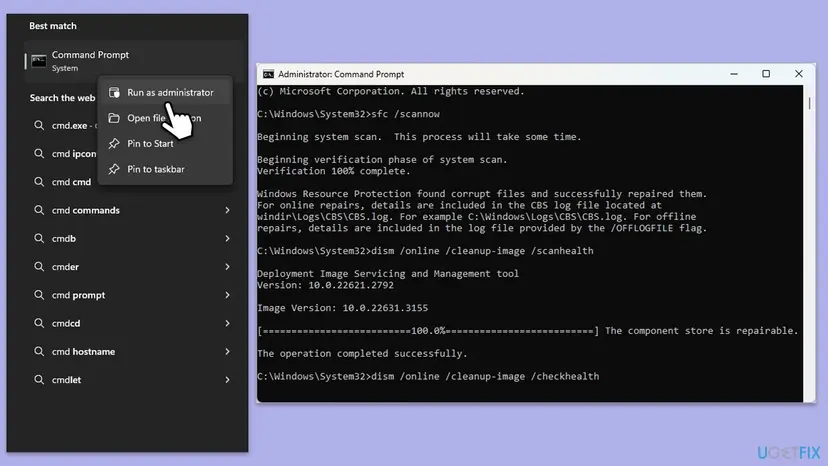
It worked if: SFC reports that it found no integrity violations or that it repaired them, and the setup runs after a restart.
If not: If SFC repaired files and the error stays, run Fix 1 and Fix 3 once more, then go to Fix 6.
Fix 6. Find a program that blocks Windows Installer with a clean boot
15 to 30 minutesLow riskThe error began after you installed a security suite, an "installer protection" or a PC tuning tool.
A clean boot starts Windows with Microsoft services only. If the setup works then, a program from another maker stops it from reaching Windows Installer. Use the clean boot steps only: do not tick Safe boot, because Safe Mode itself causes this error (Fix 2).
- Open System Configuration. Select Search on the taskbar, type msconfig and select System Configuration from the results.
- Hide Microsoft services. On the Services tab, select the Hide all Microsoft services check box. Only services from other companies stay in the list.

With Hide all Microsoft services ticked, only third-party services stay in the list. Screenshot: Windows 11 26H2. - Disable the remaining services. Select Disable all, then select Apply.
- Open Task Manager. On the Startup tab of System Configuration, select Open Task Manager.

The Startup tab only links to Task Manager. Screenshot: Windows 11 26H2. - Disable the startup apps. On the Startup apps tab in Task Manager, select each item whose status is Enabled and select Disable. Write down or take a screenshot of the items you disable: you need the list to turn them back on.

Select an app, then Disable. Screenshot: Windows 11 26H2. - Confirm the changes. Close Task Manager. On the Startup tab of System Configuration, select OK.
- Restart and test. Restart the PC. Windows now starts in a clean boot environment: try again the thing that failed (run the app, install the update, uninstall the program).
These steps were written for Windows 11 25H2 and 26H2. The full page with the other versions and what each result means: How to perform a clean boot in Windows
It worked if: In the clean boot the setup runs. Turning services back on in groups shows which program blocks it; update or remove that program.
If not: If the error appears in the clean boot too, no other program is the cause. Scan for malware, Fix 7, and return to a normal start as the clean boot guide shows.
Fix 7. Scan for malware with Microsoft Defender
15 minutes to over an hourLow riskWindows Installer is Disabled again after a restart, or security programs will not install while other setups do.
Malware can disable services or change their settings so that you cannot install a security program. A full scan with Microsoft Defender finds it without installing anything, because Defender is already part of Windows.
- Open Windows Security. Select Start, type Windows Security and open the app.
- Open Virus & threat protection. Select Virus & threat protection. Under Current threats you see when the last scan ran, how long it took and how many files it checked.
- Run a quick scan. Select Quick scan. If Windows Security thinks a deeper scan is needed, it tells you when the quick scan is done.
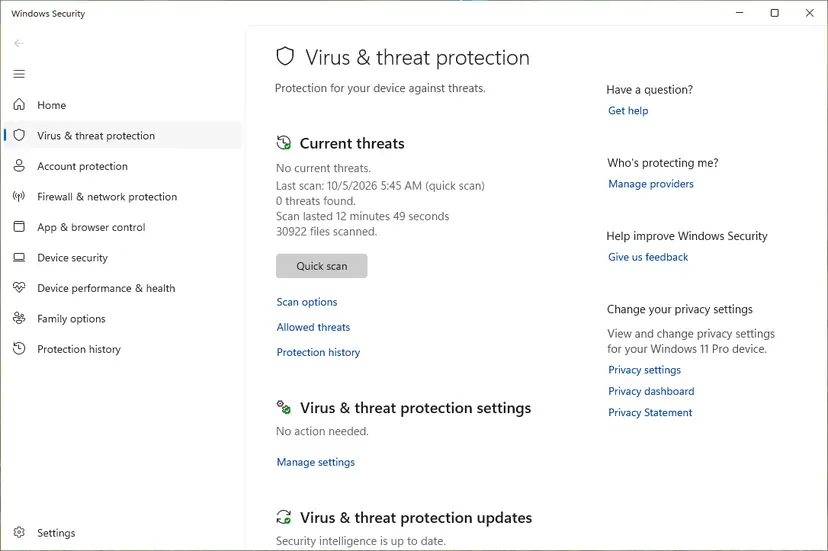
Quick scan and Scan options sit under Current threats. Screenshot: Windows 11 26H2. - Open Scan options. If the quick scan finds nothing and you still suspect an infection, select Scan options under Current threats.
- Run a full scan. Select Full scan and start it. It checks every file and program on the device, so it takes much longer than a quick scan. Leave the PC on until it ends.
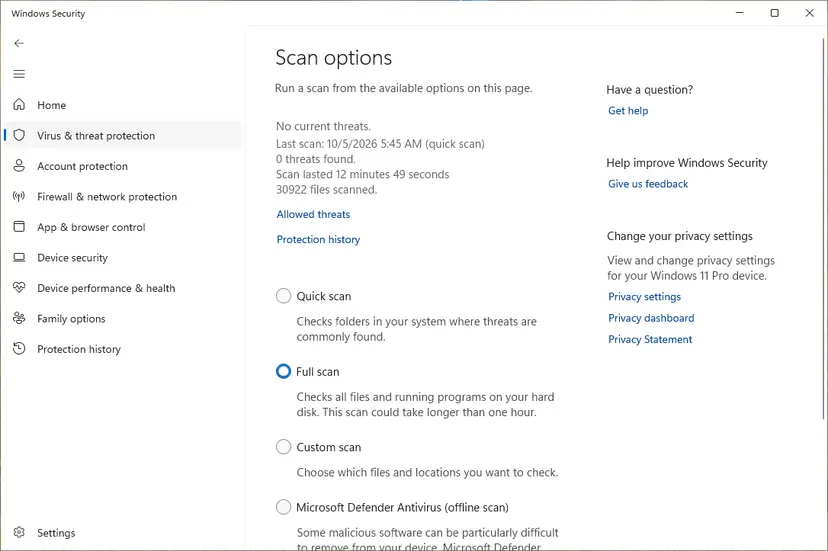
Scan options: Quick scan, Full scan, Custom scan and the offline scan. Screenshot: Windows 11 26H2. - Or scan one folder. To check only a download or a USB drive, select Custom scan in Scan options and choose the folder. You can also right-click a file or folder in File Explorer and select Scan with Microsoft Defender. On Windows 11 you may have to select Show more options first.
- Read Protection history. Go back to the first page of Windows Security and select Protection history. Select a card to expand it and see the details.
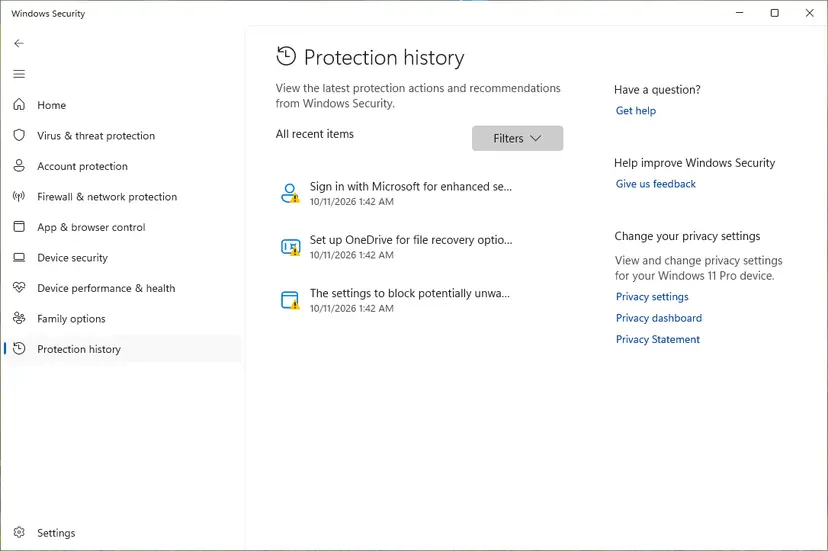
Protection history lists what Defender found and did. Screenshot: Windows 11 26H2.
These steps were written for Windows 11 25H2 and 26H2, Windows 10 22H2. The full page with the other versions and what each result means: How to scan for malware with Microsoft Defender
It worked if: Microsoft Defender reports No current threats, or removes what it found. After a restart, repeat Fix 1.
If not: If threats come back, run Microsoft Defender Offline scan from Scan options. It restarts the PC and scans before Windows loads.
Fix 8. Install pending Windows updates
10 to 30 minutesLow riskWindows Update shows Restart required or updates you have not installed yet.
Windows Installer is updated with Windows itself. An update that waits for a restart can leave its files half replaced, and installing it brings msiexec.exe and msi.dll up to date.
- Press Win + I and open Windows Update (on Windows 10, Update & Security > Windows Update).
- If you see Restart now, save your work and restart first.
- Select Check for updates and install what Windows finds.
- Open Advanced options > Optional updates and install the updates listed there as well.
- Restart when Windows asks, then run the setup again.
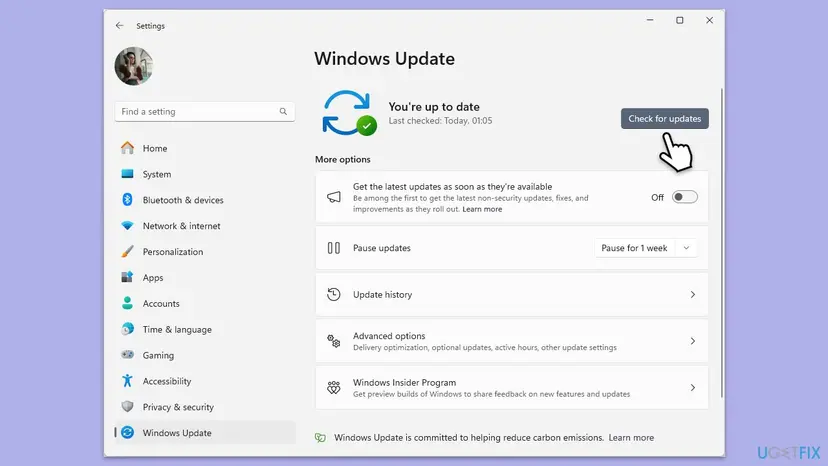
It worked if: Windows Update reads You're up to date and the setup runs.
If not: Read the logs as shown in "If the error is still there".
If the Windows Installer Service could not be accessed error is still there
Two logs show where the install stops. Event Viewer keeps the messages of Windows Installer, and a verbose setup log shows every step of one install.
- Right-click Start, select Event Viewer and open Windows Logs > Application.
- Select Filter Current Log on the right, choose the event source MsiInstaller and select OK.
- Read the newest entries from the time of the error. They name the program and the error number.
- For a .msi file, create the folder
C:\logsand run the command below in a Command Prompt opened as administrator, with the real path of your package. - Open
install.login Notepad and search for1719andReturn value 3. The lines just above show which step failed.
msiexec /i "C:\path\to\setup.msi" /l*v "C:\logs\install.log"- The log folder must exist. Windows Installer writes the log only into a folder that is already there; it does not create it.
- Every fix failed: reinstall Windows over itself and keep your files and apps. This puts back all Windows Installer files and service settings: Reinstall Windows without losing files
- Work or school PC: send the message, the time and the MsiInstaller entries to IT. Company rules can block installs on purpose, and IT can see why.
- Windows 10: support ended on 14 October 2025. Only PCs in Extended Security Updates still get fixes, so a damaged Windows 10 installer is not repaired by new updates.
How to keep the Windows Installer service working
- Leave Windows Installer on Manual; it starts by itself when a setup needs it.
- Clear Safe boot in System Configuration as soon as you are done in Safe Mode.
- Export a service's registry key before any change to it.
- Do not use tools that disable "unneeded" services; Windows Installer is often on their list.
- Do not set Windows Installer to Disabled to stop programs from updating themselves.
- Do not take ownership of service keys in the registry to force a change.
Frequently asked questions
What does "The Windows Installer service could not be accessed" mean?
It means a setup program asked Windows Installer to install, change or remove software and could not connect to the service. Nothing was installed. Microsoft lists it as Windows Installer error 1719 and asks you to check that the service is properly registered and enabled. In practice the service is most often disabled, or Windows runs in Safe Mode. Set Windows Installer to Manual and start it in Services (Fix 1), and restart normally if you are in Safe Mode (Fix 2).
Is the fix different on Windows 11 and Windows 10?
No. The service, its name msiserver, the registry key and the commands are the same on Windows 11 and Windows 10, and so are the fixes on this page. Only the Settings pages for Windows Update have different names: on Windows 10 they sit under Update & Security. Windows 10 left support on 14 October 2025, so a damaged Windows 10 installer is not repaired by new updates unless the PC is in Extended Security Updates.
What is the Windows Installer service?
It is the Windows service that installs, maintains and removes programs that come as .msi packages, and many .exe setups use it in the background. It copies the files to their folders, creates the registry entries and keeps track of components that several programs share. Its display name is Windows Installer, its service name is msiserver, and the program behind it is msiexec.exe in C:\Windows\System32. It runs only while a setup is working.
Should the Windows Installer service be set to Automatic?
No. The correct startup type is Manual. The service starts by itself when a setup needs it and stops again when it is done, so an empty Status column is normal. Older guides advise Automatic, which is not needed and does not fix this error. The only setting that causes the error is Disabled, because then no setup can start the service. Change it back to Manual in Services (Fix 1) or set the Start value to 3 in the registry (Fix 4).
Why does only one program show the error while others install fine?
Because many installers do not use Windows Installer at all. Microsoft Store apps and setups built with other installer tools copy their files themselves, so they still work while the service is broken. Programs packed as .msi files, and .exe setups that unpack an .msi, need the service and stop with this message. If those setups fail and others work, the service is the cause, not the program. Start with Fix 1.
Can I install a program in Safe Mode?
Usually not when the setup uses Windows Installer. Safe Mode starts only a minimal set of services, and the installer message itself names Safe Mode as one cause of this error. Start Windows normally and install the program there. If the PC keeps starting in Safe Mode, Safe boot is still ticked on the Boot tab of System Configuration: clear it as shown in Fix 2 and restart.
What is error 1719 in Windows Installer?
Error 1719 is the number of this same message in Microsoft's list of Windows Installer messages: Windows Installer service could not be accessed. Larger programs often show it as Error 1719 in their own setup window or write it to their setup log. The fixes are the same as for the message without a number. Do not mix it up with system error 1719 in Windows' general error list, which is about network protocol sequences and has nothing to do with installing.
Can I download and reinstall Windows Installer?
Not as a separate download on Windows 10 and 11. Windows Installer is built into these versions, and the standalone Windows Installer packages you can still find online were made for much older Windows versions. To repair it, re-register msiexec.exe (Fix 3) and repair the system files with DISM and SFC (Fix 5). If nothing helps, reinstalling Windows over itself puts back every Windows Installer file and keeps your files and apps.
Is the Windows Installer Service could not be accessed error caused by a virus?
Usually not. Most often a tool or a setting switched the service off, or Windows is in Safe Mode. It is worth a scan when the service turns itself off again after you set it to Manual, or when only security programs refuse to install. Run a full scan with Microsoft Defender, which is already part of Windows and needs no installation (Fix 7), then set the service back to Manual.
Sources
- Microsoft Learn: Windows Installer Error Messages (error 1719) (learn.microsoft.com)
- Microsoft Learn: Command-Line Options for msiexec.exe (logging with /L) (learn.microsoft.com)
Did this fix work?
One click, no account. It tells the next reader which guides are worth their time.
Questions and experiences: fix Windows Installer Service could not be accessed error
Still broken, or found a fix we did not cover? Ask here: members and our editors answer. Reading is open; writing needs a free account.
…