
How to fix Windows keeps adjusting input device volume automatically

Prefer to fix it yourself? The manual steps follow.
- 9methods
- 5 to 30 minutes
- Easy
Applies to Windows 11 and Windows 10 PCs and laptops with a headset, USB, built-in or Bluetooth microphone
9 methods in this guide
Whenever I connect my headphones to a Windows PC, my input device volume keeps getting changed by Windows automatically. It makes it very quite, and I have to readjust again. How do I fix this?
Windows has no switch of its own that lowers your microphone while you talk. The level is usually moved by a call app's automatic gain, by an app that took exclusive control, or by the headset's driver when you plug it in. Find out who moves the slider first, then turn that one off.
Start with Fix 1: open the microphone's Levels tab, speak, and watch whether the Windows slider itself moves. If it moves, an app or the driver is writing the level, so go through Fixes 2 to 5. If only the app's own meter changes, turn off the app's automatic gain, for example Automatically adjust microphone volume in Zoom (Fix 2).
| Error | No error message. The microphone Input volume drops or jumps by itself, often after you plug in a headset or start a call, and you have to set it again. |
|---|---|
| Where it appears | Settings > System > Sound > Input (Input volume), the classic Sound window (mmsys.cpl) > Recording > Properties > Levels, and the audio settings inside call apps. |
| Main cause | An app with automatic gain control, an app that took exclusive control of the device, a different default input after you plug in headphones, or the audio driver. |
| Fastest fix | Watch the Windows slider while you speak (Fix 1). Then turn off the app's automatic volume (Fix 2) or the exclusive control option (Fix 3). |
| Also searched as | Why does my input volume keep changing, windows lowering mic volume by itself, microphone volume automatically adjusts windows 11, windows keeps adjusting my microphone level. |
| Affects | Windows 11 and Windows 10. Windows 10 22H2 left Microsoft support on 14 October 2025, but the Sound window works the same on both. |
| Microsoft status | Microsoft's microphone page lists no Windows setting that changes the level by itself. Its Windows 11 steps use only the Input volume slider, so a change is made by an app or a driver. |
| Time to fix | 2 minutes to find the cause, up to 30 minutes for a driver reinstall or System Restore. |
Facts checked on 16 October 2026. Steps written for Windows 11 25H2 and 26H2 and Windows 10 22H2.
What it means when your microphone volume changes by itself
The microphone level is a number stored per input device. Settings shows it as Input volume, and the older Sound window shows it on the Levels tab. Nothing in Windows is supposed to move that number while you talk, so when it drops from 96 to 65, as one user on Microsoft Q&A reports, some program is writing a new value.
That program is not always Windows. Call apps such as Zoom ship their own automatic gain: Zoom's help page describes Automatically adjust microphone volume as a toggle you can turn on. A driver add-on can do the same, and an app that has exclusive control of the device can set the level while it runs.
The old text said Windows adjusts the microphone "based on perceived noise levels". Microsoft's microphone page does not describe such a Windows feature, so this guide treats the change as made by an app, a driver or a device switch, and gives you a test to prove which.
Why the input volume keeps changing, from most to least common
Use this table to pick the first fix. If you plug in headphones and the level changes at that moment, read the second row first. If the level changes only inside one call app, read the first.
| Cause | How common | Fix |
|---|---|---|
| You cannot tell yet whether Windows, an app or the driver moves the slider. | Always the first step. | Fix 1. |
| A call app has automatic gain on, such as Automatically adjust microphone volume in Zoom. Users report the same for Google Meet in the browser. | Very often. | Fix 2. |
| An app took exclusive control of the microphone and sets the level. | Often. | Fix 3. |
| The Communications tab of the Sound window is set to act when Windows detects calls. | Sometimes. Users report it, Microsoft does not describe it for the microphone. | Fix 4. |
| Plugging in the headset makes Windows switch the default input to the headset microphone, which has its own Input volume. | Often, when headphones are the trigger. | Fix 5. |
| The Windows audio troubleshooter finds a setting that is wrong. | Sometimes. | Fix 6. |
| The audio driver is old, damaged or replaced by a generic one. | Sometimes, after an update. | Fix 7. |
| Sound enhancement or voice software changes the level in the background. | Sometimes. | Fix 8. |
| A recent Windows or driver change started it. | Rarely. | Fix 9. |
The fixes run from the cheapest and most specific to the broadest. Stop as soon as the level stays where you set it for a full test call.
How to stop Windows from adjusting the input device volume automatically
Go through the fixes in order. Fixes 1 to 5 take about two minutes each and cover most cases. After each fix, set the level once, make a short test call or recording, and check whether the number moved.
| What you see or have | Start with |
|---|---|
| You do not know whether Windows or an app moves the level. | Fix 1. |
| The level drops only while you are in Zoom, Meet, Teams or another call app. | Fix 2. |
| Several apps use the microphone and the level moves when one of them starts. | Fix 3. |
| The level changes the moment you plug in headphones or a headset. | Fix 5. |
| The slider is correct in Settings but the app records too quietly. | Fix 2, then Fix 5. |
| It began after a Windows or driver update. | Fix 7, then Fix 9. |
Fix 1. Watch which slider moves while you speak
2 minutesNo riskEveryone, first. It tells you whether Windows, the driver or only the app is changing the level.
The microphone level lives in two places: the Windows device level and the app's own level. If the Windows slider moves, something is writing it. If it stays still while the app's meter changes, the app applies its own gain, and you can skip the driver fixes.
- Press Win + R, type
mmsys.cpland press Enter to open the Sound window. - Open the Recording tab, select your microphone and select Properties.
- Open the Levels tab and set the Microphone slider to 90 or so. Move the two windows so you can see the slider.
- Start a call or a recording in the app that has the problem and speak for 20 seconds.
- Look at the Levels slider again. Write down whether it moved and when, for example when the app started or when you plugged in the headset.
In Settings, open System > Sound, select your microphone under Input and watch Input volume. Under Input settings you can use Start test, speak, then Stop test and Play to hear a recorded sample, as Microsoft describes.
It worked if: The slider either stays where you set it, which points to the app, or it moves, which points to an app with exclusive control, a driver or a device switch.
If not: If the slider moves, continue with Fix 3. If it stays put, continue with Fix 2. If it moves only after plugging in headphones, go to Fix 5.
Fix 2. Turn off the call app's automatic microphone volume
3 minutesNo riskThe level drops during a call in Zoom, Google Meet, Teams or a similar app, and the slider in Windows may stay the same.
Call apps try to keep your voice at an even level. Zoom's help page lists the toggle Automatically adjust microphone volume next to the microphone test, so it is the app, not Windows, that raises or lowers the input.
- Open the Zoom desktop app, select your profile picture and select Settings.
- Open the Audio tab. In the Microphone section, turn off Automatically adjust microphone volume.
- Set the Input volume slider yourself, select Test microphone, speak, and listen to the playback.
- In other call apps, open their audio or voice settings and look for options named automatic gain, auto adjust, or automatic microphone sensitivity, and turn them off.
- Restart the app and make a short test call.
Users report that Google Meet has no setting for this in the page itself, and that a browser extension named Disable Automatic Gain Control stopped the drop in their tests. That is a user report on Microsoft Q&A, not an official Google or Microsoft setting, so test it on a short call before you rely on it.
It worked if: After you turn off the app's automatic option, the level you set in the app and in Windows stays the same for the whole call.
If not: If the Windows slider also moves, the app is not the only cause. Go to Fix 3.
Fix 3. Stop apps from taking exclusive control of the microphone
3 minutesNo riskThe Windows slider moves in Fix 1, or several apps use the microphone and the level changes when one of them starts.
An app that has exclusive control of a device can set its format and level, and other apps then see a different value. Turning the option off lets Windows keep one level for every app. An independent advisor on Microsoft Q&A suggested this step for a level that dropped from 96 to about 65 in calls.
- Open Settings > System > Sound, select your microphone under Input and select Device properties.
- Select Additional device properties. The Microphone Properties window opens.
- Open the Advanced tab and untick Allow applications to take exclusive control of this device.
- Select Apply and OK.
- Open the Levels tab, set the level once, and repeat the test from Fix 1.
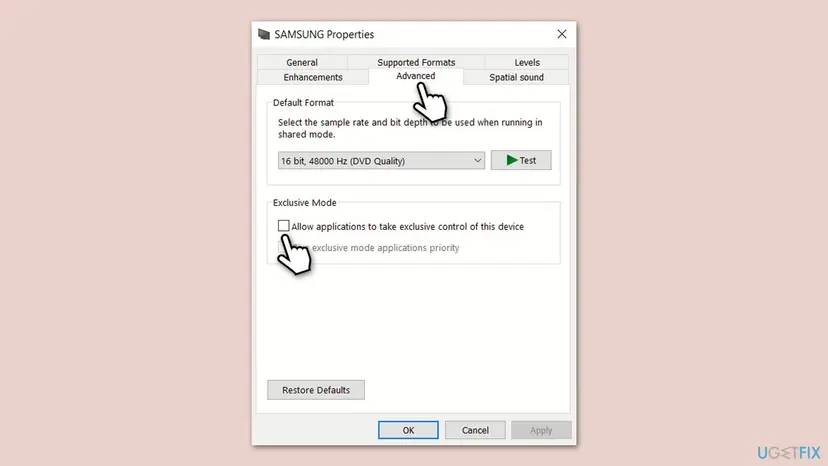
The old version of this guide also named an option Automatically adjust microphone settings on the same tab. The Microsoft pages we read do not list it, so only look for it if your driver adds it, and turn it off if you find it.
It worked if: The exclusive control box is off, and the level no longer jumps when another app opens the microphone.
If not: If the level still moves, continue with Fix 4 and then Fix 5.
Fix 4. Set the Communications tab to Do nothing
2 minutesNo riskThe level or the other sounds change as soon as a call starts, and Fixes 2 and 3 did not help.
The Communications tab lets Windows react when it detects call activity. An independent advisor on Microsoft Q&A suggested setting it to Do nothing for a microphone level that dropped in calls. It may not apply to every PC, so treat it as a quick test.
- Press Win + R, type
mmsys.cpland press Enter. - Open the Communications tab.
- Select Do nothing under When Windows detects communications activity.
- Select Apply and OK.
- Start a call and check the level again.
It worked if: Windows no longer reacts to call activity, and the level stays where you set it.
If not: If nothing changes, put the setting back to what it was and continue with Fix 5.
Fix 5. Fix the default input when you plug in headphones
5 minutesNo riskThe level changes the moment you connect headphones or a headset, which is the case in the question this guide answers.
Each microphone has its own Input volume. When you plug in a headset, Windows can make its microphone the default input, and that device may be set low. Microsoft's steps also tell you to check that your headset is the default recording device and not muted.
- With the headset plugged in, open Settings > System > Sound and look under Input.
- Under Choose a device for speaking or recording, select the microphone you want to use.
- Select the > arrow next to that device and set Input volume to the level you need.
- If your headset has a mute button, make sure it is not active, as Microsoft advises.
- Unplug the headset, plug it in again, and check whether the number is still right.
- If the PC has Realtek or other audio software, open its console and check the jack and device settings for the headset microphone.
On Windows 10, open Settings > System > Sound, select your device under Choose your input device, then select Device Properties and use the Levels tab.
It worked if: After you replug the headset, the same microphone is the default input and keeps the volume you set for it.
If not: If it is still wrong, run the troubleshooter in Fix 6, then check the driver in Fix 7.
Fix 6. Run the Windows audio troubleshooter
5 minutesNo riskThe level still changes after the app and device checks, or you are not sure which setting is wrong.
Microsoft names a recording troubleshooter in its microphone page, and it checks default devices and settings that you may miss. The old guide used the Speech troubleshooter instead, which prepares the microphone for speech recognition and is not the one Microsoft lists for recording problems.
- On Windows 11, open Settings > System > Sound, scroll to Advanced and select Input devices under Troubleshoot common sound problems.
- On Windows 10, open Settings > Update & Security > Troubleshoot > Additional troubleshooters and select Recording Audio.
- Select Run the troubleshooter and choose your microphone when asked.
- Apply the fixes it offers, then check the level in Fix 1 again.
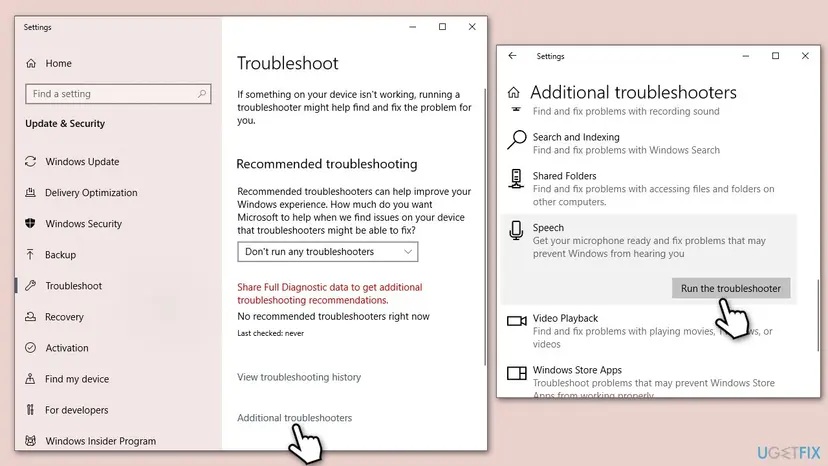
It worked if: The troubleshooter finishes, reports what it changed or that it found nothing, and the level holds in a test.
If not: If it finds nothing, the cause is probably a driver or an app. Go to Fix 7.
Fix 7. Update or reinstall the audio driver and check for Windows updates
15 minutesLow riskThe level changes in every app, the slider moves by itself, or the problem began after an update.
A damaged or generic audio driver can handle levels wrongly. Microsoft's microphone page gives the same remedy for a microphone that is not handled properly: remove the audio device, restart so Windows installs it again, and then update the driver.
- Right-click Start and select Device Manager.
- Expand Sound, video and game controllers.
- Right-click your audio device and select Update driver, then Search automatically for drivers.
- If that does not help, right-click the device, select Uninstall device, restart the PC and let Windows install it again. If it does not return, select Scan for hardware changes.
- Open Settings > Windows Update, select Check for updates, install what is offered, including optional updates, and restart.
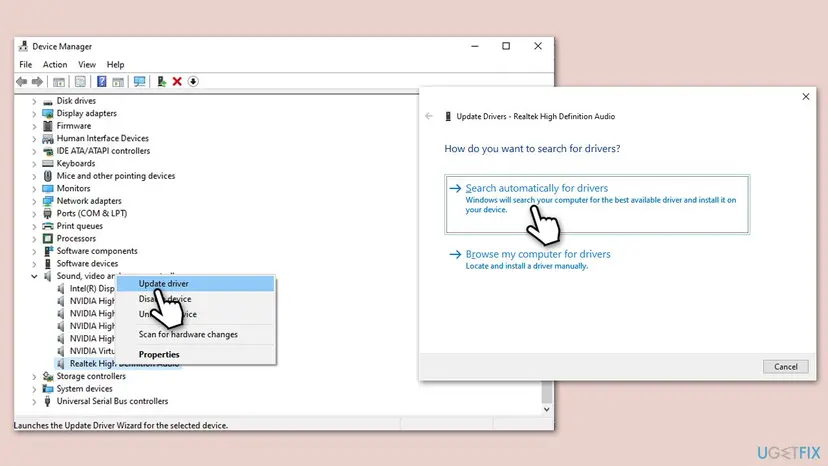
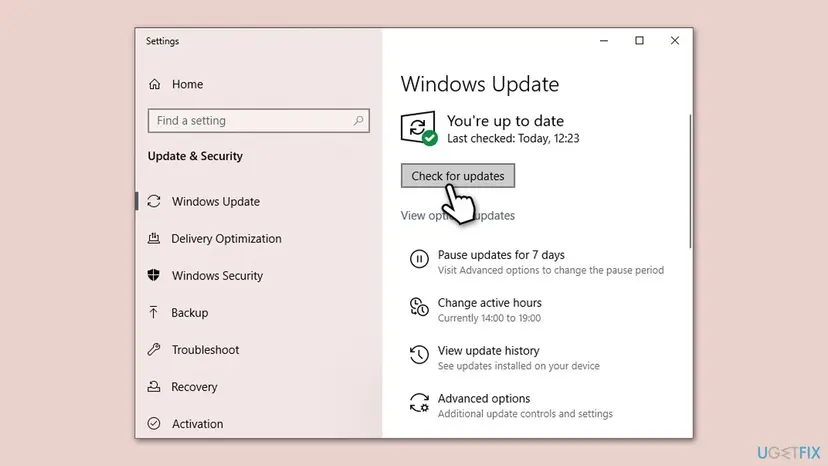
If Windows cannot find a newer driver, install the audio driver for your exact model from the PC or motherboard maker's support page. Full steps for updating, rolling back and reinstalling a driver: Update, roll back or reinstall a driver.
It worked if: The audio device shows no warning sign, the driver reloads, and the microphone level stays where you set it.
If not: If the level still moves, a program may be changing it. Continue with Fix 8.
Fix 8. Close sound enhancement software and test with a clean boot
20 minutesLow riskThe level changes only on this PC, and it has voice changers, equalizers, headset or motherboard sound utilities installed.
Sound enhancement tools sit between the microphone and the apps and can process or re-level the signal. A clean boot starts Windows with only Microsoft services, so if the problem disappears you know a third-party program is involved.
- Close every call and recording app.
- Right-click the tray icons of any sound utilities, voice changers or equalizers and select Exit or open their settings and turn off automatic gain, noise reduction and level options.
- Repeat the test from Fix 1.
- If the level still moves, do a clean boot as described in How to perform a clean boot in Windows and test again.
- If the problem disappears, turn the startup items back on in small groups until the level moves again.
It worked if: With the sound software off, or in a clean boot, the level stays steady, which tells you which program was responsible.
If not: If it still moves in a clean boot, the cause is Windows or the driver. Go to Fix 9.
Fix 9. Use System Restore if it started recently
20 minutesLow riskThe level held until a recent change, and you have a restore point from a date before it started.
System Restore returns system files, drivers and settings to an earlier restore point without removing your documents. It shows whether the recent change, such as a driver or Windows update, started the problem.
- In Windows search, type Create a restore point and press Enter.
- Select System Restore and select Next.
- Select Show more restore points if it is available.
- Select a point from before the problem started, then Next and Finish.
- After the restart, repeat the test from Fix 1.
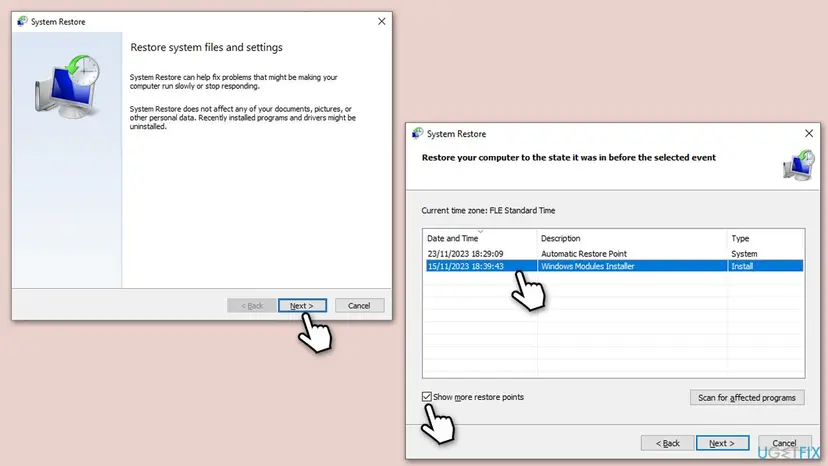
Full steps and what System Restore does and does not touch: Undo recent changes with System Restore.
It worked if: The PC returns to the earlier state and the microphone level stays where you set it.
If not: If there is no suitable restore point, or it did not help, go to the section below on what to do when it still changes.
If the microphone volume still changes by itself
Three short tests tell you where the fault is. Run them before you consider a reset.
| Test | Result | What it means |
|---|---|---|
| Record yourself with Windows only, using Start test in Settings, with every call app closed. | The level holds. | The change comes from an app. Check its audio settings again (Fix 2). |
| Plug a different microphone or headset into the same PC. | The level holds with the other device. | The first headset or its driver profile is the cause (Fixes 5 and 7). |
| Try the same headset on another PC. | The level moves there too. | The headset or its adapter has its own gain control. Check its maker's software. |
As a last resort you can reset Windows and keep your files. This removes installed apps and settings, so back up first. Full steps: Reinstall Windows without losing files. Because this is a big step for a level setting, try the tests above and a second user account first.
We found no Microsoft page that says Windows itself lowers the microphone based on noise. If your case shows that, report it to Microsoft with the Windows version and the audio driver name.
How to keep your microphone level from changing again
- Turn off automatic gain in each call app once and note where the setting is.
- Set the level per device, and check Input volume after you plug in a new headset.
- Note your audio driver version while the level is stable, so you know what to return to.
- Make a restore point before you install a new audio utility.
- Do not run several apps that process the microphone at the same time.
- Do not leave exclusive control on for apps you do not need.
- Do not install audio drivers from random download sites.
Frequently asked questions
Why does my microphone volume keep changing by itself in Windows?
Most often an app or a driver writes a new level, not Windows. Call apps can adjust gain automatically, for example the Automatically adjust microphone volume toggle that Zoom's help page lists. An app with exclusive control can also set the level, and plugging in a headset can switch the default input to a device with a lower Input volume. Fix 1 shows which one it is by watching the slider while you speak.
How do I stop Windows from lowering my mic volume?
Turn off the automatic option in the call app, untick Allow applications to take exclusive control of this device on the microphone's Advanced tab, and check that the right microphone is the default input. Microsoft's microphone page lists no Windows setting that lowers the level by itself, so the change usually comes from outside the Windows Sound window. Start with Fix 1 to see where the slider moves.
Is there a Windows setting called Automatically adjust microphone settings?
The old version of this guide named such an option on the Advanced tab. The Microsoft pages we read do not list it, so it is not a stock Windows setting we can confirm. Some drivers add their own automatic level or noise options in their console. If your driver shows one, turn it off and test. The settings you can rely on are the exclusive control box (Fix 3) and the app's own option (Fix 2).
Why does my input volume change when I plug in headphones?
Each audio input has its own Input volume. When you connect a headset, Windows may make its microphone the default input, and it can have a lower value than the one you used before. Microsoft's steps tell you to choose the right device under Choose a device for speaking or recording and to check the headset mute button. Fix 5 walks through it for Windows 11 and Windows 10.
How do I stop Zoom from changing my microphone volume?
Open Zoom, select your profile picture, select Settings, then open the Audio tab and turn off Automatically adjust microphone volume in the Microphone section. Zoom's help page describes this toggle next to the microphone test. Set the Input volume by hand, select Test microphone, and listen to the playback. Restart Zoom after the change. Fix 2 has the full steps and the Google Meet note.
Does Google Meet have automatic gain control I can turn off?
Users on Microsoft Q&A report that the Meet page has no setting for it, and that the browser extension Disable Automatic Gain Control stopped their volume from dropping in their own tests. This is a user report, not an official Google or Microsoft statement. Test any extension on a short call, and use the exclusive control and Windows slider checks in Fixes 1 and 3 to see whether Windows is involved as well.
Should I turn off exclusive mode for the microphone?
It is a safe test for this problem. Open the microphone's Properties from Settings > System > Sound > Device properties > Additional device properties, go to Advanced and untick Allow applications to take exclusive control of this device. An independent advisor on Microsoft Q&A suggested it for a level that kept dropping. Some professional audio apps want exclusive control, so you can tick it again if one stops working.
Will updating the audio driver stop the volume from changing?
It can, when the driver is damaged, outdated or replaced by a generic one. Microsoft's microphone page gives the sequence of removing the audio device, restarting so Windows installs it again, and then updating the driver in Device Manager. For a laptop or desktop, the PC maker's own audio driver is usually better than a generic one. Fix 7 has the steps, and the driver procedure covers rolling back.
Does this apply to Windows 10 as well as Windows 11?
Yes. The Sound window and the Levels tab work the same on both. Settings paths differ slightly: Windows 10 uses Choose your input device and Device Properties, while Windows 11 uses the arrow next to the device and the Input volume slider. Windows 10 22H2 left Microsoft support on 14 October 2025, so install the final updates it received and plan an upgrade.
Sources
- Microsoft Support: Fix microphone problems (support.microsoft.com)
- Zoom Support: Testing your audio settings for Zoom meetings (support.zoom.com)
- Microsoft Q&A (user report): Microphone levels dropping in Zoom and Google Meet (learn.microsoft.com)
Did this fix work?
One click, no account. It tells the next reader which guides are worth their time.
Questions and experiences: fix Windows keeps adjusting input device volume automatically
Still broken, or found a fix we did not cover? Ask here: members and our editors answer. Reading is open; writing needs a free account.
…