How to fix
Windows keeps installing wrong AMD driver
on Windows
Resolve the issue of Windows 10 or 11 installing the wrong AMD driver effortlessly. Get back to smooth performance with expert-tested solutions.

What causes How to fix Windows keeps installing wrong AMD driver?
- Windows Update's aggressive approach to keeping systems updated
- Windows mistakenly identifying an older driver as the most compatible version
- Conflicts between AMD software and generic Windows drivers
- Outdated drivers leading to compatibility issues
- Older drivers not optimized for the latest software or game updates
Repairs Windows system files, removes malware, and restores a clean OS state — without reinstalling.
Windows keeps installing the wrong AMD driver on my system. Any idea on how to address this?
Drivers on Windows play a crucial role in ensuring that the hardware and software components of a computer work seamlessly together. Particularly for graphic-intensive tasks and gaming, the graphical processing unit (GPU) requires the right driver to function optimally. The two leading players in the GPU market are Nvidia and AMD, with many users relying on their drivers to get the best performance out of their systems.
However, a peculiar issue has been observed by a subset of users where Windows persistently installs an incorrect version of the AMD driver. To paint a clearer picture, imagine having the latest AMD driver installed on your system, ensuring maximum compatibility and performance. Unexpectedly, Windows attempts to overwrite this with an older version, which can be problematic for several reasons.
Firstly, having outdated drivers can lead to compatibility issues, causing certain games or applications to malfunction or not run at all. Secondly, older drivers might not be optimized for the latest software or game updates, which can lead to reduced performance or graphical glitches.
The root of Windows installing the wrong AMD driver often lies in Windows Update's aggressive approach to keeping systems updated. Sometimes, Windows might mistakenly identify an older driver as the "most compatible" or "most recent" version for a particular system, leading to these unwanted installations. Additionally, there might be conflicts between the software provided by AMD and the generic drivers that Windows tries to push, leading to this confusion.

While this can be frustrating, there are potential solutions and workarounds to ensure that your GPU is running the correct driver version. These will be delved into below.
Even though drivers are essential for optimal system performance, it's equally vital to ensure they are the correct versions. For those who want to maintain overall Windows health and circumvent its issues, using the [d1] PC repair tool is a commendable approach. This tool ensures that the Windows environment remains stable and efficient.
Fix 1. Use Windows Show or hide updates troubleshooter
Microsoft offers a tool known as the "Show or hide updates" troubleshooter, which can prevent specific updates from being automatically installed. In cases where Windows insists on installing an incorrect version of a driver, this tool can be utilized to block that specific update, thus preserving your desired driver version.
- Download the "Show or hide updates" troubleshooter from Microsoft’s official website.
- Run the downloaded .diagcab file.
- In the troubleshooter window, click on Advanced and ensure that Apply repairs automatically is checked.
- Click Next and let the troubleshooter search for updates.
- Once it presents you with a list of updates, select Hide updates.
- In the list of updates, find the AMD driver update you wish to prevent from installing.
- Check the box next to the unwanted AMD driver update.
- Click Next and let the troubleshooter apply the settings.
- Close the troubleshooter once the process is complete.
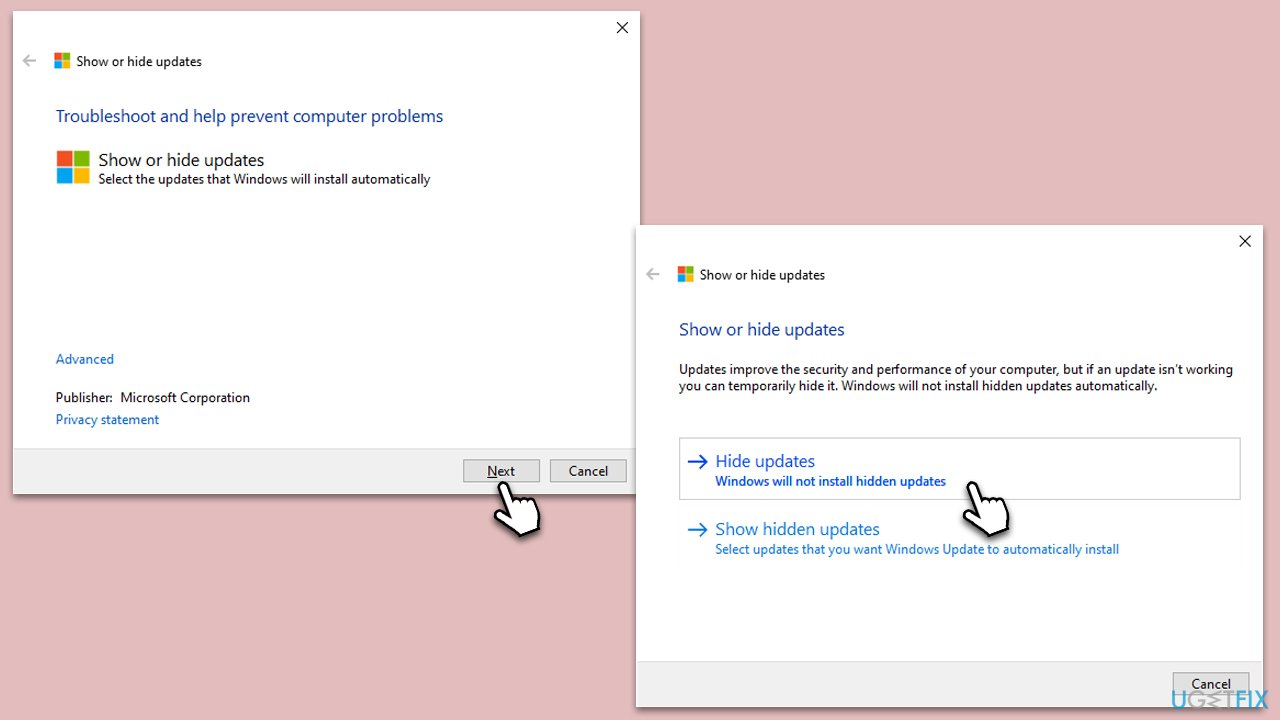
After using this method, Windows Update should no longer try to install the blocked AMD driver version, allowing your desired driver to remain unaffected.
Fix 2. Uninstall and reinstall driver
By uninstalling the current driver, you can then reinstall the desired version without interference.
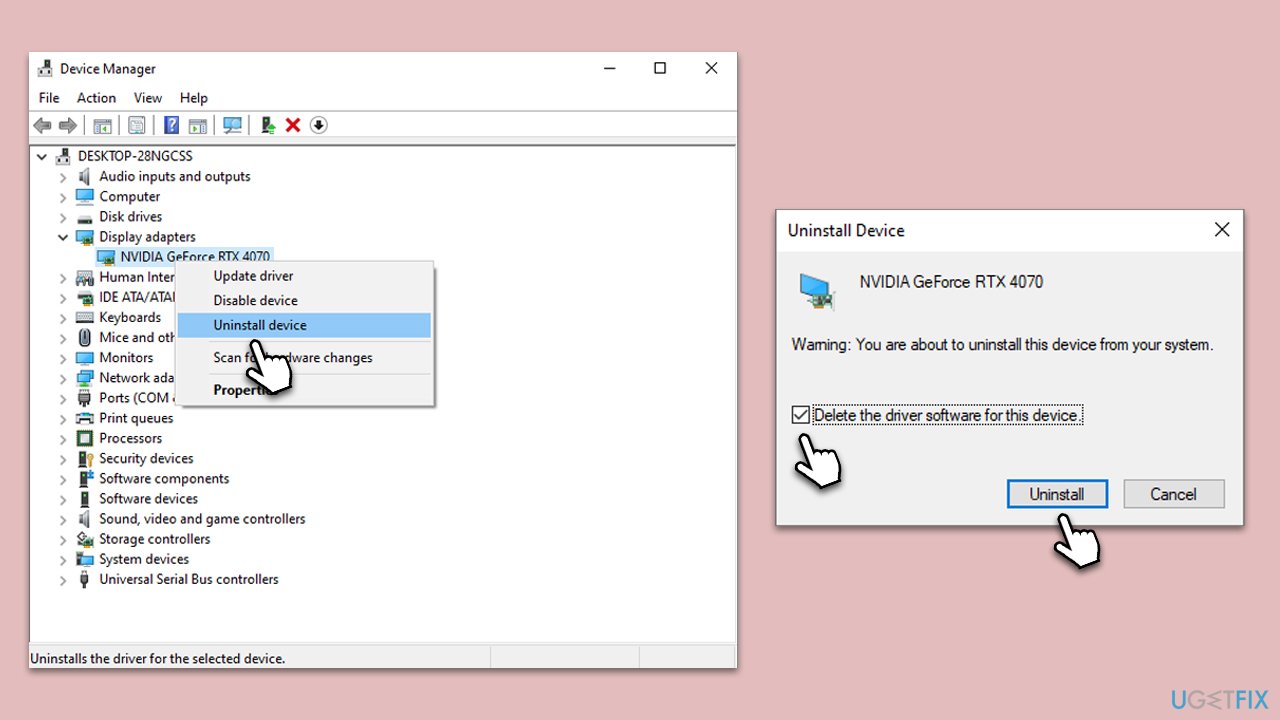
- Open Device Manager.
- Under Display adapters, right-click on the AMD device and select Uninstall device.
- Mark the Delete driver software for this device checkbox.
- Choose Uninstall and follow the prompts.
- Restart your computer.
- Once done, follow the steps described in Fix 3.
- Finally, use one of the methods to install the latest driver on your device.
Fix 3. Disable automatic driver updates via Control Panel
By adjusting the system settings, you can prevent Windows from automatically updating device drivers. This can prevent Windows from overwriting the current driver with an older version.
- Type Control Panel in Windows search and press Enter.
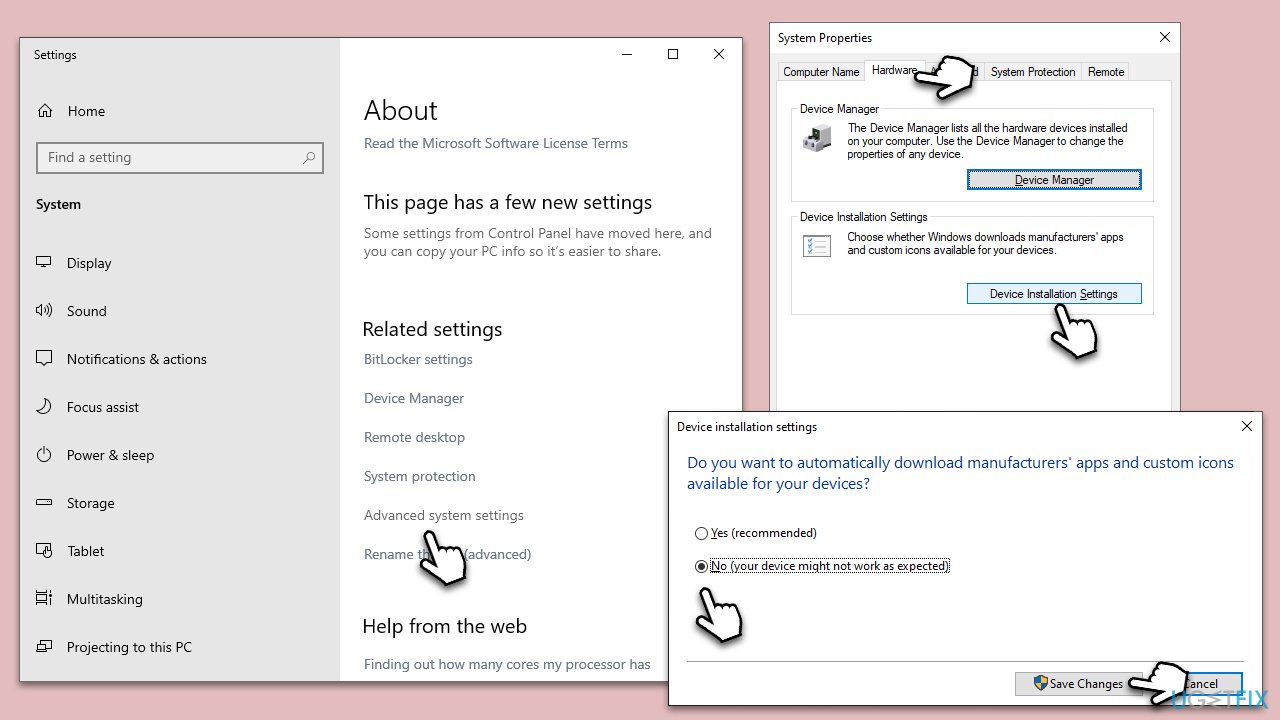
- Select System and Security > System.
- Under Related settings, pick System info.
- Select Advanced system settings on the right.
- Select the Hardware tab.
- Click Device installation settings, select No (your device might not work as expected) option, then click on Save Changes.
- Reboot your computer to implement the changes.
Fix 4. Use AMD's Cleanup Utility
AMD provides a cleanup utility that removes any remnants of previous installations, allowing a fresh driver installation.
- Download AMD Cleanup Utility from the official website.
- Run the utility and allow it to complete the cleanup.
- Restart your computer.
- Install the desired AMD driver.
Fix 5. Use a third-party driver updater
Third-party driver updaters can help maintain drivers without relying on Windows Update. They typically source drivers directly from manufacturers, ensuring you get the correct version.
- Download [rev id="DriverFix"] - a reputable third-party driver updater.
- Install and run the software.
- Allow it to scan your system for outdated drivers.
- Update the AMD driver as suggested by the software.
- Restart your computer after the driver update.
Fix 6. Set a Group Policy
For advanced users, setting a group policy can prevent Windows from automatically updating specific drivers.
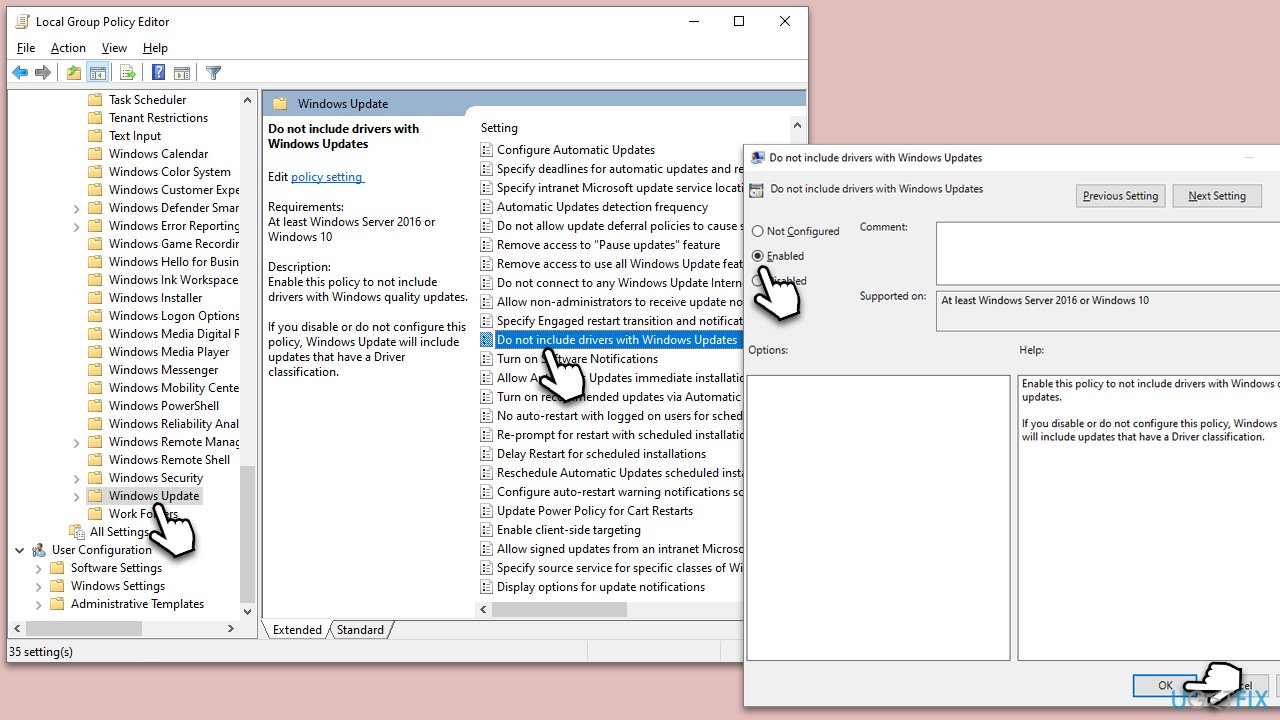
- Type gpedit.msc in the Windows search bar and press Enter.
- Go to the following location:
Computer Configuration > Administrative Templates > Windows Components > Windows Update - On the right, double-click on Do not include drivers with Windows Update.
- From the available options, select Enabled.
- Click Apply and OK.
- Restart your device.
Fix 7. Use PowerShell
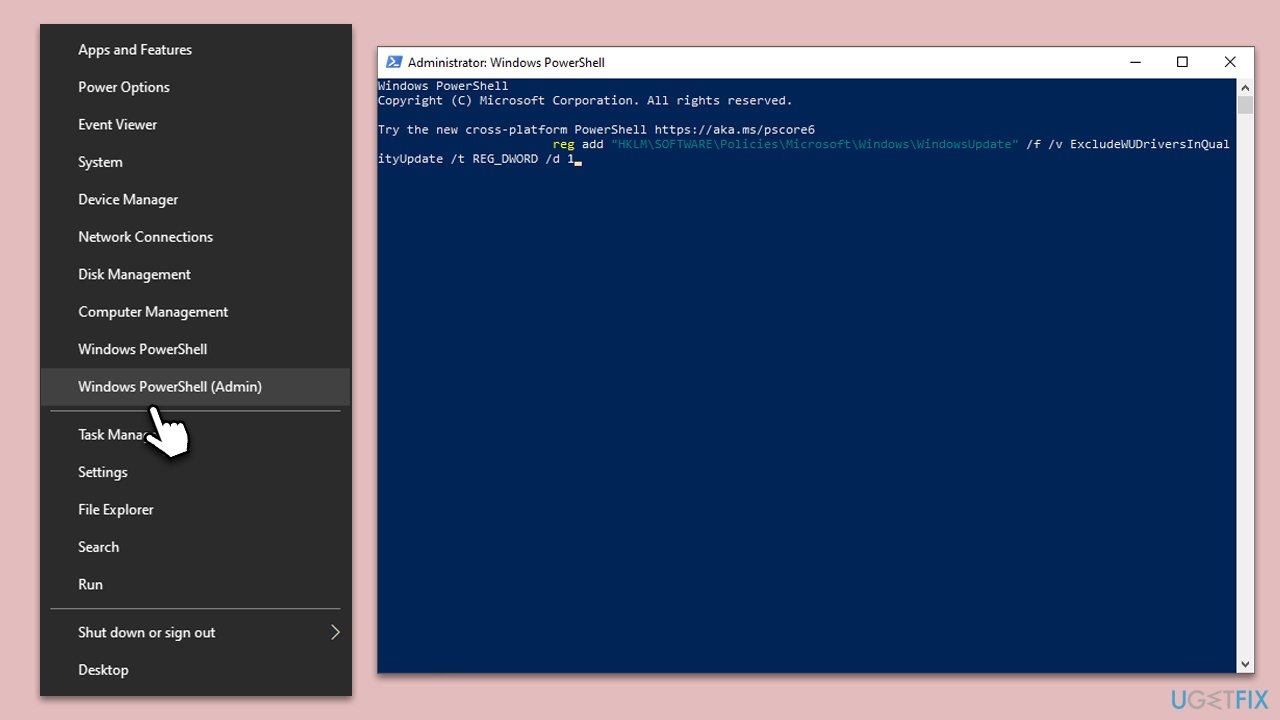
If you can't access Group Policy because you are using Windows Home edition, you can change the setting via elevated PowerShell.
- Right-click on Start and pick Windows PowerShell (Admin).
- When UAC shows up, click Yes.
- In the new window, paste the following command and press Enter to execute it:
reg add "HKLM\SOFTWARE\Policies\Microsoft\Windows\WindowsUpdate" /f /v ExcludeWUDriversInQualityUpdate /t REG_DWORD /d 1 - Restart your system.
Bottom line
To fix the issue of Windows installing the wrong AMD driver, consider using a PC repair tool to maintain system stability. Additionally, ensure that the latest AMD driver is installed and prevent Windows from automatically updating it. If none of these solutions work, further troubleshooting may be necessary.
Frequently asked questions
You can manually uninstall the incorrect driver from Device Manager and then download the correct driver directly from the AMD website to ensure compatibility with Windows 10.
To prevent Windows 11 from automatically updating your AMD driver, go to 'Settings', select 'Windows Update', and pause updates or change driver update settings in the 'Advanced options'.
Yes, you can right-click on the AMD device in Device Manager, select 'Properties', go to the 'Driver' tab, and click 'Roll Back Driver' if the option is available.




Report an issue
What's wrong with this guide? We review every report and update or remove content.
Report received — thank you. We'll review and fix it.
You need a free account to submit a report.
Be the first to comment