How to fix
Windows key acts like play or pause button
on Windows
Resolve the issue of your Windows key acting as a play or pause button on Windows 10 with expert-tested solutions and restore full functionality today!

What causes How to fix Windows key acts like play or pause button on Windows 10?
- Hardware issues with the keyboard
- Damaged keyboard functions
- Major problems with the operating system
- Bugs in the operating system
- Damaged system parts and files
Repairs Windows system files, removes malware, and restores a clean OS state — without reinstalling.
Hello. I recently haven't changed anything on the machine, but the problem with the play-pause key not working occurred. Then I noticed that the Windows key is acting ad the said button. Have no idea why. Can you help me fix it?
Windows key acts like play or pause button on Windows 10 is the problem with a keyboard that can often occur. Windows key is one of the more used keys on the computer because it has multiple functions and can be used for basic features and for advanced shortcuts on the machine. Users[ref en-1] report problems with the not working key and this play/pause problem.
Executing shortcuts and other wanted commands are impossible without the properly working Windows key. Windows key acts like play or pause button on Windows is the frustrating issue, and it slowdowns the workflow keeps the system harder to navigate. During this time in the world[ref en-2] when all the activities happen on the computer at home, this is unwanted and frustrating.
Causes for this issue determine the best method that helps fix Windows key acts like play or pause button on Windows. Possible causes for the problem can include hardware issues when the keyboard is damaged, so functions fail. Also, the major problems with the operating system can trigger the failure of these commands.
You might want to check for additional updates of the OS to fix possible bugs.[ref en-3] Another way to solve the issue can be fixing damaged system parts and files, data in other places. [d1] can help with these methods. Windows key acts like play or pause button on Windows 10 solutions are listed below, so try a few of them at least before you give up.

Method 1. Troubleshoot keyboard issues to fix Windows key acts like play or pause button on Windows 10
- Right-click on the Start button and click Settings.
- Click Update & Security.
- Choose Troubleshoot.
- Click Additional troubleshooters.
- Click Keyboard and then Run the troubleshooter.
- Allow the troubleshooter to run. It will detect and repair any problems.
Method 2. Re-register the Start Menu via PowerShell
- Right-click your taskbar and click Task Manager.
- Click File.
- Choose Run new task.
- Input powershell and click OK.
- Paste the following command and press Enter:
Get-AppxPackage Microsoft.Windows.ShellExperienceHost | Foreach {Add-AppxPackage -DisableDevelopmentMode -Register "$($_.InstallLocation)\\AppXManifest.xml"} - Check the problem.
Method 3. Close apps in the background to fix Windows key acts like play or pause button on Windows
- Open Task Manager, which you can find if you right-click an empty space on the taskbar.
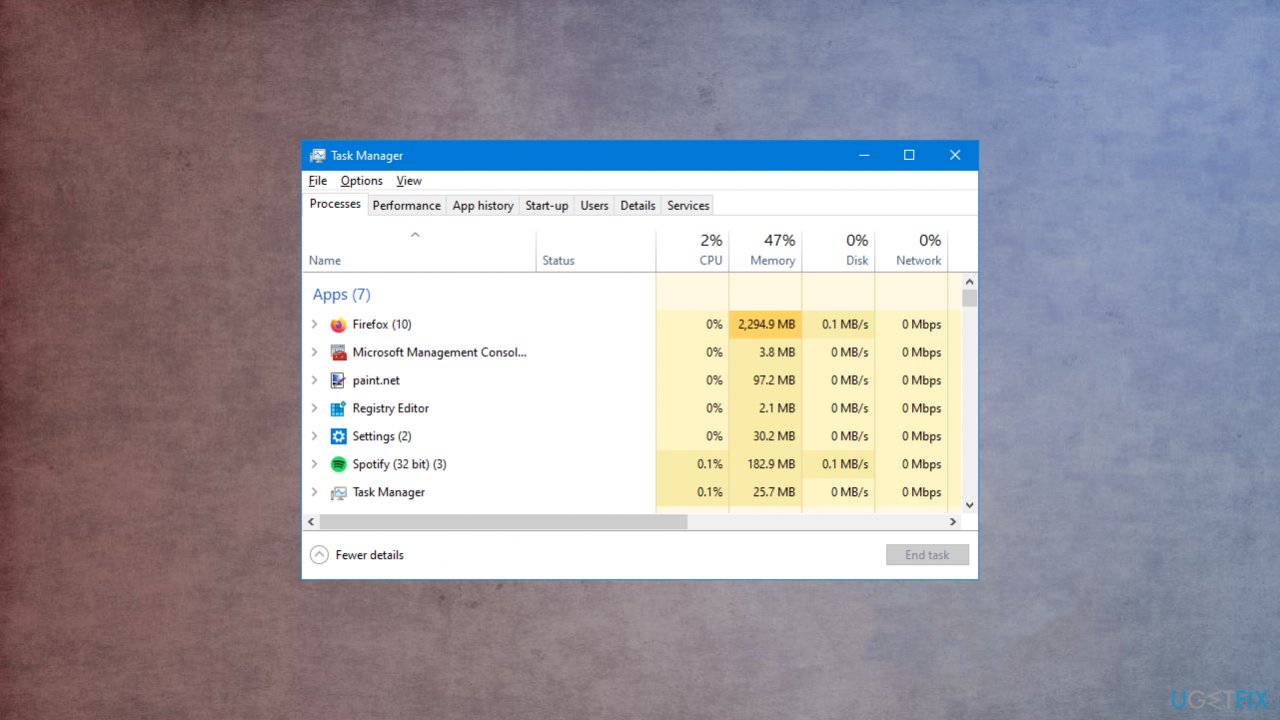
Windows key is acting as a play pause button apps - The Processes tab shows all the apps.
- Go through the list and close them.
- Check the Win key after each.
Method 4. Update drivers
- Right-click your taskbar and click Task Manager.
- Click File.
- Then Run new task.
- Input devmgmt.msc and click OK.

Windows key is acting as a play pause update - Double-click the Keyboards category.
- Right-click the name of your keyboard and click Update driver.
- Choose Search automatically for drivers.

Windows key is acting as a play pause searching
You can also use [rev id="DriverFix"] as the automatic solution for driver upkeep. This is the application that finds needed driver pieces and updates them, downloads compatible versions when needed for you.
Method 5. Disable Filter keys to fix Windows key acts like play or pause button on Windows 10
- Right-click your taskbar and go to Settings.
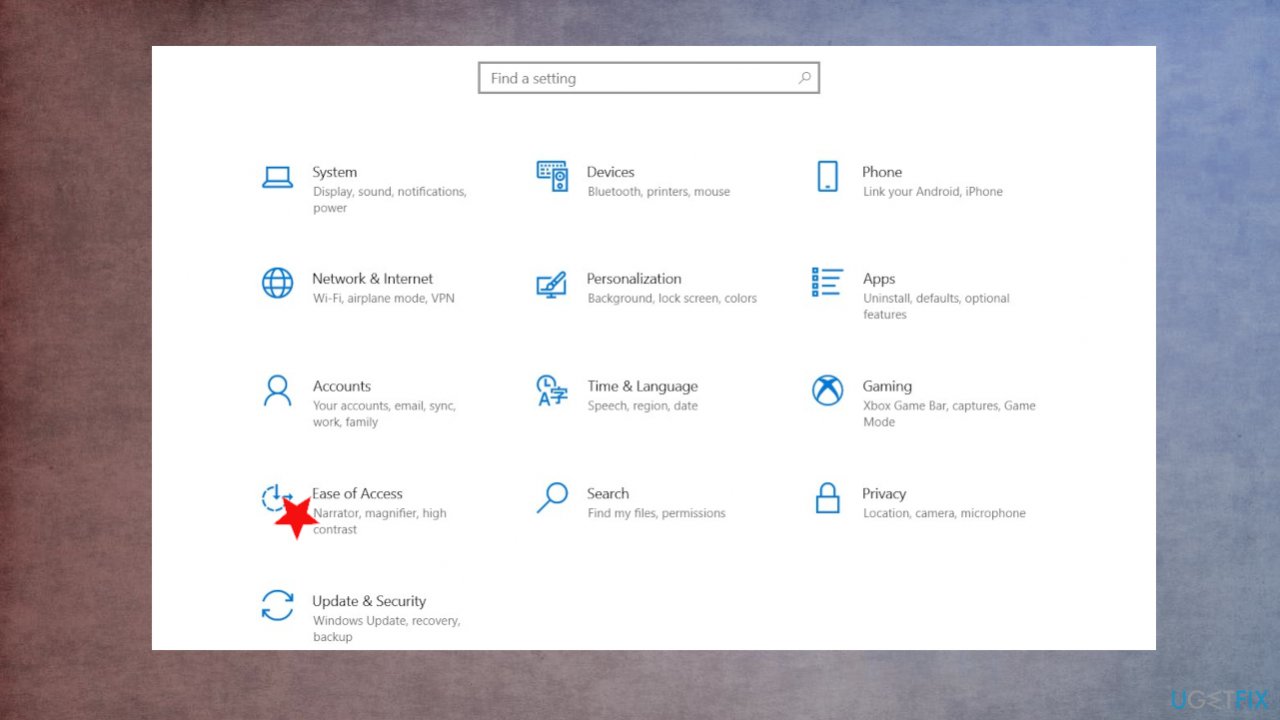
Windows key is acting as a play pause settings - Click Ease of Access.
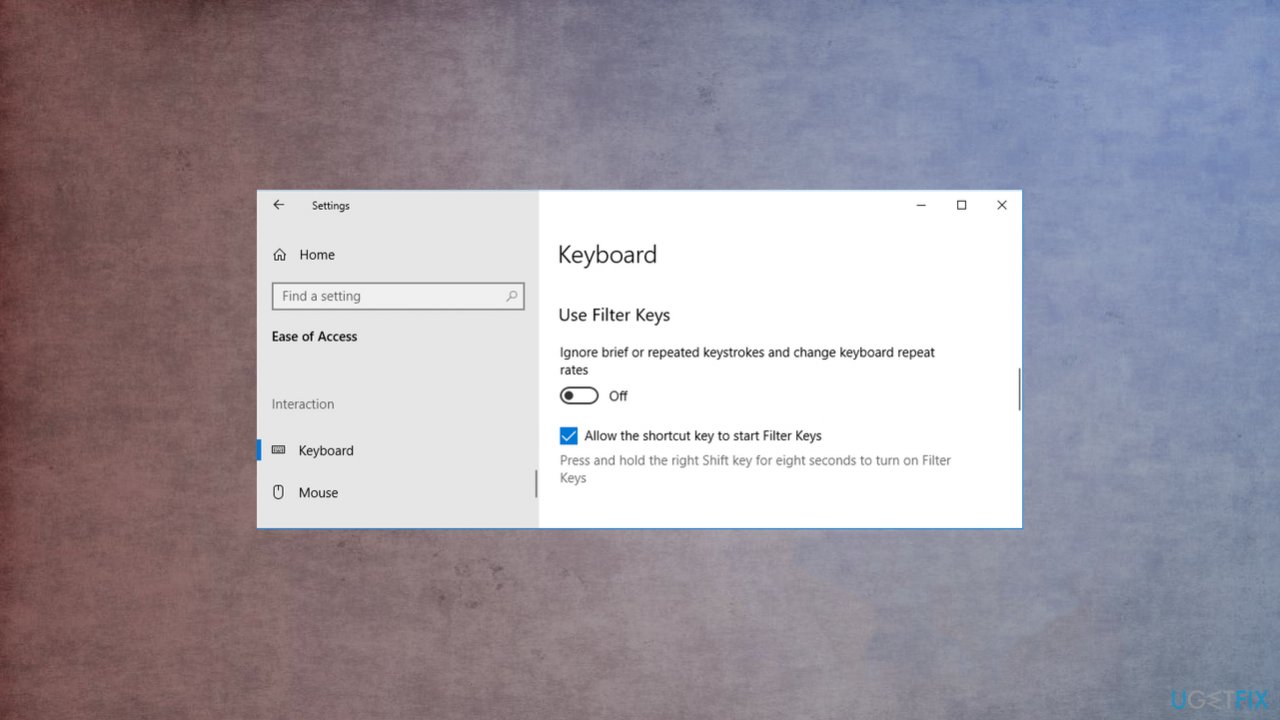
Windows key is acting as a play pause button keyboard access - On the left-hand menu, click Keyboard.
- Beneath Use Filter Keys, click the slider to turn it Off.
Bottom line
To fix the issue of the Windows key acting like a play or pause button, you can troubleshoot keyboard issues, re-register the Start Menu via PowerShell, and check for OS updates. If these methods do not resolve the problem, consider seeking further assistance or professional help.
Frequently asked questions
This issue can occur due to stuck media keys or specific keyboard shortcuts conflicting with the Windows key functionality. Check for any media applications running in the background that might be intercepting the key's input.
You can disable media control features by accessing your keyboard settings in the Control Panel or using third-party software that allows you to remap keyboard keys. This will prevent the Windows key from functioning as a media play/pause button.
Yes, certain accessibility settings or keyboard shortcuts may interfere with the Windows key's normal behavior, so it's advisable to check the Ease of Access settings and ensure no shortcuts are set to use the Windows key.




Report an issue
What's wrong with this guide? We review every report and update or remove content.
Report received — thank you. We'll review and fix it.
You need a free account to submit a report.
Be the first to comment