How to fix
Windows laptop plugged in but not charging
on Windows
Resolve your Windows laptop's charging issues quickly. Discover effective fixes for when your device is plugged in but not charging, expert-tested solut…

What causes How to fix Windows laptop plugged in but not charging?
- Problem with the charging port
- Faulty AC adapter
- Incompatible AC adapter
- Damaged battery
- Battery reached end of lifespan
Repairs Windows system files, removes malware, and restores a clean OS state — without reinstalling.
Hello. Today I started experiencing this issue - my Windows laptop is plugged in but not charging. The battery might run out in a couple of hours. What should I do?
If your Windows laptop is plugged in but not charging, it can be frustrating and can limit your ability to use your computer. This issue can be caused by a variety of factors, including problems with the charging port, the AC adapter, or the battery itself. One potential cause of this issue is a problem with the charging port on your laptop.
The charging port may be damaged or obstructed by debris, which can prevent the AC adapter from making a proper connection and charging the battery. There may also be a problem with the AC adapter. It may be faulty or not compatible with your laptop, which can prevent it from charging the battery.
A third potential cause is an issue with the battery itself. The battery may be damaged or have reached the end of its lifespan, which can prevent it from holding a charge. In this guide, you will find 6 steps that should help you fix Windows laptop plugged in but not charging. If you started experiencing the issue after upgrading to Windows 11, you may want to check out the How to fix battery not charging after Windows 11 upgrade? article.
If none of the steps help, you may want to consider contacting a technical support representative or a computer repair professional for further assistance. If you want to avoid a lengthy manual troubleshooting process, you can also try using a maintenance tool like [d1]. It can fix most system errors, BSODs,[ref en-1] corrupted files, registry[ref en-2] issues, or clear cookies and cache.[ref en-3]
Solution 1. Run the Power Troubleshooter
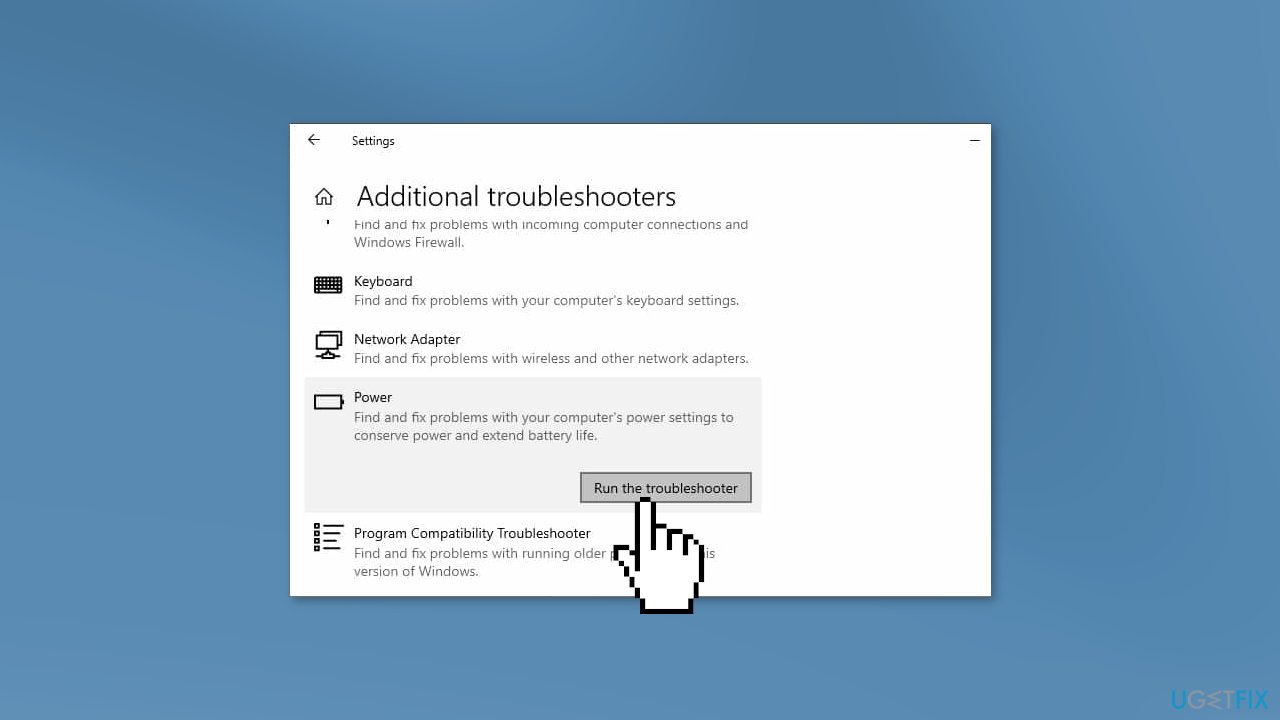
- Open the Start menu and go to Settings
- Click on Update & Security, then on Troubleshoot
- Scroll down to the Power section and click Run the troubleshooter
Solution 2. Reconnect your Battery and Adapter
- Shut down the laptop
- Remove the battery
- Disconnect the AC adapter from both the power source and the laptop
- Press and hold the power button on the laptop for 10 seconds
- Reinsert the battery into the laptop
- Connect the AC adapter to both the laptop and the wall socket
- Power on the laptop
Solution 3. Switch the Power Adapter
One possible reason that your computer is not charging even when it is plugged in is that the AC adapter is malfunctioning. A faulty AC adapter may produce a buzzing noise when plugged into a power source, but it is also possible that it is faulty or incompatible without making any noise. To determine if the AC adapter is the cause of the charging issue, you can try using a different adapter to charge the laptop battery.
Solution 4. Reinstall Battery Driver
Outdated drivers could be the cause of the error. In this case, you can fix it automatically by using [rev id="DriverFix"], which will scan your PC for missing and out-of-date device drivers. Or you can update them manually:
- Press Windows Key + R to open the Run dialog box
- Type in devmgmt.msc and hit Enter
- Expand the Batteries section on the list
- Right-click on your Battery Driver
- Click on Uninstall device from the context menu
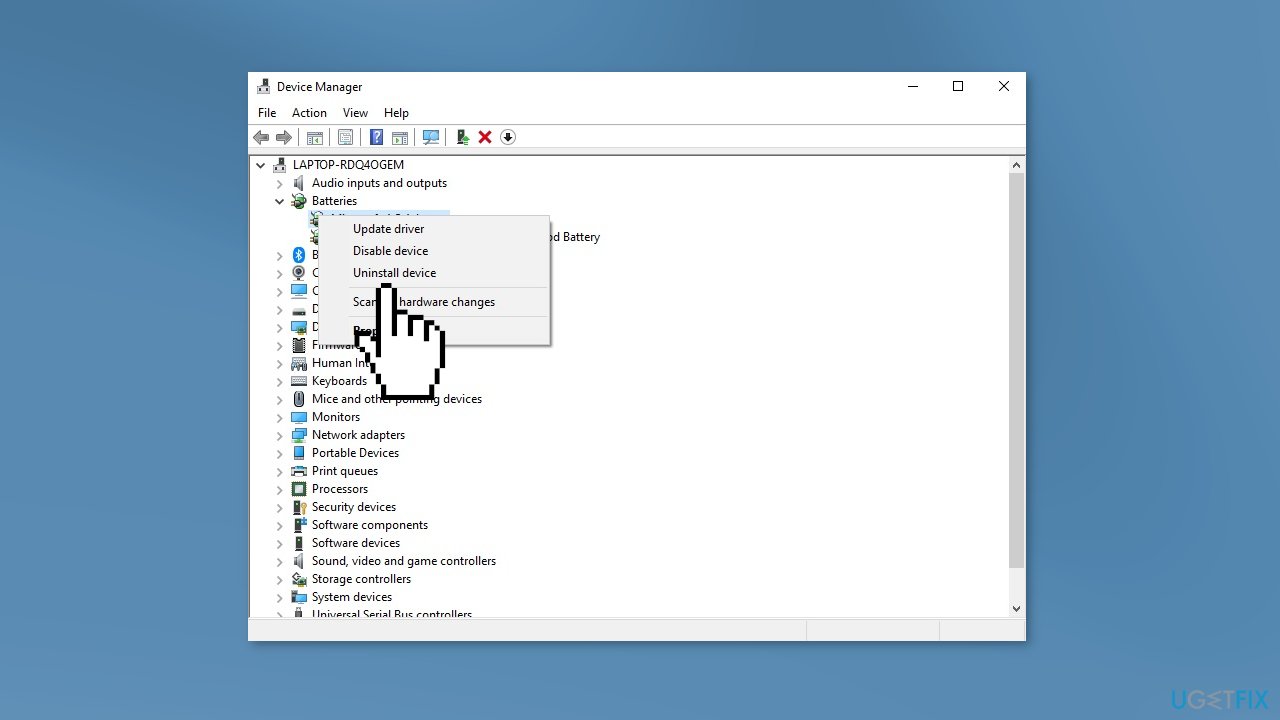
- Hit the Uninstall button again
- Restart your computer to automatically reinstall the software
Solution 5. Clean the Charging Port
It is important to keep the charging port clean to ensure that your laptop can charge properly. Even if your laptop is currently charging correctly, it is a good idea to clean the port regularly to prevent any potential issues from arising. To clean the charging port on your laptop:
- Shut down the laptop and disconnect the AC adapter from the power source
- Use a lint-free cloth, optionally dampened with rubbing alcohol, to clean the charging port thoroughly
- Allow the port to dry completely before reconnecting the AC adapter
- You can also use a dry air blower to remove any remaining debris from the port
Solution 6. Update BIOS
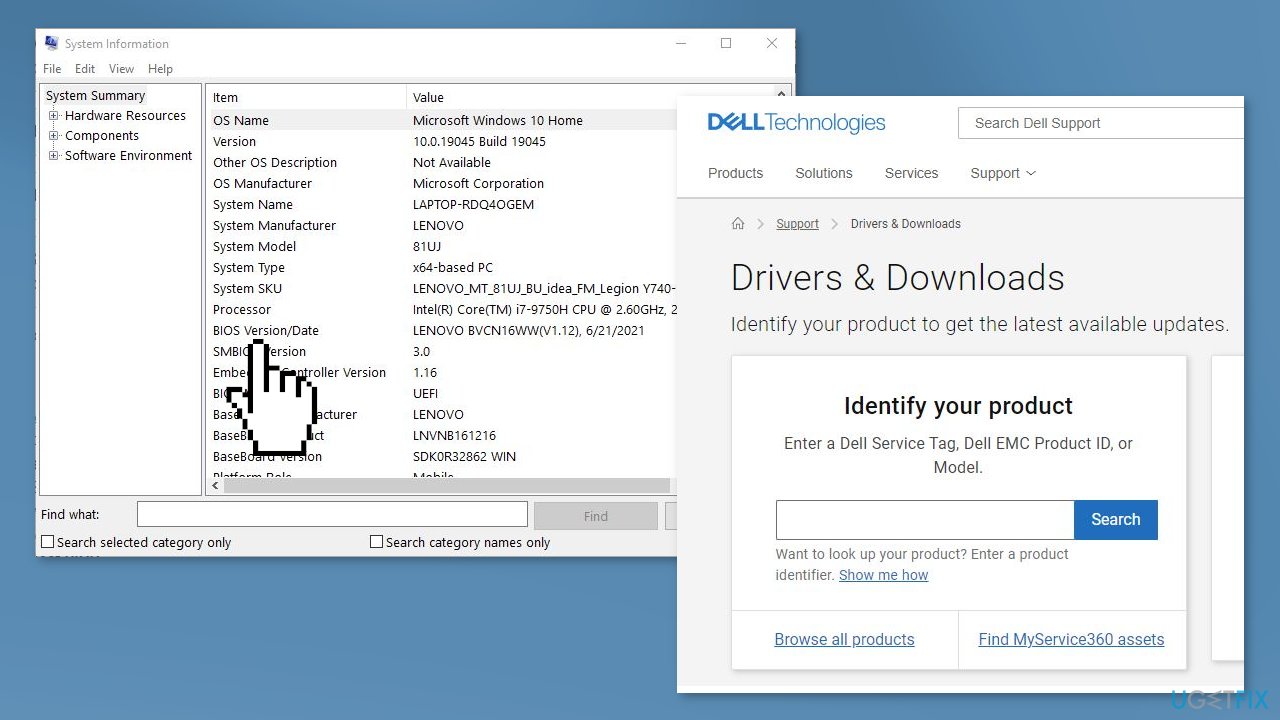
Updating the BIOS (Basic Input/Output System) on your Windows computer can help to improve its performance and fix any issues that you may be experiencing. Keep in mind that updating the BIOS can be a complex and risky process, and it is important to follow the instructions provided by the manufacturer carefully.
- First, you need to determine the current version of your BIOS. You can check the version of your BIOS by entering the BIOS setup utility or by using a System Information utility in Windows.
- Visit the website of your computer's manufacturer and search for the latest BIOS update for your specific model. Download the update to your computer.
- Make sure you have a stable power supply and a reliable internet connection. It is also a good idea to create a backup of your important files and data in case something goes wrong during the update process.
- Follow the instructions provided by the manufacturer for installing the BIOS update. This typically involves running the update file and following the prompts.
- After the BIOS update is installed, you will need to restart your computer for the changes to take effect.
Bottom line
To fix the issue of a Windows laptop plugged in but not charging, you can run the Power Troubleshooter, reconnect your battery and adapter, and check for any physical damage to the charging port. If none of these steps resolve the issue, consider contacting a technical support representative or a computer repair professional for further assistance.
Frequently asked questions
First, ensure that the power adapter is firmly connected to both the laptop and the outlet. You should also inspect the power cord for any visible damage.
Yes, if the battery is faulty or has reached the end of its lifespan, it may prevent charging even when the laptop is plugged in.
You can update drivers by going to Device Manager, locating the battery section, right-clicking on the battery drivers, and selecting 'Update driver' to ensure they are current.




Report an issue
What's wrong with this guide? We review every report and update or remove content.
Report received — thank you. We'll review and fix it.
You need a free account to submit a report.
Be the first to comment