How to fix
Windows Live Mail Error Code 0x8007007A
on Windows
Resolve Windows Live Mail error code 0x8007007A quickly and effortlessly. Get expert-tested solutions and enjoy seamless email access today!

What causes How to Fix Windows Live Mail Error Code 0x8007007A?
- Conflict between Live Mail and One Drive
- Issues when sending emails with pictures as albums
- Problems with email reception or sending
- General disruptions in Windows Live Mail service
- Compatibility issues with Windows 10
Repairs Windows system files, removes malware, and restores a clean OS state — without reinstalling.
Whenever I try to send an email via Windows Live Mail, it throws me an error code 0x8007007A. Due to this problem, I can neither receive nor send emails. Can anyone help me with this? Any help would be greatly appreciated.
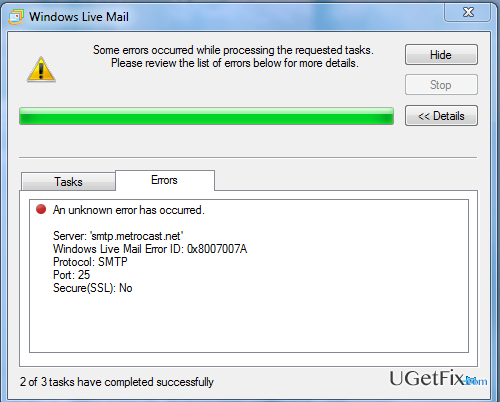
0x8007007A is an error code that typically disrupts Windows OS users who are using Windows Live Mail (WLM) service. WLM is an update of Outlook Express and Windows Mail, so if you were using any of them before, no need to say how handy these apps are. Those who haven’t tried WLM should know that it allows setting up multiple email accounts, can include webmail, photo-email, allows viewing old emails while offline, and inlude many other features. However, recently people started reporting Windows Live Mail for throwing up an Error Code 0x8007007A while sending/receiving emails. From the first glimpse, it may seem that WLM is working properly because they can access the data that is stored on it, create new emails, delete the old ones, etc. However, when it comes to the email reception or sending, the matters go worse as these two operations are not implemented due to the aforementioned error. According to the reports, 0x8007007A Live Mail error is thrown when a user is trying to send an email with pictures as albums. They may succeed in sending images as attachments, but not always. Experts notify that this problem arises due to the conflict between Live Mail and One Drive. Therefore, if you have received an error message that reads “An unknown error Occurred. Windows Live Mail Error ID: 0x8007007A,” you have to take some actions to fix that.
How to Fix Windows Live Mail Error Code 0x8007007A?
Although all types of Windows, including 7, 8, 8.1, Vista, XP, and 10 can run into 0x8007007A error, it seems that Windows 10 is prone to this issue the most. Luckily, there is a couple of things that you can do to fix 0x8007007A Error you PC.
Solution 1: Remove and reconfigure WLM account
- Launch WLM and click on Tools.
- Find Accounts on the menu and click on the email address that you intend to remove.
- Select Remove and then click OK.
- After that, you have to reconfigure the account. For this purpose, click Tools again and select Accounts.
- Find Add option, click it, and then select an Email account.
- Click Next and type your credentials (mail address, password, display name).
- Once the information is entered, click Next and then Finish.
Solution 2. Fix Windows Live Mail
- Navigate to Control Panel -> Programs -> Programs and Features.
- Right-click on Windows Live Essentials 2012 and select Uninstall/Change.
- When the dialogue box opens, select Select Repair all Windows Live programs.
- Now you have to wait until the system finishes the repair process. Once this is done, restart your PC.
We hope that these simple steps have helped you to fix 0x8007007A Error on your machine. If you are still encountering it, please let us know, so that we would check what other reasons may be triggering it and how to fox that.
Bottom line
To fix the 0x8007007A error, you can remove and reconfigure your Windows Live Mail account. If this does not resolve the issue, consider checking for updates or seeking further technical assistance.
Frequently asked questions
Error code 0x8007007A typically indicates a problem with accessing the mail server or a corrupted email account configuration in Windows Live Mail on Windows 10 or Windows 11.
To fix error 0x8007007A, try removing and re-adding your email account in Windows Live Mail, ensuring all server settings are correct for Windows 10 or Windows 11.
Yes, ensure that your incoming and outgoing server settings, including ports and encryption methods, are correctly configured according to your email provider for use on Windows 10 or Windows 11.




Report an issue
What's wrong with this guide? We review every report and update or remove content.
Report received — thank you. We'll review and fix it.
You need a free account to submit a report.
Be the first to comment