How to fix
Windows Mail App prints small
on Windows
Fix the Windows Mail App printing issue with our expert-tested solutions. Enjoy clear prints on Windows 10 and 11, fixed in minutes!

What causes How to fix Windows Mail App prints small?
- Bug in the Windows 10 Mail App
- Corruption of files related to system performance
- Altered entries in the registry
- Issues with system folders
- Problems with device compatibility
Repairs Windows system files, removes malware, and restores a clean OS state — without reinstalling.
I tried to print my emails on the Mail App. The problem started to occur when it prints really small fonts. The email looks okay on the screen before printing, but the printed email is too small to read. PDF attachments and other documents not from the email printing okay. I think this is the problem with the Mail App itself. Help?
Windows Mail App prints small became a serious issue recently because more and more reports have surfaced online. Users[ref en-1] complain that various computers and printers fail to execute the printing job properly. It seems that this is the Windows 10 problem.[ref en-2] People state that the application is to blame, and there are many questions different online forums from frustrated users.
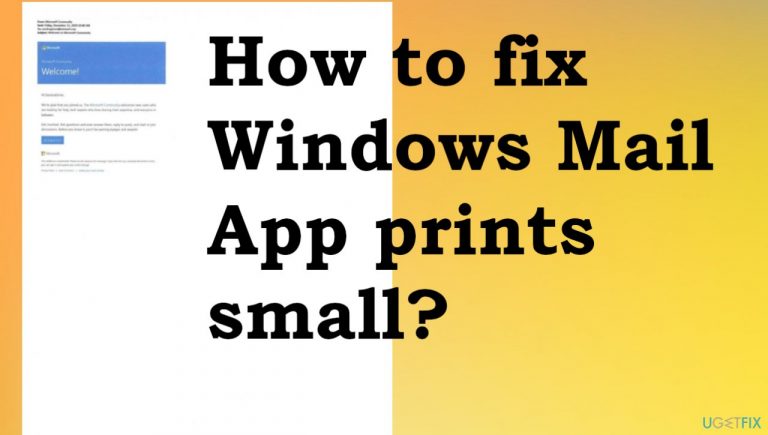
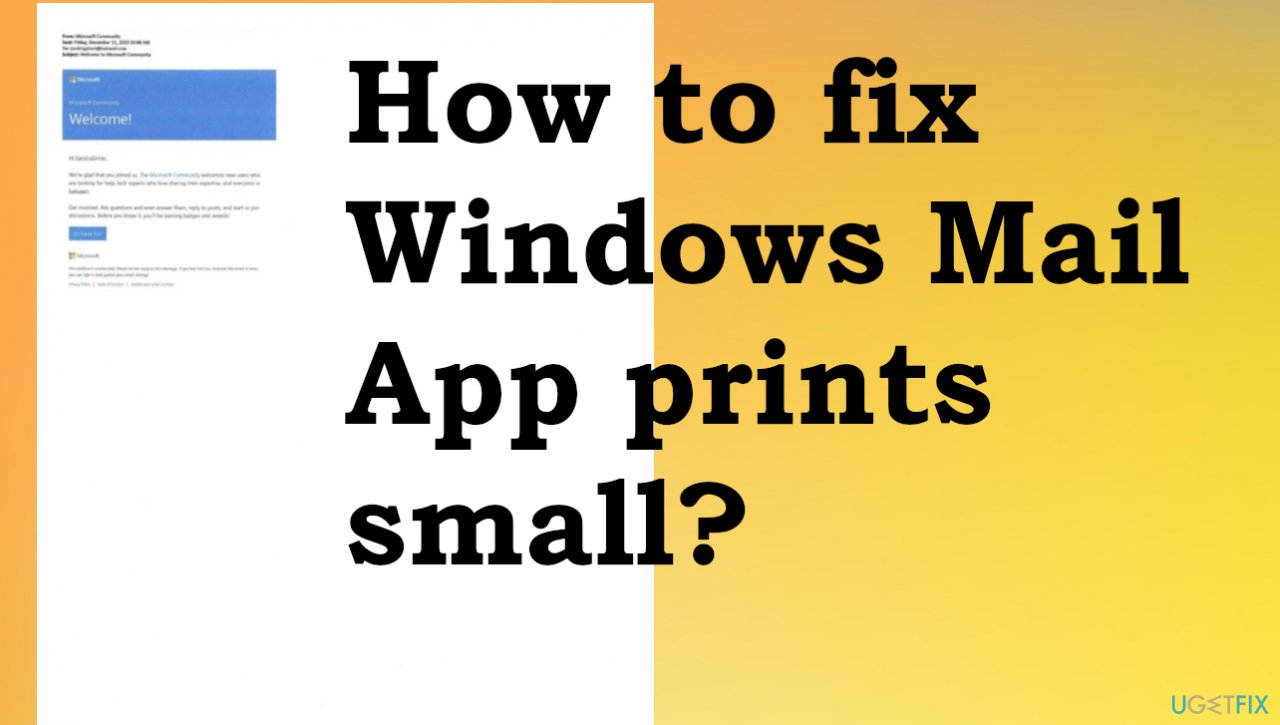
People in various corporations, offices other workplaces need this application function that allows printing emails and attachments, so the archive can be updated. However, when Mail App prints small, this chore becomes impossible and wasteful when the email is printed as a quarter of the A4 format page instead of the normal full image as the print preview shows before printing.
This is the recently confirmed issue to be triggered by the bug in the Windows 10 Mail App,[ref en-3] restarting the application should help fix Windows Mail App prints small problem. However, some people still state that resetting the app, going for the previous version of the program, and doing other quick fixes haven't helped.
Some issues with devices, system processes, and other problems like this Windows 10 Mail App prints small thing can be caused by corruption of files and other pieces related to general system performance. These problems get triggered by altered entries in the registry, some system folders, and data.
You can try to run a diagnostics tool or a PC repair app like [d1] and solve some general issues with the OS before you go and try to fix Windows Mail App prints small problem yourself. The check on the machine files can repair altered files and damaged pieces and help solve major issues before you go through resetting the Mail App and other fixes.
Method 1. Uninstall Windows Mail App via PowerShell
- Click Start, type Windows PowerShell, right-click on it.
- Select Run as administrator.
- Enter the command below:
- Get-AppxPackage *windowscommunicationsapps* | Remove-AppxPackage, then press
Enter. - Download the application from Windows Store again and check.
Method 2. Run the troubleshooter
- Click Start and choose the gear icon.
- Once in Settings, choose Update&Security.
- Choose Troubleshoot and click Additional Troubleshooters.
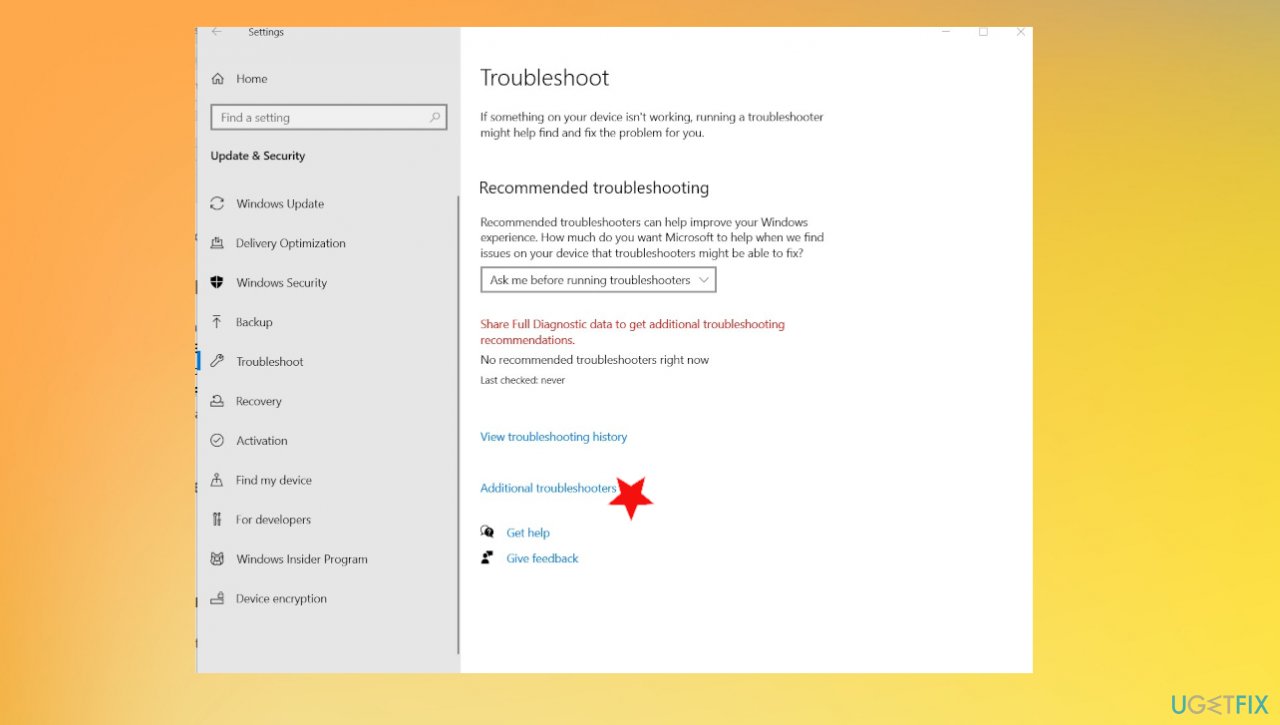
How to fix mail app prints small troubleshooter - Choose Windows Store Apps and Run the troubleshooter.
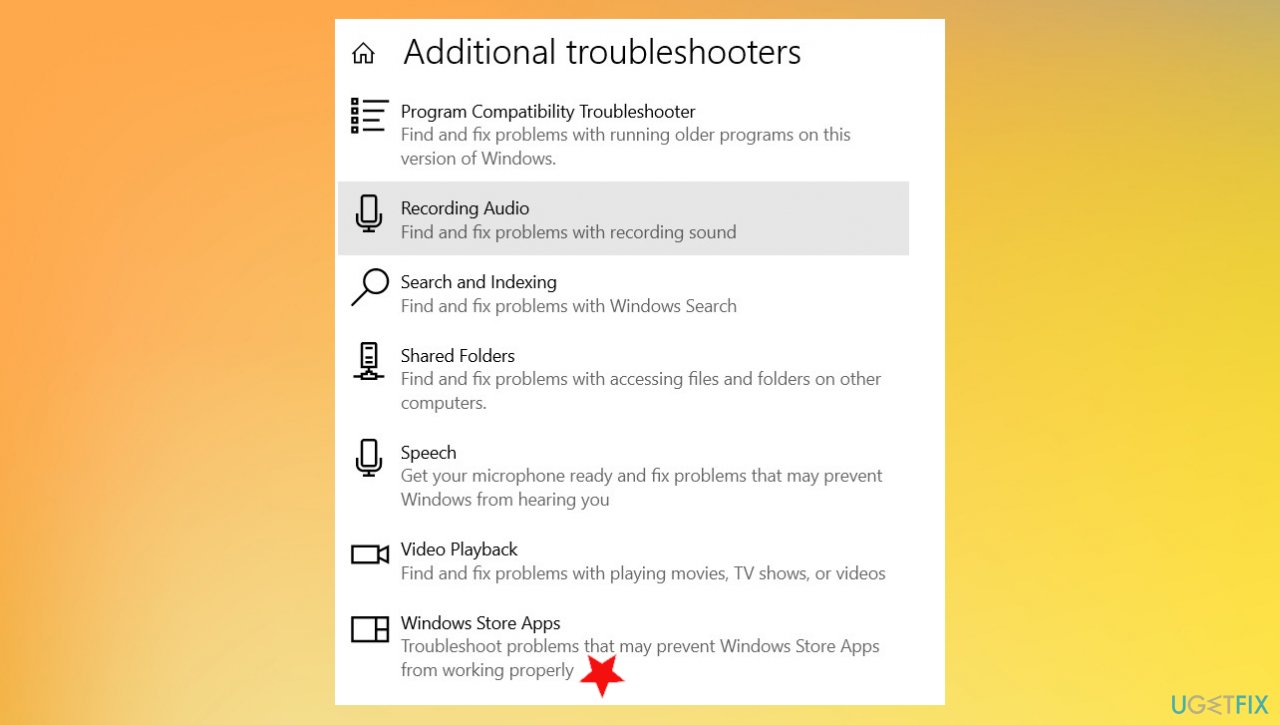
How to fix mail app prints small win store - You will get the offer to reset particular apps.
- Reboot the PC.
Method 3. Check for the latest Windows Update to fix Windows Mail App prints small
- Go to Settings.
- Choose Update & Security.
- On the right side, go to Advanced options.
- Choose Check for updates.
- Wait till Windows downloads and installs updates.
- Reboot your PC.
Method 4. Repair Mail App
- Go to Control Panel.
- Under Programs, click Uninstall a Program.
- Locate Windows Live Essential 2011 then click Uninstall/Change.
- When a window appears, select Repair all Windows Live programs.
- Restart your computer after the repair.
Method 5. Reset Windows Mail App to fix Windows Mail App prints small
- Right-click on Start button and go to Settings.
- Go to Apps.
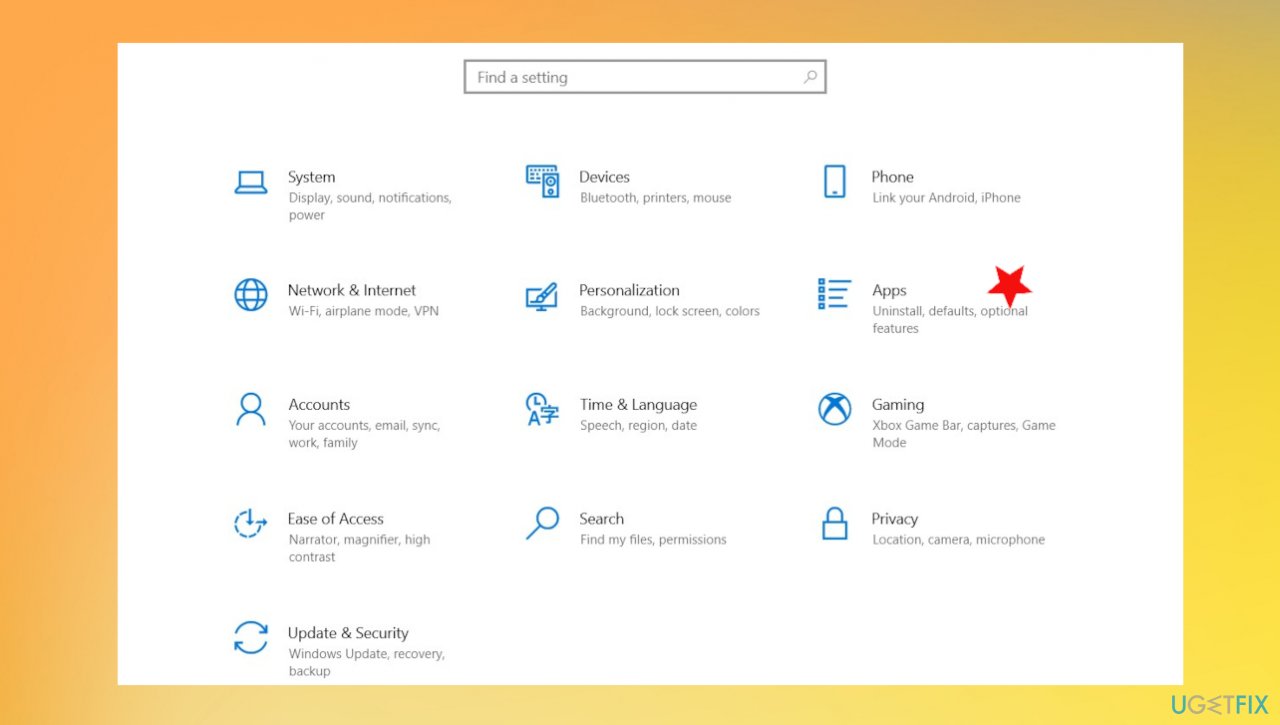
How to fix mail app prints small apps - Scroll down until you find Mail and Calendar.
- Select Advanced options.
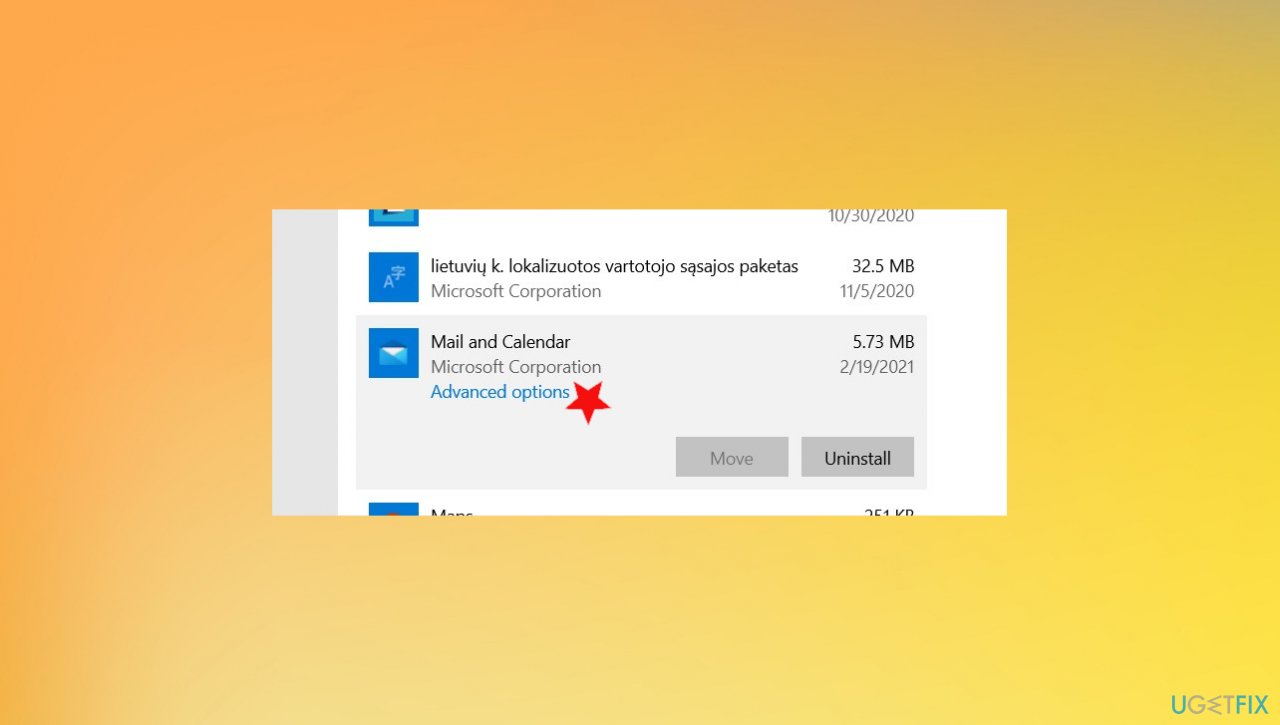
How to fix mail app prints small advanced mail options - Scroll down to Terminate section.
- Click Terminate.
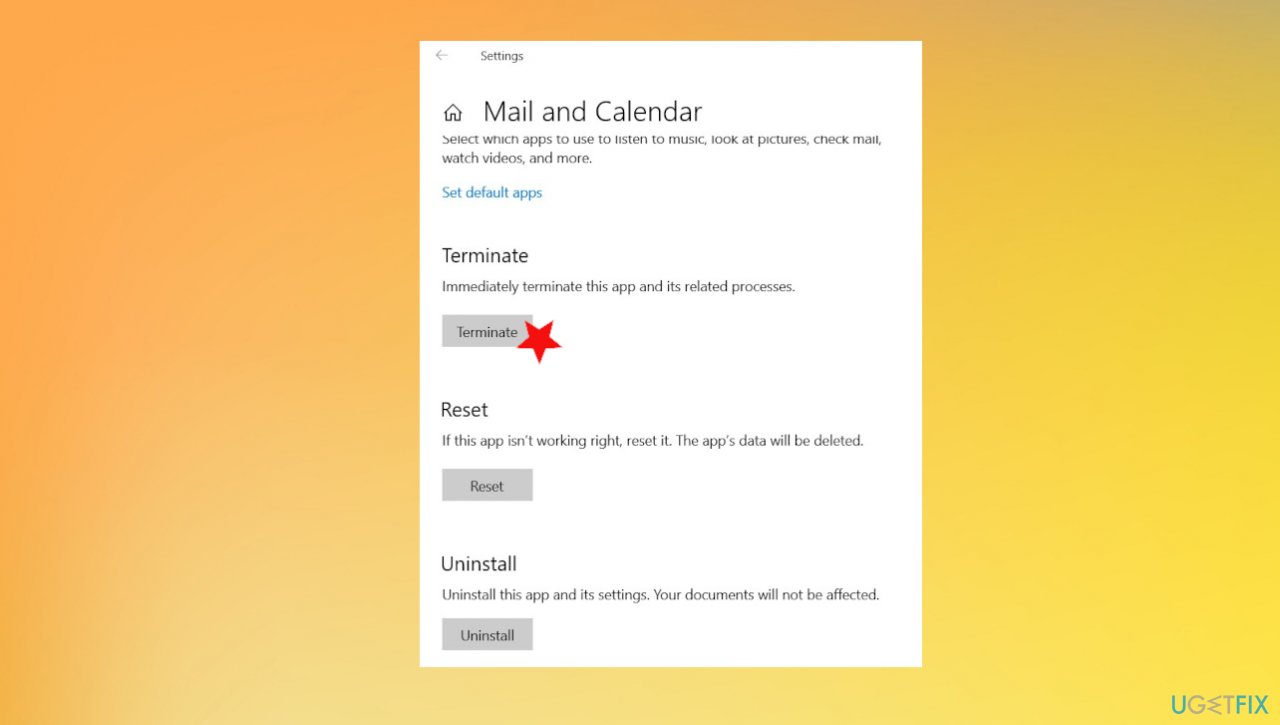
How to fix mail app prints small terminate - Then under Reset, click Reset.
Bottom line
To fix the Windows Mail App printing small issue, users can try restarting the application, resetting the app, or reverting to a previous version. Running a diagnostics tool or a PC repair app may also help resolve underlying system issues. If none of these solutions work, further investigation into the system's integrity may be necessary.
Frequently asked questions
The Windows Mail App may print small due to incorrect printer settings or scaling options. Adjusting the print settings in the app or your printer's properties can resolve this issue.
To change print scaling, open the Mail App, go to Settings, select Printing, and adjust the scale percentage before printing your email.
Yes, ensuring that both Windows 10 and the Mail App are up to date can help fix printing issues, as updates often include bug fixes and improvements.




Report an issue
What's wrong with this guide? We review every report and update or remove content.
Report received — thank you. We'll review and fix it.
You need a free account to submit a report.
Be the first to comment