How to fix
“Windows media player cannot find the file” error
on Windows
Resolve the "Windows Media Player cannot find the file" error on Windows 10 or 11 effortlessly with our expert-tested solutions for smooth playback.


What causes How to fix “Windows media player cannot find the file” error?
- File format incompatibility with Windows Media Player
- Renamed, moved, or deleted files
- Issues due to OS updates or bugs
- Problems when trying to burn, play, or sync items
- Errors when playing music from a CD
Repairs Windows system files, removes malware, and restores a clean OS state — without reinstalling.
There are some troubles with my Windows Media Player. Whenever I try to insert a CD into my drive and rip some files, I get a message “Windows Media Player cannot find the file.” If I click on the notification, I’m informed about files that have been removed old time before. Do you have any ideas what’s the matter?
“Windows media player cannot find the file” error is known for ages. Thousands of people have encountered and, we believe, solved this error quite easily.[ref en-1] Usually, this error notification shows up when people attempt to play music from a CD, from a library or when trying to copy some files from or to CD/library.
The error “Windows media player cannot find the file” appears when the user wants to open an audio or video file using Windows Media Player. The process like trying to burn, play or sync an item that is in your library may cause this error. Also trying to play music from a CD or attempt to copy some music files.
The first reason that may be checked is the format of the file and Windows Media Player compatibility. You can check if the program supports the format of the said file. Also, renamed, moved or deleted file can cause the occurrence of this “Windows media player cannot find the file” error.
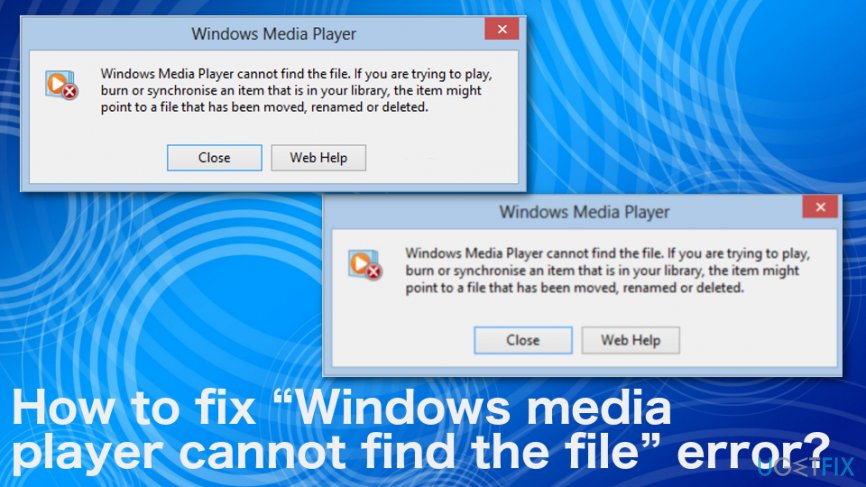
Since “Windows media player cannot find the file” shows up on Windows operating system supporting machines, various OS updates, and bugs may cause the issue.[ref en-2] So updating the system or the program may be the first solution you should try. When that is not working for you, you can check additional methods listed below.
How to fix “Windows media player cannot find the file” error?
If you need help you to fix “Windows media player cannot find the file” error, then we highly recommend you to use a tool that could find and remove the cause automatically or fix related issues. It even detects PUPs or other cyber threats that may cause other issues with your device.[ref en-3]
For example, you can trust [rev id=”Reimage”] program. Besides the system checking function this tool is set to optimize PCs, detecting registry, file, software, etc. related problems and solve them. Thus, don't hesitate and try to fix the “Windows media player cannot find the file” error right away.
Check the file format to fix “Windows media player cannot find the file” error
In most of the cases, this error claims to be caused by moved, renamed or deleted files. If you encountered the “Windows media player cannot find the file” error, you should check if your Media Player supports the format of the file that you seek to launch. For this purpose, you have to:
- Close Windows Media Player;
- Click Start → Control Panel → Large Icons → Administrative Tools → Services;
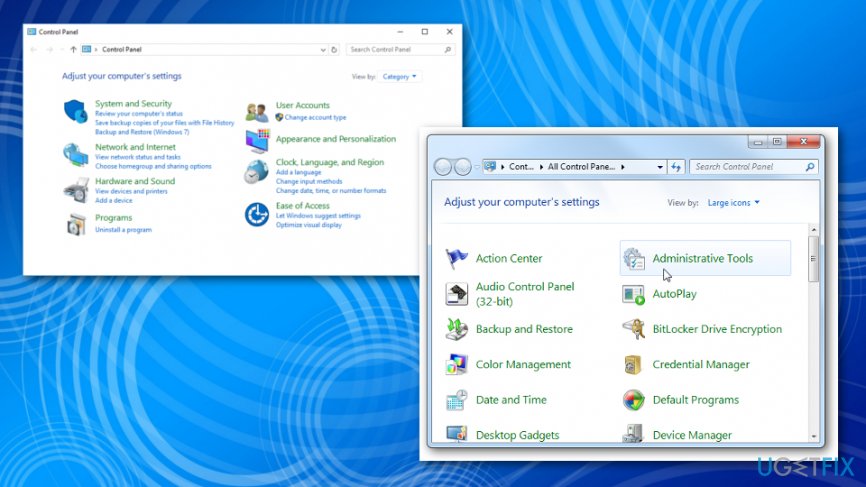
How to fix windows media player cannot find the file error administrative tools - Find “Windows Media Player Network Sharing Service,” right-click on it and select Stop;
- Open “C:\\Users\\”your username”\\AppData\\Local\\Microsoft\\Media Player;”
- Find all files named as CurrentDatabase_***.wmdb and LocalMLS_*.wmdb;
- After that, repeat 2 and 3 steps, but instead of 'Stop,' select 'Start' in order to start Media Sharing Service again;
- Restart Windows Media Player.
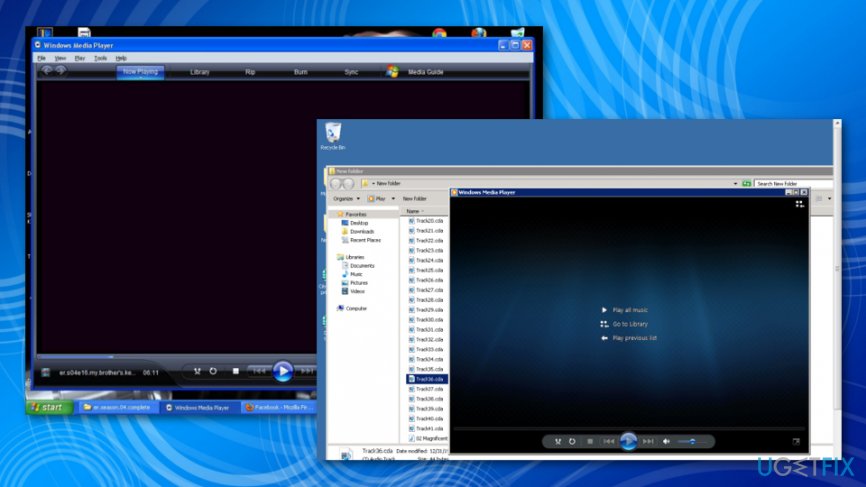
How to fix windows media player cannot find the file error windows media palyer restart
Check the library paths
Do you still receive “Windows media player cannot find the file” error message? If you do, then you should check whether your library paths are correct.
- Go to Tools and then Options in Windows Media Player.
- Click Rip Music tab.
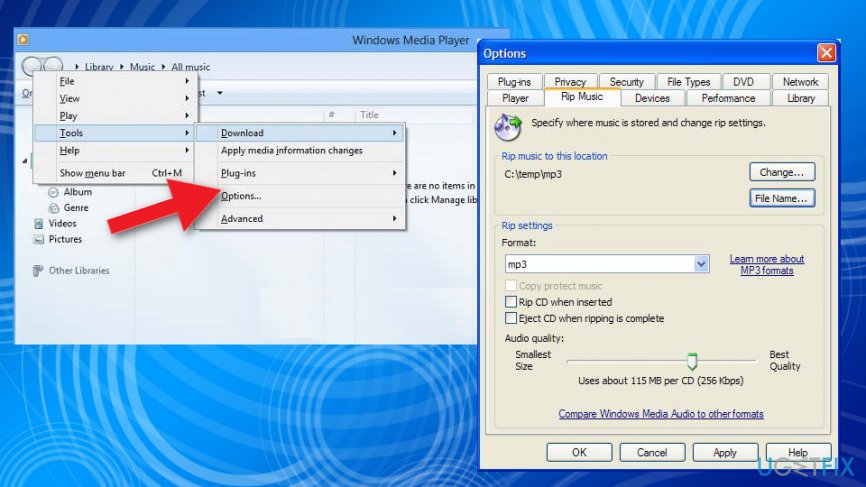
How to fix windows media player cannot find the file error windows media palyer rip music - Then the path to the location where you ripped music appears.
However, if it's empty or the location is not the one that you need, then it may be the cause of “Windows media player cannot find the file” error. In order to reset the path, you just have to find the 'Change' button, click on it and type in the path that is required.
Finally, if you find a path in Windows Media Player correct, then you should try this:
- Close Windows Media Player;
- Click Start → Computer;
- Find Music, right-click on it and select Properties.
- Select Include a folder… and select the folder that you want your music to be stored.
- After that, you have to open 'Library,' select the same path, click 'Set save location' and then 'OK;'
Bottom line
To fix the 'Windows media player cannot find the file' error, you should first check the file format compatibility and ensure the files have not been renamed, moved, or deleted. Updating your system or the program may also resolve the issue. If these solutions do not work, consider using a tool like Reimage to automatically find and fix related issues.
Frequently asked questions
First, ensure that the file path is correct and that the file hasn't been moved or deleted. If the issue persists, try rebuilding the Windows Media Player library by resetting it in the settings.
You can fix this error by checking for updates in Windows 11 and ensuring your media files are not corrupted. Additionally, consider running the Windows Media Player Troubleshooter to identify and resolve any underlying issues.
Yes, Windows Media Player may not support certain file formats natively, such as MKV or some variants of MP4. In such cases, you may need to install codecs or use a different media player.




Report an issue
What's wrong with this guide? We review every report and update or remove content.
Report received — thank you. We'll review and fix it.
You need a free account to submit a report.
Be the first to comment