How to fix
Windows Mixed Reality not working
on Windows
Resolve Windows Mixed Reality issues quickly with our expert-tested solutions. Get back to immersive experiences in no time—fixed in minutes!

What causes How to fix Windows Mixed Reality not working?
- Faulty update KB4090913
- Corrupted software for Mixed Reality Portal
- Inability to launch or install the application
- Issues with Windows 10 after recent updates
- Software incompatibility with hardware
Repairs Windows system files, removes malware, and restores a clean OS state — without reinstalling.
Hi guys. I recently installed Windows update KB4090913 (OS Build 16299.251), and I was unable to launch Windows Mixed Reality Portal. I tried to reboot the PC and even reinstalled the program. However, none of these resolved the problem. Can you help me, please?
Not many users were affected by a faulty update that corrupted proper use of Mixed Reality Portal. Some report that application became impossible to launch, update or install. Nevertheless, the problem persists and needs a quick fix. Please read further to find out more about WMR, its software problems and ways to fix them.
Windows Mixed Reality (WMR) has entered the VR[ref en-1] world recently and seems like it established itself in the market well, considering many high-end computer manufacturers took on the manufacturing process. The WMR is offered by Dell, Acer, Lenovo, HP and Samsung at the different price ranges, as companies are ready to offer discounts to their poducts.[ref en-2]
Additionally, SteamVR also expanded the selection of games available for the platform. Overall, it makes an extremely attractive headset and seems like gamers all over the world welcomed it warmly.
Issues with WMR Software
However, the hardware[ref en-3] cannot work correctly without suitable software. It seems like people are experiencing some issues with it, though. Some users report they are unable to install software for Windows Mixed Reality at all, or cannot launch it.
It seems that some Windows 10 users got affected by the problem after recent OS update KB4090913. Microsoft responded accordingly and released a new update. Please read the article further to find out how to fix Windows Mixed Reality problem.
Regardless of the update, people still might experience issues. Therefore, we will cover few other methods that can help you retrieve a full operation of your WMR and bring you back to the virtual world as soon as possible!
Fix 1. Update Windows to the newest version
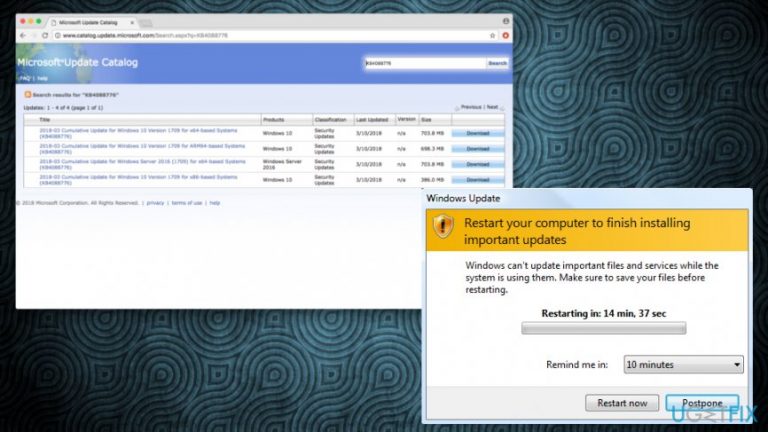
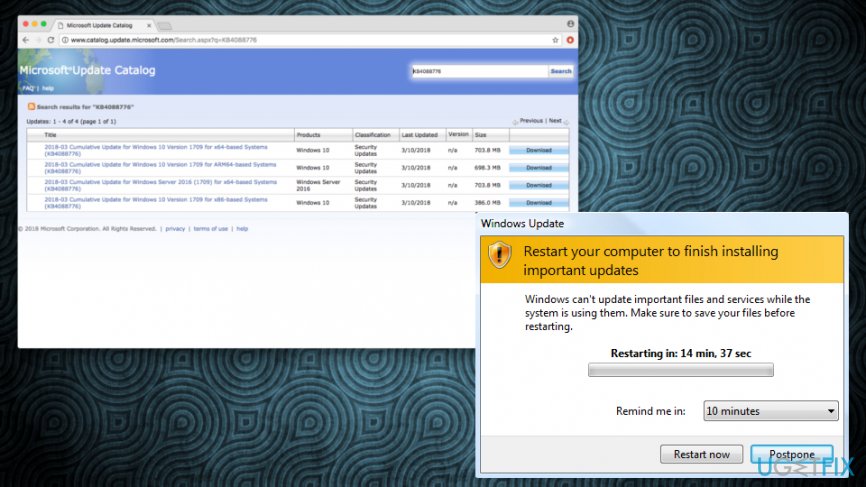
As we already mentioned, KB4090913 broke the software related to WMR. Microsoft released a new update KB4088776 which applied a fix to the problem. Download and install updates by following these steps:
- Click Start button
- Open settings and then pick Update & security
- Click on Windows Update and select Check for updates. You can also install KB4088776 manually by following this link.
- Restart Windows and launch Mixed Reality Portal
Fix 2. Scan your computer for malware
Sometimes malware[ref en-4] might interfere with proper operation of programs. Therefore, it is always wise to keep a reputable security tool on your computer. We recommend downloading and installing [d1] - this powerful software can detect all malware infections and delete them in just a few minutes. If you are unable to start it because the virus is preventing its startup, restart your computer in Safe Mode with Networking and try again. Then, perform a full system scan.
Fix 3. Check your internet connection
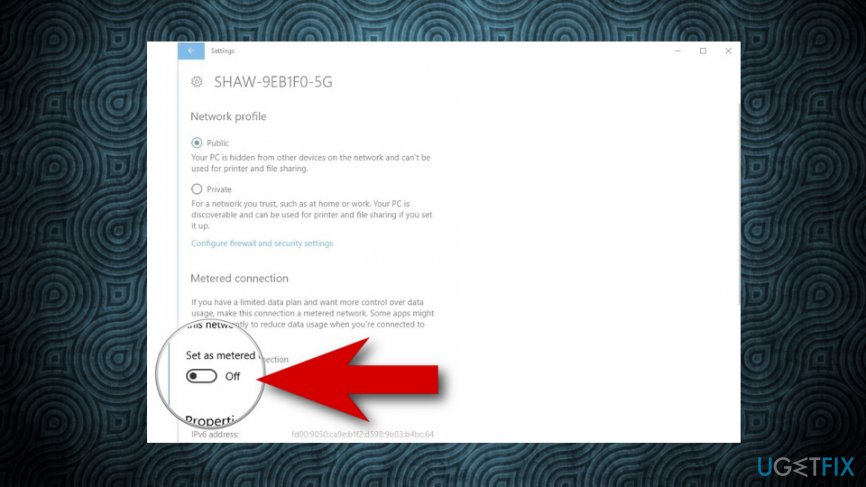
You should switch your metered connection to the internet off. It can cause various issues during your gaming sessions. Thus, make sure everything is set up correctly.
- Right-click Start button and pick Settings
- Then, click Network & Internet and pick Status
- Tap on Change connection properties
- Make sure that the switch under “Set as metered connection” is set to Off
Fix 4. Check for corrupt Windows system files
If some Windows files are broken, it can cause troubles with WMR. Follow these steps to fix the problem:
- Right-click on Start button and type cmd in the search bar
- Right-click Command Prompt and give it administrative rights
- Type sfc /scannow and press Enter
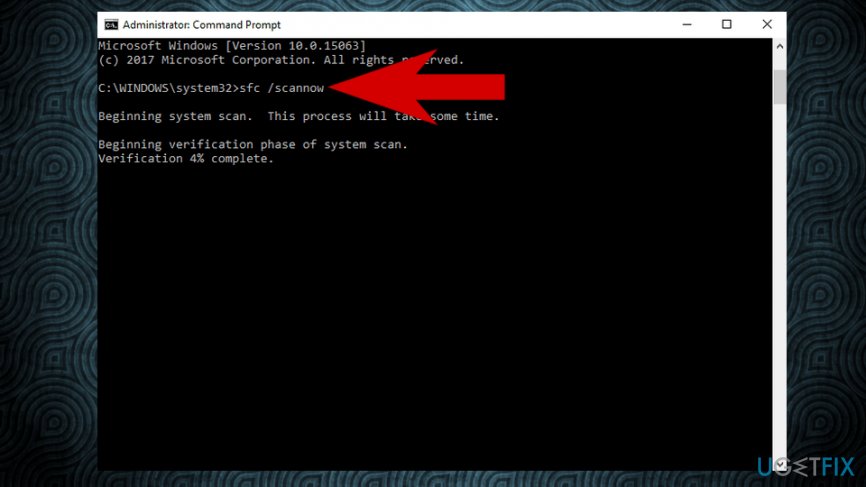
All your Windows files will be checked for damages. If any of the files are corrupt, Windows will reinstall them correctly automatically.
Bottom line
To resolve the issues with Windows Mixed Reality, users should update Windows to the newest version, specifically installing update KB4088776. If the problem persists after these steps, additional methods may be required to restore full operation of the WMR.
Frequently asked questions
Ensure that your system meets the minimum requirements for Mixed Reality and check for any pending Windows updates that might fix compatibility issues.
Make sure your sensors are properly positioned and that your headset is connected securely; also, recalibrate your environment settings in the Mixed Reality portal.
A black screen can occur due to outdated graphics drivers, so update your graphics card drivers through Device Manager or the manufacturer's website.




Report an issue
What's wrong with this guide? We review every report and update or remove content.
Report received — thank you. We'll review and fix it.
You need a free account to submit a report.
Be the first to comment