How to fix
Windows not booting after activating Secure Boot
on Windows
Resolve Windows 10 or 11 boot issues after activating Secure Boot. Follow our expert-tested solutions for a seamless start-up experience, with screenshots.


What causes How to fix Windows not booting after activating Secure Boot?
- Older machines or drives employing a legacy BIOS/MBR configuration
- Unsigned or custom boot managers
- UEFI firmware with old versions
- Third-party drivers causing boots to fail
- Incorrectly set up Secure Boot keys in enterprises
- Multiple platform key (PK) policies stopping Windows from booting
Repairs Windows system files, removes malware, and restores a clean OS state — without reinstalling.
So I have recently built a brand new PC with rather high-end specs, and everything was working completely fine - browsing, streaming, downloading, etc. However, as soon as I tried to play Valorant, the game crashed and said that I need to have Secure Boot enabled. After doing this, my PC displays just a black screen when I try launching it. Help please.
Secure Boot is a built-in security function of newer UEFI firmware that helps make sure only trusted, digitally signed operating systems and bootloaders can boot on your PC. By verifying the signatures of key boot components, Secure Boot protects against certain types of malware and unauthorized modifications to the boot process. However, some users lament that Windows boot failure after enabling Secure Boot becomes a maddening reality when their computer cannot pass the signature verifications.
When Windows fails to boot when Secure Boot is on, typical symptoms may be a black screen with no loading icon, reboot loops, or an error message that the boot device is not recognized. In most instances, the system may hang prior to any Windows logo being displayed, so recovery options will not be available through normal boot processes. This issue can arise shortly after Secure Boot has been enabled in the UEFI settings, even on otherwise properly booting configurations.
There are a number of reasons why the PC will not boot when Secure Boot is enabled. Older machines or drives employing a legacy BIOS/MBR configuration usually do not have the GPT partitioning and signed bootloaders Secure Boot needs. Unsigned or custom boot managers, UEFI firmware with old versions, and third-party drivers will cause boots to fail if Secure Boot validation is activated. In enterprises, incorrectly set up Secure Boot keys or multiple platform key (PK) policies may stop Windows from booting properly.
Since the root causes are complex, fixing Windows not booting when Secure Boot is turned on may be done with numerous different approaches, from disk conversion to GPT to firmware updates, default Secure Boot keys reset, to reinstalling Windows in UEFI mode.
The following section contains detailed, step-by-step instructions that are specific to these situations. If you prefer an automatic repair to fix system problems, you can try using the [d1] maintenance and repair software that can automate the diagnostic process and have your system running.

Access Safe Mode [if applicable]
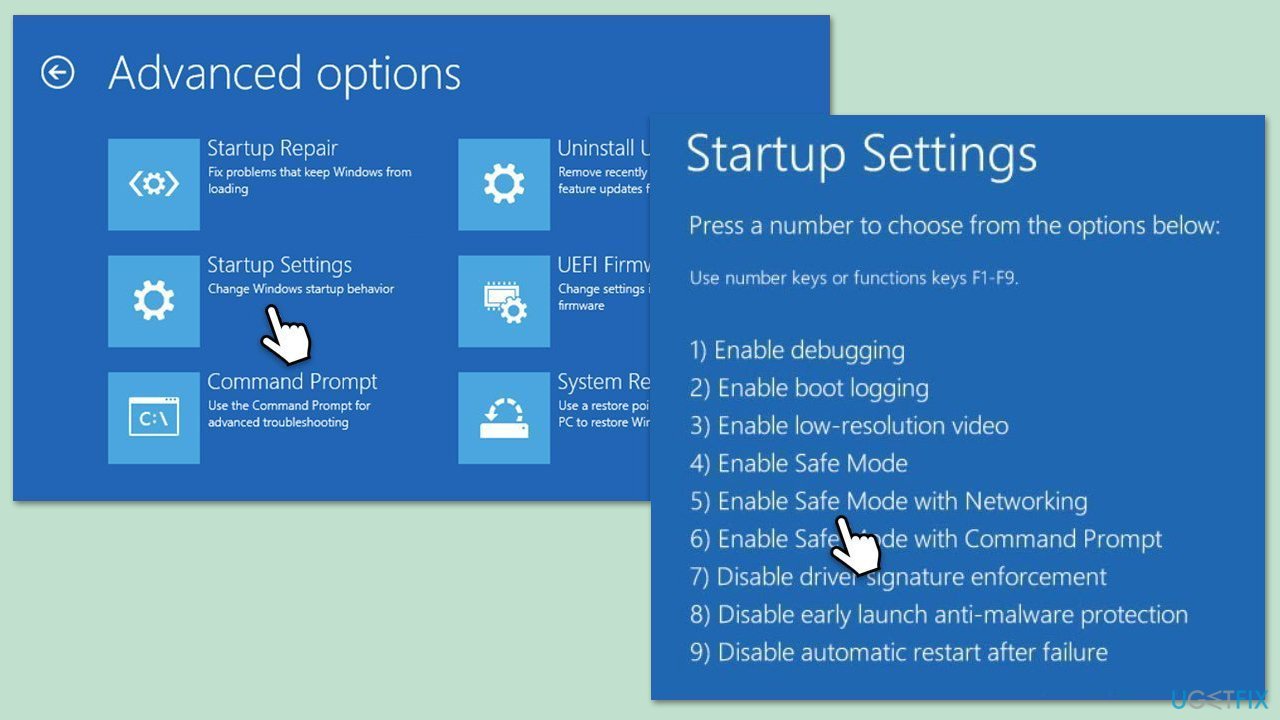
If you can't access Windows, you should access Safe Mode or Windows Recovery Environment to proceed with further fixes. Here's how:
- Restart your computer.
- Once Windows starts booting, press the Power button, interrupting the loading process - do this two more times.
- After that, Windows will automatically enter Advanced Startup mode.
- Select Troubleshoot > Advanced options > Startup Settings and Restart.
- After a reboot, pick either 4/F4 for Safe Mode or 5/F5 for Safe Mode with Networking.
Fix 1. Convert disk to GPT
Secure Boot requires a GPT-partitioned disk for UEFI boot. Converting your drive from MBR to GPT without data loss ensures compatibility.
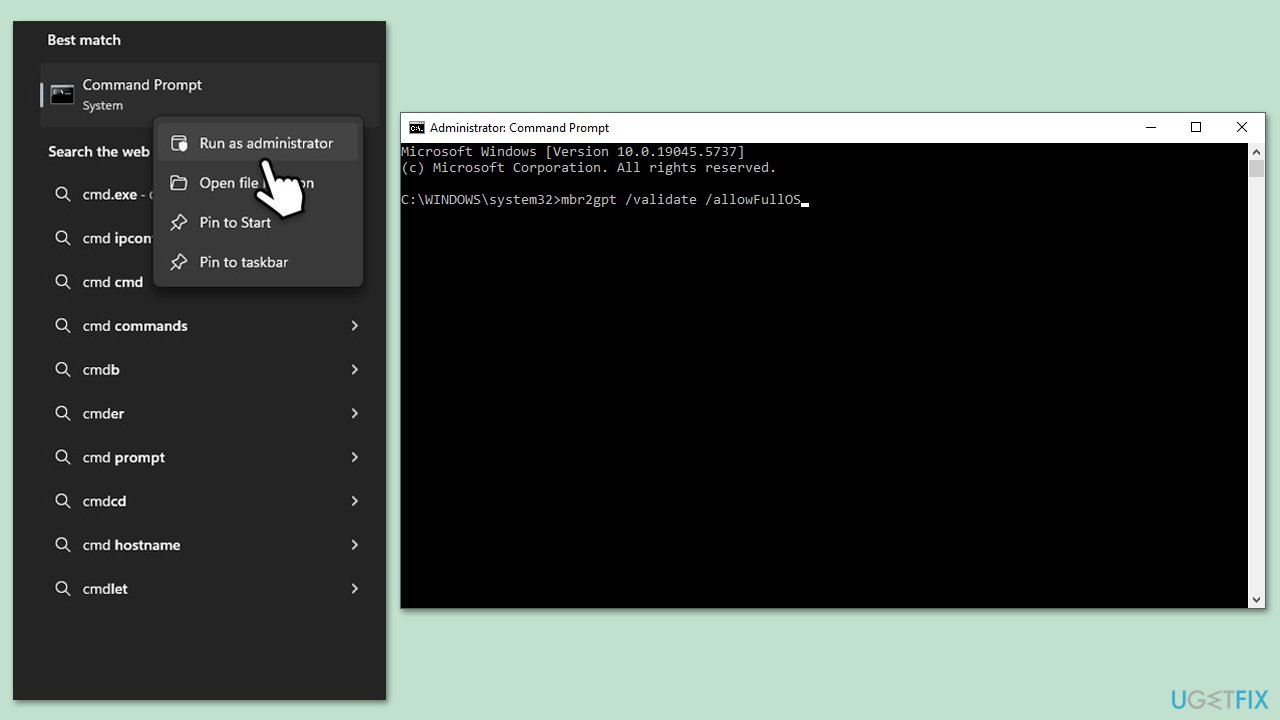
- Type cmd in Windows search.
- Right-click on Command Prompt and select Run as administrator.
- Type in the following command to check compatibility and press Enter:
mbr2gpt /validate /allowFullOS - If the command is succesfull, follow up with the following command:
mbr2gpt /convert /allowFullOS - Restart your PC and enable Secure Boot in UEFI.
Fix 2. Disable CSM or legacy mode
Compatibility Support Module (CSM) or legacy BIOS mode can conflict with Secure Boot. Disabling it forces the system to use UEFI only.
- Reboot your PC and press F2, F8, F10, Del, or a similar button (this varries based on the device/motherboard manufacturer) to access BIOS.
- Go to the Boot tab/section.
- Locate CSM or Legacy Support option.
- Set it to Disabled.
- Save changes and exit.

Fix 3. Update UEFI firmware/BIOS
Outdated firmware may lack Secure Boot support or contain bugs that prevent UEFI boot. Updating to the latest version can resolve these issues.
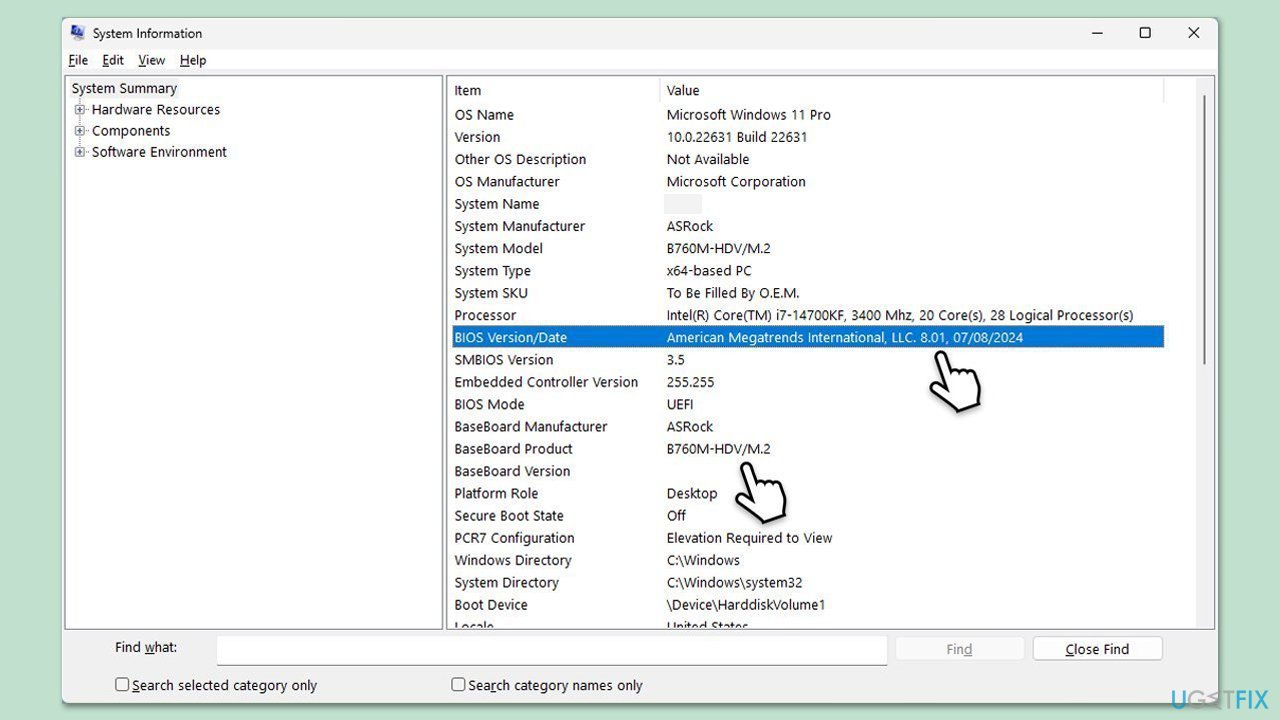
- Access your laptop/motherboard manufacturer's website and download your specific model's latest BIOS update file (you can check which BIOS you are using by typing System information in Windows search and checking the BIOS Version/Date and BaseBoard Product entries there).
- Extract the BIOS update files and read any provided instructions or documentation.
- Create a bootable USB drive with the BIOS update files, if required.
- Update the BIOS using the manufacturer's recommended method, which may be through a built-in utility or booting from a USB drive.
- Restart your computer to complete the process and attempt to enable Secure Boot again.
Fix 4. Restore secure boot defaults
Corrupted or custom Secure Boot keys can block the bootloader. Restoring factory defaults reloads Microsoft’s trusted keys.
- Restart your PC and enter BIOS setup.
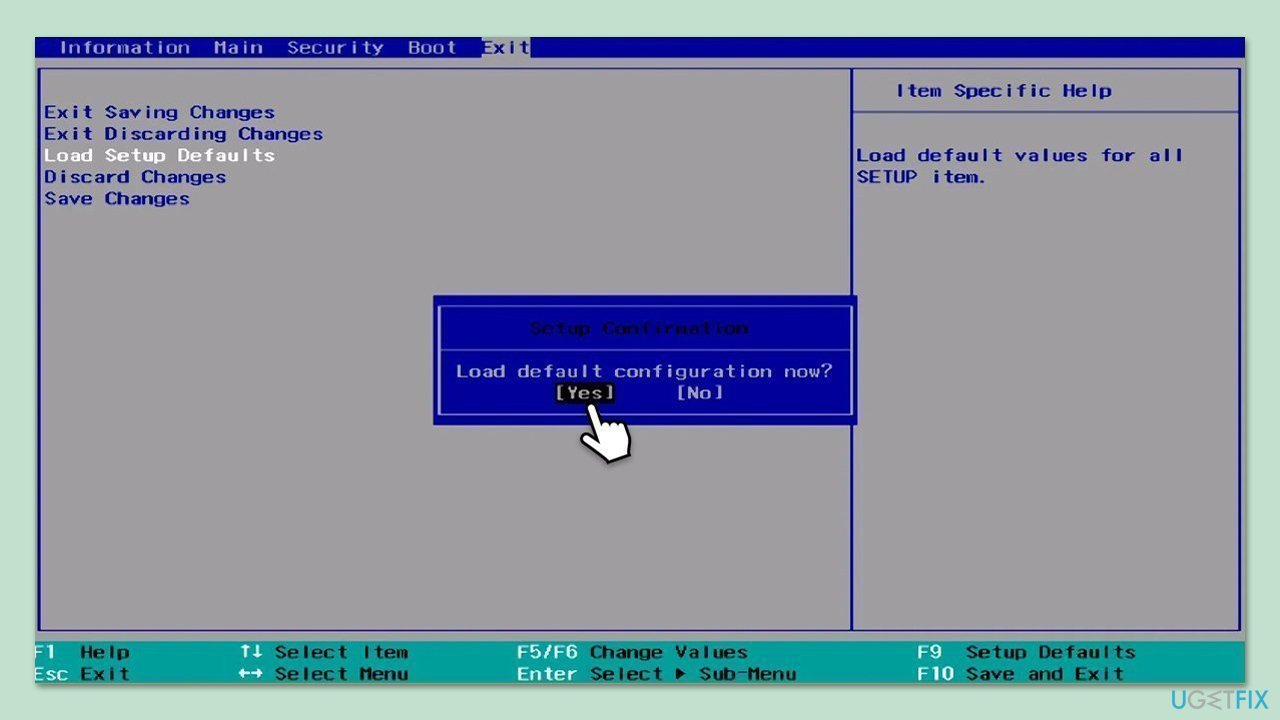
- Go to one of the sections that would have an option to reset BIOS (varies depending on your motherboard).
- Select Load optimized defaults or similar.
- Press F10 to save changes and exit.
- Restart the PC and check if it boots normally.
Fix 5. Repair Windows Boot Manager
If the Boot Manager entry is missing or invalid, Windows cannot launch under Secure Boot. Repairing it restores the correct UEFI entry.
- Boot from a Windows installation media (you should create it on a working computer).
- Go to Repair your computer and select Troubleshoot > Advanced options > Command Prompt.
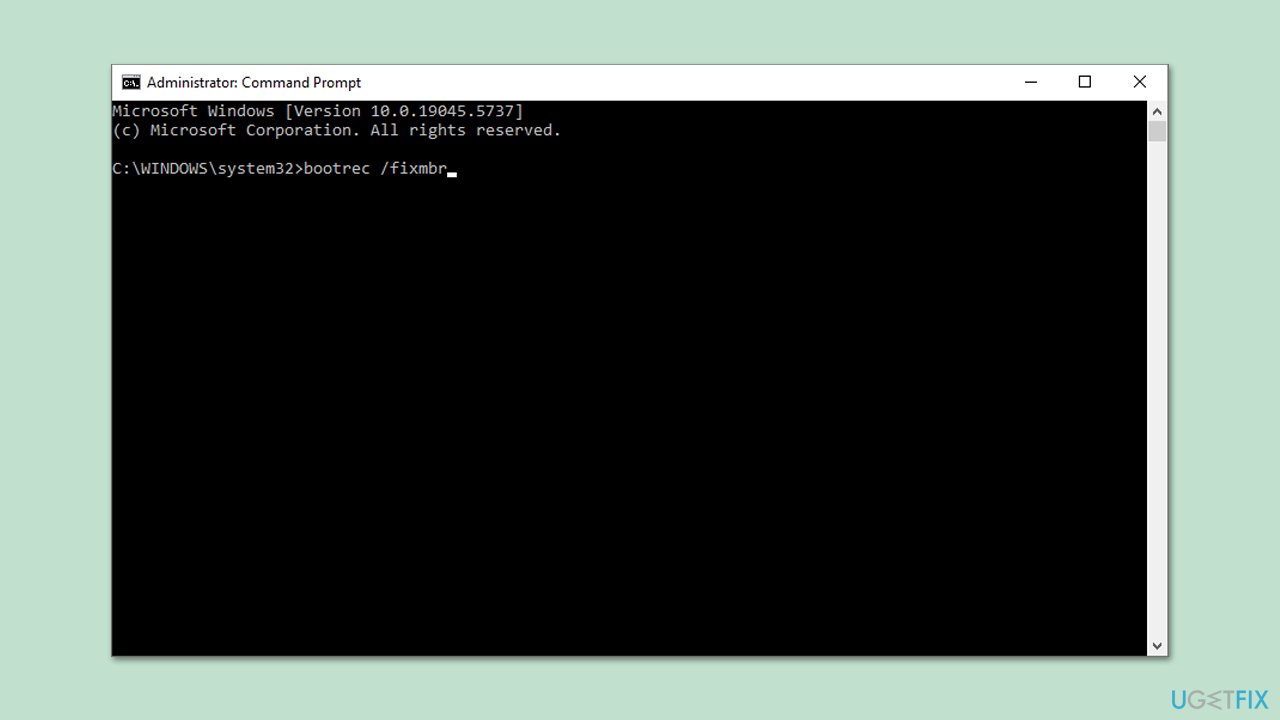
- In Command Prompt, type the following commands and press Enter after each:
bootrec /fixmbr
bootrec /fixboot
bootrec /rebuildbcd - Restart the computer to check if the error is resolved.
Fix 6. Disable driver signature enforcement
Unsigned drivers can prevent Secure Boot from validating system components. Temporarily disabling enforcement allows the system to boot.
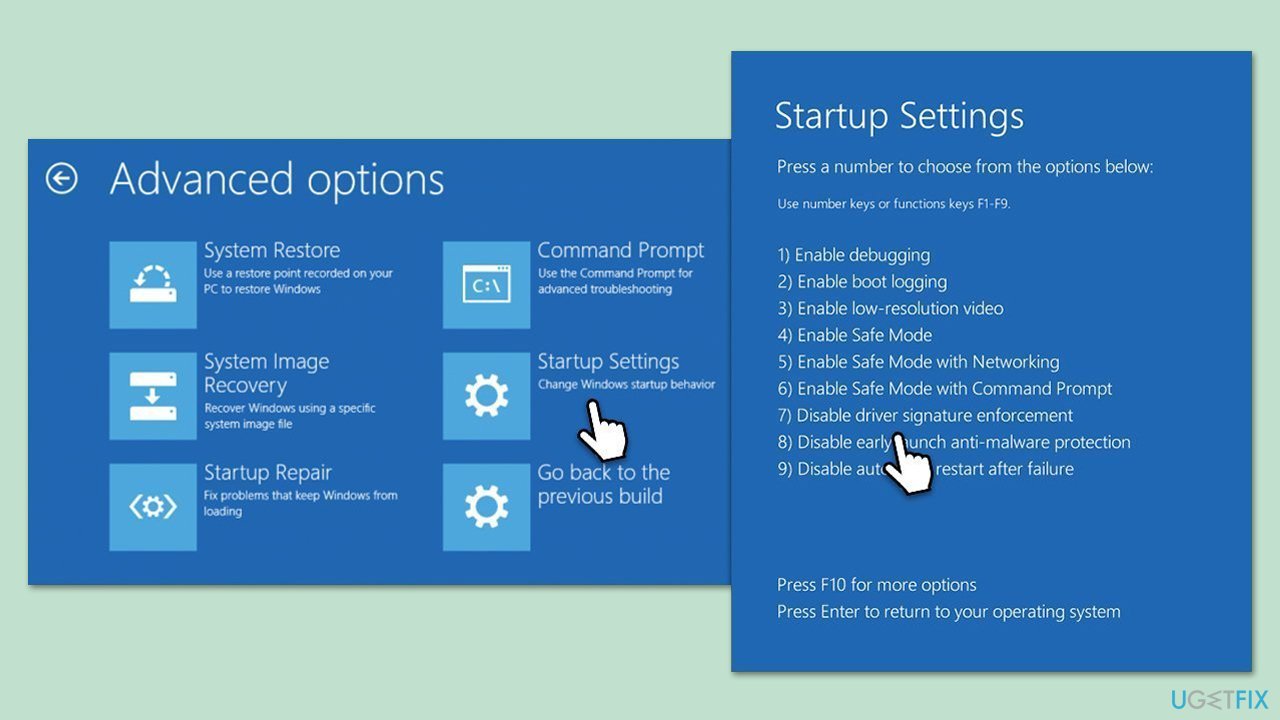
- Restart your computer and press F8 (or another key, depending on your motherboard/laptop manufacturer) before Windows starts.
- In the Advanced Startup mode, go to Troubleshoot.
- Select Advanced options and pick Startup settings.
- From here, press 7 on your keyboard or pick Disable driver signature enforcement option.
- Let Windows boot, then uninstall or update unsigned drivers.
Fix 7. Ensure correct boot order
If the UEFI boot order doesn’t prioritize Windows Boot Manager, Secure Boot may fail to locate the signed bootloader.
- Enter BIOS during startup as previously explained.
- Open the Boot or Boot Order menu.
- Move Windows Boot Manager to the top of the list.
- Save changes and exit UEFI.
Fix 8. Suspend BitLocker encryption
Active BitLocker protection can interfere with Secure Boot changes. Suspending it allows UEFI modifications without triggering recovery.
- In Windows search, type cmd.
- Right-click on Command Prompt and select Run as administrator. In Windows Recovery Environment, go to Repair your computer and select Troubleshoot > Advanced options > Command Prompt.
- Type the following command and press Enter:
manage-bde -protectors -disable C: - Reboot to enable Secure Boot.
- After successful boot, re-enable BitLocker with the following command:
manage-bde -protectors -enable C: - Close down Command Prompt.

Bottom line
To fix Windows not booting after enabling Secure Boot, you may need to convert your disk to GPT, update your firmware, reset Secure Boot keys to default, or reinstall Windows in UEFI mode. If none of these solutions work, further troubleshooting may be necessary.
Frequently asked questions
Try accessing the UEFI firmware settings and disable Secure Boot to see if Windows 10 boots normally. If it does, consider updating your BIOS or checking for incompatible hardware or software.
Yes, enabling Secure Boot can lead to boot issues in Windows 11 if there are incompatible drivers or settings. You may need to enter UEFI settings and disable Secure Boot or update your system drivers.
Boot into the recovery environment using Windows installation media, then select Repair your computer, followed by Troubleshoot and Advanced options to access Startup Repair or Command Prompt for further troubleshooting.




Report an issue
What's wrong with this guide? We review every report and update or remove content.
Report received — thank you. We'll review and fix it.
You need a free account to submit a report.
Be the first to comment