How to fix
Windows restarting after Sleep
on Windows
Resolve Windows 10 or 11 issues with your PC restarting after sleep. Get expert-tested solutions to keep your system running smoothly. Fixed in minutes!

What causes How to fix Windows restarting after Sleep?
- Corrupted system files
- Outdated system drivers
- Incorrect power settings
- Conflicts with hardware drivers
- Conflicts with third-party software
Repairs Windows system files, removes malware, and restores a clean OS state — without reinstalling.
Hello. When I try to use Sleep Mode on my Windows PC, it restarts instead. Is there a way to fix this?
Many people have experienced the problem of Windows restarting after entering Sleep Mode. With the help of Sleep Mode, users can swiftly pick up where they left off while still maintaining their current work session. However, when Windows restarts rather than going into Sleep Mode, it could hinder productivity, result in the loss of previously stored work, and occasionally even corrupt data.
Users who depend on the convenience of Sleep Mode to easily switch between tasks or keep the current state of their work without having to shut down and restart may find this problem to be very aggravating. The need to restart apps and restore lost data can be time-consuming and annoying, which may have an impact on productivity and user experience.
Possible solutions to this problem may include checking and updating system drivers, ensuring that Windows is up to date with the latest patches and updates, and examining power settings to make sure the system is configured to enter Sleep Mode properly. Additionally, some hardware drivers and third-party software may conflict with the Sleep Mode feature, making it necessary to find and fix any conflicts in order to fix the problem.
In this guide, you will find 5 steps that should help you fix Windows restarting after Sleep. You can also run a maintenance tool like [d1] that can fix most system errors, BSODs,[ref en-1] corrupted files, and registry[ref en-2] issues. Otherwise, follow the step-by-step instructions below.

Method 1. Fix Corrupted System Files
Use Command Prompt commands to repair system file corruption:
- Open Command Prompt as administrator
- Use the following command and press Enter:
sfc /scannow
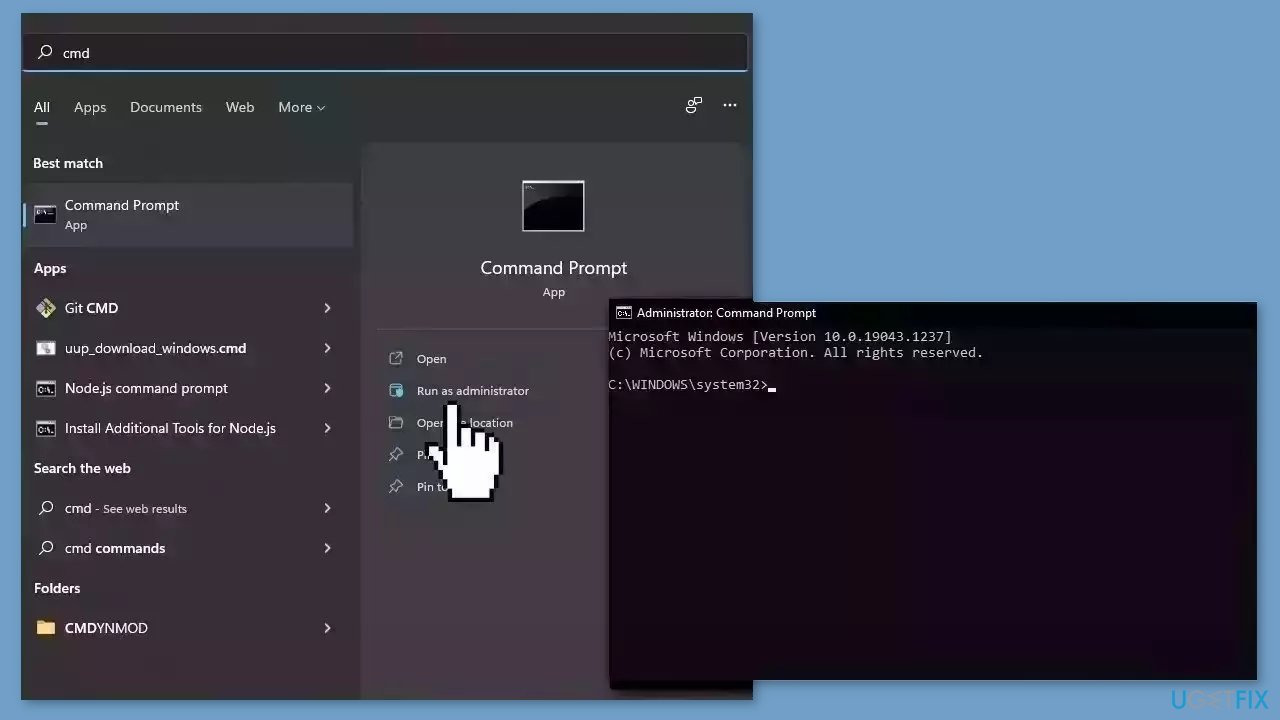
- Reboot your system
- If SFC returned an error, then use the following command lines, pressing Enter after each:
DISM /Online /Cleanup-Image /CheckHealth
DISM /Online /Cleanup-Image /ScanHealth
DISM /Online /Cleanup-Image /RestoreHealth
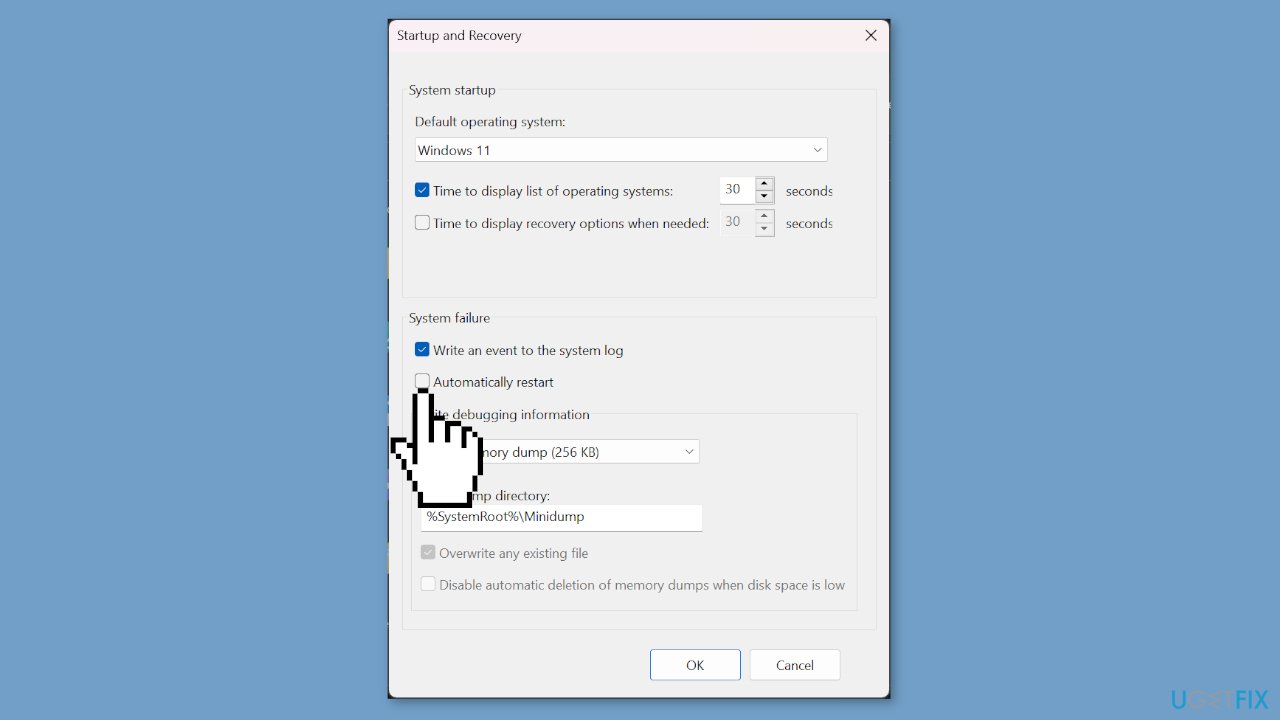
Method 2. Disable Automatic Restart
- Click on the Search bar.
- Type advanced system information.
- Select the View advanced system settings option from the results.
- Look for Startup and Recovery.
- Click on Settings.
- In the next window, uncheck the Automatically restart under System failure.
- Click OK.
Method 3. Change the Power Option for CPU
- Click on Search.
- Type control panel.
- Open the app from the results and select Power Options.
- Click on Change plan settings on the current power plan.
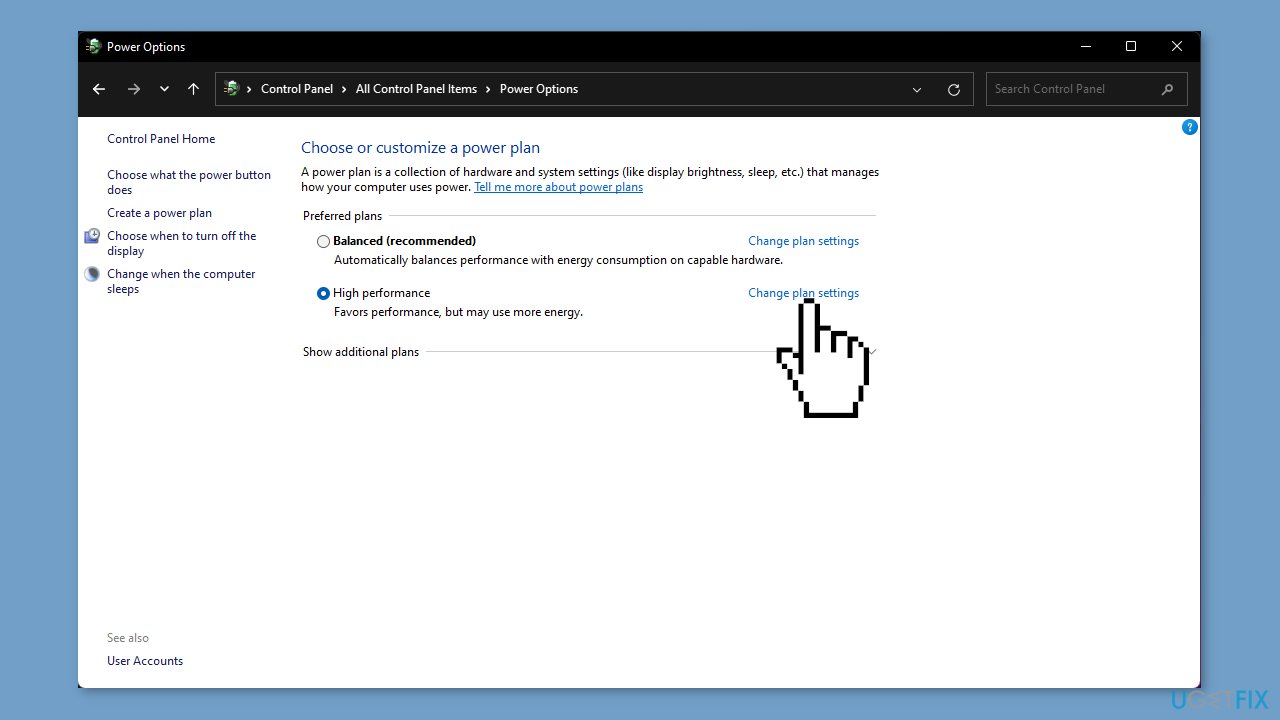
- Click on the Change advanced power settings option.
- Go to Processor power management.
- Expand the Minimum processor state.
- Set both On battery and Plugged in values to 5%.
- Click on Apply and OK to confirm the settings.
- Restart your computer.
Method 4. Turn off Fast Startup
- Press the Windows key + R to open Run.
- Type control and click OK to open the Control Panel.
- Go to System and Security and then click on Power Options.
- In the left pane, click on Choose what the power buttons do.
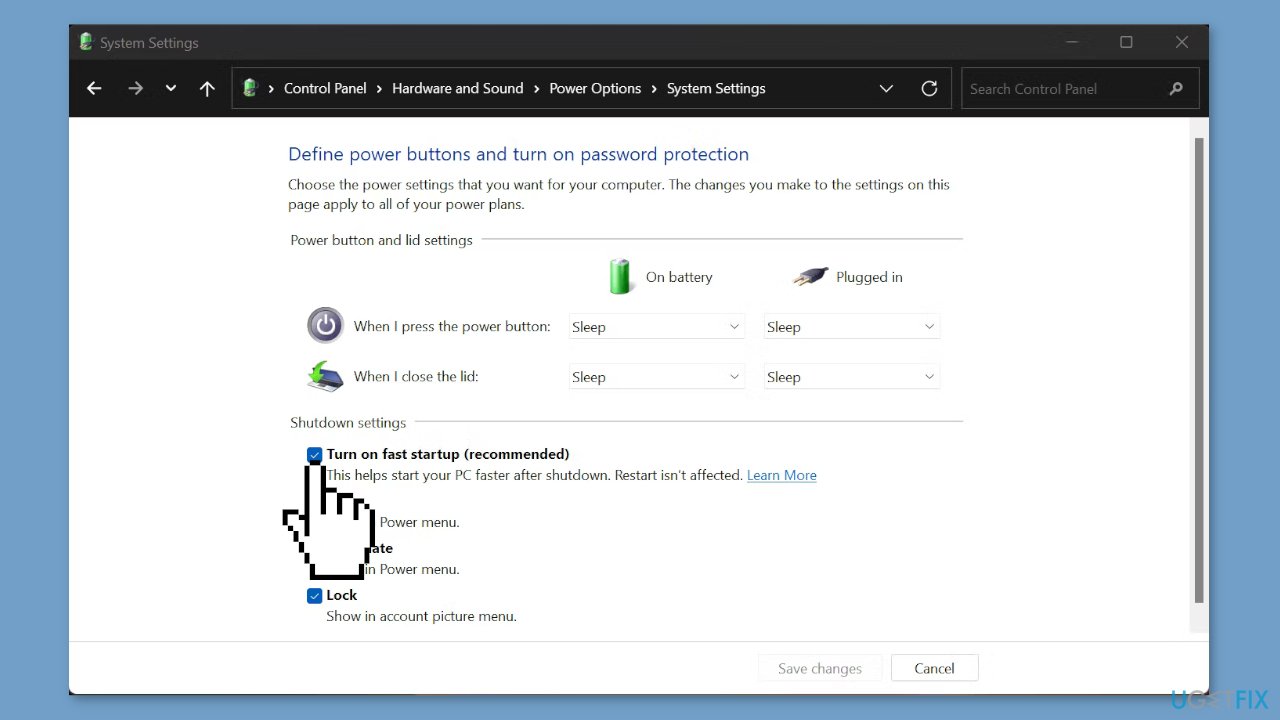
- Next, click the Change settings that are currently unavailable link.
- Uncheck the Turn on fast startup option to disable Fast Startup.
- Click Save changes to apply the changes.
Method 5. Change the Virtual Memory Settings
- Type advanced system settings in the Search bar.
- Click on View advanced system settings.
- Click the Settings button from the Performance section.
- Next, click the Advanced tab.
- Click on Change under Virtual memory.
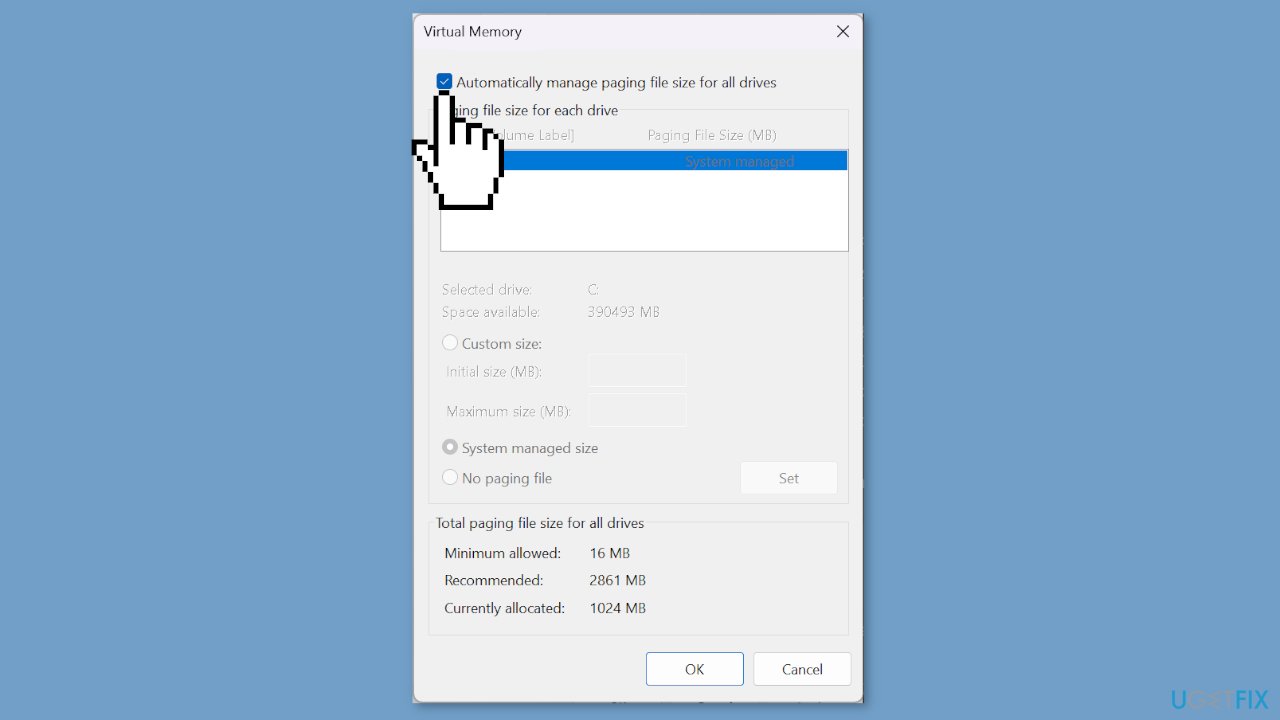
- Make sure that the Automatically manage paging file size for all drives option is checked.
- Click OK and restart your computer.
Bottom line
To fix Windows restarting after Sleep, you can repair corrupted system files using Command Prompt, disable automatic restart, and ensure your system drivers and Windows updates are current. If these solutions do not resolve the issue, consider running a maintenance tool to address system errors.
Frequently asked questions
This issue may occur due to power settings or outdated drivers causing conflicts during the sleep mode. Check your power settings and ensure all drivers are updated to resolve the problem.
You can adjust your power settings by navigating to Control Panel > Power Options and selecting 'Change plan settings' to modify sleep-related options. Additionally, disabling fast startup in the System Settings may help.
Try disabling hybrid sleep in the power settings and check for any pending Windows updates that may fix the issue. If the problem persists, consider running the Windows Troubleshooter for additional help.




Report an issue
What's wrong with this guide? We review every report and update or remove content.
Report received — thank you. We'll review and fix it.
You need a free account to submit a report.
Be the first to comment