How to fix
Windows screensaver not working
on Windows
Troubleshoot your Windows 10 or 11 screensaver issues with expert-tested solutions. Get back to smooth performance and enjoy seamless usage today!

What causes How to fix Windows screensaver not working?
- Current Windows updates causing conflicts
- Incorrect power management settings
- System not recognizing inactivity
- Potential compatibility issues with screen saver and sleep mode preferences
Repairs Windows system files, removes malware, and restores a clean OS state — without reinstalling.
My Windows screensaver is not working for several months now. It happened suddenly and I can't say I know what caused it. It would be great if you could provide a method to fix this. Thanks.
A screen saver is a feature of the Windows operating system designed to protect your screen from screen burn-in or add an aesthetic touch to your screen when it is dormant. It was originally used to prevent phosphor burn-in in CRT and plasma monitors.
Burn-in was a common problem when displaying the same image for a long time. Nowadays, screen savers aim for personalization and entertainment by displaying a series of animations or images when the computer is not actively being used.
However, some Windows users run into the issue of the screen saver not activating. This problem is not only confusing but also frustrating. This malfunction is often related to another issue where the screen doesn't time out or go to sleep as expected. These issues not only hinder the personalization aspect, but can also lead to unnecessary power consumption over time and, in rare cases, screen damage.
Screen saver failures can often be traced back to current Windows updates. These updates are important for security and performance improvements, but they can break existing settings or create conflicts that disrupt normal functionality, such as screen savers and sleep modes. Another common cause is in the area of power management settings. If the settings are configured incorrectly, the screen saver may not activate because the system does not recognize inactivity.
To resolve these issues, you should check for the latest updates and power management settings. It may be beneficial to check compatibility and ensure that these settings match your screen saver and sleep mode feature preferences. It is important to approach this with a combination of caution and understanding of system settings to avoid further complications.
If the problem persists or seems too complex to resolve manually, using a professional PC repair tool may be a wise approach. Tools like [d1] are specifically designed to diagnose and resolve fundamental Windows problems and provide automated solutions that restore functionality such as screen savers without requiring extensive technical knowledge. Offers.
Fix 1. Run Power troubleshooter
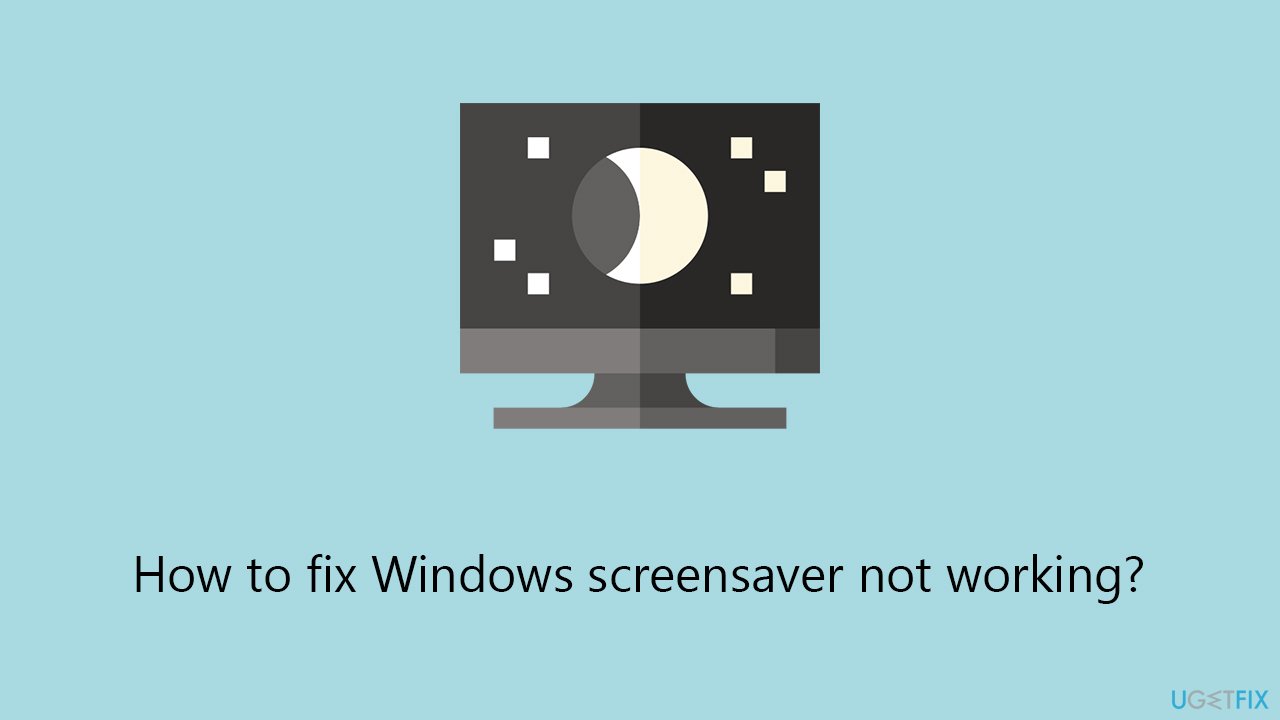
The Power troubleshooter is a built-in Windows tool designed to identify and resolve issues related to power settings. Running this troubleshooter can be effective for fixing screensaver problems that stem from incorrect or corrupted power configurations. It scans your system, identifies issues, and attempts to fix them automatically.
- In Windows search, type in troubleshoot and press Enter (you can also go to Start > Settings > System > Troubleshoot).
- Pick Additional troubleshooters/Other troubleshooters.
- Select the Power option and click Run/Run the troubleshooter.
- Wait till the process is complete.
- Apply the offered fixes and restart your computer.
Fix 2. Check Screensaver settings
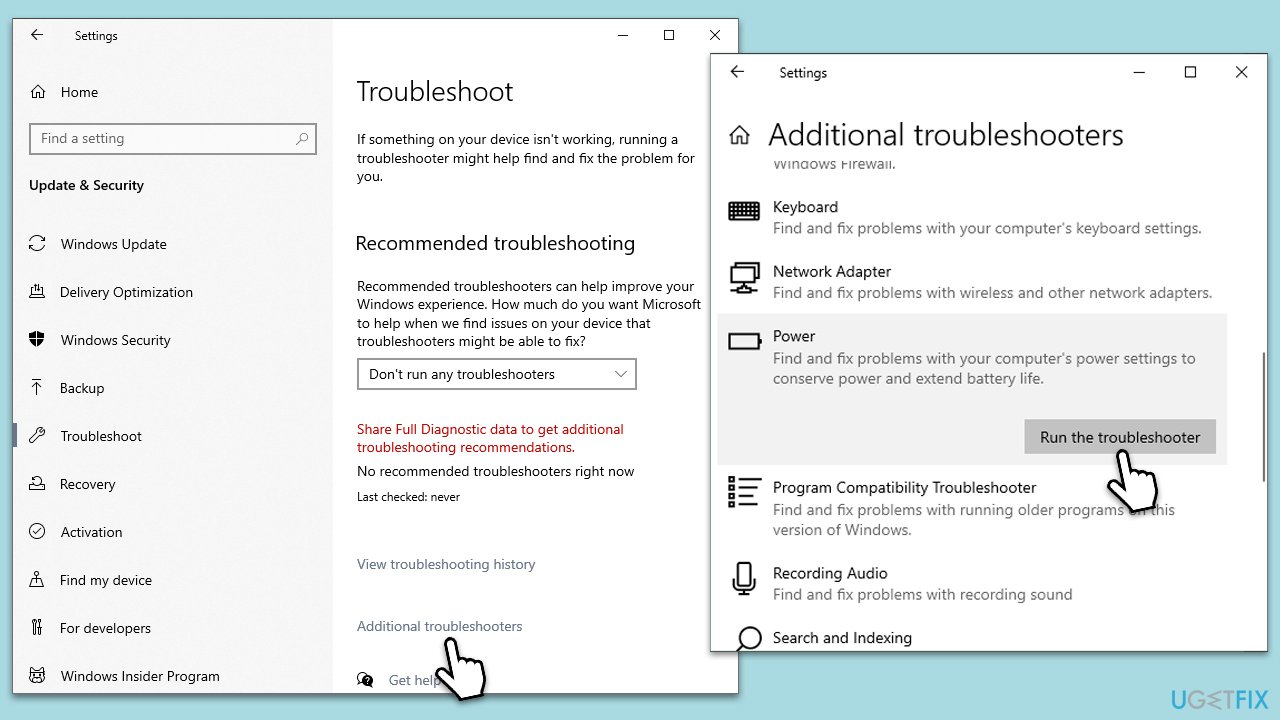
Screensaver settings that are misconfigured or disabled could prevent the screensaver from working. Adjusting these settings can resolve the issue.
- Right-click on the desktop and select Personalize.
- Click on the Lock screen and then Screen Saver settings.
- In the Screen Saver Settings window, ensure a screensaver is selected from the dropdown menu.
- Adjust the Wait time to your preference and make sure On resume, display logon screen is checked if required.
- Click Apply and then OK.
Fix 3. Install the latest Windows updates
Windows updates can include fixes for common system issues, including screensaver problems. Keeping your system up to date can resolve these issues.
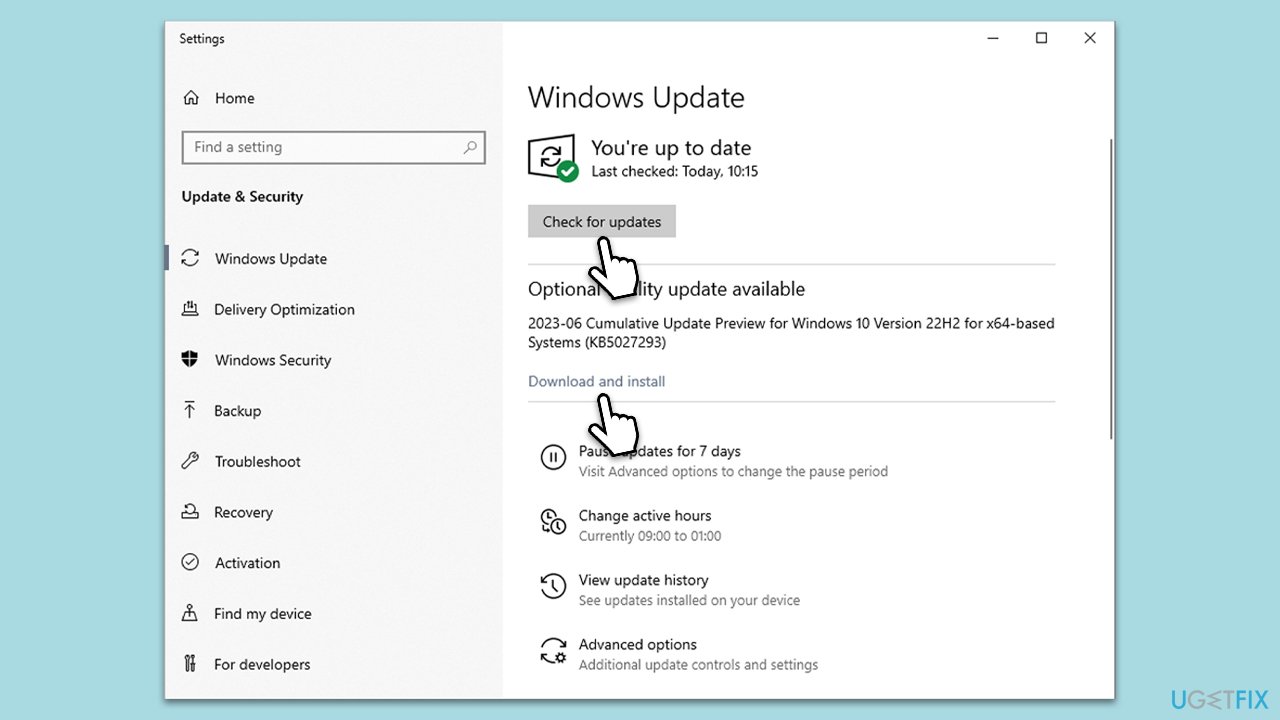
- Type Updates in Windows search and press Enter.
- When the new window opens, click Check for updates and wait.
- If there are optional updates available, install them as well.
- Restart your computer to implement the changes.
Fix 4. Uninstall the latest Windows update
If screensaver issues began after a recent Windows update, removing that update might fix the problem.
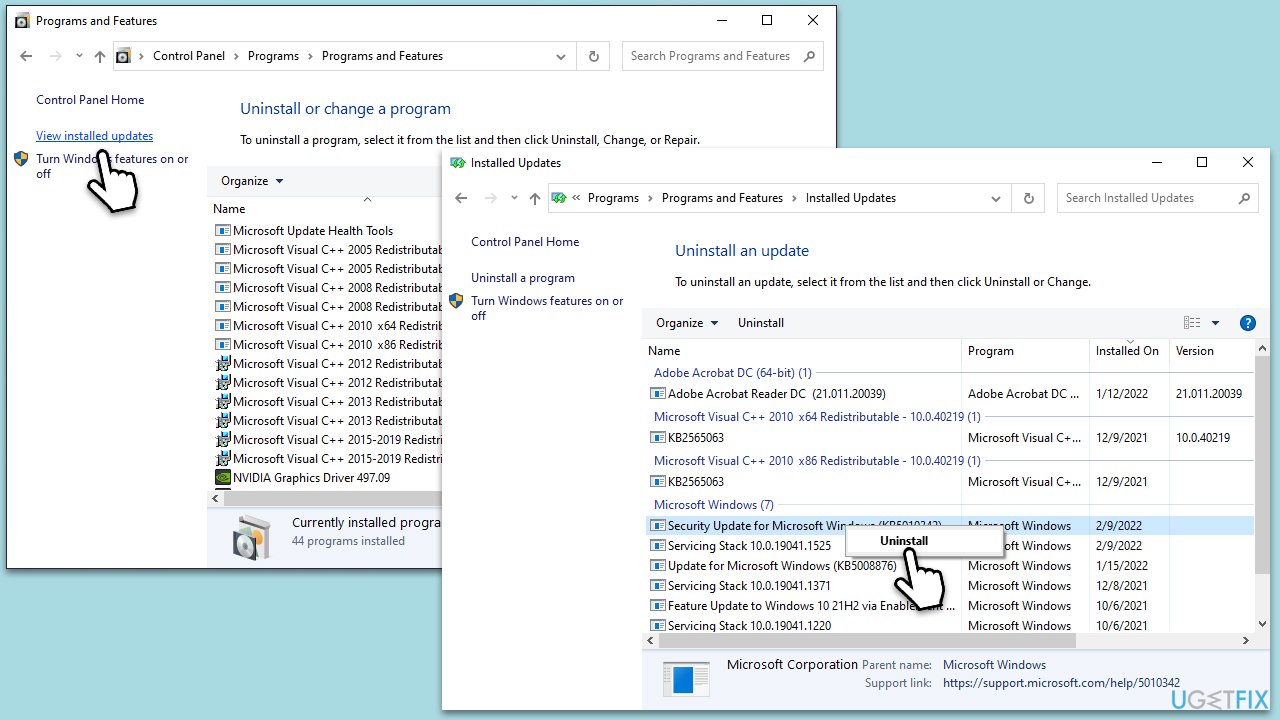
- Type Control Panel in Windows search and press Enter.
- Select Programs > Uninstall a program.
- Click on View installed updates on the left side of the window.
- Sort all the updates by date.
- Right-click on the most recent update and select Uninstall.
- Proceed with on-screen instructions.
- Then, type Updates in Windows search and press Enter.
- Click Pause the updates for 7 days (in Windows 11, you can pick a different time period).
- Install updates only once the issue is addressed by Microsoft.
Fix 5. Check Power Management Settings
Proper Power Management settings are essential for the screensaver to function correctly.
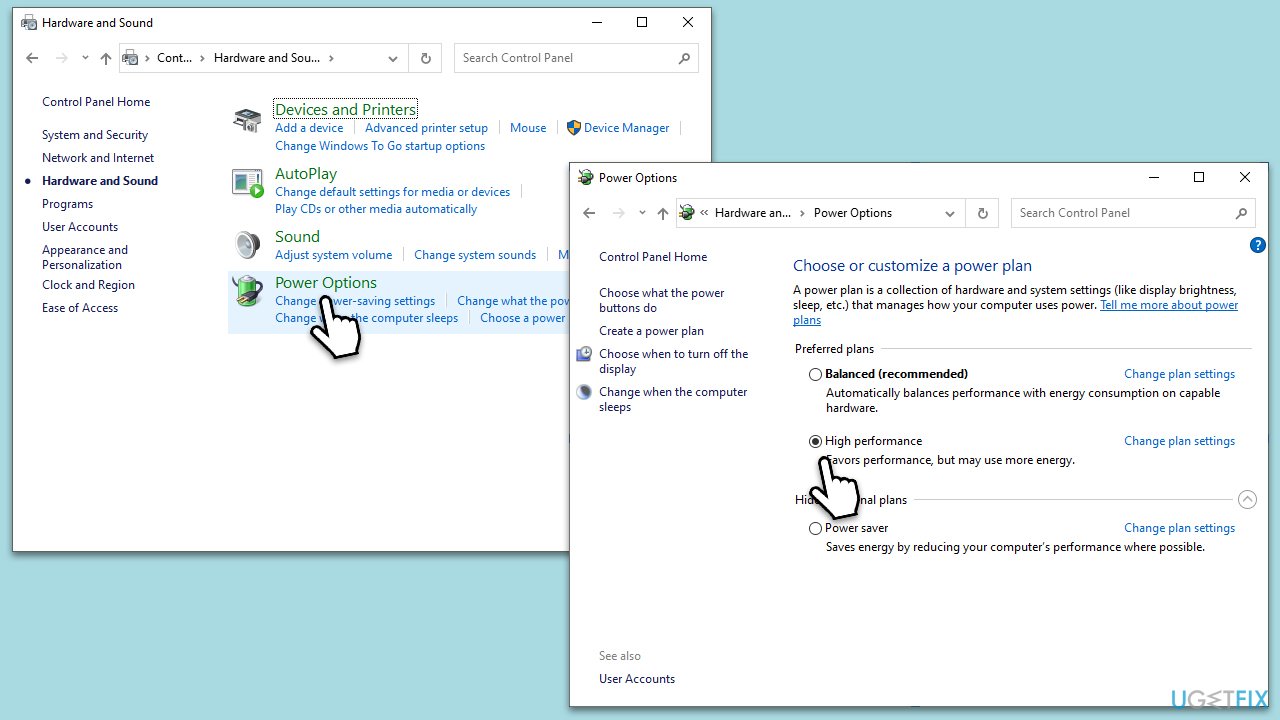
- Right-click the battery icon on the taskbar and select Power Options.
- Click on Change plan settings next to your active power plan.
- Click on Change advanced power settings.
- Expand the Sleep and Display settings and adjust them to High Performance.
- Click Apply and then OK.
Fix 6. Repair corrupted system files
SFC and DISM tools can repair corrupted Windows system files, potentially resolving screensaver issues.
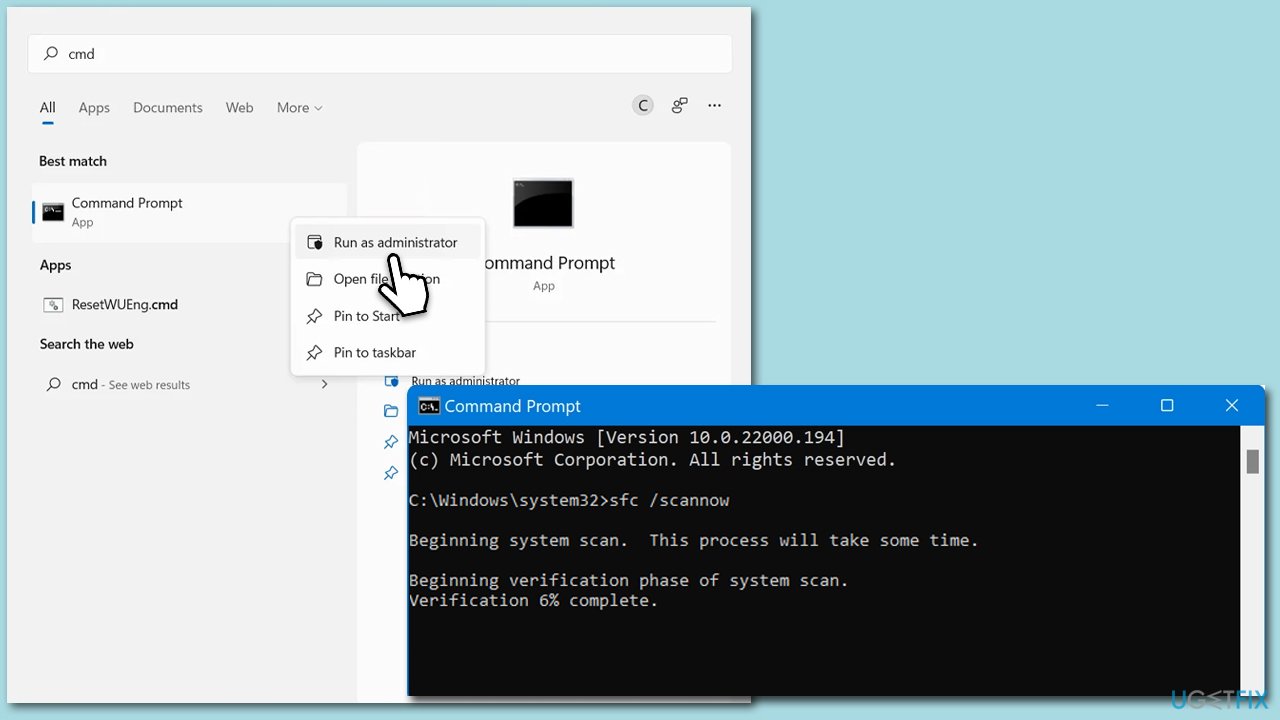
- Type cmd in Windows search.
- Right-click on Command Prompt and pick Run as administrator.
- The User Account Control window will ask whether you want to allow changes - click Yes.
- In the Command Prompt window, paste the following command and hit Enter:
sfc /scannow - Once the scan is complete, use the following commands and press Enter after each:
Dism /Online /Cleanup-Image /CheckHealth
Dism /Online /Cleanup-Image /ScanHealth
Dism /Online /Cleanup-Image /RestoreHealth - (Note: if you get an error executing this last command, add /Source:C:\RepairSource\Windows /LimitAccess to it and try again).
- Restart your system.
Fix 7. Update display drivers
Updating your display drivers can solve screensaver problems caused by driver issues. For a quicker solution, you can always rely on [rev id="DriverFix"].
- Right-click on the Start button and select Device Manager.
- Expand Display adapters.
- Right-click on your video card and select Update driver.
- Choose Search automatically for drivers.
- Follow the prompts to install any available updates.
- Restart your computer after updating the drivers.
Bottom line
To fix the screensaver issue, check for the latest Windows updates and review your power management settings. Ensure that these settings align with your screen saver and sleep mode preferences. If the problem persists or seems too complex to resolve manually, consider using a professional PC repair tool.
Frequently asked questions
Your screensaver may not be activating due to power settings or display settings that prevent it from starting. Check your power options and ensure that the screensaver settings are correctly configured in the personalization menu.
To troubleshoot screensaver issues on Windows 11, try running the built-in troubleshooter for hardware and devices, and make sure that no background applications are interfering with the screensaver settings.
If your screensaver is disabled in Windows 10, go to the screensaver settings and ensure that it is not set to 'None' and that the timeout period is appropriately configured.




Report an issue
What's wrong with this guide? We review every report and update or remove content.
Report received — thank you. We'll review and fix it.
You need a free account to submit a report.
Be the first to comment