How to fix
Windows Search crashes
on Windows
Resolve Windows 10 and Windows 11 Search crashes effortlessly with proven solutions. Expert-tested tips and tricks ensure your PC runs smoothly. Fixed i…


What causes How to fix Windows Search crashes?
- Damaged system files
- Corrupted registry entries
- Issues related to the operating system
- Improper indexing settings
- Conflicting software
Repairs Windows system files, removes malware, and restores a clean OS state — without reinstalling.
Hello. This problem I have came around out of nowhere. Every time I attempt to use Windows search, it simply crashes. This is very annoying to me because I need to go around this stuff every time. Is there any way to fix Windows Search crashes? Preferably without reinstalling the operating system, please.
Windows Search is something that some people may take for granted until it starts malfunctioning, on, in this case, crashing. Suddenly, navigating your machine becomes much more difficult, and programs, files, or folders which were reachable within a few seconds become a pain to get to.
Windows Search usually allows users to quickly and easily find files, folders, documents, and other types of content on their machines. Indexing is the process that this system uses to catalog all these files, so it makes it much easier for users to find what they need at the time.
For example, one can search for "cmd," and Command Prompt would come up instantly - no need to open the Run dialog or the Task Manager. When Windows search crashes, the whole situation can be frustrating and time-consuming. Additionally, the system may continue to try and run the search function even though it is not working properly, which can slow down the overall computer performance.
The cause of Windows Search crashing might not be clear - especially right away - but it is a common problem many people experience. It could be caused by a number of different things, including damaged system files, corrupted registry entries, or other issues related to the operating system itself.
This guide provides you with 6 different steps you can take in order to fix Windows Search crashes. That being said, you should remember that manual troubleshooting might take quite some time to complete, so please be patient. If you would rather opt for a quicker solution, we recommend running a tool such as [d1] - it can automatically fix most system errors, BSODs,[ref en-1] corrupted files, registry[ref en-2] issues, or clear cookies and cache.[ref en-3]

Method 1. Start by running SFC and DISM via elevated Command Prompt
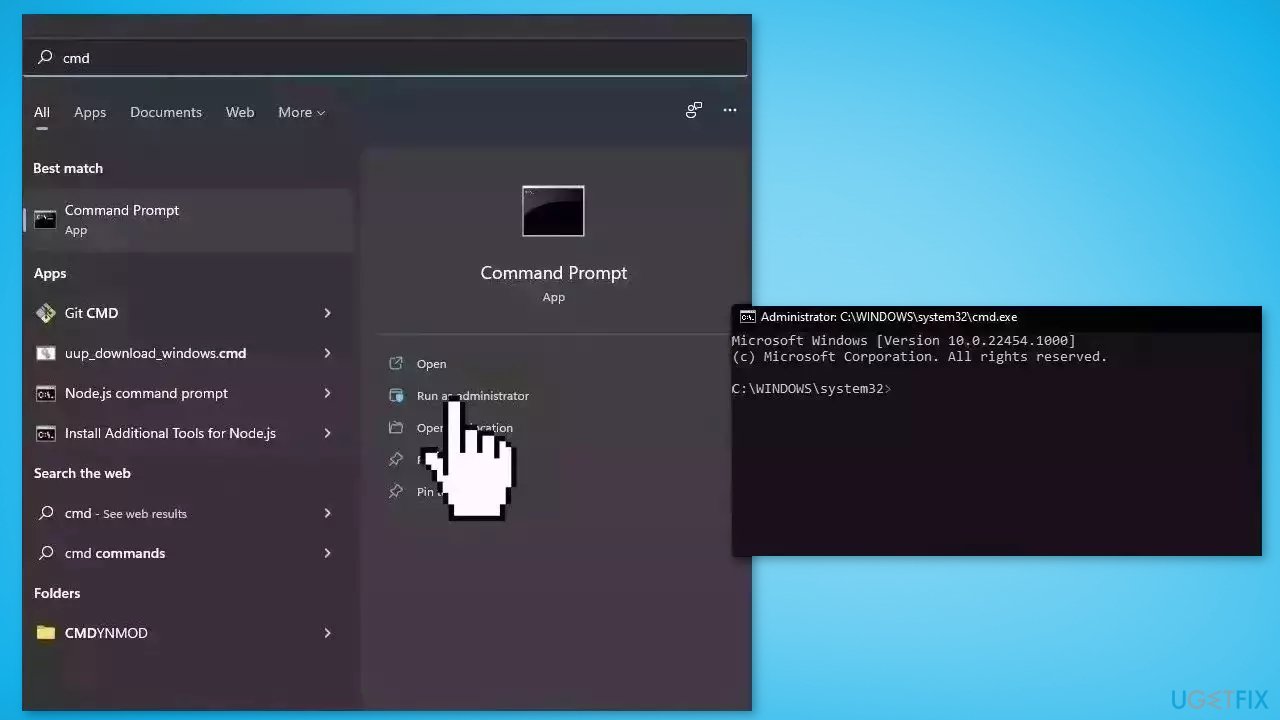
Use elevated Command Prompt commands to repair system file corruption:
- Open Command Prompt as administrator
- Use the following command and press Enter:
sfc /scannow
- Reboot your system
- If SFC returned an error, then use the following command lines, pressing Enter after each:
DISM /Online /Cleanup-Image /CheckHealth
DISM /Online /Cleanup-Image /ScanHealth
DISM /Online /Cleanup-Image /RestoreHealth
Method 2. Delete Corrupt Registry Entries
Windows Registry is a vital database that holds many configuration settings. In case some of these become corrupted, Windows Search starts crashing. Please follow these steps:
- Press the Windows key + R to open the Run dialog box
- Type regedit and press Enter
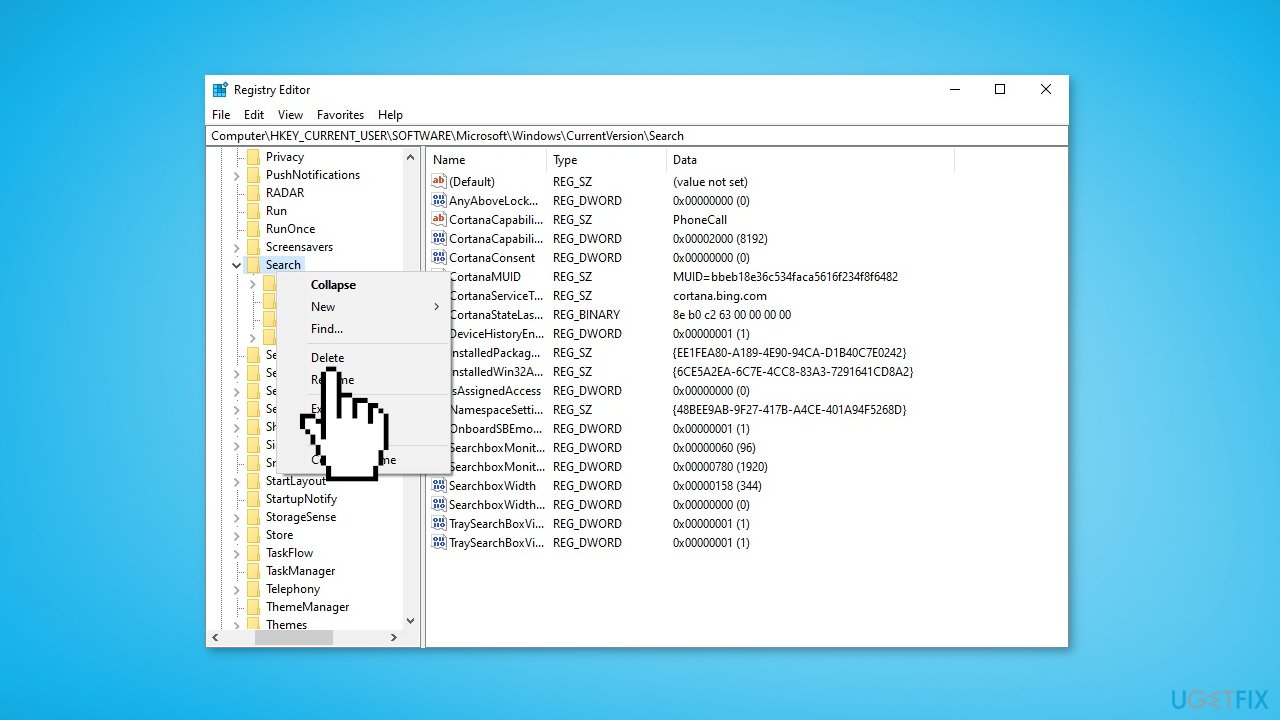
- Navigate to the following key at the left pane:
HKEY_CURRENT_USER\SOFTWARE\Microsoft\Windows\CurrentVersion\Search
- Highlight the Search key on the left pane and go to File > Export to take a backup of the current registry entries in case something goes wrong
- Give a name for the exported registry file (e.g. "Search.reg") and Save the file to your Desktop
- When done, right-click at the Search key and Delete it
- Close the Registry Editor and restart your device
- After restart, try to perform a search for a couple of times and see if it starts working
Method 3. Re-register Apps
- Press the Windows key + R to open the Run dialog box
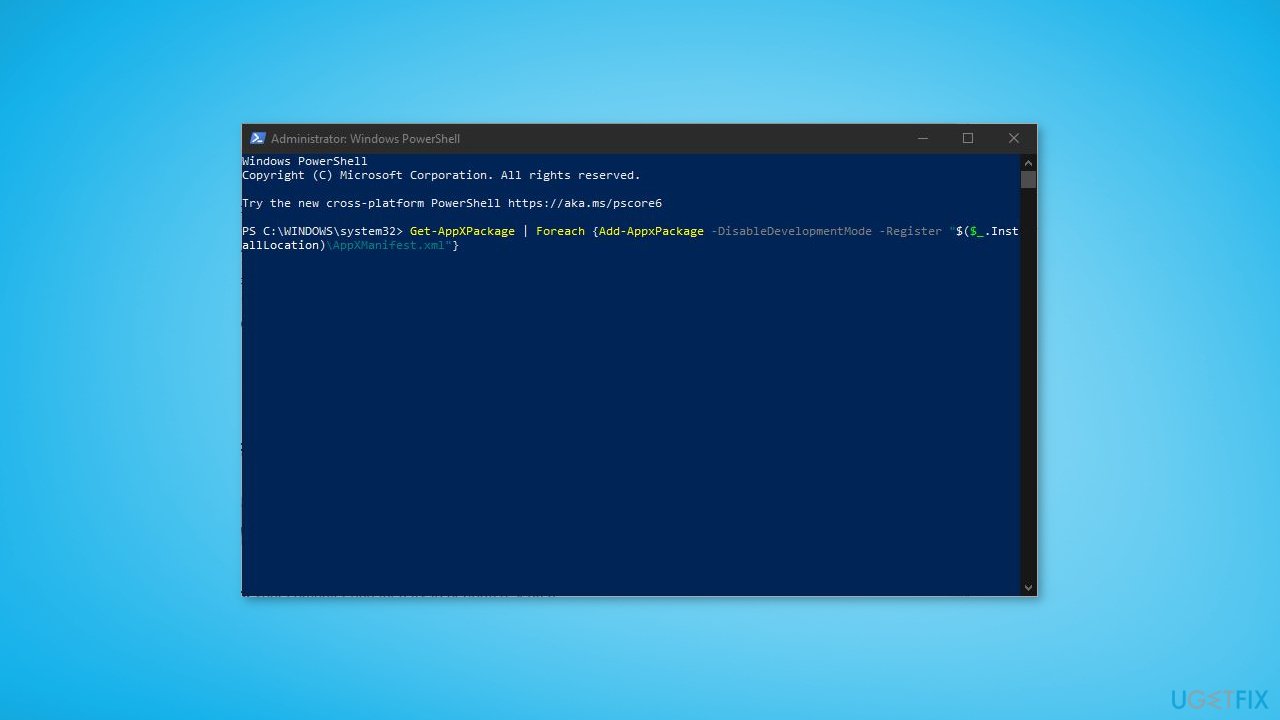
- Type powershell and then press Ctrl + Shift + Enter to open Windows PowerShell as Administrator
- Paste the the following command and press Enter:
Get-AppXPackage | Foreach {Add-AppxPackage -DisableDevelopmentMode -Register "$($_.InstallLocation)\AppXManifest.xml"}
- When the process is completed, ignore any errors and close the PowerShell window
- Reboot your computer and then try to perform a search
Method 4. Use System Restore
System Restore is a feature in Microsoft Windows that allows users to revert their computer's state to a previous point in time. This can be helpful if you have made changes to your system that are causing problems.
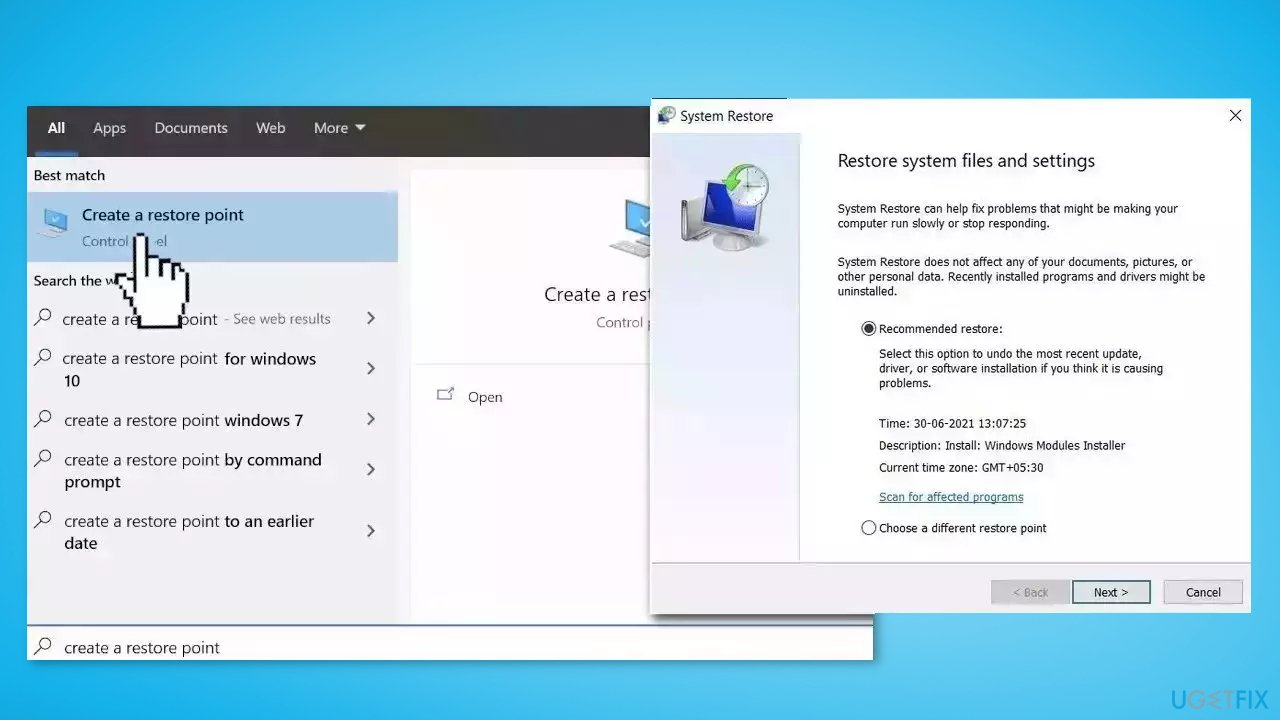
- Go to the Start menu, type restore, and click on Create a restore point
- Click System Restore, then follow the prompts until you can select a restore point
- Select the one you want (ideally before the issue started occurring) and go ahead with the process
Method 5. Try Clean Boot
- Open the Search menu, type in system configuration, and press Enter
- Under the Services tab, tick the Hide all Microsoft services box
- Click on Disable all button
- Head over to the Startup tab and click on Open Task Manager
- Select a third-party program and click on Disable at the top
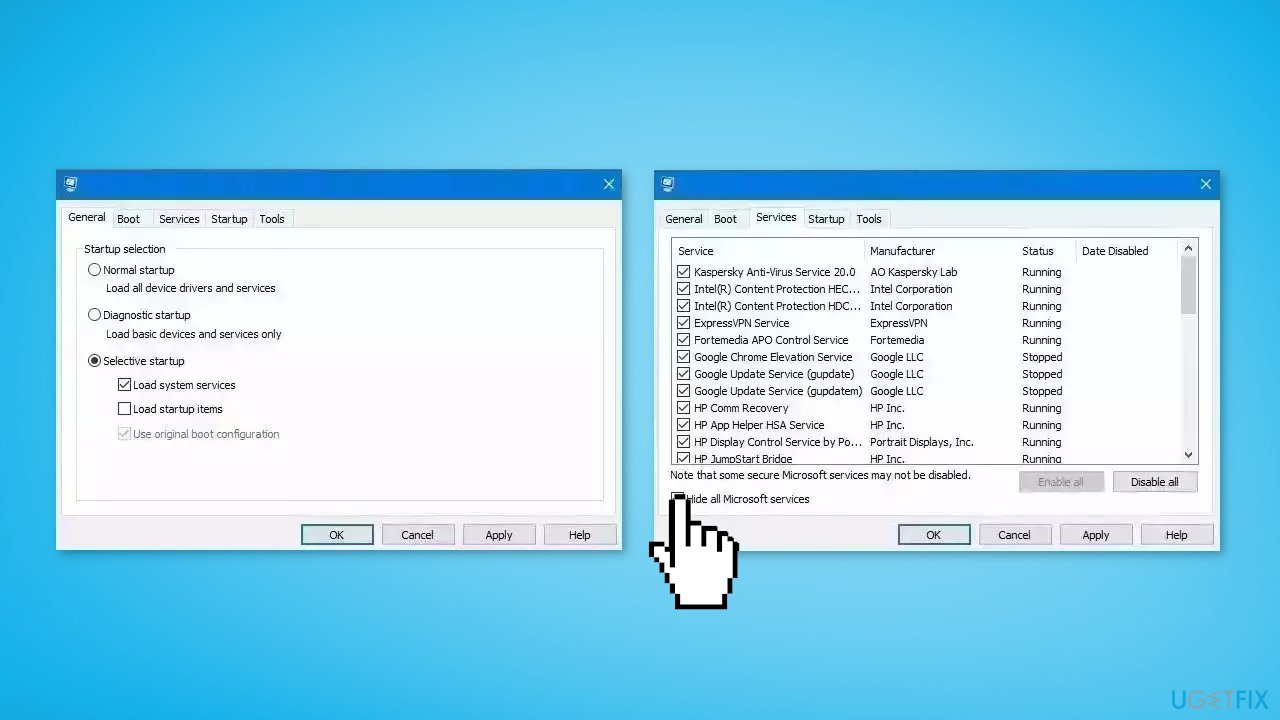
- Repeat this step to disable all third-party apps and programs
- Restart your PC to enter the clean boot state and see if the issue persists
- If the issue disappeared in the clean boot state, then you can be certain that a third-party app is causing it
- Go through all recently installed apps or programs and remove them one by one
Method 6. Repair Install Windows
- Visit the official Microsoft website to download Windows 11 or Windows 10 Installation Media
- Run the Media Creation Tool and select Create Installation Media for another PC
- Select your USB drive
- Let the Process complete of writing the Installation files to the USB drive
- Click Finish
- On the PC you wish to upgrade, Press Windows + E to open the File Explorer
- Open the Removable drive and click Setup.exe
- Accept the license terms on the next screen
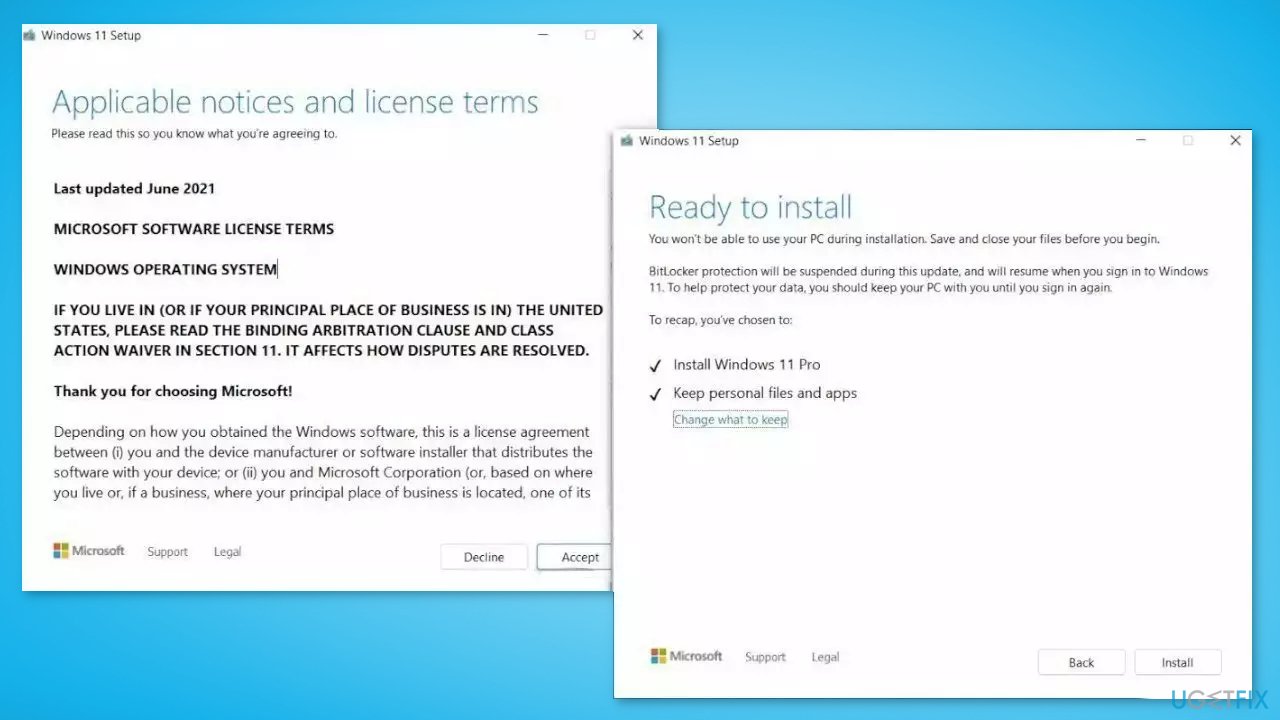
- Confirm the Upgrade options – Files, apps and Settings are kept
- Click Install, and the upgrade should start
Bottom line
To fix Windows Search crashes, you can try several methods such as repairing system files, adjusting indexing settings, or checking for software conflicts. If these steps do not resolve the issue, consider using a dedicated tool to automatically fix system errors.
Frequently asked questions
Try running the Search and Indexing troubleshooter by going to Settings > Update & Security > Troubleshoot > Additional troubleshooters, then select Search and Indexing.
Yes, you can reset the Windows Search feature by going to Settings > Apps > Apps & features, then finding Windows Search and selecting 'Advanced options' to reset it.
Yes, recent updates can sometimes lead to issues; consider uninstalling the latest updates through Settings > Update & Security > Windows Update > View update history.




Report an issue
What's wrong with this guide? We review every report and update or remove content.
Report received — thank you. We'll review and fix it.
You need a free account to submit a report.
Be the first to comment