How to fix
Windows search icon too big
on Windows
Resolve the oversized Windows search icon issue quickly and easily. Enjoy a cleaner interface with expert-tested solutions tailored for Windows 10 and 11.

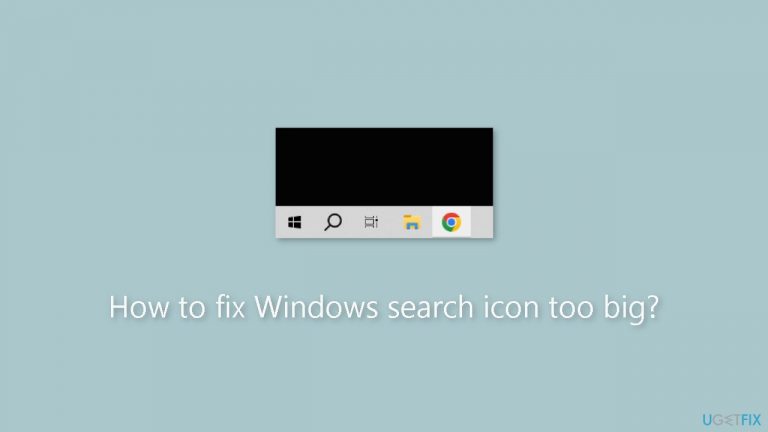
What causes How to fix Windows search icon too big?
- Recent Windows 10 update
- Deliberate design change by Microsoft
- Increased visibility for touch-enabled devices
- User preference for smaller icons
Repairs Windows system files, removes malware, and restores a clean OS state — without reinstalling.
Hello. I noticed that the taskbar search icon in Windows 10 is now bigger than before. How do I fix this?
Some Windows 10 users have reported that the search icon in the taskbar appears larger than usual, which they dislike. This change appears to have been introduced as part of a recent Windows 10 update, and it appears to be deliberate on Microsoft's part.
While some users may find the larger search icon distracting or unappealing, it's important to note that Microsoft made this decision on purpose. This change could have been made to increase the visibility of the search icon or to make it easier to use on touch-enabled devices.
Users who prefer a smaller search icon can enable the "Small Taskbar Buttons" setting in the Taskbar settings menu. This option will make all of the taskbar icons smaller, including the search icon. Users can also uninstall the most recent Windows update if they believe it is the source of the larger search icon, though this is not always recommended because updates frequently contain important security and bug fixes.
Users may eventually need to adjust to this change and accept that it is now a part of the Windows 10 user experience. While some changes can be inconvenient, they are frequently required to improve the operating system's functionality and usability.
If you experience any other operating system issues you can use a maintenance tool like [d1]. It can fix most system errors, BSODs,[ref en-1] corrupted files, registry[ref en-2] issues, or clear cookies and cache.[ref en-3] Otherwise, follow the step-by-step instructions below.
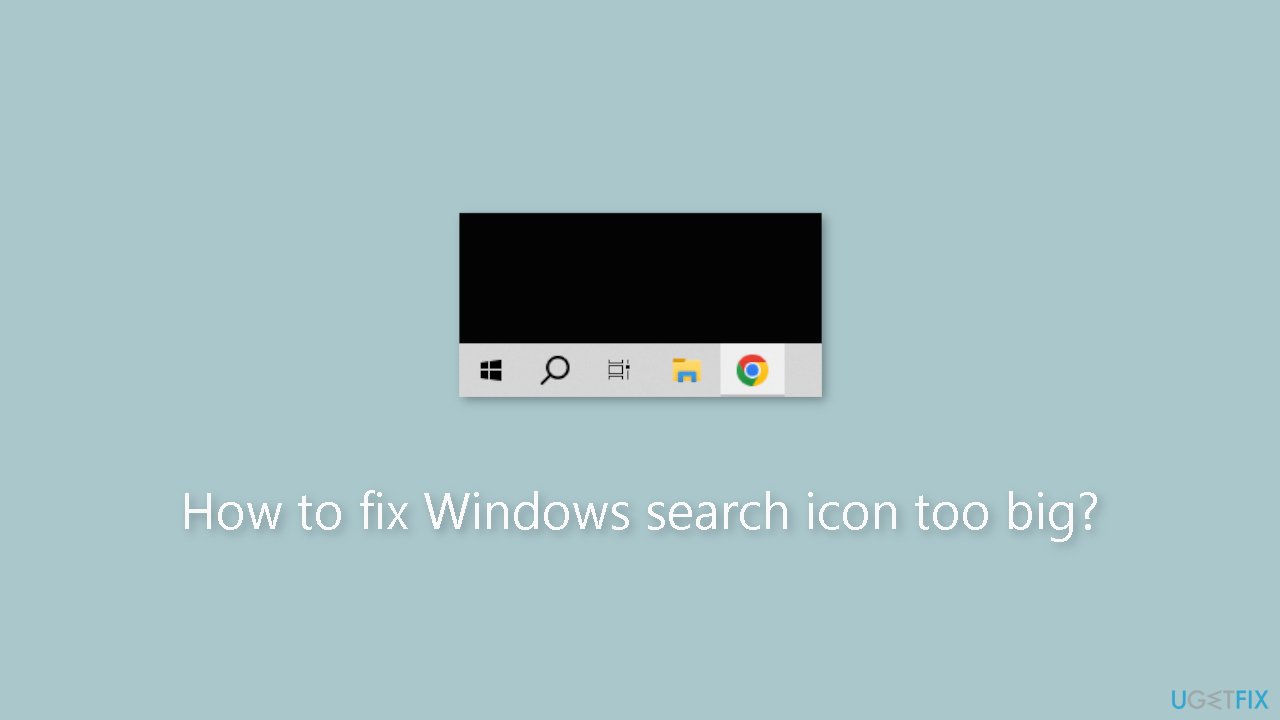
Method 1. Use Small Taskbar Buttons
The "Use small taskbar buttons" feature in Windows is an option that allows users to reduce the size of the taskbar icons, making more room for other items on the taskbar. By default, the taskbar icons in Windows 10 are set to medium size, but some users may find that they take up too much space on the taskbar.
When the "Use small taskbar buttons" feature is enabled, the icons on the taskbar are reduced in size, allowing more icons to fit onto the taskbar. This can be especially useful for users who have a lot of programs or applications open at the same time, as it can help to keep the taskbar organized and easy to navigate.
- Right-click on an empty space on the taskbar.
- From the context menu that appears, select Taskbar settings.
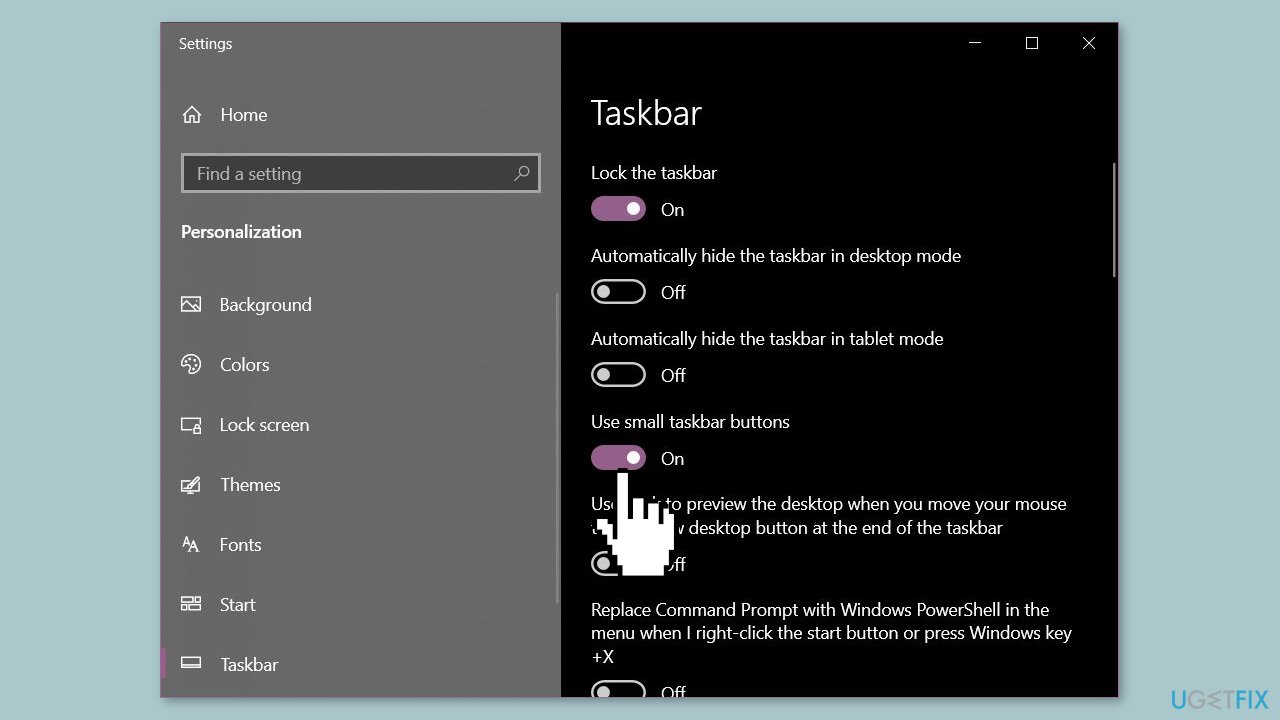
- Once the Taskbar settings window opens, scroll down until you find the Use small taskbar buttons option.
- Toggle the Use small taskbar buttons setting to the On position.
- Close the Taskbar settings window.
Method 2. Uninstall the last Windows Update
Some users have speculated that the culprit behind the bigger search icon in Windows is the Cumulative Update KB5025297. This update, released by Microsoft in the past, contained several improvements and bug fixes for Windows, but it is not clear whether it is directly responsible for the larger search icon.
- Click on the Start button in the bottom left corner of the screen.
- Type Control Panel in the search box and click on the Control Panel app that appears in the search results.
- Once the Control Panel window opens, click on the Programs option.
- Click on the Programs and Features option.
- Click on the View installed updates option on the left-hand side of the screen.
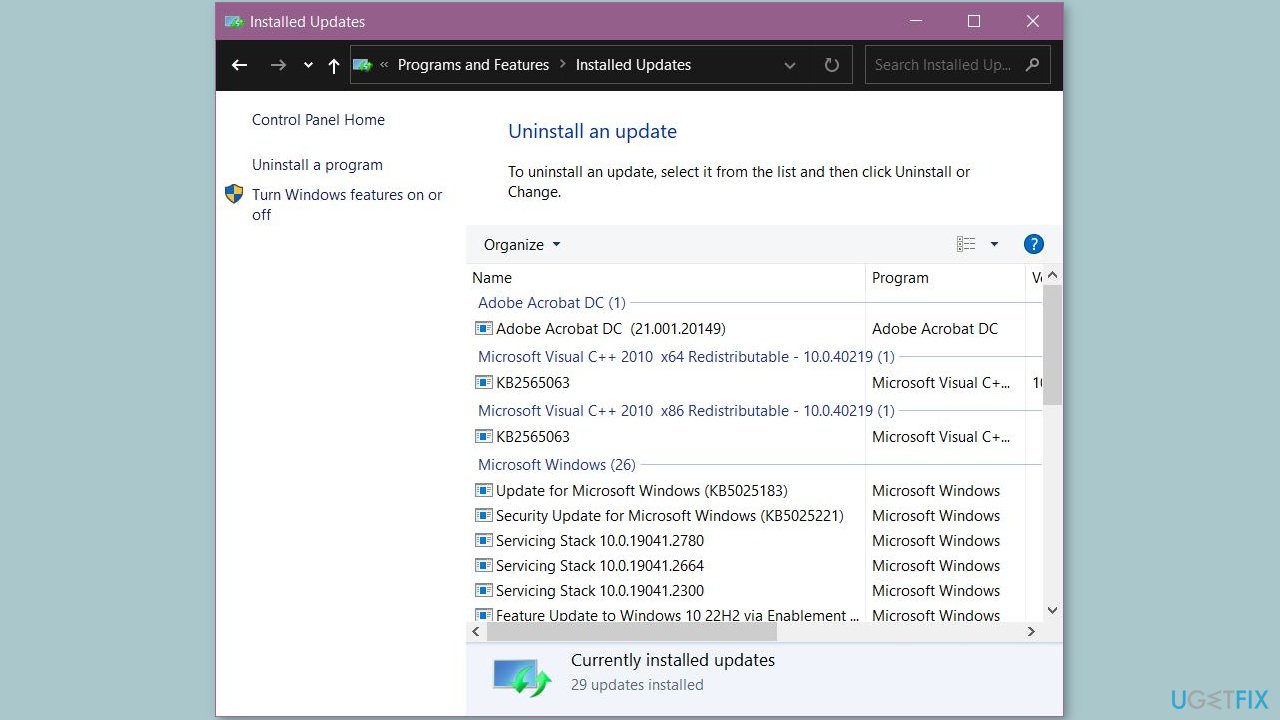
- Locate the latest Windows update that you want to uninstall in the list of installed updates.
- Click on the update to select it.
- Click on the Uninstall button located at the top of the list of installed updates.
- Follow the prompts to complete the uninstallation process.
- Restart your computer when prompted to do so.
Bottom line
To fix the oversized search icon, users can enable the 'Small Taskbar Buttons' setting in the Taskbar settings menu. Alternatively, they can uninstall the most recent Windows update if they believe it caused the issue. If these solutions do not work, users may need to adjust to the change or consider using a maintenance tool for other system issues.
Frequently asked questions
You can resize the Windows search icon by right-clicking on the taskbar, selecting 'Search,' and choosing 'Show search box' to toggle it off and then back on, which may reset its size.
If the search icon in Windows 11 looks distorted, try updating your graphics drivers or adjusting the display scaling settings in 'Settings' > 'System' > 'Display'.
Yes, you can reset the taskbar icons by right-clicking the taskbar, selecting 'Taskbar settings,' and toggling the 'Use small taskbar buttons' option to see if it resolves the issue.




Report an issue
What's wrong with this guide? We review every report and update or remove content.
Report received — thank you. We'll review and fix it.
You need a free account to submit a report.
Be the first to comment