How to fix
Windows Security blank screen
on Windows
Resolve the Windows Security blank screen issue in Windows 11 easily and effectively. Expert-tested solutions ensure your system is secure—fixed in minu…

What causes How to fix Windows Security blank screen in Windows 11?
- Recent Windows updates
- Corrupted system files
- Underlying issues disrupting normal operation
- File corruption leading to black screen
- Issues with Windows Security interface
Repairs Windows system files, removes malware, and restores a clean OS state — without reinstalling.
Whenever I open the Windows Security window, it appears to be black and I can't access anything or change any settings. I tried restarting my PC but it did nothing to fix the problem.
Over time, Windows Security has evolved significantly, going from a basic security tool to a full-featured anti-malware software. It is practically free for users to use and provides strong security against a variety of security threats because it is integrated into the Windows operating system. Despite this, Windows Security has its share of difficulties that can result in negative experiences.
As a user of Windows 11, you may encounter an issue where, upon attempting to access the Windows Security interface, you are met with a black screen. This problem prevents you from modifying security settings or interacting with the various user interface elements within Windows Security.
Such an issue can be particularly frustrating, as it impedes your ability to manage your system's security posture actively. The occurrence of Windows Security's black screen can be attributed to several factors, including recent Windows updates, corrupted system files, or other underlying issues that disrupt the normal operation of Windows Security.
Below we provide several solutions that could help you fix the black screen when opening Windows Security, and get back the functionality it initially has. For example, addressing corrupted file issues can be done by running particular commands in Command Prompt. But you can find the instructions for this and many other solutions below.
Before proceeding, we highly recommend you run a potent repair application [d1], which can easily find broken or corrupted sectors in Windows and repair them automatically. It might iron out problems that might directly contribute to the Windows Security black screen phenomenon.

Fix 1. Run SFC and DISM
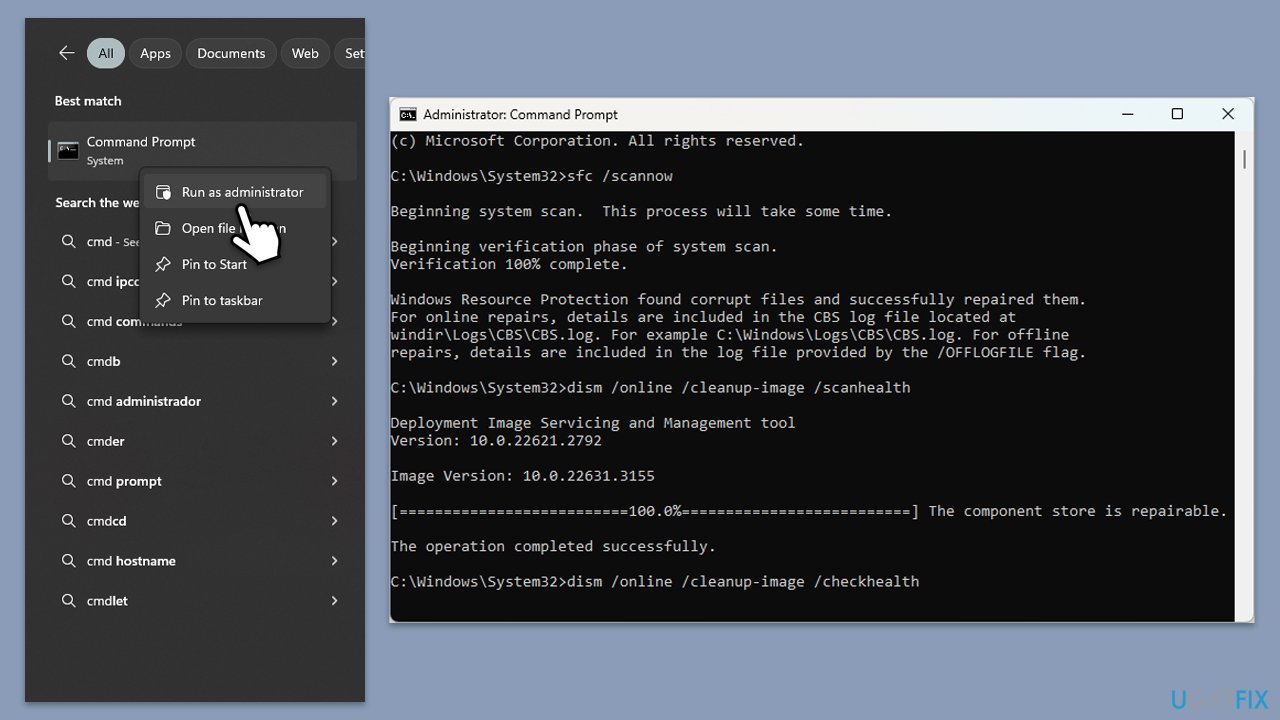
SFC and DISM utilities in Windows help repair corrupted system files and Windows image files, respectively. Running these tools can resolve issues caused by file corruption that might lead to the Windows Security black screen problem.
- Type cmd in Windows search.
- Right-click on Command Prompt and select Run as administrator.
- When the User Account Control window pops up, click Yes.
- Use the following command and press Enter:
sfc /scannow - After the SFC scan is complete, use the following commands, pressing Enter after each:
- Dism /Online /Cleanup-Image /CheckHealth
Dism /Online /Cleanup-Image /ScanHealth
Dism /Online /Cleanup-Image /RestoreHealth
(Note: if you get an error executing this last command, add /Source:C:\RepairSource\Windows /LimitAccess to it and try again). - Reboot your device.
Fix 2. Repair or reset Windows Security
If Windows Security itself is corrupted, repairing or resetting the app can resolve the black screen issue. This process reinstalls the app without affecting personal data or settings.
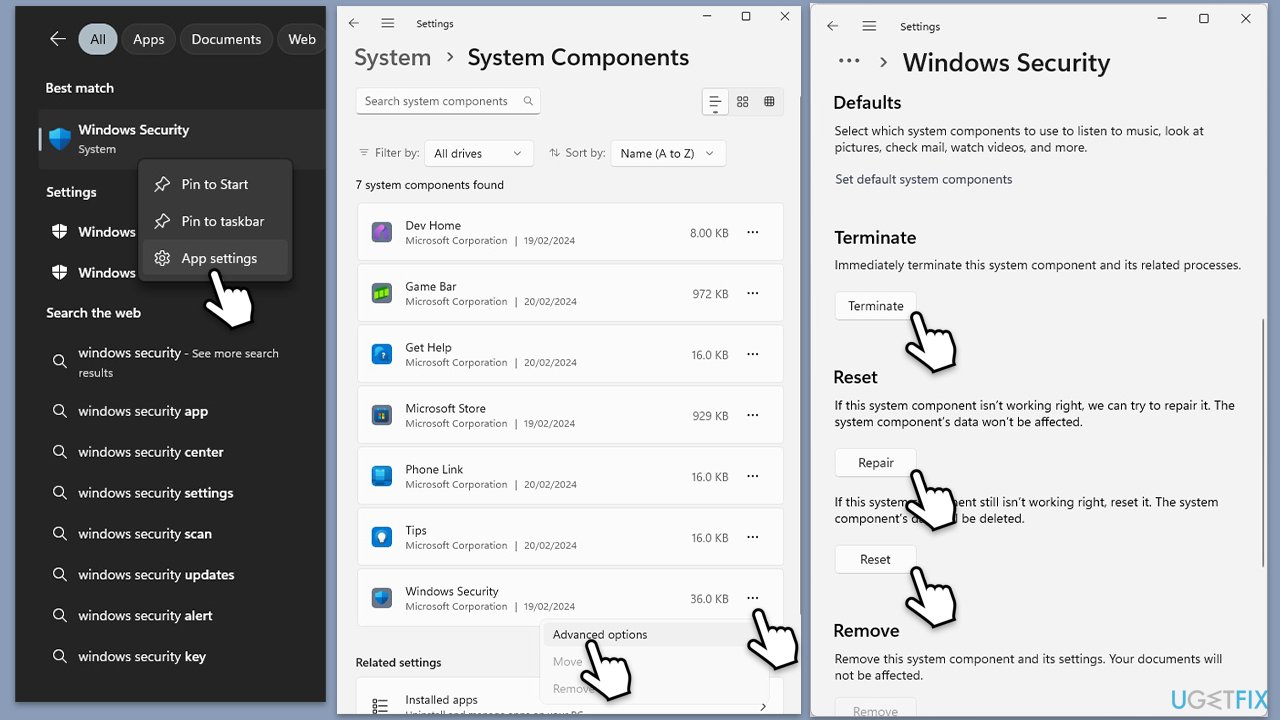
- Type Windows Security in Windows search bar.
- Right-click on the Windows Security result and select App Settings.
- Click on the three horizontal dots and pick Advanced options.
- Scroll down and click Terminate.
- Then, click Repair and see if that helped to solve the problem.
- Try using the Reset button next.
Fix 3. Use the SecurityHealth tool from Microsoft
The SecurityHealth tool is part of Windows Security that can help fix issues by restoring the app to its default state. This is an official tool from Microsoft.
- Download SecurityHealthSetup.exe.
- Save the executable on your desktop.
- Right-click on it and select Run as administrator.
- If UAC shows up, click Yes.
- Wait till the process is complete.
Fix 4. Roll back the latest Windows update
Sometimes, a recent Windows update might cause compatibility issues leading to the black screen in Windows Security. Rolling back the update can resolve these issues.
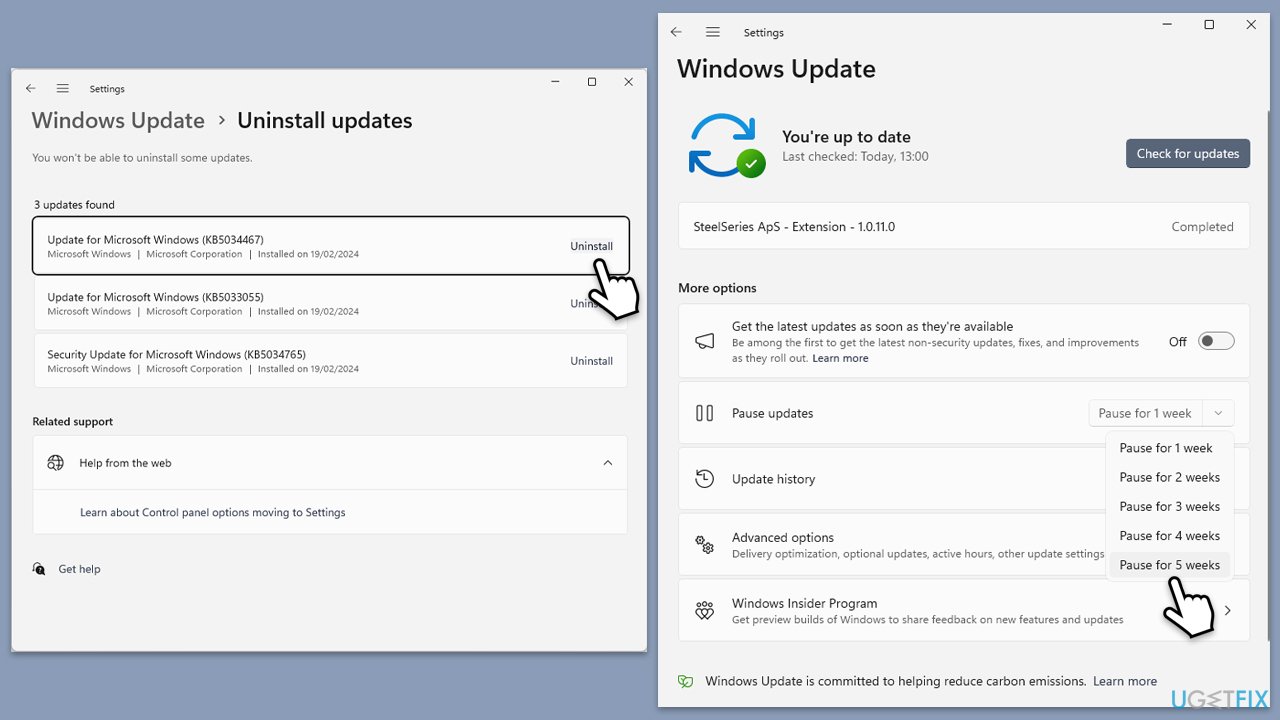
- Type Control Panel in Windows search and press Enter.
- Select Programs > Uninstall a program.
- Click on View installed updates on the left side of the window.
- Uninstall the most recent update.
- Proceed with on-screen instructions.
- Don't forget to pause the update.
- Install updates only once the issue is addressed by Microsoft.
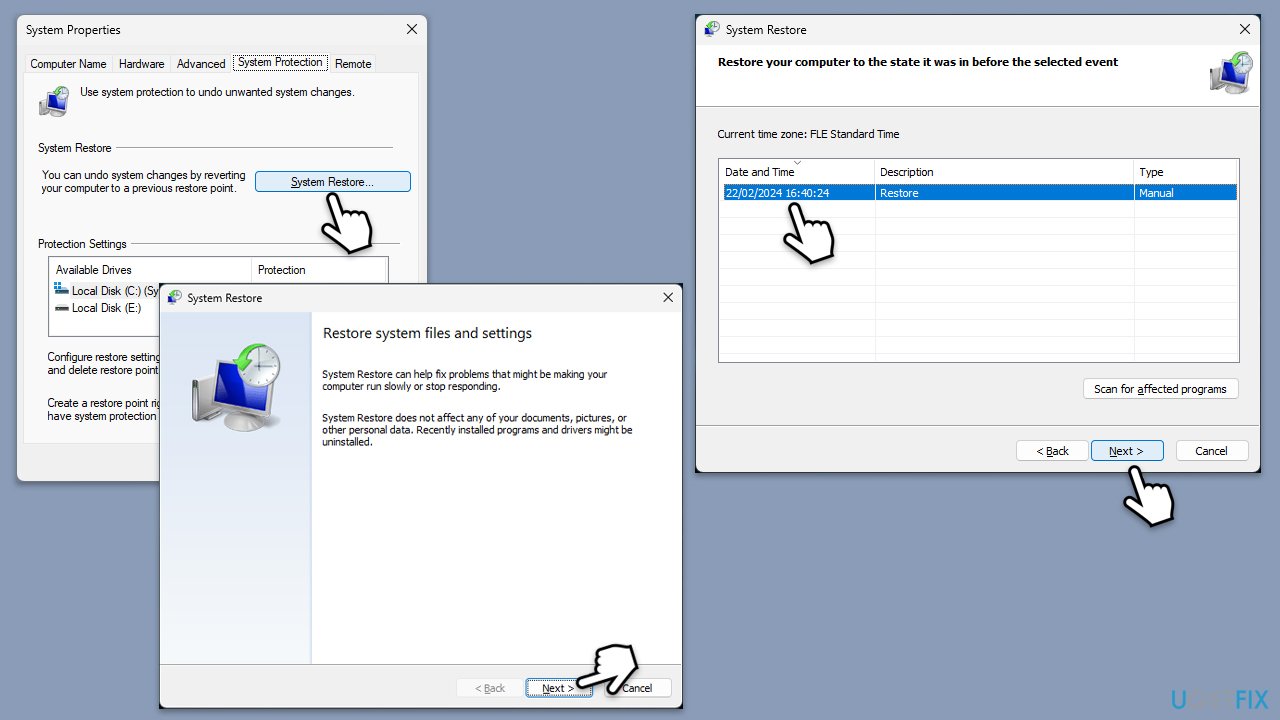
Fix 5. Perform System Restore
System Restore can revert your system's settings to a previous point in time when Windows Security was functioning correctly. This action can help fix the issue without affecting personal files.
- Type in Create a Restore point in Windows search and hit Enter.
- In the System Protection tab, pick System restore.
- Click Next.
- Click Show more restore points (if available).
- Pick the time before the problem occurred and click Next.
- Your computer will reboot.
Fix 6. Reset Windows
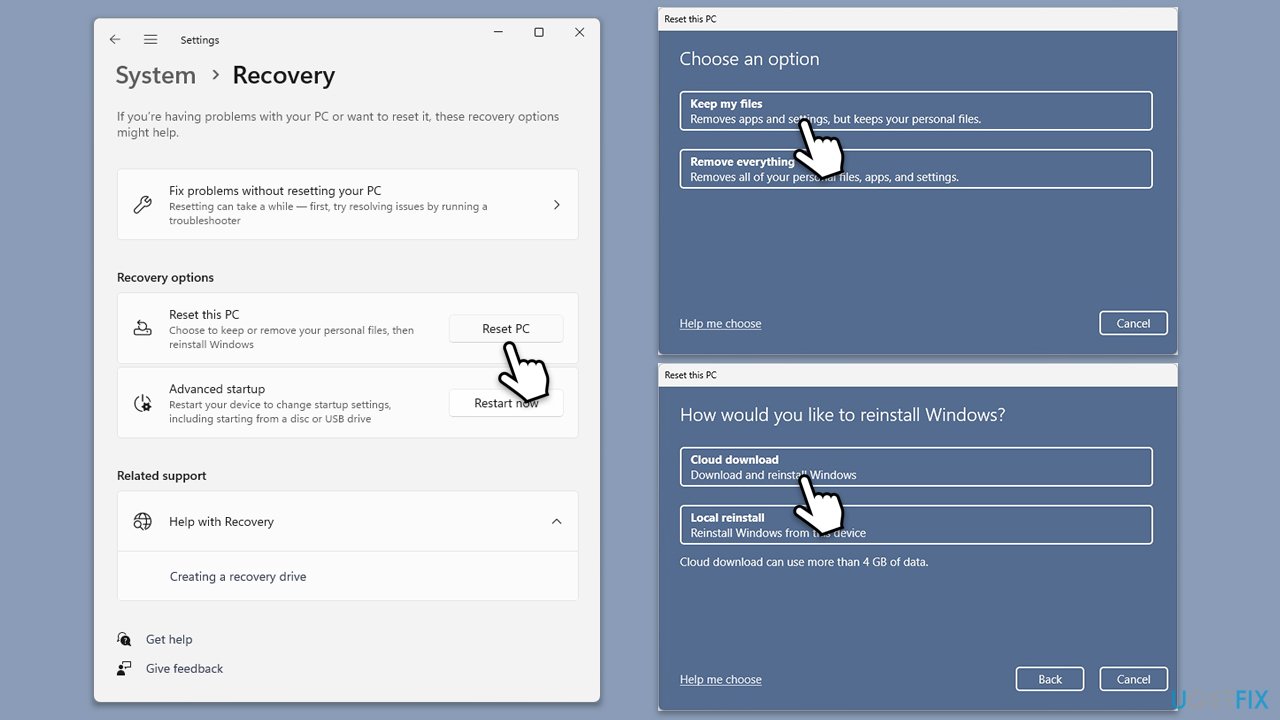
If none of the above solutions work, resetting Windows can resolve underlying issues by reinstalling Windows itself. This should be considered a last resort, as it can remove installed apps and settings, although you can choose to keep personal files.
- Open Windows Settings.
- Go to Windows Update/Update & Security.
- Select Advanced options.
- Under Additional options, select Recovery.
- Under Recovery options, click Reset PC.
- Select the option to Keep your files and then press Cloud download.
- Follow on-screen instructions to finish the process.
Bottom line
To fix the Windows Security black screen issue, you can run the SFC and DISM utilities to repair corrupted system and Windows image files. Additionally, using a potent repair application may help identify and fix underlying issues. If these solutions do not resolve the problem, further troubleshooting may be necessary.
Frequently asked questions
You can try resetting the Windows Security app by going to Settings > Apps > Apps & features, finding Windows Security, and selecting 'Advanced options' to reset it.
Yes, a corrupted user profile can lead to various issues, including a blank Windows Security screen, so consider creating a new user profile to see if the problem persists.
You can manually check for Windows updates by going to Settings > Windows Update, as this may also resolve issues with the Windows Security app.




Report an issue
What's wrong with this guide? We review every report and update or remove content.
Report received — thank you. We'll review and fix it.
You need a free account to submit a report.
Be the first to comment