How to fix
“Windows SmartScreen can’t be reached right now” error
on Windows
Resolve the "Windows SmartScreen can’t be reached right now" error on Windows 10 and 11 quickly and efficiently. Expert-tested solutions await.

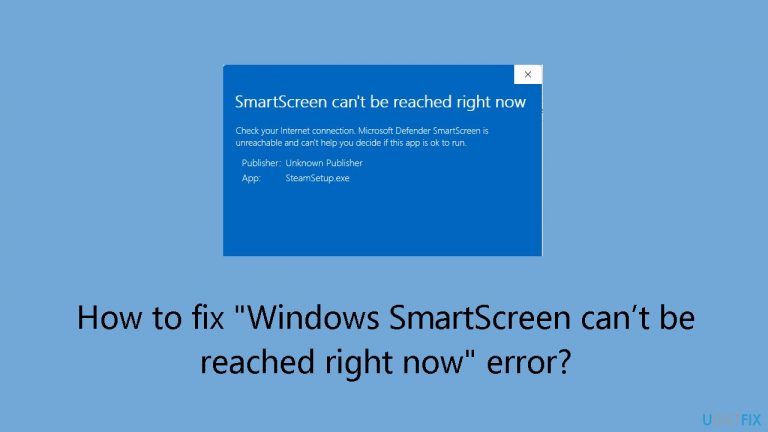
What causes How to fix “Windows SmartScreen can’t be reached right now” error?
- Unstable internet connections
- Brief outages of Microsoft servers
- Minor computer malfunctions
- Interruptions in the operation of a VPN or proxy server
Repairs Windows system files, removes malware, and restores a clean OS state — without reinstalling.
Hello. When I try to install a program in Windows, I get the "Windows SmartScreen can’t be reached right now" error. Is there a way to fix this issue?
When Windows' SmartScreen feature is unable to scan a file's contents, an error message stating "Windows SmartScreen can't be reached right now" appears. This error notice, which usually appears when trying to install an application, indicates that the computer's security function is unable to confirm the security of the file being accessed. There are several potential root causes for this problem, including unstable internet connections, brief outages of Microsoft servers, minor computer malfunctions, and interruptions in the operation of a VPN or proxy server.
This issue prevents the system from determining if a file is safe to install, which can have serious consequences for users. Because of the ambiguity around the file's integrity, users might be reluctant to move forward with the installation procedure, which could cause delays or disruptions in their workflow. Furthermore, because the system cannot verify the legality of the file against known threats, users may be exposed to security concerns if they fail to utilize the SmartScreen feature as a safety measure.
Users can try verifying the reliability of their internet connection, monitoring Microsoft's servers, and addressing any minor PC issues to resolve the "SmartScreen can't be reached right now" error. Making sure that proxy servers and VPNs are turned off can also help to fix the problem.
In this guide, you will find 6 steps that should help you fix "Windows SmartScreen can’t be reached right now" error. You can also run a maintenance tool like [d1] that can fix most system errors, BSODs, corrupted files, and registry issues. Otherwise, follow the step-by-step instructions below.
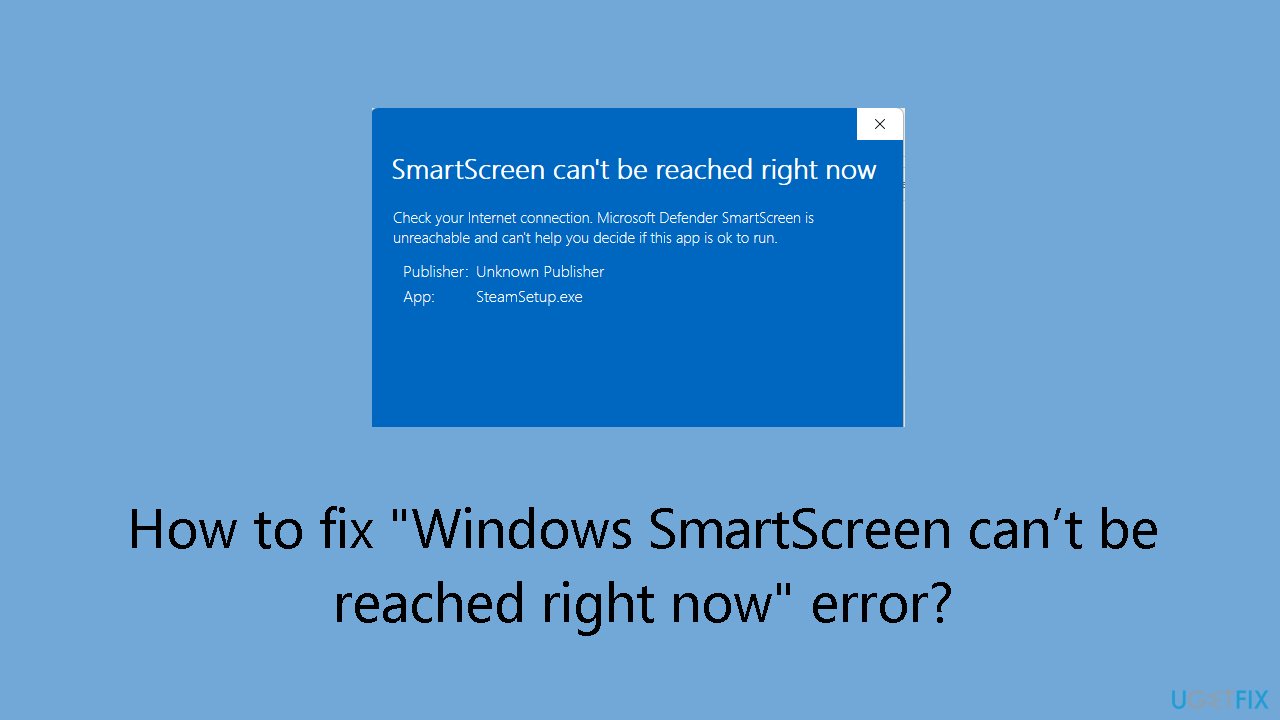
Solution 1. Restart PC
- Open the Start menu by clicking on the Start menu icon or pressing the Windows key on your keyboard.
- In the menu, locate and select the Power icon.
- From the Power options, choose Restart.
- Wait for your computer to reboot.
- Once the computer has restarted, launch your file or application.
Solution 2. Re-Enable SmartScreen
- Open the Start menu and locate Windows Security, then launch the app.
- In the app, select App & browser control.
- Choose Reputation-based protection settings.
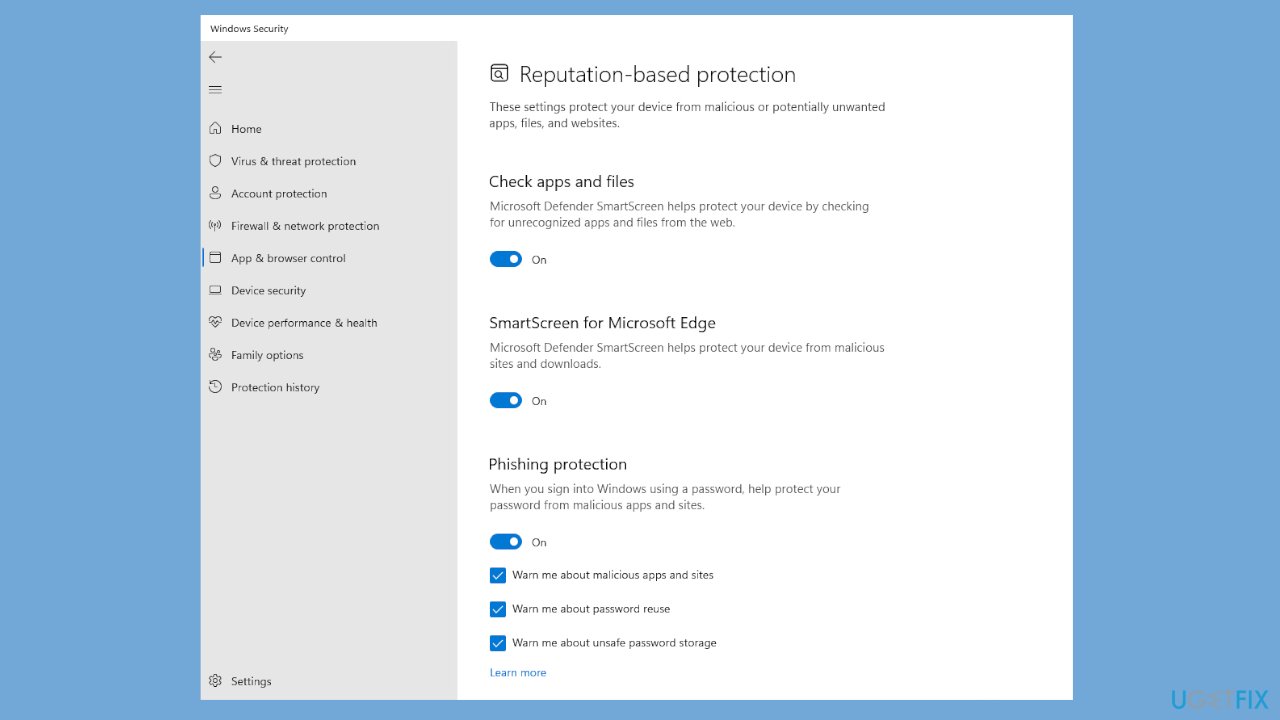
- Turn on the following options: Check apps and files, SmartScreen for Microsoft Edge, Potentially unwanted app blocking, and SmartScreen for Microsoft Store apps.
- After enabling these settings, launch your file and check if it opens without any errors.
Solution 3. Disable Proxy Server and VPN
- Press the Windows key + I to open the Settings menu.
- Go to the left pane and select Network & internet.
- Select Proxy from the right-side menu.
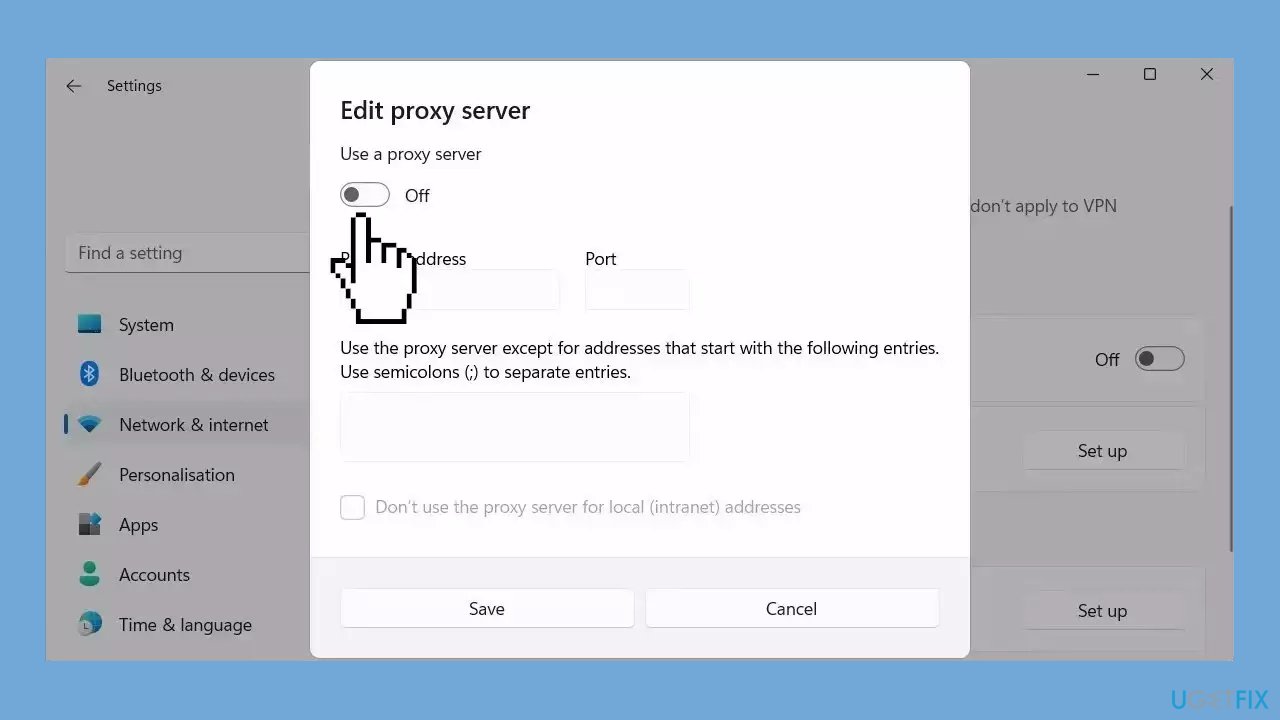
- Under Automatic proxy setup, turn off Automatically detect settings.
- Scroll down to Manual proxy setup and click on the Setup button (next to Use a proxy server).
- Next, toggle off the Use a proxy server slider.
Solution 4. Scan for Malware
A malware infection may be the cause of "Windows SmartScreen can’t be reached right now" error. It is important to run a comprehensive security scan to rule out this possibility and ensure that the computer is not infected. This can help to prevent further issues with the Windows operating system and ensure that it is functioning properly.
If you have access to a security scanner, or if your organization pays for one, you can use it to scan your entire system to check for a virus infection. Otherwise, you can use Windows Defender to scan your system:
- Click on the Windows Start menu or press the Windows key on your keyboard.
- Type Microsoft Defender in the search bar and click on Microsoft Defender Antivirus to open the application.
- Click on the Virus & threat protection option in the left-hand menu.
- Click on the Quick scan or Full scan option, depending on your preference.
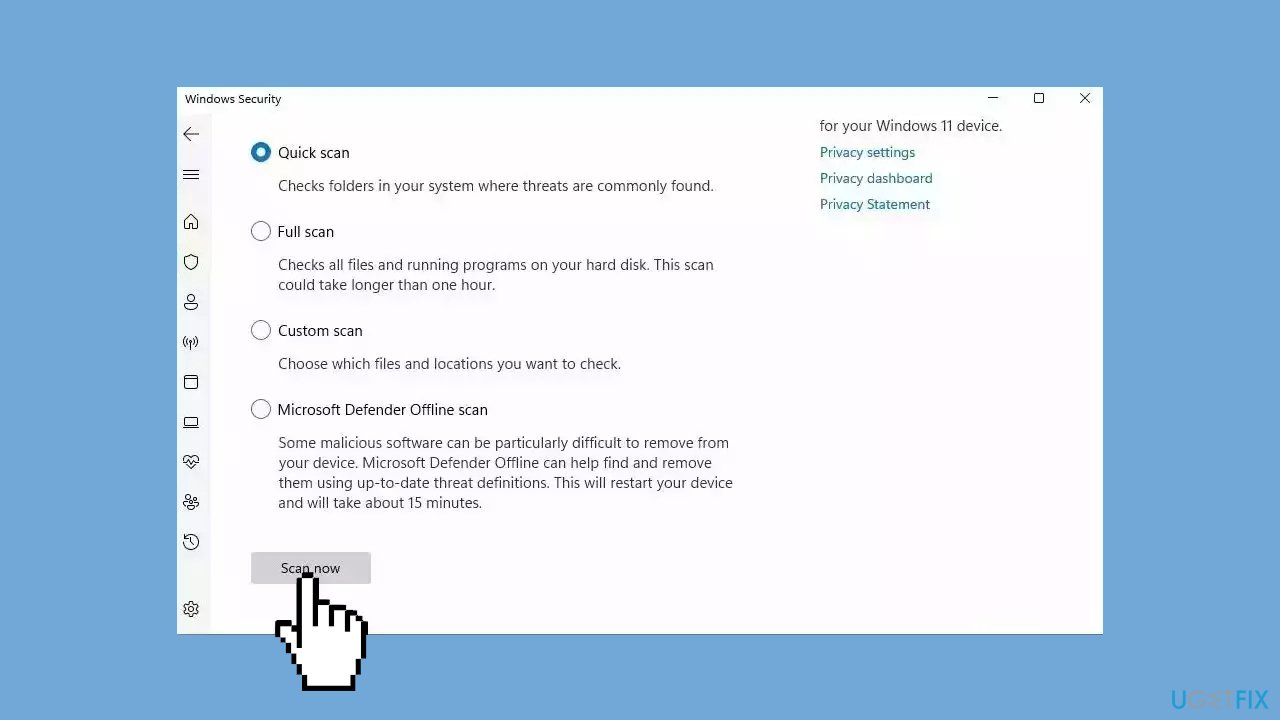
- If you choose Quick scan, Microsoft Defender Antivirus will scan the most vulnerable and commonly infected areas of your computer.
- If you choose Full scan, Microsoft Defender Antivirus will scan your entire computer, including all files, folders, and programs.
- Click on the Scan now button to start the selected scan type and wait for the scan to complete.
- The time it takes will depend on the size of your hard drive and the number of files being scanned.
- Once the scan is complete, you will be informed of any detected threats, and you can choose to quarantine or remove them.
- If no threats are found, Microsoft Defender Antivirus will inform you that your device is secure.
Solution 5. Try Clean Boot
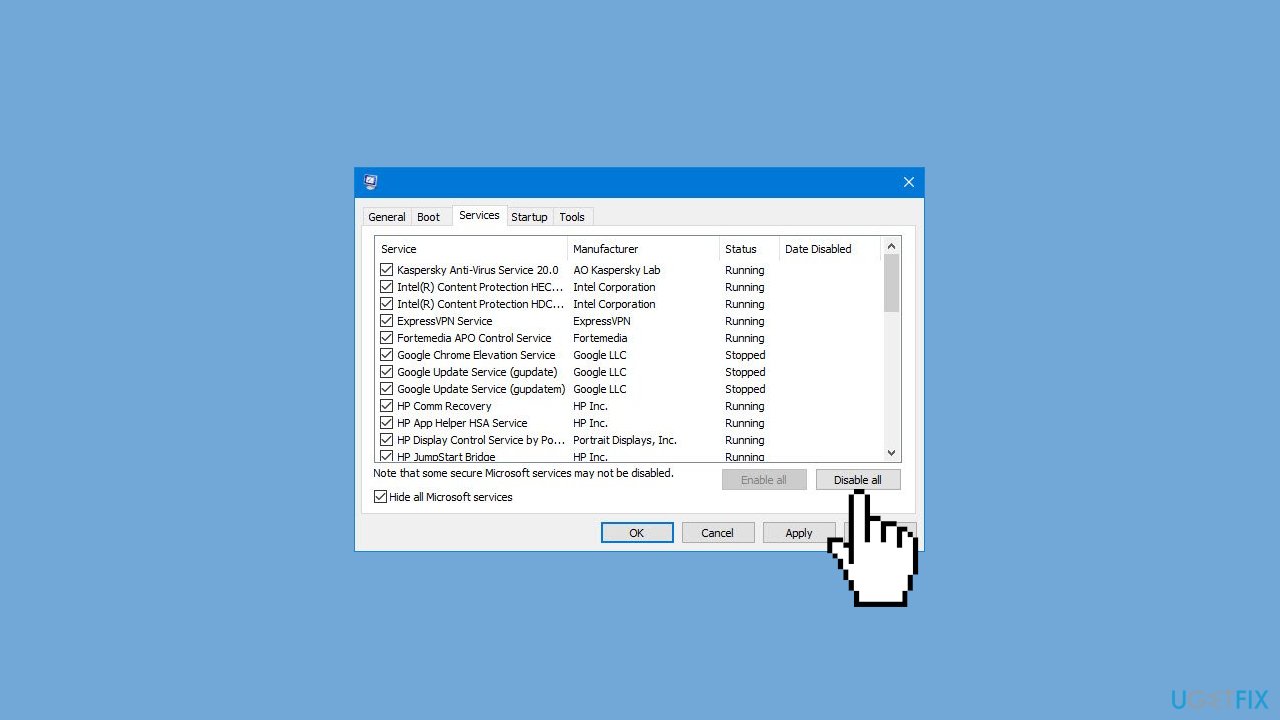
- Open the Search menu, type in system configuration, and press Enter.
- Under the Services tab, tick the Hide all Microsoft services box.
- Click on Disable all button.
- Head over to the Startup tab and click on Open Task Manager.
- Select a third-party program and click on Disable at the top.
- Repeat this step to disable all third-party apps and programs.
- Restart your PC to enter the clean boot state and see if the issue persists.
- If the issue disappeared in the clean boot state, then you can be certain that a third-party app is causing it.
- Go through all recently installed apps or programs and remove them one by one.
Solution 6. Create a New User Account
- Boot your Windows computer into Safe Mode.
- Search for Command Prompt in the Windows Search box and open it.
- Type the command net user /add username password in the Command Prompt window, and hit Enter.
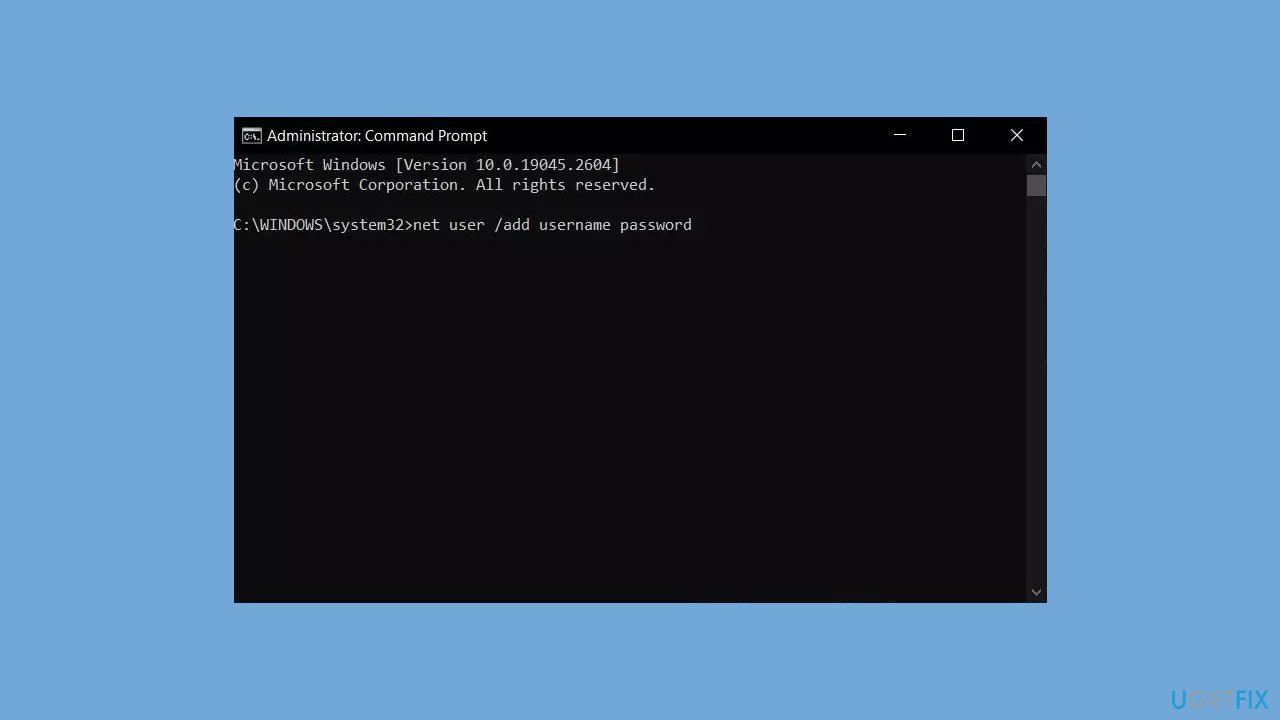
- Replace username with the name you want to use for the new user profile. If you want to set a password for the profile, add it after password. If not, leave it blank.
- Type the command localgroup administrators username /add in the Command Prompt window, and hit Enter.
- Replace username with the name you used for the new user profile created in the previous step.
- Close the Command Prompt window.
- Log out of Safe Mode and log in to the new user profile you just created.
- Go to the folder containing the data you want to copy from the inaccessible profile.
- Copy the data to a safe location.
- Log out of the new user profile and log back into your regular user profile.
- Copy the data from the safe location to your regular user profile.
Bottom line
To resolve the 'Windows SmartScreen can’t be reached right now' error, users can verify their internet connection, monitor Microsoft servers, and address minor PC issues. Additionally, turning off any proxy servers and VPNs may help fix the problem. If these solutions do not work, consider running a maintenance tool to address system errors.
Frequently asked questions
To enable Windows SmartScreen, go to Settings > Update & Security > Windows Security > App & browser control, and turn on the SmartScreen for apps and browsers option.
Check your internet connection and ensure that Windows is allowed through your firewall; you can also run the Network Troubleshooter in Windows 10 or 11 to diagnose and fix issues.
If resetting doesn't help, consider repairing or resetting the Windows Security app via Settings > Apps > Apps & features, then locate Windows Security and select 'Advanced options' to reset.




Report an issue
What's wrong with this guide? We review every report and update or remove content.
Report received — thank you. We'll review and fix it.
You need a free account to submit a report.
Be the first to comment