How to fix
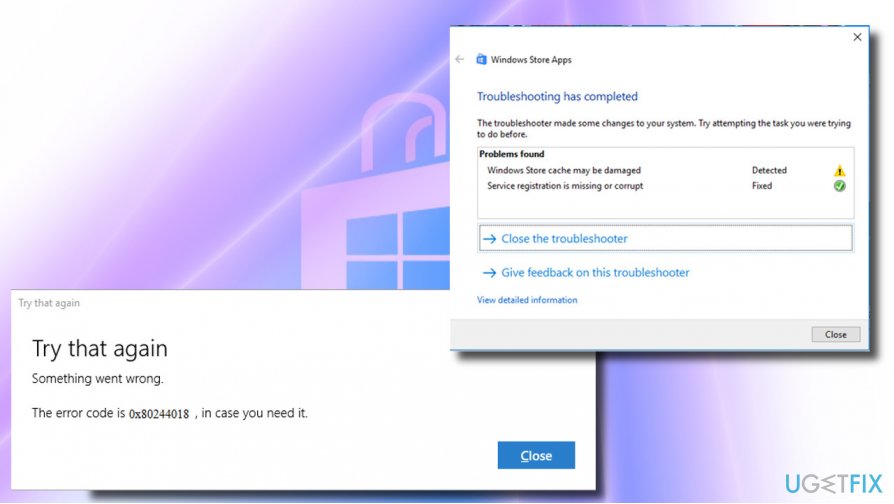
Windows Store Error 0x80244018
on Windows
Resolve Windows Store error 0x80244018 on Windows 10 quickly and easily. Our expert-tested solutions ensure your apps run smoothly again. Updated 2025.


What causes How to Fix Windows Store Error 0x80244018 on Windows 10?
- Corrupted AppReadiness folder
- Issues from Windows Update KB4038788
- Messed up Internet settings
- Compatibility issues with Windows or Store app updates
- Virus infection
- Third-party software interference
Repairs Windows system files, removes malware, and restores a clean OS state — without reinstalling.
Hello. I cannot download apps from store because Windows shows me an error code 0x80244018. Running Windows 10 V1703. Tried sfc and dism, reset Windows Store cache, but that did not help. Any solutions?
The Error Code 0x80244018 is one of the bugs that rolled out with the regular Windows Update KB4038788 (OS Build 15063.608). The update might have messed up Internet settings or triggered compatibility issues with Windows or Store app updates. However, this does not mean that there cannot be other triggers that provoke the error code to appear.
According to reports,[ref en-1] the error occurs on Windows Store[ref en-2] and, although it does not prevent the Store from running, it doesn’t allow downloading and installing any apps, which is not a small problem. Windows Store supply not only Windows apps but also Windows Updates, so the 0x80244018 error may expatiate and result in outdated Windows OS.
According to people who experience the 0x80244018 bug, sfc / scannow and clearing Windows store cache did not help to solve the problem. Therefore, experts recommend trying other possible techniques for eliminating the error. Scroll a little bit down below and go throughout each method that is described in detail to lengthen the process for you.
How to Fix Windows Store Error 0x80244018 on Windows 10?
Method 1. Recreate AppReadiness folder
You can try removing and recreating the AppReadiness folder in C:Windows as a solution for eliminating the Windows store error 0x80244018. This directory is exploited by Windows Store for moving the files freely, so if it has been corrupted by an update, virus infection, or third-party software, it has to be restored manually. For this purpose, you should:
1. Open This PC and click on View tab at the top of the window.
2. Mark the Hidden Items option to show hidden files, folders, and drives.
3. Then click Options and select Change folder and change options.
4. Open the View tab and look for the Hide protected operating system files (Recommended) option.
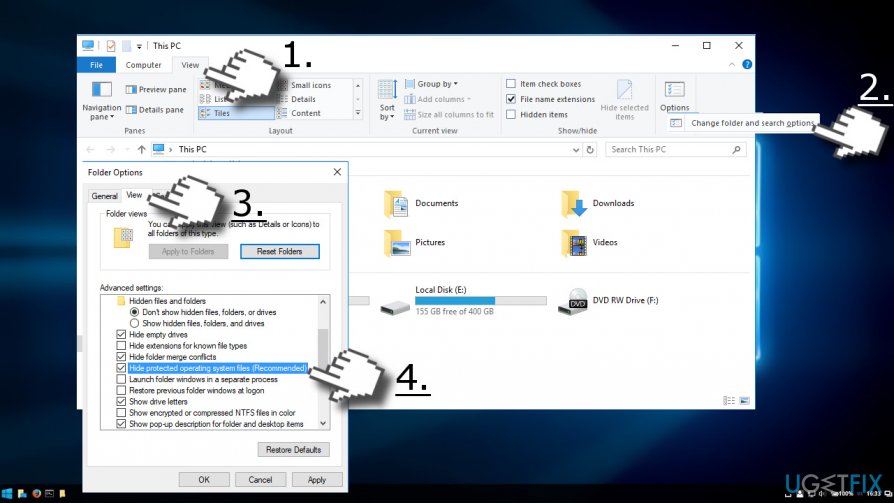
5. If it’s marked with a tick, unmark it and click OK to save the changes.
6. Now navigate to the C:\\Windows, right-click on an empty space and select New -> Folder.
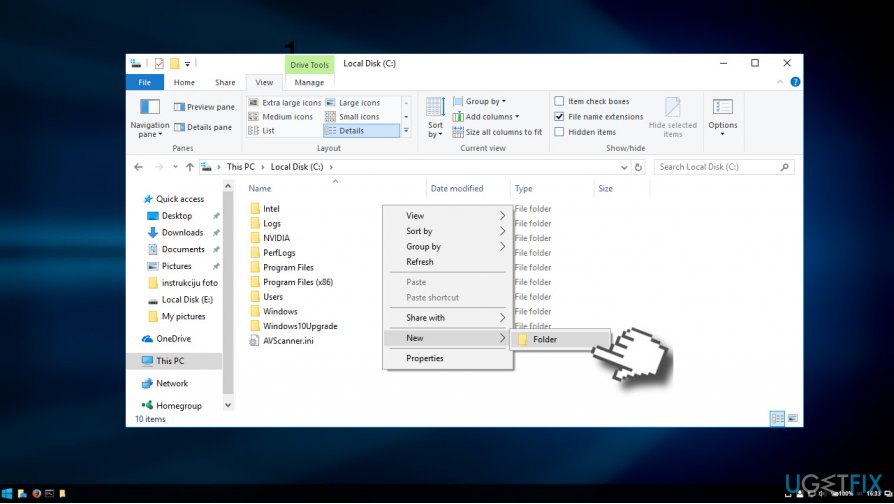
7. Name it as AUInstallAgent (you’ll be asked for administrative privileges).
8. When the folder is created, reboot the system and check if the 0x80244018 error has been fixed.
9. If the problem continues, open C:\\Windows directory and create a folder named as AppReadiness.
10. Reboot the system and see if it worked.
Method 2. Check the System for Malware
Virus infection may trigger 0x80244018 error to prevent the user from downloading apps, especially the ones related to PCs security. Therefore, if the method above did not help to solve the problem, please run a full system scan with a professional anti-malware utility. We would recommend [d1] because it checks for malware and optimizes the system at a time, but you are free to use an alternative tool.
Method 3. Remove the Update that caused the 0x80244018 Error
If the 0x80244018 error obviously showed up after installation of Windows Updates, but the above-mentioned fixes did not help to resolve it, you can easily uninstall the problematic update and wait for the next update to be rolled out.
NOTE: while most of the Windows Updates can be removed, you may not be allowed to roll back some of the crucial security updates.
1. Right-click on Windows key and select Settings.
2. Select Update & Security and open Advanced Options.
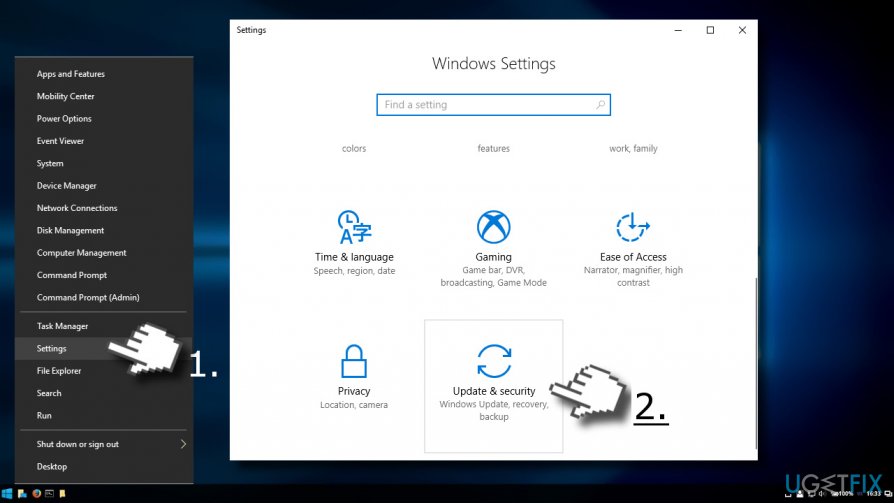
3. Select Update history and click Uninstall Updates.
4. When the system prepares the list of installed updates, select the update that trigged Windows Store bug and click Uninstall.
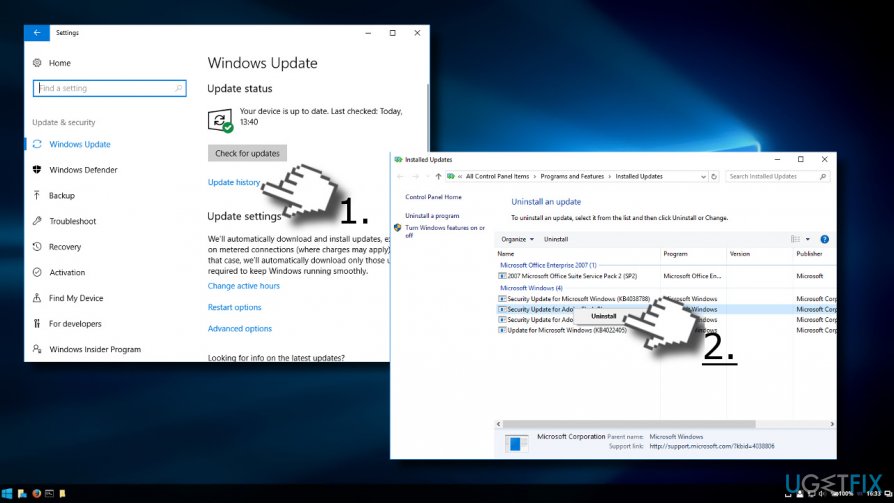
5. After that, reboot the system.
Method 4. Deactivate the Proxy server
- Open your web browser and locate the three dots on your upper right.
- Launch the menu and continue with Settings.
- Opt for the Advanced section.
- Continue with the Open proxy settings section. Now you will be provided with the Internet Properties window.
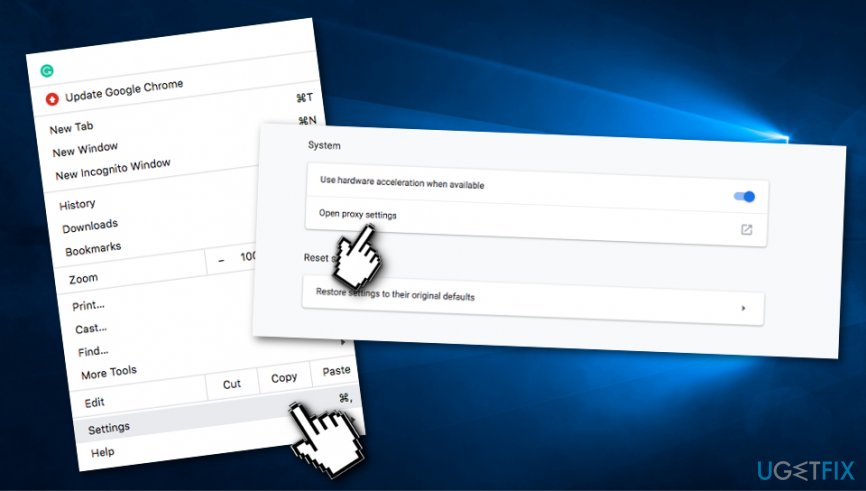
Fixing method - Select the LAN settings button.
- Furthermore, deselect the Automatically detect settings option that is placed under the Automatic configuration section.
- In addition, ensure that Use a proxy server for your LAN is not selected also.
- Opt for the OK button to save changes.
- Click OK again.
Method 5. Check if BITS service is properly operating
In some cases, the Windows Store Error 0x80244018 might be triggered due to the Background Intelligent Transfer Service[ref en-3] not operating properly. So, if you ever start receiving this type of error code on your Windows computer, make sure to check this service and its operations. You can do that by following the below-provided guidelines:
- Hold the Windows key and R button for a while and the run box should appear.
- Once this happens, type services.msc in it.
- Another window will appear and search for the BITS service here.
- When you discover it, right-click with your mouse and continue with Properties.
- On the Properties window make sure that you are on the General tab.
- Go to Startup type and choose Automatic (Delayed Start) from the drop-down menu.
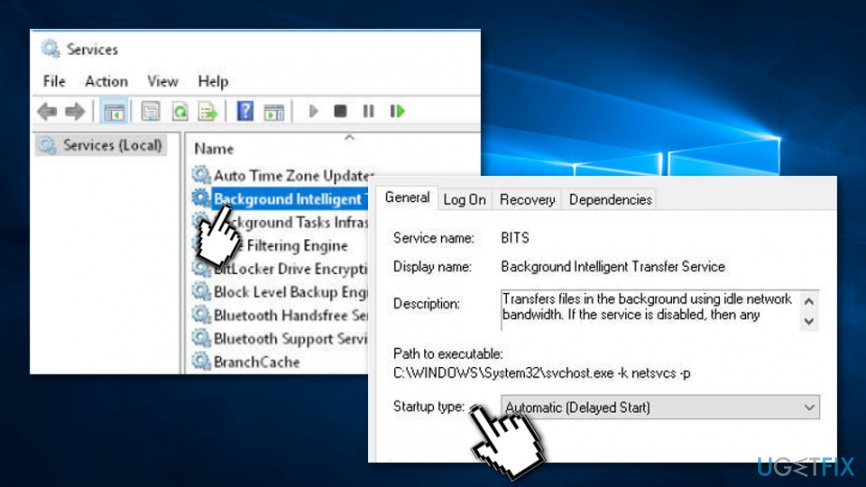
Method no - After that, continue with the Service status section and choose Start.
- Restart your computer system.
Bottom line
To fix the Windows Store error 0x80244018, you can try recreating the AppReadiness folder, running the sfc /scannow command, and clearing the Windows Store cache. If these methods do not resolve the issue, consider exploring additional troubleshooting techniques.
Frequently asked questions
Error 0x80244018 typically indicates a problem with Windows Update or issues connecting to the Microsoft server. This can prevent users from accessing the Windows Store.
To fix this error, try running the Windows Update Troubleshooter and ensure your network connection is stable. Additionally, resetting the Windows Store cache can also help.
Yes, error 0x80244018 can also occur on Windows 11, and the same troubleshooting steps can be applied to resolve the issue.




Report an issue
What's wrong with this guide? We review every report and update or remove content.
Report received — thank you. We'll review and fix it.
You need a free account to submit a report.
Be the first to comment