How to fix
Windows Store Error Code 0x00000190
on Windows
Resolve Windows Store Error Code 0x00000190 quickly and effortlessly. Get expert-tested solutions and enjoy seamless app downloads on Windows 10 and 11.

What causes How to Fix Windows Store Error Code 0x00000190?
- Malicious applications may prevent apps from running normally
- Unsuccessful installation of Windows updates
- Cached system issues
- Corrupted Windows Store app
- Virus infection
Repairs Windows system files, removes malware, and restores a clean OS state — without reinstalling.
Could someone please help me with an error code 0x00000190 on Windows Store? It doesn’t allow me to open the app. I get a grey window saying that something went wrong and that waiting a bit might help. However, the problem lasts for several days already and I guess that waiting is not a proper solution.
Windows Store is a “must work” app on Windows 10 as it supplies both Windows updates and compatible apps. The speedy development of new interfaces[ref en-1] for both tablets and other touch input devices, the Windows Store plays a crucial role in keeping the pace with the improvements.
Not only touch screen devices require Windows Store. PCs and laptops running Windows 10 OS require Windows Store app running smoothly. Unfortunately, the app often fails to run after unsuccessful installation of Windows updates,[ref en-2] cached system or the corrupted Windows Store app itself.
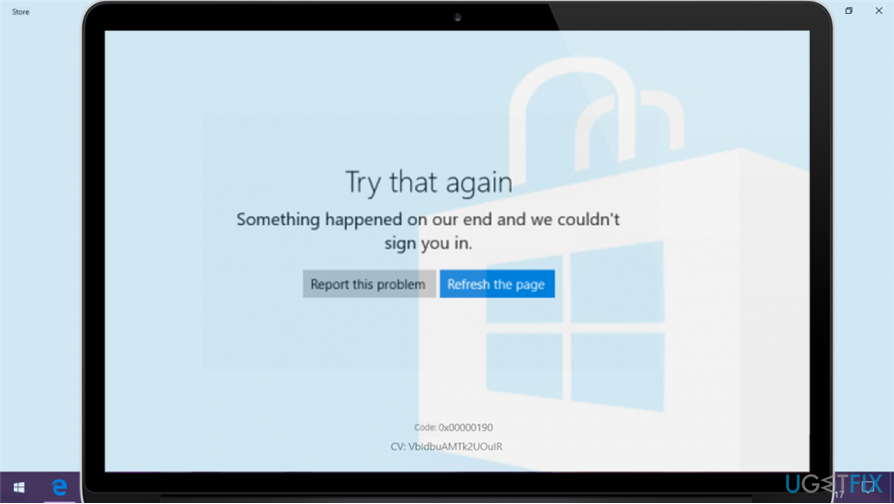
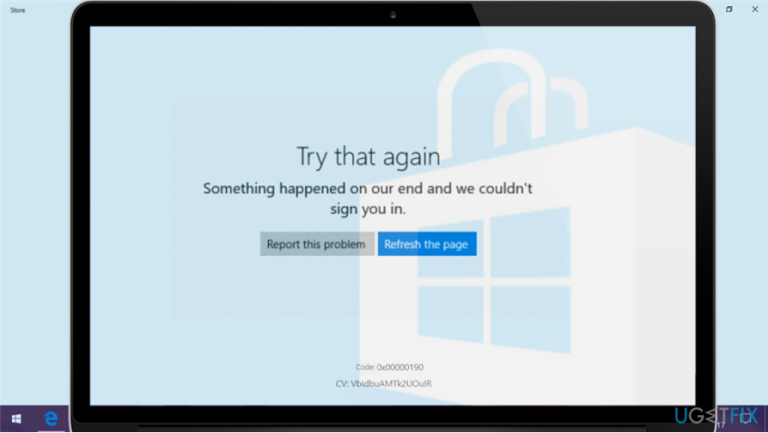
Currently people keep reporting a Windows Store Error Code 0x00000190, which prevent the app from opening. Instead of the usual Store window, people get the following error message:
Try that again. Something happened on our end. Waiting a bit might help. Error Code: 0x00000190.
Even though people are assailing the official Microsoft’s support page with the questions regarding Store error 0x00000190, the company’s technicians haven’t yet responded leaving Windows 10 users unaware of the possible fixes.
Unfortunately, we cannot present an official fix and grant that it’s going to work. Nevertheless, there are several methods that can be applied for fixing any Windows Store error and we highly recommend you to try them.
A Guide on How to Fix Windows Store Error Code 0x00000190 on Windows 10
First of all, you should check the system for malware. That’s because malicious applications may prevent apps from running normally. We would recommend using [d1].
In case virus infection[ref en-3] is not the case, you should reset Windows Store cache (type wsreset command in the Search, right-click it, and select Run as administrator) and run an inbuilt Windows Store Apps Troubleshooter. The latter can be opened via Settings app (Settings ->Update & Security -> Troubleshoot -> Windows Store Apps -> Run the troubleshooter).
If these simple steps did not work, please try the following:
Method 1. Remove Local Cache
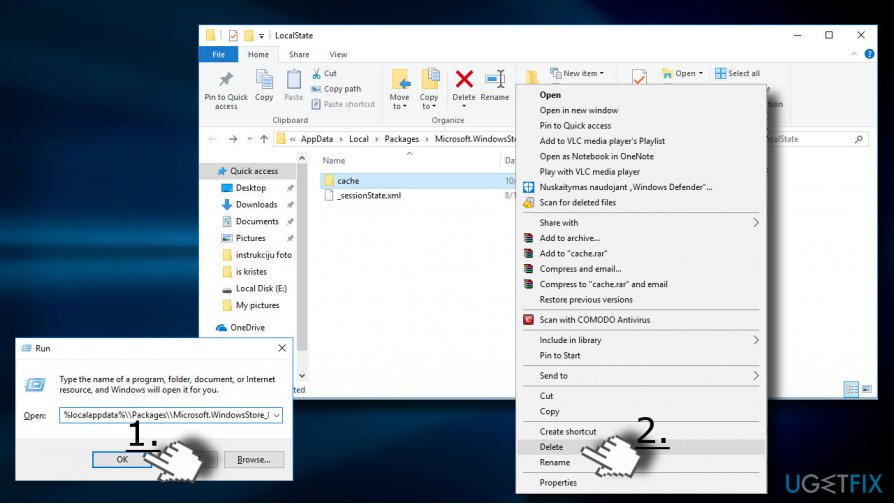
- Press Windows key + R to open run.
- Copy %localappdata%\\\\Packages\\\\Microsoft.WindowsStore_8wekyb3d8bbwe\\\\LocalState command and paste it in the run.
- Click OK to open the directory.
- Find the Cache folder and right-click on it and delete all the files and folders inside it.
Method 2. Modify DNS addresses
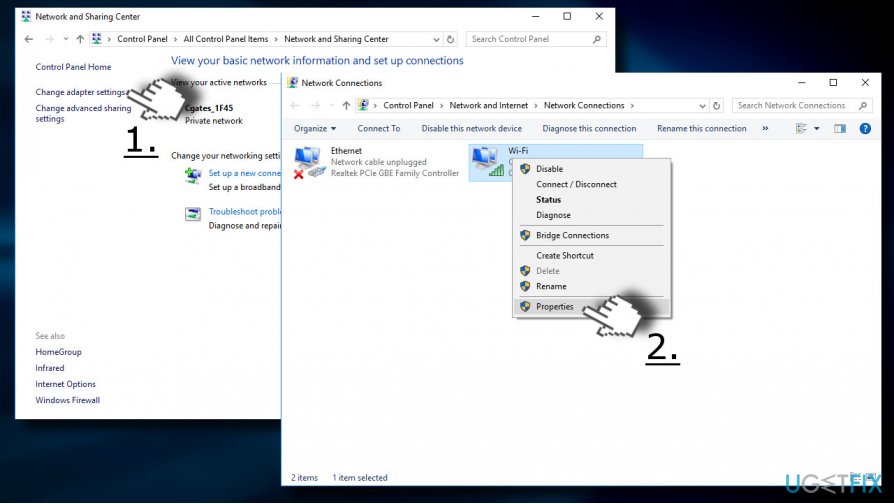
- Open Control Panel and click on Network and Sharing Center.
- Select Change adapter settings and right-click on the connection icon (Local Area Connection or Wireless Network Connection).
- Select Properties and mark the Internet Protocol Version 4 (TCP /IPv4).
- Select Properties again and open General tab.
- Select Obtain DNS server address automatically and click OK.
- In case the Obtain DNS server address automatically has already been marked, select the Use the following DNS server address instead option.
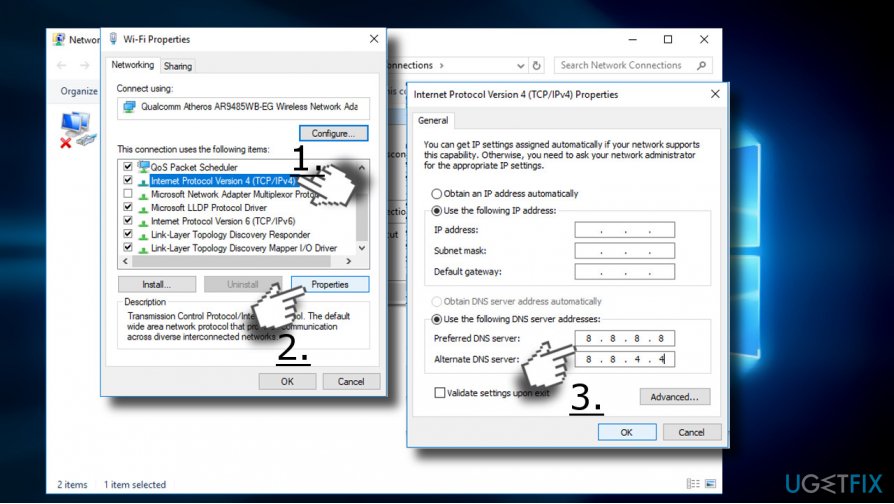
- Now enter the following server addresses and click OK afterwards:
Preferred DNS server: 8.8.8.8
Alternate DNS server: 8.8.4.4 - Finally, try to open Windows Store.
Method 3. Re-Register Windows Store
- Open Search and type PowerShell.
- Right-click on the PowerShell entry and select Run as administrator.
- Copy and paste the following command:
Get-AppXPackage -AllUsers | Foreach {Add-AppxPackage -DisableDevelopmentMode -Register “$($_.InstallLocation)AppXManifest.xml”} - Press Enter to execute it and wait for the process to be finished.
Method 4. Reinstall Windows Store App
- Click Windows key, type powershell, and press Enter.
- Right-click on PowerShell option and select Run as Administrator.
- Type Get-Appxpackage –Allusers and press Enter.
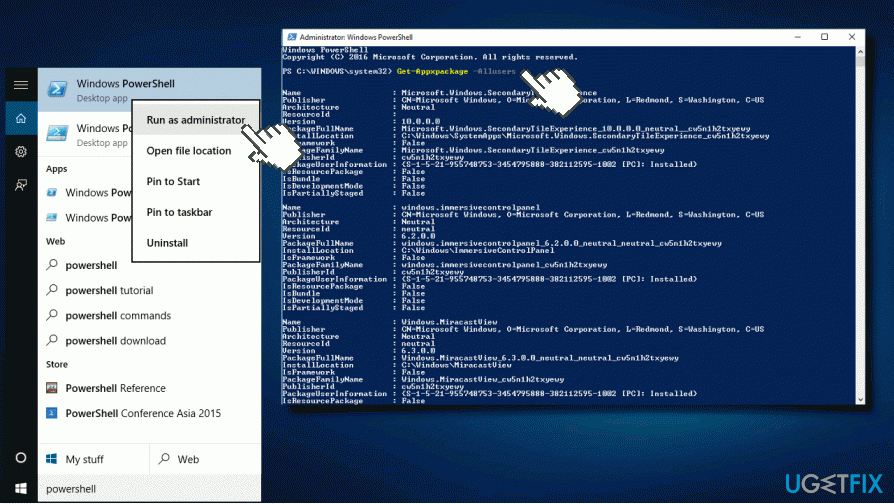
- Look for Windows Store entry and copy its packagefullname.
- Now copy and paste the Add-AppxPackage -register "C:\\Program Files\\WindowsApps\\" –DisableDevelopmentMode command.
IMPORTANT: replace "PackageFullName" with the Windows Store packagefullname. Besides, replace C: drive with the root driver of your system if needed. - After that, close PowerShell and reopen it with administrative privileges as explained in 1-2 steps.
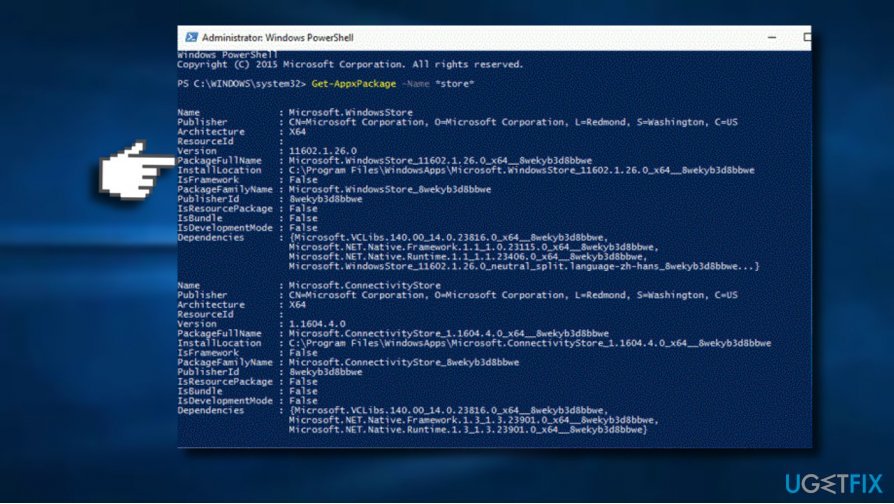
- Copy and paste the Add-AppxPackage -register "C:\\Program Files\\WindowsApps\\" –DisableDevelopmentMode
- Press Enter to execute it.
- Finally, reboot the system to execute all changes.
Bottom line
To fix Windows Store Error Code 0x00000190, you should first check your system for malware, reset the Windows Store cache using the wsreset command, and run the inbuilt Windows Store Apps Troubleshooter. If these methods do not resolve the issue, consider seeking further assistance or checking for updates from Microsoft.
Frequently asked questions
This error typically indicates an issue with the Windows Store or its components, which may be preventing apps from downloading or updating properly.
You can reset the Windows Store by going to Settings > Apps > Apps & features, selecting Microsoft Store, and clicking on 'Advanced options' to find the reset option.
Yes, you can use the 'wsreset.exe' command to reset the Windows Store cache, which may help resolve the error.




Report an issue
What's wrong with this guide? We review every report and update or remove content.
Report received — thank you. We'll review and fix it.
You need a free account to submit a report.
Be the first to comment