How to fix
Windows Store Error Code 0x80070216
on Windows
Resolve Windows Store Error Code 0x80070216 on Windows 10 effortlessly. Follow our expert-tested solutions to restore smooth app functionality today!

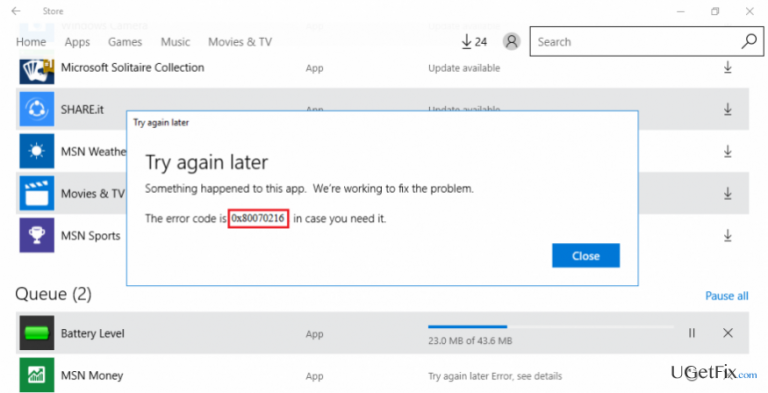
What causes How to Fix Windows Store Error Code 0x80070216 on Windows 10?
- Cumulative update KB4013429
- Issues with Kodi installation or update
- Problems with Norton Security Essentials installation or update
- Problems with Microsoft Office applications installation or update
- Issues with OneDrive installation or update
Repairs Windows system files, removes malware, and restores a clean OS state — without reinstalling.
I‘ve tried to update Kodi via Windows Store, but I can‘t run the update due to the error 0x80070216. I‘ve no idea why this could be happening or how to fix it. Could someone please help?
It would be helpful to know if you have recently installed any Windows updates, for example, KB4013429. A couple of days ago, people started reporting a Windows Store error code: 0x80070216. In most of the cases, it shows up when people attempt to install or update Kodi, but a thorough error analysis revealed that that the bug is not Kodi specific. It may also occur when installing/updating Norton Security Essentials, Microsoft Office applications or OneDrive. The bug was triggered by a cumulative update KB4013429 (servicing update 14393.953). Sadly, but this particular update is extremely unpopular among Windows 10 users because many people had problems with its installation. Besides, it triggered Windows Media Player to crash, disrupted Windows Update service, and initiate other minor system malfunctions. Microsoft addressed all issues with lightening speed and provided the KB4016635 updates. Therefore, to fix error 0x80070216, run Windows Update service and install the latest Windows updates. If unfortunately, the update did not fix the issue, you can try to resolve it by following the instructions provided below.
How to Fix Windows Store Error Code 0x80070216 on Windows 10?
As a starting point, we would recommend you to run a scan with a professional PC optimization tool, such as [d1]. It will check Windows operating system for damaged registry entries, system files, malware, and similar issues that may be negatively influencing system's performance. If PC's optimization did not solve the 0x80070216 error, try to perform the following fixes:
Solution 1. Install the latest Windows updates
- Press Windows key + I to open Settings app.
- Select Updates & Security.
- Press Check for Updates and wait until the latest updates are found.
- When the list of updates is delivered, click Install Updates.
Solution 2. Remove Windows Store cache
- Press Windows Key + R, type wsreset.exe, and click Enter.
- When the blank Command Prompt window shows, don’t press anything. The cache is being removed, so wait until Windows Store closes and then reopens automatically.
- After that, try to download Kodi or another required application.
Solution 3. Run several commands via Command Prompt
- Press Windows key + X and select Command Prompt (Admin).
- Type sfc /scannow and press Enter.
- Then copy and paste the commands given below. Enter has to follow each of them:
DISM /Online /Cleanup-image /Scanhealth
DISM /Online /Cleanup-image /checkhealth
DISM /Online /Cleanup-image /Restorehealth - Then press Windows key and type Powershell.
- Right-click on Windows Powershell and select Run as administrator.
- Copy and paste powershell -ExecutionPolicy Unrestricted Add-AppxPackage -DisableDevelopmentMode -Register $Env:SystemRoot\WinStore\AppxManifest.xml command and press Enter.
- Type Get-AppXPackage | Foreach {Add-AppxPackage -DisableDevelopmentMode -Register "$($_.InstallLocation)\AppXManifest.xml"} to re-register Windows apps and press Enter.
- Finally, close everything and reboot your PC.
Solution 4. Reinstall Windows Store
- Click Windows key + R and type PowerShell.
- Right-click on the search results and select Run as Administrator.
- Type Get-Appxpackage –Allusers and press Enter.
- Find Windows Store entry and copy the package name. For this purpose, mark it and press Ctrl + C.
- After that, type Add-AppxPackage -register “C:\Program Files\WindowsApps\” –DisableDevelopmentMode command.
NOTE: replace PackageFullName with the Windows Store package name by pressing Ctrl + V. Besides, instead of C: type the letter of the root driver of your system. - Then reopen PowerShell with administrative privileges as explained above.
- Paste Add-AppxPackage -register “C:\Program Files\WindowsApps\” –DisableDevelopmentMode command and press Enter.
- Finally, reboot the system to execute all changes.
Finally, if none of the issues helped to fix the 0x80070216 bug, report it to Microsoft. It might be that the latest update failed to fix this Windows Store error and need to re-address it.
Bottom line
To fix error 0x80070216, you can start by installing the latest Windows updates and removing the Windows Store cache. If these solutions do not resolve the issue, consider running a scan with a professional PC optimization tool.
Frequently asked questions
This error typically occurs due to issues with Windows Update, corrupted system files, or problems with the Microsoft Store cache.
You can reset the Microsoft Store by opening the Run dialog with Win + R, typing 'wsreset.exe', and pressing Enter, which will clear the cache.
Yes, you can use the Command Prompt to run 'sfc /scannow' and 'DISM /Online /Cleanup-Image /RestoreHealth' to repair corrupted system files.




Report an issue
What's wrong with this guide? We review every report and update or remove content.
Report received — thank you. We'll review and fix it.
You need a free account to submit a report.
Be the first to comment