How to fix
Windows Store Error Code 0x80073cf0
on Windows
Resolve Windows Store Error Code 0x80073cf0 with our expert-tested solutions. Get your apps running smoothly again in minutes!

What causes How to Fix Windows Store Error Code 0x80073cf0?
- Windows Store was interrupted
- Internet connection issues
- Cached file is invalid
- Incompletely downloaded applications
- Windows Update failure
Repairs Windows system files, removes malware, and restores a clean OS state — without reinstalling.
I don’t know why, but for some reason I cannot log into the Windows Store anymore. If I manage to login somehow, when I try to download any application, the Store shows an error code 0x80073cf0. I’m running Windows 10 Anniversary Update. Thanks!
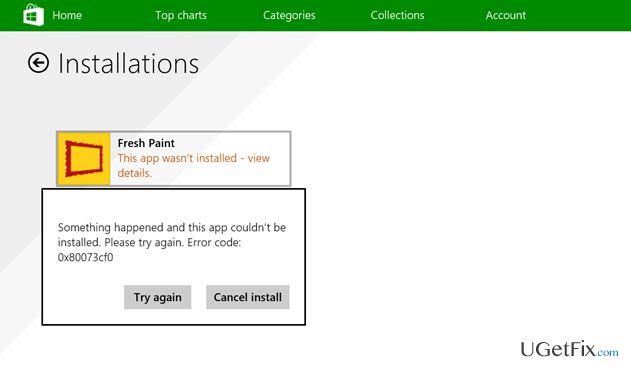
0x80073cf0 is an error code which might appear when trying to download or update applications from Windows Store. Usually, it appears on Windows 10[ref en-2], or Windows 8/8.1 operating systems and might even prevent you from using Windows Store at all.
The error code 0x80073cf0 is delivered along with the following message:
Something happened and this app couldn't be installed. Please try again. Error code: 0x80073cf0
Even though it is hard to identify the main reason why users encounter 0x80073cf0 error, IT experts suggest that Windows Store was interrupted and couldn't download the essential files for the application. This might have happened due to the Internet connection issues.
As the Windows Store starts the download in C:\\Windows\\SoftwareDistribution\\DeliveryOptimization folder, only a part of the file is downloaded. When trying to restart the download, Windows Store uses cached file which is invalid and displays error code 0x80073cf0.
It is assumed that this Windows Store inconsistency may be triggered by store cache[ref en-3], incompletely downloaded applications, Windows Update failure, and similar issues. Luckily, our experts have come up with multiple ways how to fix error code 0x80073cf0. You can find the detailed instructions below.
Learn how to fix error code 0x80073cf0 in Windows Store
Even though you can fix 0x80073cf0 Windows Store error manually, there is also an automatic solution. For that, you should run a full system scan with a professional system optimization software to eliminate Windows errors and potentially unwanted programs (PUPs)[ref en-1] automatically. We recommend using [d1] or a similar program.
This video will provide you with methods required for fixing this problem:
[youtube _CT0K2fPOvc]
Technique 1. Restart Windows Updates
- Click Win key and type cmd.
- Right-click on the search results and select Run as Administrator.
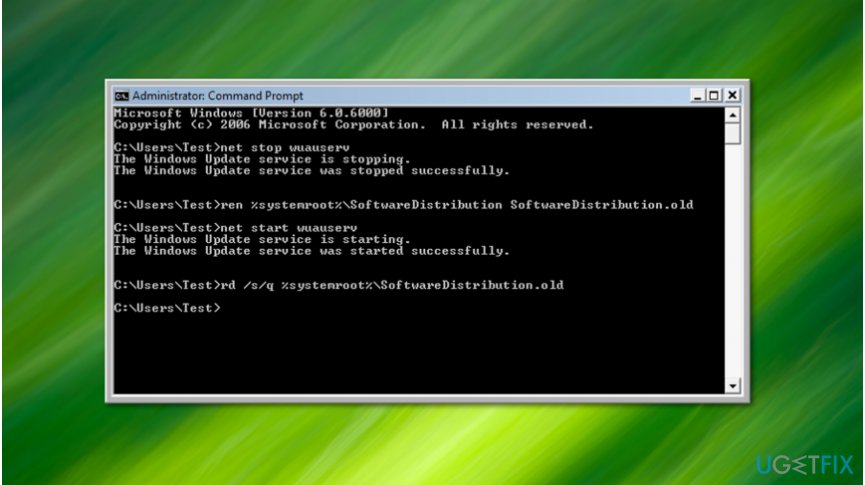
Restart windows updates - When the elevated Command Prompt window opens, type net stop wuauserv, and press Enter.
- Wait for the command to be executed, but don’t close the window yet.
- After that, type rename c:\\windows\\SoftwareDistribution softwaredistribution.old command, and press Enter again.
- Finally, type net start wuauserv, and hit Enter.
- Once you’re done, close Command Prompt window and reboot your PC.
Technique 2. Use Services Tool
- Click Win key + R, type services.msc, and press Enter.
- Locate Windows Update, right-click it, and select Stop.
- After that, open Windows folder and navigate to the partition where Windows OS is located.
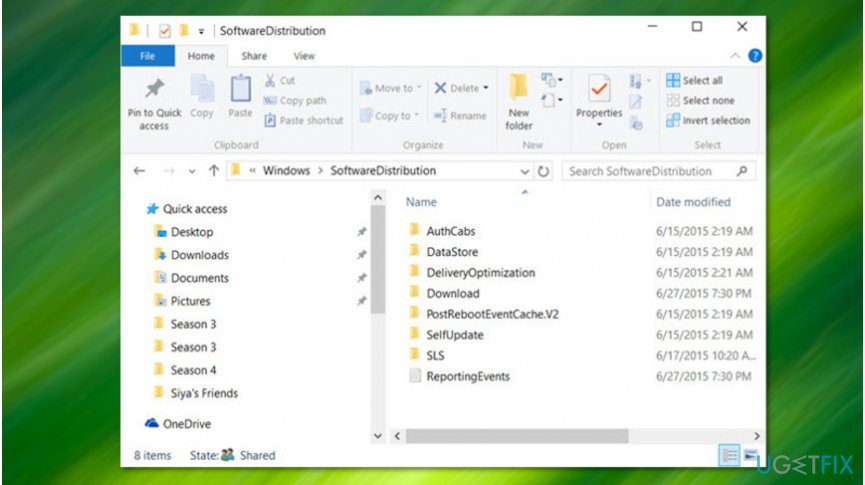
Delete files in softwaredistribution folder - Open it and delete all files that are stored in SoftwareDistributionOpen.
- Once done, open Services tool as explained above, right-click Windows Update, and select Start.
- Reboot the PC and try to login to Windows Store.
Technique 3. Remove Cache
- Click Win key + R, type WSReset.exe, and hit Enter.
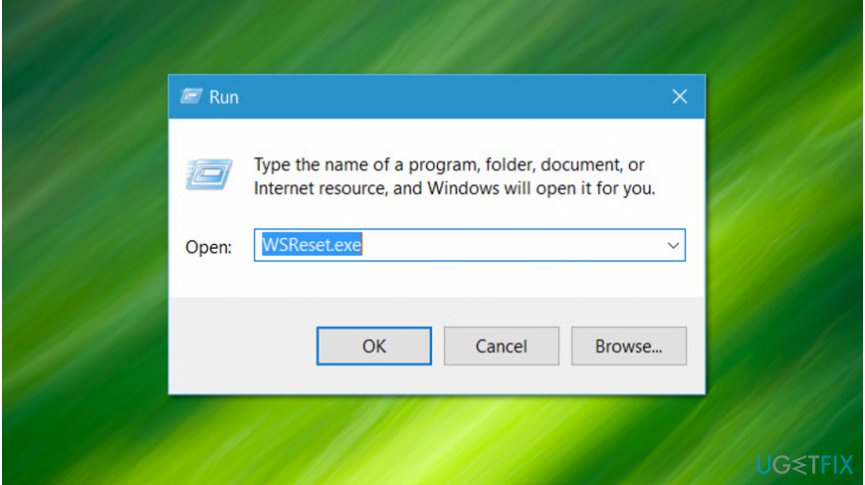
Reset windows store - When you will be shown a Command Prompt and Windows Store windows, it means that Windows Store cache has been successfully cleaned.
- Then reboot your PC.
Technique 4. Run Registry Repair
- Open Start, type Change Advanced Startup Options, and click on the results.
- At the bottom of the screen, select Restart now to boot your PC in an Advanced startup mode.
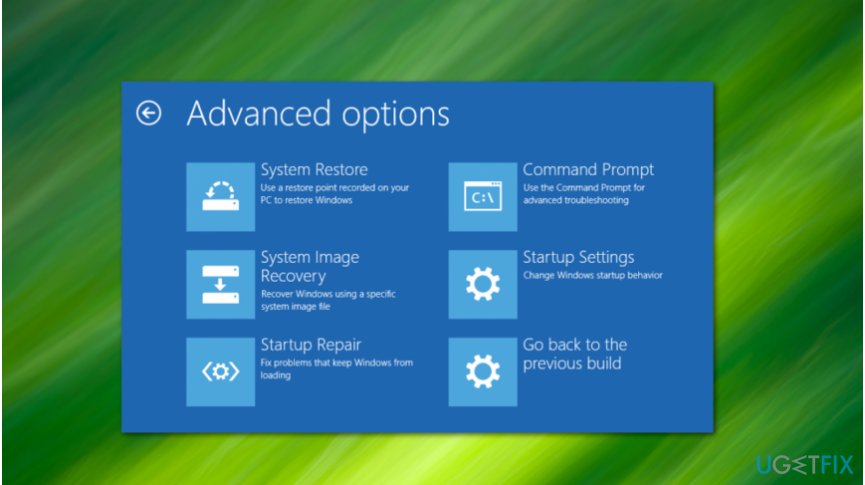
Perform startup repair - Choose Troubleshoot -> Advanced Options.
- Select Startup Repair and wait for the system to restart.
Bottom line
To fix the error code 0x80073cf0, you can restart Windows Updates, clear the Windows Store cache, or run a full system scan with optimization software. If these methods do not resolve the issue, consider seeking further assistance or using professional repair tools.
Frequently asked questions
This error typically occurs due to issues with the Windows Store cache or problems with the app installation files. Corrupted system files can also lead to this error.
To reset the Windows Store cache, press Windows + R, type 'wsreset.exe', and hit Enter. This will clear the cache and may resolve the error.
Ensure that your Windows 10 or Windows 11 system is up to date, and check your date and time settings to confirm they are correct, as discrepancies can lead to store errors.




Report an issue
What's wrong with this guide? We review every report and update or remove content.
Report received — thank you. We'll review and fix it.
You need a free account to submit a report.
Be the first to comment