How to fix
Windows Store Error Code 0x8024500C
on Windows
Resolve Windows Store Error Code 0x8024500C quickly with our expert-tested solutions. Get back to downloading in no time, fixed in minutes!


What causes How to Fix Windows Store Error Code 0x8024500C?
- Corrupted registry entries
- Missing Windows Store updates
- Corrupted Windows Store cache
- Proxy server failure
- Installation of third-party applications
Repairs Windows system files, removes malware, and restores a clean OS state — without reinstalling.
I have HP laptop with pre-installed Windows 10. Recently I noticed that I can’t download or install apps from the store. Store gives men an error code 0x8024500C, which says “Try that again. Something went wrong. The error code is 0x8024500C, in case you need it.” What can I do for that?
Error code 0x8024500C might be triggered once you update your Windows 10[ref en-2] operating system to Creators or Anniversary update. Afterward, you are unable to download or install applications from Windows Store[ref en-1]. Note that this pre-installed software is completely legitimate.
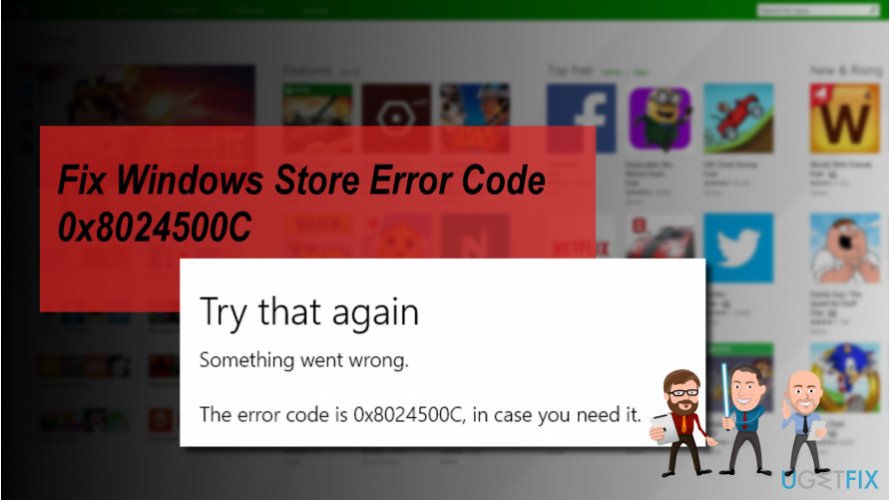
Sadly, but Windows Store often fails to work. One of the frequently encountered errors is 0x8024500C. The PC’s owner can access the Store, but the attempt to download apps or install recently downloaded ones end up with an error message 0x8024500C, which says:
Try that again
Something went wrong
The error code is 0x8024500C, in case you need it.
While the culprit may be corrupted registry entries, missing Windows Store updates, corrupted Windows Store cache, Proxy server failure, 0x8024500C error might be caused by the installation of third-party application as well. Therefore, we would suggest you be cautious when getting software from unauthorized developers.
However, if for some reason you are unable to use Windows Store properly, we have prepared a guide showing how to fix Windows store error code 0x8024500C below. Please, follow it attentively to successfully eliminate the problem and protect your computer from potential damage.
Learn how to fix Windows Store error code 0x8024500C
Below you will find multiple methods to fix 0x8024500C error on Windows computers. Although, it is important that you try them all since it is hard to determine the actual cause of the problem. Likewise, while ones might fail to help, others can be the solution to your problem.
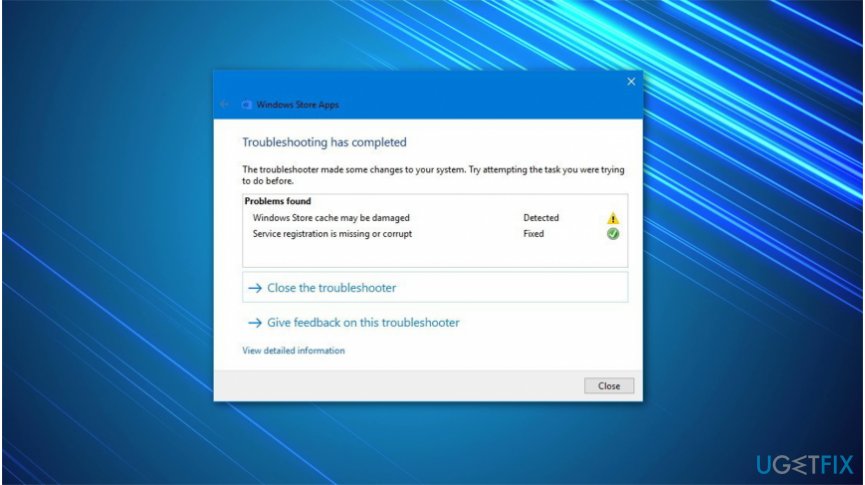
Before starting to fix error code 0x8024500C, you should try to troubleshoot[ref en-3] the problem. For that, open Windows search and type Troubleshooting. Navigate to the right side and select Windows Store Apps, click Run the Troubleshooter. If this quick method didn't help, you might need to scan your system with another professional software, like [d1].
Method 1. Try clearing Windows Store cache
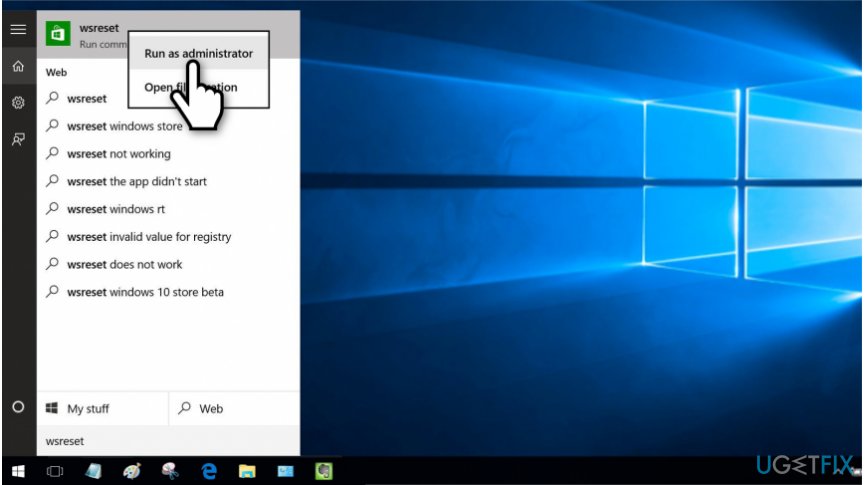
- Press Windows key + S and type wsreset;
- Right-click on the wsreset option and select Run as Administrator;
- Click Yes on the User Account Control prompt and wait while the system is resetting the Store cache;
- Once the process is finished, you'll see a Command Prompt window followed by Windows Store window.
Method 2. Get proxy connection disabled
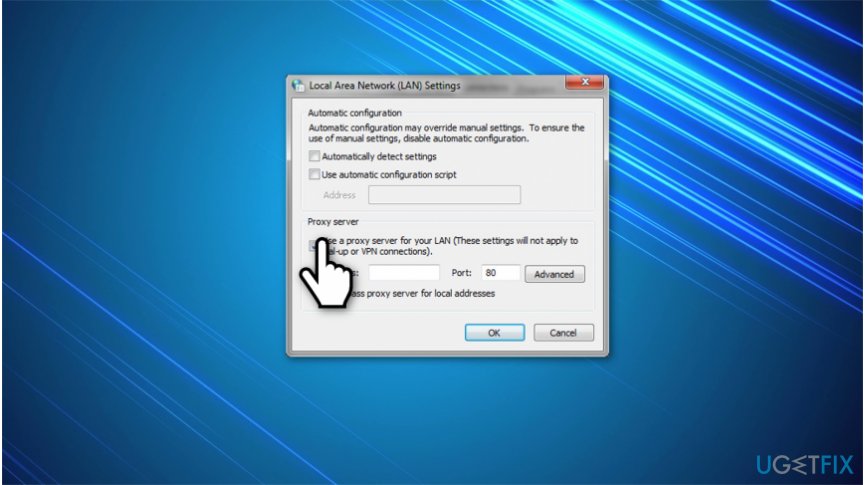
- Launch your web browser and open Settings;
- Find the Connections tab and click LAN Settings;
- Unmark "Use a proxy server for your LAN" check box;
- Click OK to save the changes and close the current window.
Method 3. Make sure that Date and Time settings are correct
If Date and Time settings are set incorrectly, Windows Store may fail to work. In this case, you should set Date and Time to synchronize with the Internet time and automatically detect your time zone.
Method 4. Reinstalling Windows Store might fix the problem
- Click Windows key + R and type PowerShell;
- Right-click on the search results and select Run as Administrator;
- Type Get-Appxpackage –Allusers and press Enter.
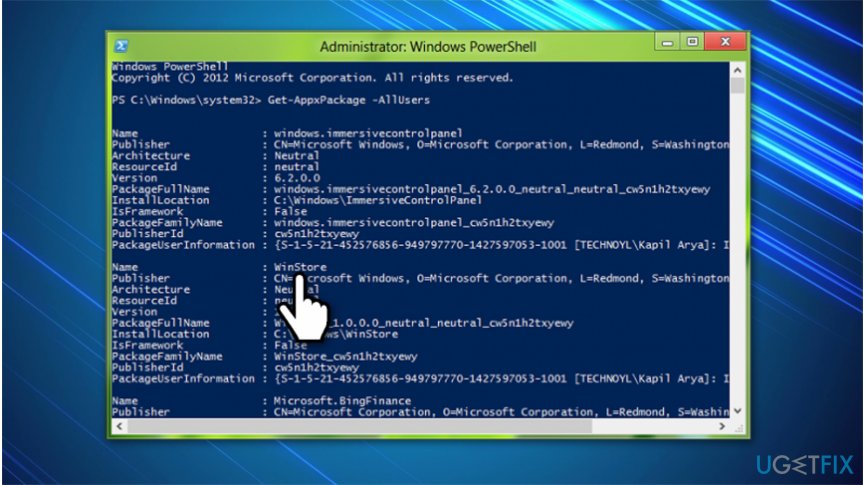
Reinstall windows store - Find Windows Store entry and copy the package name. For this purpose, mark it and press Ctrl + C;
- After that, type Add-AppxPackage -register “C:\\Program Files\\WindowsApps\\” –DisableDevelopmentMode command.
NOTE: replace PackageFullName with the Windows Store package name by pressing Ctrl + V. Besides, instead of C: type the letter of the root driver of your system. - Then reopen PowerShell with administrative privileges as explained above;
- Paste Add-AppxPackage -register “C:\\Program Files\\WindowsApps\\” –DisableDevelopmentMode command and press Enter;
- Finally, reboot the system to execute all changes.
Bottom line
To fix the Windows Store error code 0x8024500C, you can try troubleshooting through Windows Store Apps, scanning your system with professional software, and ensuring your Windows is up to date. If none of these methods work, consider seeking further technical assistance.
Frequently asked questions
Error code 0x8024500C typically indicates a problem with the Windows Store, often related to issues with the Windows Update service or network connectivity.
To troubleshoot this error, try resetting the Windows Store cache by running the command 'wsreset.exe' in the Run dialog, and ensure your internet connection is stable.
Yes, check your date and time settings to ensure they are correct, and verify that the Windows Update service is running properly in the Services app.




Report an issue
What's wrong with this guide? We review every report and update or remove content.
Report received — thank you. We'll review and fix it.
You need a free account to submit a report.
Be the first to comment