How to fix
Windows Store Error Code 0x87AF000B
on Windows
Resolve Windows Store error code 0x87AF000B quickly and efficiently. Get your apps back up and running with expert-tested solutions. Fixed in minutes.

What causes How to Fix Windows Store Error Code 0x87AF000B?
- Windows Store cache issues
- Windows Update component problems
- Anti-virus interference
- Windows Firewall settings
- Corrupted system files
Repairs Windows system files, removes malware, and restores a clean OS state — without reinstalling.
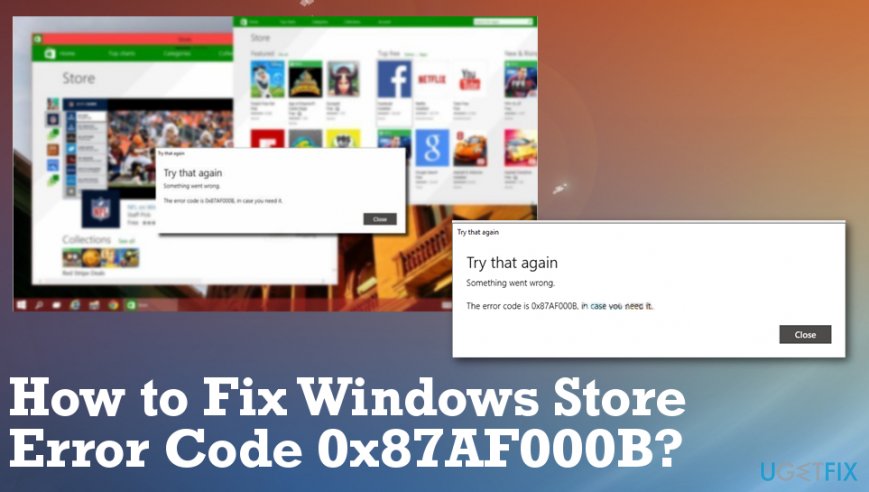
Hey. I‘ve no idea what happened to Windows Store, but each time I try installing and updating apps, the process fails with an error code 0x87AF000B. All programs are successfully downloaded, but installation always fails. What fixes should I try?
Error 0x87AF000B is the one of many errors delivered on Windows Store that users complained online already[ref en-1] but this is not the only one. It seems that applications are downloading normally, but the process shows a message about failure and it is not known why that happens in the first place.
Judging from the bugs people encounter on it, Windows Store is one of the most vulnerable Windows apps. Windows users are frequently prevented from downloading and installing apps regardless of whether they are free or paid. That's a big problem due to which people can't use needed programs, as well as install Windows Updates.[ref en-2]
One of such error messages is the Code 0x87AF000B. Although it has started in the middle of 2016, it is still an obscure issue that hasn‘t been solved. Nevertheless, quite a lot of people shared their experience about how they managed or did not manage to fix it. It has been found that the most common Windows Store fixes seldom help to resolve this problem.
- Removal of Windows Store cache;
- Windows Store Troubleshooter;
- Resetting Windows Update components;
- Anti-virus deactivation;
- Windows Firewall disabling.
How to fix Windows Store Error 0x87AF000B
Trying the above-listed methods is not that tiresome as it may seem because these tasks require several clicks only. However, to save your time, you should first try the approved fixes, i.e. to reinstall Windows Store and, if that won‘t help, create a new Windows account and sign in to it.
Hopefully, you have managed to fix the 0x87AF000B error successfully. We also recommend trying the methods that we have mentioned further in the post. Besides, we would strongly suggest you ensure proper maintenance of the Registry, system files, process, and software.[ref en-3] For that, try using [d1].
Run the Windows Store troubleshooter
- Open Start and then Settings
- Find Update & Security to locate Troubleshoot options.
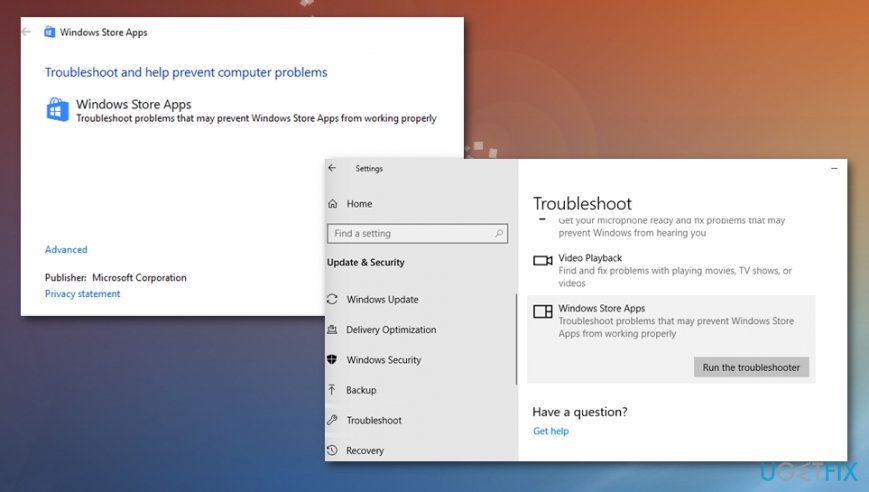
How to fix windows store error code 0x87af000b troubleshooter - Croll down to the bottom and click Windows Store Apps.
- Run the troubleshooter.
- Check the Store after the troubleshooting.
Reset Windows Store cache
- Press Windows logo key + R.
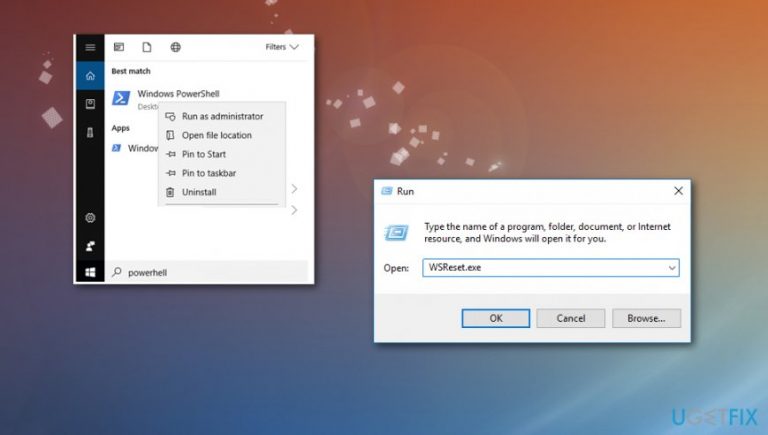
- Type wsreset.exe and press Enter.
- Run troubleshoot again if the store is not working.
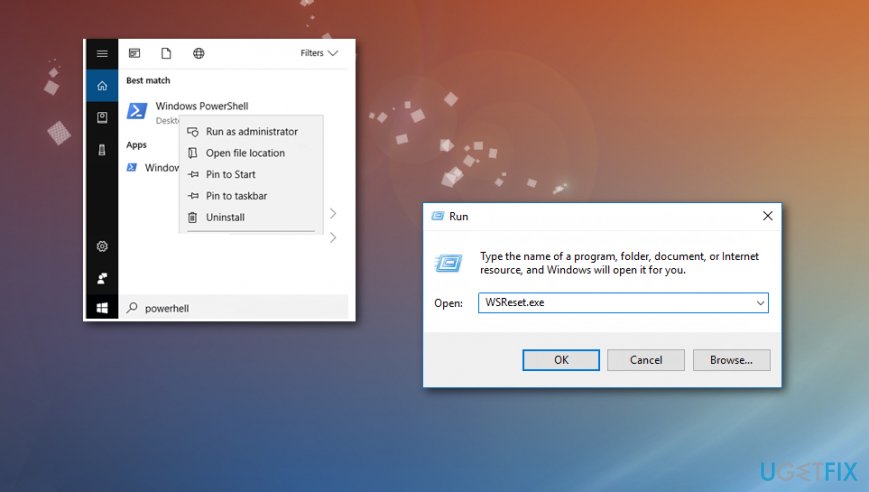
How to fix windows store error code 0x87af000b reset
Reinstall Windows Store and fix Error Code 0x87AF000B
- Click Windows key + R and type PowerShell.
- Right-click on the search results and select Run as Administrator.
- Type Get-Appxpackage –Allusers and press Enter.
- Find Windows Store entry and copy the package name. For this purpose, mark it and press Ctrl + C.
- After that, type Add-AppxPackage -register “C:\\Program Files\\WindowsApps\\” –DisableDevelopmentMode command.
NOTE: replace PackageFullName with the Windows Store package name by pressing Ctrl + V. Besides, instead of C: type the letter of the root driver of your system. - Then reopen PowerShell with administrative privileges as explained above.
- Paste Add-AppxPackage -register “C:\\Program Files\\WindowsApps\\” –DisableDevelopmentMode command and press Enter.
- Finally, reboot the system to execute all changes.
Create a new administrator account
- Go to Settings and Accounts
- The select Family and other users to find to Add someone else on this PC option.
- Select to Add the user without Microsoft account.
- Choose the username and password. Click Next.
- Go to Settings and Accounts, then Family and other users.
- Choose the created accounts and Change the account type to select Administrator and press OK.
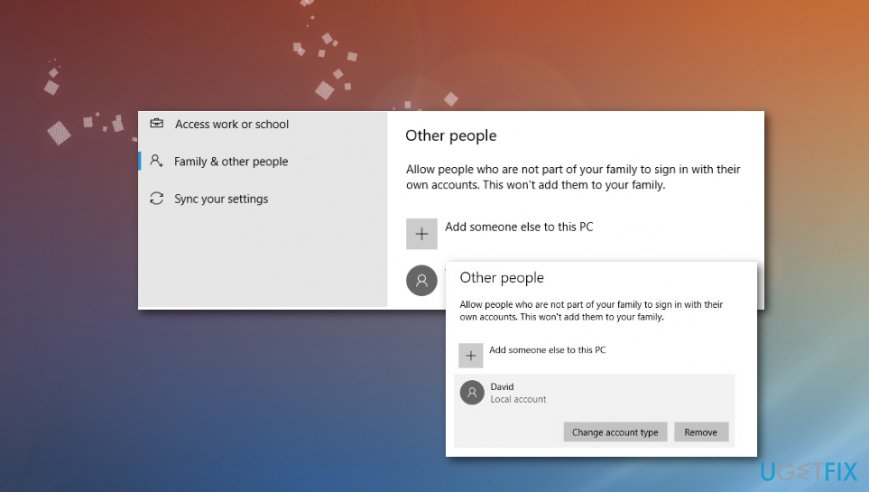
How to fix windows store error code 0x87af000b other people
Create a new Microsoft account to fix Windows Store Error Code 0x87AF000B
- Navigate to the official Microsoft website and open Microsoft Account sign up page.
- Click on Create a new account and fill in the visible form.
- When all information is submitted, press Create Account button.
- Once done, click on Windows Store icon on the taskbar and find the user symbol at the top of the screen.
- Click it to open a drop-down menu. Select Sign in option.
- If you were signed in with another account, you would have to click on the Account‘s Username and select Sign out.
- Then click on the User icon again and select Sign In.
- Select Microsoft account and enter the new Microsoft email ID and password.
- Click Sign In button and then try to download the apps.
Bottom line
To fix the Windows Store Error Code 0x87AF000B, you can try reinstalling Windows Store, creating a new Windows account, and using the Windows Store troubleshooter. If these methods do not resolve the issue, consider maintaining your Registry and system files for better performance.
Frequently asked questions
The error code 0x87AF000B typically indicates that there is an issue with your Microsoft account or a problem with the Windows Store app itself on Windows 10 or Windows 11.
To troubleshoot the 0x87AF000B error in Windows 10, you can try resetting the Microsoft Store cache by running the command 'wsreset' in the Run dialog.
Yes, ensuring that your Windows 10 or Windows 11 is up to date can help resolve the 0x87AF000B error, as updates may fix underlying issues affecting the Windows Store.




Report an issue
What's wrong with this guide? We review every report and update or remove content.
Report received — thank you. We'll review and fix it.
You need a free account to submit a report.
Be the first to comment