How to fix
Windows Store Sign-In Error Code 0xD000000D
on Windows
Resolve Windows Store Sign-In Error Code 0xD000000D quickly with expert-tested solutions. Get back to downloading apps effortlessly! Fixed in minutes.


What causes How to Fix Windows Store Sign-In Error Code 0xD000000D?
- Windows Store damaged during upgrade process
- Major Windows Update installation issues
- System errors after major updates
- Windows Store settings need resetting
- Windows Store cache needs clearing
Repairs Windows system files, removes malware, and restores a clean OS state — without reinstalling.
I‘ve recently installed Creators Update and guess what? Windows Store stopped working. When I click on Windows Store icon, it returns an error saying „Something happened on our end...“ and gives an error code 0xD000000D. What can I do to get it corrected?
Windows 10 has an already predictable tendency to bring about various system‘s errors right after installation of major updates (Anniversay Update, Creators Update, upcoming Fall Creators Update). Most frequently updates negatively affect apps and features, including Microsoft Edge, Photos app, File Explorer, Cortana, Mail app or Windows Store. The latter is affected most frequnetly, but although easily broken, Windows Store is easy to repair.
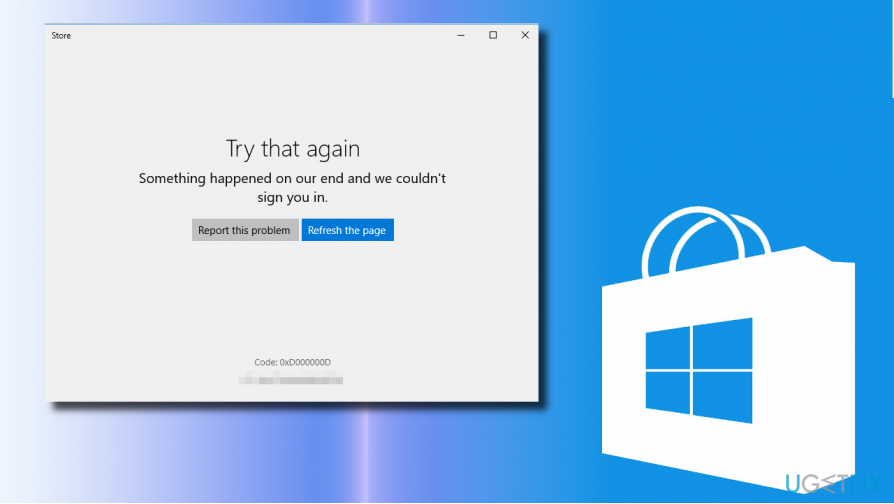
In this post, we will be addressing Windows Store sign-in error, which is marked with a hexademical code 0xD000000D. Typically, the problem occurs right or soon after installation of the major Windows Update, aka Creators Update. When the user clicks on the Windows Store icon, instead of opening Windows Store environment, the system returns Error Code 0xD000000D. The full message says:
Try that again
Something happened on our end and we couldn‘t sign you in.
Report this problem Refesh the pageCode: 0xD000000D
Luckily, to fix 0xD000000D error you won‘t have to apply intricate methods, such as Windows Restore or Clean install. The culprit is directly related to Windows Store, which might have been damaged during the upgrade process. Thus, to resolve Windows Store sign-in error 0xD000000D, please try these methods:
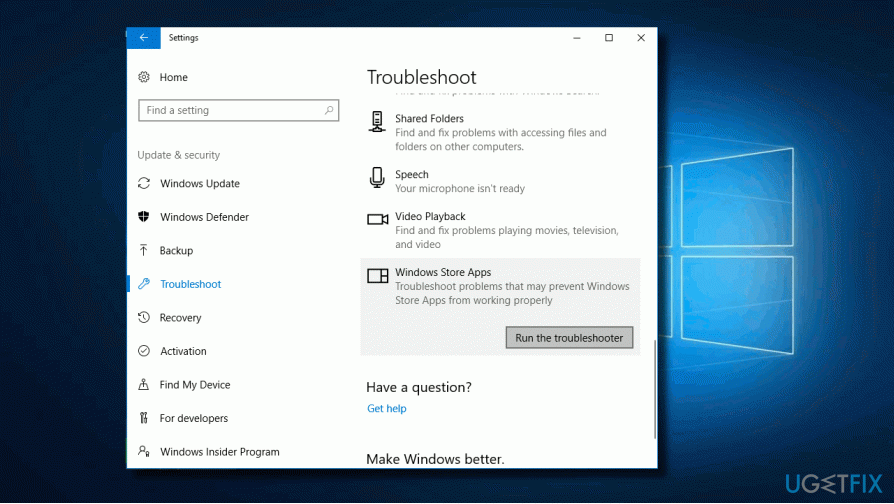
Method 1. Run Windows Apps Troubleshooter
1. Press Windows key + I and open Update & Security.
2. Find Troubleshoot section on the left pane and click it.
3. Scroll down to find Windows Store Apps and click on it.
4. Press Run troubleshooter button and wait for the system to finish the scan.
Method 2. Reset Windows Store settings
1. Press Windows key + I and open Apps section.
2. Scroll down to locate Store. Click on it.
3. You won’t be allowed to Move or Uninstall the app. However, you should see an Advanced options link.
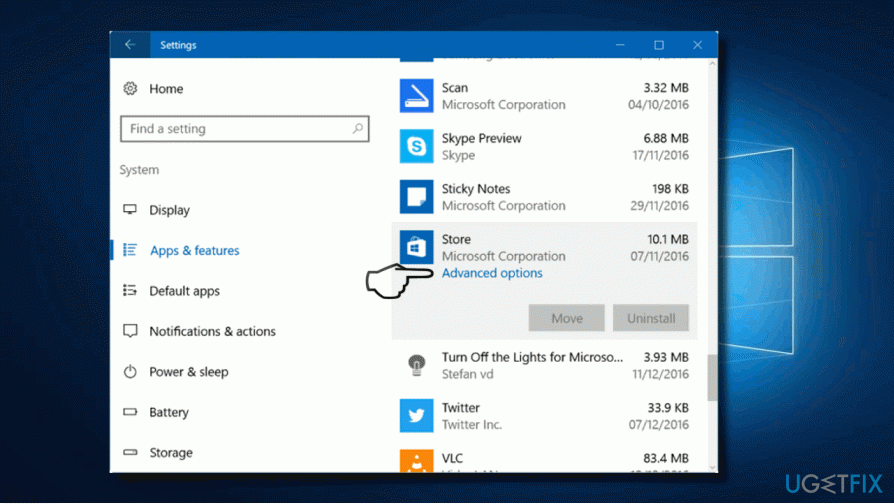
4. Click the link and then press the Reset button.
Method 3. Clear Windows Store Cache
1. Press Windows key and type wsreset.
2. Right-click on the wsreset option and select Run as Administrator.
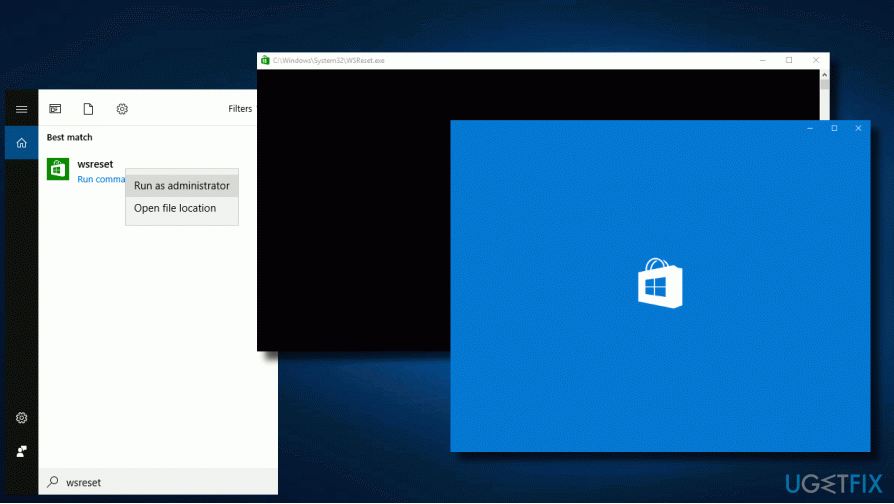
3. Click Yes on the User Account Control prompt and wait.
4. Once the process is finished, you'll see a Command Prompt window followed by Windows Store window.
Method 4. Reinstall Windows Store app
1. Click Windows key and type PowerShell.
2. Right-click on the search results and select Run as Administrator. (The commands won't work without loading PowerShell with administrative privileges).
3. Type Get-Appxpackage –Allusers and press Enter.
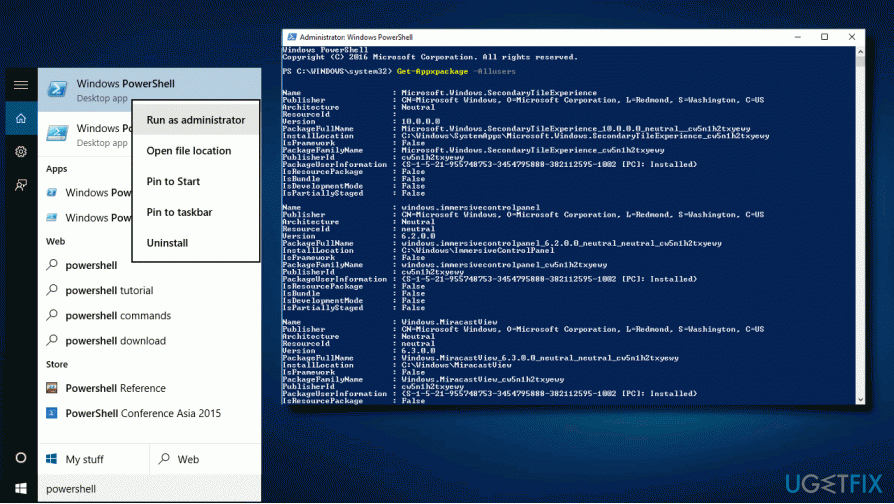
4. Find Windows Store entry and copy the PackageFullName. For this purpose, mark it and press Ctrl + C.
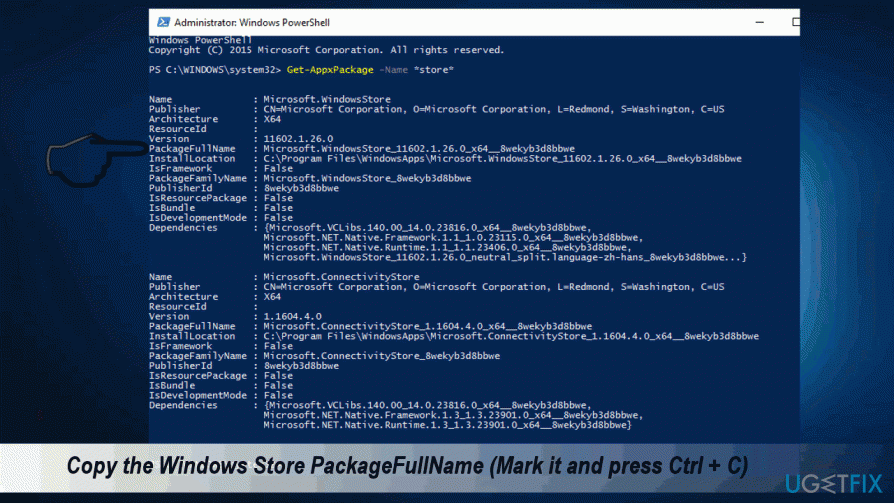
5. Then type Add-AppxPackage -register “C:\\Program Files\\WindowsApps\\” –DisableDevelopmentMode command.
NOTE: replace PackageFullName with the Windows Store package name by pressing Ctrl + V. Besides, instead of C: type the letter of the root driver of your system.
6. Then reopen PowerShell with administrative privileges as explained above.
7. Paste Add-AppxPackage -register “C:\\Program Files\\WindowsApps\\” –DisableDevelopmentMode command and press Enter.
8. Finally, reboot Windows.
Bottom line
To fix the Windows Store sign-in error code 0xD000000D, you can run the Windows Apps Troubleshooter, reset Windows Store settings, or clear the Windows Store cache. If these methods do not resolve the issue, consider seeking further technical support.
Frequently asked questions
This error typically occurs due to issues with your Microsoft account, corrupted system files, or problems with the Windows Store app itself.
You can reset the Windows Store by going to Settings > Apps > Apps & features, finding Microsoft Store, clicking on Advanced options, and selecting the Reset option.
Yes, you can run the System File Checker tool by opening Command Prompt as an administrator and typing 'sfc /scannow' to repair any corrupted files.




Report an issue
What's wrong with this guide? We review every report and update or remove content.
Report received — thank you. We'll review and fix it.
You need a free account to submit a report.
Be the first to comment