
How to fix Windows stuck at shutting down screen?

Prefer to fix it yourself? The manual steps follow.
- 7methods
- 5 minutes for the first two fixes, up to an hour for the full list
- Intermediate
Applies to Windows 11, Windows 10
7 methods in this guide
Hi, my screen keeps getting stuck at shutting down screen and the only way I can resolve it is by forcing it to shut down, which then says that my PC didn't shut down correctly. What is going on?
When Windows is stuck at the shutting down screen, a program, a driver or the Fast Startup file is not finishing its part of the shutdown. A full shutdown test and a Fast Startup check take about five minutes and tell you where to look next. Holding the power button works as a last resort, but it skips the clean closing of your files.
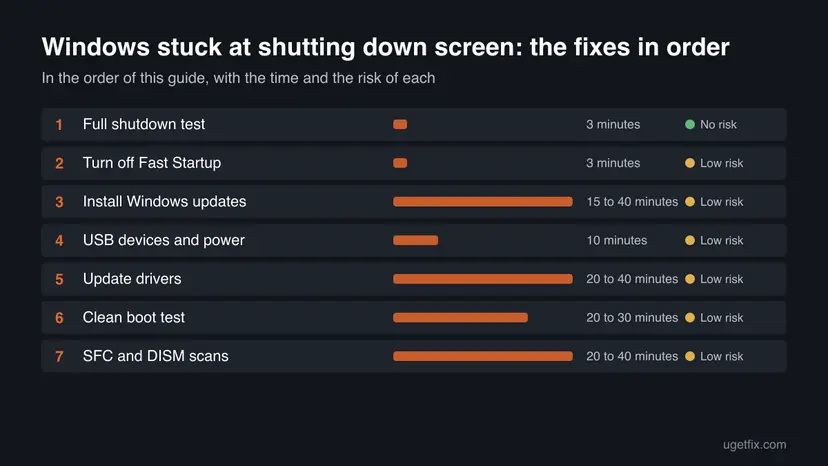
Run a full shutdown from Command Prompt with shutdown /s /t 0 (Fix 1). If that works but Start, Power, Shut down hangs, Fast Startup is the likely cause, so turn it off (Fix 2). If both hang, update Windows (Fix 3), unplug USB devices (Fix 4), update drivers (Fix 5), run a clean boot (Fix 6), then SFC and DISM (Fix 7).
| Error | Windows stays on the Shutting down screen and never switches off. No error code is shown on the screen. |
|---|---|
| Where it appears | After you select Start, Power, Shut down on a desktop or laptop with Windows 11 or Windows 10. |
| Main cause | No single one. A shutdown has stages: apps close, drivers prepare their devices, and with Fast Startup the kernel is saved to a file. A hang in any stage looks the same on screen. |
| Fastest fix | Test a full shutdown with shutdown /s /t 0 (Fix 1). If only the normal Shut down hangs, turn off Fast Startup (Fix 2). |
| Also written as | Windows stuck on shutting down, windows stuck at shutting down, pc stuck on shutting down, computer stuck on shutting down, computer stuck in shutting down, laptop stuck on shutting down, windows 10 stuck on shutting down screen, windows shutting down stuck. |
| Affects | Windows 11 and Windows 10. Windows 10 22H2 left support on 14 October 2025, so it no longer receives fixes through updates. |
| After a forced power-off | Windows logs Event ID 41 at the next start and says the PC did not shut down correctly. Open files and caches were not closed cleanly. |
| Time to fix | About 5 minutes for Fixes 1 and 2. The full list takes up to an hour. |
Facts checked on 16 October 2026. Steps written for Windows 11 (25H2 and 26H2) and Windows 10 22H2, steps read against Microsoft Learn.
What it means when Windows is stuck at the shutting down screen
The words Shutting down mean Windows has started its shutdown and has not finished. Microsoft calls Start, Power, Shut down the preferred way to turn a PC off, because Windows then closes all files and tells running services and apps to write unsaved data to disk and flush their caches.
The screen carries no error code, so it cannot name the stage that hangs. Microsoft describes three stages for a shutdown with Fast Startup, and the table shows where each can stop. Which stage hangs on your PC is something you narrow down with the fixes below.
| Stage | What Windows does | What a hang here points to |
|---|---|---|
| 1. Close apps and sessions | Closes all applications and logs off every user session. The kernel is still loaded. | A program or service that does not stop. |
| 2. Prepare the drivers | The power manager asks each device driver to get its device ready for hibernation. | A driver that does not answer the request. |
| 3. Save and power off | With Fast Startup, Windows saves the kernel image and loaded drivers in Hiberfil.sys, then switches off. | The Fast Startup file or the drive it is written to. |
Microsoft's page lists these stages for a fast startup. We found no Microsoft page that names one common cause of a PC that hangs on Shutting down, so the order of the fixes below is a way to narrow the problem, not a diagnosis. Where a fix rests only on user reports, the fix says so.
Why Windows hangs on the shutting down screen: the causes
The causes below are the ones the sources and the stages above support. We have no figures on how often each occurs, so the table is ordered by how cheaply you can test it, not by how common it is.
| Cause | How to tell | Fix |
|---|---|---|
| Fast Startup saves the kernel session and the save does not finish. | Restart works and a full shutdown with shutdown /s /t 0 works, but Start, Power, Shut down hangs. | Fix 1, then Fix 2 |
| A pending or broken update. | The hang began after an update, or Windows Update shows updates waiting. | Fix 3 |
| A USB device or its power setting. | The PC shuts down at once when nothing is plugged in. Users report this for USB hubs and docks. | Fix 4 |
| An old or faulty driver. | Even the full shutdown hangs, and the problem began after a driver or hardware change. | Fix 5 |
| A program or service that does not close. | Even the full shutdown hangs, and a clean boot makes it stop. | Fix 6 |
| Damaged system files. | The hang continues in a clean boot, and other Windows features misbehave. | Fix 7 |
A slow shutdown is not always a hang. If the PC powers off after a minute or two, an app was still saving. Give it a few minutes before you force the power off, and note which app was open.
How to fix Windows stuck at the shutting down screen
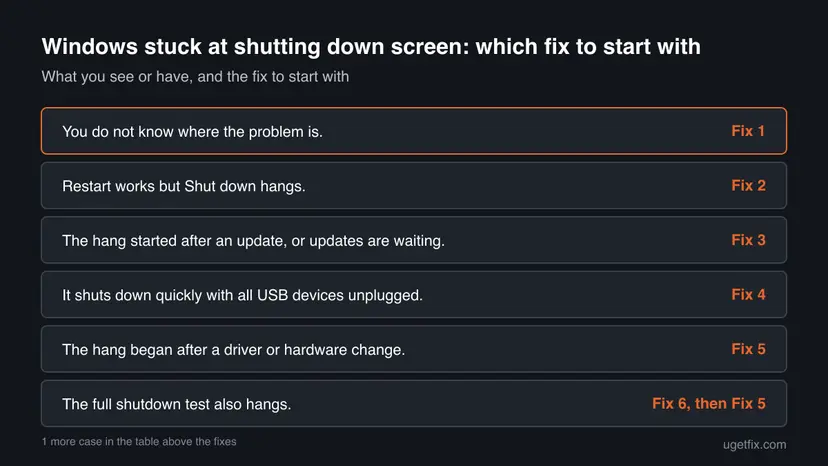
Fix 1 is a two-minute test that tells you whether Fast Startup is involved. Fix 2 follows from it. Fixes 3 to 7 each remove one other possible cause, so work down the list and test the shutdown after each one. You do not have to do them all.
| What you see or have | Start with |
|---|---|
| You do not know where the problem is. | Fix 1 |
| Restart works but Shut down hangs. | Fix 2 |
| The hang started after an update, or updates are waiting. | Fix 3 |
| It shuts down quickly with all USB devices unplugged. | Fix 4 |
| The hang began after a driver or hardware change. | Fix 5 |
| The full shutdown test also hangs. | Fix 6, then Fix 5 |
| Other Windows features also fail or crash. | Fix 7 |
Fix 1. Test a full shutdown against the normal Shut down
3 minutesNo riskEveryone, before changing any setting, because the result decides the next step.
Microsoft says a full shutdown is the default when you use Shutdown.exe, while the Start menu uses the hybrid shutdown with Fast Startup. Comparing the two shows whether the Fast Startup stage is the one that hangs.
- Save your work and close your apps.
- Press Win + R, type
cmdand select OK. - Type the command below and press Enter. The PC shuts down at once, with no warning.
- Note whether it switches off or stays on Shutting down.
- Turn the PC on, then use Start, Power, Restart, and note whether Restart finishes.
Command Prompt: a full shutdown, without Fast Startup
shutdown /s /t 0Microsoft also lists shutdown /s /hybrid /t 0, which shuts down the way the Start menu does when Fast Startup is on. Run it only if you want to repeat the hang on purpose. Microsoft adds that the Fast Startup setting does not apply to Restart.
It worked if: If the full shutdown switches off while Start, Power, Shut down hangs, Fast Startup is the stage that fails and Fix 2 is yours.
If not: If the full shutdown hangs as well, Fast Startup is not the only cause. Go on with Fix 3, then Fix 4 and Fix 5.
Fix 2. Turn off Fast Startup and shut down once, fully
3 minutesLow riskThe normal Shut down hangs but the full shutdown from Fix 1 or Restart finishes.
With Fast Startup on, Shut down logs off the sessions and writes the kernel and drivers to Hiberfil.sys instead of closing them. With it off, every shutdown is a full one and that file is not written.
- Open Power Options. Press Windows key + R, type the command below and select OK.
powercfg.cpl - Open the power button settings. In the left pane, select Choose what the power buttons do.
- Make the shutdown settings editable. Select Change settings that are currently unavailable, then Yes when Windows asks for permission.
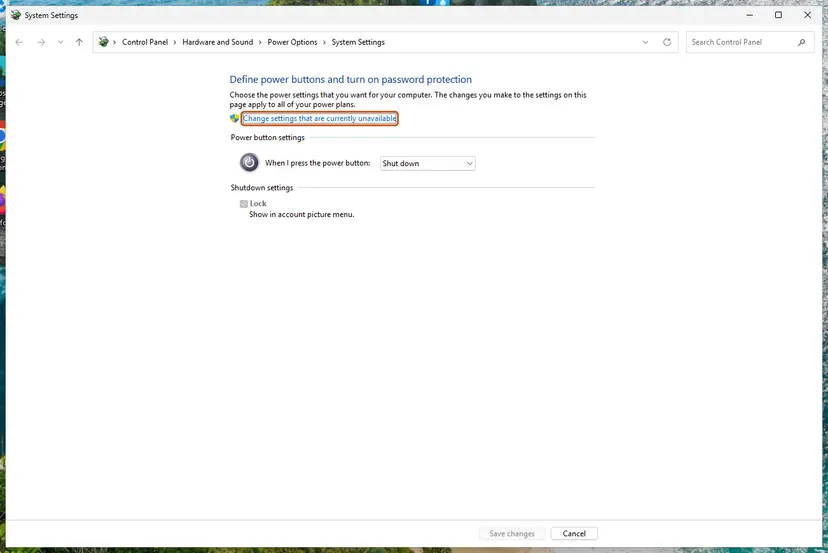
Until you select this link, the shutdown settings are greyed out. Screenshot: Windows 11 26H2. - Clear the Fast Startup box. Under Shutdown settings, clear Turn on fast startup (recommended).
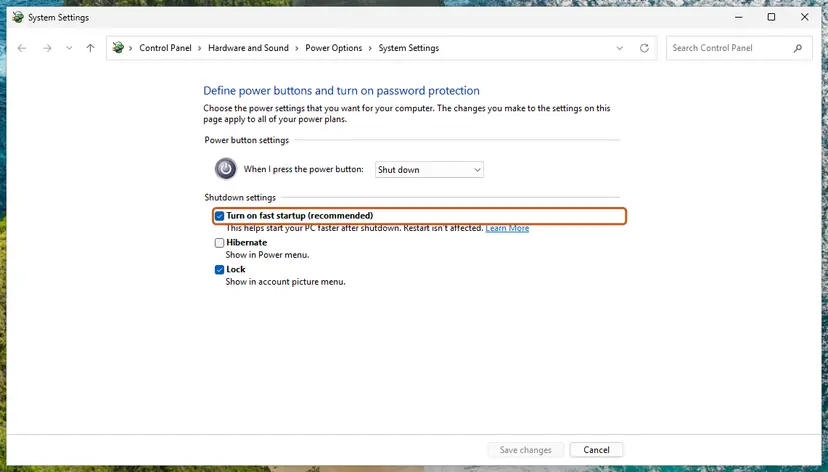
Clear this box to turn Fast Startup off. Screenshot: Windows 11 26H2. - Save. Select Save changes.
- Shut down once. Shut down the PC and start it again. From now on every shutdown is a full one.
These steps were written for Windows 11 and Windows 10 (the steps are the same). The full page with the other versions and what each result means: Turn off Fast Startup
- After you save the setting, use Start, Power, Shut down and watch the screen.
- Turn the PC on and repeat the shutdown twice to be sure.
- If the hang is gone, leave the setting off.
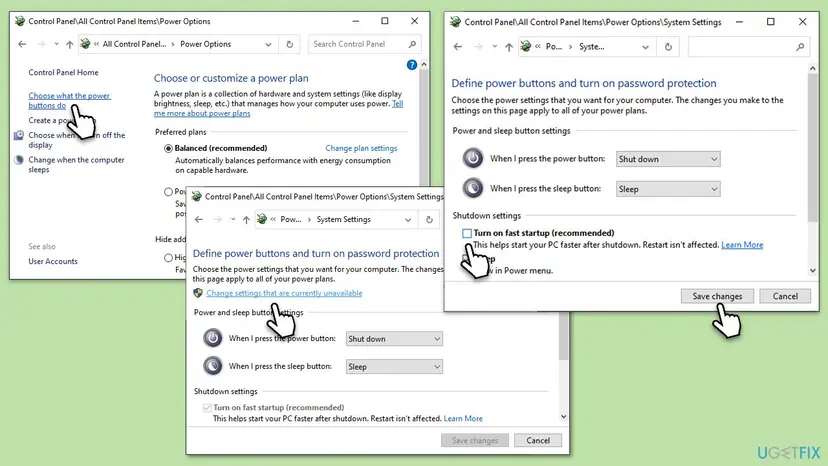
Microsoft notes that Fast Startup is on by default and that turning it off is not recommended. The cost is a slower start, because Windows loads the kernel from scratch each time. Turn it back on later if the hang proves to have another cause.
It worked if: Shut down switches the PC off without staying on the Shutting down screen, and the next start takes a little longer than before.
If not: If it still hangs with Fast Startup off, the problem sits in stage 1 or 2: go to Fix 3 and on. Turn Fast Startup back on if you want the faster start.
Fix 3. Install all Windows updates, including optional ones
15 to 40 minutesLow riskUpdates are waiting, or the hang began after an update or a long time without one.
Updates replace system files and drivers, and a driver that failed to answer during shutdown may be fixed in a newer one. A half-installed update can also keep Windows busy at shutdown.
- Press Win + I to open Settings.
- On Windows 11, select Windows Update. On Windows 10, select Update & Security, then Windows Update.
- Select Check for updates and let Windows download and install what it finds.
- Select Advanced options, then Optional updates, and install the driver updates listed there.
- Select Restart now when Windows asks, and wait for it to finish.
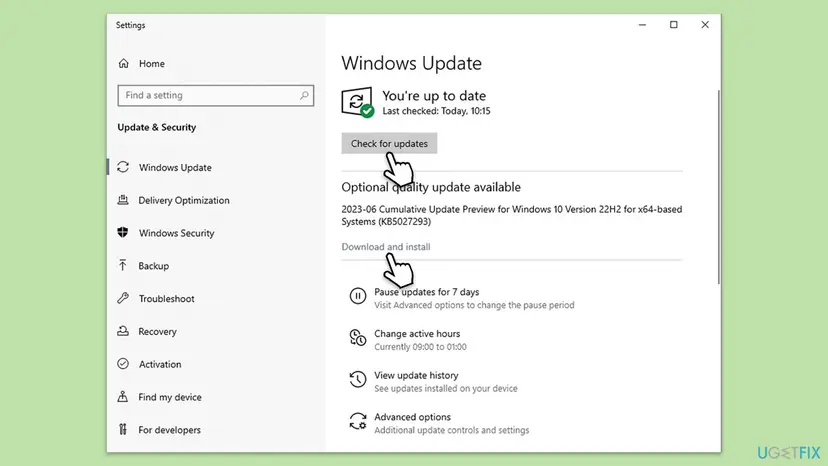
If Windows Update itself fails, run Run the Windows Update troubleshooter first and then try again. Windows 10 22H2 left support on 14 October 2025, so a driver fix may not reach it through Windows Update.
It worked if: Windows Update reports that you are up to date, the PC restarts, and the next shutdown finishes.
If not: If Windows Update fails or the hang stays, note the update that came last and continue with Fix 4. Fix 5 covers drivers that Windows Update does not offer.
Fix 4. Unplug USB devices and check USB power management
10 minutesLow riskA hub, dock, printer, phone or other USB device is attached when the PC hangs.
A device that does not answer the power request can hold up the shutdown, and a USB hub is a device Windows must power down too. No Microsoft page confirms this cause, so treat the power setting as a user-reported fix.
- Shut the PC down if you can, and unplug every USB device except the keyboard and mouse.
- Turn the PC on and shut it down again. If it switches off, plug the devices back one at a time to find the one that causes it.
- Right-click Start and select Device Manager.
- Expand Universal Serial Bus controllers.
- Right-click the first USB Root Hub and select Properties, then open the Power Management tab.
- Clear Allow the computer to turn off this device to save power, select OK, and repeat for each USB Root Hub.
- Restart the PC and test the shutdown.
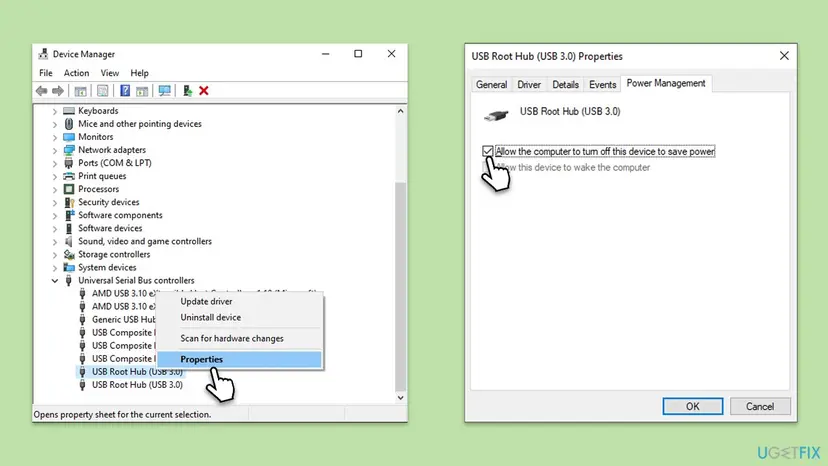
The old version of this guide said to tick this box. The setting is on by default, and the fix users report is to clear it, so the screenshot and these steps clear it. On a laptop the change can use a little more battery with USB devices attached.
It worked if: With the devices unplugged, or with the setting cleared, the PC switches off without staying on Shutting down.
If not: If it still hangs with nothing attached, put the setting back to ticked if you like and go on to Fix 5. The USB path is not your cause.
Fix 5. Update the drivers that handle shutdown
20 to 40 minutesLow riskThe full shutdown from Fix 1 also hangs, or the problem began after a driver or hardware change.
In the second stage Windows asks each driver to prepare its device. A driver that never answers leaves the PC on the Shutting down screen. Newer drivers from the PC maker fix known faults.
- Open the support page of your PC or motherboard maker and enter your model.
- Download the latest chipset, storage and graphics drivers, and the BIOS or UEFI update notes. Install the drivers, but read the firmware notes before flashing anything.
- Right-click Start, select Device Manager, and look for devices with a yellow warning mark.
- If a driver update came just before the hang, right-click the device, select Properties, open the Driver tab and select Roll Back Driver if it is available.
- Restart and test the shutdown.
Every step of the driver update, rollback and reinstall is in Update, roll back or reinstall a driver. Install one driver at a time and test the shutdown after each, so you know which one helped.
It worked if: After the driver change, the shutdown finishes on its own, and Device Manager shows no warning marks.
If not: If the hang is unchanged after each driver, undo the last change and go on to Fix 6 to test whether a program or service is the cause.
Fix 6. Run a clean boot to find the program that blocks the shutdown
20 to 30 minutesLow riskThe full shutdown also hangs and no hardware or driver change explains it.
A clean boot starts Windows with only Microsoft services and no startup programs. If the shutdown finishes there, a program or service you turned off is the one that does not close in time.
- Open System Configuration. Select Search on the taskbar, type msconfig and select System Configuration from the results.
- Hide Microsoft services. On the Services tab, select the Hide all Microsoft services check box. Only services from other companies stay in the list.

With Hide all Microsoft services ticked, only third-party services stay in the list. Screenshot: Windows 11 26H2. - Disable the remaining services. Select Disable all, then select Apply.
- Open Task Manager. On the Startup tab of System Configuration, select Open Task Manager.

The Startup tab only links to Task Manager. Screenshot: Windows 11 26H2. - Disable the startup apps. On the Startup apps tab in Task Manager, select each item whose status is Enabled and select Disable. Write down or take a screenshot of the items you disable: you need the list to turn them back on.

Select an app, then Disable. Screenshot: Windows 11 26H2. - Confirm the changes. Close Task Manager. On the Startup tab of System Configuration, select OK.
- Restart and test. Restart the PC. Windows now starts in a clean boot environment: try again the thing that failed (run the app, install the update, uninstall the program).
These steps were written for Windows 11 25H2 and 26H2. The full page with the other versions and what each result means: How to perform a clean boot in Windows
- Shut down from the clean boot and note whether the PC switches off.
- If it does, re-enable half of the services and startup items, restart and test again.
- Keep halving the list until one item remains, then update or remove that program.
- Return to a normal start when you finish, so your programs run again.
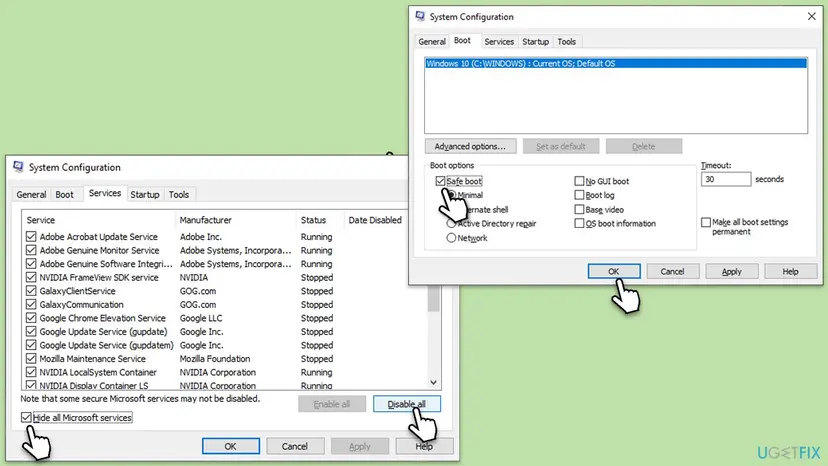
The old version of this guide told you to tick Safe boot on the Boot tab. A clean boot does not need Safe boot, and leaving it ticked makes Windows start in Safe Mode every time. If the box is ticked, clear it before you restart.
It worked if: The PC shuts down normally in the clean boot, which points to one program or service, and the search by halves finds it.
If not: If the clean boot hangs on shutdown too, no third-party program is the cause. Go on to Fix 7.
Fix 7. Repair system files with SFC and DISM
20 to 40 minutesLow riskThe hang continues in a clean boot, or Windows shows other odd faults and crashes.
Shutdown depends on core Windows files. SFC compares them with the stored originals and DISM repairs that store, so a damaged file that stalls the shutdown can be replaced.
- Open an elevated command window. Right-click Start and select Terminal (Admin), or type cmd in the search box, right-click Command Prompt and select Run as administrator. Select Yes when Windows asks for permission.

Search for cmd and choose Run as administrator. Screenshot: Windows 11 26H2. - Run DISM first. Type the command below and press Enter. DISM downloads clean copies of damaged components from Windows Update, so it can take several minutes. Wait until it says The operation completed successfully.
DISM.exe /Online /Cleanup-Image /RestoreHealth
DISM /RestoreHealth running. Screenshot: Windows 11 26H2. - Run System File Checker. In the same window, type the command below and press Enter. Do not close the window until the verification reaches 100%.
sfc /scannow
sfc /scannow at 100%. Screenshot: Windows 11 26H2. - Read the result and restart. Compare the last message with the table below this guide, then restart the PC so that repaired files are loaded.

The result line tells you what SFC did. Screenshot: Windows 11 26H2.
These steps were written for Windows 11 24H2 and 25H2. The full page with the other versions and what each result means: Run DISM and SFC to repair Windows system files
- Let both scans finish, and restart the PC.
- Test the shutdown at least twice.
It worked if: SFC reports that it found no integrity violations or that it repaired them, and the next shutdown finishes.
If not: If the scans find errors they cannot repair, or the hang stays, read the section on what to collect and when to suspect hardware below.
After you had to force the PC off: what to check
When the screen never ends, the power button is the only way out. Microsoft says that the standard way to shut down closes files and lets services and apps write unsaved data, so a forced power-off skips all of it. At the next start Windows logs Event ID 41, "The system has rebooted without cleanly shutting down first", which is the message about a shutdown that was not correct.
- Press and hold the power button until the PC switches off, only when nothing on screen changes for several minutes.
- Wait a few seconds, then turn the PC on.
- Open the files you were working on and check that they are complete.
- Run Check a disk for errors (chkdsk) to scan the Windows drive if the PC starts slowly or reports file errors.
- If Windows does not start after a forced shutdown, use Run Startup Repair.
Event ID 41 alone often does not say what happened. Microsoft advises that you also note what the PC was doing when it went off. Write down which program was open, so that the clean boot in Fix 6 has somewhere to start.
If Windows is still stuck at the shutting down screen: what to collect
When no fix helped, stop changing settings. Collect facts that a repair shop, the PC maker or Microsoft Support can use, and check the two cases below that look similar but have a different cause.
- What you tried. Which fixes from this page, and the result of the Fix 1 test.
- Event 41 details. Open Event Viewer, then Windows Logs, System, and filter for event ID 41. Its Details tab shows the BugcheckCode and the power button timestamp.
- What changed. Updates, drivers, new hardware or new programs from the days before the first hang.
- Does it hang elsewhere. If the PC also hangs in the firmware setup screen or during a fresh install, Windows is not the cause and hardware is likely. Microsoft's advice for unexpected shutdowns without a clear cause is to return the system to its default configuration and see if it continues.
If Shut down sends you back to the Lock screen instead of hanging, that is a different known problem on Windows 10. Microsoft ties it to Fast Startup and a bad DumpFilters registry value, and gives the fix in the article "Fast startup causes hibernation or shutdown to fail". Edit the registry only after a backup: Back up the registry before editing it
How to stop Windows from hanging on shutdown again
- Shut down from Start, Power, Shut down. Microsoft calls this the preferred way.
- Save your work and close big programs before you shut down, so nothing is still writing.
- Install Windows updates and the maker's drivers when they appear, and restart when asked.
- Wait a few minutes before you hold the power button, and look at the drive light for activity.
- Test the shutdown after each new driver or program, so you know which one caused a new hang.
- Do not hold the power button at the first sign of a slow shutdown.
- Do not leave a failing USB device plugged in during shutdown.
- Do not leave Safe boot ticked after a clean boot test.
- Do not edit the registry without a backup.
- Do not keep Fast Startup off if the hang had another cause.
A stuck shutdown that comes back every few days, with no change in between, is worth the evidence list above. Fast Startup, drivers and one program account for the cases our sources describe, but a failing drive or memory fault can behave the same way, and we cannot confirm that from Microsoft's pages.
Frequently asked questions
Why is my Windows stuck on the shutting down screen?
Windows is waiting for something to finish. Microsoft describes the stages: it closes apps and logs off sessions, drivers prepare their devices, and with Fast Startup it saves the kernel to Hiberfil.sys. A program, a driver or that save can stall, and the screen looks the same in each case. Run the full shutdown test in Fix 1 to see whether Fast Startup is involved, then work through the other fixes.
How long should I wait before I force the PC off?
We found no Microsoft figure for a safe wait. A slow shutdown can take a minute or two while apps save data, so give it a few minutes and watch the drive light. If the screen and the light have not changed for a long time, hold the power button. A forced power-off skips the clean closing of files, which Windows records as Event ID 41 at the next start.
Is it safe to turn off Fast Startup?
Yes, it is a normal setting you can reverse. Microsoft notes that Fast Startup is on by default and that turning it off is not recommended, because the start becomes slower. With it off, every shutdown is a full one. Turn it off to test the hang, and turn it back on if the cause turns out to be something else.
Why does Restart work but Shut down hangs?
Microsoft says the Fast Startup setting does not apply to Restart, which always performs a full boot cycle. Shut down uses the hybrid shutdown and writes the kernel session to Hiberfil.sys. If Restart works and Shut down hangs, the Fast Startup stage is the likely one that fails. Turning off Fast Startup in Fix 2 removes that stage.
How do I fix Windows 10 stuck on shutting down screen?
Use the same fixes as on Windows 11: the full shutdown test, Fast Startup off, updates, USB devices, drivers, a clean boot and SFC with DISM. Windows 10 22H2 left support on 14 October 2025, so it no longer gets regular updates, and a driver fix may only come from the PC maker. Moving to Windows 11 is worth considering if the PC qualifies.
Why does Windows say my PC didn't shut down correctly after I force it off?
Because the shutdown did not finish. At the next start Windows logs Event ID 41 with the text that the system rebooted without cleanly shutting down first. Microsoft says the preferred shutdown closes files and lets services and apps write unsaved data and flush caches, and a forced power-off skips that. Check your open files and run a disk scan if anything looks wrong.
Can a USB device make Windows hang on shutdown?
It can, according to user reports, but we found no Microsoft page that confirms it. A device that does not answer the power request may hold up the shutdown. Unplug all USB devices except the keyboard and mouse, shut down, and then plug the devices back one at a time. Fix 4 also covers the USB Root Hub power setting.
Does a clean boot change my files or programs?
No. A clean boot only changes which services and startup programs load, and you can reverse it. Your files and installed programs stay as they are. Return to a normal start when you finish testing, and make sure Safe boot is not ticked on the Boot tab, because that would start Windows in Safe Mode every time.
Will SFC and DISM delete my files?
No. SFC replaces damaged Windows system files with the stored originals, and DISM repairs the store they come from. Neither touches your documents, photos or installed programs. The scans can take a while, so let them finish. If DISM reports an error, run it again with a repair source, as the steps explain.
When is a stuck shutdown a hardware problem?
Suspect hardware when the hang also happens outside Windows, such as in the firmware setup screen, when it continues after a clean boot and a repair of system files, or when it is joined by random restarts. We cannot confirm a specific part from Microsoft's pages, so gather the evidence in the section above and ask the PC maker or a repair shop.
Sources
- Microsoft Learn: Fast startup causes hibernation or shutdown to fail in Windows 10 or Windows 8.1 (learn.microsoft.com)
- Microsoft Learn: Distinguishing fast startup from wake-from-hibernation (learn.microsoft.com)
- Microsoft Learn: Advanced troubleshooting for Event ID 41, The system has rebooted without cleanly shutting down first (learn.microsoft.com)
Did this fix work?
One click, no account. It tells the next reader which guides are worth their time.
Questions and experiences: fix Windows stuck at shutting down screen
Still broken, or found a fix we did not cover? Ask here: members and our editors answer. Reading is open; writing needs a free account.
…