
How to fix Windows stuck in Recovery Mode?

Prefer to fix it yourself? The manual steps follow.
- 9methods
- 10 to 90 minutes
- Intermediate
Applies to Windows 11 and Windows 10 PCs that keep opening the recovery screens or Automatic Repair instead of the desktop
9 methods in this guide
Hello. After a Blue Screen of Death error, my Windows PC has been stuck in Recovery mode for an hour. What do I do?
Windows opens its recovery environment by itself after two failed starts in a row, so a PC stuck in recovery mode is a PC that cannot finish starting Windows. Your files are usually still there. Turn the PC off fully, unplug extra devices and select Continue first; then run Startup Repair.
If your PC is stuck in recovery mode on Windows 11 or 10, the recovery screens are a symptom: Windows failed to start twice and opened them to help. Shut the PC down fully, unplug USB drives and docks, start it and select Continue (Fix 1). If it comes back, run Startup Repair (Fix 2), then remove the latest update (Fix 3).
| Error | The PC or computer is stuck in recovery mode: it opens Choose an option, Automatic Repair or the message Your device ran into a problem and couldn't be repaired. instead of the desktop. |
|---|---|
| Where it appears | At every start, after the maker's logo. Windows 11 26H2 calls the repair tile Quick machine recovery; Windows 10 and older Windows 11 call it Startup Repair. |
| Main cause | Windows itself cannot start: an update that failed halfway, a bad driver, damaged system or boot files, or a failing disk. |
| Fastest fix | A full shutdown with extra devices unplugged and Continue (Fix 1), then Startup Repair (Fix 2). |
| Also written as | Stuck in Windows Recovery Environment, WinRE loop, Automatic Repair loop, PC stuck on recovery screen, laptop stuck in recovery mode. |
| Why Windows opens it | Microsoft: two failed starts in a row, two unexpected shutdowns or restarts within two minutes of startup, a Secure Boot error, or a BitLocker error on touch only devices. |
| Log to read | C:\Windows\System32\LogFiles\Srt\SrtTrail.txt, written by Startup Repair. |
| Affects | Windows 11 and Windows 10, desktops and laptops. Windows 10 left support on 14 October 2025. |
| Vendor status | Not a bug: it is how Windows reacts to a failed start. Microsoft documents the triggers and the repair tools. |
| Time to fix | 10 to 30 minutes for Fix 1 to 4. An hour or more for a disk check or a reinstall. |
Facts checked on 15 October 2026. Steps written for Windows 11 (25H2 and 26H2) and Windows 10 22H2.
What Windows recovery mode is and why the PC keeps opening it
Windows recovery mode is the Windows Recovery Environment (WinRE), a small separate system on its own partition. The Windows recovery screen you see is its menu: Choose an option with Continue, Use a device, Troubleshoot and Turn off your PC. Microsoft builds it into every Windows 11 and Windows 10 desktop edition.
It is not the problem. According to Microsoft, WinRE starts by itself after two failed attempts to start Windows, after two unexpected shutdowns or restarts within two minutes of startup, after a Secure Boot error, or after a BitLocker error on touch only devices. So when the PC is stuck in recovery mode, Windows keeps failing to start and WinRE keeps catching it.
| What you see | What it means | Start with |
|---|---|---|
| Preparing Automatic Repair or Diagnosing your PC, then a restart | Windows failed to start and WinRE is checking it | Fix 1, Fix 2 |
| Automatic Repair with Advanced options and Restart | The check ran; Windows still did not start | Fix 2, Fix 3 |
| Your device ran into a problem and couldn't be repaired. | Startup Repair found nothing it could fix | Fix 3, Fix 4 |
| Choose an option after every restart | WinRE opens because each start of Windows fails | Fix 1, Fix 7 |
Why Windows gets stuck in the recovery environment: the causes, most common first
When you are stuck in the Windows Recovery Environment, the cause is whatever stops Windows on its way to the desktop. Microsoft splits a start into four phases: firmware, Boot Manager, the OS loader and the kernel. A loop into recovery usually means the later phases fail, where updates, drivers and the registry load.
| How often | Cause | Sign | Fix |
|---|---|---|---|
| Most often | A one time failure: a freeze, a forced shutdown, a USB drive or dock the PC tried to start from | It began after one bad shutdown; nothing was installed | Fix 1, Fix 2 |
| Often | A Windows update that failed or was cut off halfway | The loop began after Updating Windows or an overnight restart | Fix 3, Fix 4 |
| Often | A new driver or a security app that crashes Windows at startup | A blue screen came first, as in the reader's question | Fix 5, Fix 7 |
| Less often | Damaged system files or a damaged file system | A power cut, or the disk was slow or noisy before | Fix 6 |
| Rarely | A failing disk, memory or a registry damaged beyond repair | Every repair fails, or the disk vanishes from the BIOS | Fix 8, Fix 9 |
Where Windows writes why it would not start
The recovery screens rarely say what failed. Microsoft points to these places, and each one narrows the search:
C:\Windows\System32\LogFiles\Srt\SrtTrail.txt: Startup Repair writes it in Fix 2 and shows its path on the result screen. It names the test that failed, for example a boot configuration, a disk or a driver.- The blue screen stop code: if Windows shows a blue screen before the loop, Fix 7 stops the automatic restart so you can read it.
- Event Viewer > Windows Logs > System: once Windows starts in Safe Mode (Fix 5) or normally, look for Kernel-Power, Disk and BugCheck events around the first failed start.
- What happened last: an update, a new driver, a power cut. The timing is often the best clue you have.
How to fix Windows stuck in recovery mode
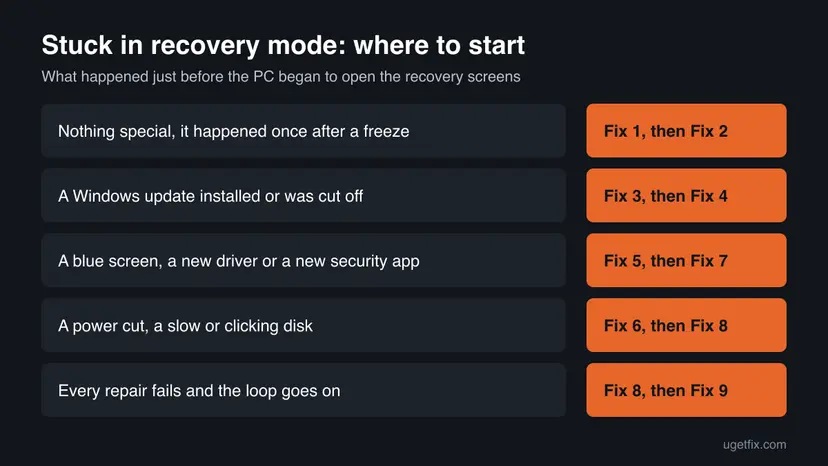
Fix 1 and Fix 2 cost nothing and change nothing. Fixes 3 and 4 undo a failed update, Fix 5 and Fix 6 repair drivers, files and the disk, and Fix 7 shows the real error. Fix 8 and Fix 9 are the last resort.
| What you see or what happened | Start with | Then |
|---|---|---|
| It began after one freeze or a forced shutdown | Fix 1 | Fix 2 |
| It began after a Windows update or an overnight restart | Fix 3 | Fix 4 |
| A blue screen came first, or you installed a driver or security app | Fix 5 | Fix 7 |
| A power cut, or the disk was slow or noisy | Fix 6 | Fix 8 |
| Every repair fails and the loop goes on | Fix 8 | Fix 9 |
Fix 1. Shut the PC down fully, unplug extra devices and select Continue
5 minutesLow riskEveryone, first. Most of all when the loop began after one freeze or one forced shutdown.
WinRE opens after two failed starts, even when the cause is gone. A USB drive or dock the firmware tries to start from, or a half charged state after a freeze, can cause those failures; a cold start without them often passes.
- On Choose an option, select Turn off your PC. If the PC is frozen, hold the power button until it turns off.
- Unplug every USB drive, memory card, external disk, dock and printer. Keep the keyboard, the mouse and one monitor.
- On a desktop, switch the power supply off for 30 seconds. On a laptop, unplug the charger for 30 seconds.
- Turn the PC on. If Choose an option appears again, select Continue (Exit and continue to Windows).
- Wait up to ten minutes without touching the power button: a start after a failed update can be slow.
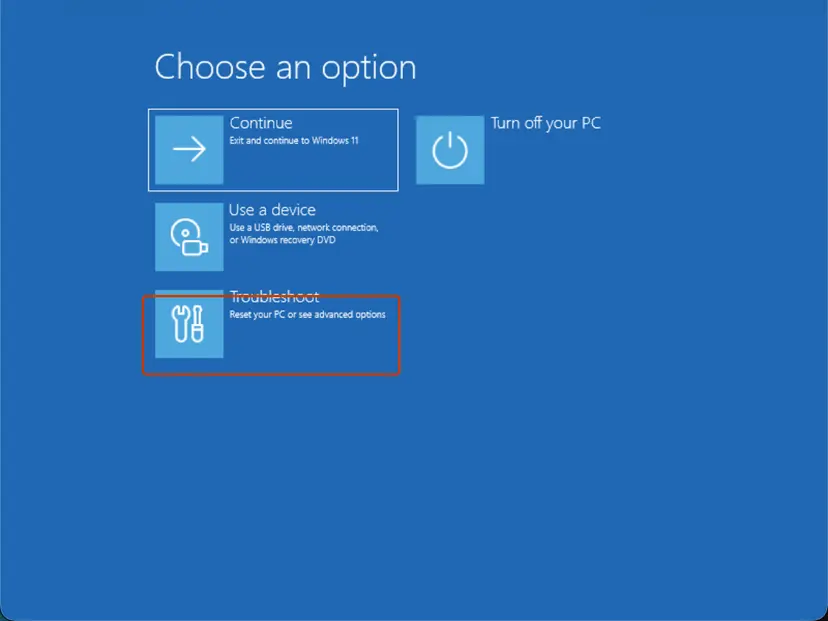
It worked if: The PC passes the logo and the spinning dots and reaches the sign-in screen.
If not: If the recovery screens come back, run Startup Repair in Fix 2.
Fix 2. Run Startup Repair (Quick machine recovery) and read its log
15 to 30 minutesLow riskFix 1 did not help, and the PC opens Automatic Repair or Choose an option at every start.
Startup Repair reads the startup logs, finds why Windows did not start and repairs common causes such as the boot configuration or a missing boot file. Microsoft lists it as the first method for startup problems.
- On Choose an option, select Troubleshoot > Advanced options.
- Select Quick machine recovery on Windows 11 26H2, or Startup Repair on Windows 10 and older Windows 11.
- Pick an administrator account if asked. If the screen asks for a BitLocker recovery key, enter it.
- Wait until it finishes and the PC restarts. Step by step: Run Startup Repair
- If you see Your device ran into a problem and couldn't be repaired., note the log path under it. The screen adds Click or press Enter to see other recovery options.; do that to get back to the menu.
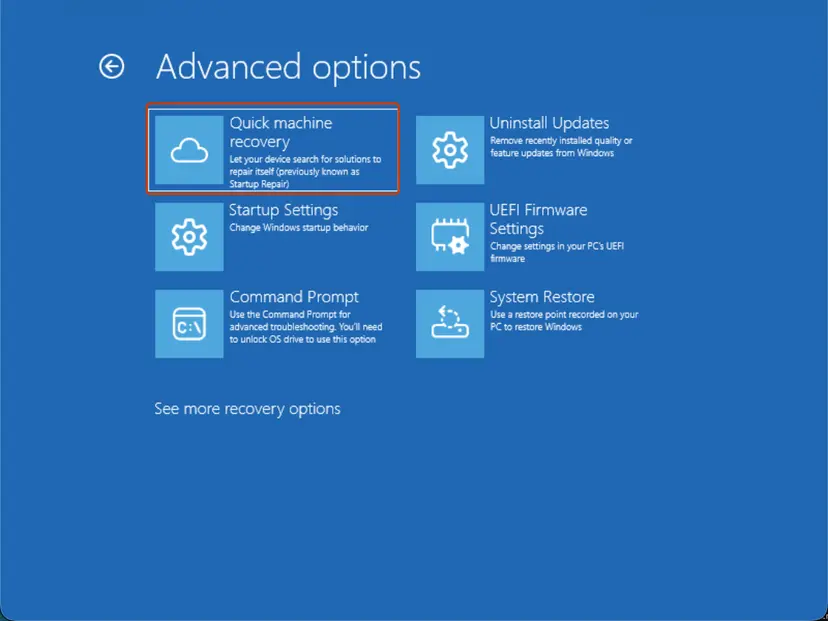
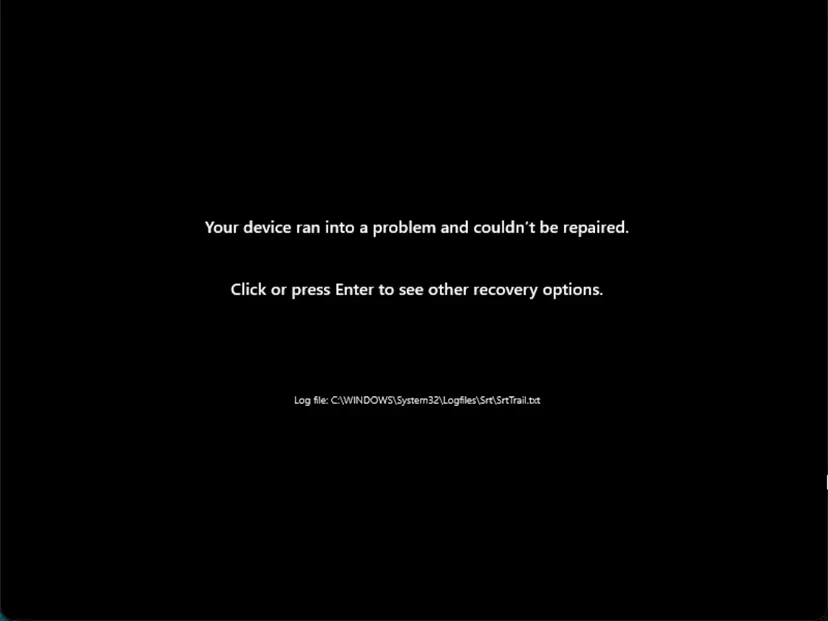
Many Windows 11 PCs encrypt the disk. With a Microsoft account, the key is listed at account.microsoft.com/devices/recoverykey. Look it up on a phone or another PC before you start.
It worked if: Startup Repair reports a repair, and the next start reaches the sign-in screen.
If not: If it says the device couldn't be repaired, remove the latest update in Fix 3.
Fix 3. Uninstall the latest Windows update from the recovery screen
10 minutesLow riskThe loop began after Windows installed updates, after an overnight restart, or after the screen said Updating Windows.
A quality update that fails at startup makes every start fail the same way, and WinRE then opens again. Removing it from WinRE returns the system files to the previous month's state without touching your files.
- On Choose an option, select Troubleshoot > Advanced options > Uninstall Updates.
- Select Uninstall latest quality update. If that fails or does not help, come back and select Uninstall latest feature update.
- Pick an administrator account if asked and follow the instructions.
- Let the PC restart. Once Windows starts, pause updates for a week. Step by step: How to uninstall a Windows update
It worked if: The PC starts to the sign-in screen with the previous update level.
If not: If the option fails or the loop stays, clear the half installed update in Fix 4.
Fix 4. Clear a half installed update with DISM from the recovery Command Prompt
15 minutesLow riskAn update was cut off, Uninstall Updates failed, or the PC restarts into recovery right after Updating Windows.
An update can leave pending actions that Windows tries to finish at every start. Microsoft's own steps for startup problems after updates are to find pending packages with DISM and revert the pending actions.
- Select Troubleshoot > Advanced options > Command Prompt.
- Find the Windows drive: type
dir C:\Windows, thendir D:\Windows, until one lists the folder. In WinRE it is often notC:. - Run
DISM /Image:C:\ /Get-Packageswith your letter, and look for packages marked Install Pending. - Run
DISM /Image:C:\ /Cleanup-Image /RevertPendingActions. - Type
exitand select Continue.
In the recovery Command Prompt (replace C: with your Windows drive):
dir C:\Windows
DISM /Image:C:\ /Get-Packages
DISM /Image:C:\ /Cleanup-Image /RevertPendingActionsIf Get-Packages shows one pending package, Microsoft also allows DISM /Image:C:\ /Remove-Package /PackageName: followed by its exact name. Copy the name letter for letter.
It worked if: DISM reports The operation completed successfully, and Windows starts, sometimes after a slow Undoing changes screen.
If not: If the loop stays, start Windows in Safe Mode in Fix 5.
Fix 5. Start in Safe Mode and remove the driver or app that crashes Windows
20 minutesLow riskA blue screen came before the loop, or you installed a driver, a graphics update or a security app just before it.
Safe Mode starts Windows with a minimal set of drivers and services. If Windows starts there, the cause is a driver or a service that normal mode loads, and you can remove it from a working desktop.
- Select Troubleshoot > Advanced options > Startup Settings > Restart.
- Press 4 for Enable Safe Mode, or 5 for Enable Safe Mode with Networking. Step by step: Start Windows or a Mac in Safe Mode
- In Safe Mode, open Settings > Apps > Installed apps and uninstall the program you added just before the loop.
- For a new driver, open Device Manager, right click the device and select Properties > Driver > Roll Back Driver.
- Open Event Viewer > Windows Logs > System and note any BugCheck event. Then restart normally.
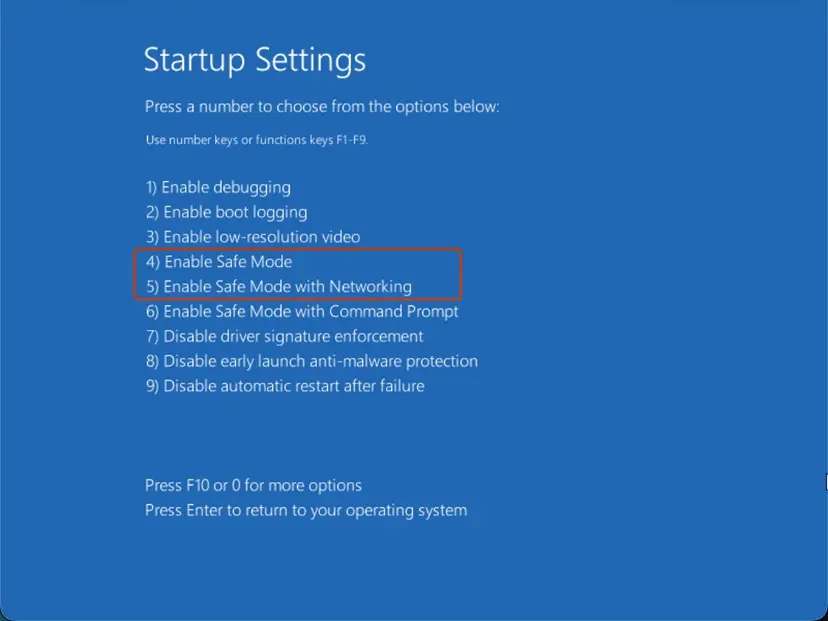
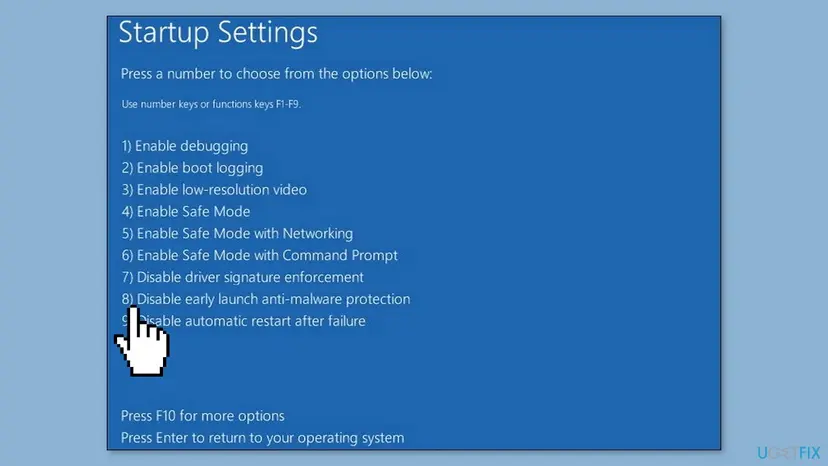
If a security app's boot driver is the suspect, option 8 starts Windows once without early launch anti-malware protection. It turns itself back on at the next start. Use it only to test, then update or reinstall that security app.
It worked if: Windows starts in Safe Mode, and after you remove the driver or app it starts normally.
If not: If Windows does not start even in Safe Mode, check the disk and system files in Fix 6.
Fix 6. Check the disk and repair system files offline with CHKDSK and SFC
30 to 90 minutesLow riskThe PC lost power, the disk was slow or noisy, or SrtTrail.txt names a disk or file problem.
A file system damaged by a power cut, or a damaged system file, makes Windows fail at the same point at every start. Microsoft gives chkdsk /f /r for disk damage and an offline SFC that runs from WinRE.
- Open Troubleshoot > Advanced options > Command Prompt and find the Windows drive as in Fix 4.
- Run
chkdsk C: /f /rwith your letter. The/rpass can take an hour or more on a large disk. Step by step: Check a disk for errors (chkdsk) - Then run
sfc /scannow /offbootdir=C:\ /offwindir=C:\Windowswith your letter in both places. - Read both results, type
exitand select Continue.
In the recovery Command Prompt (replace C: with your Windows drive):
chkdsk C: /f /r
sfc /scannow /offbootdir=C:\ /offwindir=C:\WindowsOlder guides tell you to run DISM /Online /Cleanup-Image /RestoreHealth in recovery. /Online means the running system, and in WinRE that is the recovery system, not your Windows. Use the offline SFC above, or DISM with /Image:C:\ as in Fix 4.
It worked if: CHKDSK reports that it made corrections or found no problems, SFC reports it repaired files or found no violations, and Windows starts.
If not: If CHKDSK reports bad sectors, copy your files and plan to replace the disk. If both are clean, go to Fix 7.
Fix 7. Stop the automatic repair loop to see the real error
5 minutesLow riskThe PC goes straight back to Automatic Repair, so you never see what fails, and Fixes 1 to 6 did not help.
Microsoft gives this command for a PC that keeps stopping on the recovery screens. With automatic recovery off, Windows shows its real stop code or freeze point instead of WinRE, which tells you what to fix.
- Open Troubleshoot > Advanced options > Command Prompt.
- Type
bcdeditand find the Windows Boot Loader entry with identifier {current} or {default} and recoveryenabled Yes. - Run
bcdedit /set {default} recoveryenabled no. If it reports an error, use{current}instead. - Type
exit, select Continue and watch the screen. Note any stop code or the point where it stops. - When the PC starts again, turn recovery back on with
bcdedit /set {default} recoveryenabled yes.
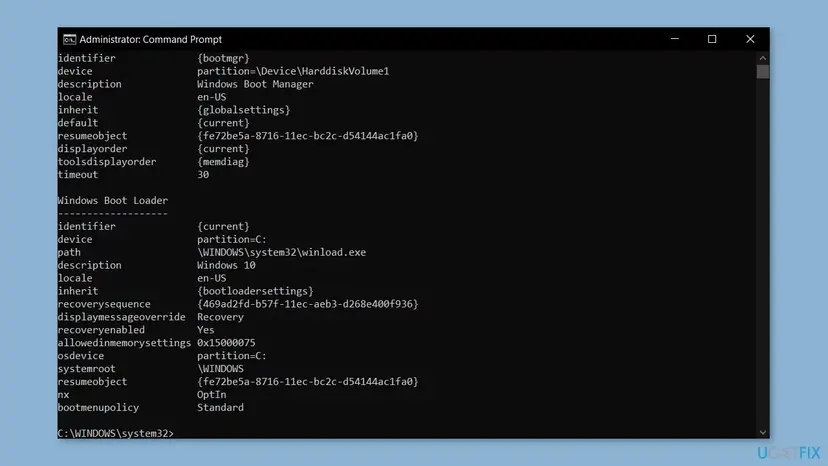
This only stops the loop; it repairs nothing. While it is off, Windows will not open the recovery screens by itself after a failed start. Set recoveryenabled yes again once the cause is fixed.
It worked if: Instead of Automatic Repair you see a blue screen with a stop code, a freeze at a clear point, or Windows starts.
If not: Search the stop code you saw, or return Windows to an earlier state in Fix 8.
Fix 8. Return Windows to an earlier state with System Restore
20 to 40 minutesRead the warningFixes 1 to 7 failed and System Protection was on, which it often is after updates and driver installs.
A restore point brings back the registry, drivers and system files from before the loop. Since Windows 10 version 1803 the RegBack folder is no longer filled, and Microsoft recommends a restore point for a damaged registry instead.
System Restore does not touch your documents and photos. It removes apps, drivers and updates installed after the restore point. Note them so you can install them again.
- Select Troubleshoot > Advanced options > System Restore.
- Pick an administrator account and enter its password if asked.
- Select a restore point dated before the first failed start, then Next and Finish.
- Do not turn the PC off while it restores. Step by step: Undo recent changes with System Restore
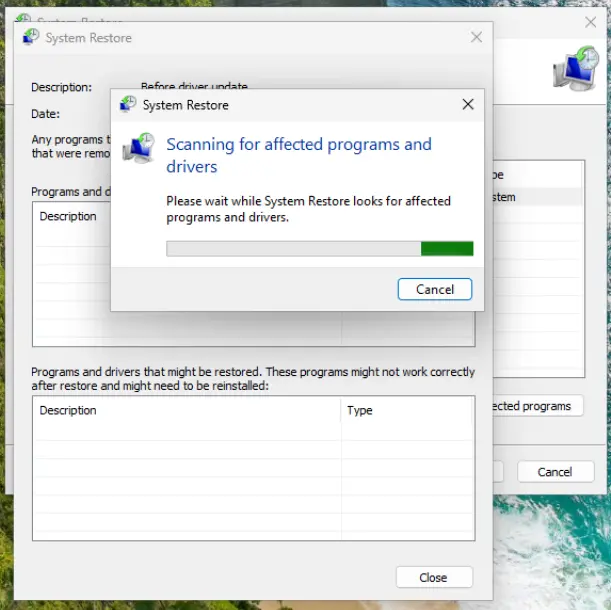
It worked if: Windows reports that System Restore completed successfully and starts to the sign-in screen.
If not: If there is no restore point or it fails, reset Windows and keep your files in Fix 9.
Fix 9. Reset this PC and keep your files
60 to 90 minutesRead the warningEvery fix above failed, the disk checks clean and you need the PC working again.
A reset installs a fresh Windows over the damaged one. With Keep my files it keeps your personal files, so it repairs whatever the other fixes could not reach.
Keep my files keeps documents, pictures and the desktop, but removes the apps you installed. Never pick Remove everything while you still need files from this disk. If you can, copy your files first: Back up your files (Windows Backup, File History, Time Machine)
- Select Troubleshoot > Reset this PC > Keep my files.
- Choose Cloud download for fresh files from Microsoft, or Local reinstall.
- If the reset cannot start, make a Windows USB drive with the Media Creation Tool on another PC, start from it and select Repair your computer.
- After the reset, install your PC maker's chipset and storage drivers first. Full method: Reinstall Windows without losing files
It worked if: Windows starts to a fresh desktop with your files in place, and the recovery screens do not return.
If not: If even a reset or a USB install fails, the disk or the memory is likely at fault. Contact your PC maker or a repair shop.
Still stuck in recovery mode: what to collect and whom to ask
When nothing above works, the cause is usually hardware or a disk too damaged to repair. Support can help faster with these facts collected once:
- A photo of each screen you see, and the stop code if Fix 7 showed one.
- What happened before the first loop: an update, a driver, a power cut, a drop.
- The text of
SrtTrail.txtfrom Fix 2, and the CHKDSK and SFC results from Fix 6. - Your PC or motherboard model, the disk model and whether a Windows USB drive starts.
| Where to ask | When |
|---|---|
| Your PC maker's support | A Windows USB drive also fails, or the disk vanishes from the BIOS |
| A repair shop or the disk maker | CHKDSK reports bad sectors, or the disk clicks or is very slow |
| Microsoft Support | The hardware is fine and only the installed Windows fails |
If the message names a boot configuration error such as 0xc0000242, see our guide to the boot BCD error 0xc0000242, which rebuilds the boot files step by step.
How to keep Windows from getting stuck in recovery mode again
- Let updates finish; wait for a slow Updating Windows screen instead of pressing the power button.
- Keep System Protection on for the system drive so Fix 8 has a restore point.
- Keep your BitLocker recovery key where you can reach it from a phone.
- Keep a recent backup of your files and a Windows USB drive made with the Media Creation Tool.
- Leave USB drives and docks plugged in at every start.
- Install beta drivers or two security apps at once on the PC you need every day.
- Leave
recoveryenabledset to no after Fix 7. - Ignore a disk that is slow, noisy or sometimes missing.
Windows 10 left support on 14 October 2025. A Windows 10 PC gets fixes for update problems only through Extended Security Updates, so moving to Windows 11 keeps them coming.
Frequently asked questions
How do I exit recovery mode on Windows 11?
Select Continue on the Choose an option screen; it reads Exit and continue to Windows 11. That only works when Windows can start. If the PC returns to recovery mode, Windows still fails to start, and Windows will keep opening the recovery screens until the cause is fixed. Shut down fully, unplug USB drives and docks, and try Continue once more (Fix 1). Then run Startup Repair, called Quick machine recovery on Windows 11 26H2.
Why is my Windows 11 PC stuck in recovery mode?
Because Windows itself failed to start more than once. Microsoft lists the triggers: two failed starts in a row, two unexpected shutdowns or restarts within two minutes of startup, a Secure Boot error, or a BitLocker error on touch only devices. The usual reasons behind those failures are an update that failed halfway, a new driver that crashes at startup, damaged system files or a failing disk. The chooser table above points to the first fix for each.
Is Windows 10 stuck in recovery mode fixed the same way?
Yes. Windows 10 22H2 uses the same recovery environment and the same tools, so every fix on this page works. The only visible difference is the name of the repair tile: Startup Repair on Windows 10, Quick machine recovery on Windows 11 26H2. Windows 10 left support on 14 October 2025, so once the PC starts again, plan the move to Windows 11 or enroll in Extended Security Updates.
How do I start Windows recovery from boot?
Turn the PC on and, when the maker's logo appears, hold the power button until it turns off. Do this twice; on the third start Windows should open Automatic Repair, and Advanced options leads to the recovery tools. From a working desktop, open Settings > System > Recovery and select Restart now next to Advanced startup, or hold Shift while you select Restart. A Windows USB drive also opens it with Repair your computer.
What if Windows won't enter the recovery environment at all?
Then the recovery partition is missing, disabled or damaged, or the PC fails before Windows Boot Manager. Make a Windows 11 USB drive with the Media Creation Tool on another PC, start from it with the boot menu key, and select Next and Repair your computer. You get the same Troubleshoot menu and every fix on this page. Once Windows starts, check WinRE with reagentc /info, as our Event 4502 guide explains.
Does F8 still open the recovery options?
Not by default on Windows 11 and Windows 10. The old F8 menu belongs to Windows 7, and modern PCs start too fast for it. Use the recovery screens instead, through two interrupted starts or Shift and Restart. Microsoft gives the command bcdedit /set {default} bootmenupolicy legacy for administrators who want the F8 menu back. Most readers do not need it, because Startup Settings in WinRE offers the same Safe Mode options.
Will I lose my files if I fix the recovery loop?
Usually not. Fixes 1 to 7 do not touch personal files. System Restore removes only apps, drivers and updates installed after the restore point. Reset this PC with Keep my files keeps documents and pictures but removes your apps. Only Remove everything erases personal files, so never pick it while you still need them. If the disk might be failing, copy your files from a Windows USB drive or another PC first.
Should I restore the registry from the RegBack folder?
Not on a current PC. Older guides copy files from C:\Windows\System32\config\RegBack, but Microsoft says that starting in Windows 10 version 1803, Windows no longer backs up the registry there by design. On Windows 11 and Windows 10 22H2 the folder is usually empty, and copying empty files over the registry can make things worse. Microsoft recommends a system restore point for a damaged registry, which is Fix 8.
Windows recovery environment says Reset this PC with Remove everything. Is that safe?
It works, but it erases your files, apps and settings on the Windows drive. Choose it only when your files are backed up or you do not need them. Keep my files fixes the same software problems and keeps documents, pictures and the desktop. If you are already in the Remove everything flow, you can go back with the arrow or Cancel before you confirm the reset.
Is a PC stuck in recovery mode a hardware problem?
Sometimes. If a Windows USB drive also fails, if Reset this PC stops with an error, or if CHKDSK reports bad sectors, the disk or the memory is the likely cause. A disk that clicks, is very slow or vanishes from the BIOS is a clear sign. Microsoft also notes that a PC stuck before the logo, with no disk light, is stuck in the firmware phase, which points to hardware.
Sources
- Microsoft Learn: Windows Recovery Environment (Windows RE) (learn.microsoft.com)
- Microsoft Learn: Advanced troubleshooting for Windows startup issues (learn.microsoft.com)
Did this fix work?
One click, no account. It tells the next reader which guides are worth their time.
Questions and experiences: fix Windows stuck in Recovery Mode
Still broken, or found a fix we did not cover? Ask here: members and our editors answer. Reading is open; writing needs a free account.
…