
How to fix Windows stuck on "Let's connect you to a network" issue?

Prefer to fix it yourself? The manual steps follow.
7 methods in this guide
Hello, I was installing Windows 11 on my new PC and everything went fine until I reached the "Let's connect you to a network" step. It got stuck and has not moved at all for hours. There's nothing to click on, even. What do I do now?
Let's connect you to a network is the setup page where Windows 11 asks for internet before it lets you finish. It gets stuck when the PC has no working connection, most often because setup has no driver for the Wi-Fi card. Plug in a network cable or a phone over USB first.
Setup cannot go past this page without internet on Windows 11 Home and Pro for personal use, and an empty Wi-Fi list means the Wi-Fi driver is missing. Plug in an Ethernet cable or a USB Ethernet adapter (Fix 1), or share an Android phone's internet over a USB cable (Fix 2). Both work without the Wi-Fi driver. With neither, copy the Wi-Fi driver from another computer to a USB stick and load it (Fix 3).
| Error | No error code. The page Let's connect you to a network shows no usable network, or the Next button stays grey, so setup cannot continue. |
|---|---|
| Where it appears | In the first-run setup screens (OOBE) of Windows 11 after a clean install, a reset or on a new PC, right after region and keyboard. Windows 10 setup has a similar page. |
| Main cause | The Windows installer has no driver for the PC's Wi-Fi card, so the list shows only Ethernet: Not connected or nothing at all. |
| Fastest fix | A network cable to the router (Fix 1) or USB tethering from an Android phone (Fix 2). Setup then continues and Windows Update installs the Wi-Fi driver. |
| Also written as | lets connect you to a network, let's connect you to a network windows 11, windows 11 stuck on lets connect you to a network, lets connect you to a network install driver. |
| Affects | Windows 11 (25H2 and 26H2) and Windows 10 22H2. Windows 10 left support on 14 October 2025. |
| Vendor status | By design. Microsoft says Windows 11 Home and Pro for personal use require internet connectivity and a Microsoft account during initial device setup, and it is removing the known offline workarounds in newer builds. |
| Time to fix | 2 minutes with a cable or phone, 15 to 30 minutes when you load the Wi-Fi driver from a USB stick. |
Facts checked on 15 October 2026. Steps written for Windows 11 (25H2 and 26H2) and Windows 10 22H2.
What the Let's connect you to a network screen means and why setup stops there
The page is part of the Out-of-Box Experience (OOBE), the blue and white first-run screens after Windows is copied to the disk. Its heading is Let's connect you to a network, and under it Windows writes You'll need an internet connection to continue setting up your device. Below that is a list of network adapters and Wi-Fi networks, and a grey Next button that turns active only when a connection works.
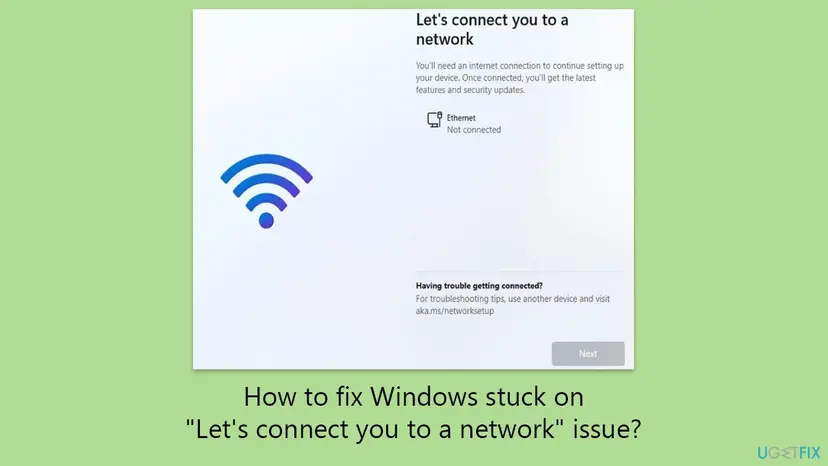
Setup is not frozen in most cases. It simply waits for internet, because on Windows 11 Home and Pro for personal use Microsoft requires a connection and a Microsoft account to finish the first setup. The screen also says Having trouble getting connected? and points to aka.ms/networksetup on another device.
- Only Ethernet in the list, or an empty list: the installer has no driver for your Wi-Fi card. This is the most common case on new laptops and self-built PCs.
- Wi-Fi networks are listed but none connects: the driver works, and the problem is the password, the router or the type of network.
- An Install driver button on the page: setup itself offers to load a driver from a USB stick (see Fix 3).
- Truly nothing moves and there is nothing to click: the setup screen has hung, which Fix 6 handles.
Why Windows 11 gets stuck on Let's connect you to a network, most common first
Microsoft does not publish a cause list for this page. The order below follows what the page shows in each case and what Microsoft states about the internet requirement.
| Cause | How often | Start with |
|---|---|---|
| The installer has no driver for a new Wi-Fi card (common with the newest Intel, Realtek and MediaTek Wi-Fi chips). | Most often | Fix 1, Fix 2, then Fix 3 |
| Wi-Fi is listed but the password, the 5 GHz or 6 GHz band, or a sign-in web page blocks the connection. | Often | Fix 4 |
| Wi-Fi is turned off in the BIOS, by a key on the laptop or by an airplane mode switch. | Sometimes | Fix 5 |
| The setup screen itself has hung and does not react to clicks. | Sometimes | Fix 6 |
| There is no internet at the place you install, and you want to finish setup offline. | Sometimes | Fix 7 |
| The Wi-Fi card is faulty or missing, so even the right driver finds nothing. | Rarely | Still broken, below |
How to get past Let's connect you to a network
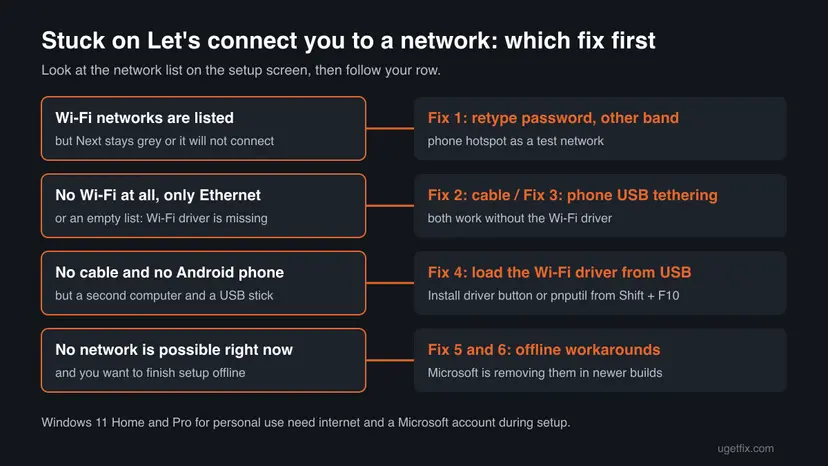
Fixes 1 to 3 give setup a working connection without the Wi-Fi driver, then Windows Update installs the driver on its own. Fixes 4 to 6 are for the cases where Wi-Fi is there but does not work. Fix 7 finishes setup offline where that is still possible.
| What you see or have | Start with |
|---|---|
| Only Ethernet is listed, and the PC or a USB adapter has a network port. | Fix 1 |
| Only Ethernet is listed, no cable, but you have an Android phone with mobile data. | Fix 2 |
| No cable and no Android phone, but a second computer and a USB stick. | Fix 3 |
| Wi-Fi networks are listed, but the one you pick does not connect. | Fix 4 |
| A laptop with a Wi-Fi key, switch or airplane mode light, and an empty list. | Fix 5 |
| The screen does not react at all, not even to the mouse. | Fix 6 |
| There is no internet where you are and you want to finish later. | Fix 7 |
Fix 1. Connect a network cable or a USB Ethernet adapter
2 minutesNo riskDesktops and laptops with a network port, or anyone with a USB Ethernet adapter, when the list shows only Ethernet or nothing.
Wired network chips are far more often supported by the drivers inside the Windows installer than new Wi-Fi chips. Once a cable connects, setup moves on and Windows Update downloads the missing Wi-Fi driver itself.
- Plug one end of a network cable into a free LAN port on your router or modem.
- Plug the other end into the PC's network port, or into a USB Ethernet adapter on the PC.
- Wait 10 to 30 seconds. Ethernet in the list should change from Not connected to Connected.
- Select Next and continue with the account and privacy screens.
- When you reach the desktop, leave the cable in until Settings > Windows Update has finished, then check that Wi-Fi appears in the taskbar.
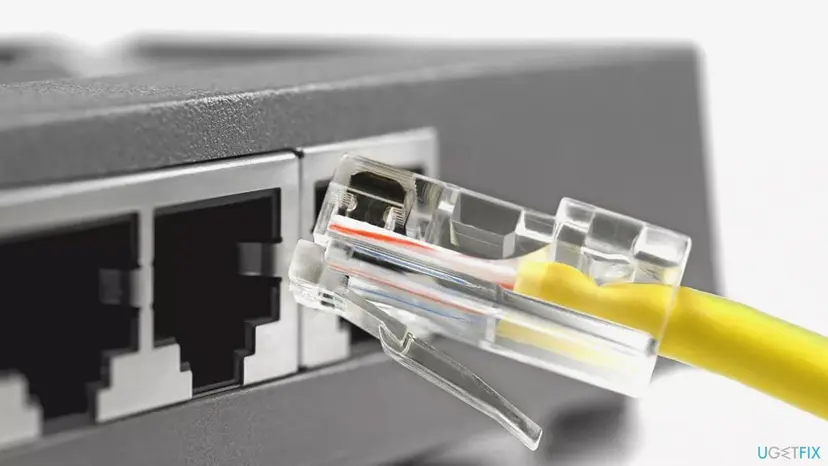
A cheap USB Ethernet adapter usually needs no extra driver, but some models do. If the list still shows Not connected, try another USB port or another adapter before you move on.
It worked if: Ethernet shows Connected, the Next button turns active and setup moves to the account screens.
If not: If Ethernet stays Not connected, try another cable and router port. Without a cable, use your phone (Fix 2).
Fix 2. Share an Android phone's internet over a USB cable
3 minutesNo riskNo network cable is at hand, but you have an Android phone with mobile data or Wi-Fi and its USB cable.
USB tethering makes the phone look like a wired network adapter, not like Wi-Fi. Windows usually has a built-in driver for it, so it works even when the Wi-Fi driver is missing. A phone Wi-Fi hotspot does not help in that case, because the PC still cannot use Wi-Fi.
- Connect the phone to the PC with a USB cable that carries data, not a charge-only cable.
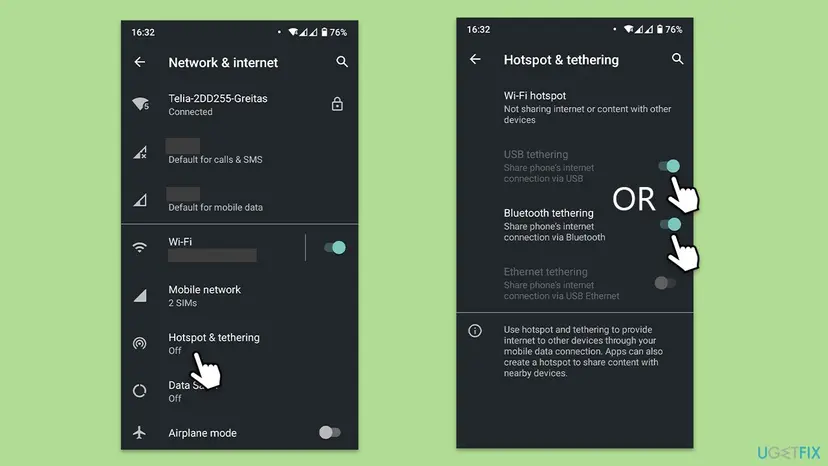
- On the phone, open Settings > Network & internet > Hotspot & tethering. On Samsung phones it is Settings > Connections > Mobile Hotspot and Tethering.
- Turn on USB tethering. The switch is grey until the cable is connected.
- On the PC, wait a few seconds until a new Ethernet entry shows Connected.
- Select Next and finish setup. Turn USB tethering off afterwards to save mobile data.
Setup and the first Windows updates can download several gigabytes. On a limited mobile plan, finish setup over the phone and leave the big updates for a home network.
It worked if: A new Ethernet connection appears as Connected on the setup page and Next becomes active.
If not: If no new connection appears, try another USB port and cable. With an iPhone, or with no phone, load the driver from another computer (Fix 3).
Fix 3. Load the Wi-Fi driver from a USB stick made on another computer
15 to 30 minutesLow riskWi-Fi is missing from the list and you cannot use a cable or an Android phone, but you have a second computer and a USB stick.
The missing Wi-Fi driver is the reason the list is empty. Microsoft's PnPUtil tool adds a driver package and installs it on matching devices, and it runs from the setup screen's Command Prompt.
- On the second computer, open the support page of your laptop or motherboard maker, enter the exact model and download the WLAN or Wireless LAN driver for Windows 11.
- If the download is an
.exeor.zip, extract it into a folder on the USB stick, for exampleD:\wifi, so that.inffiles are inside. - Plug the stick into the stuck PC. If the page shows an Install driver button, select it, browse to the folder on the stick and let it install.
- Without that button, press Shift + F10 (on many laptops Shift + Fn + F10) to open a Command Prompt.
- Find the stick's letter: type
dir D:\and press Enter, then tryE:\andF:\until you see your folder. - Type
pnputil /add-driver D:\wifi\*.inf /subdirs /installwith your letter and folder, then press Enter. - Close the Command Prompt. Wi-Fi networks should appear in the list within a minute; pick yours and select Next.
The command from step 6, with the folder on drive D:
pnputil /add-driver D:\wifi\*.inf /subdirs /install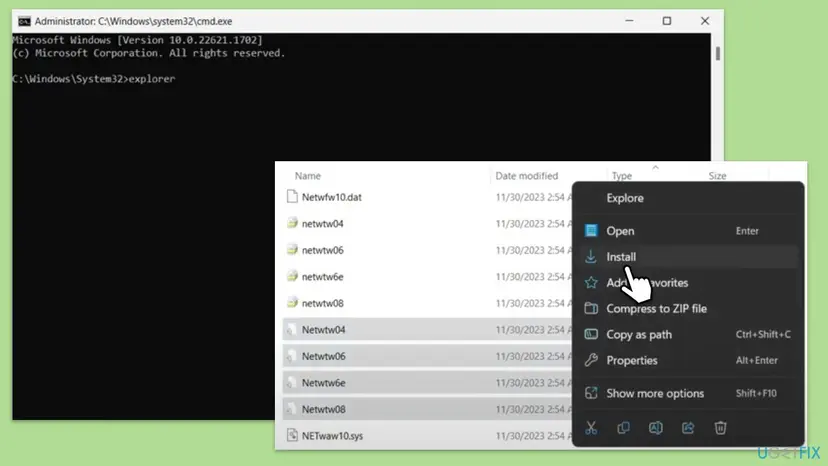
If the maker offers only an .exe installer, you can also start it from the same prompt by typing its full path. If the network list does not refresh, type shutdown /r /t 0; setup starts again at the network page.
It worked if: Wi-Fi networks appear in the list, your network connects and the Next button becomes active.
If not: If no networks appear, check that the driver matches your exact model and Windows 11, then look at Fix 5 for a Wi-Fi switch in the BIOS.
Fix 4. Fix a Wi-Fi network that is listed but will not connect
5 minutesNo riskYour Wi-Fi network appears in the list, but connecting fails or Next stays grey after connecting.
When networks are listed, the driver works. What remains is the connection itself: a mistyped password, a band the card handles badly, or a network that wants a sign-in web page, which the setup screen cannot show.
- Select your network, choose Connect and type the password again slowly. Check whether Caps Lock is on.
- If your router shows two names, such as one ending in 5G, try the other one. Some cards connect better on 2.4 GHz.
- Hotel, school and café networks that open a sign-in page in the browser often fail here. Use a home network or your phone's hotspot instead.
- As a test network, turn on your phone's Wi-Fi hotspot and connect to it from the list.
- If nothing connects, restart the router, wait two minutes and select the network again.
It worked if: The network shows Connected, setup checks for updates and moves to the next screen.
If not: If every network fails, use a cable or USB tethering (Fix 1 or Fix 2) to get through setup, then fix Wi-Fi from the desktop.
Fix 5. Turn on the wireless card in the BIOS or with the laptop's Wi-Fi key
5 minutesLow riskLaptops with a Wi-Fi key, a radio switch or an airplane mode light, or PCs where someone changed BIOS settings, and the list is empty.
A wireless card that is switched off in firmware or by a hardware key is invisible to setup, so no driver can help. Turning the radio on lets setup see it again.
- Look for a key with an antenna or airplane symbol on the top row and press it, often together with Fn. Watch whether a light changes.
- Check the sides of older laptops for a small wireless switch and move it to On.
- If that does not help, restart and enter the BIOS or UEFI setup, usually with F2, Del, F10 or Esc right after power on.
- Look under Advanced, Onboard Devices or Wireless for WLAN, Wireless LAN or Wi-Fi and set it to Enabled.
- Save with Save and Exit (often F10) and let setup return to the network page.
The old advice to turn off network boot (PXE) does not help here. PXE only matters when the PC starts from the network before Windows loads; it has no effect on the setup page.
It worked if: Wi-Fi networks appear in the list after the restart.
If not: If the list is still empty, the driver is missing after all: use Fix 1, Fix 2 or Fix 3.
Fix 6. Restart a setup screen that does not react
5 minutesLow riskThe page has hung for minutes: buttons and the network list do not respond to the mouse or keyboard.
Setup remembers the step it reached and starts again at the same page after a restart. A restart clears a hung screen without undoing the install.
- Press Shift + F10. If a Command Prompt opens, the PC still works.
- Type
shutdown /r /t 0and press Enter to restart. - If no Command Prompt opens, hold the power button for 10 seconds until the PC turns off, then turn it on again.
- Connect the cable or phone from Fix 1 or Fix 2 before the network page appears again.
It worked if: Setup starts again at the region or network page and reacts to clicks.
If not: If the screen hangs again at the same spot, connect by cable first and restart once more, or install Windows again from a fresh USB stick.
Fix 7. Finish setup offline with the BypassNRO setting, where it still works
10 minutesRead the warningThere is no internet where you install, you cannot use Fixes 1 to 3, and you accept a local account for now.
On many released versions of Windows 11, a registry value named BypassNRO makes setup show an option to continue without internet. Microsoft calls these workarounds unsupported and is removing them, so this may not work on your version.
On 6 October 2025 Microsoft wrote: We are removing known mechanisms for creating a local account in the Windows Setup experience (OOBE). It warns that these mechanisms can skip setup screens. A wrong registry change can also stop Windows from starting, so back up the key first: Back up the registry before editing it. We could not confirm which public versions still accept this value.
- On the network page, press Shift + F10 to open a Command Prompt.
- Type
reg add HKLM\SOFTWARE\Microsoft\Windows\CurrentVersion\OOBE /v BypassNRO /t REG_DWORD /d 1 /fand press Enter. - Type
shutdown /r /t 0and press Enter. Setup restarts. - Back on the network page, look for I don't have internet, then Continue with limited setup, and create a local account.
- Once you have internet on the desktop, install the Wi-Fi driver and Windows updates, and add a Microsoft account if you want one.
The two commands, in order:
reg add HKLM\SOFTWARE\Microsoft\Windows\CurrentVersion\OOBE /v BypassNRO /t REG_DWORD /d 1 /f
shutdown /r /t 0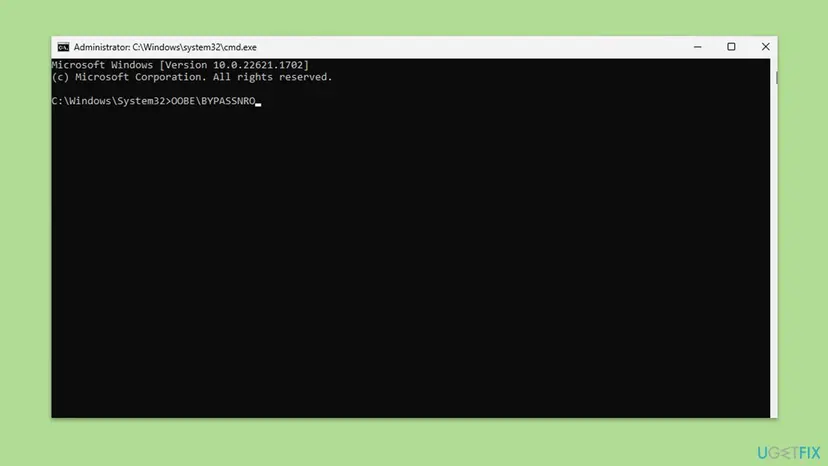
A local account made later from Settings, with pictures: Create a new user account to test a problem
It worked if: After the restart the page offers I don't have internet, and setup continues to a local account.
If not: If no offline option appears, your build has removed it. Get a connection with Fix 1, Fix 2 or Fix 3.
If setup still cannot connect: what to check and what to send
If no fix gets a connection, find out whether Windows sees the network hardware at all. Once you are on the desktop by cable, phone or Fix 7, these checks tell you where the problem is:
| What to check | Where | What it tells you |
|---|---|---|
| Network adapters | Device Manager > Network adapters | No Wi-Fi entry, or an Unknown device under Other devices, means the driver is still missing. |
| Driver install result | Right-click the Wi-Fi entry > Properties > General | A code such as Code 10 or Code 43 points to a wrong driver or a faulty card. |
| Setup logs | C:\Windows\Panther\setupact.log and setuperr.log | The last lines before the stop name the setup step and an error code, if any. |
| Exact model | The sticker under the laptop or the motherboard box | Support needs it to give you the right Wi-Fi driver. |
To install or replace the Wi-Fi driver from the desktop, follow Update, roll back or reinstall a driver.

If the Wi-Fi card is missing from Device Manager even after the BIOS check in Fix 5, or it fails with the maker's own driver, the card or its antenna cables may be faulty or loose. On a new PC under warranty, contact the maker with the model number and the Device Manager result.
How to avoid getting stuck on the network page next time
- Before a clean install, download your Wi-Fi driver from the PC maker and copy it to the install USB stick.
- Keep a network cable or a USB Ethernet adapter at hand for the first setup.
- Write down your Wi-Fi password and Microsoft account password before you start.
- Run Windows Update right after setup so it installs the latest network drivers.
- Do not count on an offline bypass; Microsoft is removing them from new builds.
- Do not use a phone Wi-Fi hotspot when the Wi-Fi driver is missing; it cannot connect.
- Do not download drivers from driver collection sites; use the PC or chip maker's page.
- Do not turn the PC off while setup is installing updates after the network page.
The newest Wi-Fi chips are the ones most often missing from the installer. Copying the driver to the USB stick beforehand takes five minutes and turns this page into a simple Wi-Fi choice.
Frequently asked questions
Why is Windows 11 stuck on Let's connect you to a network?
Because Windows 11 Home and Pro for personal use require internet and a Microsoft account to finish the first setup, so the page waits until a connection works. Most often it cannot connect because the installer has no driver for the PC's Wi-Fi card, which leaves only Ethernet: Not connected in the list. A network cable or USB tethering from an Android phone gets you past it, and Windows Update then installs the Wi-Fi driver.
How do I fix Let's connect you to a network on Windows 10?
Windows 10 22H2 setup shows a similar network page, and on many installs it also offers a way to continue without internet, such as I don't have internet, then Continue with limited setup. If your page offers that, you can finish with a local account. If it does not, the fixes are the same as on Windows 11: a cable, phone USB tethering or the Wi-Fi driver from a USB stick. Windows 10 left support on 14 October 2025, so a new install there gets no more security fixes.
What does the Install driver button on the network page do?
It lets you load a network driver from a USB stick or another drive without leaving setup. Copy your Wi-Fi driver, extracted so the .inf files are visible, to a stick on another computer. Plug it in, select Install driver, browse to the folder and confirm. Windows Wi-Fi networks should appear in the list shortly after. If your page has no such button, the pnputil command in Fix 3 does the same from Shift + F10.
Can I skip Let's connect you to a network without internet?
Sometimes, but less and less. On older and many released builds, the BypassNRO registry value or the OOBE\BYPASSNRO command made setup offer I don't have internet. Microsoft removed the bypassnro script from newer builds and wrote in October 2025 that it is removing known mechanisms for creating a local account in setup. Fix 7 shows the registry way with a backup first. If no offline option appears, you need a connection, and a cable or phone over USB is the quickest.
Why does my phone's Wi-Fi hotspot not show up during setup?
If the setup list shows no Wi-Fi networks at all, the PC cannot see any Wi-Fi, including your phone's hotspot, because the Wi-Fi driver is missing. The hotspot needs the same Wi-Fi card. Share the phone's internet over a USB cable instead: USB tethering on Android makes the phone a wired adapter that Windows usually supports without extra drivers. Bluetooth tethering also needs a driver, so it often fails at this stage too.
What does Couldn't connect to the network, keep your device on mean?
We could not confirm this exact message in Microsoft documentation. Wording like it appears when setup or a device tries to connect and fails, and asks you to keep the device powered so it can try again. During Windows setup, treat it like a failed connection on the network page: check the Wi-Fi password and band (Fix 4), or use a cable or phone USB tethering (Fix 1 or Fix 2). Do not turn the PC off while setup is downloading updates.
Is Let Windows keep me connected a Windows setup option?
No, that phrase is not part of the Windows 11 network page this guide covers, and we could not confirm where it comes from. Some routers, internet provider apps and other devices use similar wording for staying signed in to a network. If you see it during Windows setup, it is safe to leave it as offered and continue. The setup page itself only needs a working connection, which Fixes 1 to 4 provide.
Do I need the network card's CD or DVD to install the Wi-Fi driver?
No. Very few PCs still have a disc drive, and the driver on an old disc is often older than the one on the maker's website. Download the current Wi-Fi driver for your exact model from the laptop or motherboard maker on another computer, copy it to a USB stick and load it as Fix 3 shows. If you do have the disc and a drive, you can browse to the disc instead of the stick in the same way.
Will I lose anything if I restart while stuck on this page?
No. Windows is already installed on the disk at this point, and setup remembers where it stopped. After a restart it comes back to the region or network page. Restarting with shutdown /r /t 0 from Shift + F10 is the cleanest way, and holding the power button is fine when the screen does not react. Only turning the PC off later, while setup installs updates, can cause trouble.
Sources
- Windows Insider Blog: Build 26220.6772, local-only commands removal in OOBE (6 October 2025) (blogs.windows.com)
- Microsoft: Windows 11 specifications, internet connection and Microsoft account (microsoft.com)
- Microsoft Learn: PnPUtil command syntax (/add-driver, /subdirs, /install) (learn.microsoft.com)
Did this fix work?
One click, no account. It tells the next reader which guides are worth their time.
Questions and experiences: fix Windows stuck on "Let's connect you to a network" issue
Still broken, or found a fix we did not cover? Ask here: members and our editors answer. Reading is open; writing needs a free account.
…