How to fix
Windows subsystem for Android not connecting to internet
on Windows
Fix your Windows Subsystem for Android internet connection issues quickly and easily. Get back online with expert-tested solutions today!

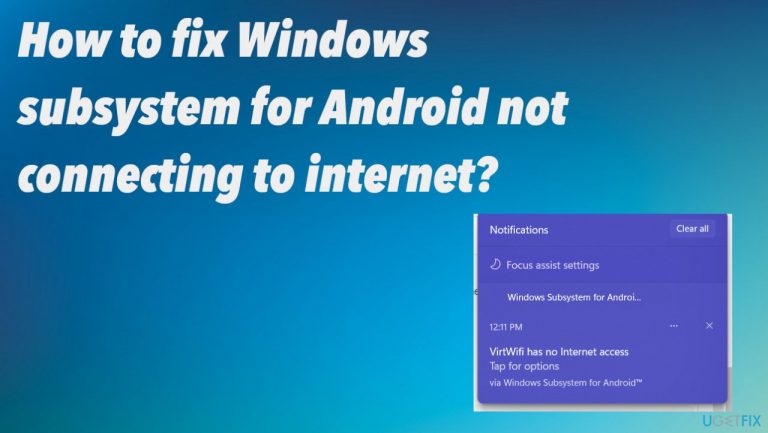
What causes How to fix Windows subsystem for Android not connecting to internet?
- VPN tool usage
- Third-party antivirus solutions
- DNS settings issues
- Firewall interference
- Missing or damaged system files
Repairs Windows system files, removes malware, and restores a clean OS state — without reinstalling.
Hello. My device is properly connected, and internet connections are also okay, but the Windows subsystem for Android, not connecting to the internet. The notification states that there is no internet access, and it cannot connect when I try again and again. Maybe it is the Windows 11 issue because I recently upgraded. What can I do here?
Windows subsystem for Android not connecting to the internet is the issue bothering some users for a while. According to reports from a while and recent ones,[ref en-1] this is not the issue related to Windows 11 version. The problem can be caused by issues with VPN tool usage or third-party antivirus solutions, and DNS settings.
Sometimes the only thing you need to solve the issue with the internet connection and programs or features is to disable the firewall, reset the internet connection or reset the application. It is common when AV tools or VPN solutions trigger particular compatibility issues with other apps.[ref en-2] This is one of the common reasons for the Windows subsystem for Android not connecting to internet problems on Windows machines.
If you think that the issue is related to the recent upgrade to the Windows 11 version or general OS update, you might want to troubleshoot or check for the issues with system data. Often missing or damaged system files can cause incomplete updates or OS installation, so common processes cannot run, and these errors appear to bother people.
Malware[ref en-3] can also damage those files and particular entries in the registry or files in different system folders. This is why we often recommend scanning the machine using a program like [d1]. It is the program that can repair affected files and even solve the issue when the Windows subsystem for Android is not connecting to the internet.
1. Reset Network
- Open the Settings by hitting the Windows, and I key.
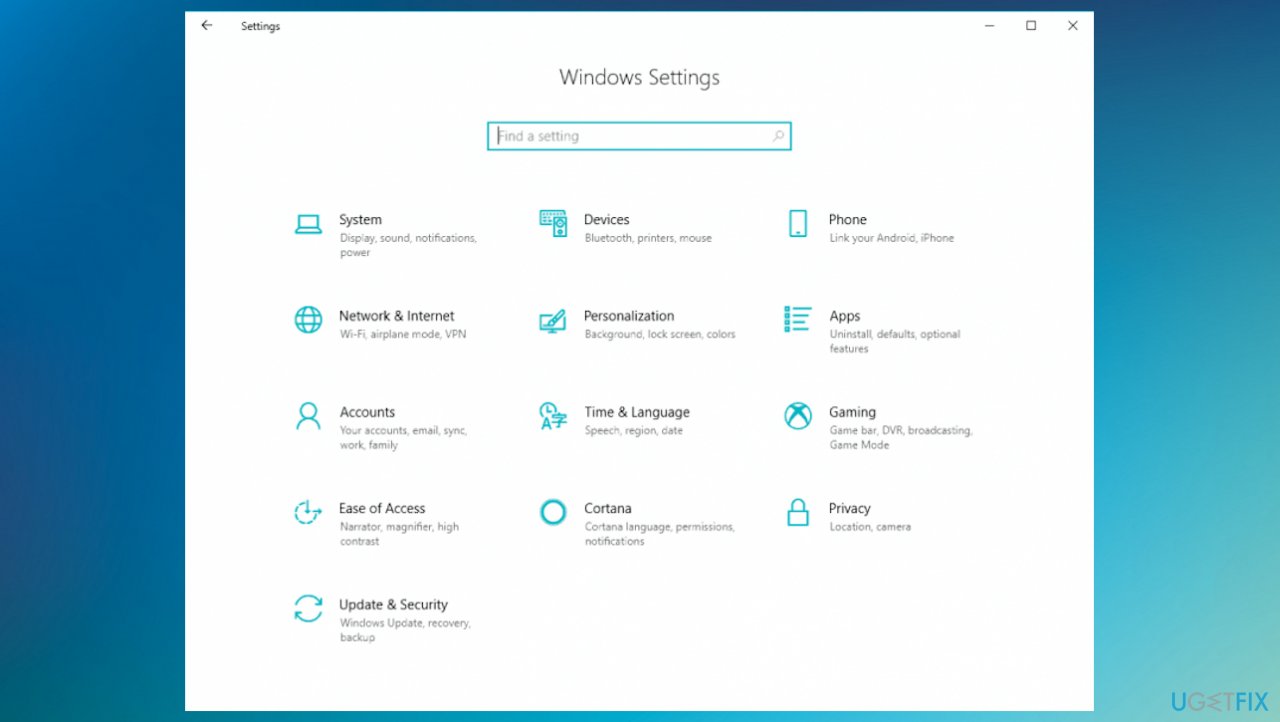
Windows subsystem for android not connecting to internet settings - Then choose Network & Internet.
- Choose Status from the list.
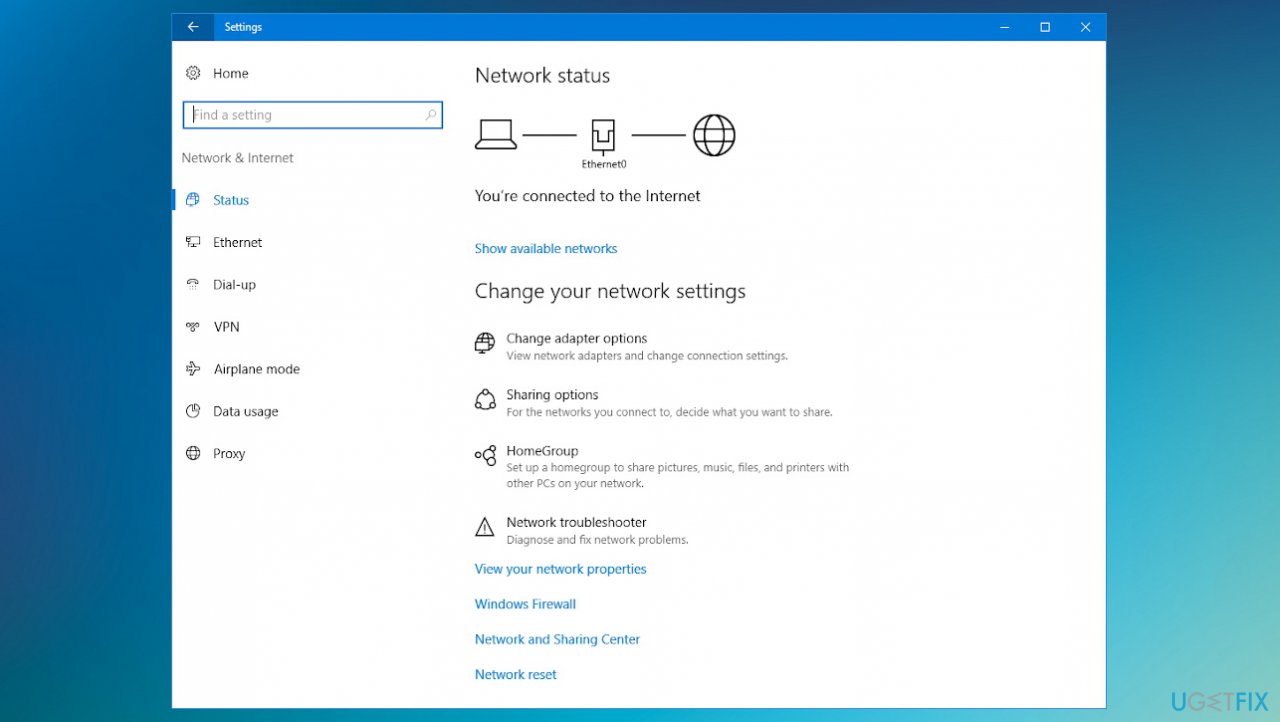
Windows subsystem for android not connecting to internet network reset - Scroll to the bottom, then click Network reset.
2. Reset Network adapters
- Press Windows + R to open the Run box.
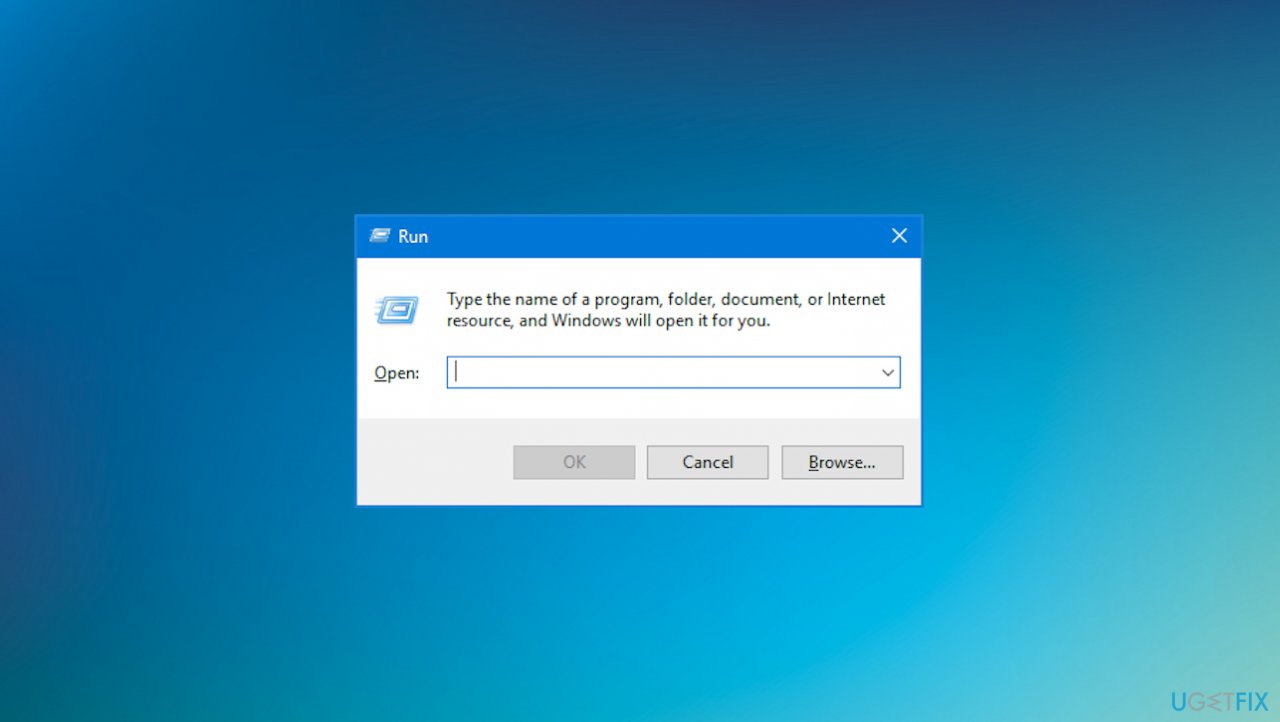
Windows subsystem for android not connecting to internet run - Type ncpa.cpl and hit Enter.
- Right-click on the network adapter and select Properties.
- Choose the Networking tab and tick the boxes next to the items listed below:
File and Printer Sharing for Microsoft Networks
QoS packet scheduler
Link-Layer Topology Discovery Responder
Internet Protocol Version 4 (TCP/IPv4)
Link-Layer Topology Discovery Mapper I/O driver
Internet Protocol Version 6 (TCP/IPv6)
Microsoft LLDP Protocol Driver - Client for Microsoft Networks.
- Click OK to save changes.
- Connect your PC to the Network again.
3. Clear DNS cache
- Type Cmd in the search and select Command Prompt with the Run as administrator option.
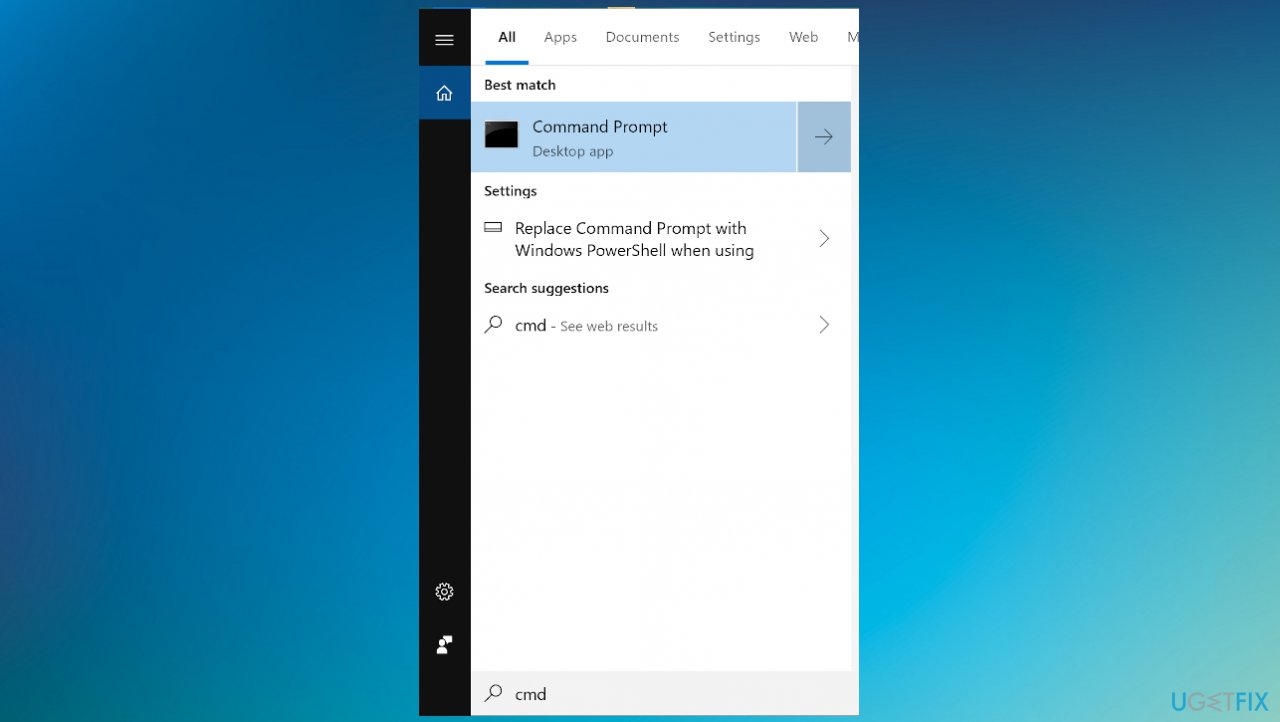
Windows subsystem for android not connecting to internet cmd - Type these commands in the window and press Enter after each one:
netsh winsock reset
netsh int ip reset - Restart.
- Type commands and press Enter:
ipconfig /release
ipconfig /flushdns
ipconfig /renew - Restart the computer again.
4. Disable third-party applications
- Right-click the antivirus icon at the taskbar at the bottom and select Disable.
- You can uninstall suspicious or useless programs by going to Apps and features via Settings.
5. Repair Windows Subsystem for Android
- Go to Settings.
- Find Apps and features.
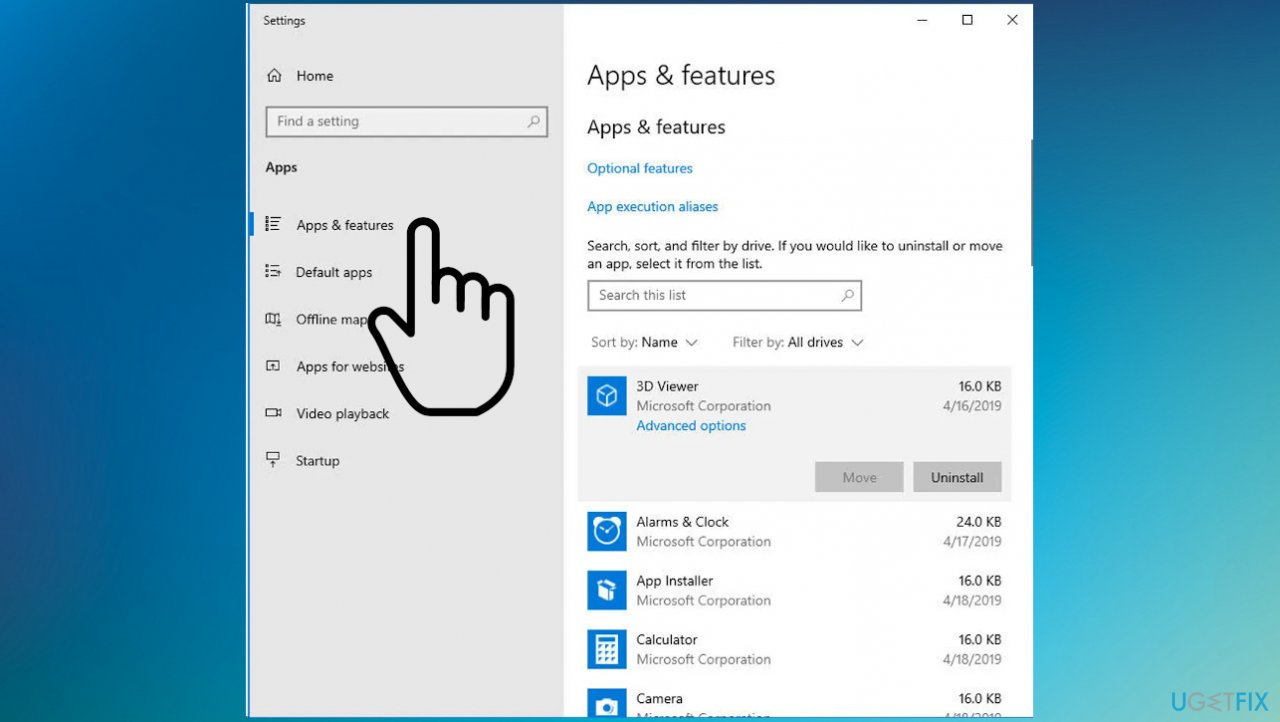
Windows subsystem for android not connecting to internet apps features - Locate the Windows subsystem for Android.
- Choose the Repair button.
- Wait for the process and restart the PC.
6. Reset TCP/IP
- Right-click on the Start at the bottom and select Command Prompt (Admin).
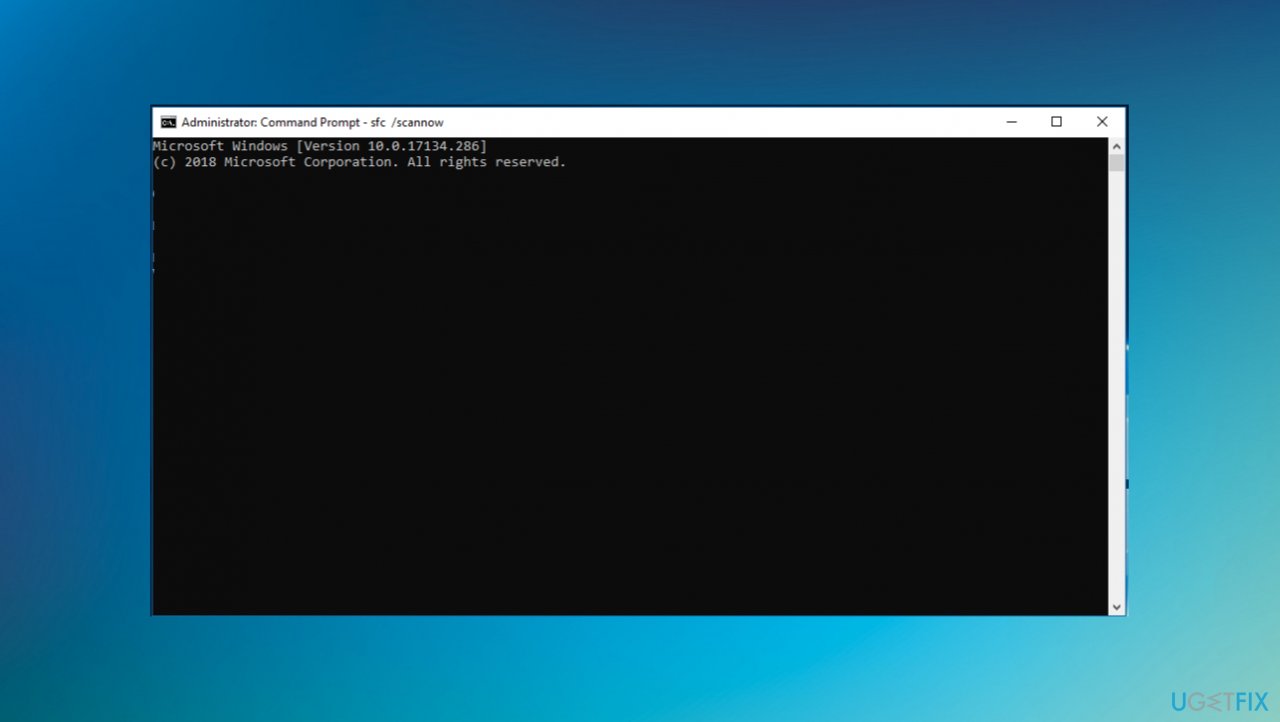
Windows subsystem for android not connecting to internet cmd panel - Once Command Prompt opens, copy and paste:
netsh int ip reset - Press Enter to execute it.
Bottom line
To fix the Windows subsystem for Android not connecting to the internet, you can reset the network, reset network adapters, or disable the firewall. Additionally, scanning for malware and repairing affected files may help. If none of these solutions work, further troubleshooting may be necessary.
Frequently asked questions
First, ensure that your Windows 10 is up to date, then try restarting the Windows Subsystem for Android from the Windows Settings under Apps. If the issue persists, check your network connection and firewall settings.
You can verify the network settings by opening the Windows Subsystem for Android settings and checking the VPN and network options to ensure they are configured correctly. Additionally, confirm that your device has internet access.
Yes, you can reset the Windows Subsystem for Android by going to Settings > Apps > Apps & features, selecting Windows Subsystem for Android, and clicking on the 'Advanced options' where you can find the reset option. This will restore it to its default state, which may resolve connectivity issues.




Report an issue
What's wrong with this guide? We review every report and update or remove content.
Report received — thank you. We'll review and fix it.
You need a free account to submit a report.
Be the first to comment