How to fix
Windows taskbar not hiding
on Windows
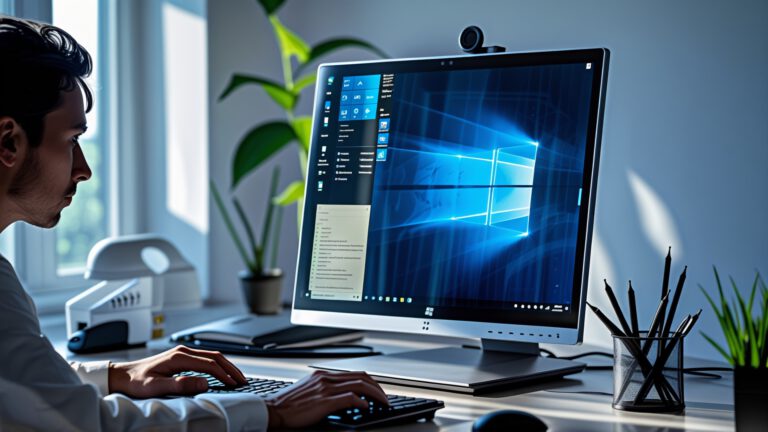
Windows taskbar not hiding in Windows 10 and 11 can stem from app conflicts, settings glitches, or Explorer issues. Here are six fixes to restore auto-hide behavior.

Repairs Windows system files, removes malware, and restores a clean OS state — without reinstalling.
Fix Windows Taskbar Not Hiding Issue in Windows 10/11
Windows taskbar auto-hide can fail in Windows 10 and Windows 11 even when the setting is already turned on, leaving the bar visible at the bottom of the screen instead of disappearing after you move the pointer away. Users usually notice the problem when full-screen apps, videos, or maximized windows still leave the taskbar in view, which interrupts the edge of the display and makes the desktop feel cluttered.
The failure often points to more than one kind of interruption. A taskbar that refuses to hide can be tied to a setting that did not apply correctly, an app or notification that keeps the taskbar active, a display state that keeps Windows from releasing the bar, or a temporary interface glitch that leaves the shell stuck in the wrong state. Because the behavior is visible rather than subtle, the user usually sees the same symptom across different apps until the underlying trigger is cleared.
The Windows taskbar is the strip that holds Start, pinned apps, system icons, and notifications, and auto-hide is meant to keep that strip out of the way until it is needed. That matters most on smaller screens and when you want uninterrupted space for apps, documents, or media playback. When it stays on screen, the problem sits inside the shell layer that controls desktop behavior, so the fix usually involves the taskbar itself rather than the app currently in front.
Here are 6 solutions to fix Windows taskbar not hiding in Windows 10/11.
One reference point for the setting behavior is the Windows support material at source.
Fix 1. Turn auto-hide off and on again
This refreshes the taskbar setting when Windows has not applied the current state cleanly.
Open Settings.
Select Personalization.
Choose Taskbar.
Turn Automatically hide the taskbar in desktop mode off.
Turn Automatically hide the taskbar in desktop mode back on.
Check whether the taskbar disappears when the pointer leaves the edge of the screen.
Fix 2. Close apps that keep the taskbar active
A window or background app can keep focus on the taskbar area and prevent it from hiding.
Open the app that is visible when the problem appears.
Close any pop-up, dialog, or active notification inside it.
Minimize or close the app window.
Repeat this for other open apps on the desktop.
See whether the taskbar now hides normally.
Fix 3. Restart Windows Explorer
Restarting the shell can clear a temporary interface state that keeps the taskbar stuck on screen.
Press Ctrl + Shift + Esc to open Task Manager.
Find Windows Explorer in the list of processes.
Select Windows Explorer.
Click Restart.
Wait for the desktop and taskbar to reload.
Test the auto-hide behavior again.
Fix 4. Reapply the taskbar setting in Taskbar behaviors
If the setting did not hold correctly, changing it again inside the taskbar options can force Windows to store the state properly.
Open Settings.
Go to Personalization.
Select Taskbar.
Open Taskbar behaviors.
Clear and then reselect the auto-hide option.
Return to the desktop and confirm the bar hides.
Fix 5. Check for full-screen display conflicts
Some display states keep the taskbar visible because Windows still sees the desktop as active rather than fully released.
Exit the current full-screen app.
Restore the window if it is maximized.
Open the same app again in full-screen mode.
Move the pointer away from the taskbar edge.
Check whether the bar now disappears.
Fix 6. Sign out and sign back in
A fresh sign-in can clear a shell state that is affecting the desktop and taskbar together.
Open the Start menu.
Select your account icon.
Choose Sign out.
Sign back into Windows.
Wait for the desktop to finish loading.
Verify that the taskbar hides when it should.
Šaltinis: easeus.com




Report an issue
What's wrong with this guide? We review every report and update or remove content.
Report received — thank you. We'll review and fix it.
You need a free account to submit a report.
Be the first to comment