How to fix
Windows Terminal not working or won’t open
on Windows
Resolve Windows Terminal issues effortlessly. Get your terminal up and running with expert-tested solutions for Windows 10 and 11. Fixed in minutes!


What causes How to fix Windows Terminal not working or won’t open?
- Corruption in the Windows Terminal's application data
- Issues with the Microsoft Store cache
- Bugs within the app itself due to lack of updates
- System-wide issues
- Conflicts with other software
Repairs Windows system files, removes malware, and restores a clean OS state — without reinstalling.
When I try to open Windows Terminal, it simply closes instantly - all I can see is its icon on the taskbar. What is going on?
Windows Terminal is a modern, powerful application that provides users with an improved command-line experience. It enables the usage of Command Prompt, PowerShell, and other command-line tools within the same program. It allows numerous tabs, rich text formatting, and various customization options. Windows Terminal is available for download from the Microsoft Store in Windows 10 and is pre-installed in Windows 11.
However, some users may encounter an issue where Windows Terminal is not working or won't open. Specifically, upon attempting to launch the application, it may instantly shut down or fail to open altogether. This malfunction can stem from a variety of causes, each impacting the Terminal's ability to operate smoothly.
One potential reason for this problem is corruption in the Windows Terminal's application data or issues with the Microsoft Store cache, where temporary files can become corrupted and hinder app functionality. Bugs within the app itself, especially if it has not been updated to the latest version, can also lead to operational failures. Additionally, system-wide issues or conflicts with other software may cause the Terminal to crash upon launch.
If Windows Terminal won't open for you, there are several things you can try, including clearing the Microsoft Store cache to resolve problems tied to cache corruption or ensuring that Windows Terminal and the operating system are up to date.
If the problem persists, reinstalling Windows Terminal through the Microsoft Store or resetting the app's settings to their defaults might be necessary. For a more hands-off approach, we recommend employing a powerful PC repair tool [d1], which can resolve underlying Windows issues automatically for you.
Fix 1. Update Windows Terminal
Keeping Windows Terminal up to date ensures that any known bugs are fixed, which can resolve opening issues.
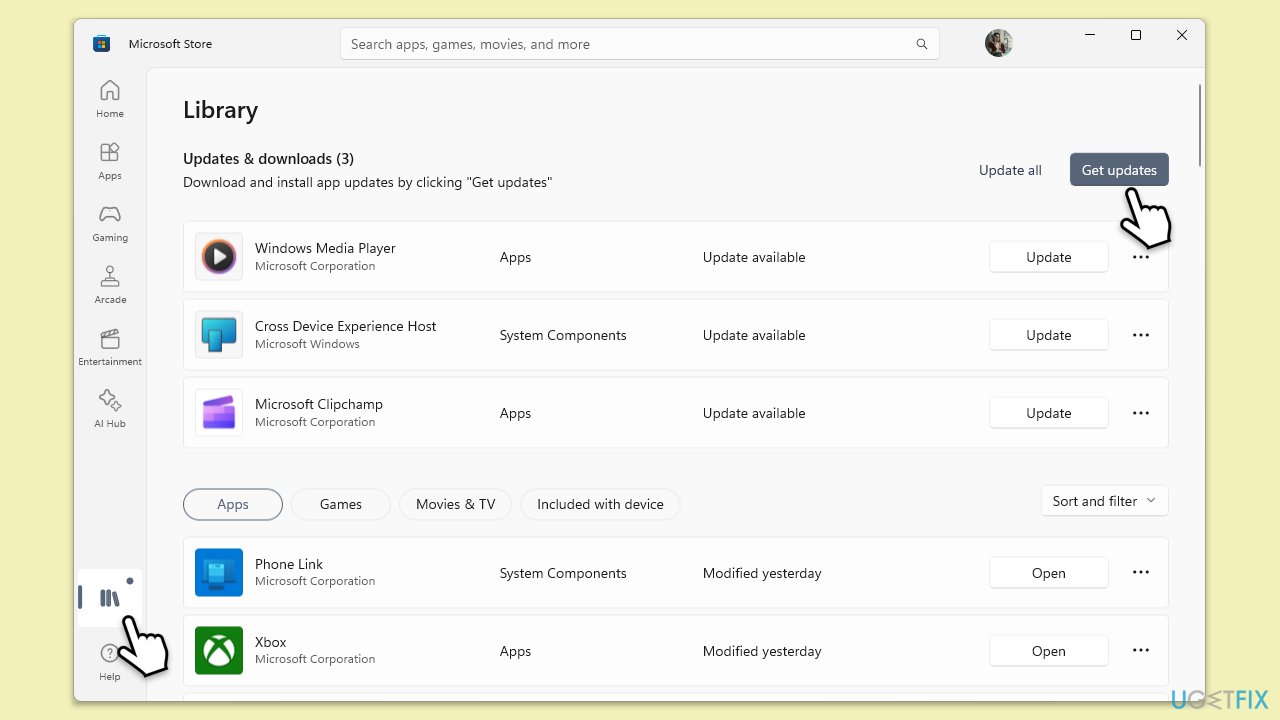
- Open Microsoft Store.
- Click on Library.
- Next, click Get updates and wait (you can also press Update all if updates are pending).
- Alternatively, check for the Terminal entry and click Update.
- Wait till the app is updated.
- Restart your PC after the update is complete.
Fix 2. Repair or reset the Windows Terminal app
Resetting the app can resolve issues by reverting the app's settings to their defaults without affecting your data.
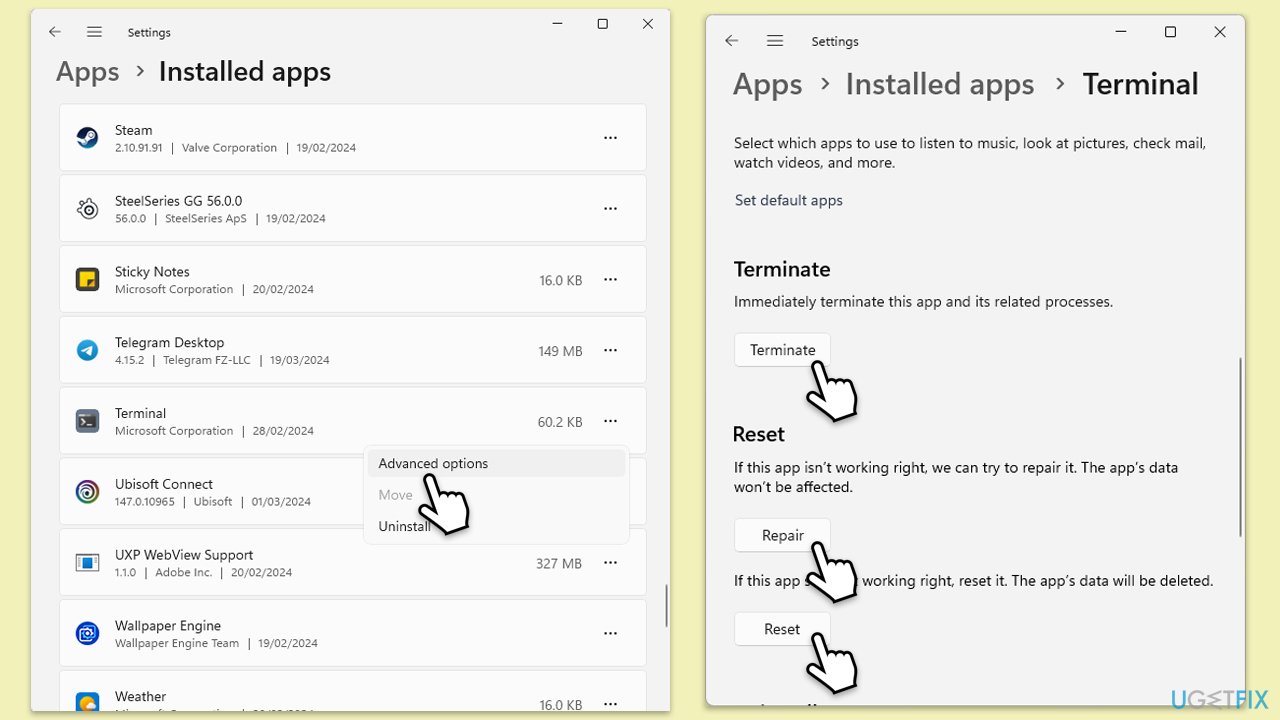
- Right-click on Start and select Apps & Features/Installed apps.
- Scroll down to find Terminal: either click Advanced options or three dots > Advanced options.
- Scroll down again, click Terminate, and click Repair.
- If that has no effect, try the Reset option instead.
- Wait till the process is complete and try using Terminal again.
Fix 3. Reinstall Windows Terminal
Reinstalling Windows Terminal can fix problems caused by corrupted app files.
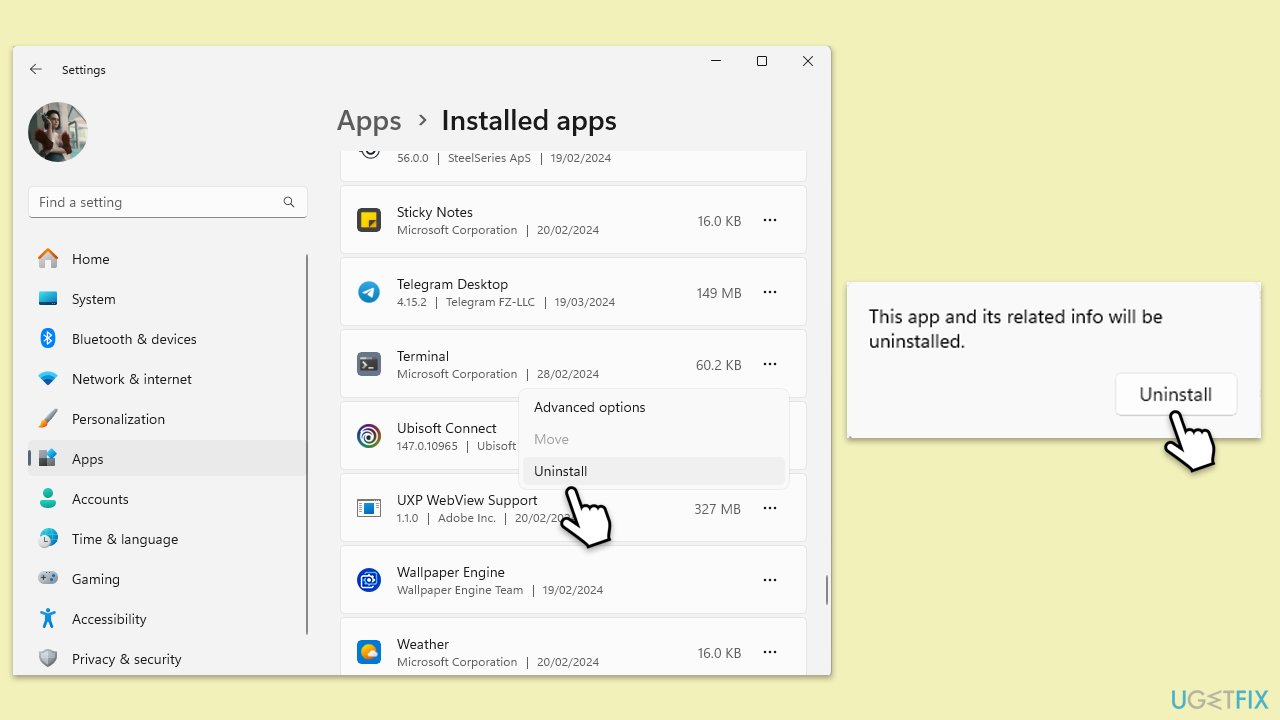
- Right-click on Start and select Apps & Features/Installed apps.
- Scroll down to find Terminal.
- Click on Uninstall and confirm any prompts.
- When done, restart your system.
- Visit the Microsoft Store and reinstall Terminal.
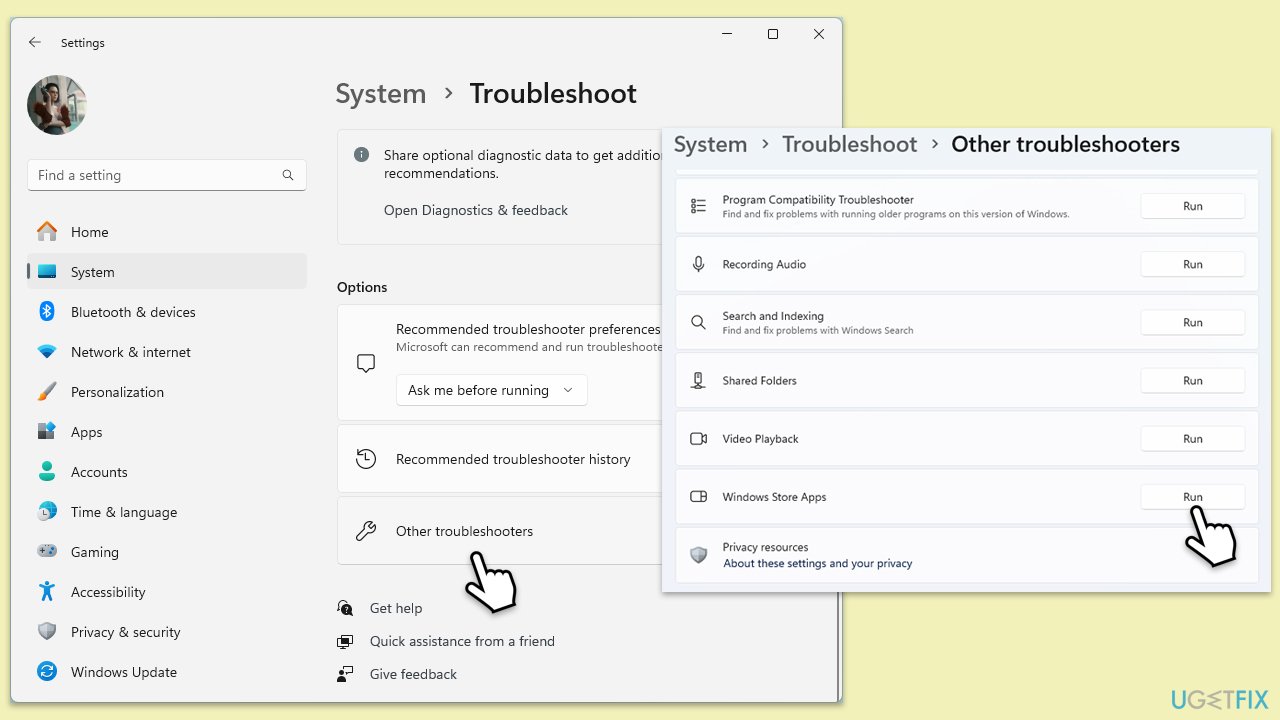
Fix 4. Run the Windows Store Apps troubleshooter
This troubleshooter can automatically find and fix problems with apps downloaded from the Microsoft Store.
- Type Troubleshoot in Windows search and hit Enter.
- Click Additional troubleshooters/Other troubleshooters.
- Scroll down to find Windows store apps and select it.
- Click Run the troubleshooter/Run.
- Wait till the process is finished and apply the fixes, then try updating again.
Fix 5. Update Windows
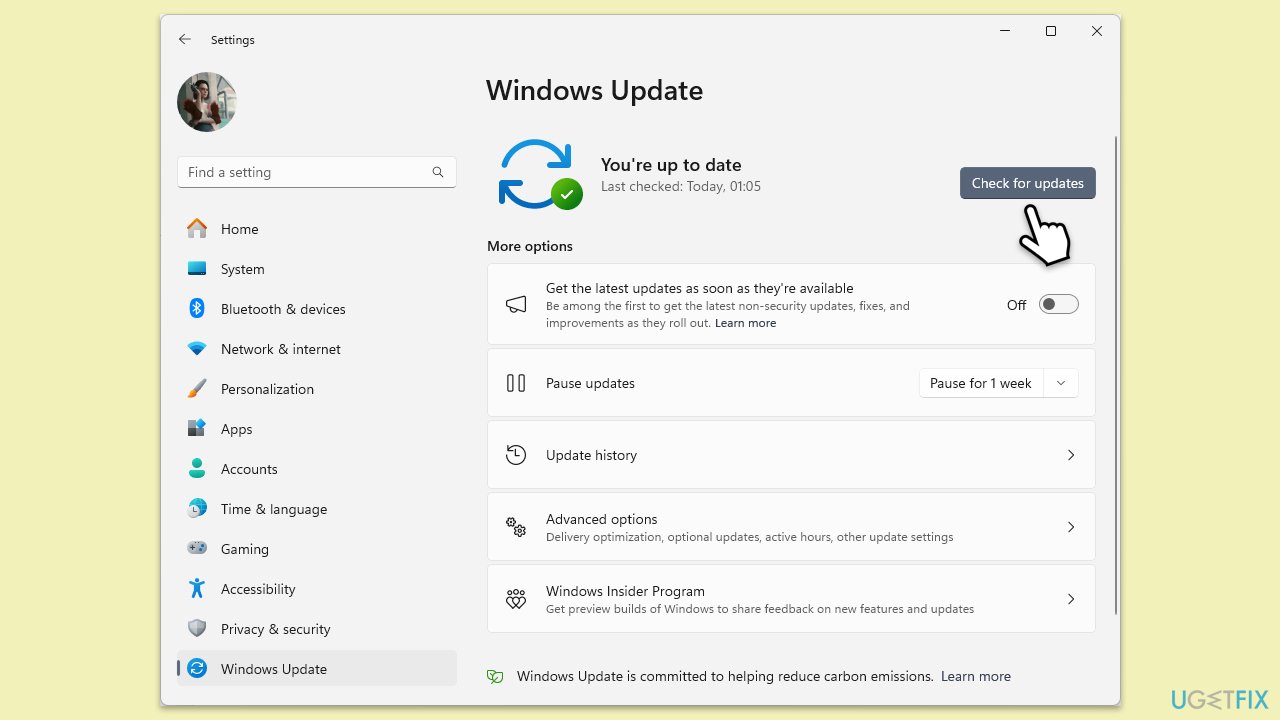
Updating Windows can resolve compatibility issues and bugs affecting apps like Windows Terminal.
- Type Updates in Windows search and press Enter.
- In this window, click Check for updates.
- If optional updates are available, install them too.
- When everything is installed, restart your system.
Fix 6. Reset Microsoft Store cache
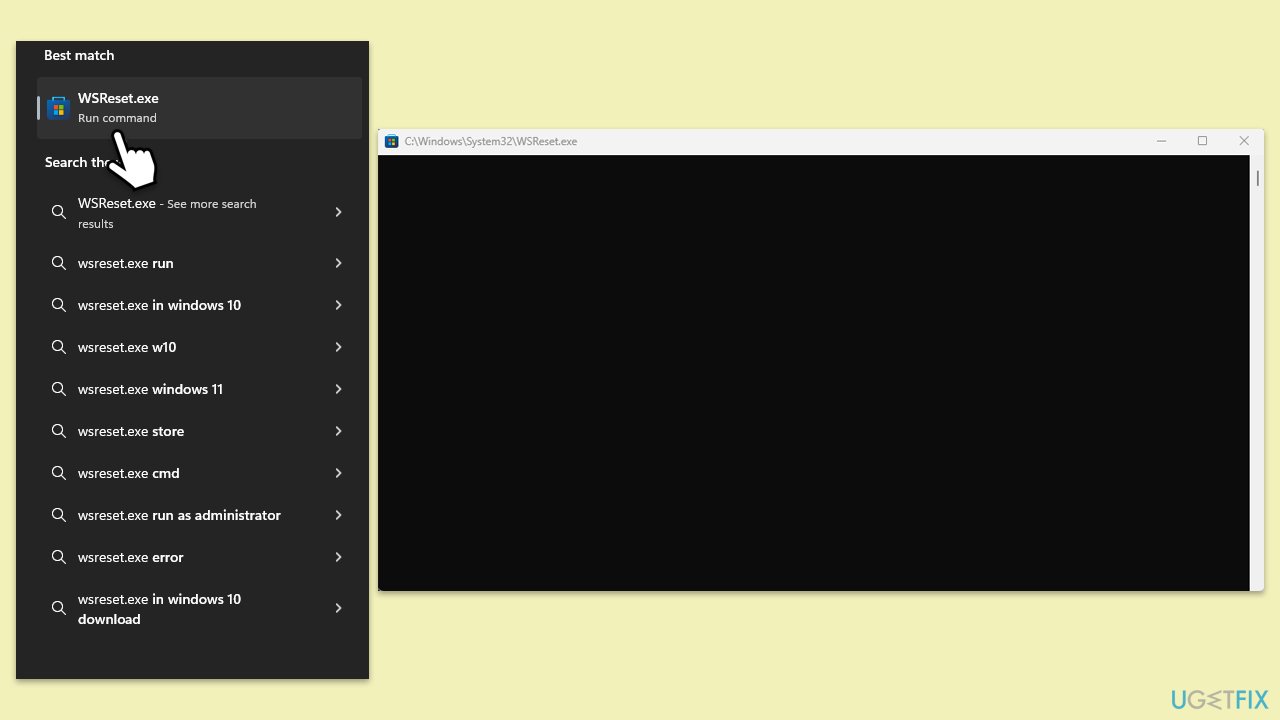
A corrupted Microsoft Store cache can cause apps to malfunction. Resetting it can resolve these issues.
- Type wsreset.exe in Windows search and press Enter.
- Wait until a pop-up window shows up - do not close it.
- As soon as it closes automatically, the store cache should be reset.
- Try using the app again.
Fix 7. Create a new user profile
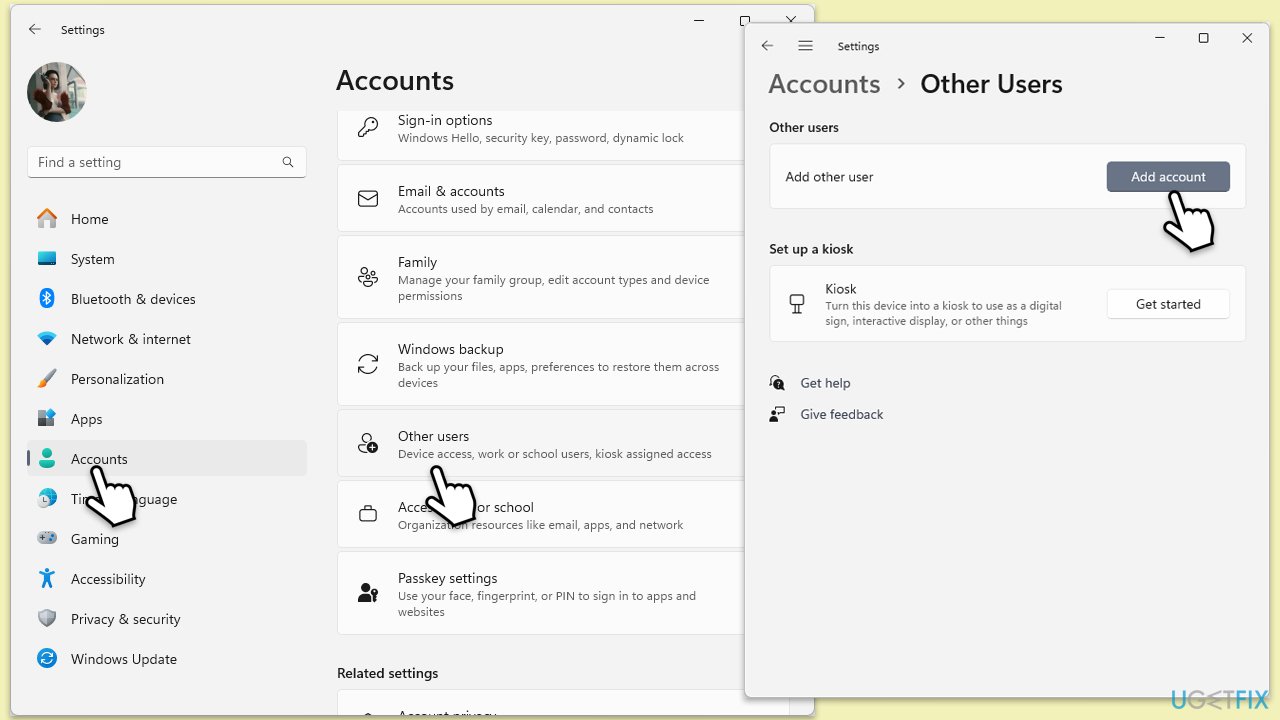
Sometimes, a corrupted user profile can cause issues with apps. Creating a new user profile can resolve these issues.
- Open Windows Settings.
- Go to Accounts then Family/Family & other users.
- Under Other users, click Add account/Add someone else to this PC.
- Follow the prompts to create a new user account. If you don't have Microsoft account details, you can choose I don't have this person's sign-in information followed by Add a user without a Microsoft account.
- Assign a username and password for the new account and complete the setup.
- Then go back to the Accounts section. Under Family/Family & other users, select the newly created account and click Change account type.
- Under Account type, pick Administrator and click OK.
Fix 8. Perform a system file check
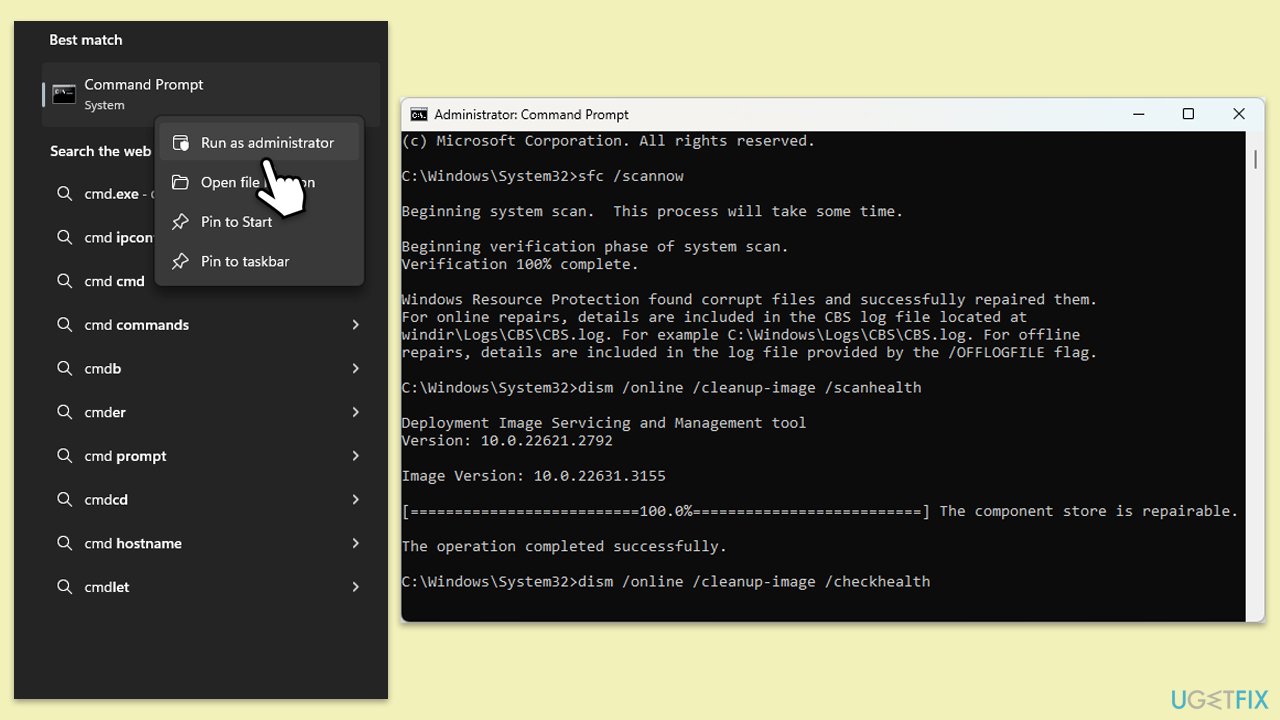
Corrupted system files can cause issues with apps. Running a system file check can find and repair corrupted files.
- Type cmd into Windows search.
- Right-click on Command Prompt and select Run as administrator.
- When the User Account Control (UAC) window shows up, click Yes.
- Next, type in the following command and press Enter:
sfc /scannow - When done, run the following commands as well:
dism /online /cleanup-image /scanhealth
dism /online /cleanup-image /checkhealth
dism /online /cleanup-image /restorehealth
(Note: if you get an error executing the last command, add /Source:C:\RepairSource\Windows /LimitAccess to it and try again.) - Restart your system.
Bottom line
To fix Windows Terminal not working or not opening, you can try updating the app through the Microsoft Store, clearing the Microsoft Store cache, or reinstalling Windows Terminal. If these solutions do not resolve the issue, consider resetting the app's settings to defaults or using a powerful PC repair tool.
Frequently asked questions
First, try resetting the Windows Terminal settings by opening PowerShell and running the command 'Get-AppxPackage Microsoft.WindowsTerminal | Remove-AppxPackage'. After that, reinstall it from the Microsoft Store.
You can troubleshoot by checking for updates in Windows 11, as an outdated version may cause issues. Additionally, ensure that your Windows Subsystem for Linux (WSL) is properly installed and functioning.
Yes, you can repair Windows Terminal by going to Settings > Apps > Apps & features, selecting Windows Terminal, and clicking on 'Modify' to initiate the repair process.




Report an issue
What's wrong with this guide? We review every report and update or remove content.
Report received — thank you. We'll review and fix it.
You need a free account to submit a report.
Be the first to comment