How to fix
“Windows Time Service is missing” error
on Windows
Resolve the "Windows Time Service is missing" error on Windows 10 and 11 effortlessly with our expert-tested solutions. Fixed in minutes!

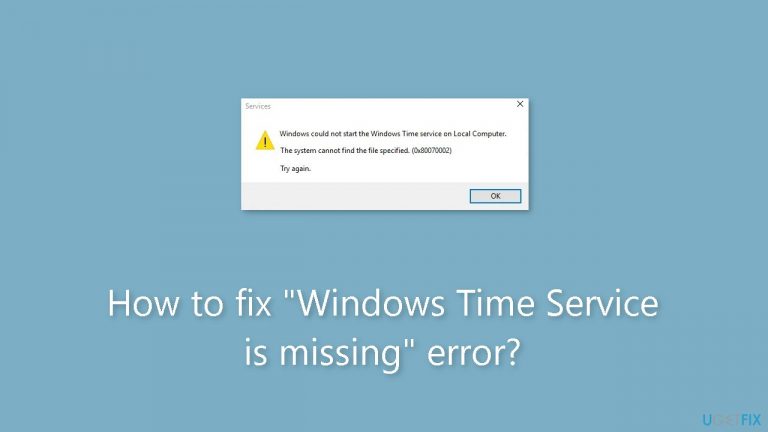
What causes How to fix “Windows Time Service is missing” error?
- Windows Time service is not starting automatically
- Windows Time service is completely missing from the system
- Firewall limitations preventing the service from functioning
- Incompatible software affecting the service
- Corrupted system files
Repairs Windows system files, removes malware, and restores a clean OS state — without reinstalling.
Hello. The time on my Windows PC keeps randomly changing. I noticed that Windows Time is missing from the Services list. How do I fix this?
The "Windows Time Service is missing" issue refers to the Windows Time service, commonly known as Win32Time, a crucial component of the Microsoft Windows operating system. In a network setting, this service is essential for keeping all client and server computers' date and time synchronization accurate. This service is essential in preventing inconsistencies that can cause inaccurate data, and potential interruptions by making sure that the clocks of multiple devices are in sync.
The flawless synchronization of date and time throughout the network is jeopardized when the Windows Time service fails to start automatically or is completely missing from the system. The effects of this problem on users and the general efficiency of the networked environment can be extensive.
The possibility for temporal differences between various devices is one of the main effects. Conflicting timestamps on documents, emails, and other records could be the outcome of this, which would make data analysis more challenging. The absence of the Windows Time service can lead to security flaws and prevent user access to resources in situations where rigorous time-based security policies are in place, such as authentication methods that depend on synchronized time.
Additionally, software programs that rely on precise time stamps could not operate as intended. This could have an impact on a variety of operations, from simple file administration to intricate financial transactions, particularly in systems where accurate time is crucial to the operation. Inconsistent timestamps could also make diagnostic and troubleshooting procedures that depend on synchronized event logs less effective, potentially extending the time it takes to find and fix system problems.
Restoring the Windows Time service's functionality is necessary to resolve the "Windows Time Service is Missing" problem. Possible fixes include checking system files, activating or re-enabling particular time-synchronization-related tasks, and making sure the service boots up automatically. Users may also need to look for potential problems like firewall limitations or other incompatible software that could prevent the service from functioning.
In this guide, you will find 4 steps that should help you fix "Windows Time Service is missing" error. You can also run a repair tool like [d1] that can fix most system errors, BSODs,[ref en-1] corrupted files, and registry[ref en-2] errors. Otherwise, follow the step-by-step instructions below.
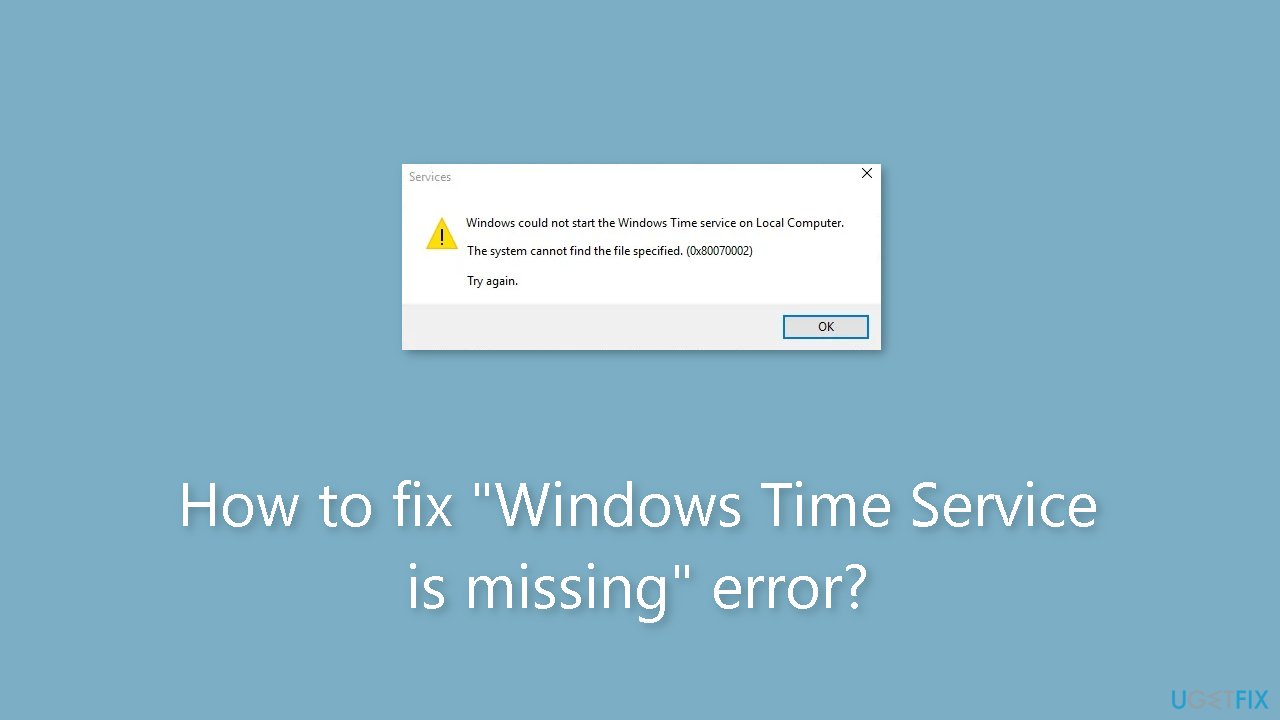
Method 1. Fix Corrupted System Files
Use Command Prompt commands to repair system file corruption:
- Open Command Prompt as administrator
- Use the following command and press Enter:
sfc /scannow

- Reboot your system
- If SFC returned an error, then use the following command lines, pressing Enter after each:
DISM /Online /Cleanup-Image /CheckHealth
DISM /Online /Cleanup-Image /ScanHealth
DISM /Online /Cleanup-Image /RestoreHealth
Method 2. Change the Time Server
- Open the Control Panel using the Windows search box.
- Inside the Control Panel, locate and click on Date and Time.
- Within the Date and Time settings, navigate to the Internet Time section.
- Click the Change settings button.

- Choose a different time server from the drop-down menu.
- Click the Update Now button to synchronize with the new time server.
- To finalize your changes, click the OK button.
Method 3. Re-Register the Windows Time Service
- Type cmd in the Windows search box.
- Right-click on the Command Prompt result.
- Select Run as administrator from the context menu.
- When the UAC window appears, click the Yes button.
- In the Command Prompt window, type net stop w32time and press Enter. This stops the Windows Time service.
- Execute the following command lines one by one, pressing Enter after each:
w32tm /unregister
w32tm /register
net start w32time
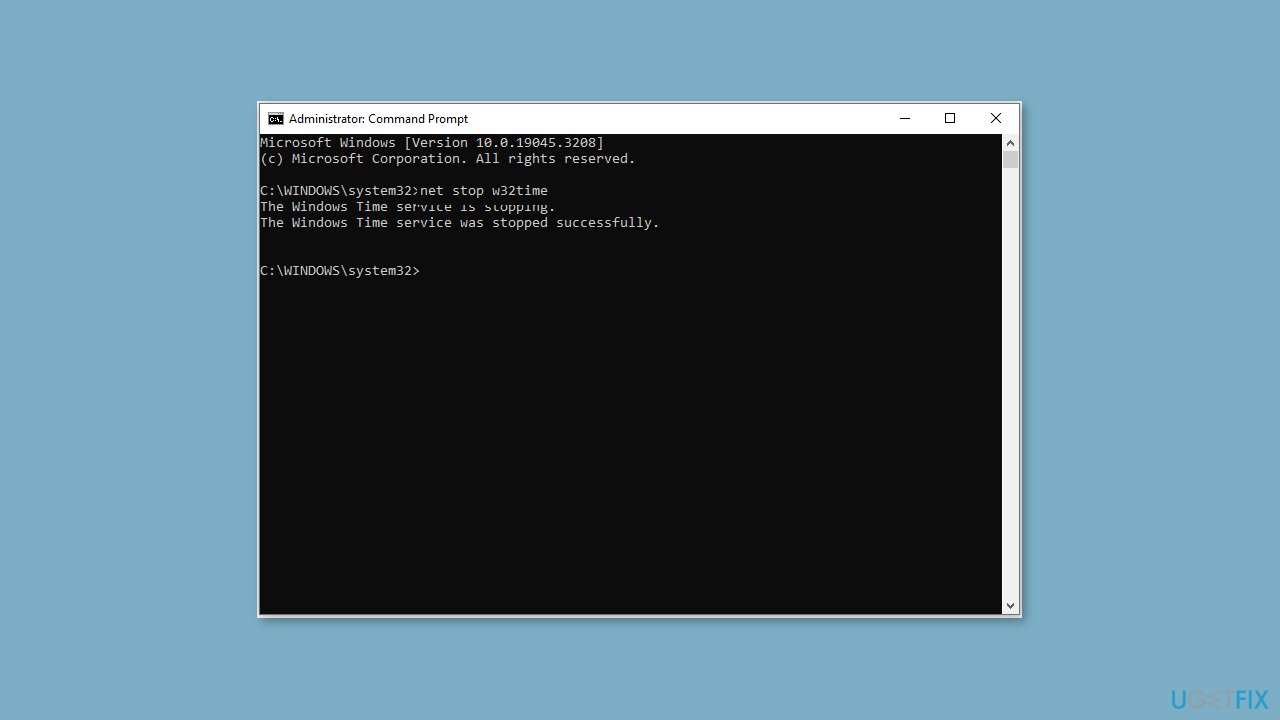
- After executing all the commands, restart your computer.
- Check to see if the "Windows Time service is missing" issue has been resolved.
Method 4. Enable Time Synchronization Tasks
- Open the Windows search box and type Task Scheduler.
- Select Task Scheduler from the best match results.
- Expand the Task Scheduler Library folder.
- Navigate to Microsoft > Windows > Time Synchronization.
- Check if the Time Synchronization tasks are disabled.
- If they are disabled, right-click on each task and select Enable.
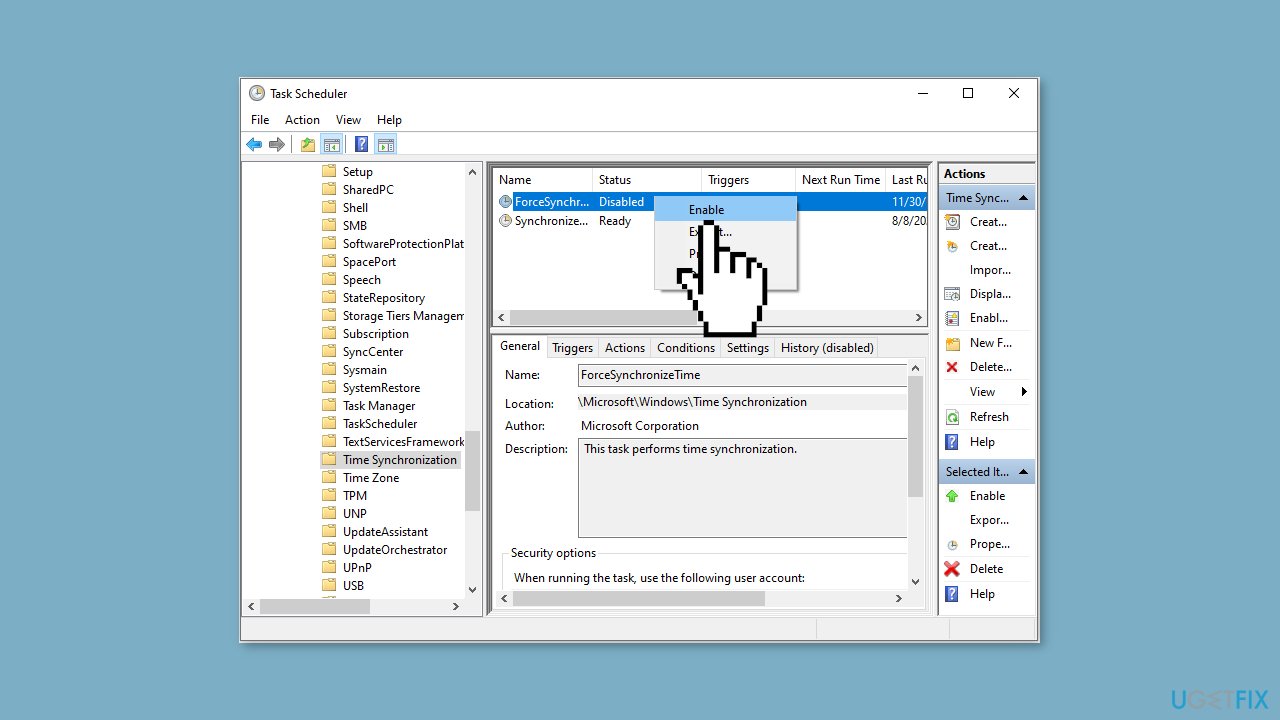
- Ensure that all tasks are enabled.
- Exit the Task Scheduler.
- Restart your computer.
- Check to see if the missing Windows Time service has been restored.
Bottom line
To resolve the 'Windows Time Service is Missing' problem, users should check system files, activate or re-enable time-synchronization-related tasks, and ensure the service is set to boot automatically. If these fixes do not work, users may need to investigate firewall settings or other software conflicts.
Frequently asked questions
You can restore the Windows Time Service by opening the Command Prompt as an administrator and executing the command 'sc config w32time start= auto' followed by 'net start w32time'.
To check if the Windows Time Service is running, open 'Services' from the Start menu, find 'Windows Time', and ensure its status is 'Running'.
If the service is still missing, consider running a System File Checker scan by executing 'sfc /scannow' in an elevated Command Prompt to repair any corrupted system files.




Report an issue
What's wrong with this guide? We review every report and update or remove content.
Report received — thank you. We'll review and fix it.
You need a free account to submit a report.
Be the first to comment