How to fix
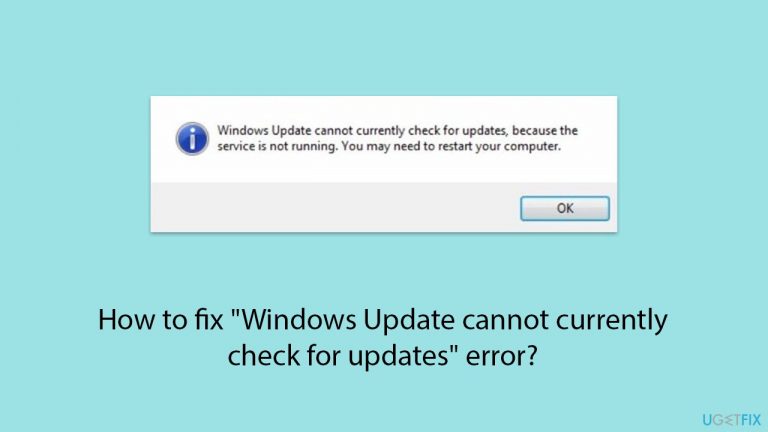
“Windows Update cannot currently check for updates” error
on Windows
Resolve the "Windows Update cannot currently check for updates" error on Windows 10 or 11 effortlessly. Get expert-tested solutions today!

What causes How to fix “Windows Update cannot currently check for updates” error?
- Service disruption where the Windows Update service is not running
- Network problems interfering with connection to update servers
- Corruption within system files
- Issues within the registry
- Incorrect date and time settings
Repairs Windows system files, removes malware, and restores a clean OS state — without reinstalling.
I tried to install the newest Windows updates and it came back with an error "Windows Update cannot currently check for updates." How can I bypass it?
Windows Update is a vital feature in the Windows operating system that regularly brings enhancements and new features, as well as patches for known bugs and security vulnerabilities. These updates are crucial because they not only add new functionalities but also strengthen the security of the system, potentially blocking malware attacks that exploit older, unpatched vulnerabilities.
Despite its importance, some users encounter an issue where they receive the error message "Windows Update cannot currently check for updates." This error prevents the system from performing any updates, leaving the computer at risk of becoming outdated or exposed to security threats.
The "Windows Update cannot currently check for updates" error may occur for several reasons. One common cause is service disruption where the Windows Update service, required to manage updates, is not running or has encountered an error.
Additionally, network problems can interfere with your computer's ability to connect to the update servers. Corruption within the system files or issues within the registry can also lead to this error, as these components are crucial for the operation of Windows Update.
To address the "Windows Update cannot currently check for updates" error, you might need to ensure that the Windows Update service is enabled and functioning correctly. Checking your network settings to confirm there is no interference with the Windows Update servers can also be beneficial.
Moreover, scanning for and repairing corrupted system files or errors in the registry might resolve the problem. Ensuring that your date and time settings are correct is also important because mismatched settings can prevent Windows Update from functioning properly.
If the problem persists, consider using a PC repair application [d1]. Such tools are designed to automatically find and fix issues that affect system performance and stability, including corrupted system files, registry errors, DLL errors, and removing unnecessary files from your system.
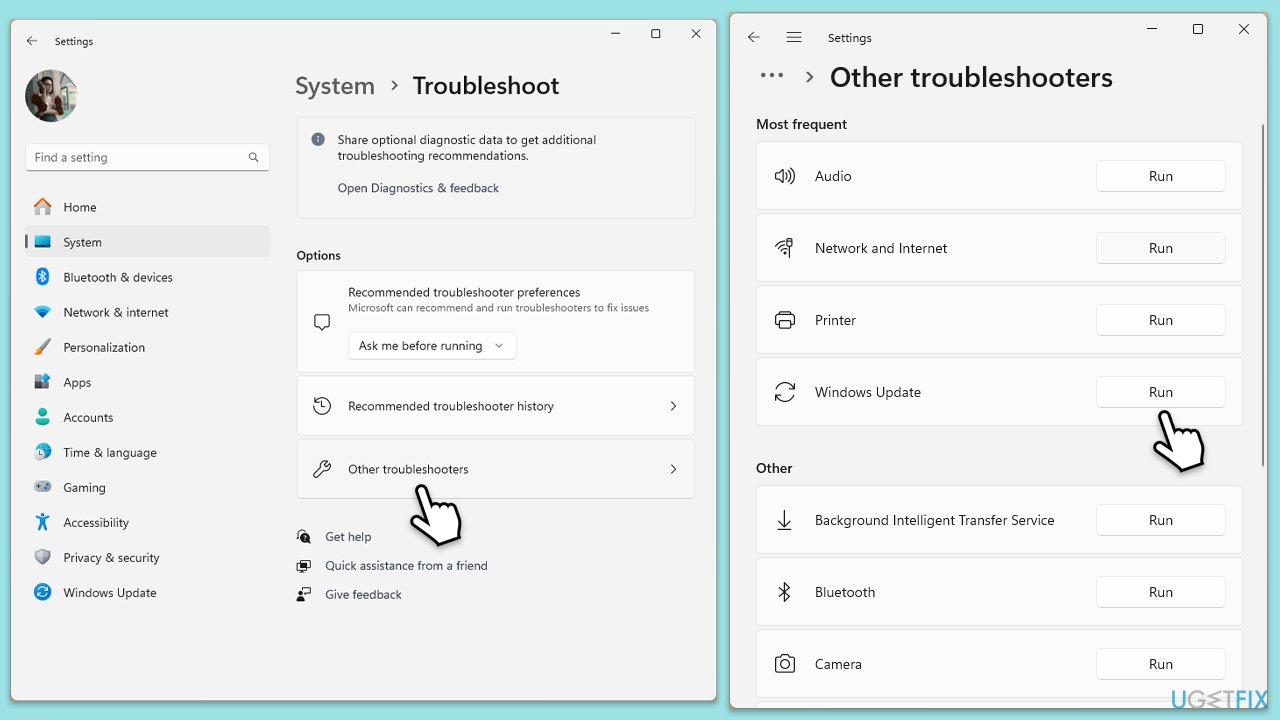
Fix 1. Why run a Windows update troubleshooter?
The Windows Update Troubleshooter is an automated tool built into Windows that checks for problems preventing updates from installing correctly. It identifies issues with network connections, missing or corrupt files, or settings that block updates and attempts to fix them automatically.
- Type Troubleshoot in Windows search and press Enter.
- Select Additional troubleshooters/Other troubleshooters.
- Find Windows Update from the list.
- Click it and select Run the troubleshooter/Run.
- Restart your computer when the update process finishes.
Fix 2. How does disabling third-party security software or running clean boot help with update issues?
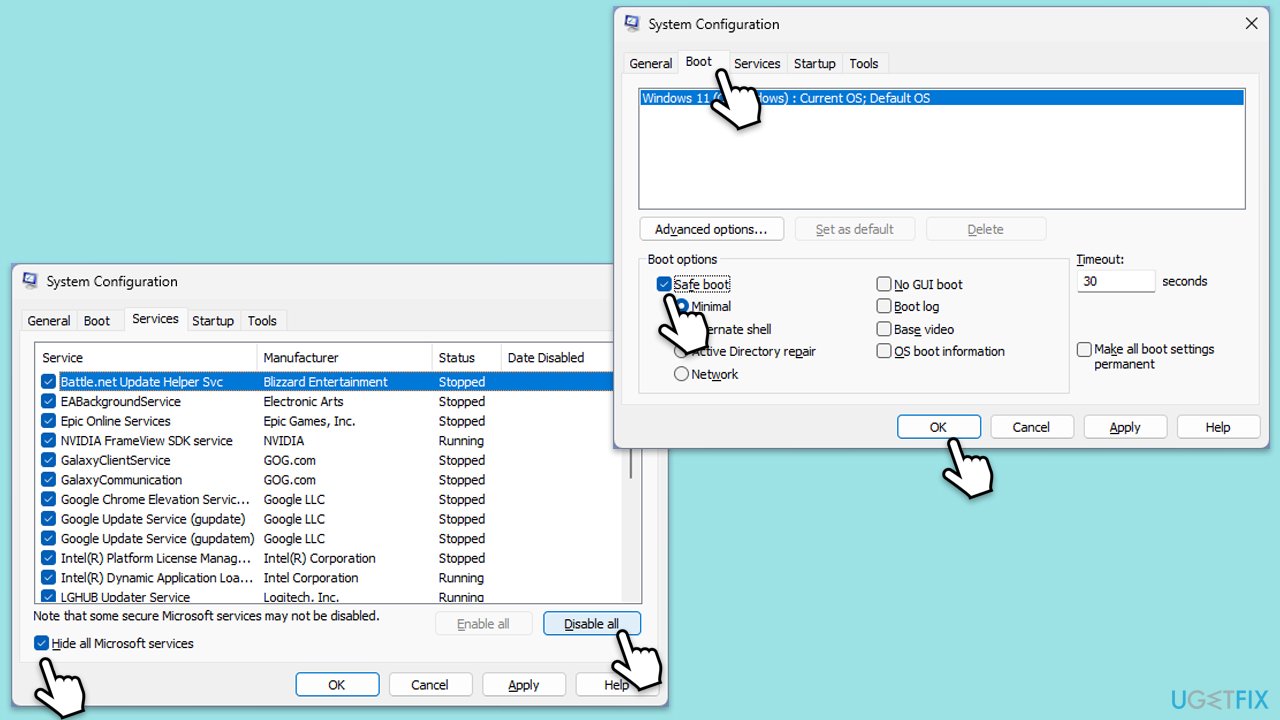
Third-party security software can sometimes interfere with Windows Update by blocking its processes. A Clean Boot starts Windows with minimal drivers and startup programs, reducing software conflicts that could be affecting the update process.
- Type msconfig in Windows search, then press Enter.
- Select the Services tab and tick the Hide all Microsoft services checkbox.
- Pick Disable all.
- Go to the Startup tab and click Open Task Manager.
- Here, right-click on each of the non-Windows entries and select Disable.
- Close down the Task Manager.
- Go to the Boot tab and tick the Safe boot option.
- Restart your computer.
- Attempt the update installation again.
Fix 3. Why reset Windows update components?
Resetting Windows Update components clears the update history, cache, and temporary files that may have become corrupted and are causing update failures.
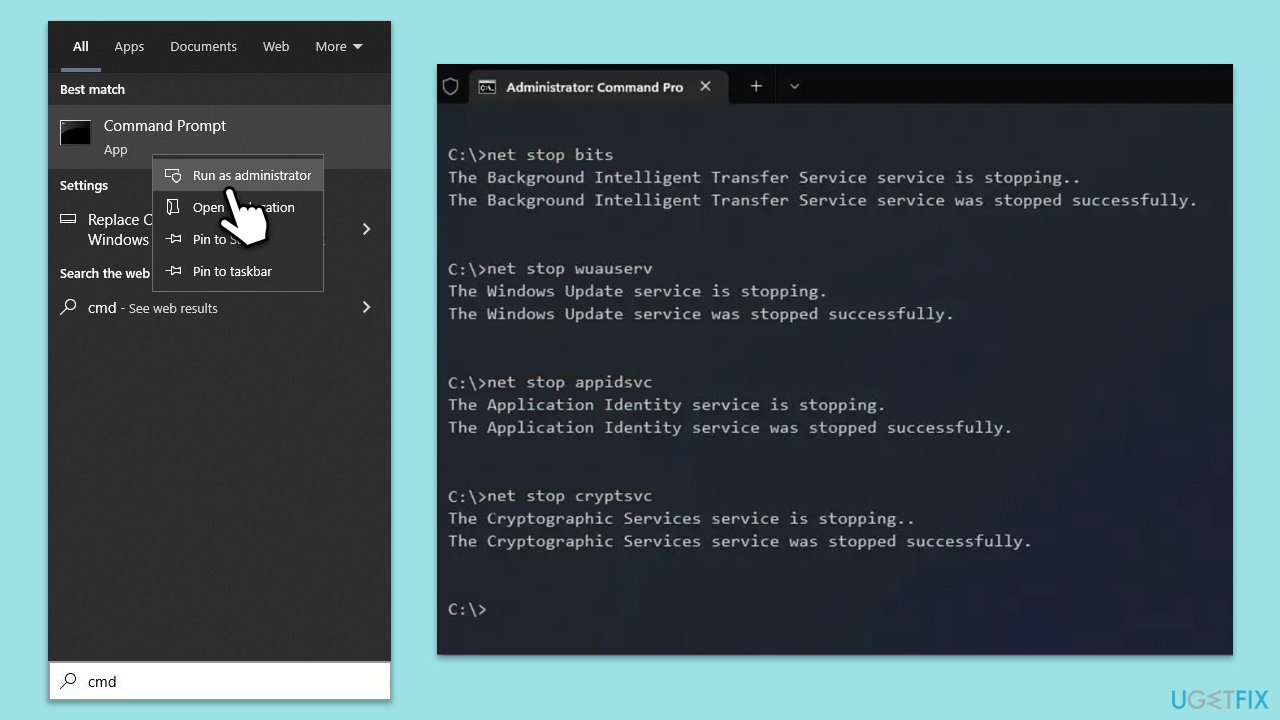
- Type cmd in Windows search.
- Right-click on Command Prompt and pick Run as administrator.
- User Account Control (UAC) will ask whether you want to allow changes - click Yes.
- Type the following commands, pressing Enter after each:
- net stop bits
- net stop wuauserv
- net stop appidsvc
- net stop cryptsvc
- Del “%ALLUSERSPROFILE%\Application Data\Microsoft\Network\Downloader\*.*”
- rmdir %systemroot%\SoftwareDistribution /S /Q
- rmdir %systemroot%\system32\catroot2 /S /Q
- regsvr32.exe /s atl.dll
- regsvr32.exe /s urlmon.dll
- regsvr32.exe /s mshtml.dll
- netsh winsock reset
- netsh winsock reset proxy
- net start bits
- net start wuauserv
- net start appidsvc
- net start cryptsvc
- Close the Command Prompt and restart your system.
Fix 4. How to install the update manually?
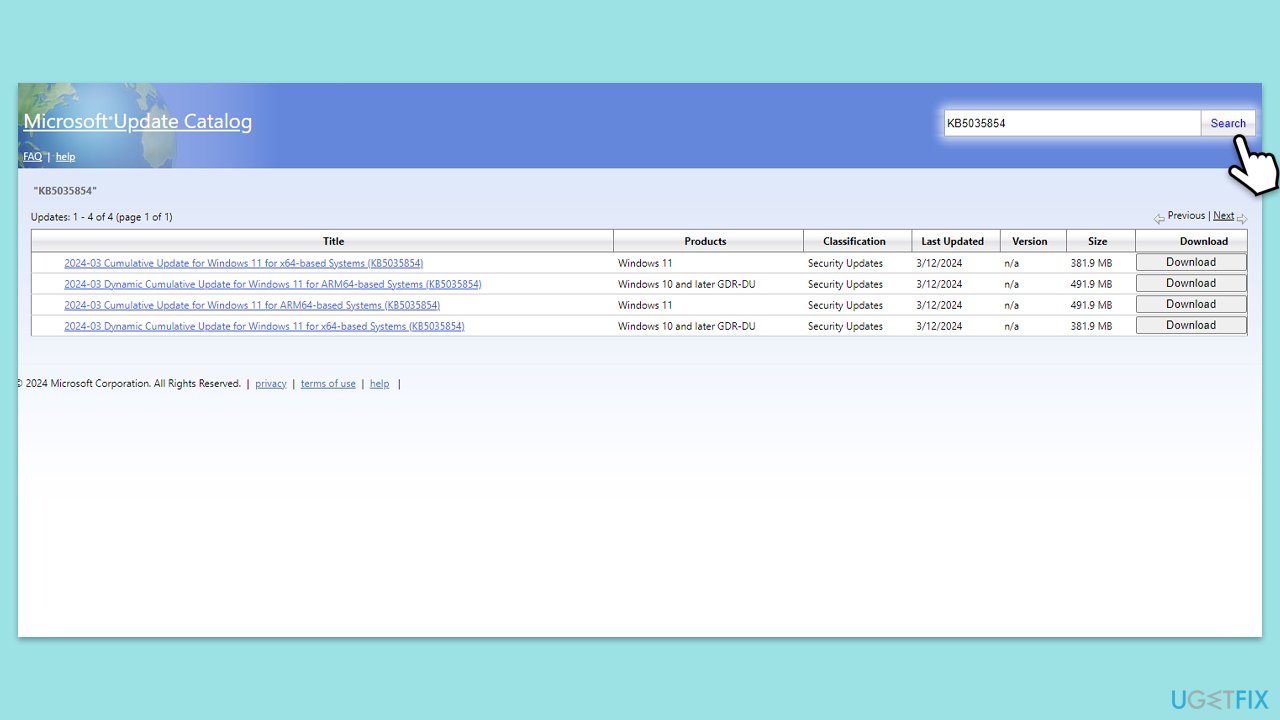
If automatic updates fail, downloading and installing the update manually from the Microsoft Update Catalog can bypass issues with Windows Update services.
- Visit the Microsoft Update Catalog website.
- Search for the specific update by its knowledge base (KB) number. You can find Windows 11 and Windows 10 update history on the official release history page.
- Download the update that matches your system type (e.g., 64-bit, 32-bit).
- Once downloaded, double-click the file to install the update.
- Follow the installation prompts and restart your computer afterward.
Fix 5. Why check your disk for errors?
Disk errors can prevent Windows Update files from being properly downloaded or installed. Checking the disk for errors can identify and fix file system issues.
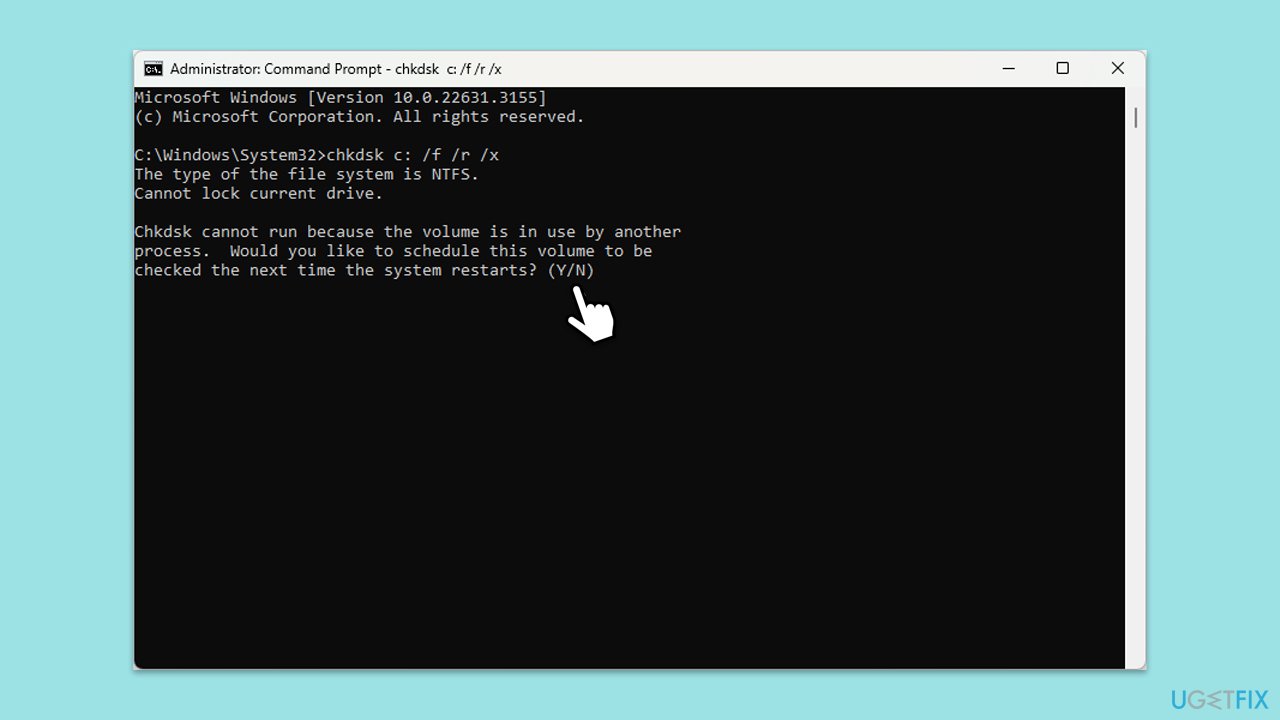
- Open Command Prompt as administrator.
- Type in the following command and press Enter after:
chkdsk c: /f
(Note: use chkdsk c: /f /r /x command if you use SSD as your primary partition). - If you receive an error, type in Y, close down Command Prompt, and restart your computer.
- After a restart, Windows will begin to scan your disk. After your system boots back up, you can find the results in the Event Viewer.
Fix 6. How does re-registering update-related DLL files help?
Re-registering DLL files related to Windows Update can resolve issues caused by unregistered or corrupted DLLs that are essential for updates.
instructions:
- Open Command Prompt as administrator.
- Type the following commands, pressing Enter after each to re-register DLLs:
- regsvr32 wuapi.dll
- regsvr32 wuaueng.dll
- regsvr32 wups.dll
- regsvr32 wups2.dll
- regsvr32 wuwebv.dll
- regsvr32 wucltux.dll
- Restart your computer and try the update again.
Fix 7. Why employ a Media Creation Tool to update?
The Media Creation Tool can update your system to the latest version of Windows, bypassing the normal update process which can be helpful if traditional update methods are failing.
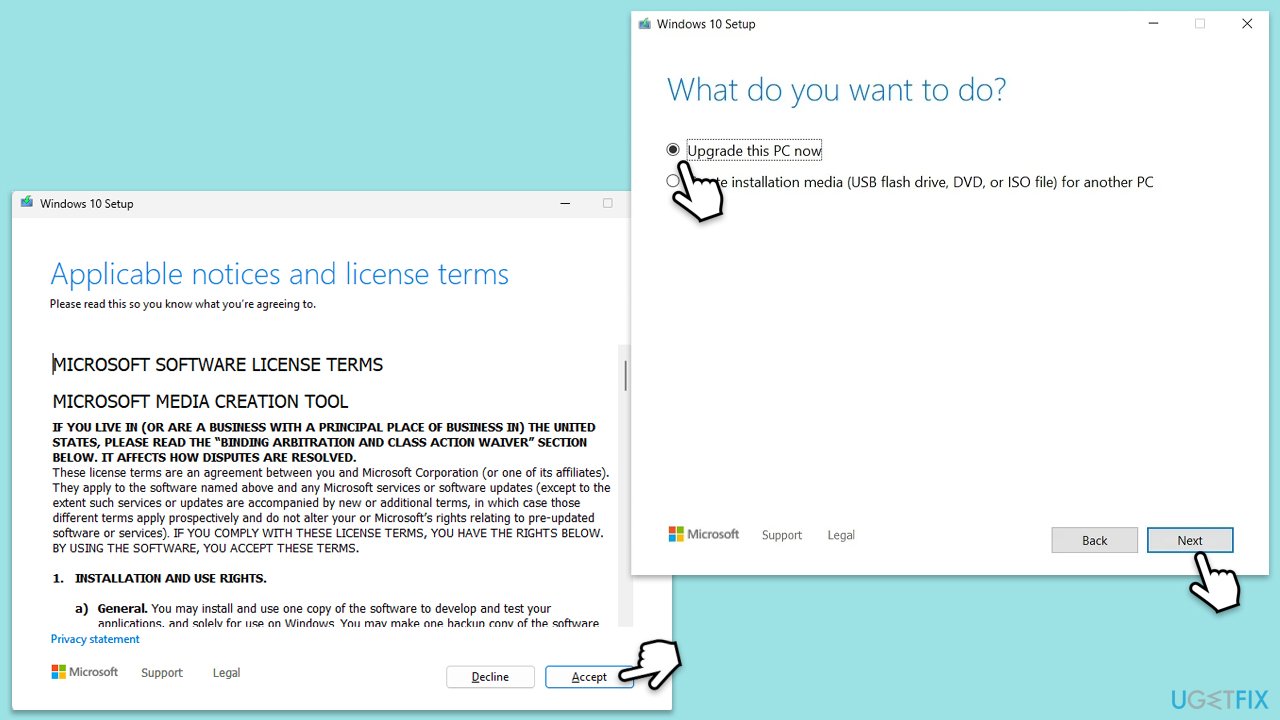
- Visit the official Microsoft website and download Windows 10 installation media (Windows 11 version).
- Double-click the installer and select Yes when UAC shows up.
- Agree to terms.
- Select Upgrade this PC now and click Next.
- Windows will start downloading the needed files.
- Agree to the terms once again and click Next.
- Before installing, make sure that you are happy with your choices (otherwise, you can click Change what to keep option).
- Finally, click Install to begin the upgrade process.
Bottom line
To fix the 'Windows Update cannot currently check for updates' error, ensure that the Windows Update service is enabled and functioning, check your network settings, and scan for corrupted system files or registry errors. If the issue persists, consider using a PC repair application to automatically find and fix problems.
Frequently asked questions
Start by running the Windows Update Troubleshooter, which can automatically detect and fix common issues related to Windows Updates.
Yes, you can try resetting the Windows Update components manually, which does not require an internet connection, but you will need to have administrative privileges.
Open the Services application, locate the Windows Update service, and ensure that its status is set to 'Running' and its startup type is 'Automatic'.




Report an issue
What's wrong with this guide? We review every report and update or remove content.
Report received — thank you. We'll review and fix it.
You need a free account to submit a report.
Be the first to comment