How to fix
Windows Update Error 0x80010108
on Windows
Resolve Windows Update Error 0x80010108 effortlessly with expert solutions that ensure your system runs smoothly. Fixed in minutes!

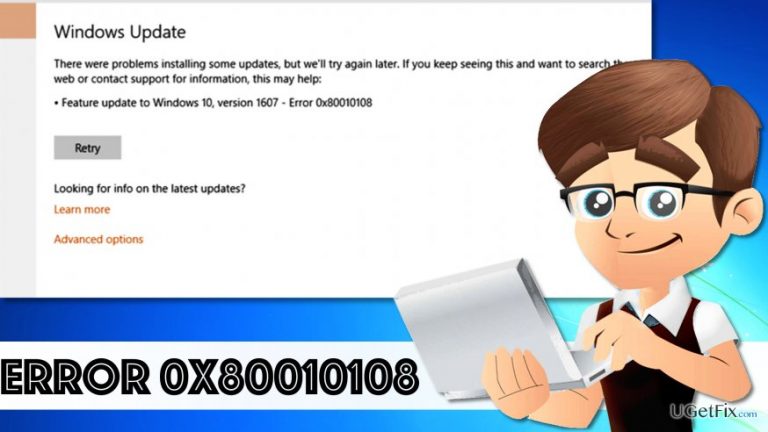
What causes How to Fix Windows Update Error 0x80010108?
- Windows Update service is not running
- Antivirus software interfering with updates
- Corrupted update files
- Issues with Windows Update components
Repairs Windows system files, removes malware, and restores a clean OS state — without reinstalling.
Hello, I have a laptop that runs Windows 10 operating system. However, whenever I try to install OS update, Error 0x80010108 shows up. I have retried to update the system many times, unfortunately, no luck so far. Can you provide a solution on how to fix Windows Update Error 0x80010108?
Users who cannot install Windows update due to Error 0x80010108 usually complain that it occurs when trying to download the latest Windows 10 OS updates. The issue is highly annoying because everyone wants to have an up-to-date operating system to increase computer’s security and privacy of user data. Luckily, it seems that it is not that hard to fix Error 0x80010108, and if you dedicate some time for this task, you can resolve it manually. If you are looking for a quick and easy way to solve the issue, you might be tempted to try Windows Update TroubleShooter. There is nothing to lose, and of course, you can try this option. Unfortunately, some users complain that it doesn’t help to solve Error 0x80010108 problem at all. For this reason, UGetFix team has collected and summarized all possible ways to fix Error Code 0x80010108 issue. One of the provided methods should help you to download and install Windows 10 updates without encountering any issues.
How to Fix Windows Update Error 0x80010108?
Method 1. Restart the Windows Update service
- In your keyboard, find Windows Key and X key. Press both of them down at the same time. Click on Command Prompt (Admin).
- Once the CMD opens, type in this command: net stop wuauserv and press Enter.
- Then type in this command: regsvr32 %windir%\system32\wups2.dll, press Enter.
- Now, restart the Windows Update service by typing in this command: net start wuauserv.
- Try to download and install Windows 10 update again.
Method 2. Temporarily uninstall your antivirus
Although it is highly recommended to keep the computer protected at all times, uninstalling antivirus program can help you to solve some Windows errors. Some antivirus programs prevent users from performing certain actions.
- To temporarily uninstall the security software, go to Control Panel > Programs and Features, find the security program, select it and click Uninstall.
- Try to install the latest Windows OS updates, and after installing it, go to the official website of the developer of your security software and install the software back on your PC system. Enter license key if you used a full version of particular software.
Method 3. Automatic method to solve Error 0x80010108 issue
If you cannot install Windows 10 updates no matter what you do, we recommend running a system scan using [d1] software. It is a powerful tool that helps to optimize the system and fill it up with missing Windows files. We believe that it will help you to resolve 0x80010108 issue easily.
Bottom line
To fix Windows Update Error 0x80010108, you can restart the Windows Update service and temporarily uninstall your antivirus software. If these methods do not resolve the issue, consider using the Windows Update Troubleshooter or exploring other potential fixes.
Frequently asked questions
The error 0x80010108 typically indicates a problem with the Windows Update service on Windows 10 or Windows 11, often related to network issues or corrupted system files.
To fix the 0x80010108 error on Windows 11, try running the Windows Update Troubleshooter and ensure your internet connection is stable.
Yes, you can manually reset the Windows Update components by stopping the Update services, renaming the SoftwareDistribution folder, and then restarting the services.




Report an issue
What's wrong with this guide? We review every report and update or remove content.
Report received — thank you. We'll review and fix it.
You need a free account to submit a report.
Be the first to comment