How to fix
Windows update error 0x80040111
on Windows
Resolve Windows 10 and Windows 11 update error 0x80040111 effortlessly. Get expert-tested fixes and troubleshoot like a pro in minutes.

What causes How to fix Windows update error 0x80040111?
- Inconsistent update service settings
- Corrupted caches
- Damaged system files
- Incomplete update process
- User-specific configuration issues
Repairs Windows system files, removes malware, and restores a clean OS state — without reinstalling.
I tried to update Windows as usual and for some reason, it took a very long time... at some point, the update simply stopped and produced an error 0x80040111. What can I do, if anything?
When trying to install a Windows update, you may encounter the 0x80040111 error. This issue has been noted particularly by those using the latest versions of Windows 10 and 11 versions 22H2 and 23H2. Keeping the system updated is crucial for maintaining security and performance, so this error can be quite concerning.
0x80040111 error can occur whether the update is started manually by the user or automatically by the system. Users often notice it in the Update History section of the Settings panel. The error typically manifests when the update process gets interrupted before it can complete, often stalling before reaching 100%.
One of the frustrations with this error is the lack of detailed information provided by Windows about the cause or solution. The complexity of the Windows operating system means that different users can have unique configurations, so the reasons behind the error can vary widely.
While many Windows update errors resolve themselves as minor bugs are fixed, persistent problems can arise if the update fails repeatedly over days or even months. Common causes of the 0x80040111 error include inconsistent update service settings, corrupted caches, and damaged system files. These issues, among others, are discussed in detail in the guide below to help you troubleshoot and resolve the issue.
Before you proceed with manual steps to fix the 0x80040111 error, we suggest trying an automatic resolution using [d1]. This tool can scan your system for corruption, repair any damage, remove malware, clear web caches, and other junk files, and address various common issues that can cause BSODs, errors, crashes, and more.
Fix 1. Run Disk Cleanup
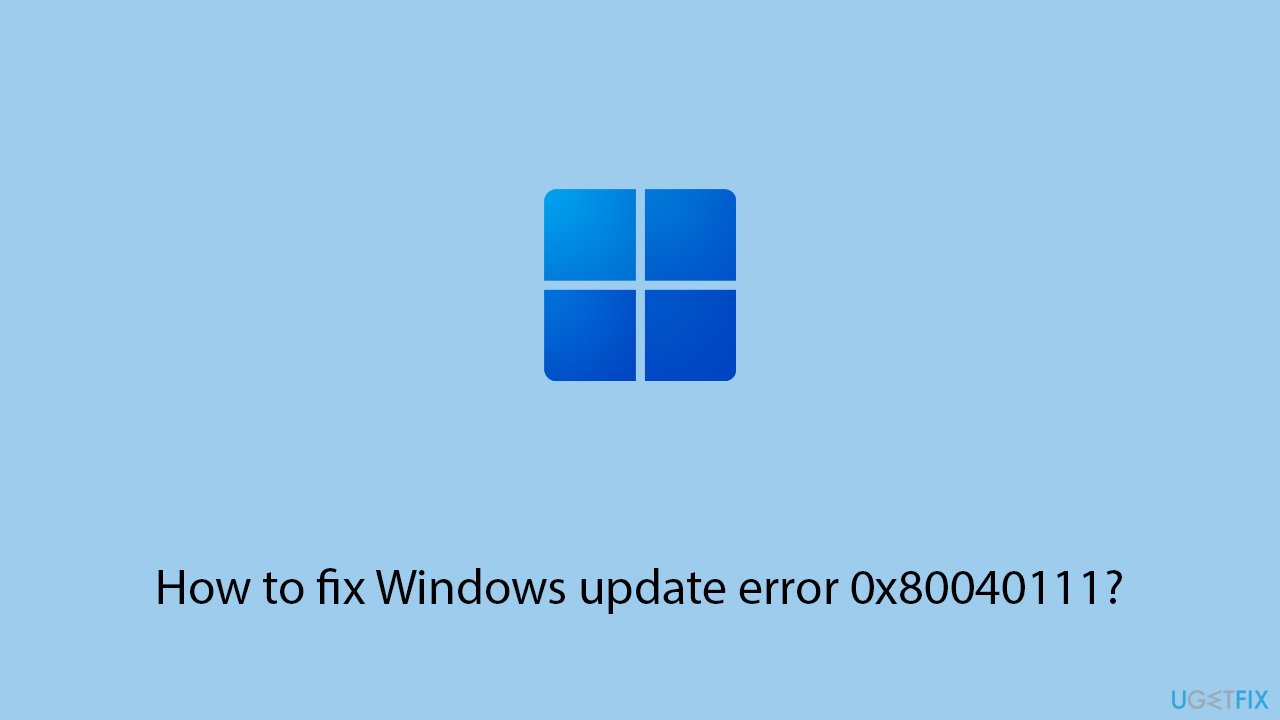
Disk Cleanup can delete various bugged caches and free some space if that's lacking.
- Type Disk Cleanup in Windows search and hit Enter.
- If your Windows is installed on drive C, pick it from the list (it should be by default) and press OK.
- Click Clean up system files.
- Select your main disk again and click OK.
- Here, select the largest portions of the data used - these typically include Temporary Internet Files, Windows Update, Temporary Files, Recycle Bin, Delivery Optimization Files, and others.
- Click OK - the process should be finished shortly.
Fix 2. Run Windows update troubleshooter
Built-in troubleshooters are designed to provide simple steps for users when having certain Windows issues. Since the problem here is a Windows update, let's run Windows update troubleshooter:
- Type Troubleshoot in Windows search and hit Enter.
- Select Additional troubleshooters/Other troubleshooters.
- Find Windows Update from the list and select Run the troubleshooter/Run.
- Wait till the scan is finished - you will be provided with potential causes so you can proceed with fixes.
- If no suggestions were provided, proceed with the solutions below.
- Then, run Network troubleshooter as well.

Fix 3. Check if relevant services are running
There are several services that support the automatic Windows update process. If some of these are not running or are bugged, a 0x80040111 error might come up.
- Type Services in Windows search and press Enter.
- Locate the following services: Background Intelligent Transfer Service, Windows Update, and Cryptographic Services.
- Right-click each service and select Restart.
- If any service is not running, double-click the service to open Properties.
- Under the Startup type, select Automatic from the drop-down menu.
- Click Start, Apply, and OK.
Fix 4. Install the update manually
You can always try to install the update yourself if automatic procedure is not effective.
- Type in Updates in Windows search and press Enter.
- Select View update history.
- Find the update that failed with the 0x80040111 error and copy its KB number.
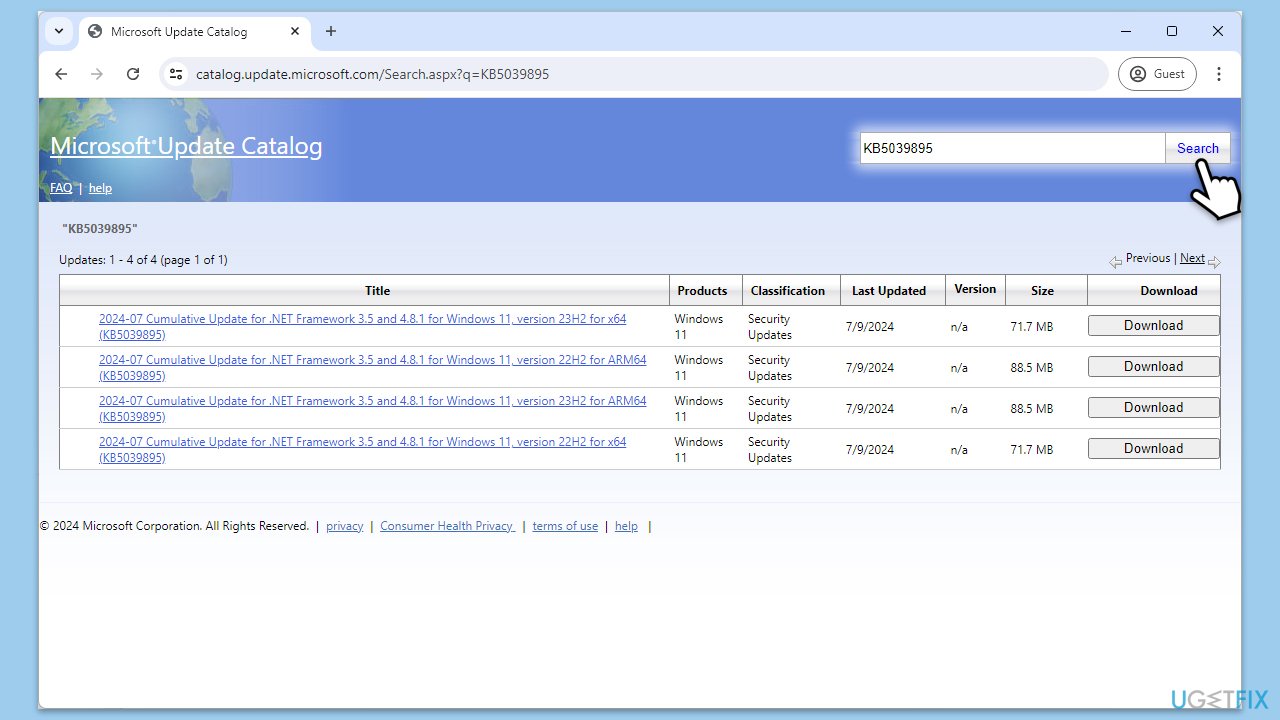
- Open your browser and go to Microsoft Update Catalog.
- Within the search bar, type in the KB number and clicks Search.
- Find the correct version of the update for your operating system (to check this, right-click on Start and pick System. Under Device specifications and check the System type) and click Download.
- Use on-screen guidelines to finish the installation process and restart your PC.
Fix 5. Reset Windows update components
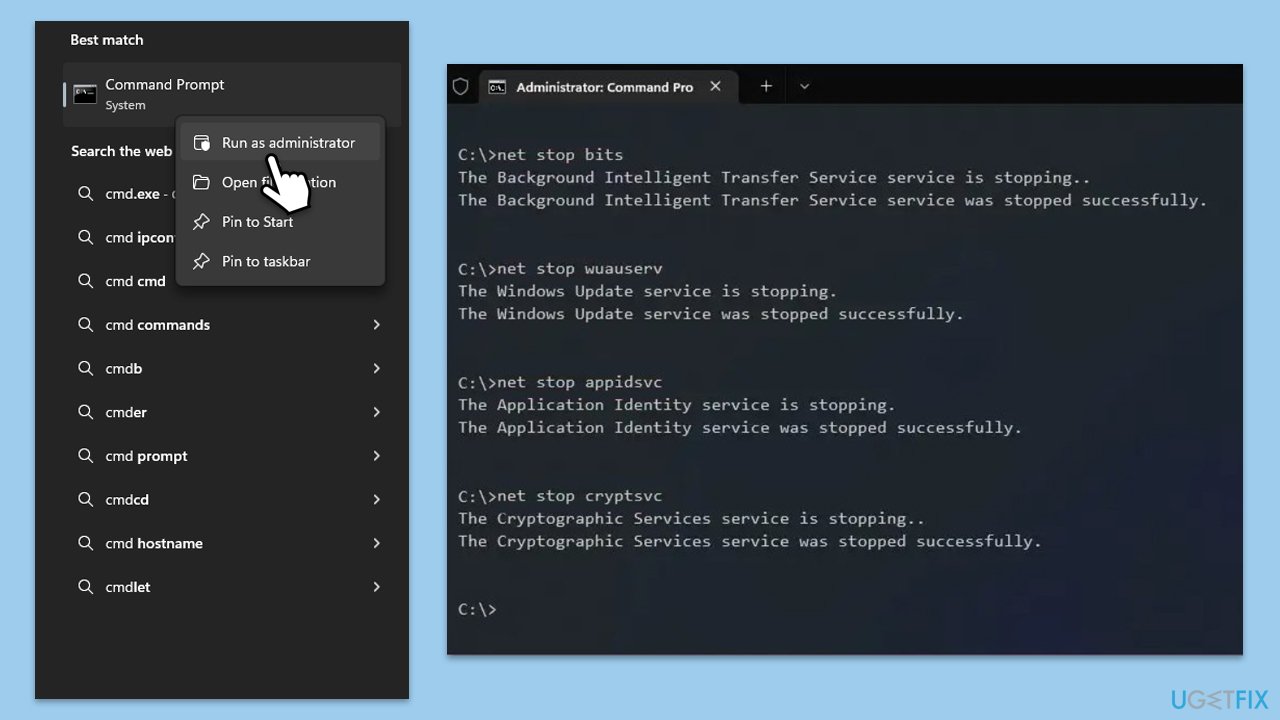
- Type cmd in Widnows search.
- Right-click on Command Prompt and pick Run as administrator.
- User Account Control pop-up will ask to confirm, click Yes.
- Type each of these command lines, pressing Enter every time (wait till the command is fully executed):
net stop bits
net stop wuauserv
net stop appidsvc
net stop cryptsvc
Del "%ALLUSERSPROFILE%\Application Data\Microsoft\Network\Downloader\*.*"
rmdir %systemroot%\SoftwareDistribution /S /Q
rmdir %systemroot%\system32\catroot2 /S /Q
regsvr32.exe /s atl.dll
regsvr32.exe /s urlmon.dll
regsvr32.exe /s mshtml.dll
netsh winsock reset
netsh winsock reset proxy
net start bits
net start wuauserv
net start appidsvc
net start cryptsvc - Restart your device and attempt to download the update once more.
Fix 6. Repair corrupted system files
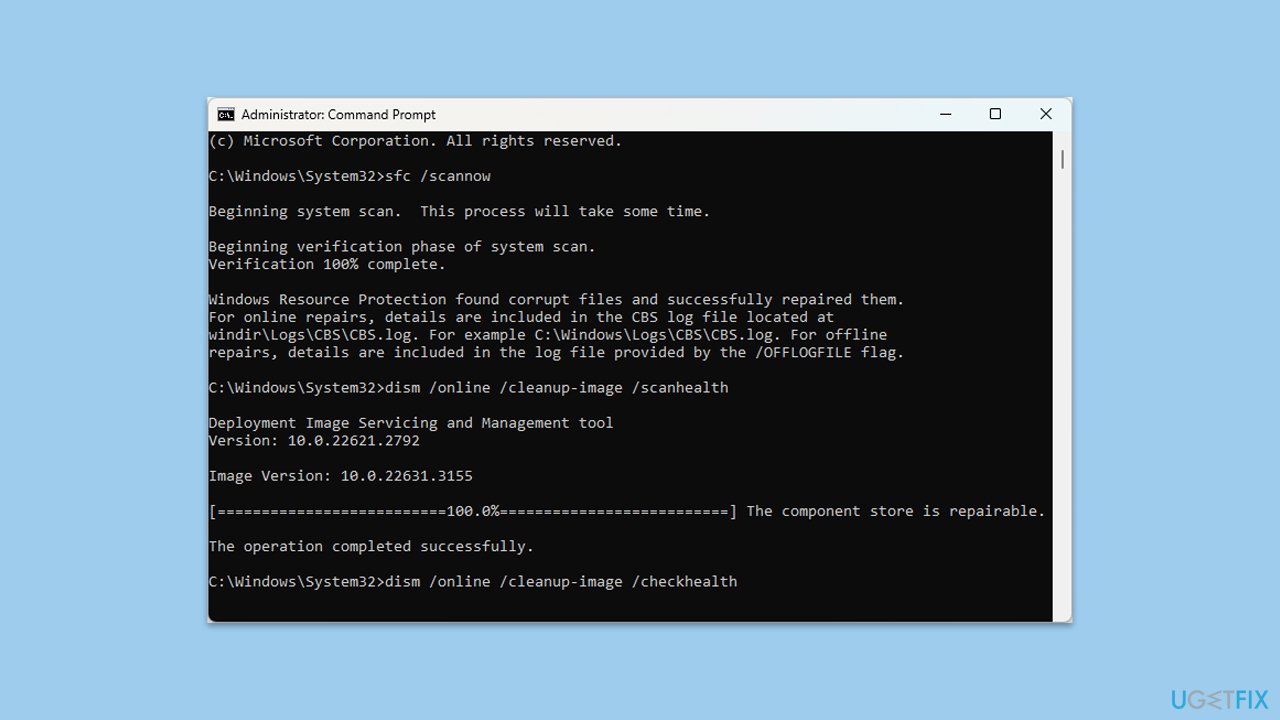
- Open Command Prompt as administrator.
- Type in the following command and press Enter:
sfc /scannow - When done, run the following commands as well:
dism /online /cleanup-image /scanhealth
dism /online /cleanup-image /checkhealth
dism /online /cleanup-image /restorehealth
(Note: if you get an error executing this last command, add /Source:C:\RepairSource\Windows /LimitAccess to it and try again). - Restart your computer.
Fix 7. Use Media Creation Tool
Before proceeding, make sure you uninstall third-party security software and disconnect printers, external HDDs, USB flash sticks, and similar devices before proceeding.
- Visit the official Microsoft website and download Windows 10 installation media (Windows 11 version).
- Double-click the installer, select Yes when UAC shows up, and agree to the terms.
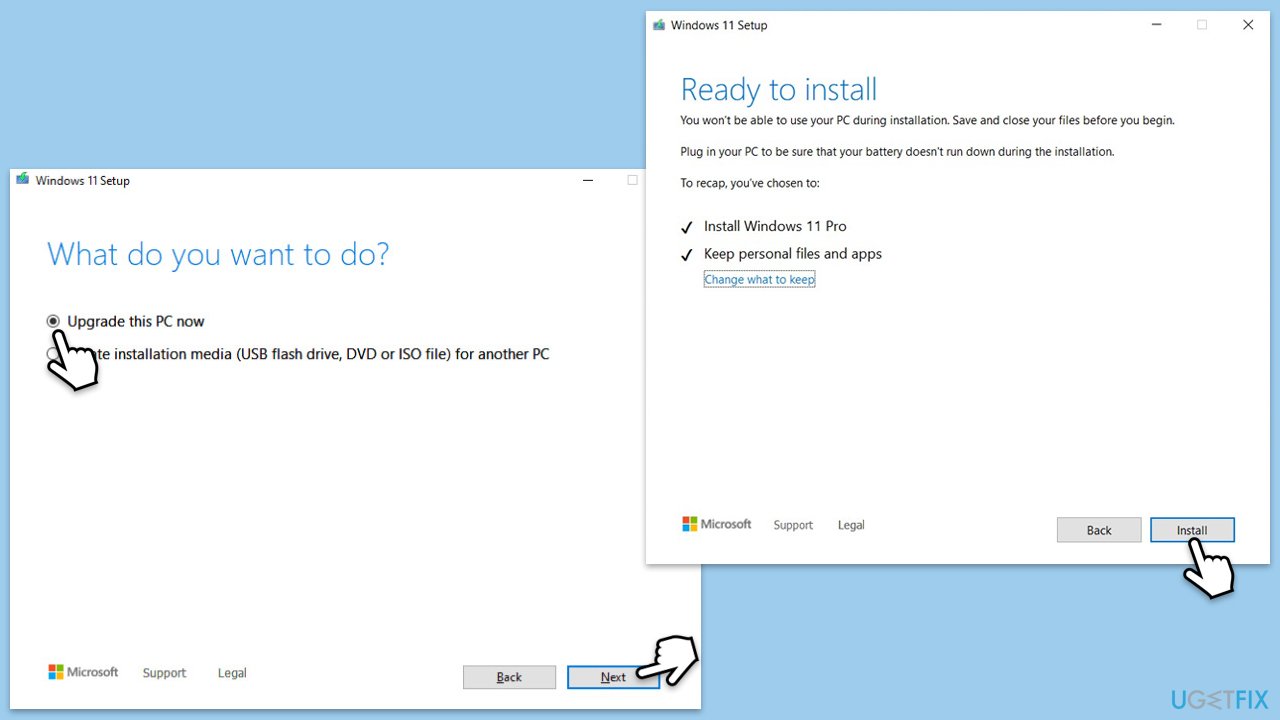
- Select Upgrade this PC now and click Next.
- Windows will start downloading the needed files.
- Agree to the terms once again and click Next.
- Before installing, make sure that you are happy with your choices (otherwise, you can click Change what to keep option).
- Finally, click Install to begin the upgrade process.
Bottom line
To fix the Windows update error 0x80040111, you can try running Disk Cleanup to remove bugged caches and free up space. If the issue persists, consider using an automatic resolution tool to scan for corruption and repair any damage. If none of these solutions work, further troubleshooting may be necessary.
Frequently asked questions
The error 0x80040111 typically signifies a problem with the Windows Update service or a corrupted update file in Windows 10 or Windows 11.
To fix the 0x80040111 error, you can try resetting the Windows Update components by running the command 'DISM /Online /Cleanup-Image /RestoreHealth' in the Command Prompt.
Yes, you can use the built-in Windows Update Troubleshooter in Windows 11 by navigating to Settings > Update & Security > Troubleshoot, which can help identify and resolve the error.




Report an issue
What's wrong with this guide? We review every report and update or remove content.
Report received — thank you. We'll review and fix it.
You need a free account to submit a report.
Be the first to comment