How to fix
Windows update error 0x80070007
on Windows
Resolve Windows update error 0x80070007 quickly and efficiently. Follow our expert-tested guide for a smooth update experience on Windows 10 and 11. Fix…

What causes How to fix Windows update error 0x80070007?
- Low disk space
- Antivirus software interference
- System file corruption
- Issues with the Windows Update service
- Residual update files from previous attempts
Repairs Windows system files, removes malware, and restores a clean OS state — without reinstalling.
I’ve been trying to update Windows 11, but every time I run the update, I get stuck with error code 0x80070007. It just says the update failed and rolls everything back. Can you help me deal with this?
Windows updates are really important to make sure your device is safe, less prone to bugs, and compatible with the new software available. These updates are beneficial because of security fixes, driver upgrades, and feature enhancements, but sadly, they can also be unreliable. Sometimes they can fail, and there isn’t always a clear reason why. When this occurs, the users will be informed by unexpected errors, which will prevent the update process. One of such errors is 0x80070007 - it was reported by users for years.
An error code 0x80070007 would generally signify that there are faults with the system's resources or files needed by the update process. It may arise not only in the downloading phase but also during the installation process or while finalizing the update. Consequently, the message is generic, just stating that the update is not completed and thus a rollback is going to take place, but it is not very informative.
Users who encounter Windows update error 0x80070007 often report that the update gets stuck at a certain percentage before failing. In some cases, the issue is related to low disk space, antivirus software interfering with the update, or system file corruption. Other times, it could be a problem with the Windows Update service itself or the presence of residual update files left over from previous attempts.
While this error is frustrating, the good news is that it can be fixed in most instances using some precise adjustments. Below, we provide step-by-step manual instructions for solving the problem, which include such actions as clearing out the leftover files, scanning the system's health, and restarting the update components.
If the solution for the 0x80070007 is still not available, the fixing tool [d1] is there to complete the job: it will detect hidden files that were not deleted, clean the registry, and fix the corruption, ultimately resolving update problems.
Fix 1. Use "Fix problems using Windows Update" feature
Some users claim that the 0x80070007 problem was resolved by utilizing this built-in capability.
- Right-click on Start and pick Settings.
- Go to the System section and select Recovery.
- There, you should see the Fix problems using Windows Update option.
- Click Reinstall now.
- Follow the on-screen instructions to finish the process.
- After your PC restarts and the fix process is complete, attempt to update Windows in a usual way.

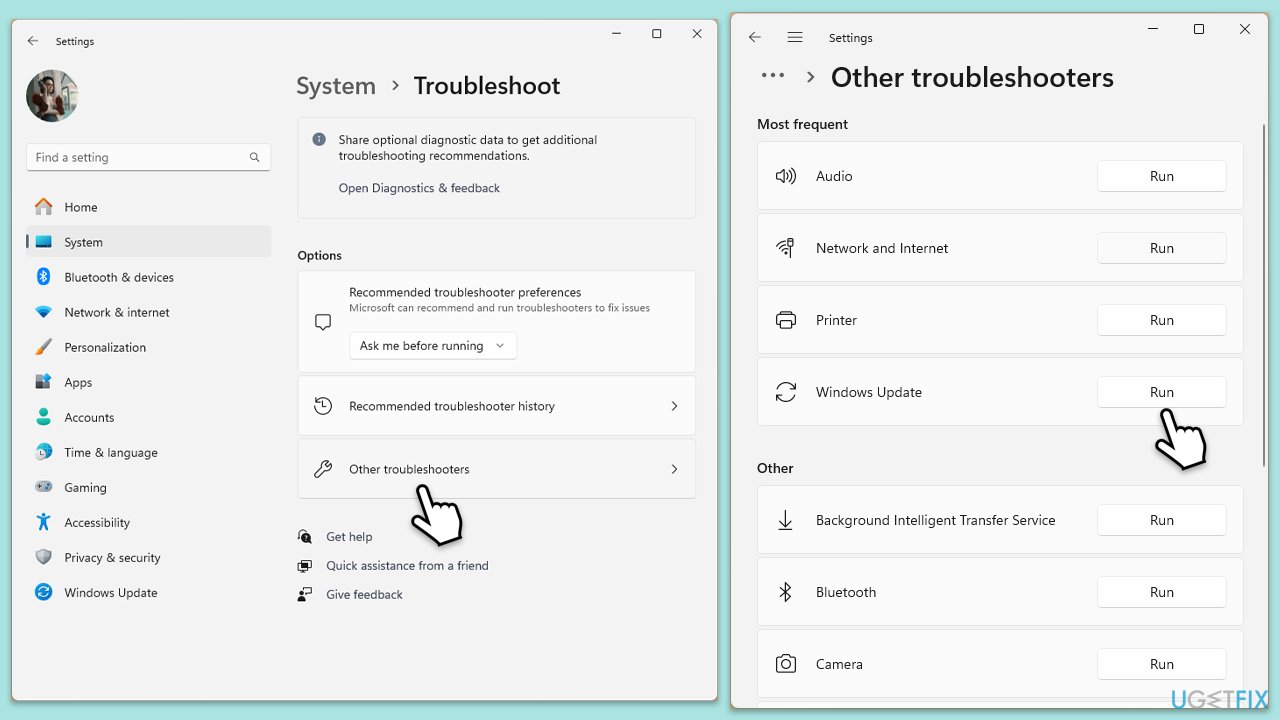
Fix 2. Run Windows update troubleshooter
- Type Troubleshoot into the Windows search bar and press Enter.
- Next, on the right side of the window, select Additional troubleshooters/Other troubleshooters.
- Scroll down to locate the Windows update option and click on it.
- Click on Run the troubleshooter/Run and allow the process to complete.
- Once it is finished, repeat this process with Network troubleshooter.
- Restart your system.
Fix 3. Check relevant services
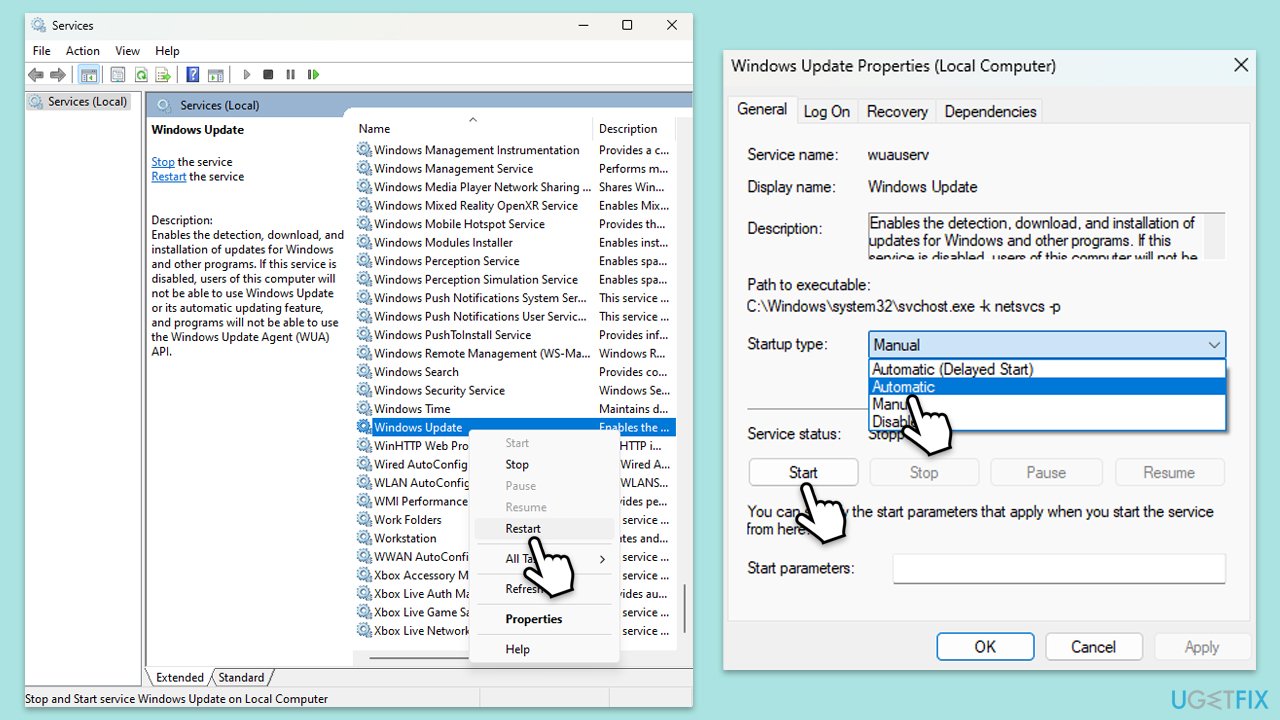
- Type in Services in Windows search and press Enter.
- Find Windows Update.
- If it is already running, right-click and pick Restart.
- If the service is not running, double-click it, and select Automatic under the Startup type from the drop-down menu.
- Click Start, Apply, and OK.
- Repeat this process for Background Intelligent Transfer Service (BITS) and Cryptographic services.
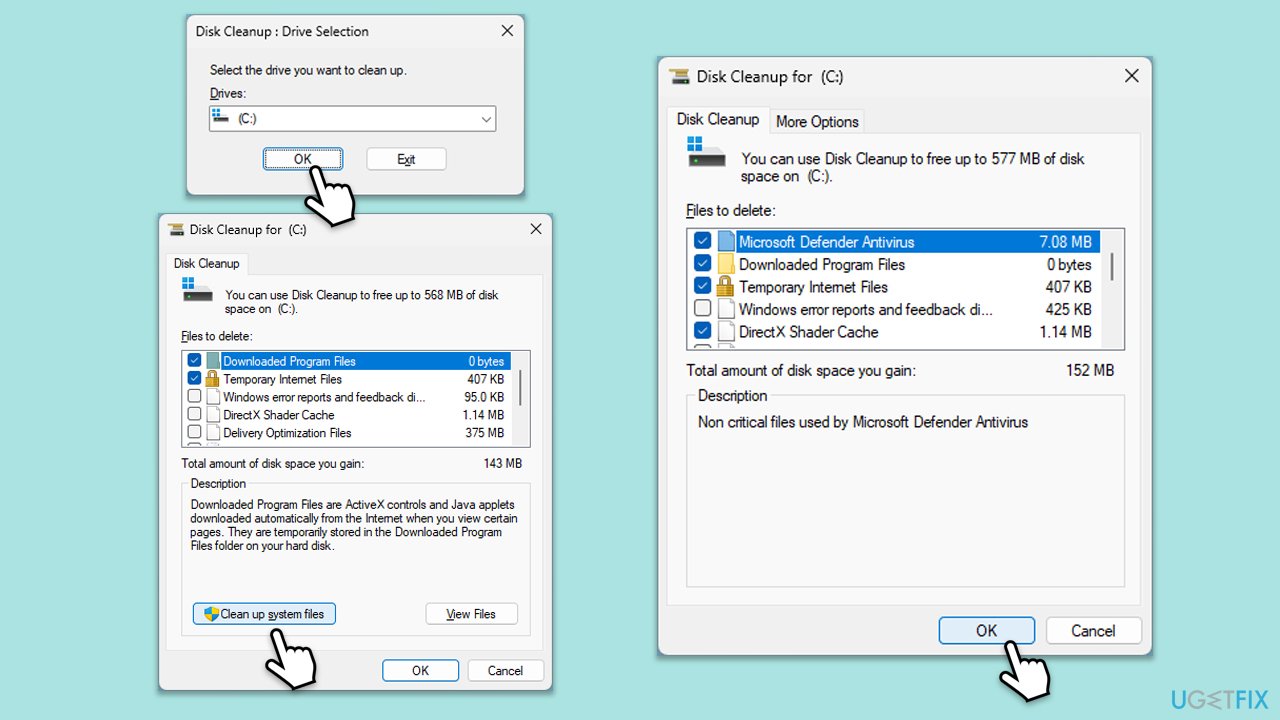
Fix 4. Run Disk Cleanup
Disc Cleanup helps by deleting redundant files from your system, freeing up space needed for Windows updates. It targets temporary files, system files, and other objects that no longer serve a purpose but nonetheless consume valuable disk space.
- Open the Windows search bar and type Disk Cleanup. Press Enter to open the Disk Cleanup utility.
- In the Disk Cleanup window, select the drive where your Windows operating system is installed (usually drive C:) and click OK.
- Click Clean up system files.
- Select the drive again and click OK.
- In the list of files that can be cleaned up, select the largest portions of data, such as Temporary Internet Files, Windows Update, Temporary Files, and others.
- Click OK to begin the cleanup process.
Fix 5. Reset Windows update components
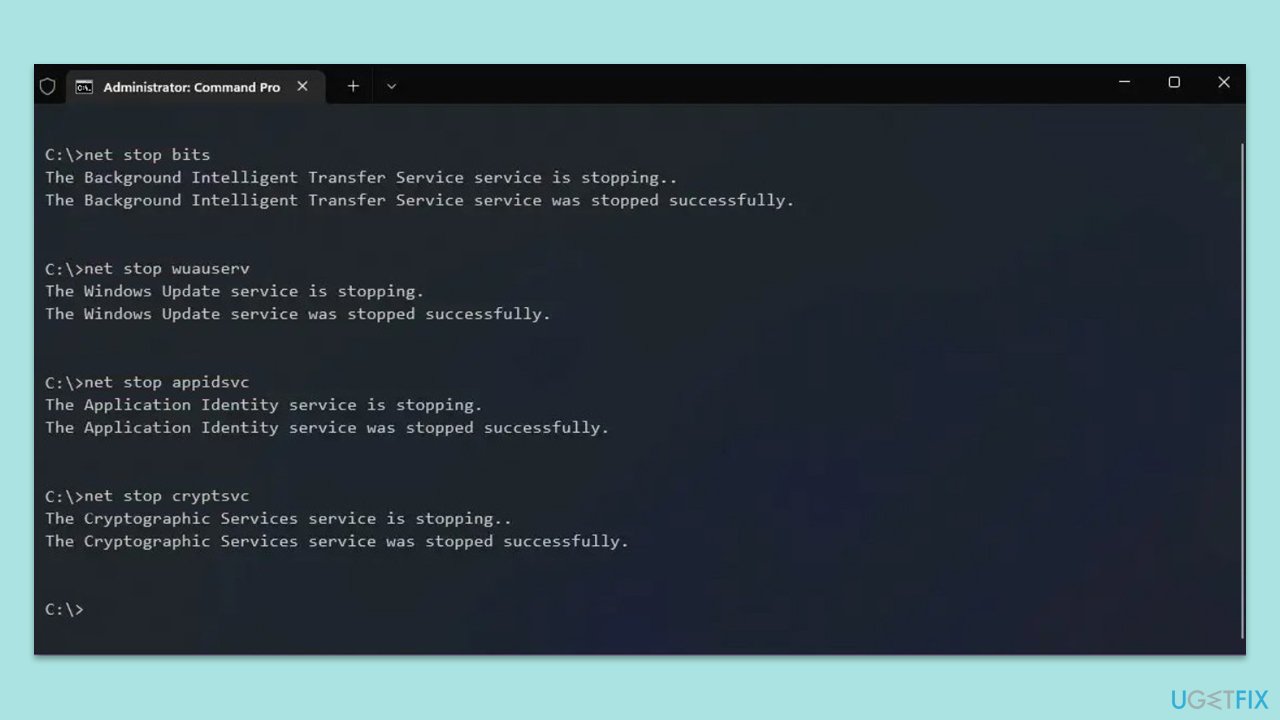
- Type cmd in Windows search.
- Right-click on the Command Prompt result and select Run as administrator.
- When the UAC window pops up, click Yes.
- Paste in each of these commands, pressing Enter every time:
net stop bits
net stop wuauserv
net stop appidsvc
net stop cryptsvc
Del “%ALLUSERSPROFILE%\Application Data\Microsoft\Network\Downloader\*.*”
rmdir %systemroot%\SoftwareDistribution /S /Q
rmdir %systemroot%\system32\catroot2 /S /Q
regsvr32.exe /s atl.dll
regsvr32.exe /s urlmon.dll
regsvr32.exe /s mshtml.dll
netsh winsock reset
netsh winsock reset proxy
net start bits
net start wuauserv
net start appidsvc
net start cryptsvc - Restart your device.
Fix 6. Perform a Clean Boot
- Disable your anti-malware software temporarily and try the update again.
- If the problem persists, press Win + R, type msconfig, and hit Enter.
- Go to the Services tab and tick the Hide all Microsoft services checkbox.
- Select Disable all.
- Go to the Startup tab and click Open Task Manager.
- Here, right-click on each of the non-Windows entries and select Disable.
- Close down the Task Manager.
- Go to the Boot tab and tick the Safe boot option.
- Restart your PC and try installing the update again.
Fix 7. Use the Media Creation Tool
If all else fails, you can rely on the Media Creation Tool to repair your Windows installation and install the latest version on your system.
- Visit the official Microsoft website and download Windows 10 installation media (Windows 11 version).
- Double-click the installer, select Yes when UAC shows up, and agree to the terms.
- Launch the installer.
- Agree to the terms and click Next.
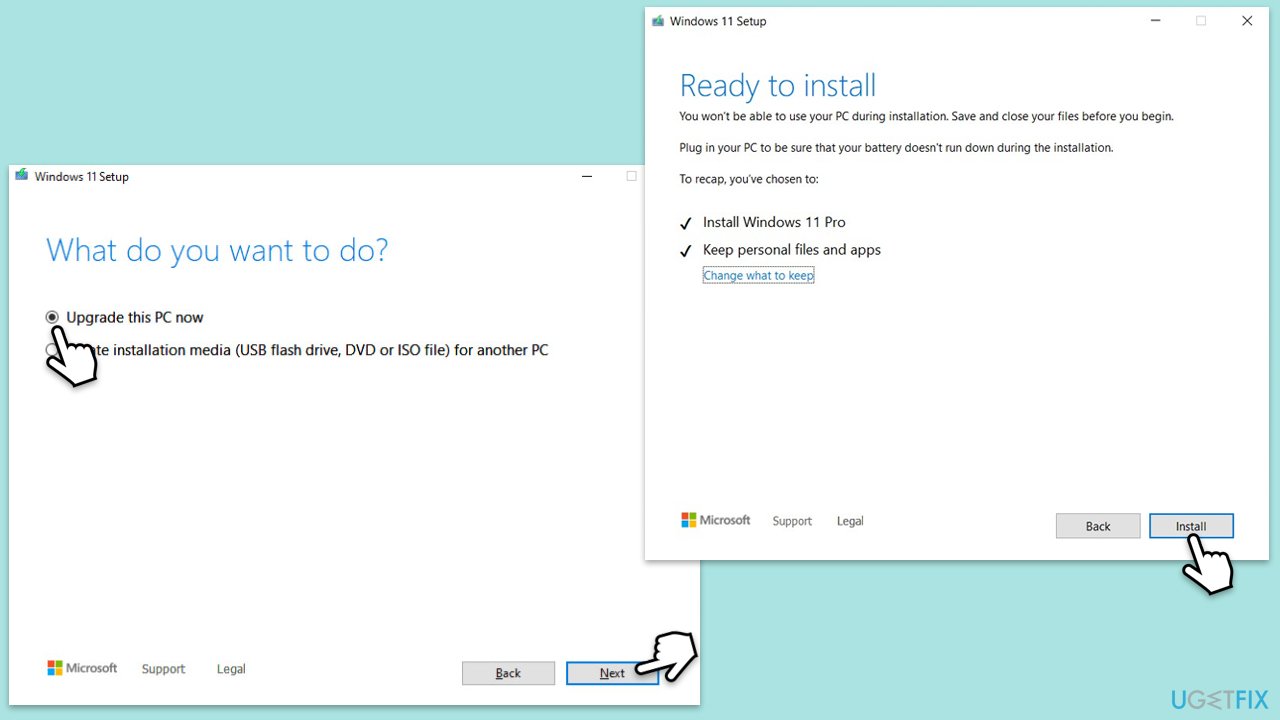
- Select Upgrade this PC now and click Next.
- Windows will start downloading the needed files.
- Agree to terms once again and click Next.
- Before installing, make sure that you are happy with your choices (otherwise, you can click Change what to keep option).
- Finally, click Install to begin the upgrade process.
Bottom line
The error 0x80070007 can often be resolved by clearing leftover files, scanning the system's health, and restarting the update components. If these solutions do not work, consider using a fixing tool to detect hidden files, clean the registry, and fix any corruption.
Frequently asked questions
This error often occurs due to corrupted system files, issues with the Windows Update service, or conflicts with third-party antivirus software.
You can reset the Windows Update components by running commands in the Command Prompt, such as 'net stop wuauserv' and 'net start wuauserv', followed by 'net stop cryptSvc' and 'net start cryptSvc'.
Yes, you can use the built-in Windows Update Troubleshooter in Windows 10 or Windows 11, which can automatically detect and fix issues related to updates.




Report an issue
What's wrong with this guide? We review every report and update or remove content.
Report received — thank you. We'll review and fix it.
You need a free account to submit a report.
Be the first to comment