How to fix
Windows Update error 0x80070013
on Windows
Resolve Windows Update error 0x80070013 quickly and efficiently. Follow our expert-tested solutions to get your system back on track in minutes.

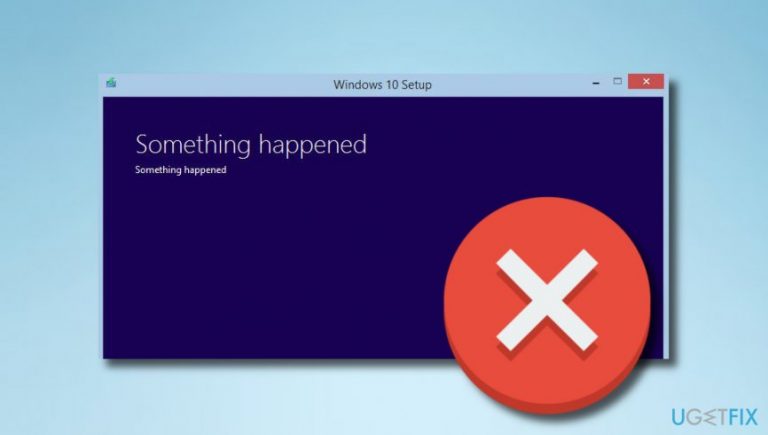
What causes How to fix Windows Update error 0x80070013?
- Virus/malware infections
- Software issues
- Registry problems
- Startup program conflicts
- Driver incompatibility
Repairs Windows system files, removes malware, and restores a clean OS state — without reinstalling.
When I try to run Windows 10 Anniversary Update, I encounter an error 0x80070013, which stops the process from going any further. I’ve tried running the update several times, but each time this value occurs. Sometimes, it appears at the beginning of the process, but sometimes the upgrade starts loading, but then freezes and error window shows up. Why is this happening?
0x80070013 is yet another Windows 10 Update Error. After a close look at Microsoft[ref en-1] and other forums online, it seems that this particular error is a very common issue faced by thousands of Windows 10 users recently. The error emerged along with Windows Anniversary Update, so it’s a fresh error, but, luckily, already has a solution.
Very often errors like this one are triggered by virus/malware[ref en-4] infections, software, registries, startup programs, updates, and similar issues. In this case, 0x80070013 error code is caused by a driver. There are two possible driver issues that don’t let you upgrade Windows 10, i.e. you are either trying to install an already existing driver or it is not compatible with the hardware (or less compatible if compared to the one that is already running on the system). As long as you don’t fix 0x80070013 error, you won’t be allowed to upgrade Windows.
NOTE: whenever your device encounters an error, it’s advisable to install a reputable software and troubleshoot the system. Specialists claim that [d1] and [rev id=”RegCure Pro”] showed great results in fixing Windows Update errors and more. Thus, consider installing and running one of these anti-malware programs[ref en-3].
This video will help you with solving the issue:
[youtube ZRArjGFk4w8]
Fix Windows Update error 0x80070013 message
It goes without saying that each system has to be updated regularly in order to maintain its best performance. Therefore, Windows Update error 0x80070013 may be a serious problem. To end this frustration, try to reset Windows Update Components. This 0x80070013 fix requires accessing Command Prompt panel, which can be done by performing the following steps:
- At the bottom-left corner, find Windows icon, click it and at the same time press X key.
- When a drop-down panel shows up, locate and click on the Command Prompt (Admin) option.
- If a User Account Control confirmation window emerges, click Yes.
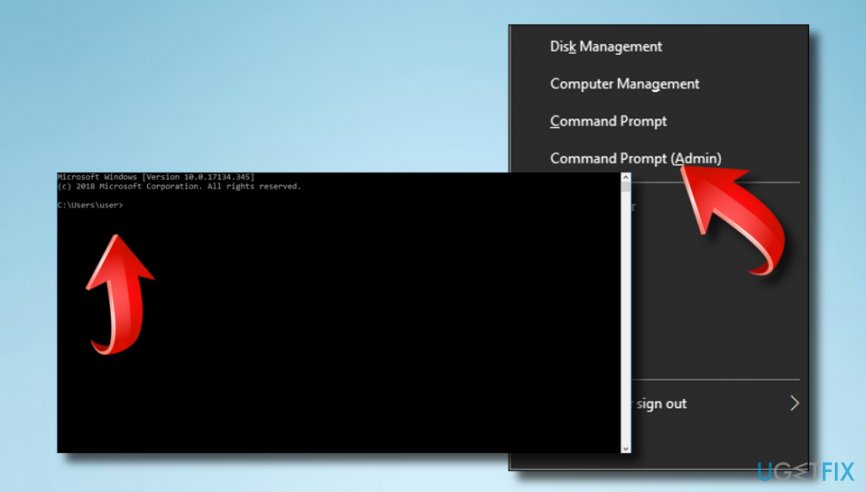
When you open a Command Prompt window, your task here is to stop several Windows services (MSI Installer, Windows Update Services, BITS). Be very careful because it’s the correct commands without any typing mistakes are fundamental here. Thus, type the following commands in the black window and press Enter after each of them
net stop wuauserv
net stop cryptSvc
net stop bits
net stop msiserver
Next step is to change the names of Catroot2 and SoftwareDistribution folders. For that, you just have to type ren C:\\Windows\\System32\\catroot2 Catroot2.old and ren C:\\Windows\\SoftwareDistribution SoftwareDistribution.old commands in the Command Prompt (Admin) window and hit Enter after each of them.
Finally, restart the processes that we have stopped before. Thus, don’t close the Command Prompt (Admin) window, enter the commands listed below in it, and press Enter after each of them:
net start wuauserv
net start cryptSvc
net start bits
net start msiserver
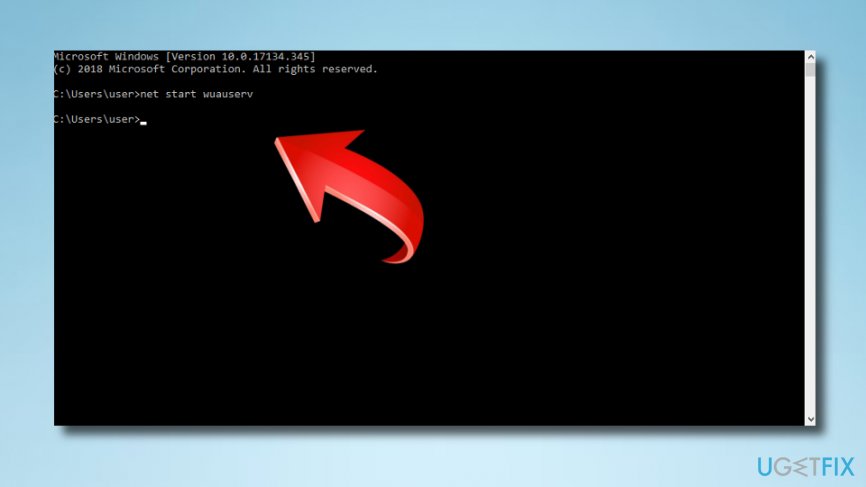
Now close Command Prompt (Admin) window by pressing X button at the upper-right corner or type Exit in the window and hit Enter.
We assume that this 0x80070013 error fix is much easier than expected. However, be extremely careful and perform each step as indicated because otherwise Windows system[ref en-2] will not understand or, even worse, may misunderstand the commands, what may cause further issues. If you have already performed all these steps, test if 0x80070013 error removal was successful by running Windows 10 Update.
Bottom line
To fix the Windows Update error 0x80070013, you can try resetting Windows Update Components and running reputable anti-malware software. If these solutions do not resolve the issue, consider seeking further assistance or troubleshooting your system with additional tools.
Frequently asked questions
The error 0x80070013 typically indicates that there is a problem with the update files, often due to a corruption or a permission issue on Windows 10 or Windows 11.
To fix the error 0x80070013 on Windows 10, you can try running the Windows Update Troubleshooter and then manually resetting the Windows Update components.
Yes, in Windows 11, you can open Command Prompt as an administrator and run the commands 'net stop wuauserv', 'net stop cryptSvc', 'net stop bits', and 'net stop msiserver' to reset the update services before attempting to update again.




Report an issue
What's wrong with this guide? We review every report and update or remove content.
Report received — thank you. We'll review and fix it.
You need a free account to submit a report.
Be the first to comment