How to fix
Windows update error 0x8007001C
on Windows
Resolve Windows update error 0x8007001C quickly and easily. Get expert-tested solutions for Windows 10 and 11 users and fix it in minutes!

What causes How to fix Windows update error 0x8007001C?
- Corrupted update caches
- Cramped disk space
- Glitchy update caches
- Old update files
- System-level gremlins
Repairs Windows system files, removes malware, and restores a clean OS state — without reinstalling.
This morning I started my laptop, and now I’m getting the 0x8007001C error every time I attempt a Windows update. Why is this happening, and what’s the solution?
Windows update errors can ruin your day-to-day computing, leaving your system exposed to vulnerabilities and interrupting essential maintenance. These issues often strike without warning, derailing the seamless performance Windows users expect. One such problem is the Windows update error 0x8007001C, a common yet vexing problem that’s been making rounds online.
From what users report across tech forums and social platforms, 0x8007001C error typically rears its head during update installations - sometimes freezing the process or forcing a rollback, with cryptic failure messages that leave folks scratching their heads. It’s an issue tied to various culprits, from corrupted update caches to cramped disk space.
Resolving the 0x8007001C error isn’t always a one-size-fits-all fix; it often takes a few attempts to pinpoint what works for your setup. The cause can differ wildly - say, if you’re dealing with glitchy update caches, clearing out the SoftwareDistribution folder and restarting related services might be your golden ticket.
For others, running the Windows Update Troubleshooter could automatically sort things out with minimal fuss. In trickier scenarios, users might need to roll up their sleeves and perform a disk cleanup to ditch old update files or free up some breathing room on their drive. Whatever the trigger, the right fix depends on digging into your system’s specific quirks, and we’ll break down those options in detail later.
When you’re ready for a shortcut, tools like the [d1] repair application can step in. It’s designed to handle a slew of troubleshooting tasks automatically - think corrupted system files, DLL errors, or other system-level gremlins - making it a handy ally for tackling the 0x8007001C error with less manual effort.
Fix 1. Run Windows update troubleshooter
Built into Windows, this tool scans for common update issues and applies fixes automatically, making it a quick first step for resolving error 0x8007001C.
- Type Troubleshoot in Windows search and hit Enter.
- Select Additional troubleshooters/Other troubleshooters.
- Find Windows Update from the list and select Run the troubleshooter/Run.
- Wait till the scan is finished - you will be provided with potential causes so you can proceed with fixes.
- Repeat this process with Network troubleshooter.
Fix 2. Check services
Certain services have to be running for Windows updates to be successful. You should make sure that's the case; if they are already running, restarting could be a good idea.
- Type in Services in Windows search and press Enter.
- Locate Windows Update Service.
- If it is already running, right-click and select Restart.
- if the service is not running, double-click it to open Properties.
- Under the Startup type, select Automatic from the drop-down menu.
- Click Start, Apply, and OK.
- Locate Background Intelligent Transfer Service (BITS), Cryptographic service, and Windows Installer service, and repeat the process.
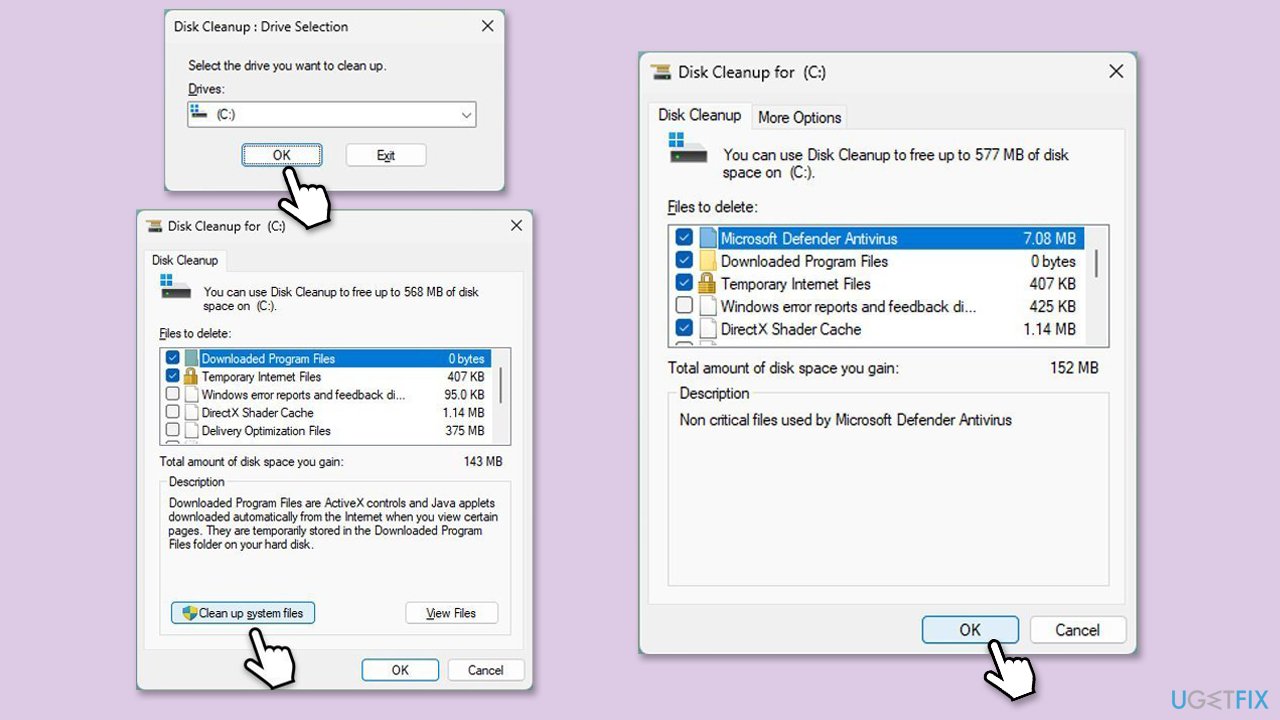
Fix 3. Perform disk cleanup
Old update files or low disk space can trigger the error, and this utility clears out the clutter.
- Type Disk Cleanup in Windows search and hit Enter.
- If your Windows is installed on drive C, pick it from the list (it should be by default) and press OK.
- Click Clean up system files.
- Select your main disk again and click OK.
- Here, select the largest portions of the data used - these typically include Temporary Internet Files, Windows Update, Temporary Files, Recycle Bin, Delivery Optimization Files, and others.
- Click OK - the process should be finished shortly.
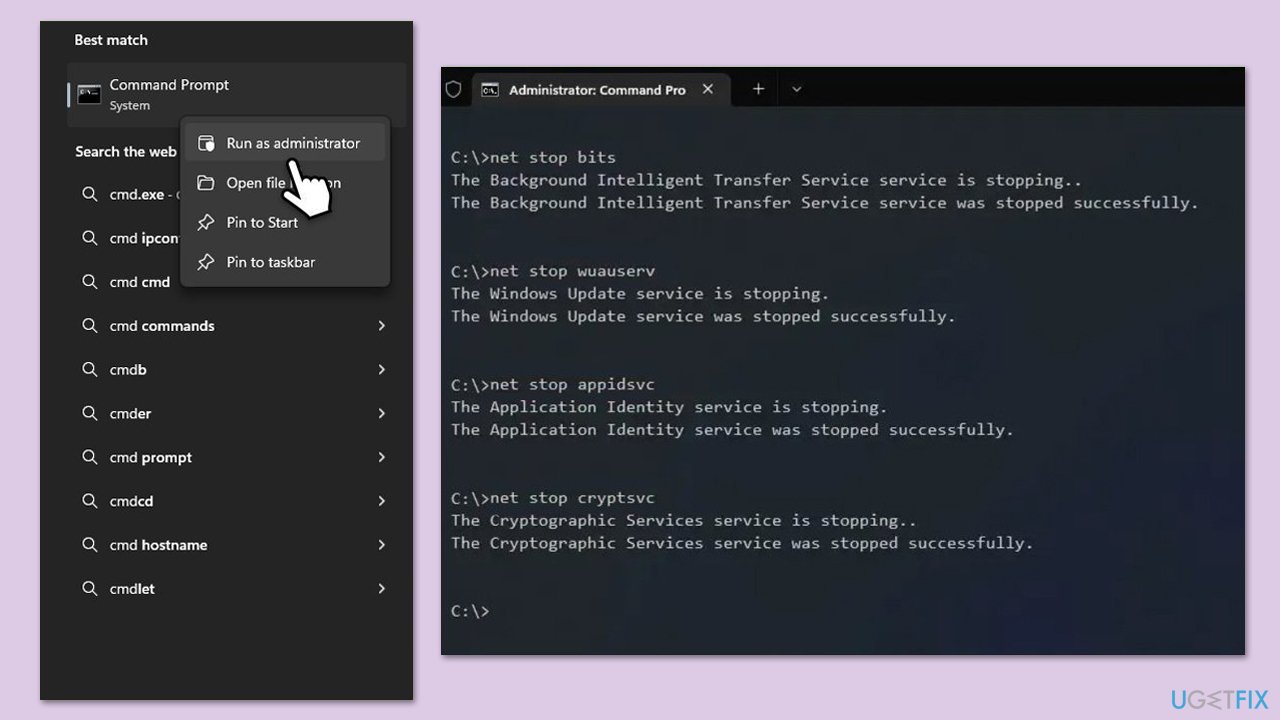
Fix 4. Reset Windows update components
Misconfigured services can disrupt updates, and resetting them restores default functionality.
- Type in cmd in Windows search.
- Right-click on Command Prompt and select Run as administrator.
- In the User Account Control window, click Yes.
- Stop the Windows Update-related services by running the following commands one at a time, pressing Enter after each one:
net stop wuauserv
net stop cryptSvc
net stop bits
net stop msiserver - Rename the SoftwareDistribution and Catroot2 folders by running the following commands:
ren C:\Windows\SoftwareDistribution SoftwareDistribution.old
ren C:\Windows\System32\catroot2 Catroot2.old
Note: If your Windows installation is not on the C drive, replace "C" with the appropriate drive letter.
regsvr32.exe /s atl.dll
regsvr32.exe /s urlmon.dll
regsvr32.exe /s mshtml.dll
netsh winsock reset
netsh winsock reset proxy - Restart the Windows Update-related services by running the following commands:
net start wuauserv
net start cryptSvc
net start bits
net start msiserver - Restart the computer.
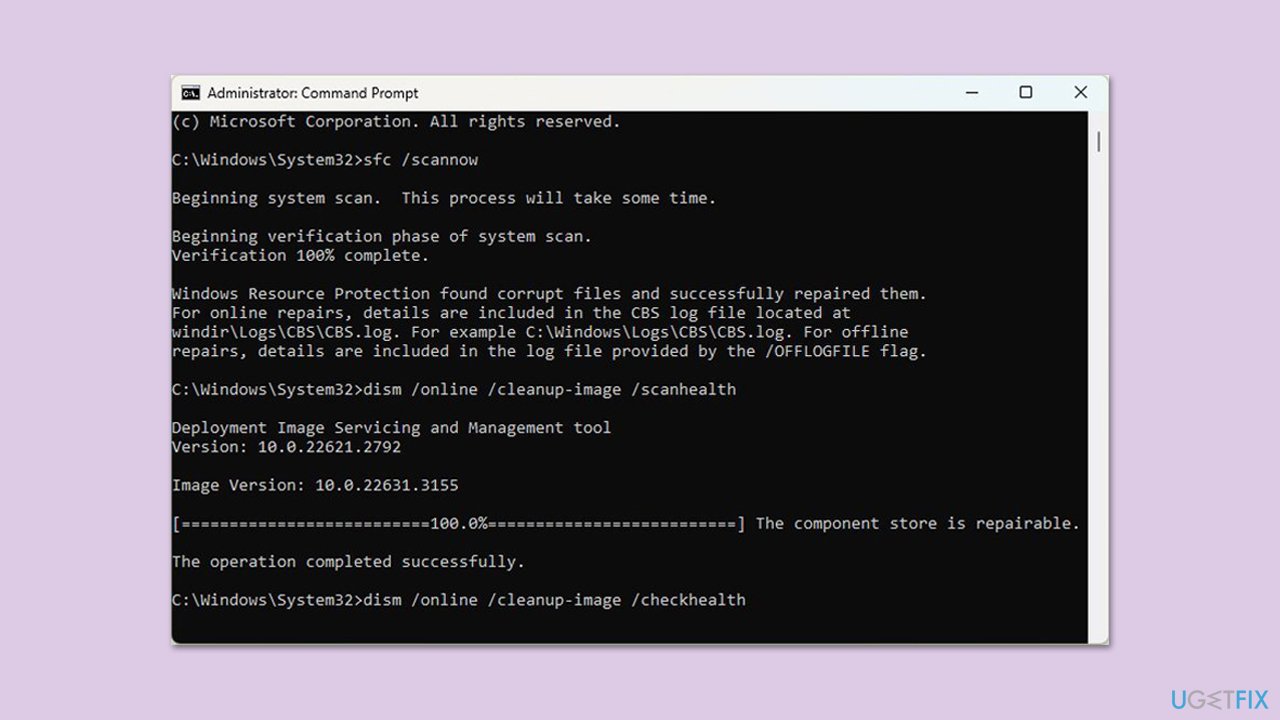
Fix 5. Run SFC and DISM
System file corruption can block updates, and these tools repair damaged files and restore system health.
- Open Command Prompt as administrator.
- In the Command Prompt window, paste the following command and hit Enter:
sfc /scannow - Next, use the following commands, pressing Enter each time:
Dism /Online /Cleanup-Image /CheckHealth
Dism /Online /Cleanup-Image /ScanHealth
Dism /Online /Cleanup-Image /RestoreHealth
(Note: if you get an error executing this last command, add /Source:C:\RepairSource\Windows /LimitAccess to it and try again). - Reboot your system.
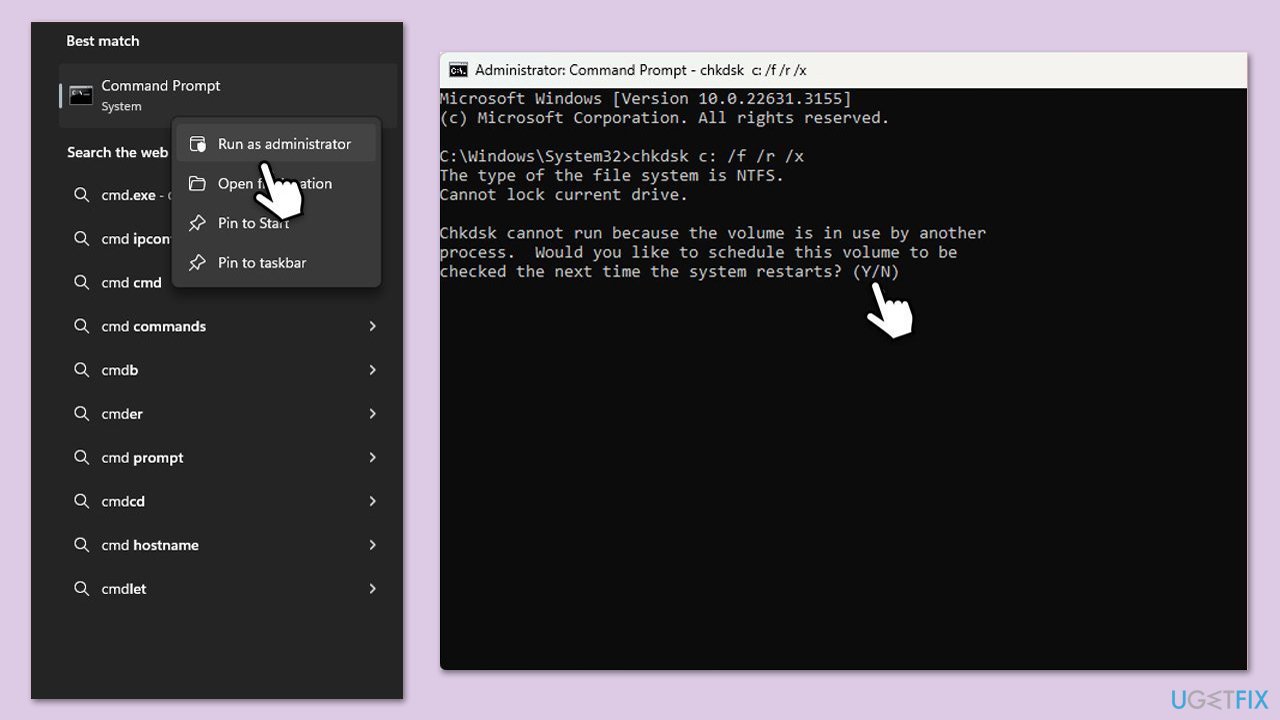
Fix 6. Check disk for errors
File system issues on your drive might interfere with updates, and this check can resolve them.
- Open Command Prompt as administrator.
- When User Account Control shows up, click Yes.
- In the new window, type in the following command and press Enter after:
chkdsk c: /f
(Note: use chkdsk c: /f /r /x command if you are using SSD as your primary partition) - If you receive an error, type in Y, close down Command Prompt and restart your device.
- Wait until the scan is finished - you can find the results in the Event Viewer.
Fix 7. Disable third-party antivirus temporarily
Overzealous security software can block update files, and pausing it might let the process through.
- Locate your antivirus icon in the system tray.
- Right-click and select Disable or Pause protection.
- Choose a short duration, like 15 minutes.
- Try to update Windows again.
Fix 8. Install the update manually
If automatic methods fail, you can always resort to the manual method.
- Type in Updates in Windows search and press Enter.
- Select View update history.
- Find the update that failed with the 0x8007001C error and copy its KB number.
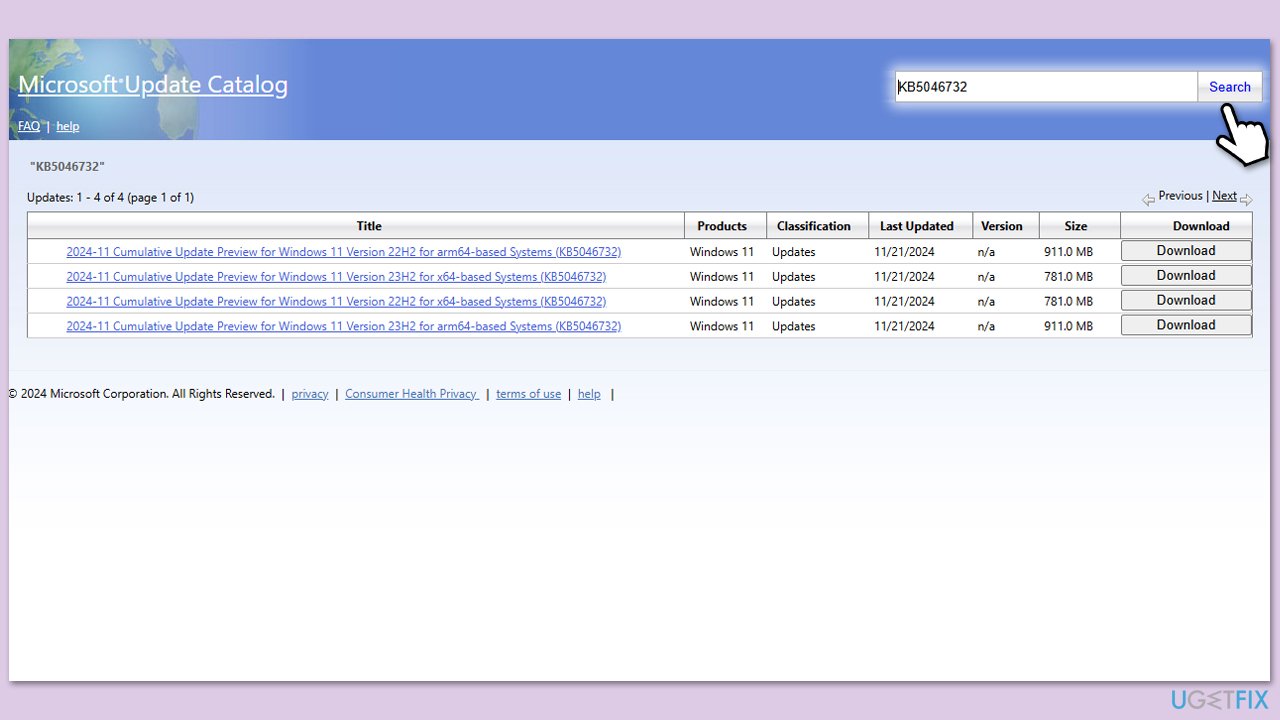
- Open your browser and go to Microsoft Update Catalog.
- Within the search bar, type in the KB number and click Search.
- Find the correct version of the update for your operating system (to check this, right-click on Start and pick System. Under Device specifications and check the System type) and click Download.
- Use on-screen guidelines to finish the installation process and restart your computer.
Bottom line
To fix the Windows update error 0x8007001C, you can run the Windows Update Troubleshooter, clear the SoftwareDistribution folder, or perform a disk cleanup. If these solutions do not resolve the issue, consider using a repair application designed to handle various system-level problems.
Frequently asked questions
The error code 0x8007001C typically indicates that there is a problem with the Windows Update service, often related to issues with system files or services being blocked.
To resolve the 0x8007001C error, you can try running the Windows Update Troubleshooter, or reset the Windows Update components manually.
Yes, ensure that your Windows Update service is running and that any third-party antivirus software is temporarily disabled, as it may interfere with the update process.




Report an issue
What's wrong with this guide? We review every report and update or remove content.
Report received — thank you. We'll review and fix it.
You need a free account to submit a report.
Be the first to comment