How to fix
Windows update error 0x8007001d
on Windows
Resolve Windows update error 0x8007001d effortlessly. Get expert-tested solutions for Windows 10 and 11 issues, fixed in minutes!

What causes How to fix Windows update error 0x8007001d?
- Important security updates not installed
- Outdated system drivers causing malfunctions
- Damaged Windows Update files preventing updates
- Compatibility issues with new hardware or software
Repairs Windows system files, removes malware, and restores a clean OS state — without reinstalling.
Hello. When I try to install Windows Updates I receive the 0x8007001d error code. How can I fix it?
Windows updates are critical for maintaining a Windows operating system's security, stability, and performance. They provide necessary patches, bug fixes, and feature enhancements that aid in the protection of the system against malware, vulnerabilities, and other security threats. Additionally, updates ensure that the operating system and installed software remain compatible with the most recent hardware and technologies.
When users encounter the Windows update error 0x8007001d, it can have a number of negative consequences. For starters, it may prevent important security updates from being installed, leaving the system vulnerable to exploits and attacks. Outdated system drivers can cause problems with new hardware or software, resulting in malfunctions or instability.
Damaged Windows Update files can cause updates to fail, preventing users from accessing new features, bug fixes, and performance enhancements. Users can resolve the error in a variety of ways, depending on the underlying cause. Some potential solutions include clearing the Windows Update cache, updating system drivers, repairing damaged Windows Update files, and performing a system restore.
In this guide, you will find 8 steps that should help you fix Windows update error 0x8007001d. To avoid a lengthy troubleshooting process, you can use a maintenance tool like [d1] that can fix most system errors, BSODs,[ref en-1] corrupted files, registry[ref en-2] issues, or clear cookies and cache.[ref en-3] Otherwise, follow the step-by-step instructions below.
Solution 1. Check Disk
Ensure that your disk is not damaged. You can perform checks using Administrative Command Prompt:
- If you are using an HDD as your main driver (where your operating system is installed – C: by default), use the following command and press Enter:
chkdsk c: /f - If you are using SSD, use this command:
chkdsk c: /f /r /x
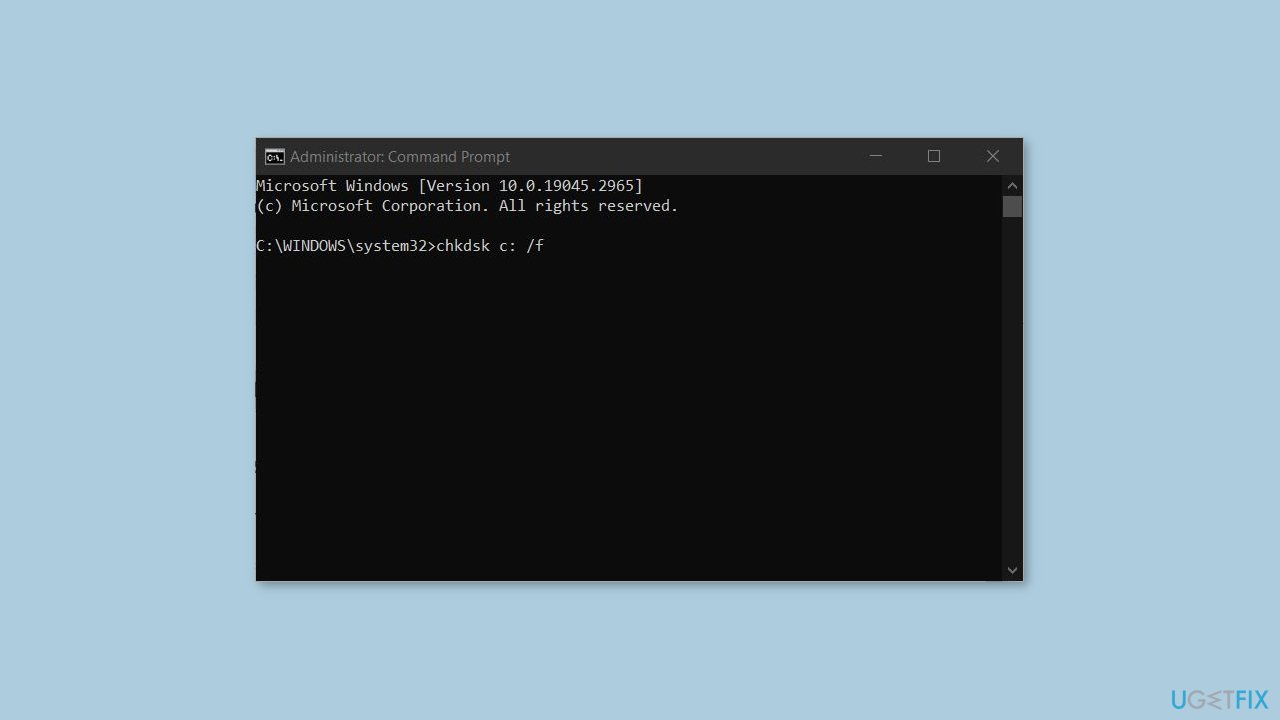
- If you receive an error, type in Y and hit Enter.
- Restart your device to perform the check.
Solution 2. Repair Corrupted System Files
Use Command Prompt commands to repair system file corruption:
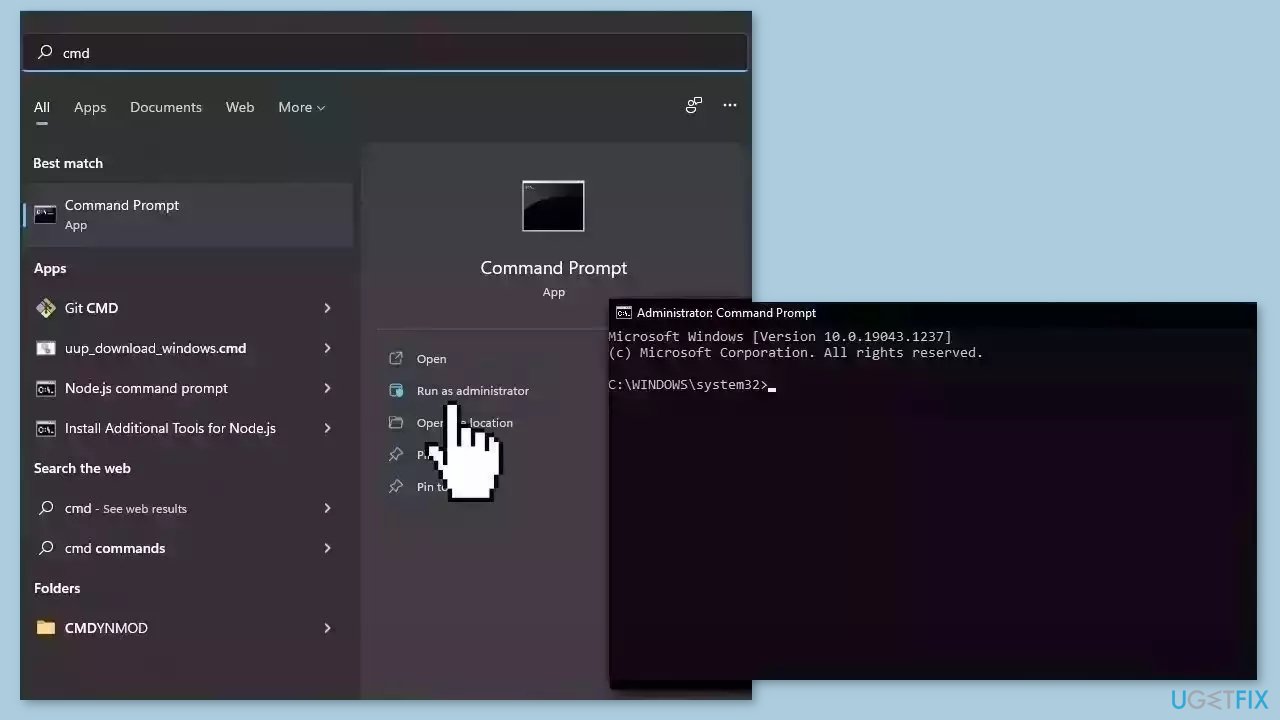
- Open Command Prompt as administrator
- Use the following command and press Enter:
sfc /scannow
- Reboot your system
- If SFC returned an error, then use the following command lines, pressing Enter after each:
DISM /Online /Cleanup-Image /CheckHealth
DISM /Online /Cleanup-Image /ScanHealth
DISM /Online /Cleanup-Image /RestoreHealth
Solution 3. Run the Update Troubleshooter
- Press the Windows key + X and go to Settings.
- Go to Update and Security.
- Click Troubleshooter.
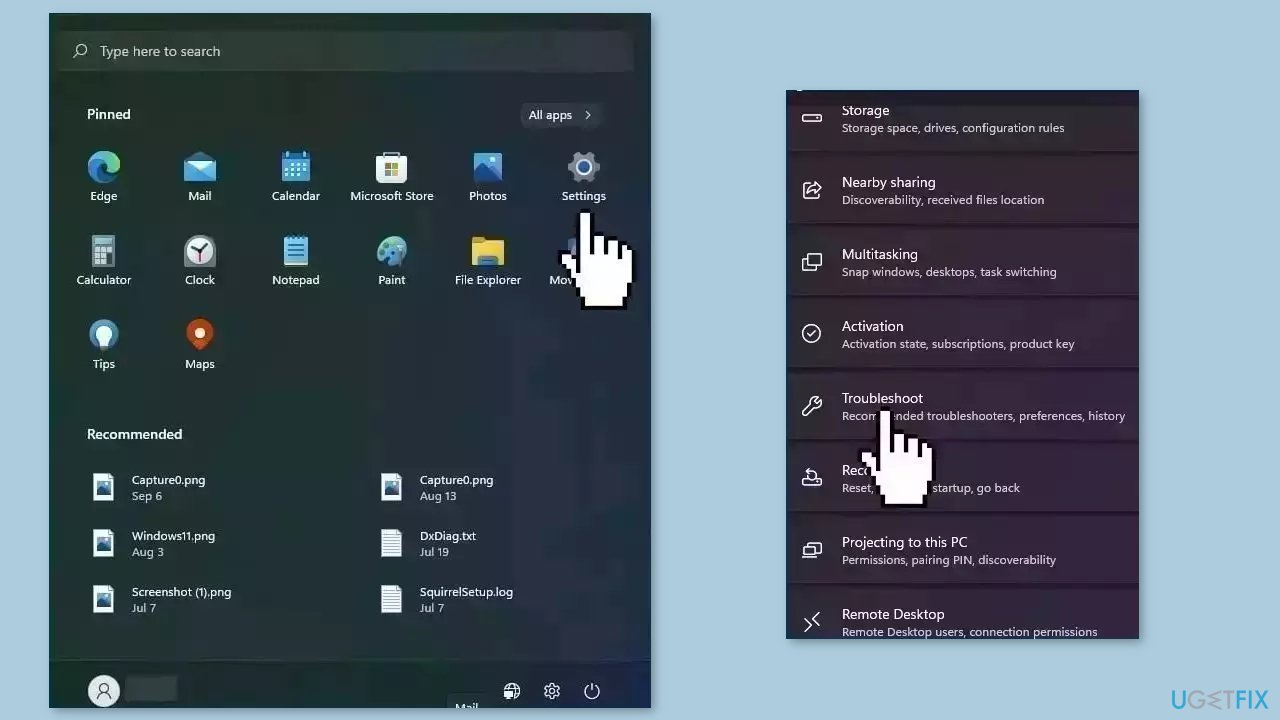
- Select Additional troubleshooters.
- Run the Update troubleshooter.
- Restart the computer.
Solution 4. Restart Windows Services
- Press Windows + R to open the Run box.
- Type in services.msc and press OK.
- Double-click Background Intelligent Transfer Service.
- If the Startup status lists Stopped, click Start and then click OK.
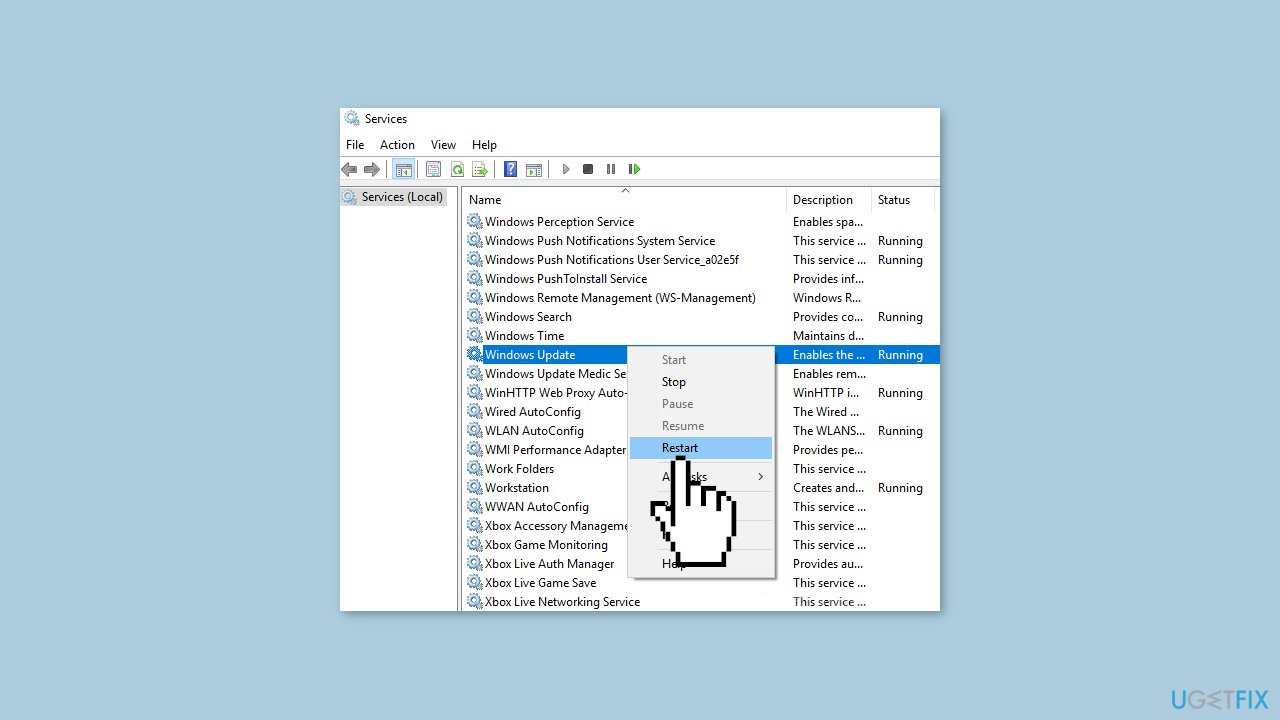
- If the status is Running, right-click then select Restart.
- Locate the Windows Update service and double-click it.
- If the Startup status lists Stopped, click Start and OK. If the status is Running, right-click, then select Restart.
Solution 5. Update Drivers
Outdated drivers could be the cause of this issue. In this case, you can fix it automatically by using [rev id="DriverFix"], which will scan your PC for missing and out-of-date device drivers. Or you can update them manually:
- Open Settings
- Click on Update & Security
- Click on Windows Update
- Click the Check for updates button
- Click the View optional updates option
- Click the Driver updates tab
- Select the driver you want to update
- Click the Download and install button
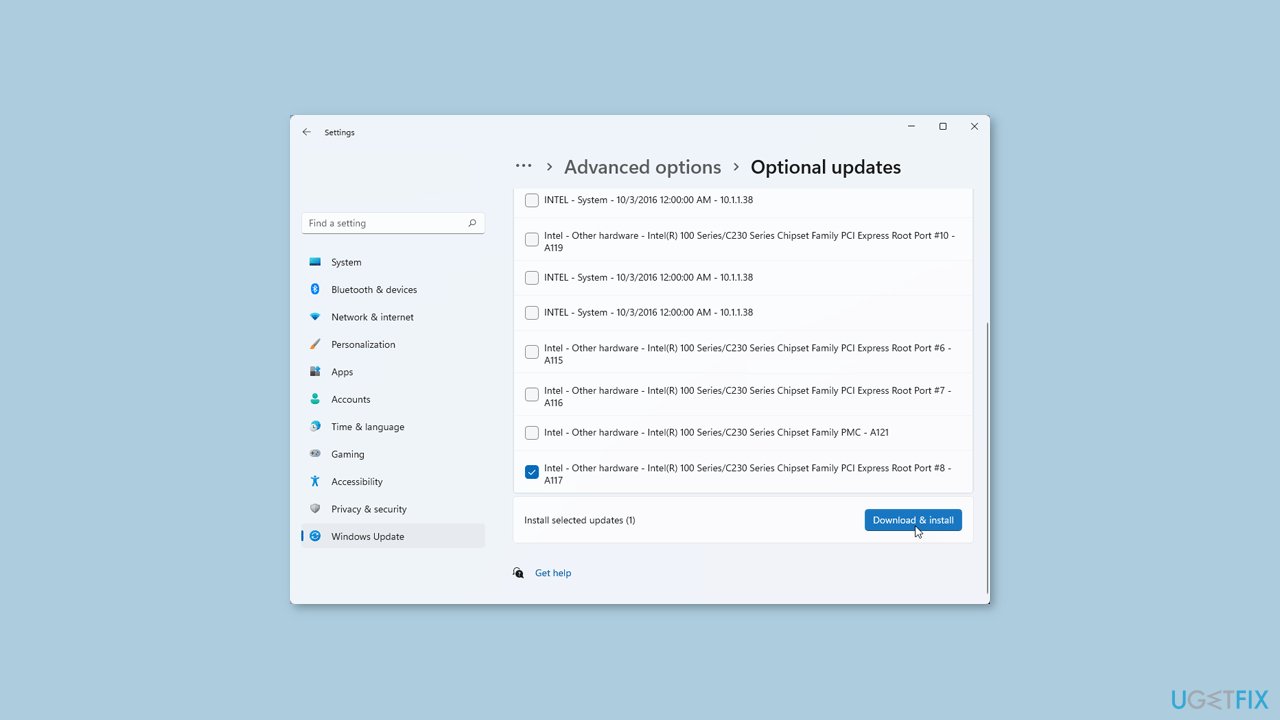
If the View optional updates link is not available after checking for updates, then Windows Update does not have any new drivers or any updates for other products at that particular time.
Solution 6. Install the Update Manually
Whenever Windows updates fail to install automatically, you can always try doing it manually. First, you need to find out which KB number is relevant to you.
- Right-click Start button and pick Settings.
- Go to Update & Security.
- On the right, locate and click View update history.
- From the list, note the KB number that fails to install with the error code.
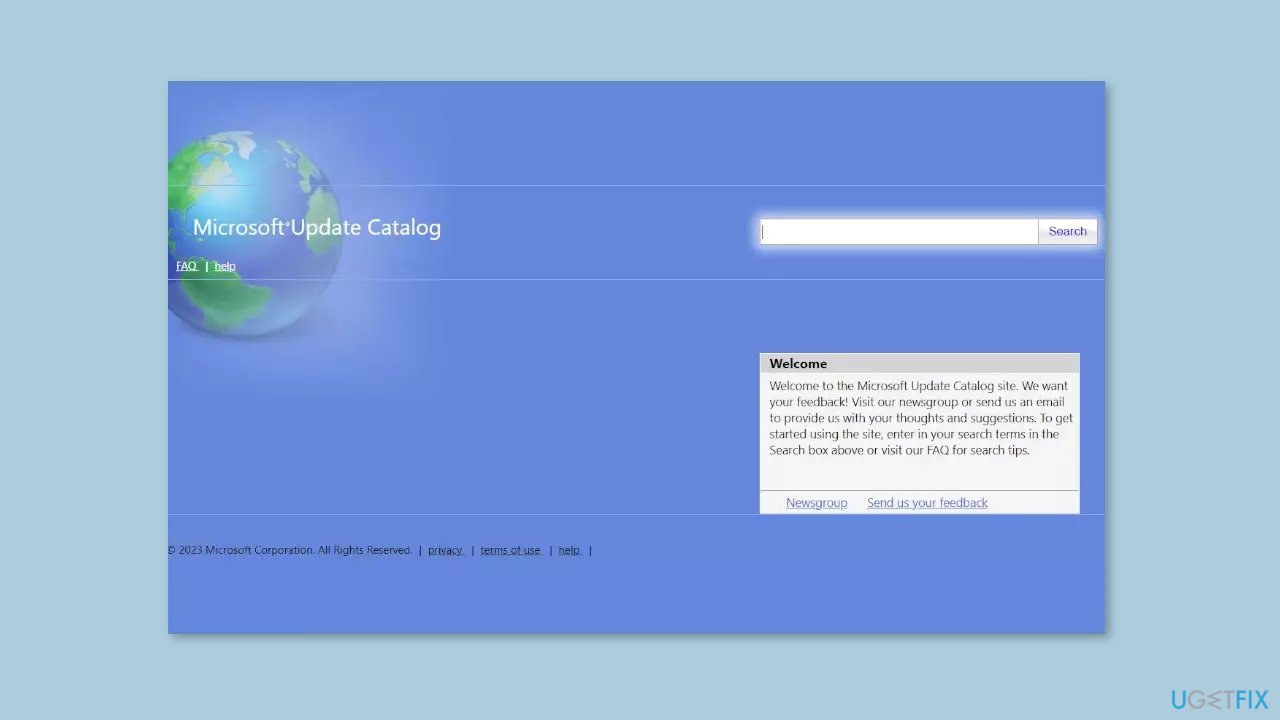
- Go to Microsoft Update Catalog page, type in the KB number, and press Search.
- Download the update and install it manually.
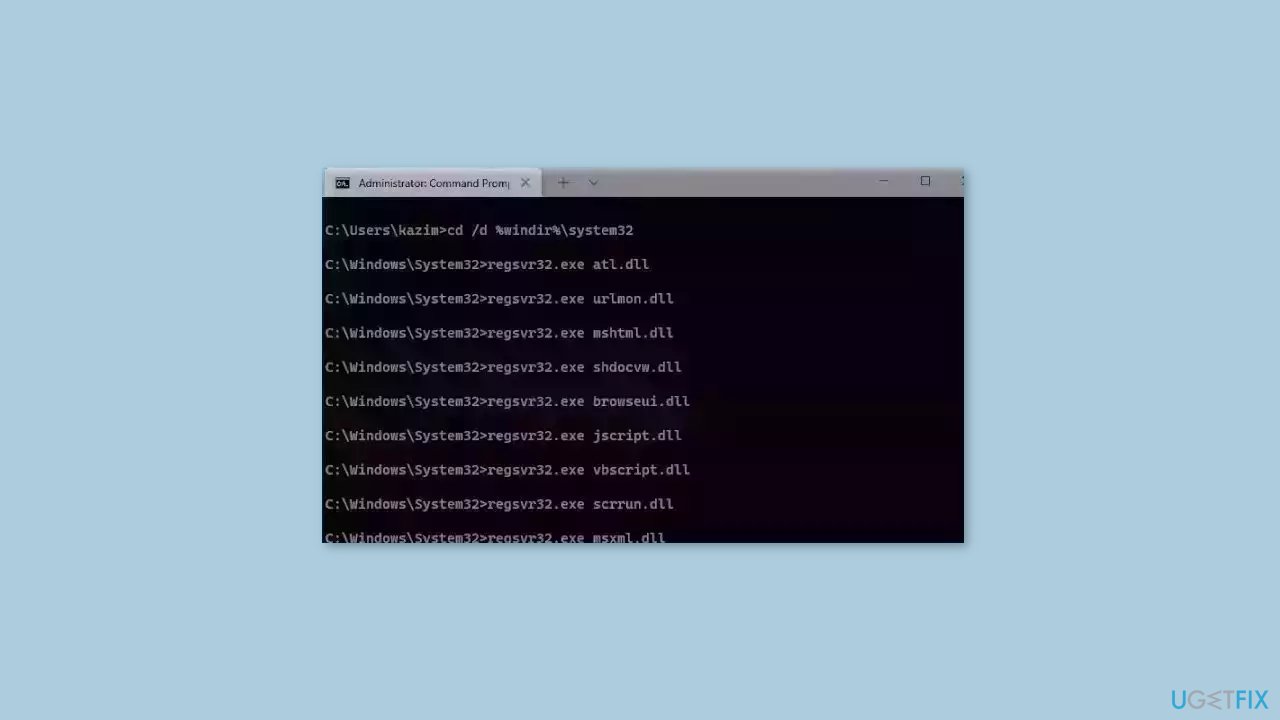
Solution 7. Reset Windows Update Components
- Open Command Prompt as administrator again.
- Copy and paste the following commands, pressing Enter after each:
net stop bits
net stop wuauserv
net stop appidsvc
net stop cryptsvc
Del “%ALLUSERSPROFILE%\Application Data\Microsoft\Network\Downloader\*.*”
rmdir %systemroot%\SoftwareDistribution /S /Q
rmdir %systemroot%\system32\catroot2 /S /Q
regsvr32.exe /s atl.dll
regsvr32.exe /s urlmon.dll
regsvr32.exe /s mshtml.dll
netsh winsock reset
netsh winsock reset proxy
net start bits
net start wuauserv
net start appidsvc
net start cryptsvc
- Restart your PC.
Solution 8. Upgrade Install Windows
- Download Windows 10 installation media or Windows 11 installation media from the official website.
- Open the tool once it is installed.
- Agree to license terms.
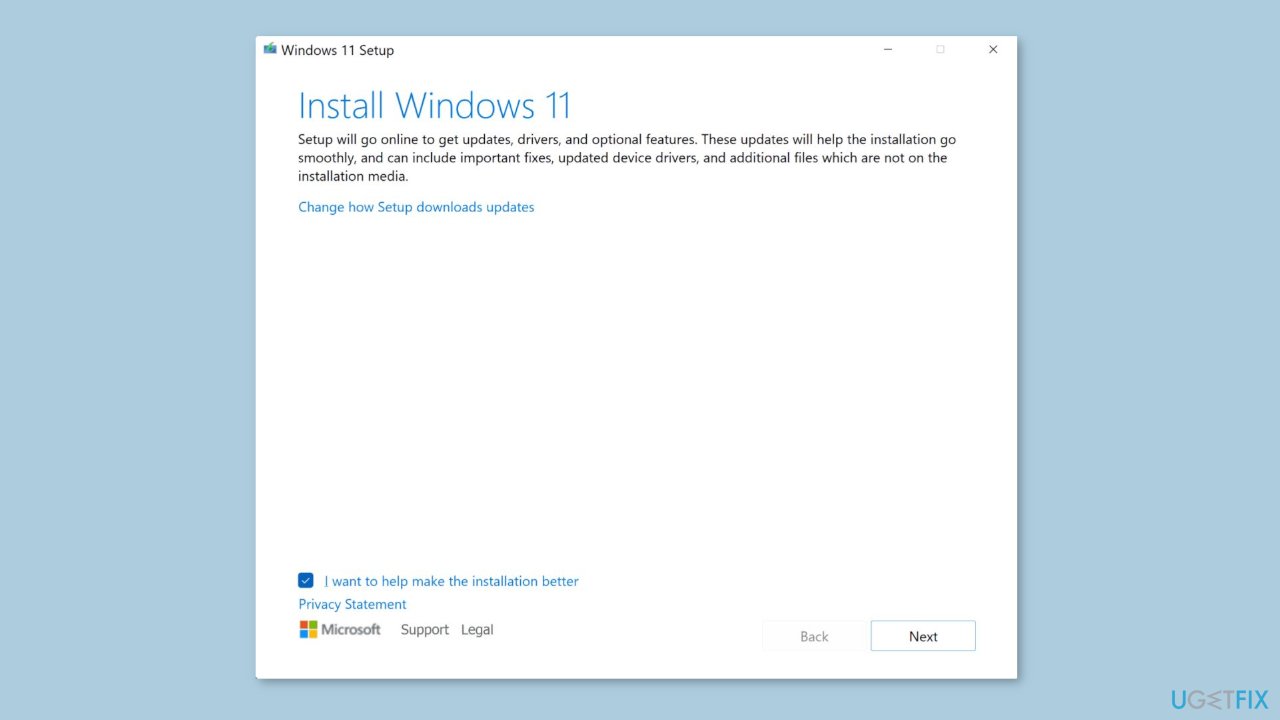
- Choose Upgrade this PC now.
- Wait for the update to be installed.
Bottom line
To fix the Windows update error 0x8007001d, you can clear the Windows Update cache, update system drivers, repair corrupted system files, or perform a system restore. If these solutions do not resolve the issue, consider using a maintenance tool to fix system errors.
Frequently asked questions
The error 0x8007001d typically occurs due to issues with the Windows Update components, corrupted system files, or conflicts with third-party software. It's essential to identify and resolve these underlying problems to successfully install updates.
You can troubleshoot this error by running the Windows Update Troubleshooter, resetting the Windows Update components, and ensuring that your system files are intact using the System File Checker (SFC) tool. Follow the specific steps in the article for a detailed guide.
To prevent this error from recurring, regularly update your system, keep your drivers updated, and avoid using unreliable third-party applications that may interfere with Windows updates. Additionally, consider performing routine maintenance checks on your system.




Report an issue
What's wrong with this guide? We review every report and update or remove content.
Report received — thank you. We'll review and fix it.
You need a free account to submit a report.
Be the first to comment