How to fix
Windows Update Error 0x80070020
on Windows
Resolve Windows Update error 0x80070020 quickly and effectively. Get expert-tested solutions to keep your Windows 10 or 11 running smoothly! Fixed in mi…


What causes How to Fix Windows Update Error 0x80070020?
- Windows Update service is not running
- Conflicting software or antivirus programs
- Corrupted system files
- Insufficient disk space
- Network connectivity issues
Repairs Windows system files, removes malware, and restores a clean OS state — without reinstalling.
Hello. I am using Windows 10, and I have automatic updates switched off. Previously I had Windows stuck in an eternal reboot loop, so I decided not to have updates set to be automatically applied. I am now having problems with the update installation. As soon as I try to update Windows 10 to the latest version, I receive a message "Windows could not search for new updates. Code 0x80070020." I did not have any problems updating Windows manually before, but now I don't know what to do. Can you please help me to solve this issue?
Windows patch day[ref en-1] is quite exciting news for everyone - software developers who patiently wait if everything functions correctly when it goes live; as well as for users who are enthusiastic about the new features and capabilities the new patch brings.
Unfortunately, looking back at the history of Windows updates, we could not find a patch that would not have some kind of issues. There have been thousands of reports on patch day - users claim they are receiving a variety of error codes under different circumstances - 0x80070020 is one of those annoying issues that people want to be sold as soon as possible.
There are three typical Windows Updates installation problems:
- The new version or update does not download;
- The new version of the OS or its update is downloaded completely, but cannot be installed;
- The new OS version or its update is successfully downloaded and installed but is immediately rejected, and the system rolls back to the previous condition.
Have you ever encountered any of these problems? You probably did. Each instance of Windows Update failure is marked with an error code, which purpose is to help people find out more about the error, its culprit, and fixes.
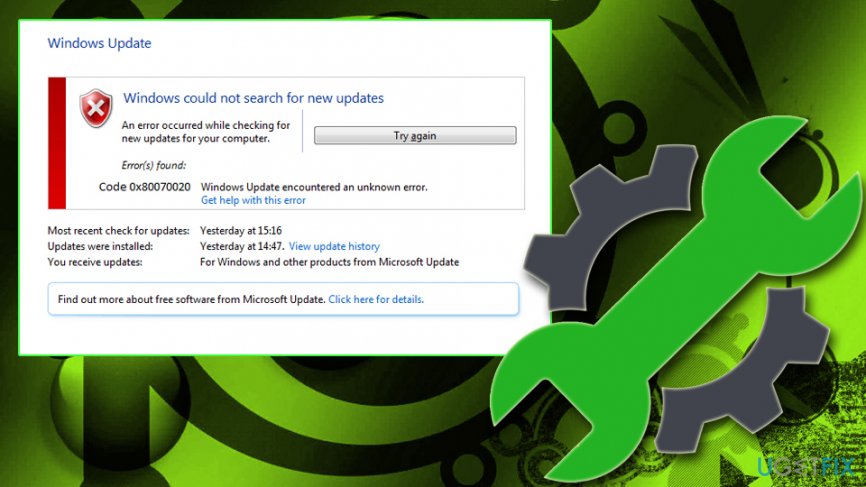
Windows 10 Update Error 0x80070020 was first reported in 2015 when the new Windows version, Windows 10, has been released. Microsoft has patched the issue successfully, and it did not reoccur up till now. The message states the following:
Windows could not search for new updates
An error occurred while checking for new updates for your computer.
Error(s) found:
Code 0x80070020 Windows Update encountered an unknown error.
Unfortunately, Windows 10 Creators Update[ref en-2] revived 0x80070020 error, and many people now are waiting for the fixes. The biggest problem is that there is no single trigger that could have influenced the emergence of this bug. Now, it might be related to third-party antivirus, Windows Update service (specifically BITS[ref en-3] in this case) or even malware. Thus, to fix the 0x80070020 error, you may need to try several methods.
Solution 1. Uninstall third-party antivirus program
Windows Update bugs are commonly triggered by third-party anti-virus software that may be conflicting with some Windows Update components and, therefore, blocking their download/install. If you want to get rid of the third-party security software, follow these steps (if you want a quicker solution, you can use [rev id="Perfect Uninstaller"]):
- Press Ctrl+ Shift + Esc on your keyboard to open Task Manager
- Locate third-party security software and select End task
- Type in Apps & Features into the search box located in the taskbar
- From the list, pick anti-virus software, and click Uninstall
- Reboot your PC
Solution 2. Restart BITS service
According to Windows experts, 0x80070020 error is usually related to the Background Intelligent Transfer Service (BITS), which is responsible for delivering and preparing Windows updates. It the process stops or gets corrupt due to recent system changes or, for example, malware, you should restart BITS.
- Press Windows key + R, type services.msc, and press OK
- Locate the Background Intelligent Transfer Service and right-click it
- Select Properties and open General tab
- Find Startup Type and select Automatic
- If the Background Intelligent Transfer Service (BITS) process is not running, right-click it and select Start
- Confirm the changes and close Services window
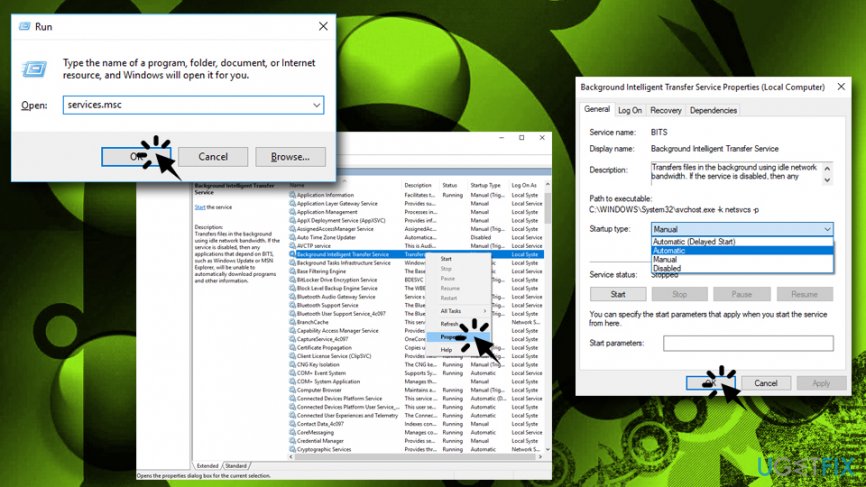
Windows update error 0x80070020 restart bits
Note: you might want to try restarting Windows Update service as well and see if that helps you with the issue.
Solution 3. Run System File Checker
System File Checker is a scanner that is built-in Windows operating system by default. To run it, you need to open Command Prompt as Administrator:
- Type in Command Prompt into the search box
- Locate the program, right-click and select Run as administrator
- User account control will show up. Click Yes
- When Command Prompt window opens, type in sfc /scannow and hit Enter
- Let the scanner run - it will repair all found issues automatically
Solution 4. Run an inbuilt Windows Update Troubleshooter
Windows Troubleshooter is an excellent built-in tool that is capable of detecting and fixing various Windows issues. Follow these simple steps to run it:
- Right-click on Start button and select Settings
- Type Troubleshoot into the search box
- In the Troubleshoot window, select Windows Update and click Run the troubleshooter
- Let the troubleshooter run. If any issues are found, Windows will attempt to repair them automatically
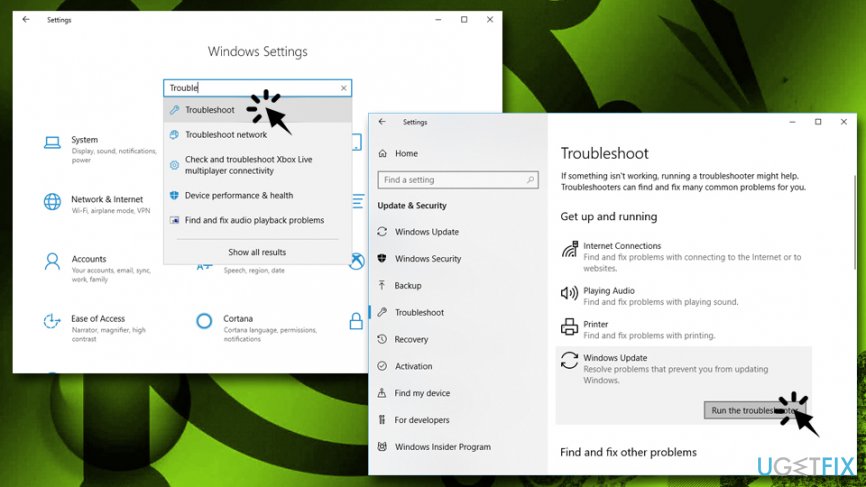
Windows update error 0x80070020 run troubleshooter
Solution 5. Reset Windows Update components
To perform Windows update components reset, you will have to access Command Prompt with administrator's permissions:
- Type in cmd into Windows search
- From the search results, right-click on Command Prompt and select Run as administrator
- In the new window, type in the following commands, pressing Enter after each:
net stop wuauserv
net stop cryptSvc
net stop bits
net stop msiserver
ren C:WindowsSoftwareDistribution SoftwareDistribution.old
ren C:WindowsSystem32catroot2 Catroot2.old
net start wuauserv
net start cryptSvc
net start bits
net start msiserver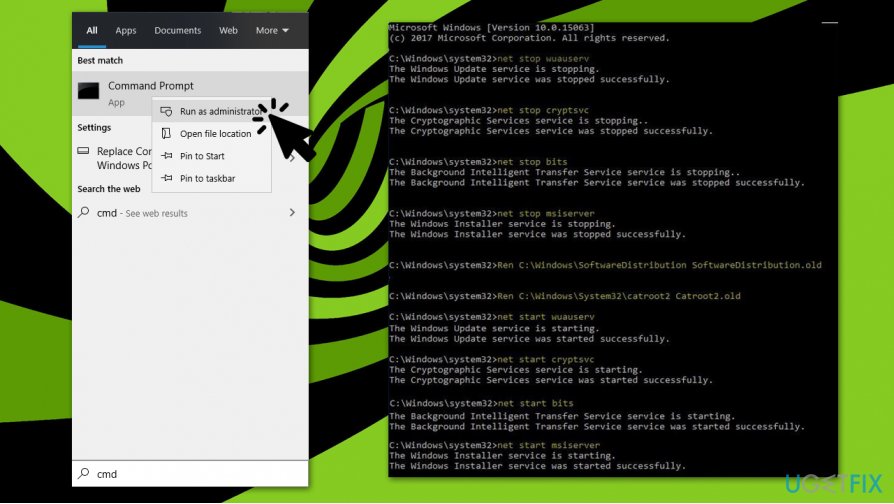
0x80070020 error fix reset windows update cmonents
Solution 6. Uninstall latest Windows updates
0x80070020 error might sometimes be caused by incorrectly installed updates from before (e.g., power cut). Thus, you can try to uninstall the latest updates as follows:
- Type in Control Panel into Windows search and hit Enter
- Select Program > Uninstall a program
- On the left side, pick View installed updates
- Select the most recent Windows updates
- Right-click and pick Uninstall
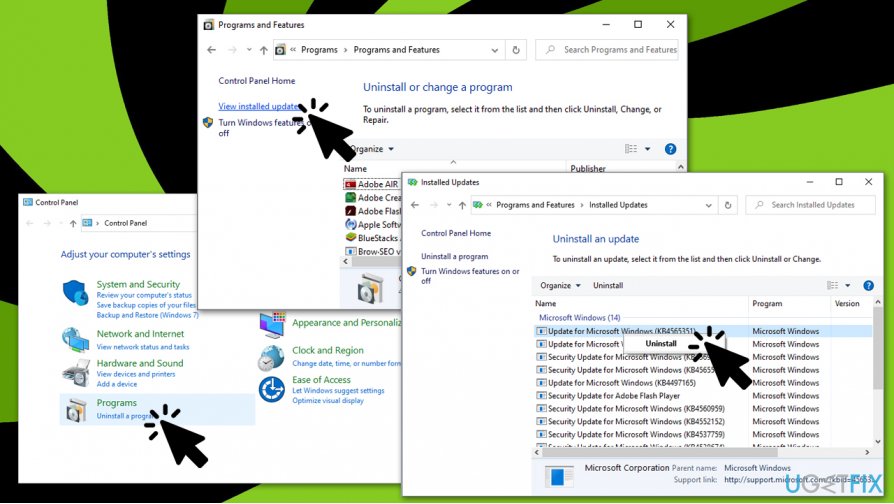
0x80070020 error fix uninstall latest windows updates - Reboot your PC
Solution 7. Scan the system for malware
If none of the fixes helped, the last thing you should try is to check the system for malware.[ref en-4] It might be that a malicious program is hiding in the depth of the operating system and causing its malfunctions. To verify system’s condition, we would highly recommend using [d1].
Bottom line
To resolve the Windows Update Error 0x80070020, you can try restarting the Windows Update service, disabling conflicting software, and checking for corrupted system files. If these fixes do not work, consider seeking further assistance or exploring additional troubleshooting methods.
Frequently asked questions
This error typically occurs due to a conflict with third-party software, such as antivirus programs or other system processes that interfere with the update process.
To fix this error, you can try temporarily disabling your antivirus software and then rerunning the Windows Update, or use the Windows Update Troubleshooter available in the Settings app.
Yes, you can reset Windows Update components manually by stopping the Windows Update services, renaming the SoftwareDistribution and catroot2 folders, and then restarting the services.




Report an issue
What's wrong with this guide? We review every report and update or remove content.
Report received — thank you. We'll review and fix it.
You need a free account to submit a report.
Be the first to comment