How to fix
Windows update error 0x80070157
on Windows
Resolve Windows update error 0x80070157 quickly with our expert-tested solutions. Get your PC back on track in minutes, with easy-to-follow steps.

What causes How to fix Windows update error 0x80070157?
- Insufficient storage space
- Corrupted system files
- Incorrect settings in the Windows Registry
- Issues with the update components
- Program conflicts
Repairs Windows system files, removes malware, and restores a clean OS state — without reinstalling.
Hi, I can't install Windows updates because I keep getting a 0x80070157 error. I tried waiting several days but I still am stuck with the same problem. Could you help, maybe?
Windows update issues might halt the update process, leaving your machine open to security threats and missing out on important performance benefits. Many factors, such as program conflicts, corrupted system files, and network issues, might cause update failures. 0x80070157 is one such error we will be talking about today.
The error 0x80070157 often occurs during the update process when Windows encounters a problem with storage space allocation, system file configuration, or data processing. This error signifies that the system has failed to process certain critical operations required to download and install updates successfully. This error can be particularly troubling as it not only hampers your ability to update Windows but may also indicate underlying issues with your system's configuration or health.
When you encounter the 0x80070157 error, it typically means there's a problem with how your system reads or writes to the storage drive during the update process. This could be due to insufficient storage space, corrupted system files, incorrect settings in the Windows Registry, or issues with the update components themselves.
To fix the 0x80070157 error, you might have to go through several troubleshooting steps we provide below - they include repairing corrupted system files, running the built-in troubleshooter, resetting Windows update components, installing the update in an alternative way, and more.
If you would rather want to deal with underlying Windows issues easily, we recommend trying computer repair software [d1], which can fix corrupted system files, registries, and DLL issues automatically. It is also great when trying to maintain good PC health, as it can clean it from junk files and remove potentially dangerous software from your device.
Fix 1. Run Windows update troubleshooter
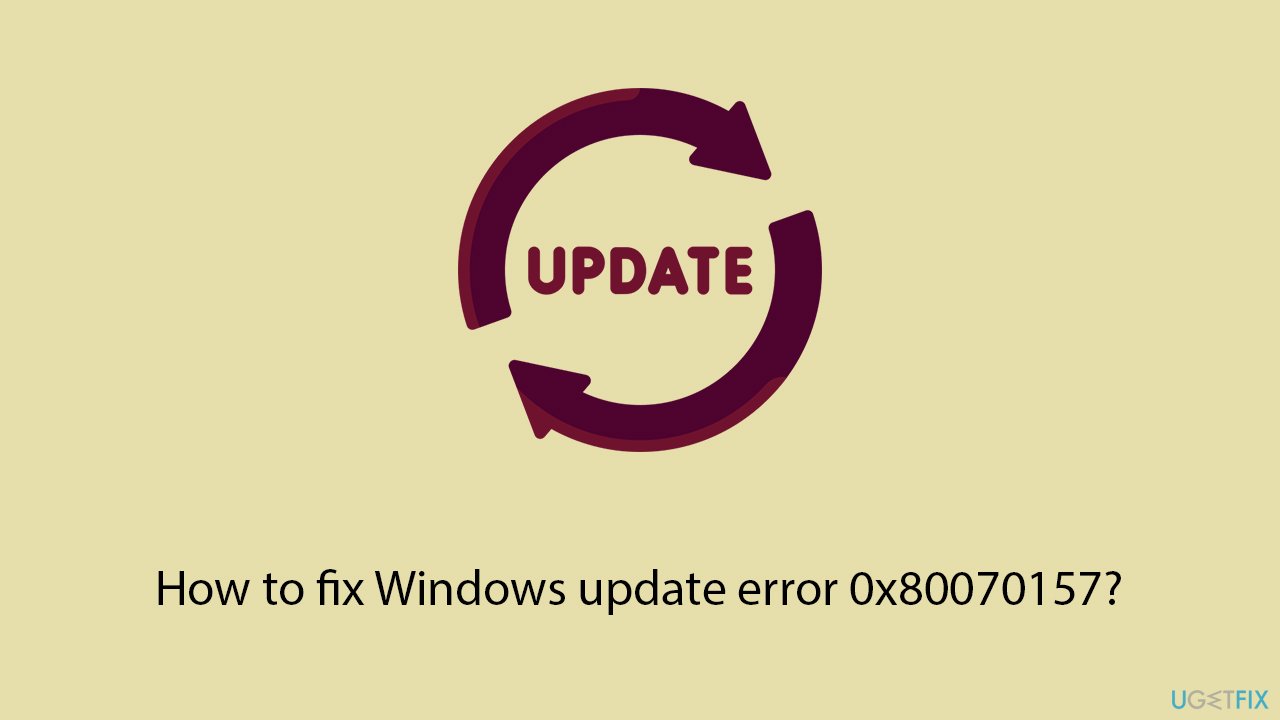
The Windows Update Troubleshooter is a built-in tool designed to diagnose and resolve common issues that may prevent Windows Update from functioning correctly. It works by scanning your system for issues related to Windows Update and attempting to fix them automatically. This can be an effective first step in resolving the 0x80070157 error without requiring advanced technical knowledge.
- Type in Troubleshoot in Windows search and hit Enter.
- Select Additional Troubleshooters/Other troubleshooters option.
- Locate Windows Update and click Run/Run the troubleshooter.
- As soon as the scan finishes, apply the recommended fixes.
Fix 2. Check relevant services
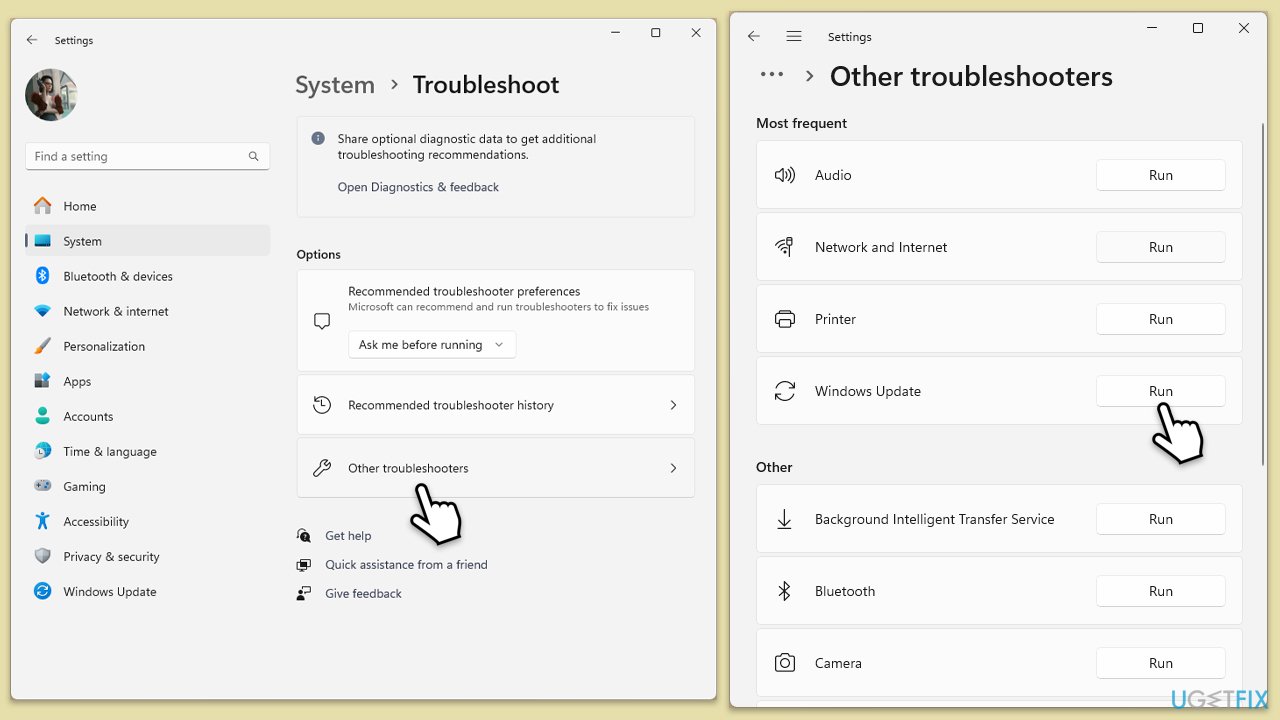
Windows Update relies on certain services to run smoothly. Ensuring these services are running correctly can help resolve update issues. Specifically, you should check the Background Intelligent Transfer Service (BITS), Windows Update service, and Cryptographic Services.
- Type in Services in Windows search and press Enter.
- Locate Background Intelligent Transfer Service (BITS).
- If it is already running, right-click and select Restart.
- if the service is not running, double-click it, select Automatic under the Startup type from the drop-down menu
- Click Start, Apply, and OK.
- Repeat the process with the Windows Update, Cryptographic, and Windows Installer services.
Fix 3. Disable third-party security software
Third-party security software can sometimes interfere with the Windows Update process, leading to errors like 0x80070157. Disabling or temporarily uninstalling your antivirus or firewall software can help determine if these programs are causing the issue. Remember to enable or reinstall your security software after testing to ensure your system remains protected.
Fix 4. Perform Disk Cleanup
Disk Cleanup is a utility that removes unnecessary files from your hard drive, freeing up space that can be crucial for the Windows Update process. Insufficient disk space is a common cause of update errors.
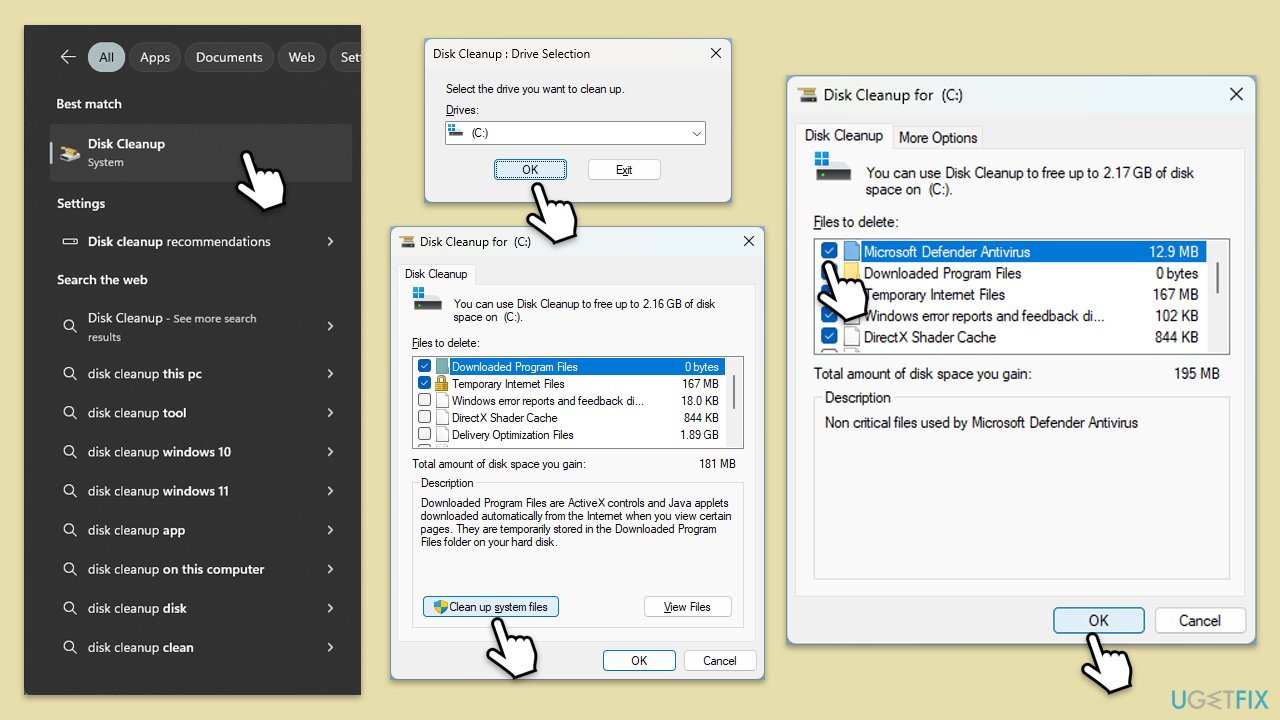
- Type Disk Cleanup in Windows search and hit Enter.
- If your Windows is installed on drive C, pick it from the list (it should be by default) and press OK.
- Click Clean up system files.
- Select your main disk again and click OK.
- Here, select the largest portions of the data used - these typically include Temporary Internet Files, Windows Update, Temporary Files, Recycle Bin, Delivery Optimization Files, and others.
- Click OK - the process should be finished shortly.
Fix 5. Reset Windows Update components
Resetting Windows Update components can resolve issues by clearing the update cache and restarting related services.
- ype cmd in Windows search.
- Right-click on the Command Prompt result and select Run as administrator.
- The User Account Control (UAC) window will ask whether you want to allow changes to your computer - click Yes.
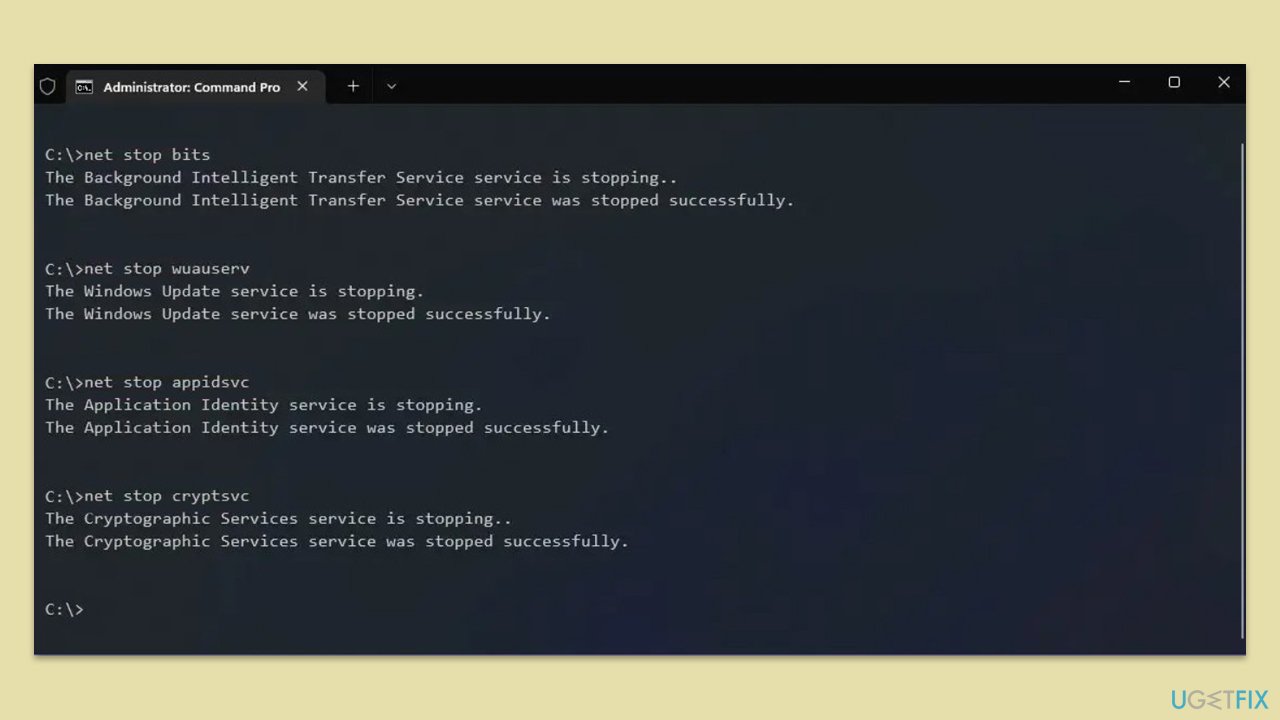
- Stop the Windows Update-related services by running the following commands one at a time, pressing Enter after each one:
net stop wuauserv
net stop cryptSvc
net stop bits
net stop msiserver - Rename the SoftwareDistribution and Catroot2 folders by running the following commands:
ren C:\Windows\SoftwareDistribution SoftwareDistribution.old
ren C:\Windows\System32\catroot2 Catroot2.old
Note: If your Windows installation is not on the C drive, replace "C" with the appropriate drive letter. - Restart the Windows Update-related services by running the following commands:
net start wuauserv
net start cryptSvc
net start bits
net start msiserver - Reboot your system.
Fix 6. Install the update manually
If automatic updates fail, you can manually download and install the update. This requires knowing the specific update that failed to install.
- Type in Update in Windows search and press Enter.
- Click View Update History on the right side of the window.
- From the list of updates, note the KB number of the one that failed to be installed.
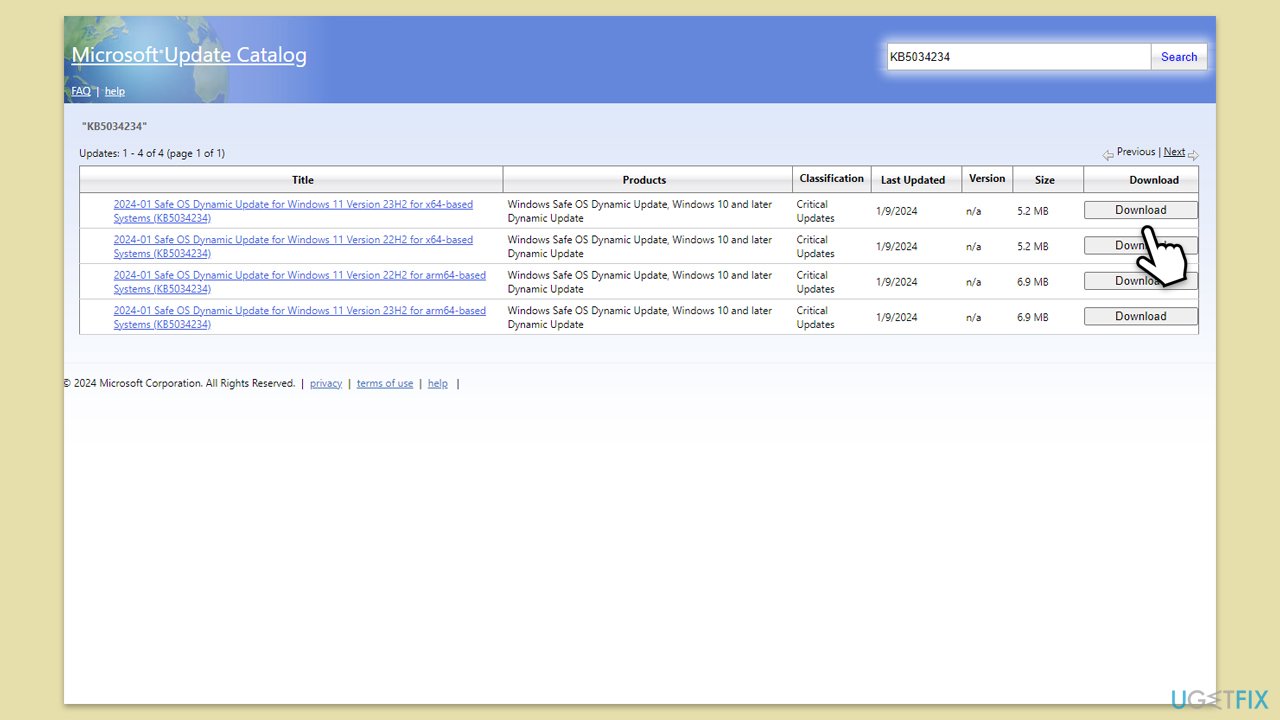
- Go to Microsoft Update Catalog.
- Here, type in the KB number and click Search.
- Pick the version that is compatible with your operating system (ignore updates for the server) and click Download.
- Proceed with on-screen instructions and restart Windows once done.
Fix 7. Use Media Creation Tool
The Media Creation Tool can help you upgrade your system to the latest version of Windows, bypassing the traditional update method. This can be useful if update errors prevent you from upgrading normally.
- Visit the official Microsoft website and download Windows 10 installation media (Windows 11 version).
- Double-click the installer, select Yes when UAC shows up, and agree to the terms.
- Select the ISO file and click Next, then follow the instructions to finish the process.
- Right-click on ISO and click Mount.
- Open the location of the ISO, right-click on it, and select Mount.
- Launch the installer.
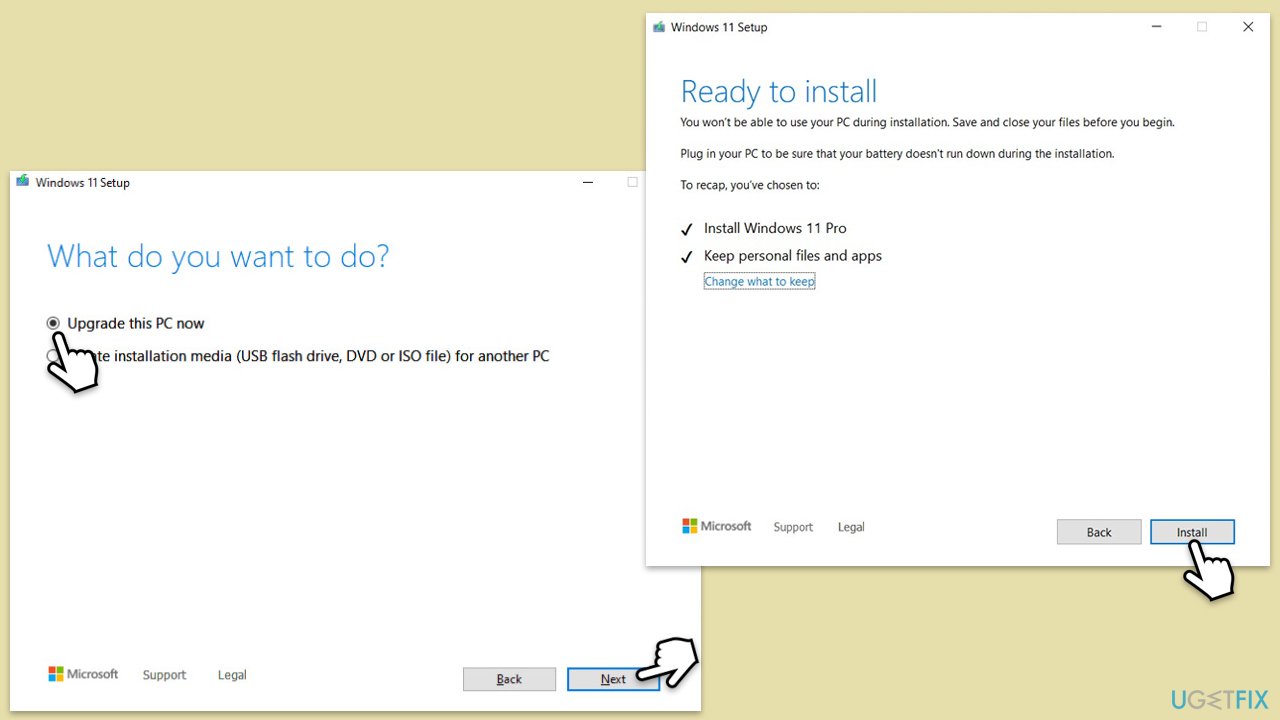
- Select Upgrade this PC now and click Next.
- Windows will start downloading the needed files.
- Agree to the terms once again and click Next.
- Before installing, ensure you are happy with your choices (otherwise, you can click the Change what to keep option).
- Finally, click Install to begin the upgrade process.
Bottom line
To fix the 0x80070157 error, you can run the Windows Update Troubleshooter, repair corrupted system files, reset Windows update components, or install the update in an alternative way. If these steps do not resolve the issue, consider using computer repair software to address underlying problems.
Frequently asked questions
This error typically occurs due to corrupted system files, insufficient disk space, or issues with the Windows Update service itself.
You can try running the Windows Update Troubleshooter, ensuring you have adequate disk space, or resetting the Windows Update components.
Yes, you can perform repairs by using the System File Checker (sfc /scannow) or the DISM tool without affecting your personal files.




Report an issue
What's wrong with this guide? We review every report and update or remove content.
Report received — thank you. We'll review and fix it.
You need a free account to submit a report.
Be the first to comment