How to fix
Windows update error 0x80070426
on Windows
Resolve Windows update error 0x80070426 quickly and effectively. Get expert-tested solutions to keep your Windows 10 or 11 running smoothly. Fixed in mi…

What causes How to fix Windows update error 0x80070426?
- Corrupted system files
- Services necessary for Windows updates not running
- System interference from malware or viruses
- Network-related problems
- Insufficient storage space on the device
Repairs Windows system files, removes malware, and restores a clean OS state — without reinstalling.
Hi, I can't install Windows updates. I keep receiving a 0x80070426 error every time. Is there anything I'm doing wrong because this never happened to me? I have not installed any software or changed anything, but the update simply fails to install all the time.
Microsoft consistently delivers updates for Windows 10 and Windows 11, ensuring the smooth running of these systems. Typically released monthly, these updates address a range of issues, enhance overall system performance, and bolster user security while introducing new features.
Updates from Microsoft come in different types. Security updates are crucial as they patch system vulnerabilities to avert potential threats. Quality updates, also known as cumulative updates, comprise bug fixes, minor feature enhancements, and previously released security updates. Feature updates, rolled out semi-annually, introduce new capabilities to the operating system. Meanwhile, driver updates facilitate efficient communication between the system and its hardware components.
Despite this robust system, users may occasionally encounter challenges during the update process. An example is the Windows update issue denoted as 0x80070426. This issue often surfaces with the message, "There were problems installing some updates, but we’ll try again later." Encountering this can be an inconvenience, especially when the updates are vital for system performance or security.
The 0x80070426 issue could be triggered by a range of factors. Corrupted system files that interfere with the update process could be one cause. If the services necessary for Windows updates are not running as they should, this could also trigger the issue. System interference from malware or viruses is another potential cause. Network-related problems or insufficient storage space on your device could also be responsible.
Although the solutions for this issue might vary based on the underlying cause, regular system maintenance can ward off many such problems. Using PC repair software [d1] is a practical step in sustaining your computer's health. This software can perform tasks such as junk file cleanup, registry issue resolution, system setting optimization, and more. Regular use of PC repair software can not only help solve existing challenges but also preempt future ones, such as the 0x80070426 update issue.
Checks to make
Before proceeding with the advanced solutions below, please make sure that you perform these checks first:
- Restart your system if you haven't done so.
- Scan your system for malware - you can use third-party software or employ Microsoft Safety Scanner.
- If you are using third-party security software, temporarily disable it and try updating again.
- Check your time and date settings.
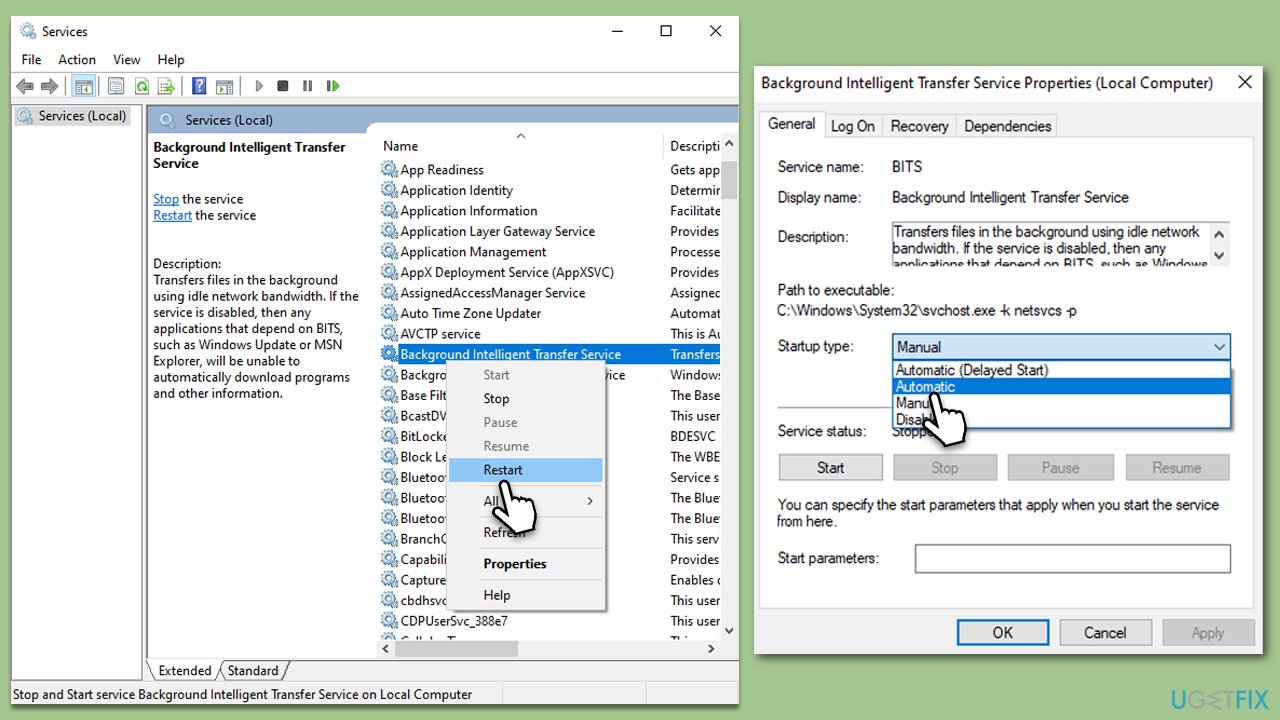
Method 1. Configure relevant services
- Type in Services in Windows search and hit Enter.
- Scroll down a bit to find Background Intelligent Transfer Service (BITS).
- If it is already running, right-click and select Restart.
- If the service is not running, double-click it, and pick Automatic under the Startup type drop-down menu.
- Click Start, Apply, and OK.
- Repeat this process for Windows Update and Cryptographic services.
Method 2. Run the troubleshooter
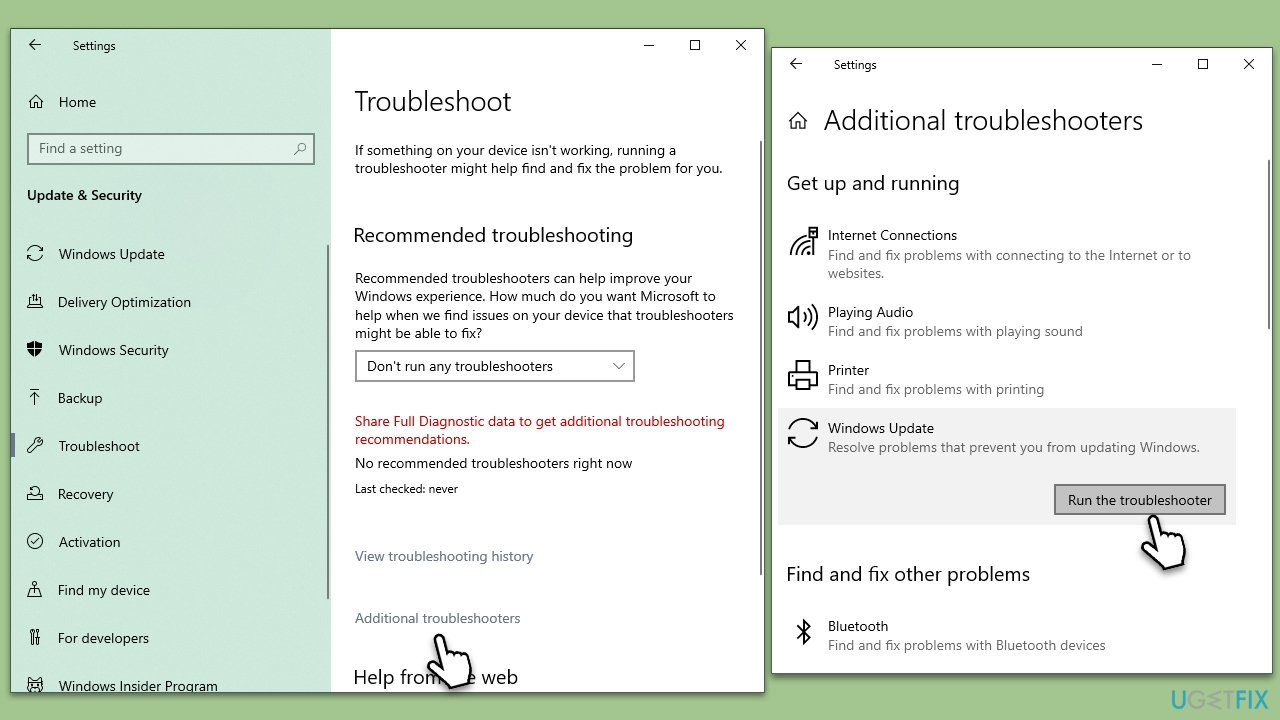
Troubleshooters are built-in tools that can help users resolve issues in Windows.
- Type troubleshoot in Windows search and hit Enter.
- Click Additional troubleshooters/Other troubleshooters.
- Find Windows update.
- Click on it, and select Run the troubleshooter/Run.
- Wait for the scan to be completed and apply the suggested fixes.
Method 3. Perform Disk Cleanup
Sometimes the updates may fail because there is not enough space on your drive. You can perform a disk cleanup as follows:
- Open the Windows search bar and type Disk Cleanup. Press Enter to open the Disk Cleanup utility.
- In the Disk Cleanup window, select the drive where your Windows operating system is installed (usually drive C:) and click OK.
- Click Clean up system files.
- Select the drive again and click OK.
- In the list of files that can be cleaned up, select the largest portions of data, such as Temporary Internet Files, Windows Update, Temporary Files, and others.
- Click OK to begin the cleanup process.
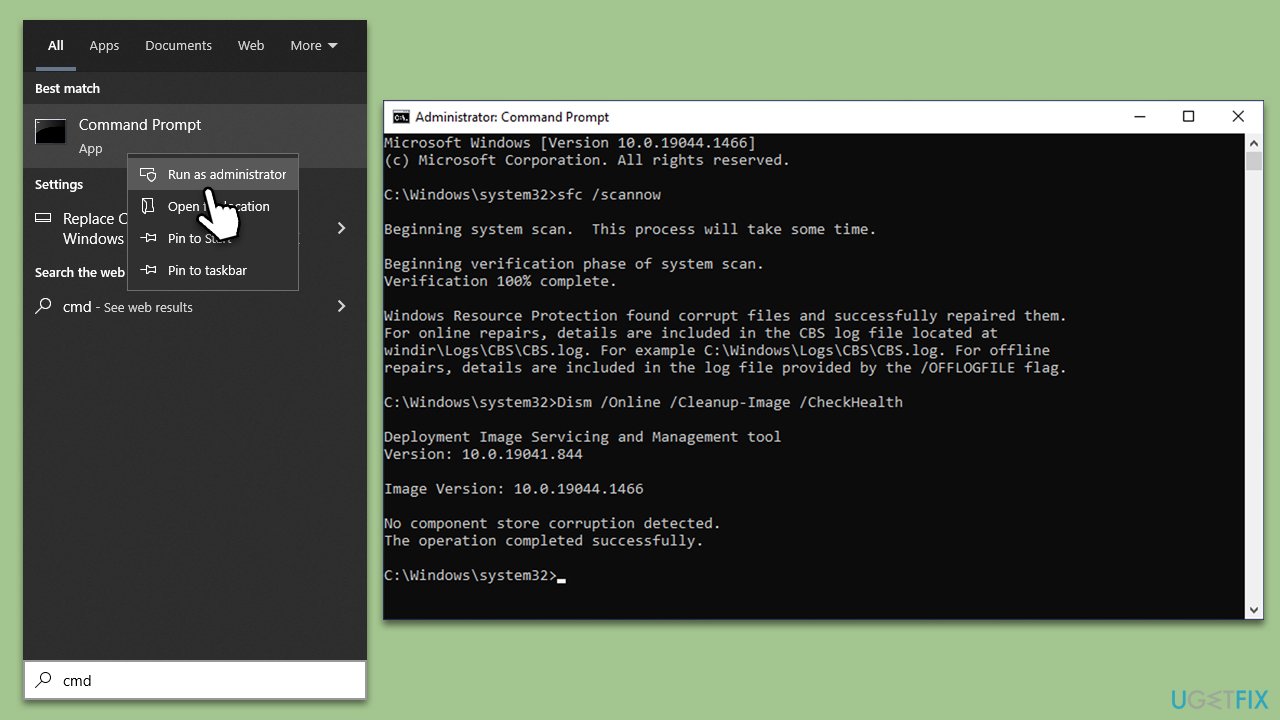
Method 4. Run SFC and DISM commands
- Type cmd in Windows search.
- Right-click on the Command Prompt result and select Run as administrator.
- UAC (User Account Control) will ask whether you want to allow changes - click Yes.
- Next, type in the following command and press Enter:
sfc /scannow - When done, run the following commands as well:
dism /online /cleanup-image /scanhealth
dism /online /cleanup-image /checkhealth
dism /online /cleanup-image /restorehealth - Restart your device.
Method 5. Install the update manually
- Type in Updates in Windows search and press Enter.
- Select View update history.
- Find the update that failed with the 0x80070426 error and copy its KB number.
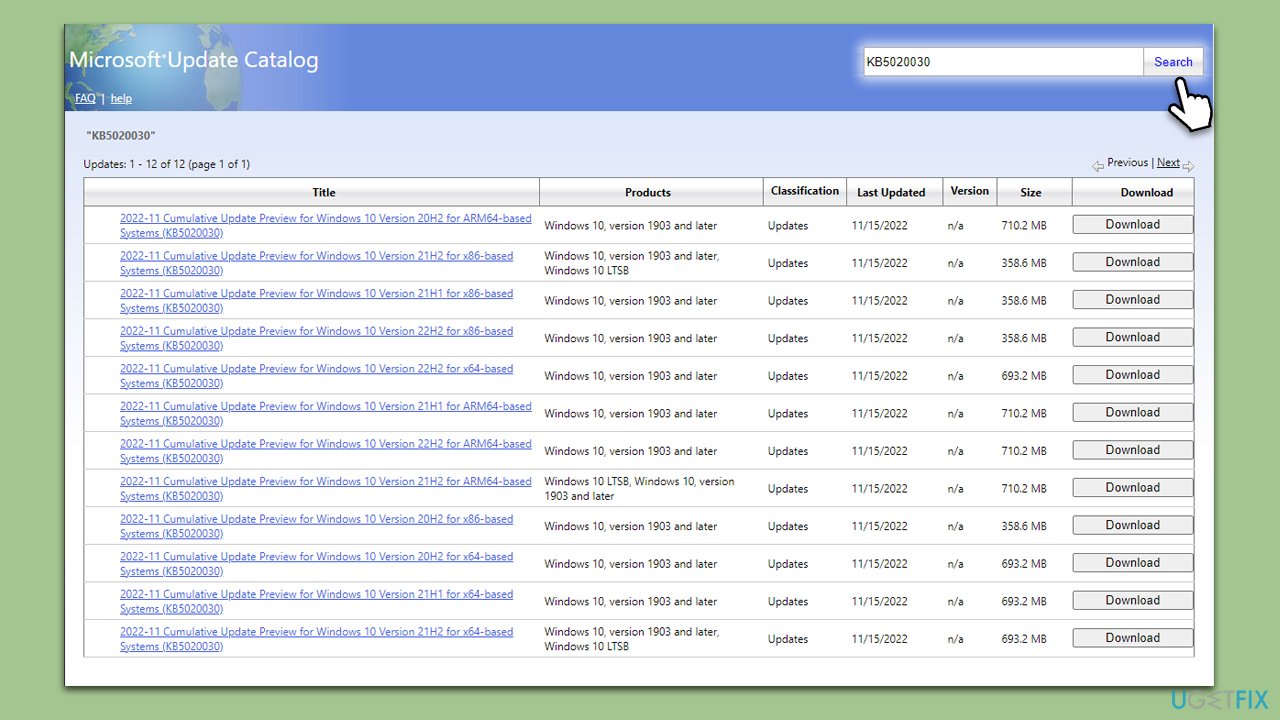
- Open your browser and go to Microsoft Update Catalog.
- Within the search bar, type in the KB number and clicks Search.
- Find the correct version of the update for your operating system (to check this, right-click on Start and pick System. Under Device specifications and check the System type) and click Download.
- Use on-screen guidelines to finish the installation process and restart your system.
Method 6. Use Media Creation Tool
Media Creation Tool might help you upgrade Windows to the latest version.
- Visit the official Microsoft website and download Windows 10 installation media (Windows 11 version).
- Double-click the installer, select Yes when UAC shows up, and agree to the terms.
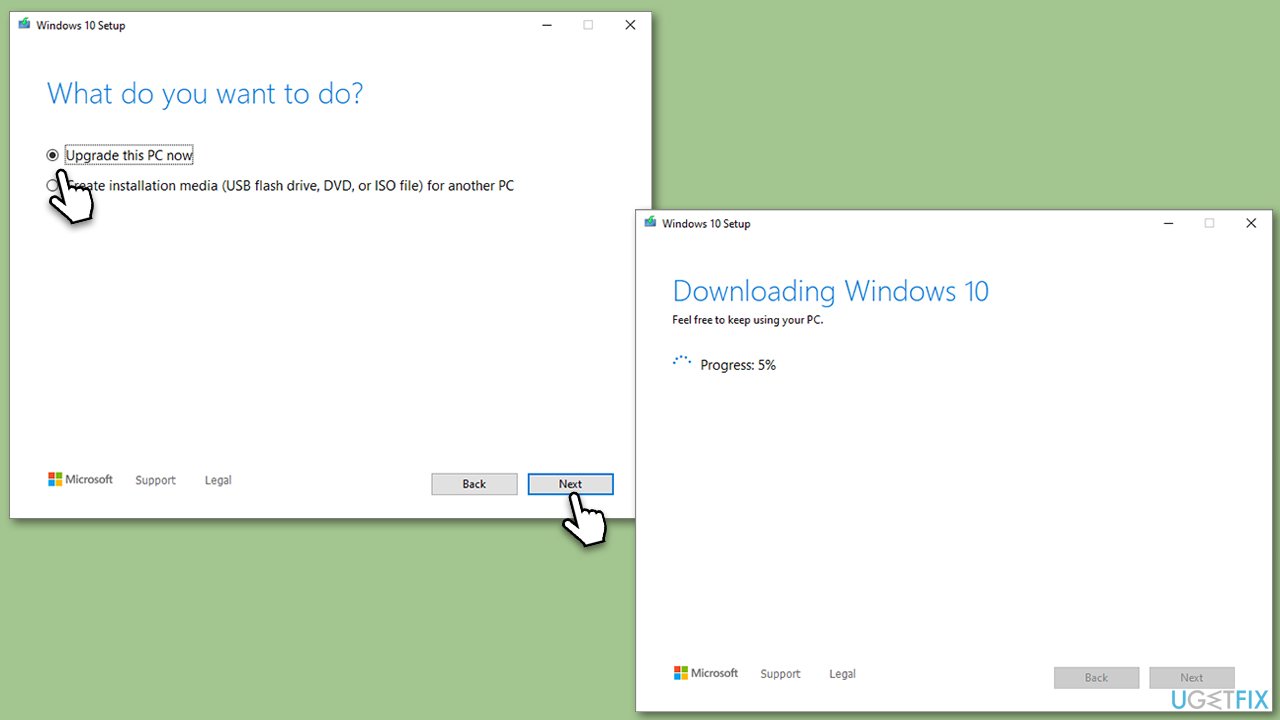
- Select Upgrade this PC now and click Next.
- Windows will start downloading the needed files.
- Agree to the terms once again and click Next.
- Before installing, make sure that you are happy with your choices (otherwise, you can click Change what to keep option).
- Finally, click Install to begin the upgrade process.
Bottom line
To fix the Windows update error 0x80070426, you can perform regular system maintenance, use PC repair software for junk file cleanup, registry issue resolution, and system setting optimization. If these solutions do not resolve the issue, consider further troubleshooting or seeking professional assistance.
Frequently asked questions
The error code 0x80070426 typically indicates that there is an issue with the Windows Update service or your license status. This can prevent updates from being installed properly.
To resolve the 0x80070426 error, you can try running the Windows Update Troubleshooter from the Settings app under Update & Security. Additionally, ensuring that your Windows license is activated can help fix the issue.
Yes, advanced methods include resetting the Windows Update components through Command Prompt or using the System File Checker tool to repair corrupted files. These steps can often resolve persistent update errors like 0x80070426.




Report an issue
What's wrong with this guide? We review every report and update or remove content.
Report received — thank you. We'll review and fix it.
You need a free account to submit a report.
Be the first to comment