How to fix
Windows update error 0x80070486
on Windows
Resolve Windows update error 0x80070486 quickly and effectively with our expert-tested solutions. Get your system running smoothly, fixed in minutes!

What causes How to fix Windows update error 0x80070486?
- Corrupt important update process files
- Loss of files
- Inconsistency between updates and installed applications or drivers
- Network connectivity problems
- Permissions problems
Repairs Windows system files, removes malware, and restores a clean OS state — without reinstalling.
I noticed a notification in taskbar about a Windows update. I opened it to install it and I saw an error 0x80070486. It's been hanging like that for several days now, and from what I see my PC version is much older than the update that's being installed. What can I do to fix this?
Windows updates are meant to keep your system secure and up-to-date while delivering the latest features, bug fixes, and security patches to your device. Sometimes, however, errors occur in the updating process that block the update from running properly. One of those errors is Windows update error 0x80070486, which can be really annoying and affect the normal functioning of your system.
Windows update error 0x80070486 becomes quite common when the system files, registry settings, or update components on your computer go wrong. The error may result from corrupt important update process files, loss of files, and inconsistency between updates and some applications or drivers installed on your computer. This error can also be a result of network connectivity or permissions problems that cause the update to fail.
The Windows Update error 0x80070486 can be approached in a number of ways, either specifically addressing the problem. This could be checking and fixing corrupted system files, ensuring that your registry is set correctly in your system, or you might have to make adjustments on service settings related to updating to ensure they run just fine.
At times, disabling some software for a while or clean booting the system might help one to find and settle the conflict at the base of the error. Once done, and with identified root causes, one can act accordingly to have the update restored.
Using a PC repair tool like [d1], it can automatically fix the underlying Windows issues, thereby leading to error 0x80070486. This is vital in keeping your system up to date and working properly.
Fix 1. Run Windows Update Troubleshooter
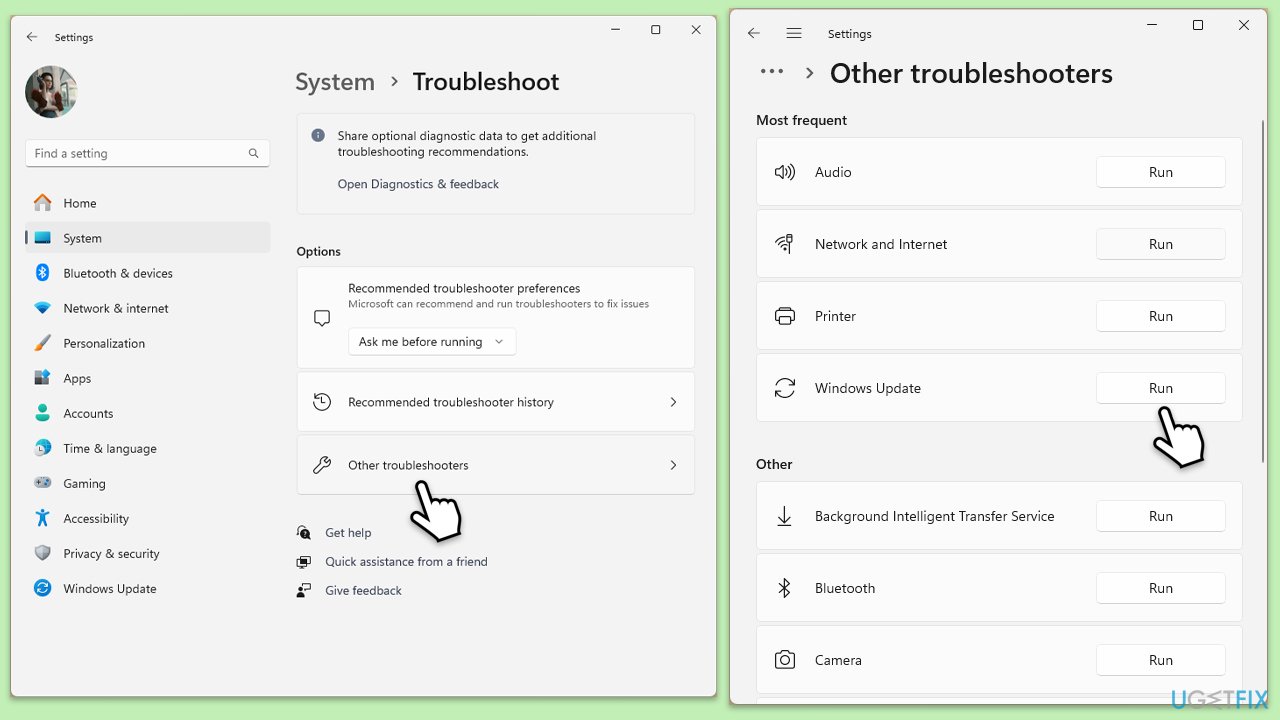
The Windows Update Troubleshooter will automatically detect and fix some of the issues concerning the Windows update service. This tool is designed specifically to diagnose and resolve some common problems that may prevent updates from being installed.
- Type Troubleshoot into the Windows search bar and press Enter.
- Next, on the right side of the window, select Additional troubleshooters/Other troubleshooters.
- Scroll down to locate the Windows update option and click on it.
- Click on Run the troubleshooter/Run and allow the process to complete.
- Once it is finished, implement any recommended fixes and restart your PC.
Fix 2. Check system files with SFC and DISM
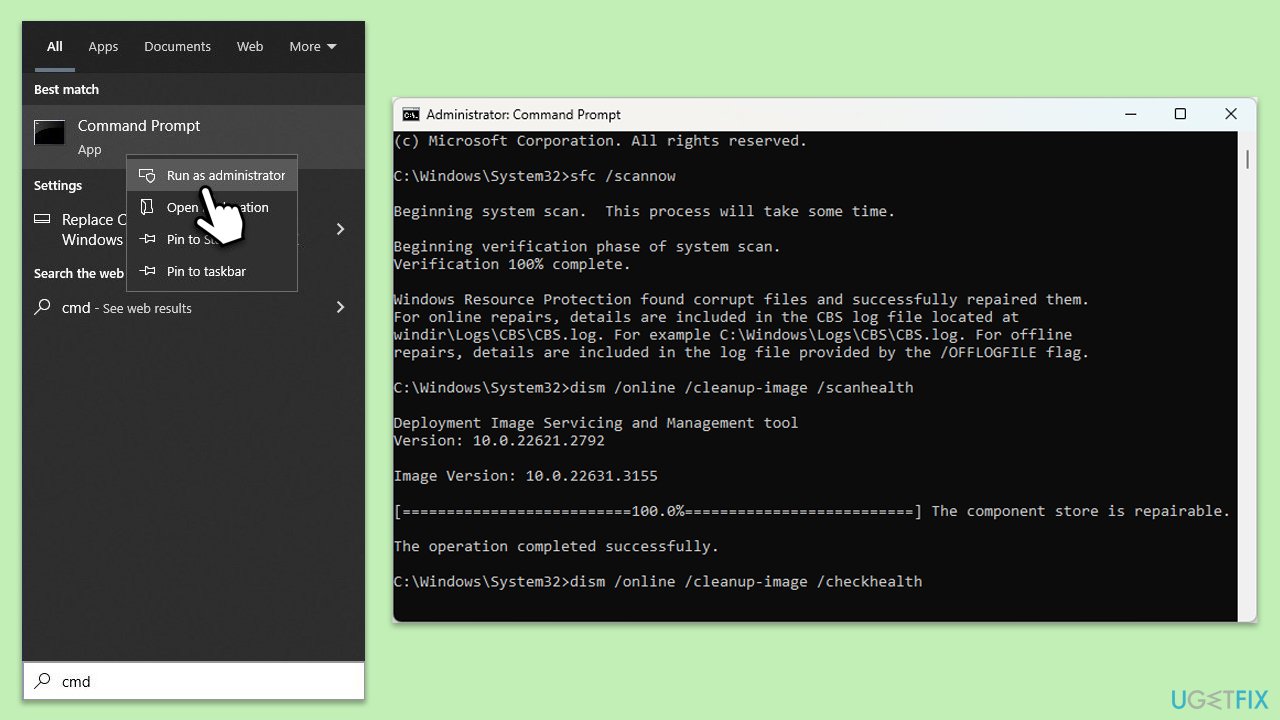
Problems with Windows Update usually occur from corrupted or lost system files. The System File Checker (SFC) and Deployment Imaging Service and Management Tool (DISM) check for these files and repair them.
- Type cmd in Windows search.
- Right-click on Command Prompt and pick Run as administrator.
- User Account Control window will show up - click Yes when prompted.
- Then, copy and paste the following command, pressing Enter after:
sfc /scannow - Wait till the scan is finished. If Windows finds system file integrity violations, it will attempt to fix them. After this, use the set of the following commands, pressing Enter each time:
DISM /Online /Cleanup-Image /CheckHealth
DISM /Online /Cleanup-Image /ScanHealth
DISM /Online /Cleanup-Image /RestoreHealth - (Note: if you get an error executing this last command, add /Source:C:\RepairSource\Windows /LimitAccess to it and try again).
- Close down the Command Prompt and restart your device.
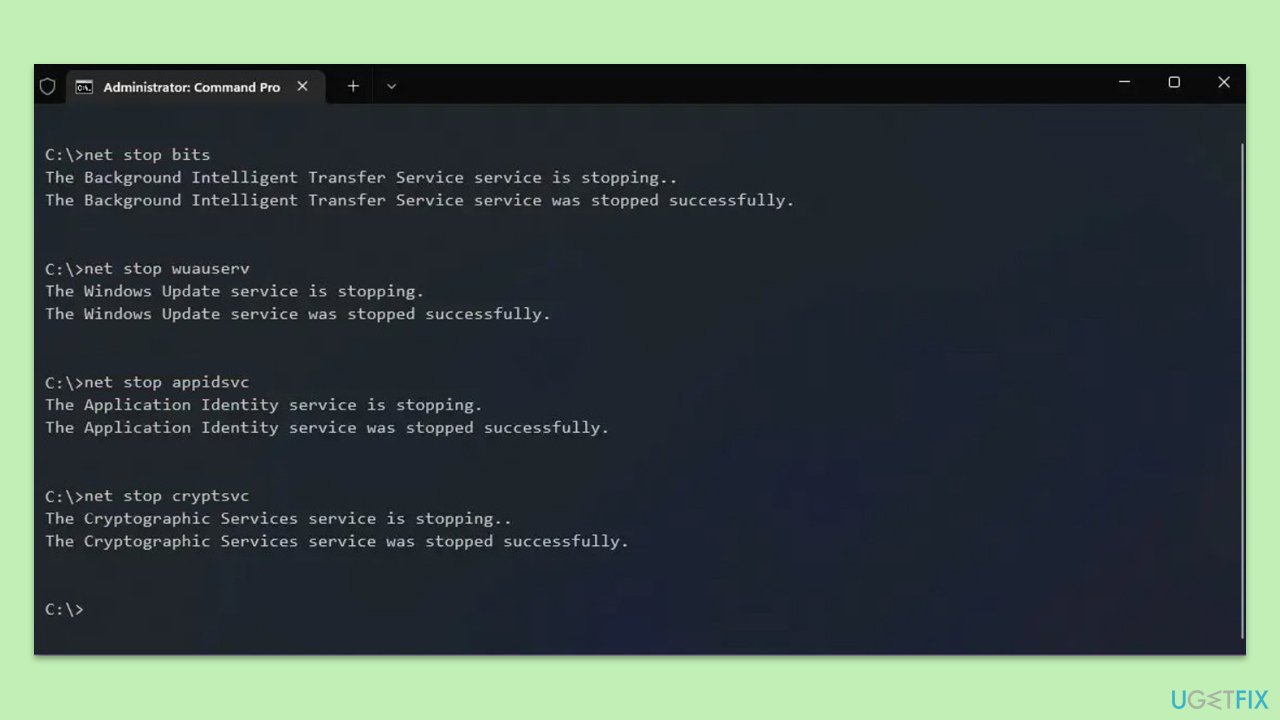
Fix 3. Reset Windows Update components
Resetting Windows update components can help you in many cases, especially when dealing with update errors.
- Open Command Prompt as administrator.
- When User Account Control (UAC) window shows up, click Yes.
- Paste in each of these commands, pressing Enter every time:
net stop bits
net stop wuauserv
net stop appidsvc
net stop cryptsvc
Del “%ALLUSERSPROFILE%\Application Data\Microsoft\Network\Downloader\*.*”
rmdir %systemroot%\SoftwareDistribution /S /Q
rmdir %systemroot%\system32\catroot2 /S /Q
regsvr32.exe /s atl.dll
regsvr32.exe /s urlmon.dll
regsvr32.exe /s mshtml.dll
netsh winsock reset
netsh winsock reset proxy
net start bits
net start wuauserv
net start appidsvc
net start cryptsvc - Restart your device.
Fix 4. Perform a Clean Boot
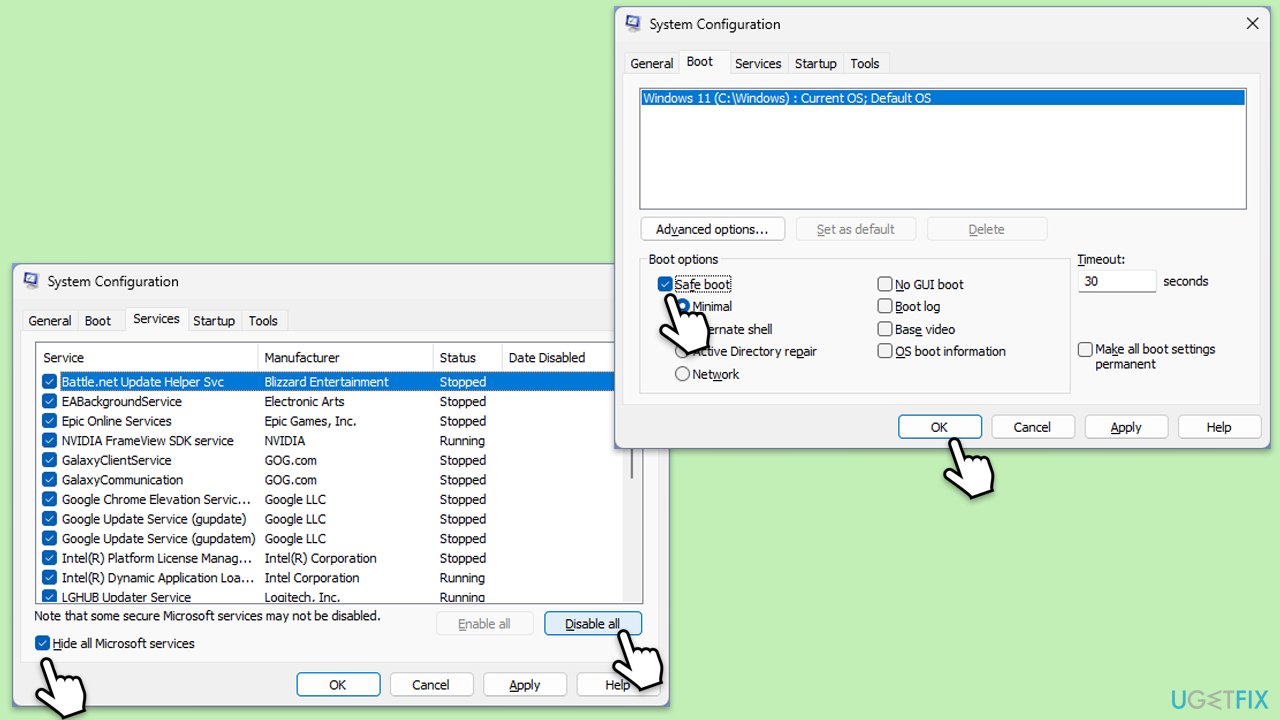
Clean Boot helps eliminate software conflicts that can occur during the update process, allowing you to identify any problematic software or services.
- Type msconfig in the Windows search box and press Enter.
- Select the Services tab and tick the Hide all Microsoft services checkbox at the bottom.
- Pick Disable all.
- Go to the Startup tab and click Open Task Manager.
- Here, right-click on each of the non-Windows entries and select Disable.
- Close down the Task Manager.
- Go to the Boot tab and tick the Safe boot option
- Reboot your computer and try updating it again.
Fix 5. Update device drivers
If you would rather save time when doing this, you can employ an automatic driver updater [rev id="DriverFix"].
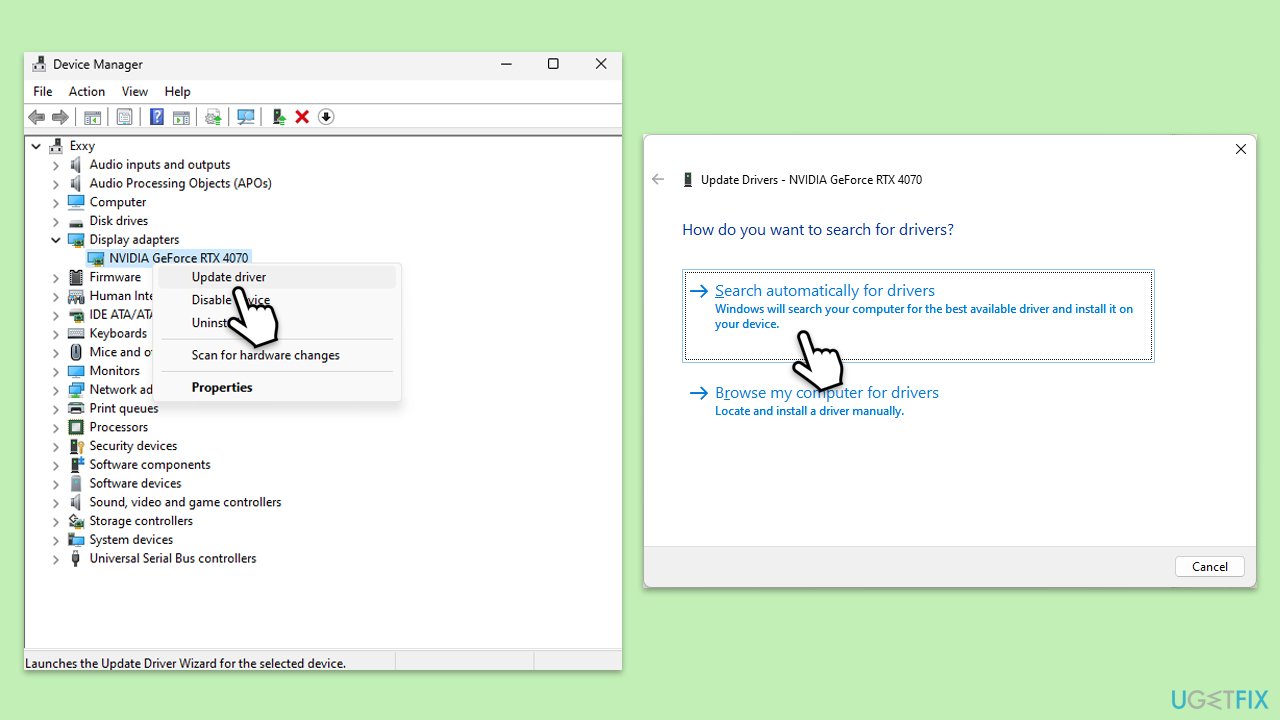
- Right-click Start and select Device Manager from the menu.
- Find and expand the categories related to the hardware (for example, graphics, network, chipset, etc.)
- Right-click on each device and select Update driver.
- Select Search for updated drivers and follow the prompts.
- Repeat for other categories.
- Restart your computer.
Fix 6. Check and repair hard drive errors
If your hard drive has faulty sectors, the update might fall to install.
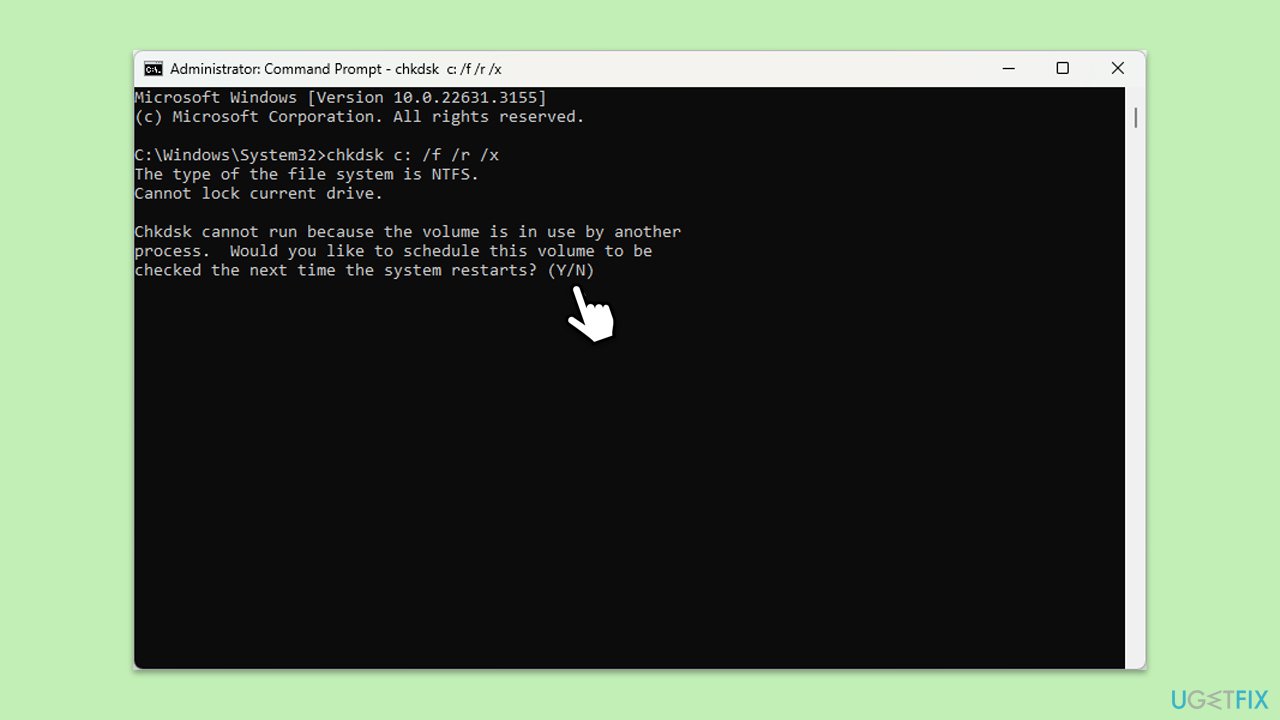
- Open Command Prompt as administrator.
- Type in the following command and press Enter after:
chkdsk c: /f
(Note: use chkdsk c: /f /r /x command if you use SSD as your primary partition). - If you receive an error, type in Y, close down Command Prompt and restart your computer.
- After a restart, Windows will begin to scan your disk. After your system boots back up, you can find the results in the Event Viewer.
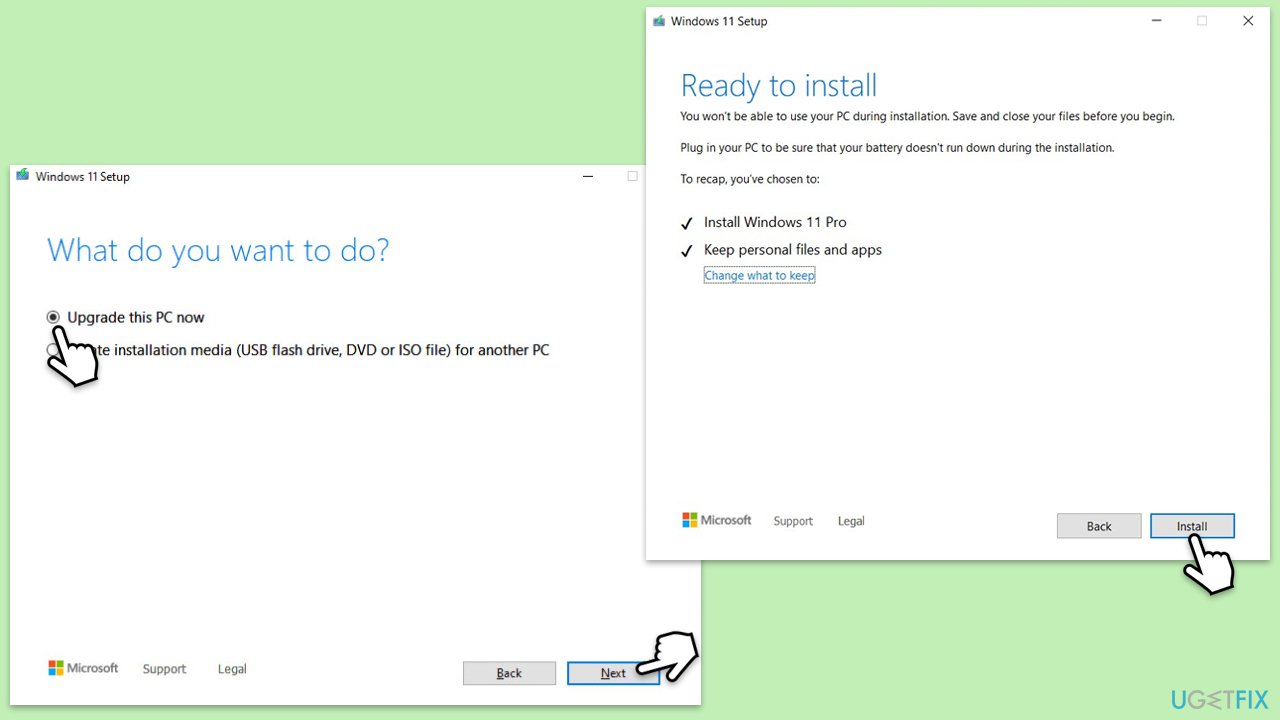
Fix 7. Use Media Creation Tool
With this tool, manual upgrading of your system to the latest version of Windows can be done without experiencing more issues with updates.
- Visit the official Microsoft website and download Windows 10 installation media. (Windows 11 version).
- Double-click the installer and select Yes when UAC shows up.
- Agree to terms.
- Select Upgrade this PC now and select Next.
- Windows will now download all the necessary files – it might take a while.
- Agree to the terms once again and click Next.
- Before installing, ensure you are happy with your choices (otherwise, you can click the Change what to keep option).
- Click Install to begin the upgrade process.
Bottom line
To fix Windows update error 0x80070486, you can run the Windows Update Troubleshooter, check and fix corrupted system files, ensure correct registry settings, or adjust service settings related to updating. If these steps do not resolve the issue, consider using a PC repair tool to automatically fix underlying Windows problems.
Frequently asked questions
The error 0x80070486 typically indicates that there is a problem with the Windows Update service, preventing updates from being installed on Windows 10 or Windows 11.
To resolve the 0x80070486 error, you can try running the Windows Update troubleshooter, which can automatically detect and fix issues related to updates on Windows 10.
Yes, you can also fix the error 0x80070486 by resetting the Windows Update components manually, which can be done through Command Prompt commands on both Windows 10 and Windows 11.




Report an issue
What's wrong with this guide? We review every report and update or remove content.
Report received — thank you. We'll review and fix it.
You need a free account to submit a report.
Be the first to comment