How to fix
Windows update error 0x800704bd
on Windows
Resolve Windows update error 0x800704bd quickly and easily with proven methods. Get your system running smoothly again with expert-tested solutions.

What causes How to fix Windows update error 0x800704bd?
- Dynamic system files
- Various apps and settings
- Different versions of drivers
- Failed automatic updates
- Lack of updates due to error
Repairs Windows system files, removes malware, and restores a clean OS state — without reinstalling.
Hi, I have been trying to update Windows to the 22H2 version for all its new features, but I keep getting the 0x800704bd error every time I try. I've been waiting for several days, but the result is always the same. Please provide some advice.
Windows updates are released on the second Tuesday of every month, as Windows started to be operated as a service. Updates to the operating system can include bug fixes, new usability improvements, UI[ref en-1] tweaks, and, most importantly – security patches for vulnerabilities,[ref en-2] which can ensure that the OS is resilient to cyberattacks.
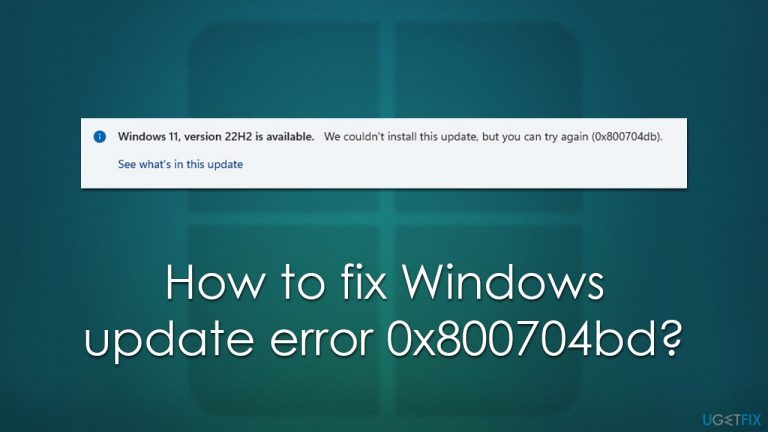
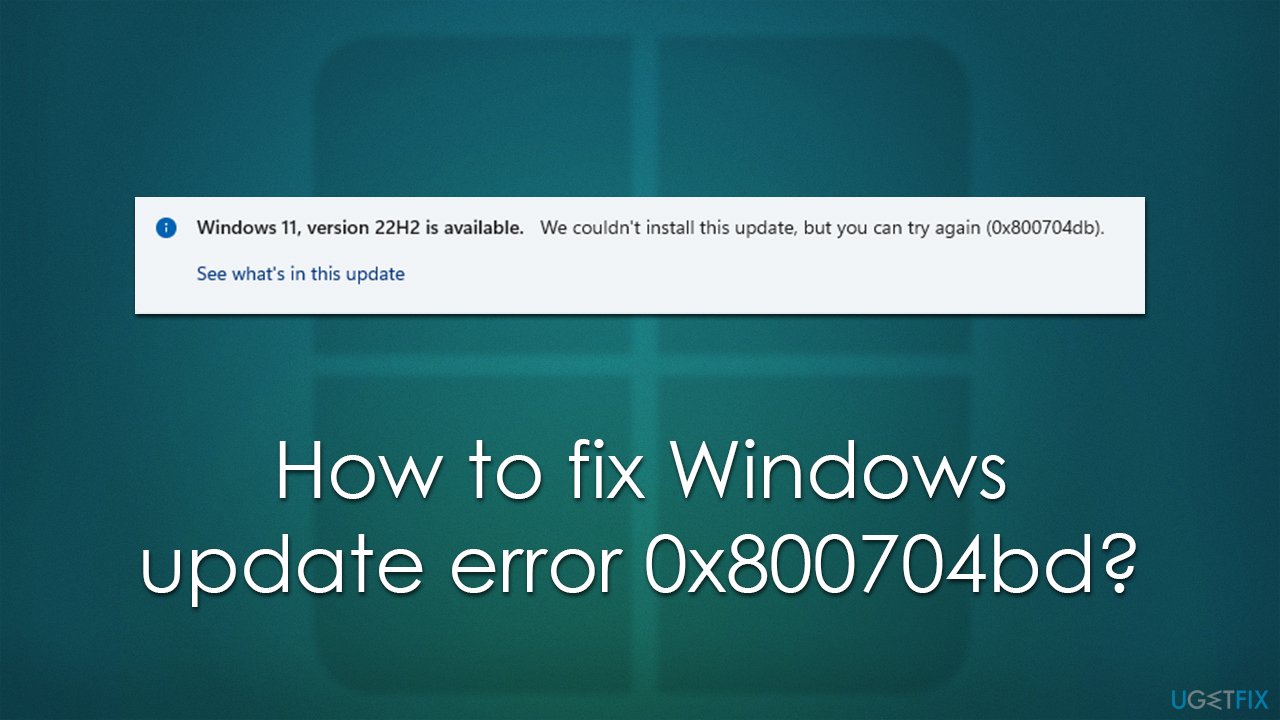
Some users are unfortunate enough to experience error code 0x800704bd when trying to update Windows 10 or 11, which doesn't allow them to enjoy new features and implement the mandatory security improvements.
Most people reported that the issue arises with the newest Windows version upgrade, 22H2, which was initially released on September 20, 2022, and promised a lot of new features and operating changes. Despite this, users can come across the 0x800704bd error when dealing with any other update, for example, KB5019959.
In most cases, users notice that the patch has failed after a routine automatic update installation. Otherwise, users would be shown that their systems are lacking updates due to the 0x800704bd error and that they should try again later. Unfortunately, trying once more - even several times - does little to resolve the situation as users return to square one.
Just like with any other update errors, this one could also be caused by numerous issues. Windows systems are dynamic and contain thousands of files, various apps, different settings, different versions of drivers,[ref en-3] and other components. Due to these parameters, the solution for a Windows update error can vary from computer to computer.
Below we provide several methods to fix the 0x800704bd error, although we do recommend running a scan with [d1] PC repair tool first - it might fix underlying issues automatically for you.
Method 1. Start with the troubleshooter
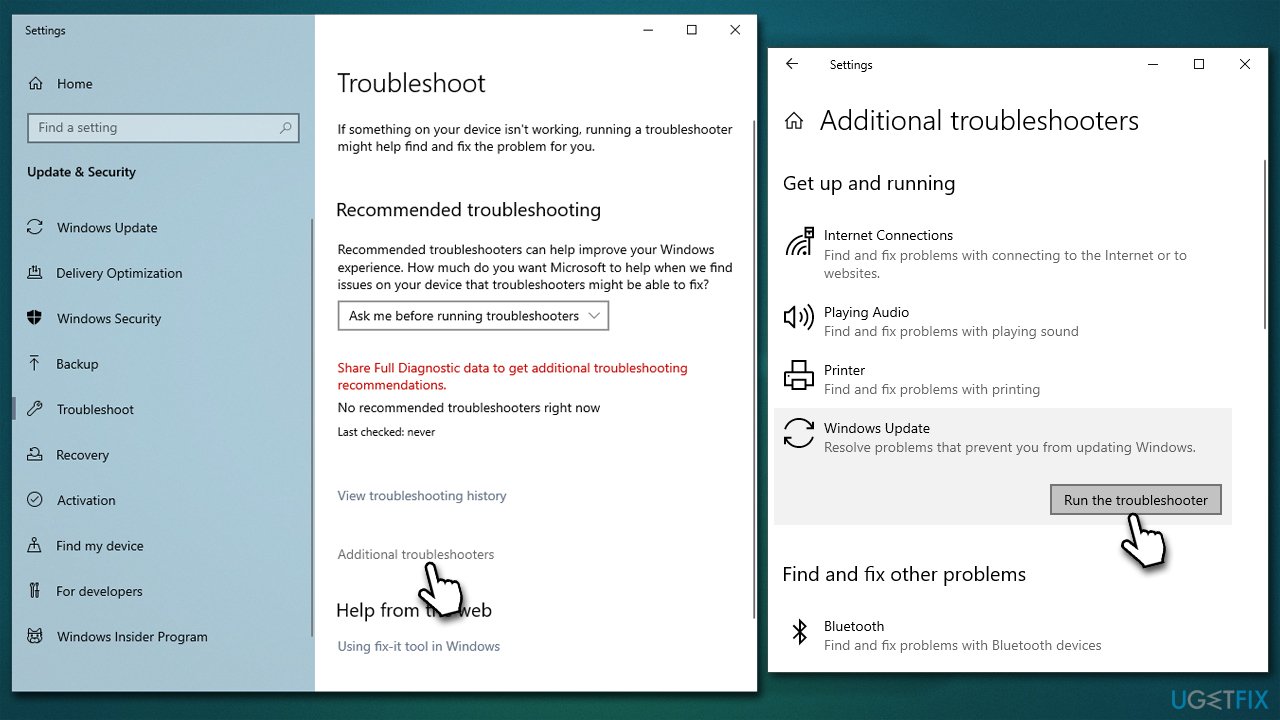
We always recommend starting with the built-in troubleshooter.
- Type Troubleshoot in Windows search and press Enter
- Choose Additional troubleshooters
- Locate Windows Update in the list
- Click it and select Run the troubleshooter
- Once the troubleshooter finishes its scan, apply the fixes suggested and restart your device.
Method 2. Check for corrupted system files
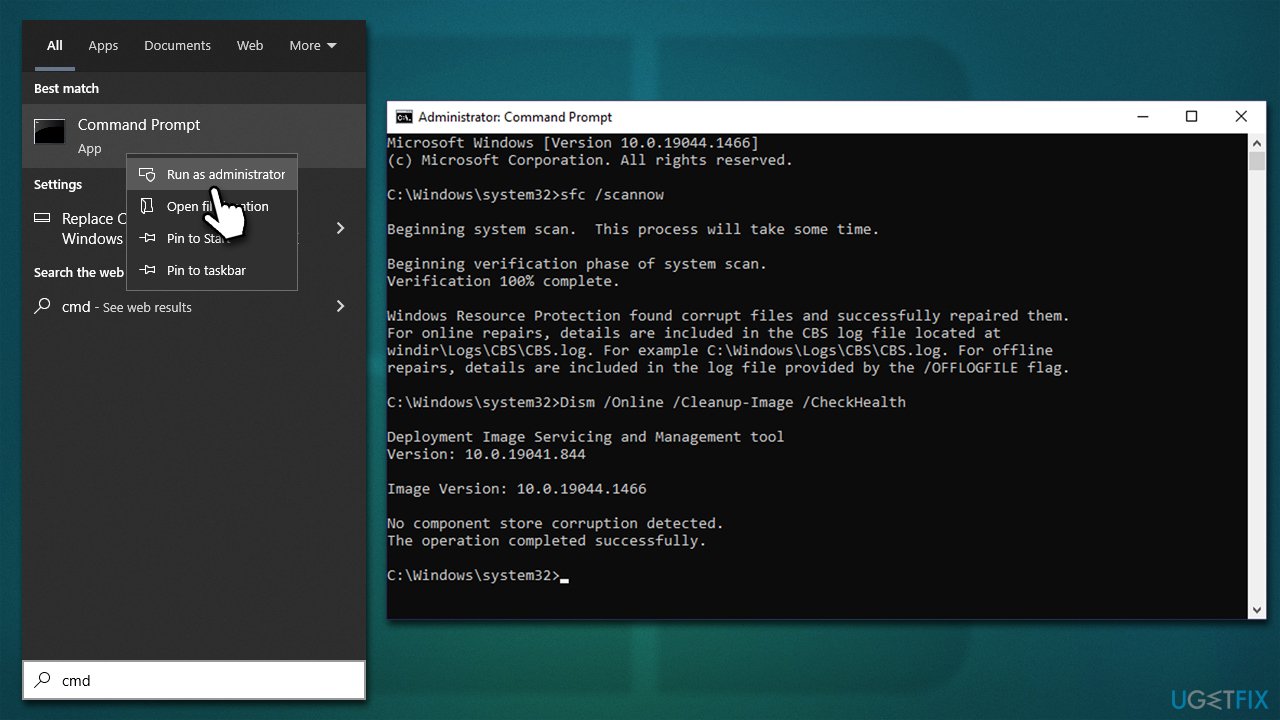
- Type cmd in Windows search
- Right-click on Command Prompt and pick Run as administrator
- When User Account Control (UAC) shows up, click Yes
- Use the following command lines, pressing Enter each time:
sfc /scannow
DISM /Online /Cleanup-Image /CheckHealth
DISM /Online /Cleanup-Image /ScanHealth
DISM /Online /Cleanup-Image /RestoreHealth - Restart your PC.
Method 3. Check BITS and Windows Update services
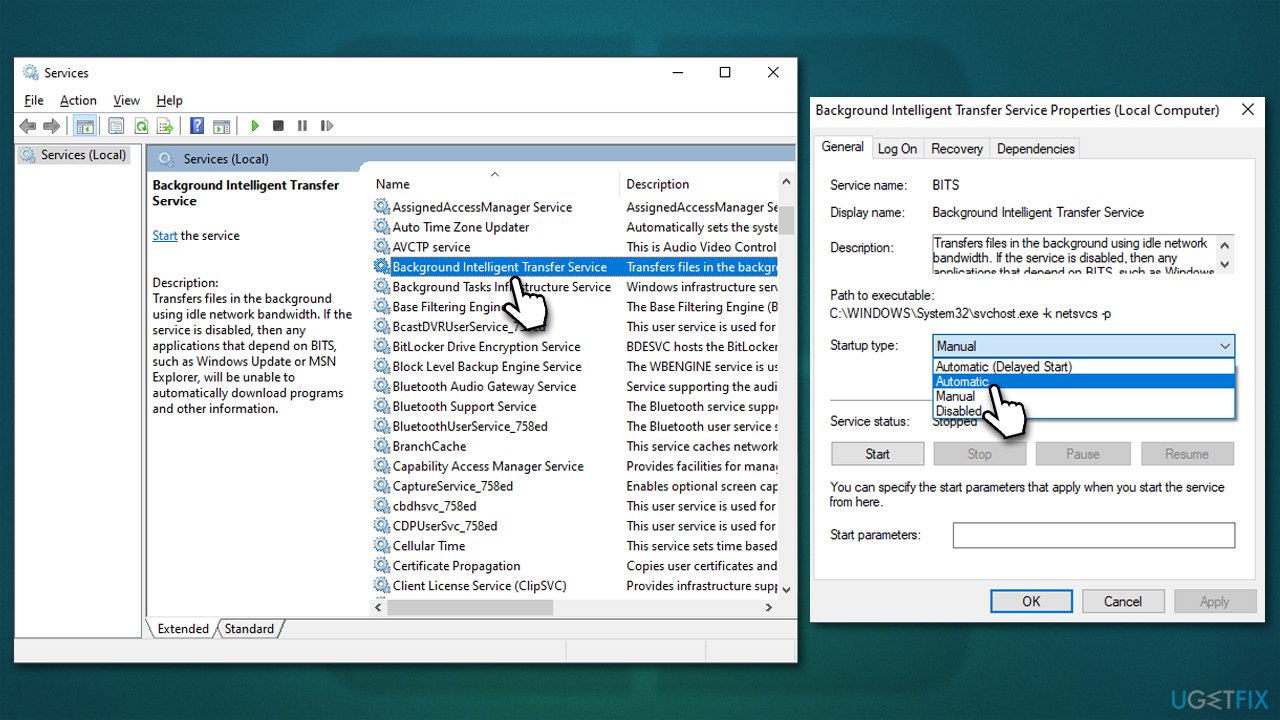
For a Windows update process to be successful, BITS and Windows Update services need to be running. You can set them to the Automatic setting or restart them if they are already running.
- Type in Services in Windows search and press Enter
- Locate Background Intelligent Transfer Service (BITS)
- If it is already running, right-click and select Restart
- if the service is not running, double-click it, select Automatic under the Startup type from the drop-down menu
- Click Start, Apply, and OK
- Repeat the process with the Windows Update service.
Method 4. Reset Windows Update components
If the above method did not help, try removing cached update files and trying again.
- Open Command Prompt (Admin)
- Copy and paste the following commands, pressing Enter each time:
net stop wuauserv
net stop cryptSvc
net stop bits
net stop msiserver - Press Win + E to open File Explorer
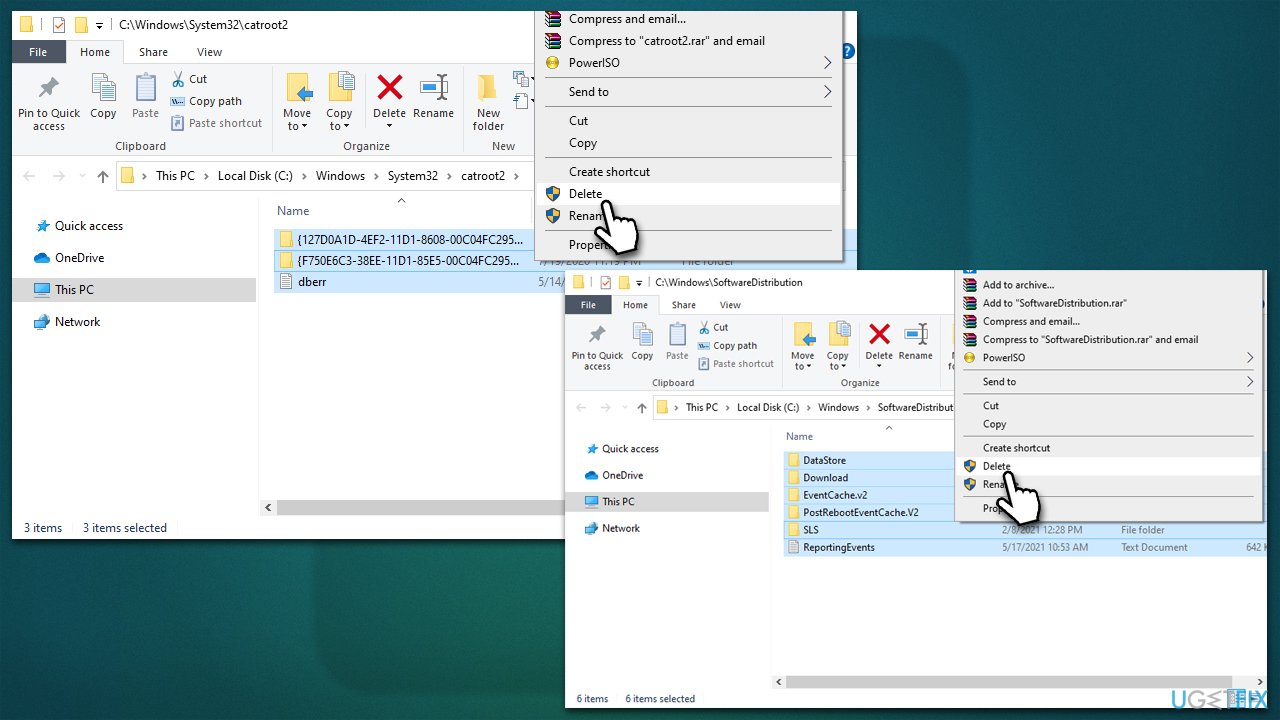
- Go to the following locations and delete the contents of these folders:
C:\Windows\System32\catroot2
C:\Windows\SoftwareDistribution - Then, go back to Command Prompt and use the following commands:
net start wuauserv
net start cryptSvc
net start bits
net start msiserver - Reboot your system.
Method 5. Install the update manually
- Type Updates in Windows search and hit Enter
- Click View update history
- Here, copy the KB number, which failed with an error 0x800704bd
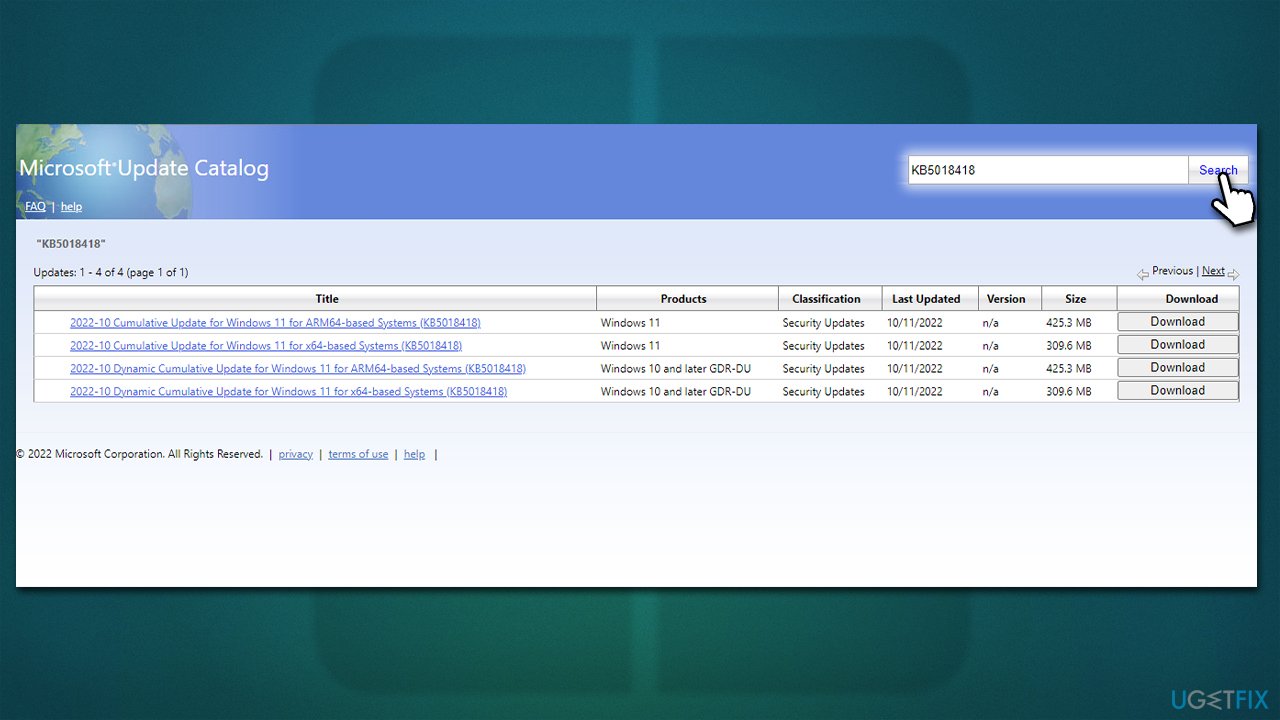
- Go to the official Microsoft Update Catalog website
- Type the KB number into the search bar, and press Enter or click Search
- You will find many different versions on the update – you need to find the one that matches your PC specs and Windows version (as a home user, ignore Windows server versions)
- Right-click on Start and pick System
- Under Device specifications, check the System type section: it should either be 64-bit or 32-bit
- Now, scroll down to Windows specifications and check the Version section
- With all this information, pick the correct version for your device
- Go back to the Microsoft Update catalog, download the appropriate version, and install it
- Restart your PC.
Method 6. Use Windows Installation Media to upgrade
Before proceeding with this solution, please make sure you disconnect all external devices (apart from mouse and keyboard), back up all your personal files just in case, disable/uninstall third-party security software and disconnect your computer from the internet.
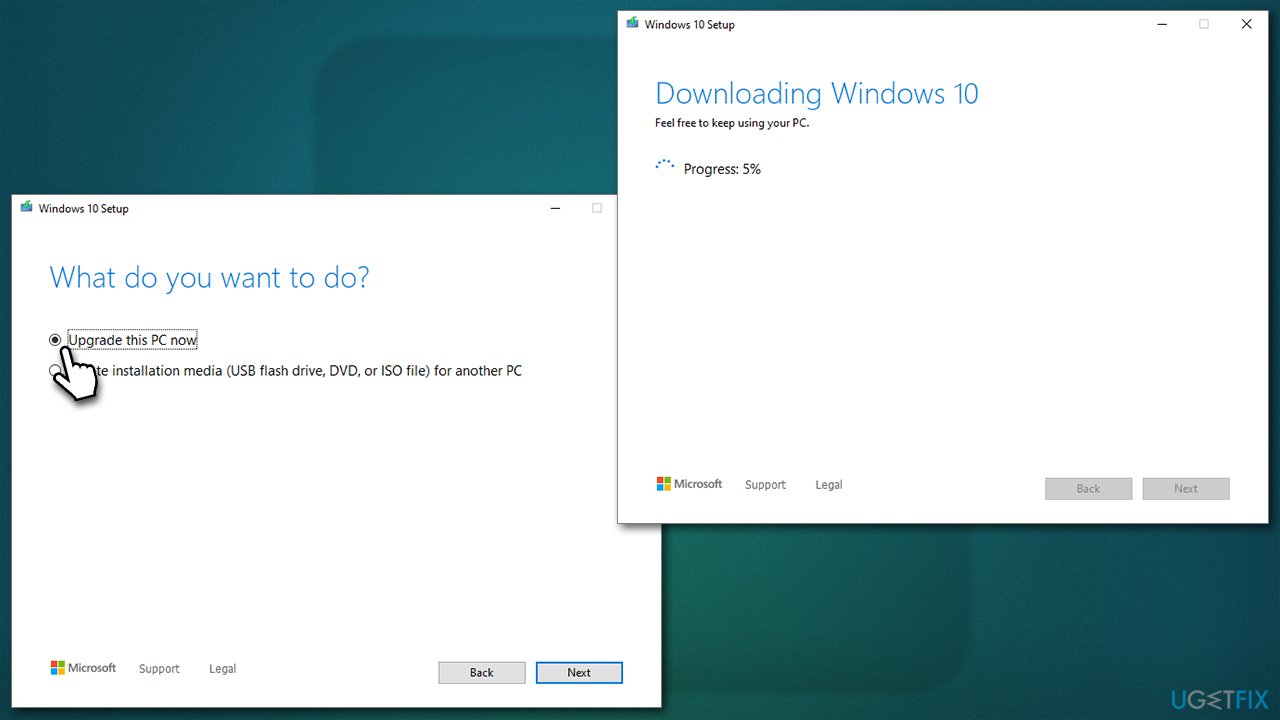
- Visit the official Microsoft website and download Windows 10 installation media (Windows 11 version)
- Double-click the installer, select Yes when UAC shows up, and agree to terms
- Select Upgrade this PC now and click Next
- Windows will start downloading the needed files
- Agree to terms once again and click Next
- Before installing, make sure that you are happy with your choices (otherwise, you can click Change what to keep option)
- Finally, click Install to begin the upgrade process.
Bottom line
To fix the 0x800704bd error, users can start with the built-in troubleshooter and consider running a PC repair tool to address underlying issues. If these methods do not resolve the problem, further investigation into specific updates or system configurations may be necessary.
Frequently asked questions
The error 0x800704bd typically indicates a problem with the Windows Update service or a network-related issue affecting the update process in Windows 10 or Windows 11.
To fix error 0x800704bd on Windows 10, try resetting the Windows Update components using the Command Prompt and ensure that your internet connection is stable.
Yes, you can use the Windows Update Troubleshooter available in the Settings app to automatically detect and resolve issues related to error 0x800704bd on both Windows 10 and Windows 11.




Report an issue
What's wrong with this guide? We review every report and update or remove content.
Report received — thank you. We'll review and fix it.
You need a free account to submit a report.
Be the first to comment