How to fix
Windows update error 0x80070538
on Windows
Resolve Windows update error 0x80070538 effortlessly with our expert-tested solutions. Fix your Windows 10 or 11 issues in minutes!

What causes How to fix Windows update error 0x80070538?
- Corrupt user profile
- Faulty Security Identifier (SID) entry in the Windows Registry
- Corrupted system files
- Incorrectly configured services
- Other underlying issues
Repairs Windows system files, removes malware, and restores a clean OS state — without reinstalling.
I can't update Windows as usual - I receive an error 0x80070538. I tried restarting the PC several times and waited for almost a week, but the issue did not get resolved by itself. I'd appreciate any advice on how to deal with this situation.
Windows is a widely recognized and utilized operating system worldwide, renowned for its user-friendly interface and rich feature set. A critical aspect of maintaining the health and functionality of a Windows-based system is to ensure regular updates. These updates are necessary not just for introducing new features and improving performance but also for patching security vulnerabilities that could otherwise be exploited by malicious actors.
However, the process of updating Windows is not always smooth. Some users may encounter issues while attempting to install updates, resulting in a variety of error codes. One such issue is the Windows update error 0x80070538. This error can appear unexpectedly and prevent successful Windows updates, leading to potential performance issues and security risks.
The most common reason for the occurrence of the 0x80070538 error is a corrupt user profile. This typically involves a faulty Security Identifier (SID) entry in the Windows Registry. The SID is a unique identifier that Windows uses for various user accounts, and a corrupt or incorrectly assigned SID can lead to various problems, including update errors.
To address this, you can manually delete the faulty SID entry in the Registry Editor. It should be noted that the Registry Editor is a powerful tool, and improper use can lead to serious issues with your system. Therefore, it is essential to follow guidelines correctly and consider creating a system restore point before making changes to the registry.
There may also be other reasons behind the 0x80070538 error, such as corrupted system files or registries, incorrectly configured services or other underlying issues. The necessary solutions for these problems may vary, and comprehensive details and instructions for their resolution can be found below.
Despite the availability of these manual solutions, it is often recommended to use a reputable PC repair tool first. Software like the [d1] PC repair tool is specifically designed to diagnose and repair common Windows problems. It can resolve the underlying issues that might be causing this error in a much simpler and faster way, saving users the time and effort required to troubleshoot manually.
Method 1. Run the troubleshooter
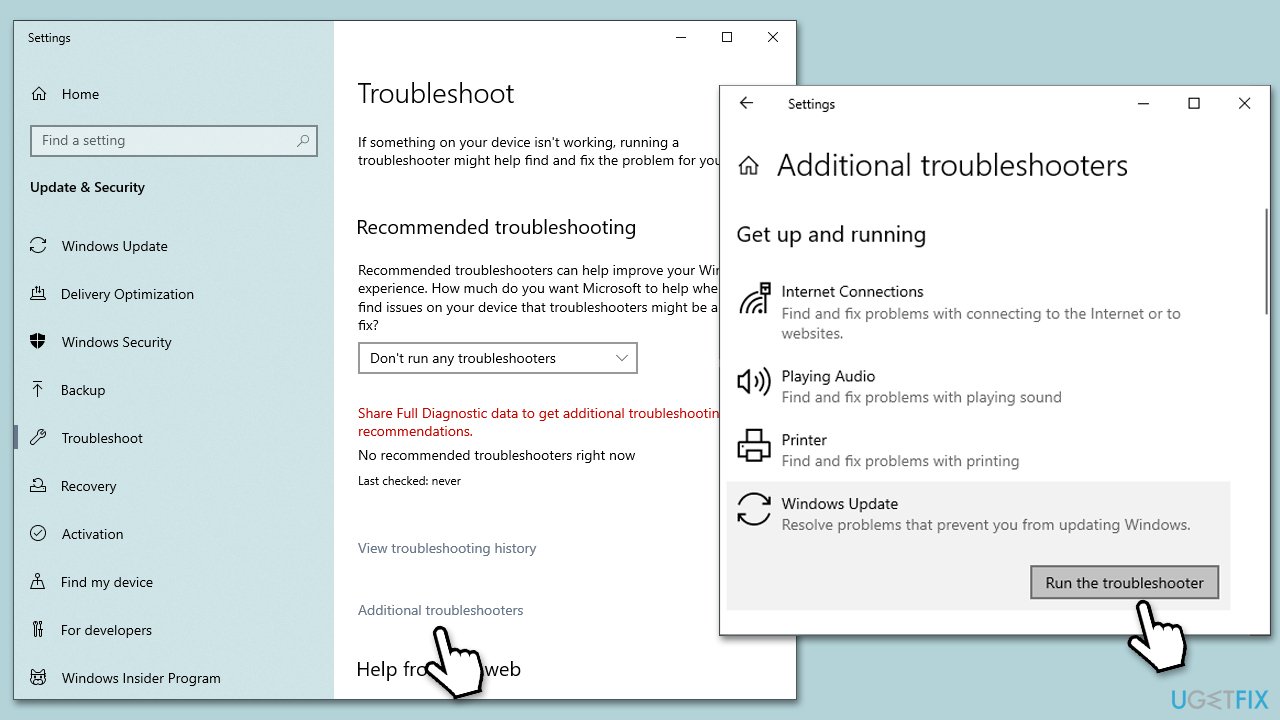
This built-in utility in Windows diagnoses and automatically fixes common issues with Windows Update. It scans the system and rectifies any detected inconsistencies or problems that may be hindering the update process.
- Type troubleshoot in Windows search and hit Enter.
- Click Additional troubleshooters/Other troubleshooters.
- Find Windows update.
- Click on it, and select Run the troubleshooter/Run.
- Wait for the scan to be completed and apply the suggested fixes.
Method 2. Run SFC and DISM
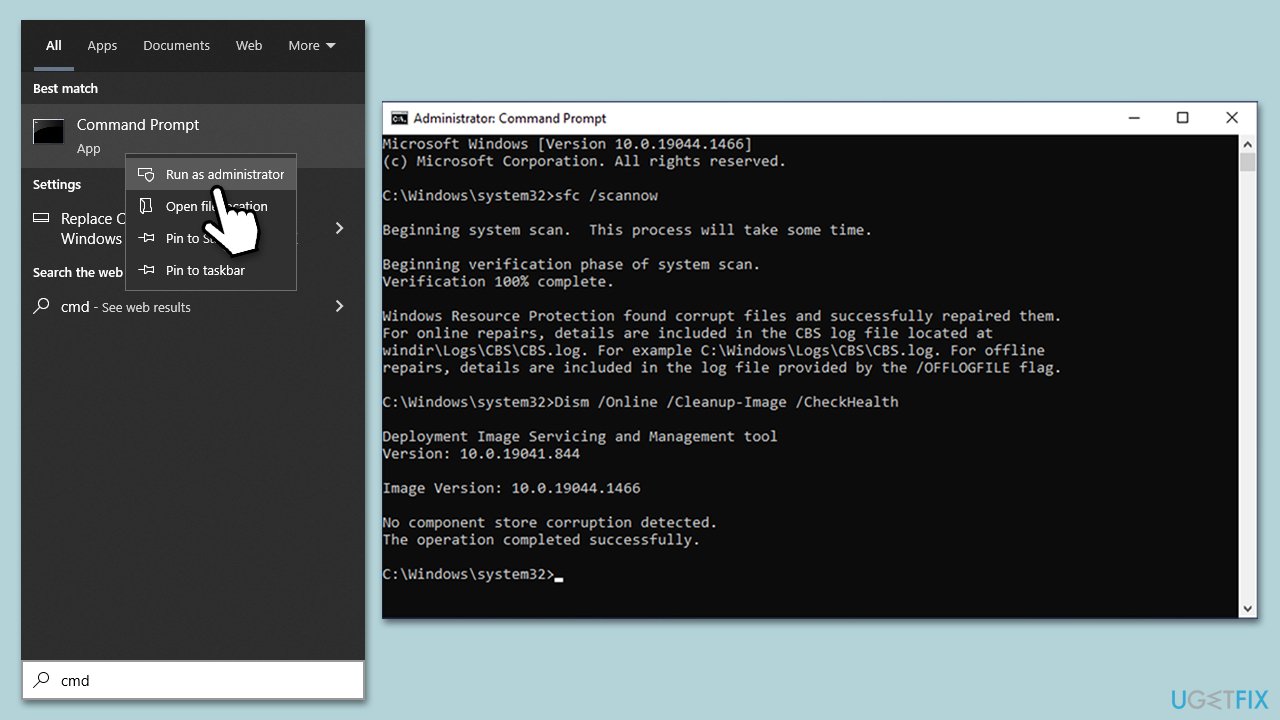
The System File Checker (SFC) and Deployment Image Servicing and Management (DISM) are integral utilities in Windows. They help to repair corrupted system files and restore the health of the system image, which can subsequently resolve the 0x80070538 update error.
- Type cmd in Windows search.
- Right-click on Command Prompt and select Run as administrator.
- When the User Account Control window pops up, click Yes.
- Use the following command and press Enter:
sfc /scannow - After the SFC scan is complete, use the following commands, pressing Enter after each:
DISM /Online /Cleanup-Image /CheckHealth
DISM /Online /Cleanup-Image /ScanHealth
DISM /Online /Cleanup-Image /RestoreHealth - Restart your system.
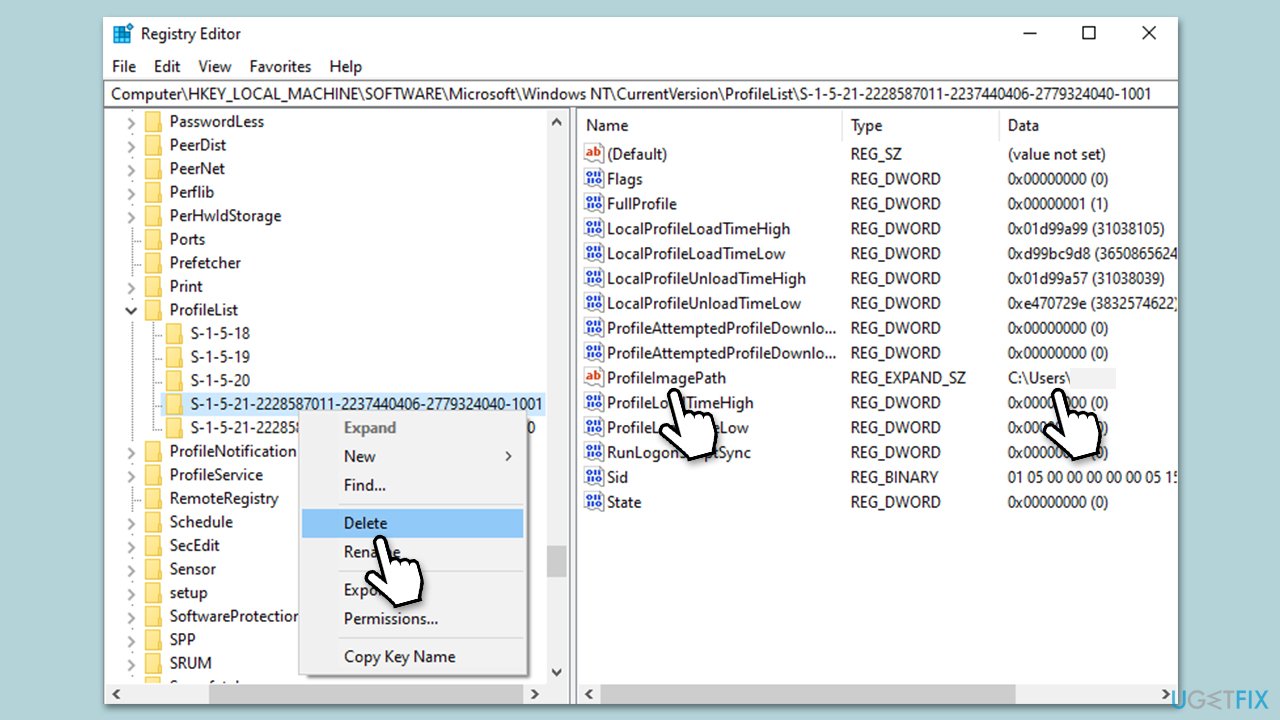
Method 3. Delete the faulty SID entry in the Registry Editor
Most commonly, the issue could be caused by a corrupt user profile, typically caused by a faulty Security Identifier (SID) entry. Removing this entry can potentially solve the error by restoring the correct system configurations.
- Type regedit in Windows search and press Enter.
- When User Account Control shows up, click Yes.
- Click on File > Export and back up your registry database.
- Next, navigate to the following location:
Computer\HKEY_LOCAL_MACHINE\SOFTWARE\Microsoft\Windows NT\CurrentVersion\ProfileList - Under
ProfileList, you'll see several folders namedS-1-5followed by a long number. These are the SIDs. - Click on each
S-1-5folder, and in the right-hand pane, look for anProfileImagePathentry. - The value of
ProfileImagePathwill give you an idea of which user account it relates to. - If you find one related to a corrupt user profile, right-click the corresponding
S-1-5folder and choose Delete. - Confirm the deletion, close the Registry Editor, and restart your computer.
Method 4. Check relevant services
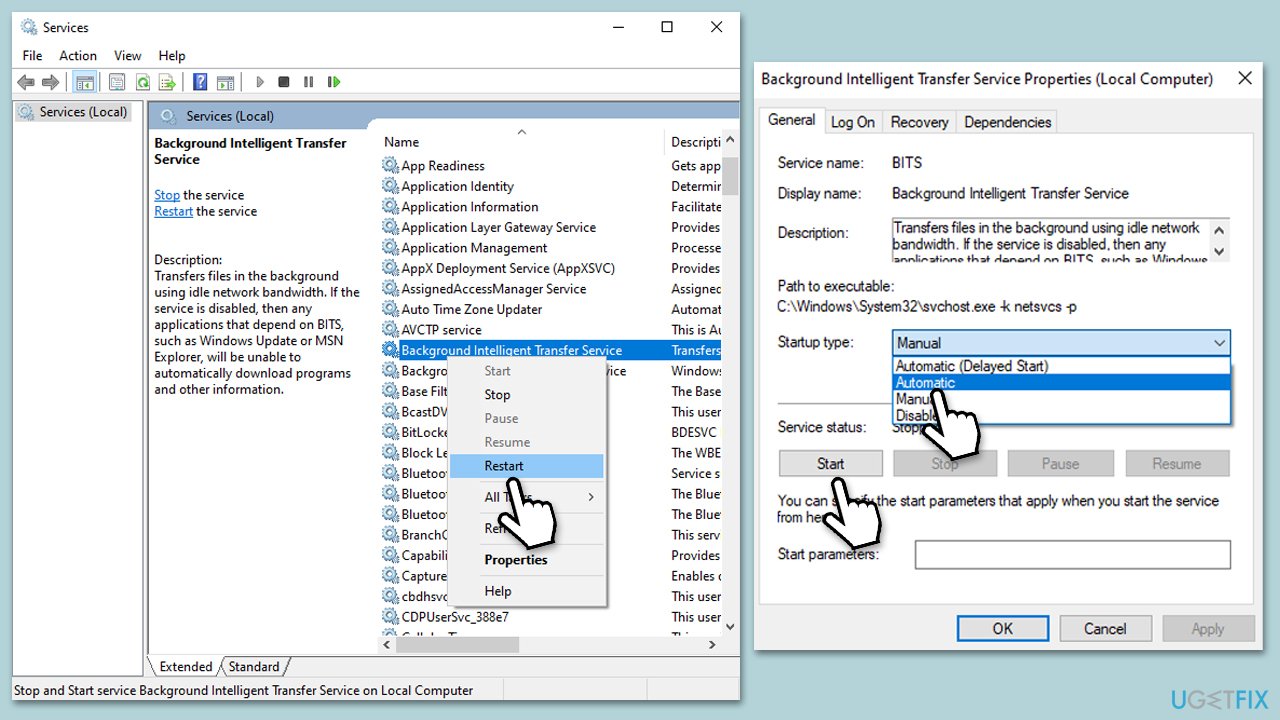
For Windows updates to run successfully, several services need to be operational. These include the Windows Update Service for managing updates, the Background Intelligent Transfer Service for handling network traffic, the Cryptographic Services for data authenticity, and the Workstation Service for facilitating network connections. You should either enable them or restart them as follows:
- Type in Services in Windows search and press Enter.
- Locate Background Intelligent Transfer Service (BITS).
- If it is already running, right-click and select Restart.
- if the service is not running, double-click it, select Automatic under the Startup type from the drop-down menu
- Click Start, Apply, and OK.
- Repeat the process for the other services mentioned above.
Method 5. Reset Windows update components
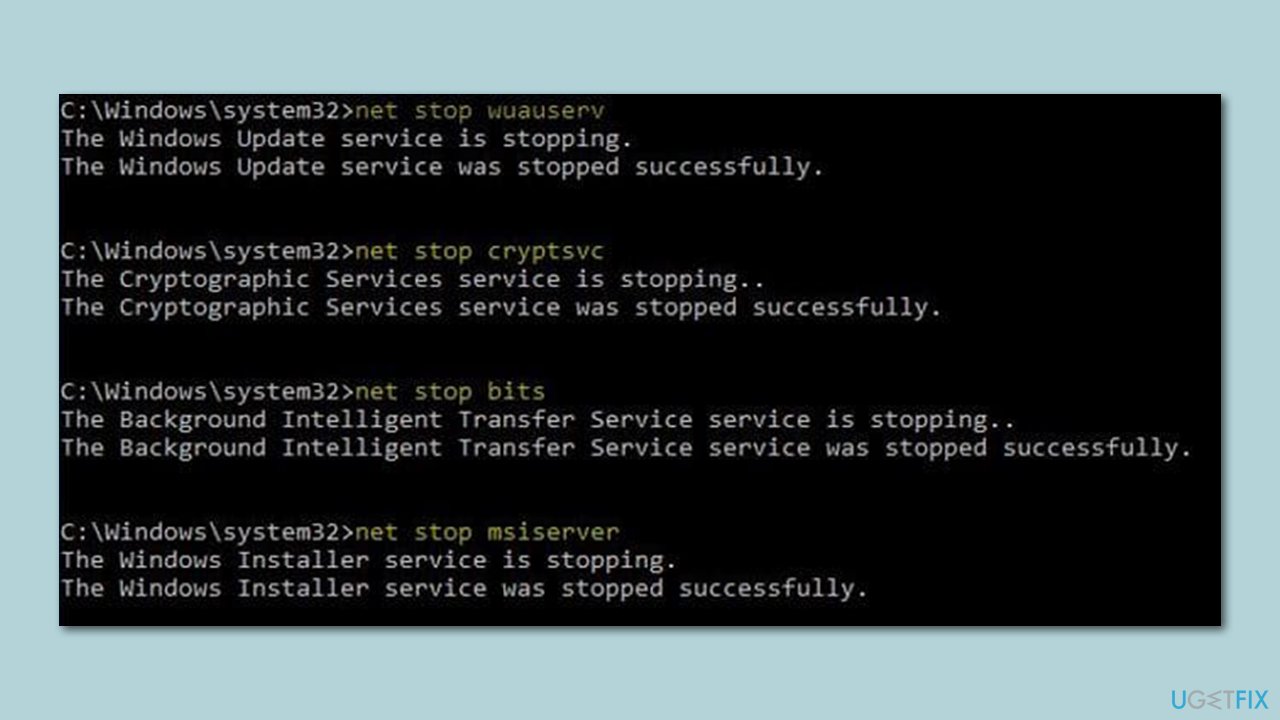
This method involves manually resetting the software distribution folders where Windows Update components are stored. Occasionally, these components may become corrupt or misconfigured, causing update errors.
- Open Command Prompt as administrator, as explained in the previous solution.
- Paste in each of these commands, pressing Enter every time:
net stop bits
net stop wuauserv
net stop appidsvc
net stop cryptsvc
Del “%ALLUSERSPROFILE%\Application Data\Microsoft\Network\Downloader\*.*”
rmdir %systemroot%\SoftwareDistribution /S /Q
rmdir %systemroot%\system32\catroot2 /S /Q
regsvr32.exe /s atl.dll
regsvr32.exe /s urlmon.dll
regsvr32.exe /s mshtml.dll
netsh winsock reset
netsh winsock reset proxy
net start bits
net start wuauserv
net start appidsvc
net start cryptsvc - Restart your system.
Method 6. Use Media Creation Tool
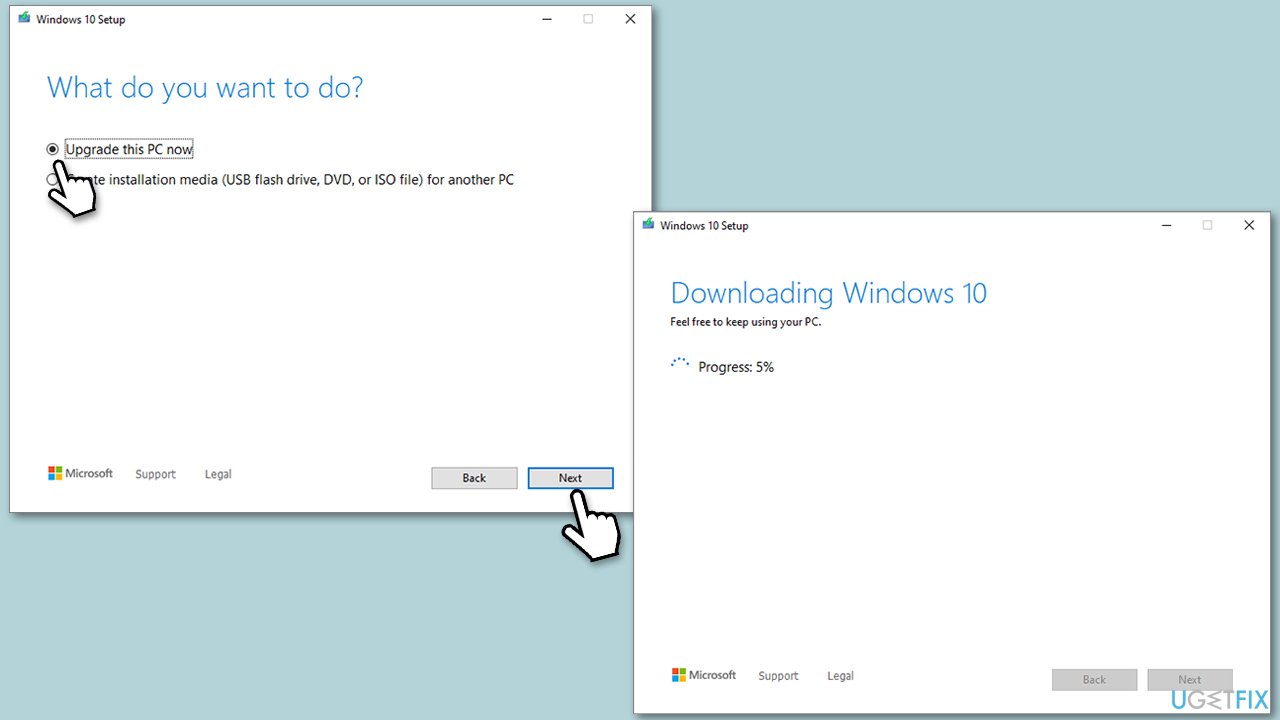
The Media Creation Tool is an official utility from Microsoft that allows for the manual installation of Windows. By creating an installation media for Windows, you can bypass potential issues with the regular update process. Make sure you uninstall any third-party security software to prevent interference during this process.
- Visit the official Microsoft website and download Windows 10 installation media (Windows 11 version).
- Double-click the installer and select Yes when UAC shows up.
- Agree to terms.
- Select Upgrade this PC now and click Next.
- Windows will start downloading the needed files.
- Agree to the terms once again and click Next.
- Before installing, make sure that you are happy with your choices (otherwise, you can click Change what to keep option).
- Finally, click Install to begin the upgrade process.
Bottom line
To fix the Windows update error 0x80070538, you can manually delete the faulty SID entry in the Registry Editor, use a reputable PC repair tool, or address corrupted system files. If these solutions do not resolve the issue, consider seeking further assistance or exploring additional troubleshooting methods.
Frequently asked questions
The error code 0x80070538 typically indicates that there is a problem with the Windows Update Service or that a file is missing or corrupted in the update process.
You can resolve the error by running the Windows Update Troubleshooter, which can automatically detect and fix common issues related to Windows updates.
Yes, you can try resetting the Windows Update components by stopping the Windows Update service, deleting the SoftwareDistribution folder, and restarting the service.




Report an issue
What's wrong with this guide? We review every report and update or remove content.
Report received — thank you. We'll review and fix it.
You need a free account to submit a report.
Be the first to comment