How to fix
Windows update error 0x80070539
on Windows
Resolve Windows update error 0x80070539 quickly and hassle-free. Follow our expert-tested tips for a smooth update experience on Windows 10 and 11.

What causes How to fix Windows update error 0x80070539?
- Conflicting software
- Corrupted Windows update components
- Issues with the Windows update service
- Driver incompatibilities
- Insufficient system resources
Repairs Windows system files, removes malware, and restores a clean OS state — without reinstalling.
Hello. I'm struggling with the installation of the newest Windows update - several updates fail with 0x80070539 error. Never had to deal with anything like that before so it would be great if you could provide me some tips on how to resolve it.
Windows updates are among the most important implementations when it comes to proper operating system maintenance and new feature implementation. As a part of Microsoft's commitment to provide continuous improvements to the Windows operating system regularly, it releases monthly updates (known as Patch Tuesday) in various categories, including security, feature, quality, and others. They can also include driver updates, which makes it much easier for users to keep their hardware at peak performance.
Unfortunately, the update process does not go smoothly for everyone, and some users report that Windows updates fail to install. At that time, they might be presented with an error code, for example, 0x80070539. This is one of many generic errors that might be encountered by users who want to update their OS and can occur regardless of which types of updates are being installed. It can also affect Windows 11, Windows 10, and other versions of Windows.
The 0x80070539 update error can occur at various times - during the installation or application of the update, and, as usual, the causes might vary (which also affects what types of troubleshooting steps would help you fix the error.
Most users manage to fix the 0x80070539 error by simply running the Windows update troubleshooter, while others need to resort to more advanced solutions, such as resetting Windows update components or using the Media Creation Tool.
Below we provide a comprehensive guide on how to fix the 0x80070539 error, but keep in mind that you might have to try several fixes before one works for you. Also, if you would rather attempt to resolve the issue automatically, we recommend trying to run a scan with a potent PC repair application [d1], which can find underlying Windows issues and resolve them for you.
Fix 1. Check for conflicting software
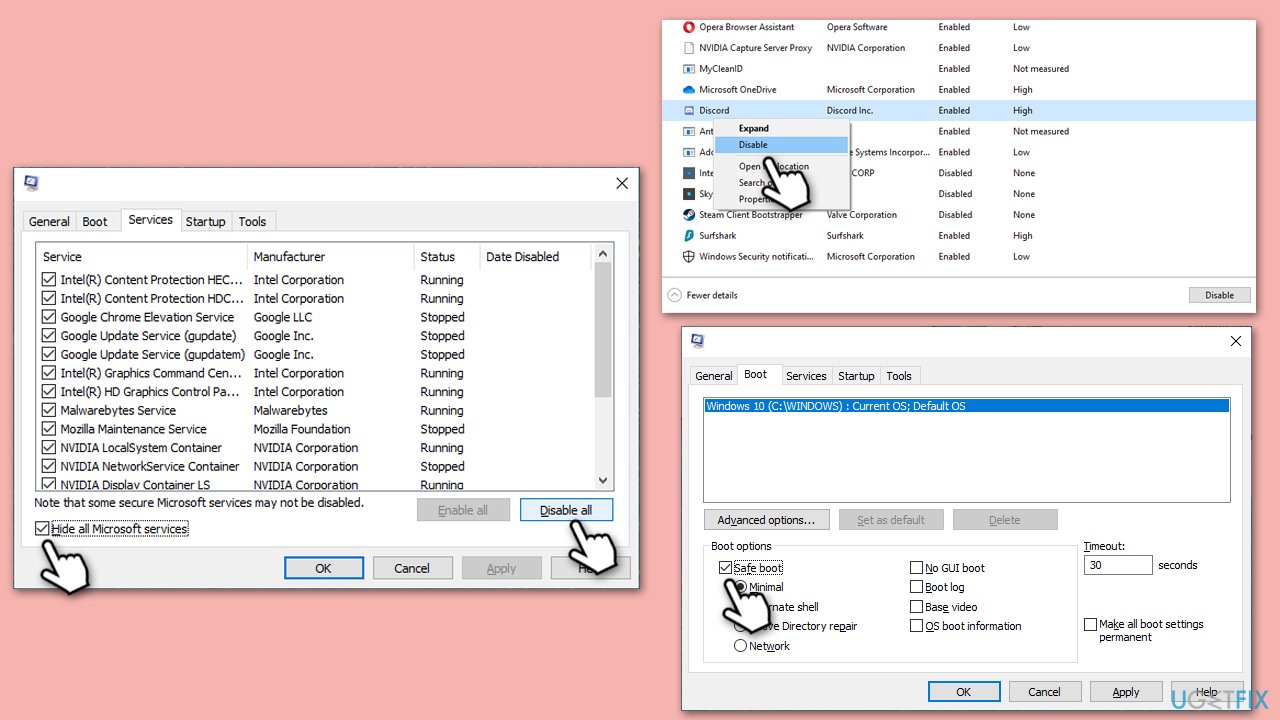
Check for conflicting software, as security and similar software can cause Windows update issues. Perform a Clean Boot to identify and resolve conflicts:
- Press Win + R, type msconfig, and hit Enter.
- Go to the Services tab and tick the Hide all Microsoft services checkbox.
- Select Disable all.
- Go to the Startup tab and click Open Task Manager.
- Here, right-click on each of the non-Windows entries and select Disable.
- Close down the Task Manager.
- Go to the Boot tab and tick the Safe boot option.
- Click OK.
- Restart your computer to initiate the Clean Boot.
- Try running Windows Update again to check if error 0x80070539 persists.
Fix 2. Run Windows Update Troubleshooter
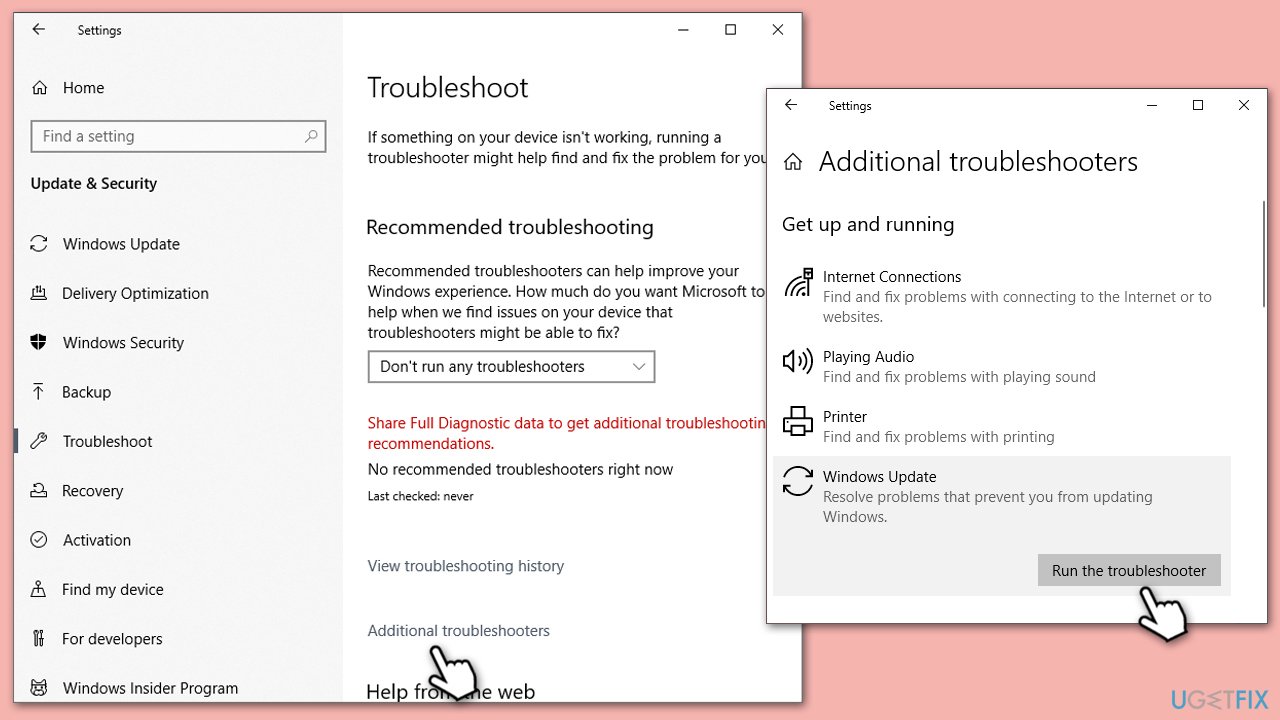
Run the Windows Update Troubleshooter, a built-in tool to automatically detect and resolve common update issues:
- Type Troubleshoot in Windows search and hit Enter.
- Select Additional troubleshooters/Other troubleshooters.
- Find Windows Update from the list and click Run the troubleshooter/Run.
- The troubleshooter will automatically scan your system for potential problems and display any issues it finds.
- If the troubleshooter finds any issues, it will provide recommended solutions.
- Follow the on-screen instructions to apply the recommended solution
Fix 3. Perform SFC and DISM scans
Perform SFC and DISM scans to repair corrupted system files and resolve update errors:
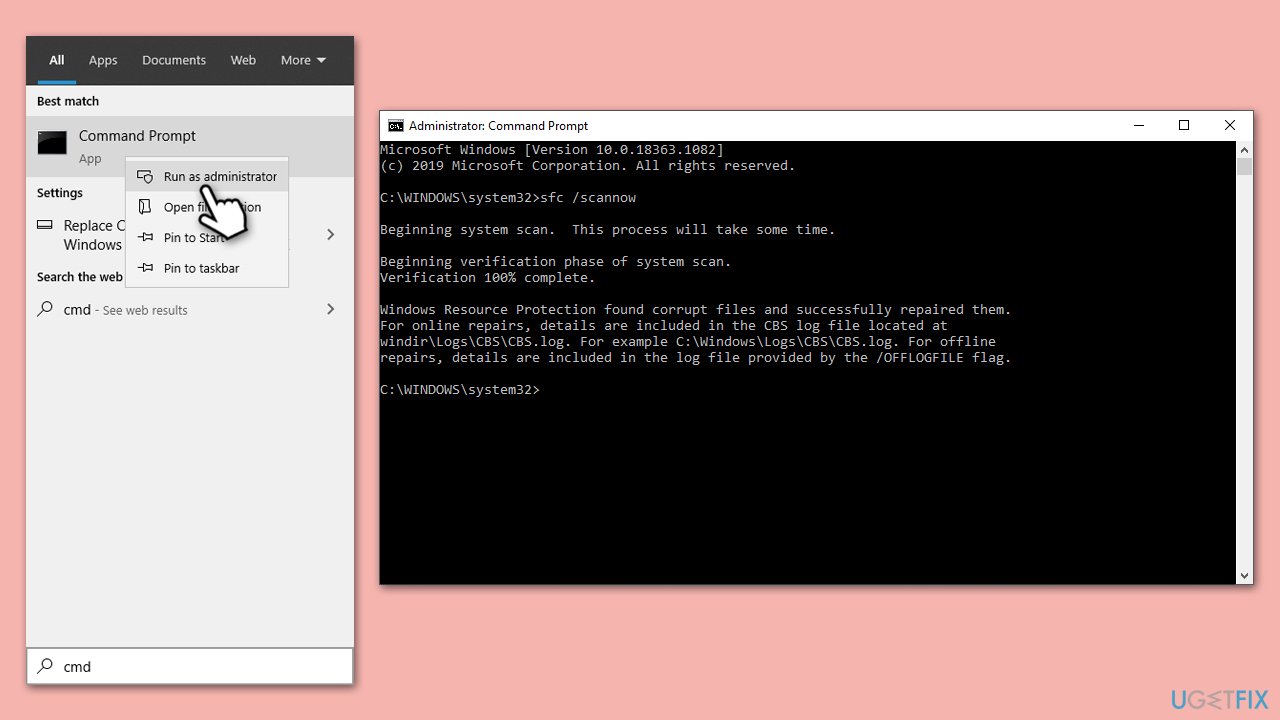
- Type in cmd in Windows search.
- Right-click on Command Prompt and select Run as administrator.
- In the User Account Control window, click Yes.
- In the Command Prompt window, paste the following command and hit Enter:
sfc /scannow - Next, use the following commands, pressing Enter each time:
Dism /Online /Cleanup-Image /CheckHealth
Dism /Online /Cleanup-Image /ScanHealth
Dism /Online /Cleanup-Image /RestoreHealth
(Note: if you get an error executing this last command, add /Source:C:\RepairSource\Windows /LimitAccess to it and try again). - Reboot your computer.
Fix 4. Install the update manually
If a specific update is causing the error, download and install it manually from the Microsoft Update Catalog:
- Type in Updates in Windows search and press Enter.
- Select View update history.
- Find the update that failed with the 0x80070539 error and copy its KB number.
- Open your browser and go to Microsoft Update Catalog.
- Within the search bar, type in the KB number and click Search.
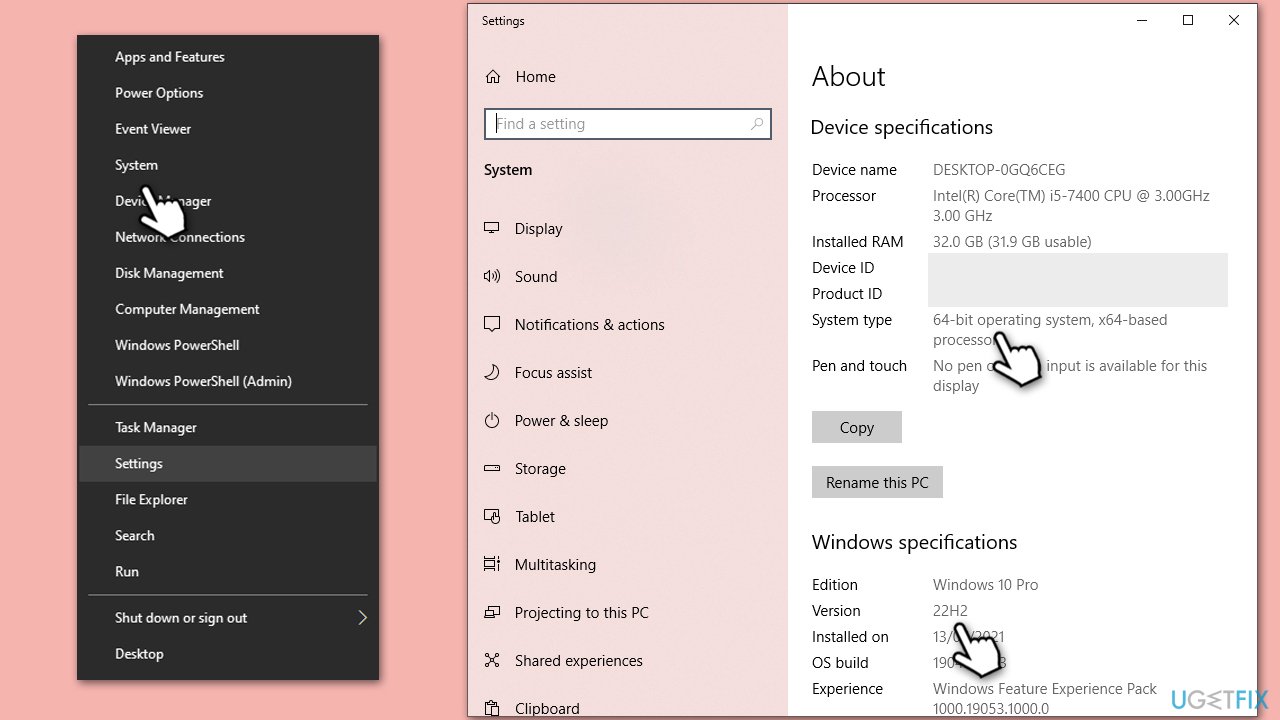
- Find the correct version of the update for your operating system (to check this, right-click on Start and pick System. Under Device specifications check the System type. Also check ) and click Download.
- Use on-screen guidelines to finish the installation process and restart your PC.
Fix 5. Reset Windows Update Components
Reset Windows Update components to resolve update-related issues:
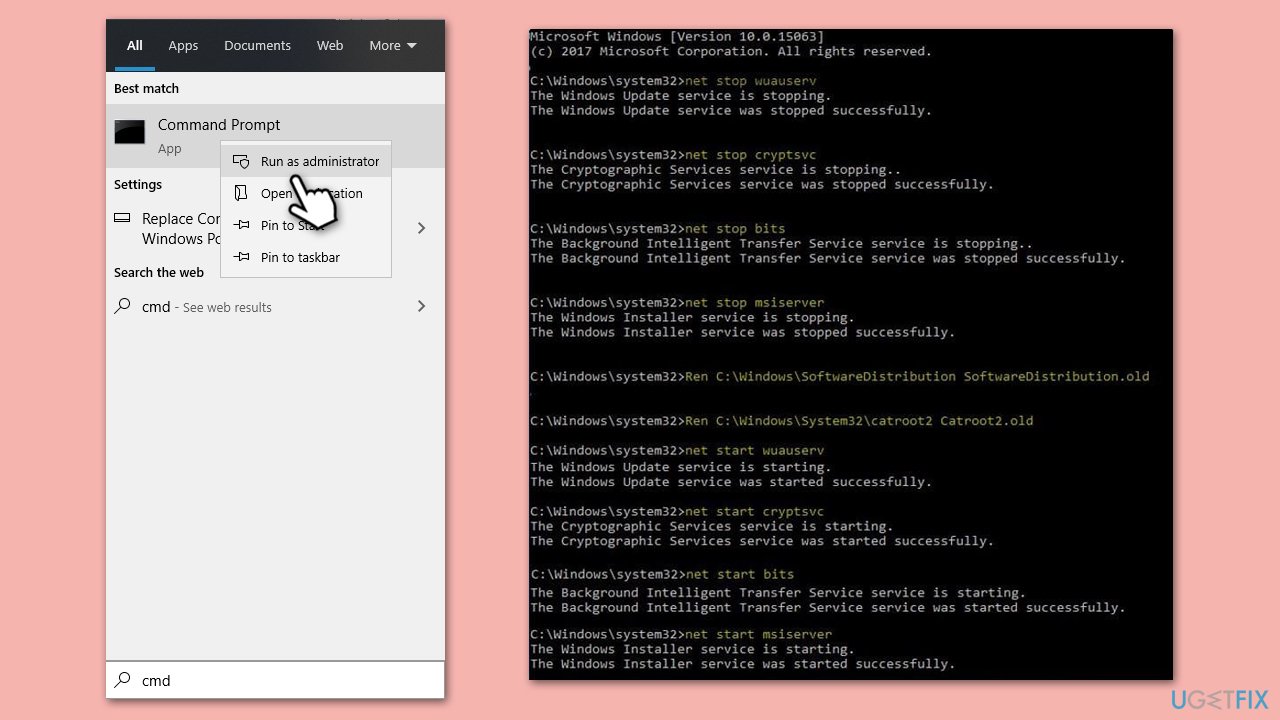
- Open Command Prompt as an administrator (search cmd, right-click, Run as administrator).
- Stop the Windows Update and related services by running these commands one by one:
- net stop wuauserv
- net stop cryptSvc
- net stop bits
- net stop msiserver
- Rename the SoftwareDistribution and Catroot2 folders with these commands:
- ren C:\Windows\SoftwareDistribution SoftwareDistribution.old
- ren C:\Windows\System32\catroot2 Catroot2.old
- Restart the stopped services:
- net start wuauserv
- net start cryptSvc
- net start bits
- net start msiserver
- Try running Windows Update again.
Fix 6. Use Disk Cleanup
Use Disk Cleanup to remove unnecessary files that might be causing update issues:
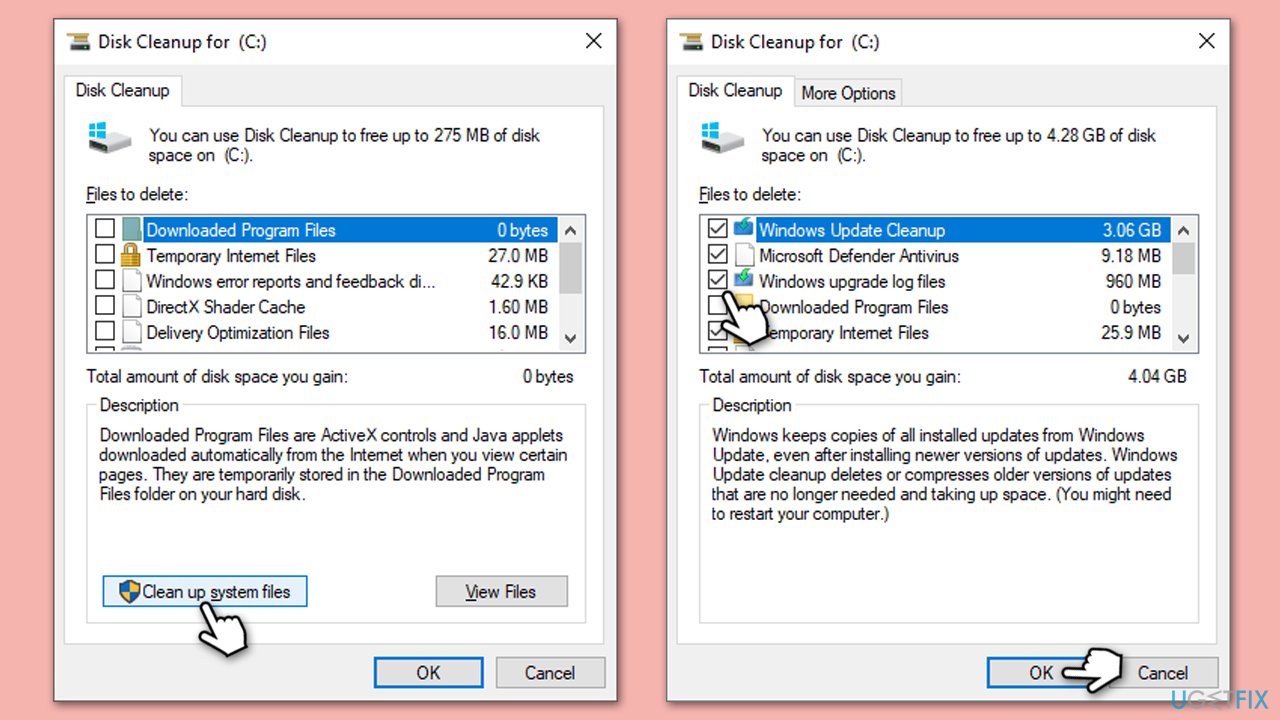
- Type Disk Cleanup in Windows search and press Enter to open the Disk Cleanup utility.
- In the Disk Cleanup window, click Clean up system files.
- Select the drive (usually, C:) again and click OK.
- It is important to clear up sections related to Windows updates (Windows Update Cleanup, Windows upgrade log files, Delivery optimization files), as well as other temp files -Temporary Internet Files, Temporary Files, etc.
- Click OK to begin the cleanup process.
Fix 7. Use the Media Creation Tool
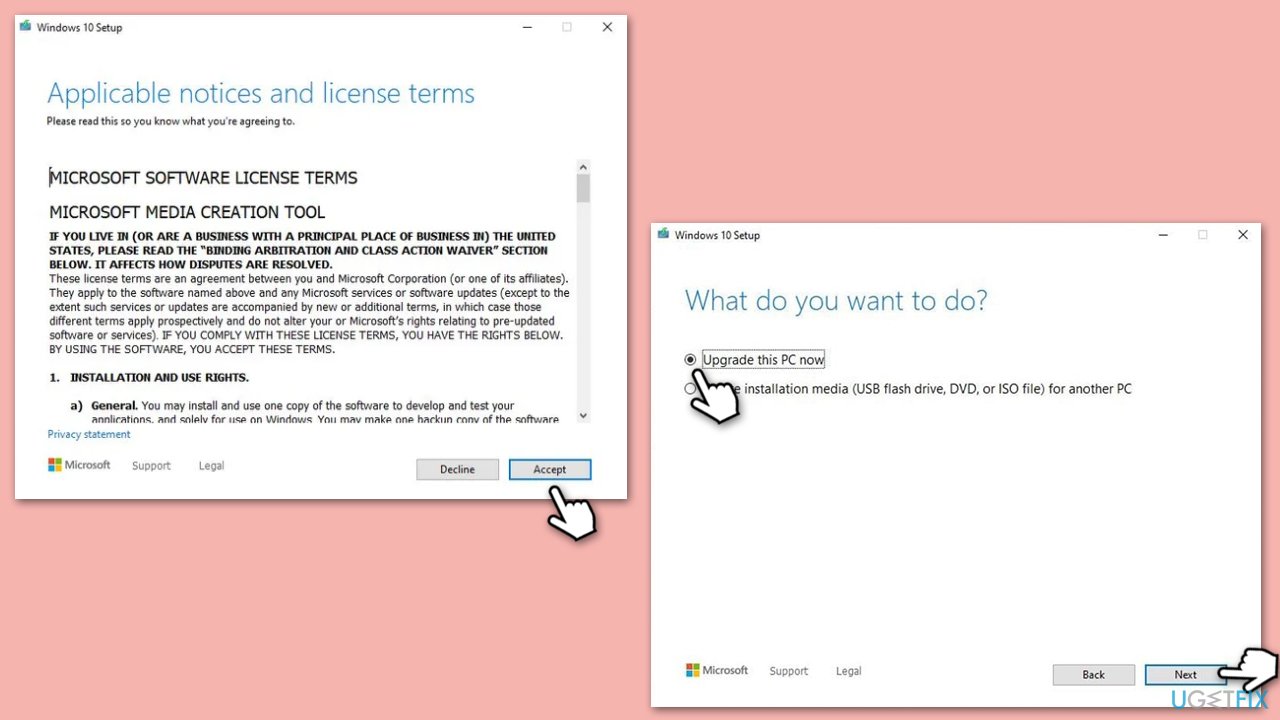
Use the Media Creation Tool to perform a repair upgrade of Windows. During this process, you don't have to erase your personal files.
- Visit the official Microsoft website and download Windows 10 installation media (Windows 11 version).
- Double-click the installer and select Yes when UAC shows up.
- Agree to terms.
- Select Upgrade this PC now and select Next.
- Windows will now download all the necessary files – it might take a while.
- Agree to the terms once again and click Next.
- Before installing, ensure you are happy with your choices (otherwise, you can click the Change what to keep option).
- Click Install to begin the upgrade process.
Bottom line
To fix the 0x80070539 error, you can try running the Windows update troubleshooter, resetting Windows update components, or using the Media Creation Tool. If these methods do not resolve the issue, consider using a potent PC repair application to automatically find and fix underlying Windows problems.
Frequently asked questions
The error 0x80070539 indicates that there is a problem with the update process, often related to missing or corrupted system files. This can prevent Windows 10 from installing updates properly.
To troubleshoot this error in Windows 11, you can run the Windows Update Troubleshooter and check for corrupted system files using the System File Checker tool.
Yes, you can open Command Prompt as an administrator and run the commands 'sfc /scannow' and 'DISM /Online /Cleanup-Image /RestoreHealth' to repair system files related to the error.




Report an issue
What's wrong with this guide? We review every report and update or remove content.
Report received — thank you. We'll review and fix it.
You need a free account to submit a report.
Be the first to comment