How to fix
Windows update error 0x8007054F
on Windows
Resolve the Windows update error 0x8007054F effortlessly. Follow expert-tested tips to get your system back on track with zero traces left.

What causes How to fix Windows update error 0x8007054F?
- Problematic app
- Buggy updates
- Conflicts with third-party applications
- Damaged system files
- Incompatible programs
Repairs Windows system files, removes malware, and restores a clean OS state — without reinstalling.
Hey. Help me. I get the Something wrong error. This Windows update error 0x8007054F issue keeps me from using the computer normally. It was recently updated to Windows 11, but all things worked fine until now. Updates cannot get installed right now, so patching is not possible. Can I do something?
Windows update error 0x8007054F is the issue particularly related to failed Windows operating system update. This is the error that prevents the KB5014697 update from installing on particular Windows 11 system. This is one of the issues that appear on the newest Windows 11 OS machines.[ref en-1]
These problems can trigger reboots of the computer after the recent download of the update. The system needs to roll back these changes, and their installations may fail. The error usually appears due to the problematic app or particularly buggy updates, so the message like this appears:
Installation Failure: Windows failed to install the following update with error 0x8007054F
Windows update error 0x8007054F can appear on Windows 10 or Windows 11 and is not major or related to security issues. There can be conflicts with particular third-party applications that block the processes within the system or even damage system files. Anti-malware tools can trigger issues like this, so you might want to disable to uninstall your third-party security tools.
You might want to disable the incompatible program or check for malware[ref en-2] that can possibly alter the registry and cause issues with damaged system files.[ref en-3] If you want a quick check you can run [d1] and see if there is any leftovers of infections or damaged files, or affected parts of the system that trigger issues with the performance. This is the way to possibly fix Windows update error 0x8007054F.
1. Uninstall the problematic program
- Press the Windows key and I.
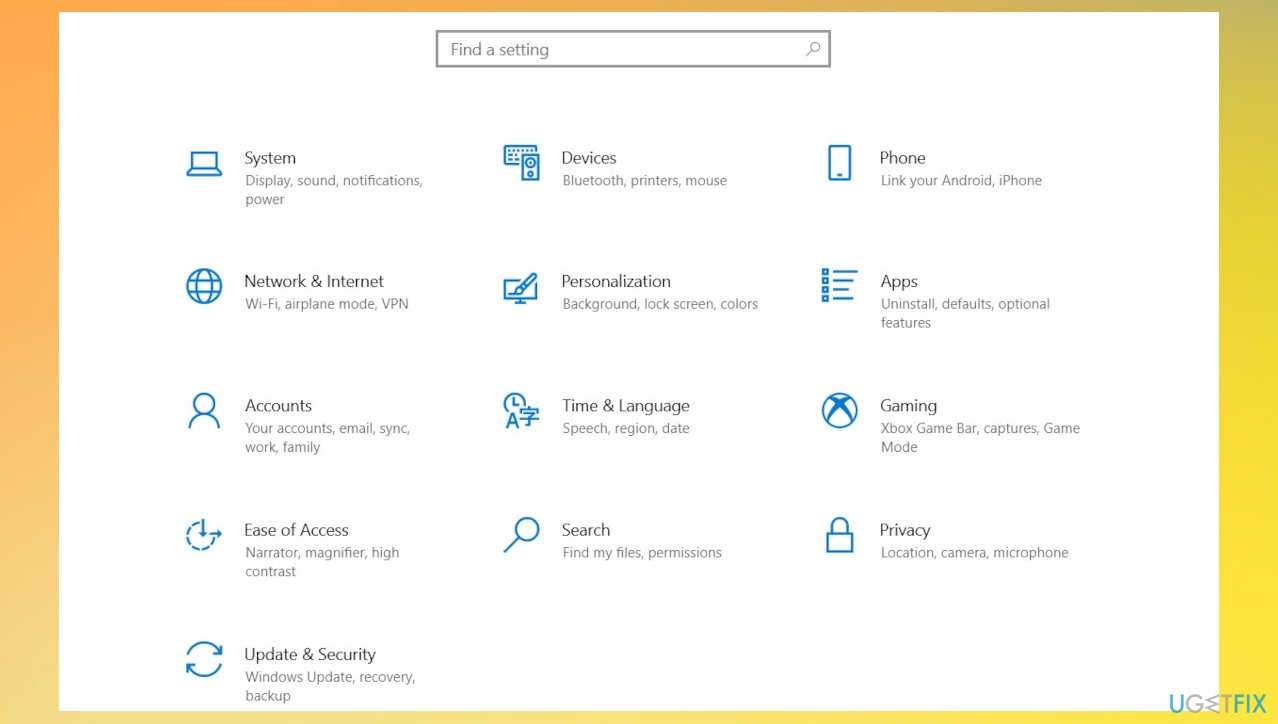
Windows update error 0x8007054f settings - Select Apps once the Settings window opens.
- Go to the right and click on Installed apps from the top.
- Find a third-party app. AV tools can be triggering issues.
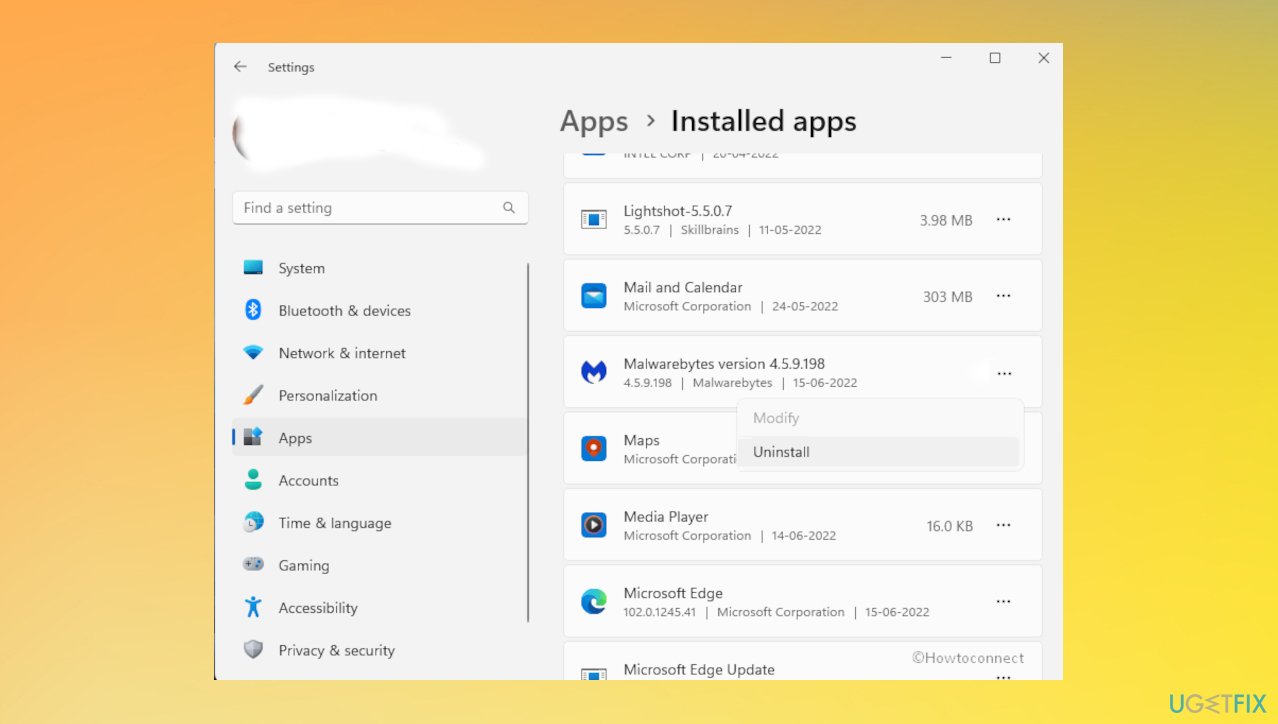
Windows update error 0x8007054f uninstall - Click on 3 dots and select Uninstall.
- Confirm by again clicking Uninstall.
- Click Yes on UAC prompt.
- Click Uninstall.
- Restart the computer and then try to install the update.
2. Reset Windows Update components
- Search for CMD in the bar at the bottom.
- Open Command Prompt as administrator.
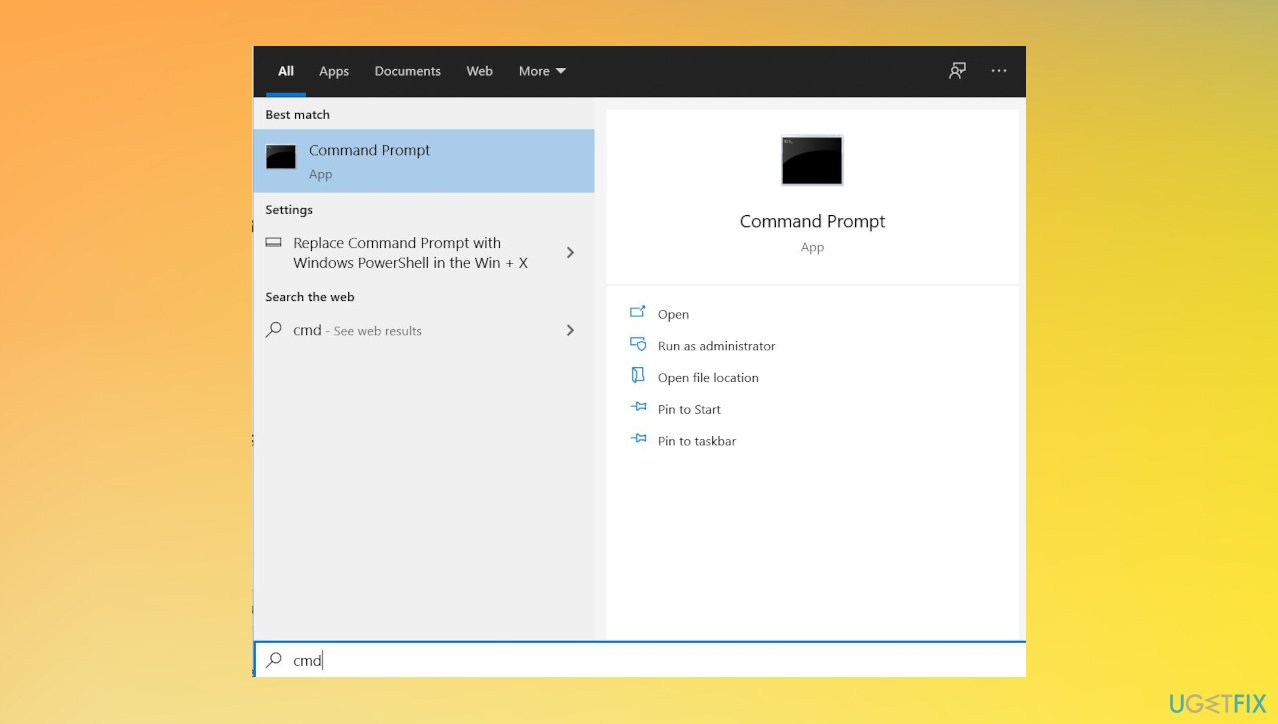
Windows update error 0x8007054f cmd - Copy and paste the following commands, pressing Enter after each:
net stop bits
net stop wuauserv
net stop appidsvc
net stop cryptsvc
Del “%ALLUSERSPROFILE%\Application Data\Microsoft\Network\Downloader\*.*”
rmdir %systemroot%\SoftwareDistribution /S /Q
rmdir %systemroot%\system32\catroot2 /S /Q
regsvr32.exe /s atl.dll
regsvr32.exe /s urlmon.dll
regsvr32.exe /s mshtml.dll
netsh winsock reset
netsh winsock reset proxy
net start bits
net start wuauserv
net start appidsvc
net start cryptsvc - Restart the PC.
3. Turn off BitLocker
Users report that this was helpful for their machines when the Windows update error 0x8007054F appeared. This setting keeps files and folders from unauthorized access by protecting the drive but can cause issues like this.
- Click on Start.
- Type bitlocker.
- Press Enter.
- Click the Turn off Bitlocker.
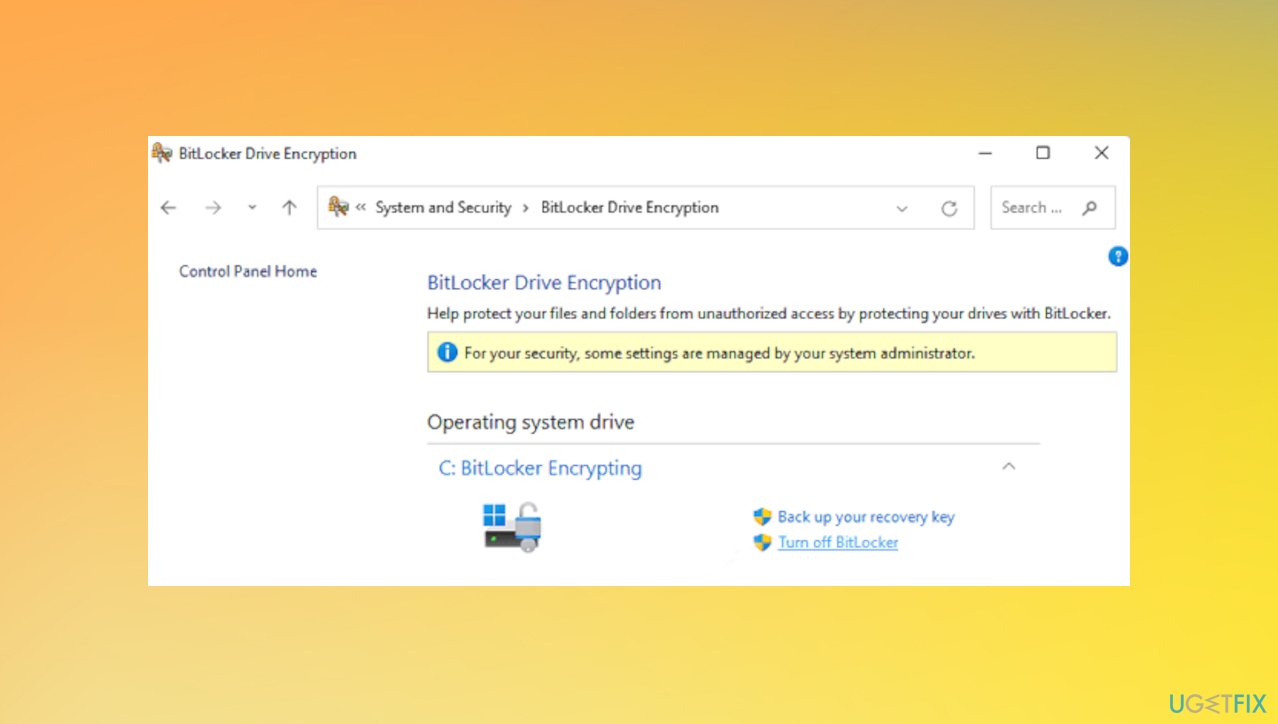
Windows update error 0x8007054f bitlocker - Now try to update.
4. Check for damaged files
- Click Start and type CMD.
- Right-click it and select Run as administrator.
- If you are prompted for the admin password, enter the password and click OK.
- A new black window will open.
- Type sfc/scannow and press Enter.
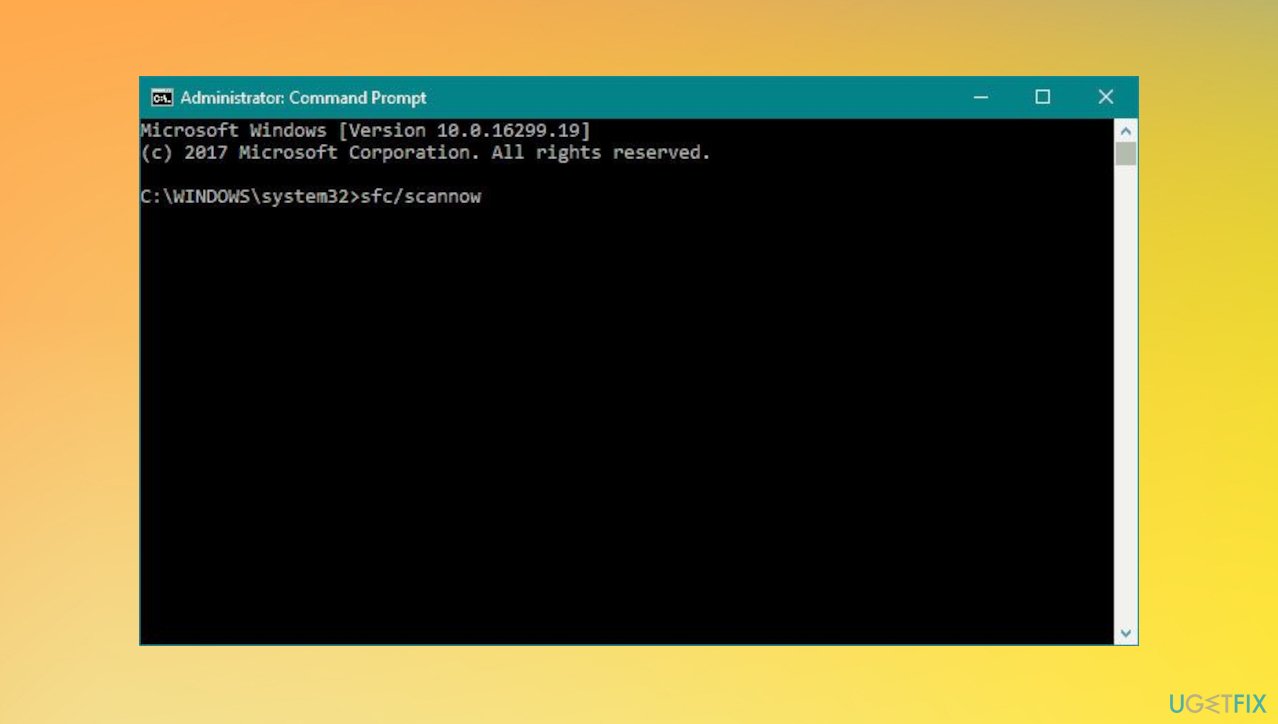
Windows update error 0x8007054f sfc - This process will take a long time.
- Restart after this.
Bottom line
To fix Windows update error 0x8007054F, you can uninstall problematic programs, particularly third-party security tools, and check for malware that may be affecting system files. If these solutions do not resolve the issue, consider running a system check for infections or damaged files.
Frequently asked questions
The error 0x8007054F typically indicates that there is a problem with the Windows Update service or that essential system files are corrupted on Windows 10 or Windows 11.
To resolve the 0x8007054F error on Windows 10, you can run the Windows Update Troubleshooter and reset the Windows Update components using command prompt commands.
Yes, in Windows 11, you can use commands like 'net stop wuauserv' and 'net start wuauserv' in an elevated command prompt to stop and restart the Windows Update service, which may help fix the error.




Report an issue
What's wrong with this guide? We review every report and update or remove content.
Report received — thank you. We'll review and fix it.
You need a free account to submit a report.
Be the first to comment