How to fix
Windows update error 0x80070645
on Windows
Resolve the Windows update error 0x80070645 quickly and effortlessly. Get expert-tested solutions to keep your system running smoothly. Fixed in minutes!

What causes How to fix Windows update error 0x80070645?
- Not all .NET Framework components are enabled
- Corrupted system files
- Problems with Windows Update components
- Conflicts with third-party software
- Incorrectly installed previous updates
Repairs Windows system files, removes malware, and restores a clean OS state — without reinstalling.
Hey. So recently Microsoft released its monthly updates and everything installed fine apart from .NET Framework update which got an error 0x80070645. How can I fix this?
0x80070645 is a Windows update error that some may encounter unexpectedly. The problem can arise either during the process of download or installation of the update, and also affect both manual and automatic update procedures. In most cases, the problem affects updates that are related to .NET Framework components.
As a result, those affected by the 0x80070645 error could be lacking critical component updates, which consequently might cause system instability, as well as make it prone to cyberattacks due to lack of patches for critical software vulnerabilities.
Since the 0x80070645 error usually affects .NET Framework updates, it is likely that the cause is related to it. For example, it might be that some of the elements are not enabled in Windows settings due to one reason or another; in such case, enabling them would remediate the problem.
However, it may also be caused by more broader issues, such as those related to corrupted system files, problems with Windows Update components, conflicts with third-party software (such as antivirus or VPN), incorrectly installed previous updates, and more. Regardless of the specific cause, the persistent error 0x80070645 disrupts the update process and often leaves users searching for a reliable fix.
Many people have expressed their frustration online as error 0x80070645 continues to impact their ability to keep their systems up to date. It is clear that resolving this error is essential for maintaining a stable and secure computing environment. This is why we provide a detailed guide on how to get rid of the error for good.
Before proceeding with extensive manual fixes, we recommend you try an all-in-one PC repair tool [d1] that can automatically diagnose and resolve the underlying issues causing error 0x80070645.

Fix 1. Enable .NET Framework components
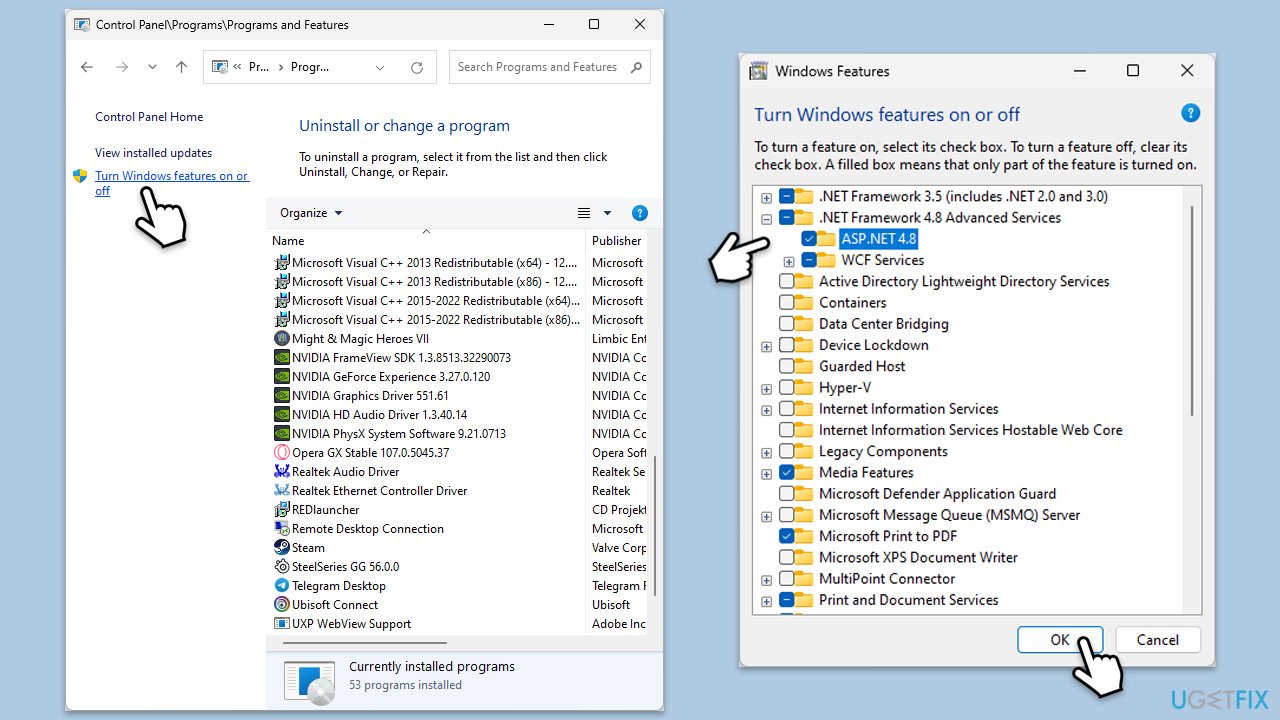
- Type Control Panel in Windows search and select Programs.
- Select Turn Windows features on or off.
- Enable .NET Framework 3.5 (includes .NET 2.0 and 3.0).
- Expand the section and mark all the associated checkboxes.
- Next, enable .NET Framework 4.8 Advanced Services .
- Expand the section and mark all the associated checkboxes, including ASP.NET 4.8.
- Click OK.
Fix 2. Repair .NET Framework components
- Open your browser and navigate to the official Microsoft website.
- Download Microsoft .NET Framework Repair Tool from the link provided and launch the installer.
- When the UAC window shows up, click Yes.
- Mark the I have read and accept the license terms and then click Next.
- Follow on-screen instructions to finalize the process.

Fix 3. Run the troubleshooter
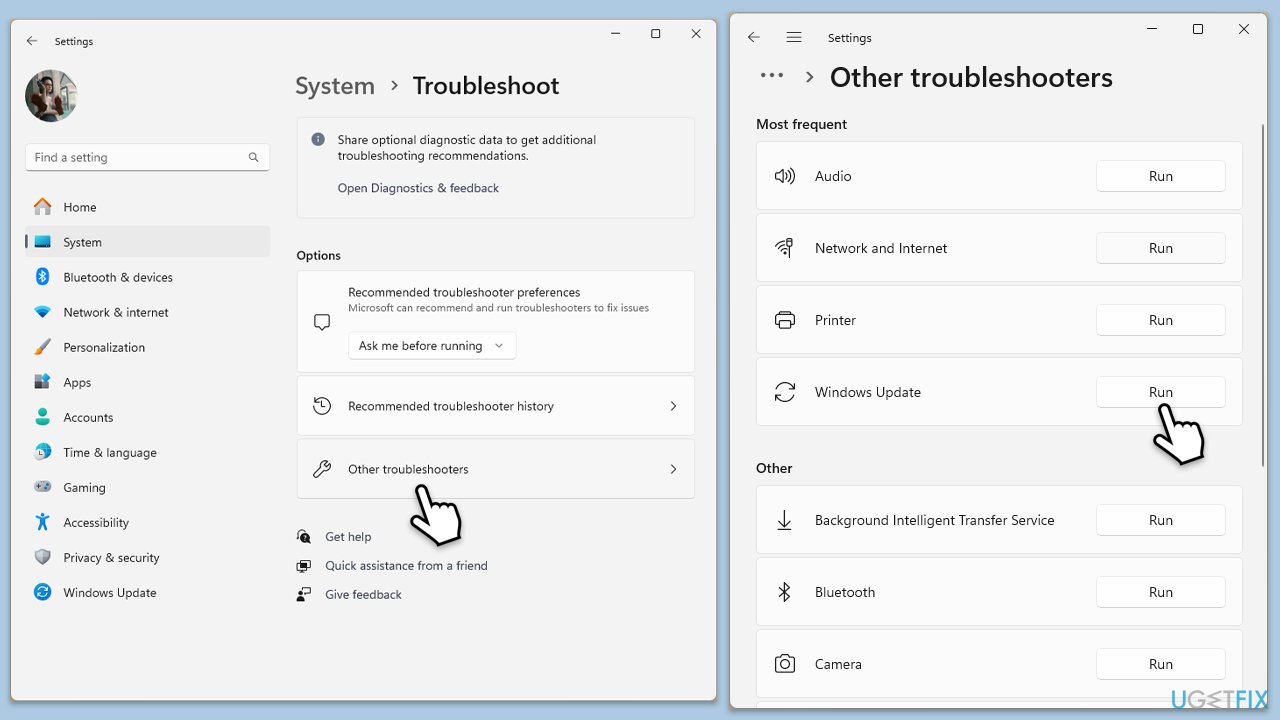
- Type Troubleshoot in Windows search and press Enter.
- Select Additional troubleshooters/Other troubleshooters.
- Find Windows Update from the list.
- Click it and select Run the troubleshooter/Run.
- Restart your computer when the update process is finished.
Fix 4. Repair corrupted files
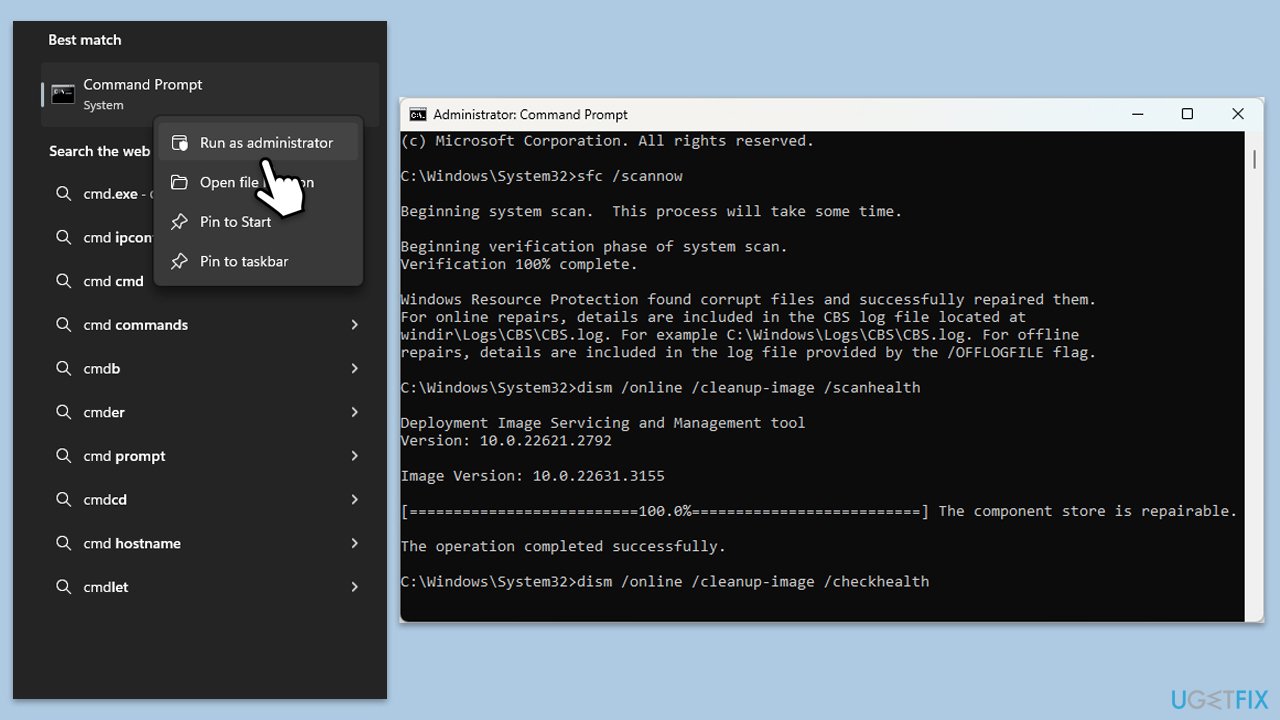
- Type cmd in Windows search.
- Right-click on Command Prompt and select Run as administrator.
- When User Account Control shows up, click Yes.
- In the Command Prompt window, paste the following command and press Enter:
sfc /scannow - Wait for the scan to complete.
- Once the SFC scan is finished, run the following set of DISM commands, pressing Enter after each one:
DISM /Online /Cleanup-Image /CheckHealth
DISM /Online /Cleanup-Image /ScanHealth
DISM /Online /Cleanup-Image /RestoreHealth
(Note: if you get an error executing this last command, add /Source:C:\RepairSource\Windows /LimitAccess to it and try again). - After completing the DISM commands, restart your system.
Fix 5. Reset Windows update components
- Open Command Prompt as administrator.
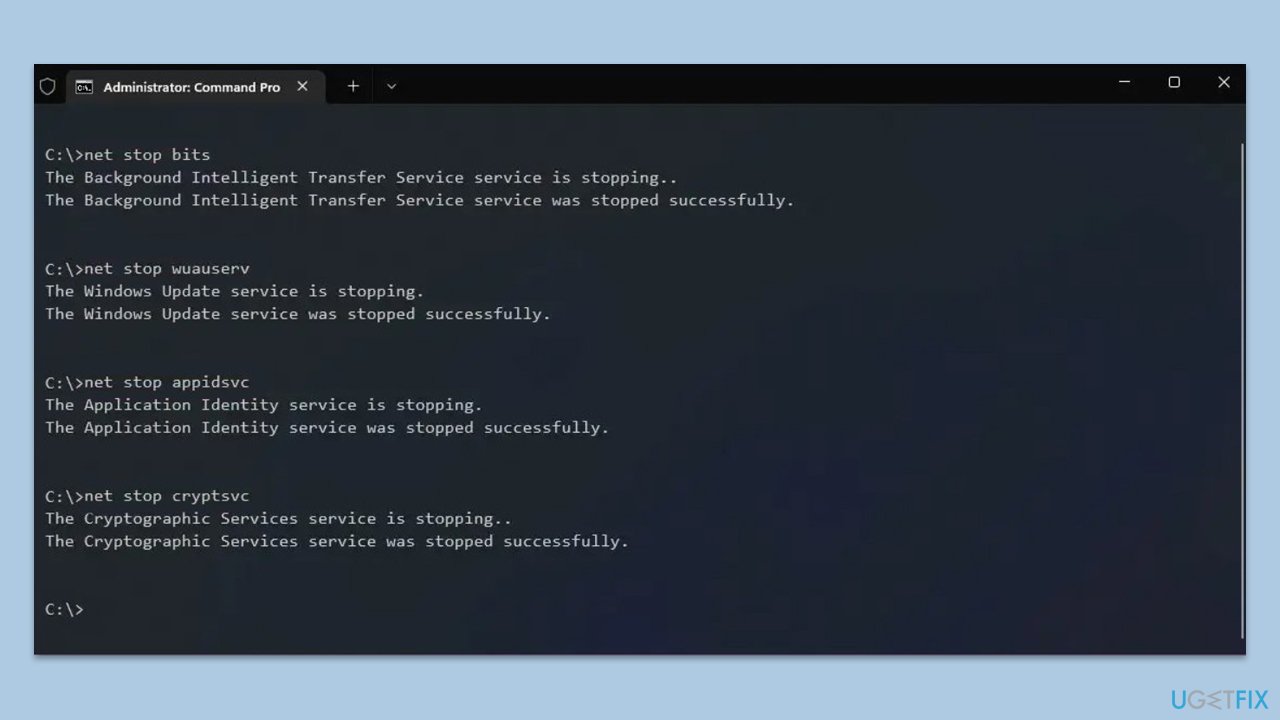
- Stop the Windows Update-related services by running the following commands one at a time, pressing Enter after each one:
net stop wuauserv
net stop cryptSvc
net stop bits
net stop msiserver - Rename the SoftwareDistribution and Catroot2 folders by running the following commands:
ren C:\Windows\SoftwareDistribution SoftwareDistribution.old
ren C:\Windows\System32\catroot2 Catroot2.old
Note: If your Windows installation is not on the C drive, replace "C" with the appropriate drive letter.
regsvr32.exe /s atl.dll
regsvr32.exe /s urlmon.dll
regsvr32.exe /s mshtml.dll
netsh winsock reset
netsh winsock reset proxy - Restart the Windows Update-related services by running the following commands:
net start wuauserv
net start cryptSvc
net start bits
net start msiserver - Restart the computer.
Fix 6. Perform Disk Cleanup
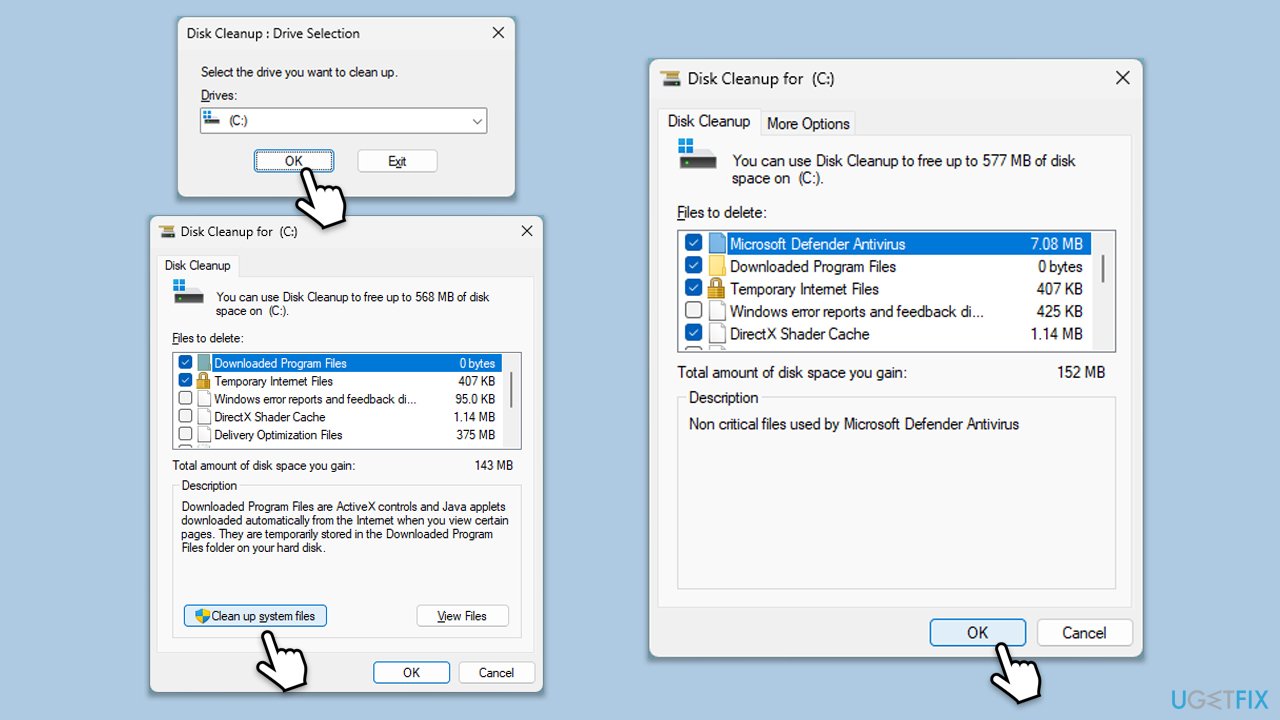
- Type Disk Cleanup in Windows search and hit Enter.
- If your Windows is installed on drive C, pick it from the list (it should be by default) and press OK.
- Click Clean up system files.
- Select your main disk again and click OK.
- Here, select the largest portions of the data used - these typically include Temporary Internet Files, Windows Update, Temporary Files, Recycle Bin, Delivery Optimization Files, and others.
- Click OK - the process should be finished shortly.
Fix 7. Install the update manually
- Type in Updates in Windows search and press Enter.
- Select View update history.
- Find the update that failed with the 0x80070645 error and copy its KB number.
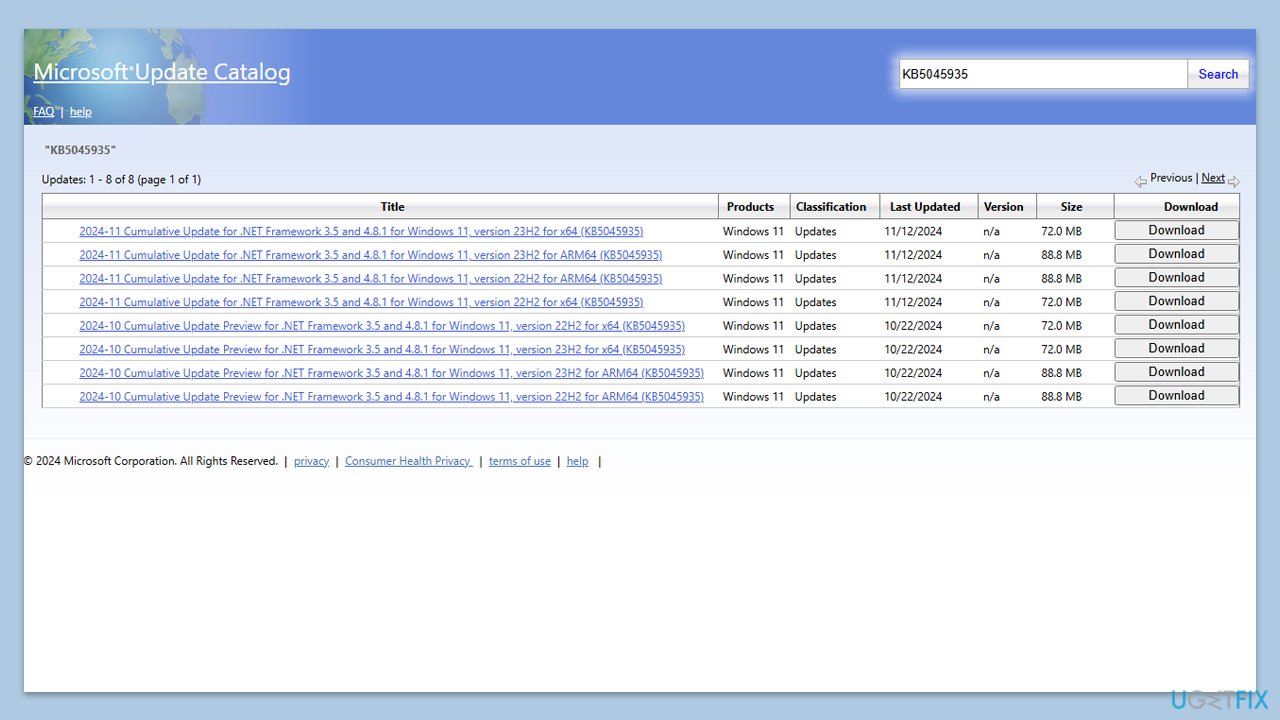
- Open your browser and go to Microsoft Update Catalog.
- Within the search bar, type in the KB number and clicks Search.
- Find the correct version of the update for your operating system (to check this, right-click on Start and pick System. Under Device specifications and check the System type) and click Download.
- Use on-screen guidelines to finish the installation process and restart your computer.
Bottom line
To fix the Windows update error 0x80070645, you can enable the necessary .NET Framework components and consider using a PC repair tool to diagnose and resolve underlying issues. If these solutions do not work, further manual troubleshooting may be required.
Frequently asked questions
Common causes include corrupted system files, issues with the Windows Update service, or conflicts with third-party software.
Go to Settings > Update & Security > Troubleshoot > Additional troubleshooters, then select Windows Update and click Run the troubleshooter.
Yes, resetting the Windows Update components can resolve the error by clearing any corrupt data and reinitializing the update process.




Report an issue
What's wrong with this guide? We review every report and update or remove content.
Report received — thank you. We'll review and fix it.
You need a free account to submit a report.
Be the first to comment