How to fix
Windows update error 0x80070658
on Windows
Fix Windows update error 0x80070658 quickly and efficiently with our expert-tested solutions and step-by-step guidance. Updated 2025 for your convenience.


What causes How to fix Windows update error 0x80070658?
- Corrupt system files
- Outdated configuration settings
- Conflicts with installed software
- Insufficient disk space
- Incorrect system configurations
Repairs Windows system files, removes malware, and restores a clean OS state — without reinstalling.
Hello, could you please help me with Windows update error 0x80070658? I keep trying to install the latest security update and I keep getting this error code.
Windows Update Error 0x80070658 is something you might experience while installing updates or upgrading your system. This error means that something went wrong during the update. This issue can be caused by system files being corrupt, outdated configuration settings, or conflicts with installed software that prevent the Windows Update service from applying new updates.
If this error occurs, it might block the installation of important updates, putting your system at security risk or causing compatibility problems. Corrupt update files, incomplete installations, or conflicts with third-party applications could be potential causes for error 0x80070658.
This generally happens if the system files or update components are not updated properly. Whenever you try to update and files are missing or corrupted, instead of successfully updating, Windows shows error 0x80070658.
Additionally, problems can also occur due to antivirus software or other security programs running on your device that may conflict with the updating process. Another possible cause is insufficient disk space or incorrect configurations.
There might not be enough space available for the update to be downloaded and installed, or system settings may have been misconfigured, leading to an error like 0x80070658. Addressing this requires a methodical approach to identify and resolve the root cause of this error.
You might need to take more complex steps, such as repairing corrupted files, restoring your computer to a previous point (if Windows Restore was enabled), or checking for active software conflicts causing permissions issues due to disk space limitations.
To resolve Windows update error 0x80070658 and other similar problems, use the [d1] restore tool. Built to diagnose and repair a variety of Windows update problems efficiently, this tool can help restore your computer's health.

Fix 1. Check update-related services
Restarting the Windows Update service can resolve issues by refreshing the update components and clearing temporary errors.
- Type in Services in Windows search and press Enter.
- Locate Background Intelligent Transfer Service (BITS).
- If it is already running, right-click and select Restart.
- if the service is not running, double-click it, select Automatic under the Startup type from the drop-down menu
- Click Start, Apply, and OK.
- Repeat the process with the Windows Update, Cryptographic, and Windows Installer services.

Fix 2. Run Windows Update troubleshooter
The built-in Windows Update Troubleshooter can automatically detect and fix common issues related to Windows updates.
- Type Troubleshoot in Windows search and hit Enter.
- Select Additional troubleshooters/Other troubleshooters.
- Find Windows Update from the list and select Run the troubleshooter/Run.
- Wait till the scan is finished - you will be provided with potential causes so you can proceed with fixes.
- If no suggestions were given, proceed with the solutions below.

Fix 3. Install the update manually
- Type in Update in Windows search and press Enter.
- Click View Update History on the right side of the window.
- From the list of updates, note the KB number of the one that failed to be installed.
- Go to Microsoft Update Catalog.
- Here, type in the KB number and click Search.
- Pick the version that is compatible with your operating system (ignore updates for the server) and click Download.
- Proceed with on-screen instructions and restart Windows once done.

Fix 4. Check disk space
Ensuring that there is sufficient disk space is crucial for the update process, as lack of space can cause errors.
- Type Disk Cleanup in Windows search and hit Enter.
- If your Windows is installed on drive C, pick it from the list (it should be by default) and press OK.
- Click Clean up system files.
- Select your main disk again and click OK.
- Here, select the largest portions of the data used - these typically include Temporary Internet Files, Windows Update, Temporary Files, Recycle Bin, Delivery Optimization Files, and others.
- Click OK - the process should be finished shortly.

Fix 5. Repair corrupted files
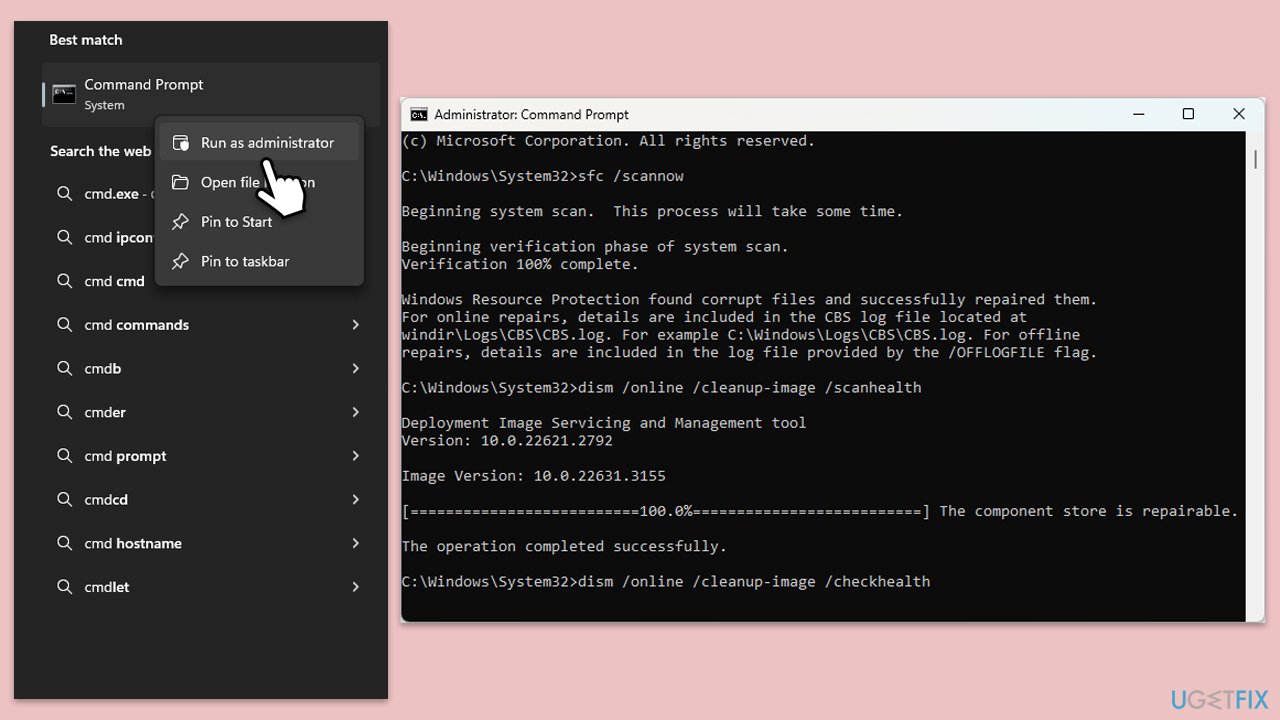
- Type cmd in Windows search.
- Right-click on Command Prompt and pick Run as administrator.
- User Account Control will ask you whether you want to allow changes – click Yes.
- Copy and paste this command and hit Enter:
sfc /scannow - Wait for the scan to finish.
- As soon as it finishes, Windows will report whether integrity violations were found and if they could be fixed. Regardless of the outcome, use these commands next, pressing Enter after each:
Dism /Online /Cleanup-Image /CheckHealth
Dism /Online /Cleanup-Image /ScanHealth
Dism /Online /Cleanup-Image /RestoreHealth - Close down the Command Prompt and restart your device.
Fix 6. Perform Clean Boot
Some third-party software can interfere with Windows updates.
- Type msconfig inWindows Search and press Enter to open the System Configuration window.
- Click on the Services tab and check the Hide all Microsoft Services box.
- Click Disable all to disable non-Microsoft services, then click the Startup tab.
- Open the Task Manager, disable all startup items, and close the Task Manager.
- Go to the Boot tab and mark the Safe boot option.
- Click OK on the System Configuration window and restart your computer.
- Try installing the update again.

Fix 7. Reset Windows update components
Resetting Windows Update components manually can fix various update-related problems.
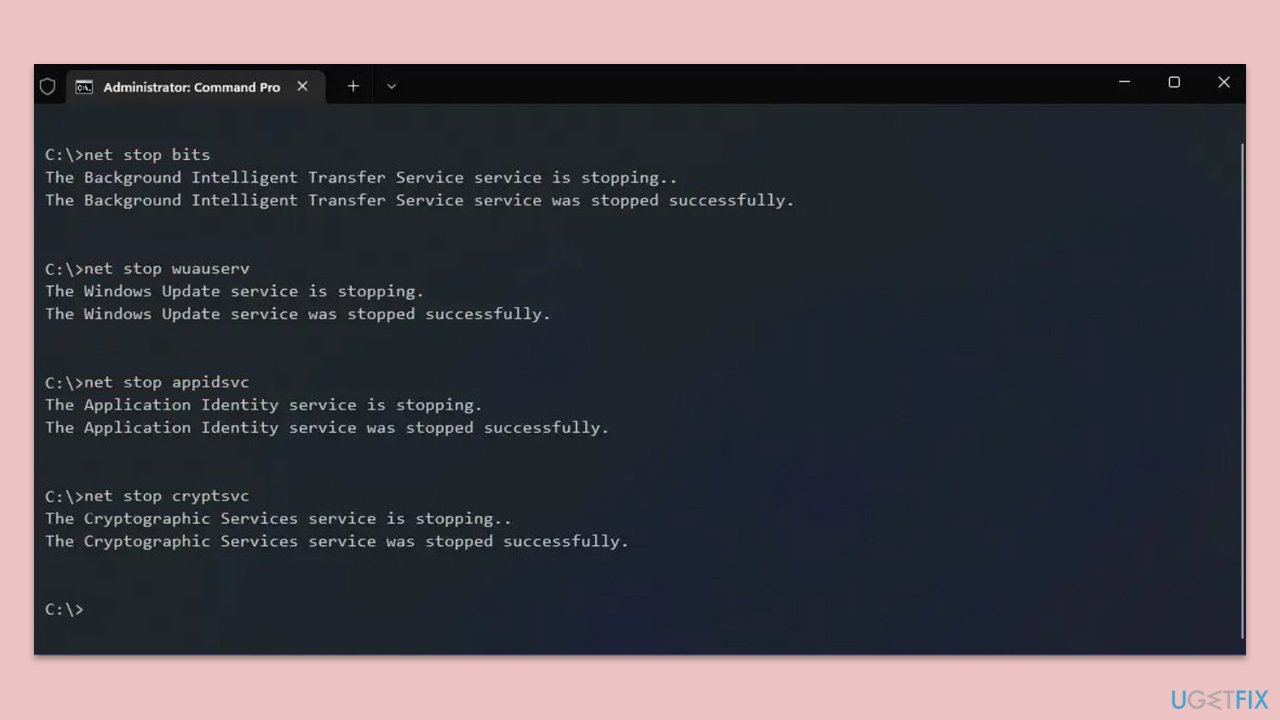
- Open Command Prompt as administrator.
- Type each of these command lines, pressing Enter every time (wait till the command is fully executed):
net stop bits
net stop wuauserv
net stop appidsvc
net stop cryptsvc
Del "%ALLUSERSPROFILE%\Application Data\Microsoft\Network\Downloader\*.*"
rmdir %systemroot%\SoftwareDistribution /S /Q
rmdir %systemroot%\system32\catroot2 /S /Q
regsvr32.exe /s atl.dll
regsvr32.exe /s urlmon.dll
regsvr32.exe /s mshtml.dll
netsh winsock reset
netsh winsock reset proxy
net start bits
net start wuauserv
net start appidsvc
net start cryptsvc - Restart your device and attempt to download the update once more.
Bottom line
To resolve Windows update error 0x80070658, you can check update-related services, repair corrupted files, restore your computer to a previous point, and check for software conflicts. If these steps do not work, consider using a dedicated restore tool to diagnose and repair the issue.
Frequently asked questions
The error 0x80070658 typically occurs due to corrupted system files, issues with Windows Update components, or conflicts with third-party software. Ensuring your system is free of malware and that all components are functioning properly can help resolve this issue.
To troubleshoot the error on Windows 11, you can run the Windows Update Troubleshooter and check for any pending updates. Additionally, resetting the Windows Update components manually may also help fix the problem.
Yes, using the DISM tool is safe and effective for repairing corrupted system files that may be causing the 0x80070658 error on Windows 10. Running 'DISM /Online /Cleanup-Image /RestoreHealth' can help restore your system's health.




Report an issue
What's wrong with this guide? We review every report and update or remove content.
Report received — thank you. We'll review and fix it.
You need a free account to submit a report.
Be the first to comment