How to fix
Windows update error 0x800713AB
on Windows
Resolve Windows update error 0x800713AB quickly and effectively with our expert-tested solutions. Fix your Windows 10 or 11 issues in minutes!

What causes How to fix Windows update error 0x800713AB?
- System Misconfigurations
- Corrupted Windows Files
- Microsoft Store Cache
- Background Services
Repairs Windows system files, removes malware, and restores a clean OS state — without reinstalling.
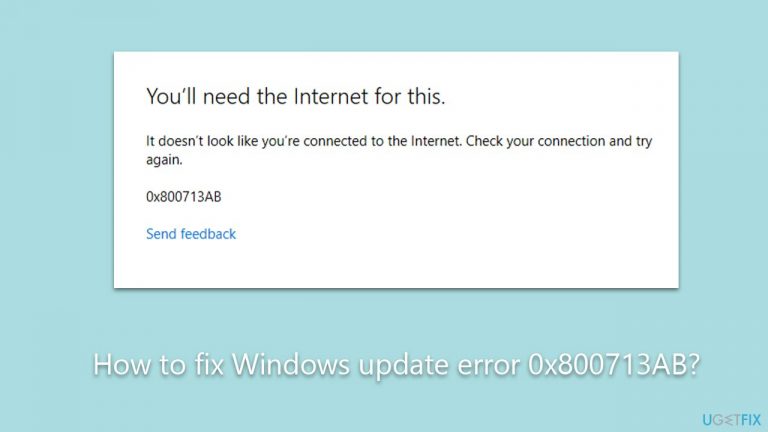
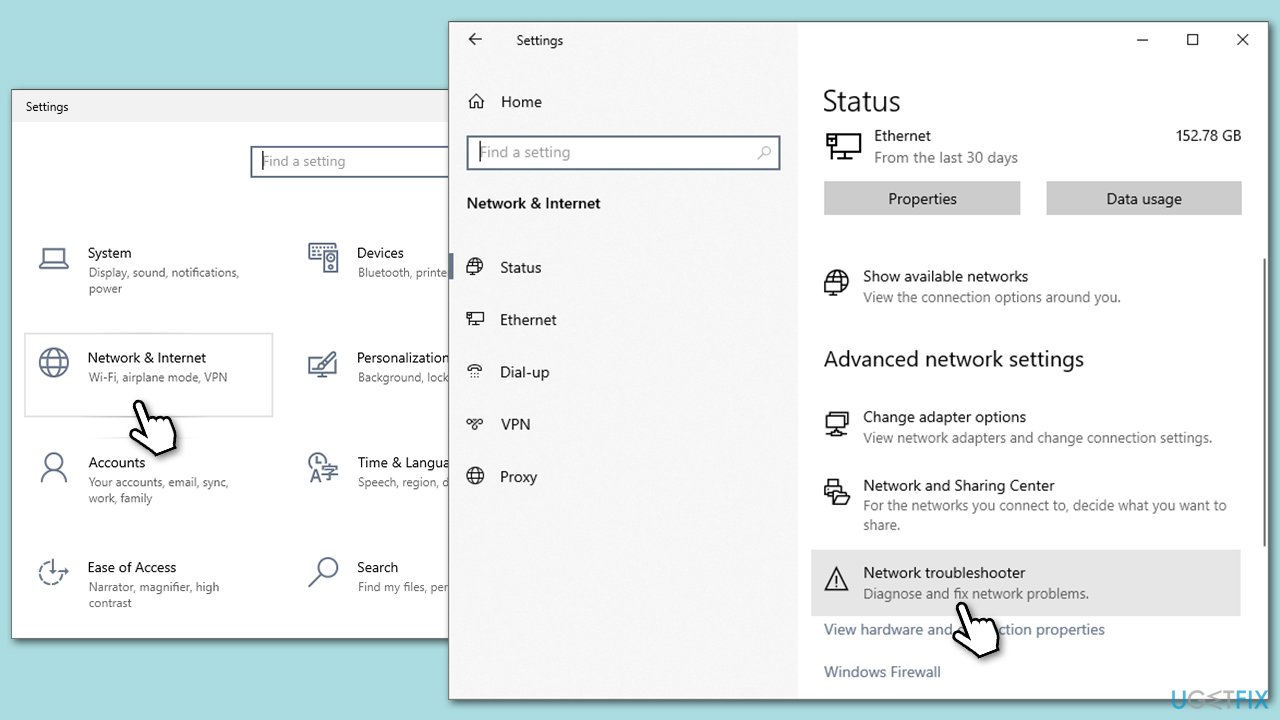
Hi, I have been having trouble with updating Windows, as I keep getting a 0x800713AB error when trying to do so. The error says, "You'll need the Internet for this," which is weird because the Internet is indeed working everywhere else. Any advice on how to deal with this?
0x800713AB error is a common issue that Windows users encounter when trying to update their operating system or utilize the Microsoft Store. Despite having a stable internet connection, the error message suggests otherwise, stating: "You'll need the Internet for this. It doesn't look like you're connected to the Internet. Check your connection and try again." This can be frustrating for users as their browsers and other internet-reliant applications continue to function without issue.
There are several underlying causes for 0x800713AB error, some of which are linked to system misconfigurations, corrupted Windows files, or issues related to the Microsoft Store cache.
- System Misconfigurations: Incorrect network settings or Firewall rules can interfere with the system's ability to connect to Microsoft's servers, triggering the 0x800713AB error.
- Corrupted Windows Files: The essential system files required for updates and the Microsoft Store could be corrupted, causing this error to appear.
- Microsoft Store Cache: Sometimes, the cache of the Microsoft Store itself may be corrupt or outdated. When this occurs, the application fails to connect to the internet.
- Background Services: Background services that are not properly configured or that clash with Microsoft's servers could also be the root of the problem. These services run silently and may disrupt the connection to Microsoft's update servers without affecting other applications.
The solutions for the 0x800713AB error may range from simple fixes like restarting your computer or router to more advanced methods such as manually updating network drivers or resetting Microsoft Store's cache. Furthermore, adjusting firewall rules and verifying background services may also resolve the issue.
For those who seek a quick and effective way to resolve this and other Windows-related issues, using a [d1] PC repair tool is a highly recommended solution.
Fix 1. Run Network troubleshooter
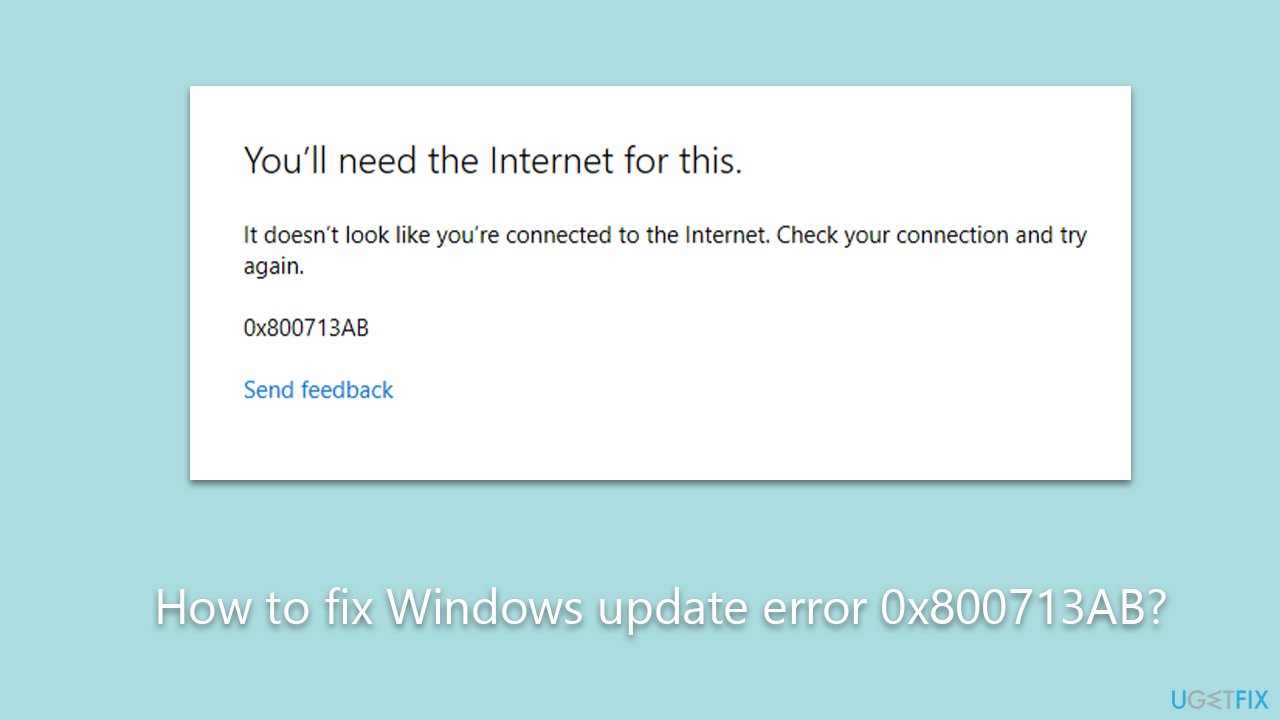
The Network troubleshooter is a built-in diagnostic tool in Windows designed to automatically identify and fix networking and internet issues. It is a straightforward way to detect any glitches affecting your connection to Microsoft's servers.
- Right-click on Start and pick Settings.
- Go to Network & Internet section.
- On the right side, find the Advanced network settings section.
- Click Network troubleshooter and wait.
- The fixes should be automatically applied.
Fix 2. Reset your internet connection
Resetting your internet connection can refresh your IP settings and solve temporary network glitches, which could be causing the error.
- Type cmd in Windows search, right-click on Command Prompt, and select Run as administrator
- When the new window opens, copy and paste the following commands, pressing Enter after each:
ipconfig /flushdns
ipconfig /registerdns
ipconfig /release
ipconfig /renew
netsh winsock reset - Close down the Command Prompt and check if the problem is resolved.

Fix 3. Enable or restart relevant services
Certain Windows services are crucial for updating your system and connecting to the Microsoft Store. If these are disabled, you may encounter issues.
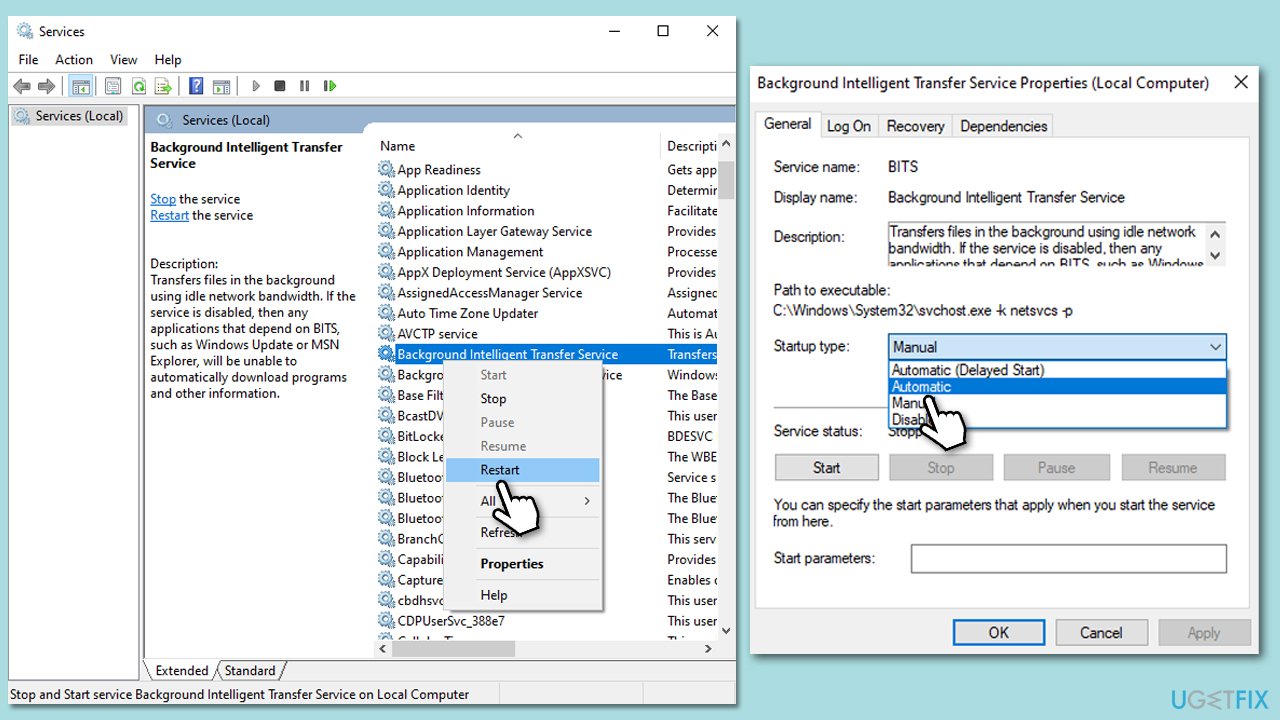
- Type in Services in Windows search and press Enter.
- Find Background Intelligent Transfer Service (BITS).
- If it is already running, right-click and pick Restart.
- If the service is not running, double-click it, and select Automatic under the Startup type from the drop-down menu.
- Click Start, Apply, and OK.
- Repeat this process for Windows Update and Cryptographic services.
Fix 4. Update network drivers
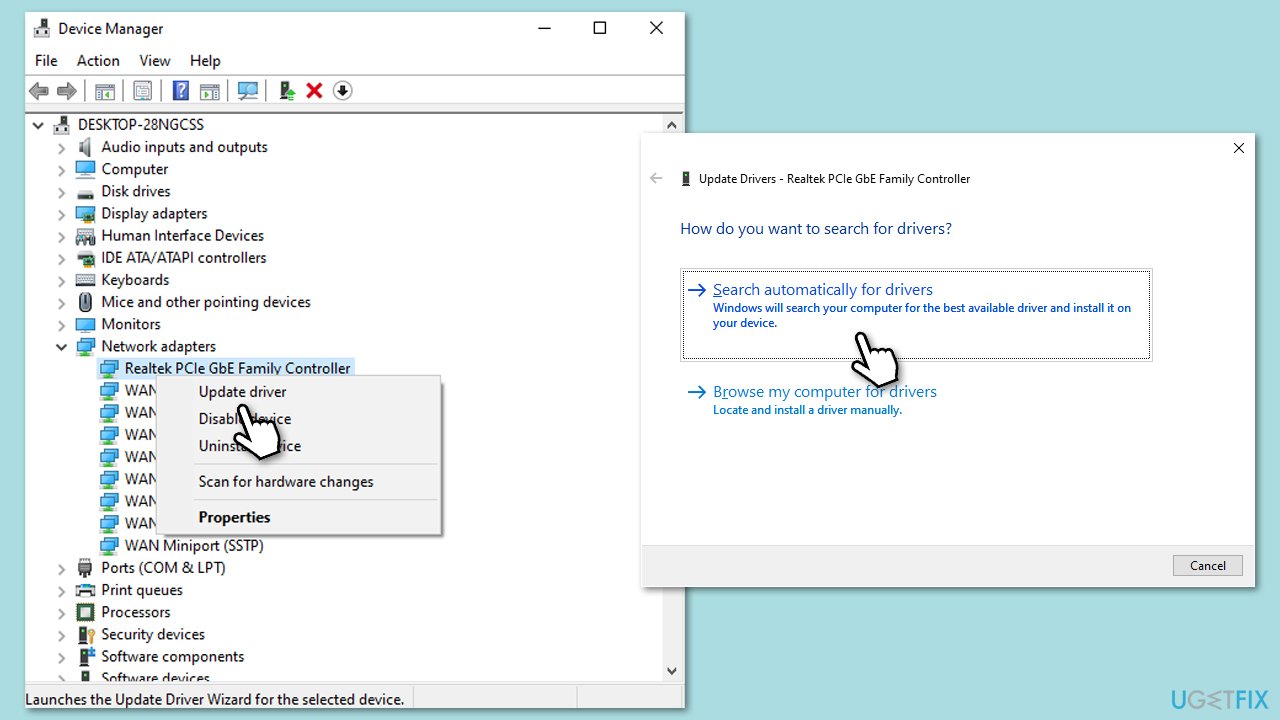
Outdated or corrupted network drivers could be causing connectivity issues. There are several ways you can update your network drivers: visiting your device manufacturer's website, employing an automatic updater such as [rev id="DriverFix"], or using built-in Device Manager in Windows:
- Type Device Manager in Windows search and press Enter.
- Locate and expand the Network adapters section.
- Right-click on your WiFi adapter and select Update driver.
- Pick Search automatically for drivers and wait.
- Follow the on-screen instructions to complete the update.
Fix 5. Clear Microsoft Store cache
A corrupted or outdated store cache could prevent Microsoft Store from connecting to the internet.
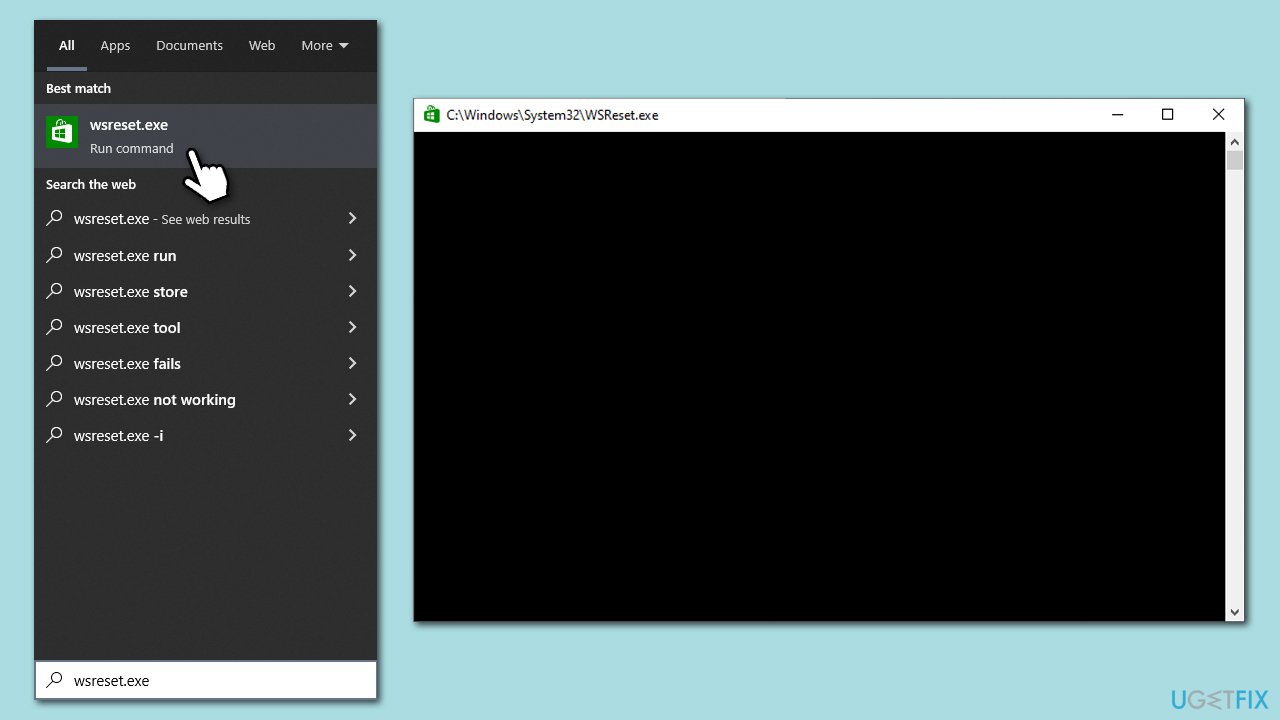
- In Windows search, type wsreset and press Enter.
- Wait till a black window shows up - do not close it.
- As soon as it closes, the store should be reset and will reopen.
- Try updating again.
Fix 6. Restart the router or modem
Sometimes, the router or modem may need a refresh to fix network-related issues affecting specific applications.
- Unplug your router or modem.
- Wait for 30 seconds.
- Plug it back in and wait for it to restart completely.
Fix 7. Repair or reset the Microsoft Store
Repairing or resetting the Microsoft Store can resolve issues with corrupt application data.
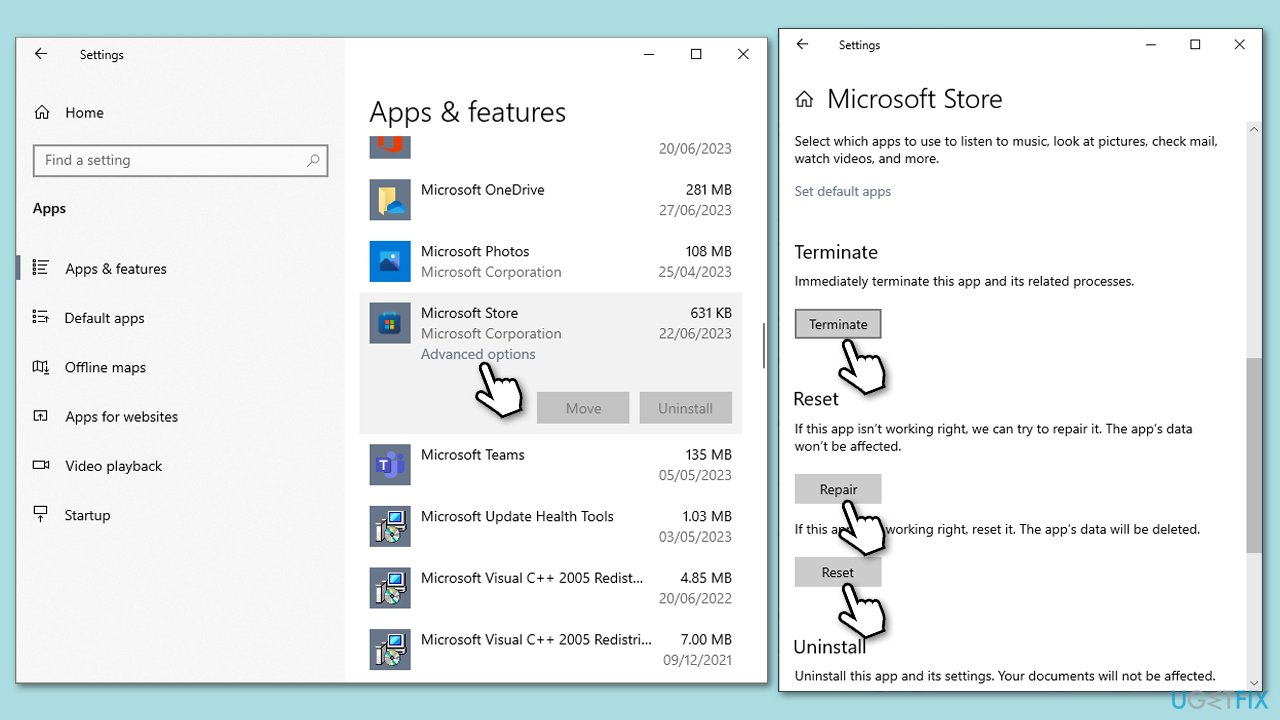
- Right-click on Start and select Apps & Features.
- Scroll down to find Microsoft Store and click Advanced options.
- Scroll down again and click Terminate and Repair.
- If that does not work, try using Reset.
Fix 8. Re-register the Microsoft Store app
Re-registering the app reinstalls Microsoft Store and resets its settings, which could fix the issue.
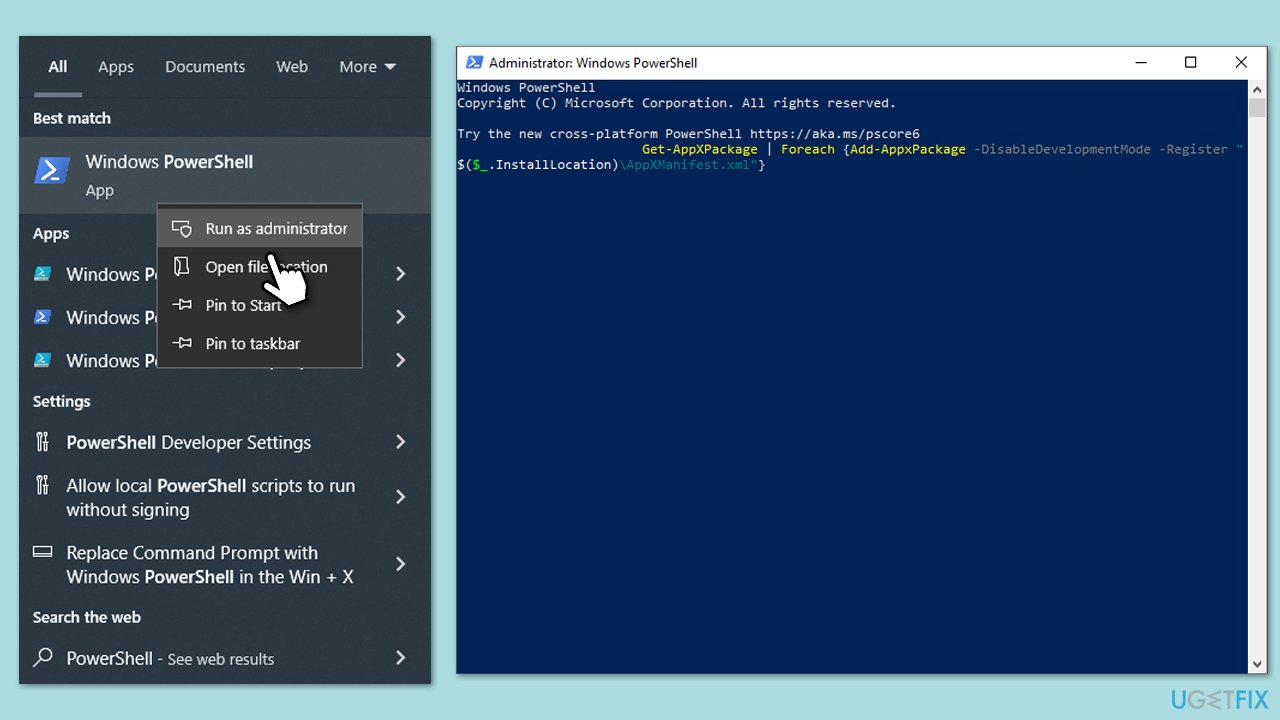
- Type PowerShell in Windows search.
- Right-click on the result and select Run as administrator.
- When UAC shows up, click Yes.
- Copy and paste the following command, pressing Enter after each:
Get-AppXPackage | Foreach {Add-AppxPackage -DisableDevelopmentMode -Register "$($_.InstallLocation)\AppXManifest.xml"} - Close down PowerShell and restart your computer.
Fix 9. Use Media Creation Tool
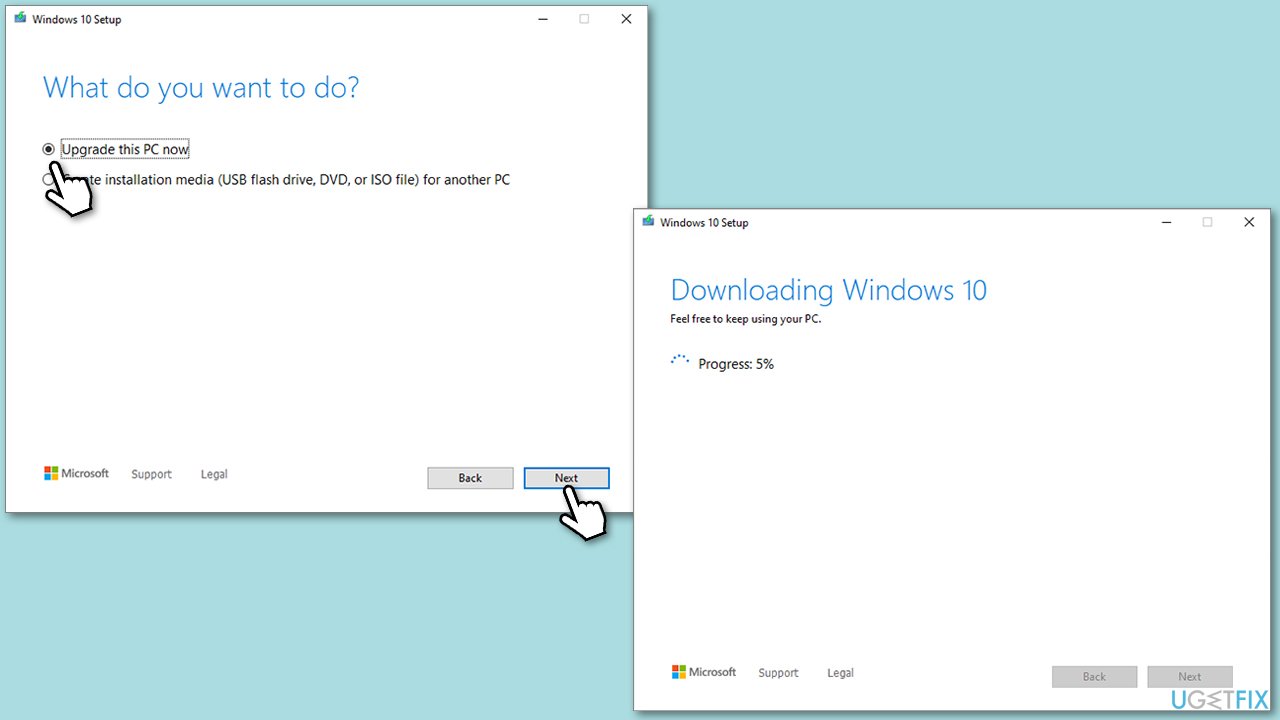
Using Microsoft's Media Creation Tool allows you to upgrade your system manually, bypassing the need for Microsoft Store for updates.
- Visit the official Microsoft website and download Windows 10 installation media (Windows 11 version).
- Double-click the installer, select Yes when UAC shows up, and agree to the terms.
- Select Upgrade this PC now and click Next.
- Windows will start downloading the needed files.
- Agree to the terms once again and click Next.
- Before installing, make sure that you are happy with your choices (otherwise, you can click Change what to keep option).
- Finally, click Install to begin the upgrade process.
Bottom line
To fix the 0x800713AB error, you can try running the Network troubleshooter, restarting your computer or router, manually updating network drivers, or resetting the Microsoft Store's cache. Additionally, adjusting firewall rules and verifying background services may help resolve the issue. If none of these solutions work, consider using a PC repair tool for further assistance.
Frequently asked questions
This error typically occurs due to issues with the Windows Update service, corrupted system files, or network connectivity problems.
You can try resetting the Windows Update components, running the Windows Update troubleshooter, or performing a system file check using the Command Prompt.
To reduce the chances of encountering this error, ensure that your system is regularly updated, and consider checking for malware or system file corruption periodically.




Report an issue
What's wrong with this guide? We review every report and update or remove content.
Report received — thank you. We'll review and fix it.
You need a free account to submit a report.
Be the first to comment